
AI INSPIRATION & EDITING
P-Image Examples & AI Image Editing
Found an AI image you love? Keep creating from it.
Explore visual examples created with P-Image, then use our online AI Photo Editor to make changes to images you own. Upload an image, describe your edit, and see the result without starting your creative process from scratch.
Upload your image, enter an editing instruction, and review the result before downloading.
AI Image Editor
Free WorkspaceUpload an image, describe the desired transformation, and generate instantly online.
Quick Edit
ActiveFast previews for simple edits.
Click to browse or drop an image
PNG, JPG, or WebP up to 10 MB
Only edit photos you own or have permission to use. Face swapping and impersonating other people are not allowed.
Edited Result
Live Demo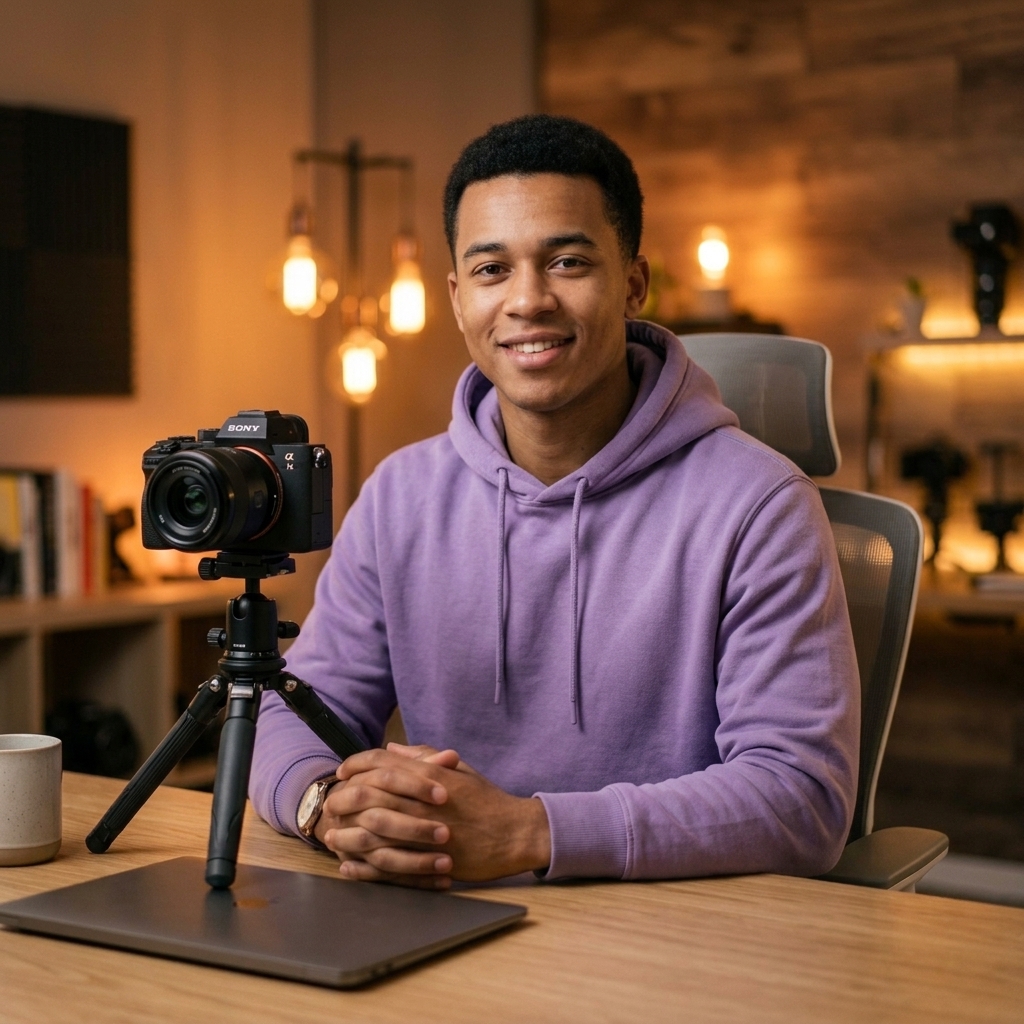
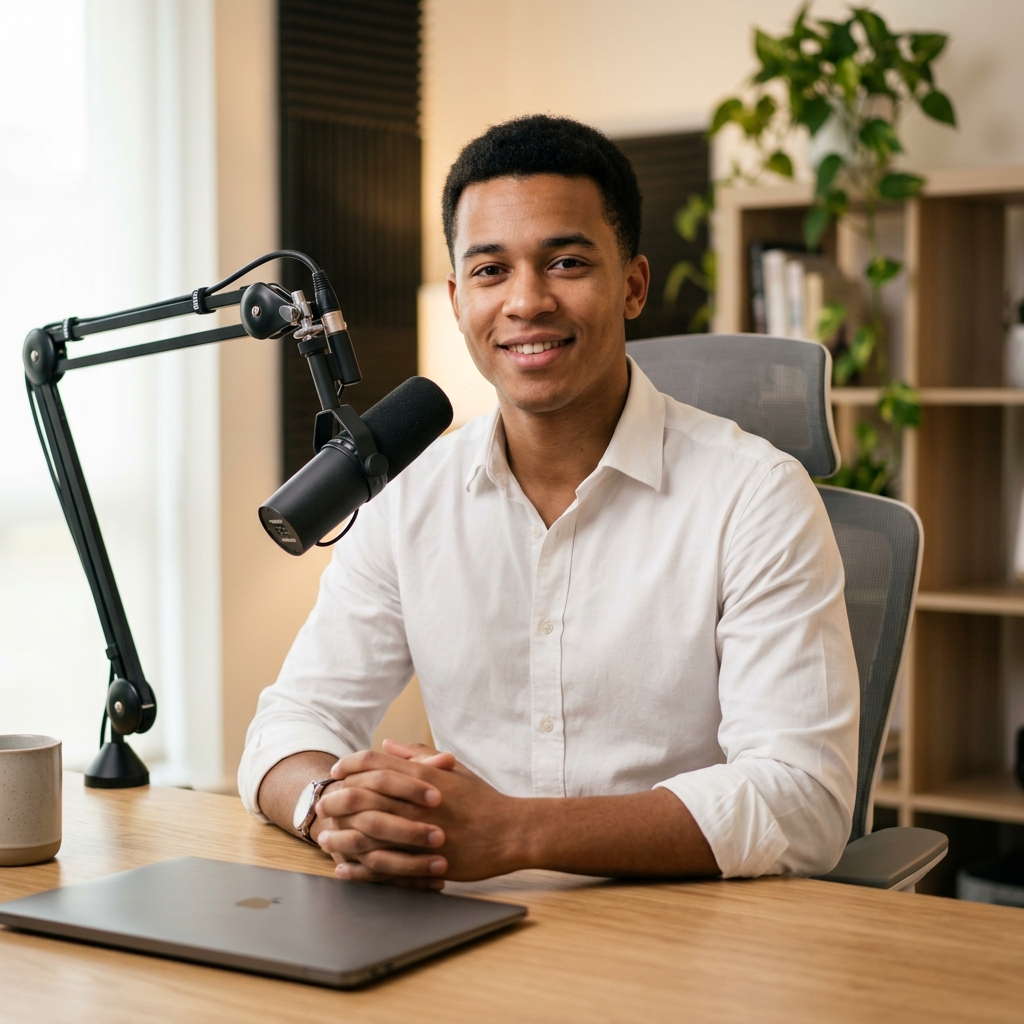
Real-time AI Image Transformation
Upload any photo and describe what to change — change outfits, modify backgrounds, adjust lighting, or edit details naturally.
Your Recent Results
Select an image to preview, download, or use it as your next input.
No results yet. Your completed edits will appear here.
Edit an image above to start building your gallery.
Limited free editing may be available to eligible signed-in users. Daily usage limits and availability apply.
P-Image is a text-to-image generation model. The editor on this page uses Image to Layers' existing photo-editing workflow and is not an official P-Image inference interface.
VISUAL INSPIRATION
Explore What P-Image Can Create
From product scenes to cinematic compositions, these saved examples show different creative directions. If you already have an image in a similar style, upload it to the editor above and try your own changes.
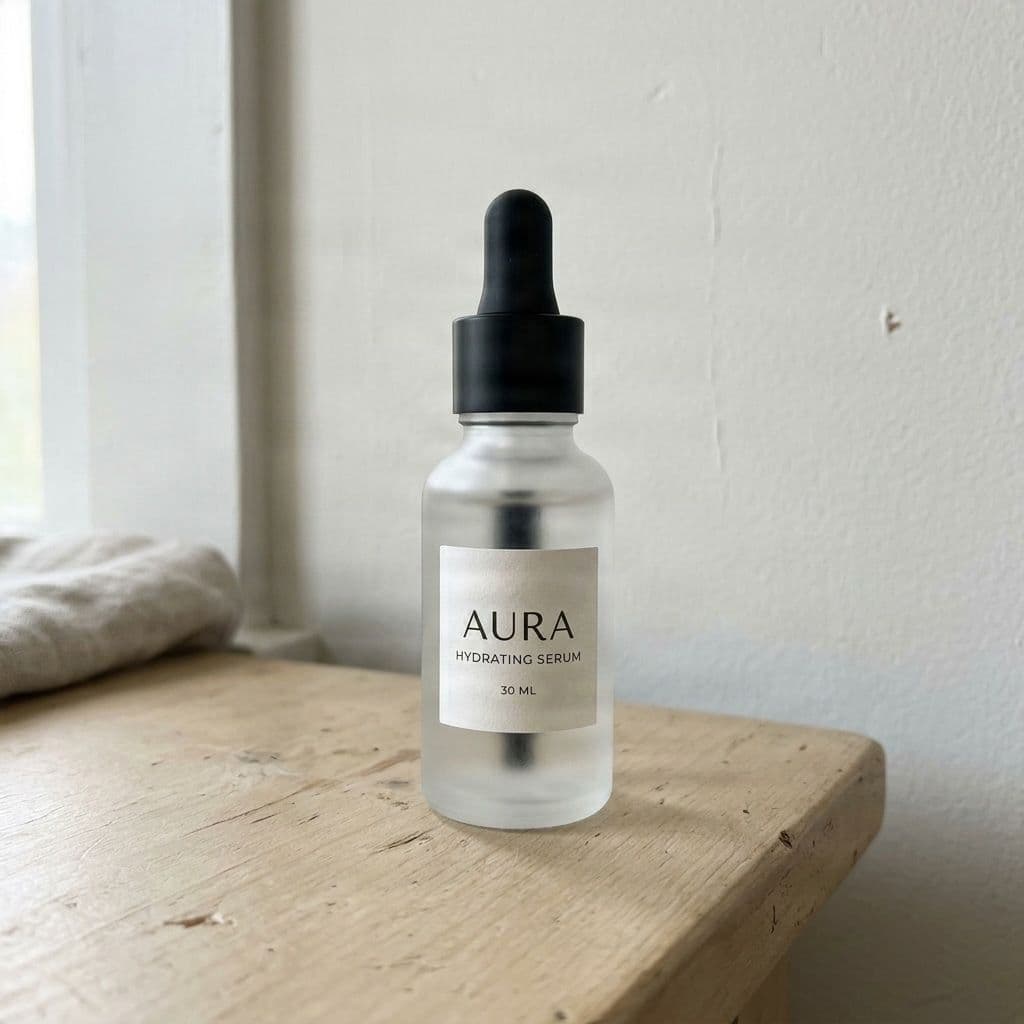
Start from an Image You Already Like
A clean product portrait gives you a useful starting point for testing new settings, lighting, or presentation styles.
P-Image example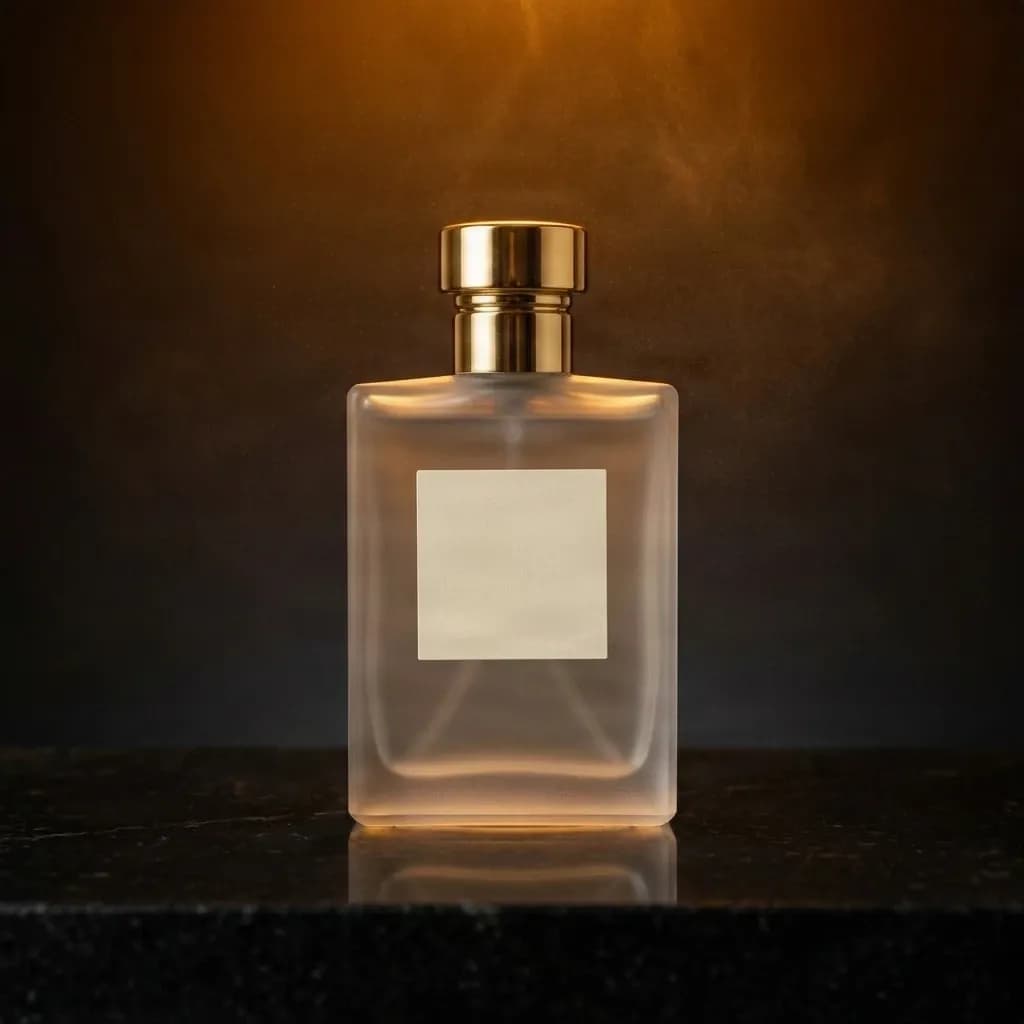
Explore a New Visual Mood
Change the atmosphere around a subject while checking that its shape, label, and important details remain recognizable.
P-Image example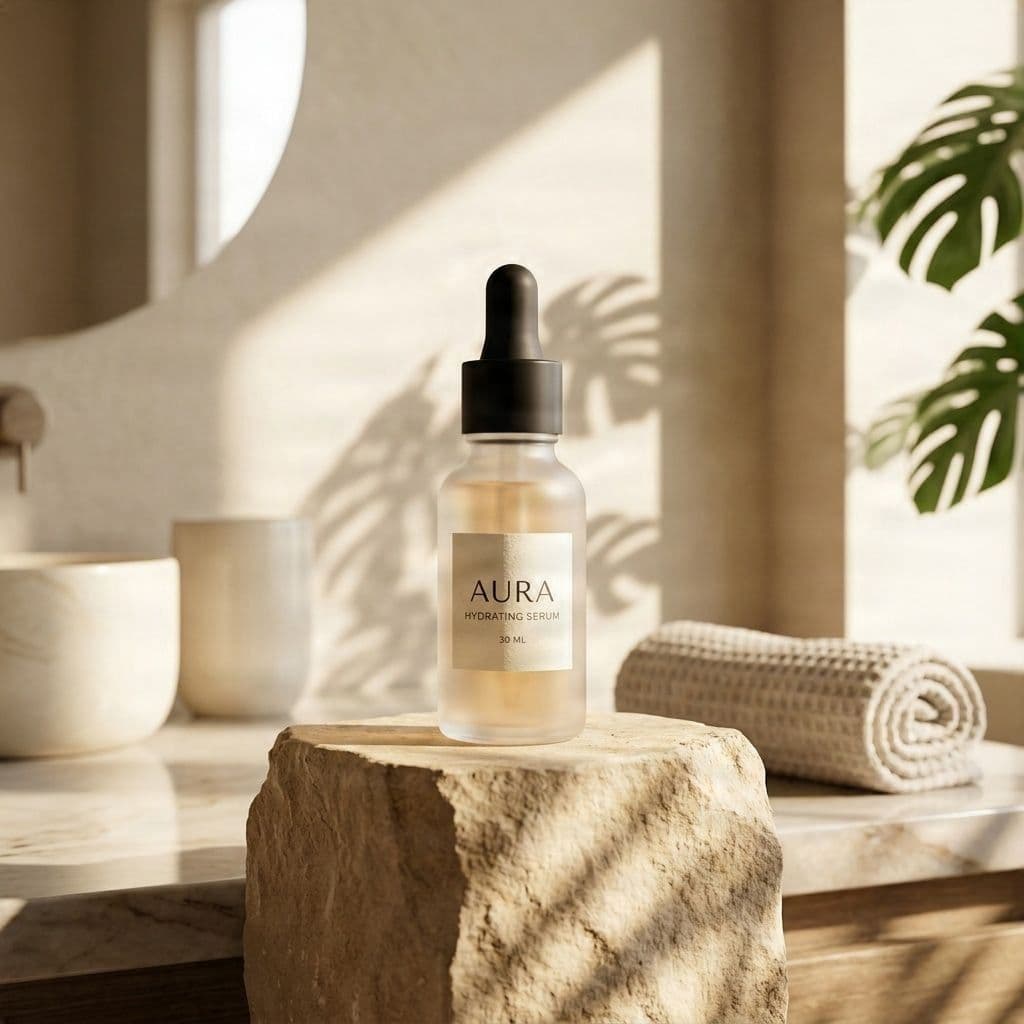
Try a Different Environment
A brighter lifestyle setting can turn the same product idea into a calmer editorial or social content direction.
P-Image example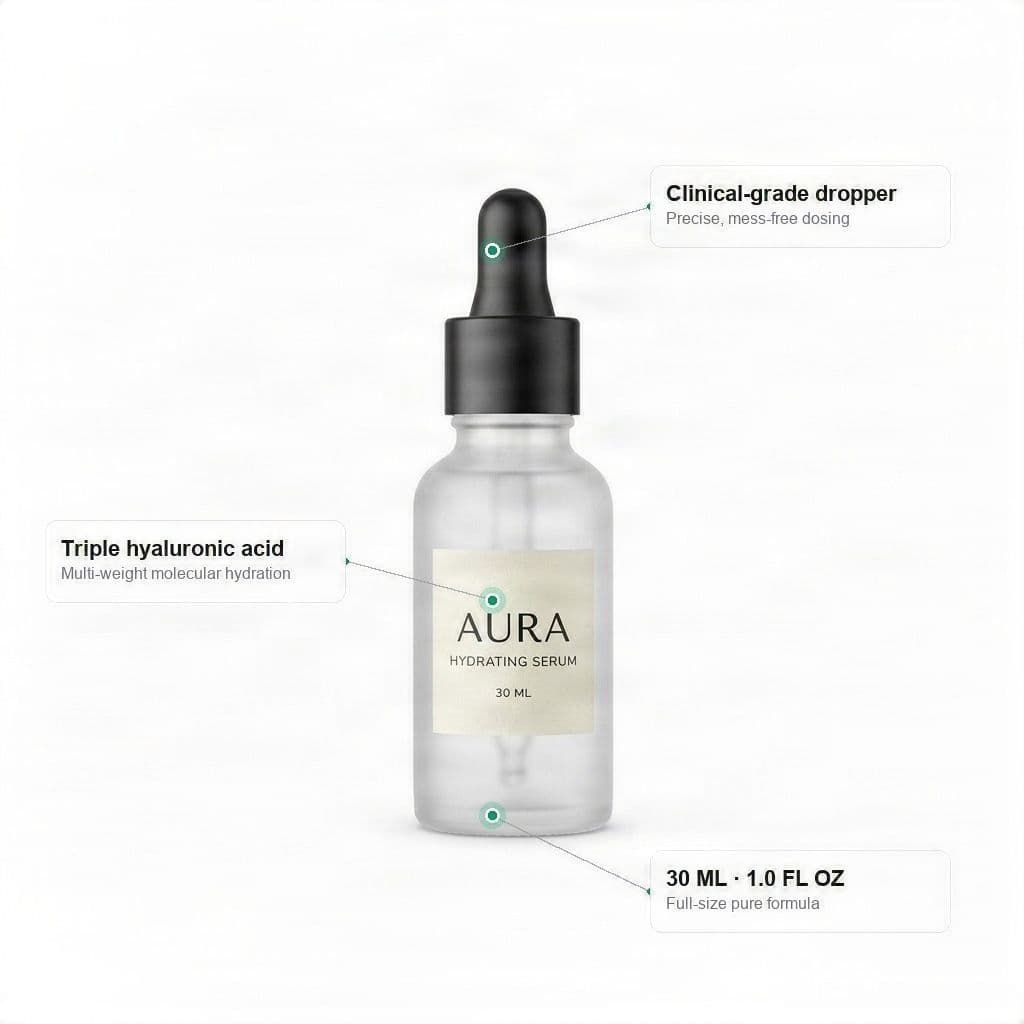
Prepare a Product Visual
Annotated product imagery can help you explore how a feature-led visual might support a listing or campaign concept.
P-Image exampleThese gallery images are presented as creative examples, not as before-and-after results produced by the editor on this page.
KEEP WHAT WORKS
You Don't Need to Start Over for Every Change
Sometimes an image is almost perfect. Use the editor to explore a focused change instead of rebuilding the entire picture.
Change the Background
Describe a new location or atmosphere, from a sunny garden to a softly lit interior, while asking the subject to remain recognizable.
Adjust Colors and Lighting
Explore warmer lighting, cooler tones, a different time of day, or a new visual mood without rewriting every scene detail.
Add or Remove Details
Request a small decorative element or removal of an unwanted object. Use selected-area editing for more targeted adjustments.
Explore Different Art Styles
Try a more illustrative, painterly, or cinematic interpretation, then compare the result with the source because textures may change.
Refine a Character Scene
Change the surrounding scene while asking the character to stay recognizable. Check the face, clothing, proportions, and accessories carefully.
Prepare Your Next Project
Use an edited image as starting material for personal artwork, online posts, moodboards, storytelling, or other creative projects.
SIMPLE CREATIVE WORKFLOW
From Your Existing Image to a New Version
01
Upload an Image
Choose an image you own or have permission to edit. It can be a generated illustration, portrait, concept image, or another supported picture.
02
Describe the Change
Write a short, clear instruction. For example: Change the background to a warm sunset garden. Keep the main character and outfit recognizable.
03
Choose How Much to Change
Use whole-image transformation for a broader variation, or select the area-editing mode and mark the region you want to modify.
04
Review the Result
Compare the edited image with your source. Check whether important details remained recognizable and whether the requested change looks natural.
05
Download or Continue Editing
Download a version you like, or make another adjustment using the available editing workflow.
NEED SOME IDEAS?
Try These AI Photo Editing Prompts
Begin with a clear action and identify the details you want to keep. One or two defined changes at a time usually make review easier.
Change the Setting
“Replace the background with a cozy library filled with warm natural light. Keep the subject recognizable.”
Adjust the Lighting
“Change the lighting to a soft golden-hour look while keeping the overall composition similar.”
Refine an Illustration
“Give this illustration softer watercolor textures. Keep the main subject, pose, and arrangement recognizable.”
Remove a Distraction
“Remove the unwanted object from the selected area and reconstruct a natural-looking background.”
Add a Small Detail
“Add a small potted plant beside the chair, matching the scene's lighting and perspective.”
Explore a Different Mood
“Give this scene a peaceful nighttime atmosphere with subtle moonlight and soft shadows.”
If preserving a particular detail matters, mention it explicitly—but remember that AI edits may still alter nearby features.
UNDERSTAND THE DIFFERENCE
Creating an Image and Editing One Are Different Tasks
P-Image is designed to generate images from text descriptions. Photo editing starts with an image you already have and asks for a change to that image.
| Task | P-Image Generation | Our AI Photo Editor |
|---|---|---|
| Start from a text description | Yes | No, an existing image is required |
| Start from an uploaded image | Not the core P-Image workflow | Yes |
| Change an existing background | Requires a separate editing workflow | Supported through editing instructions |
| Edit a selected area | Not a P-Image generation feature | Available in the editor |
| Explore a new visual style | Generate a new image | Transform an existing image |
| Download an image | Through the generation service | Through this editor |
You can use an image created with P-Image as input to this editor, provided you have the appropriate rights to use it. The two experiences complement each other, but they are not the same underlying model.
WHAT WILL YOU CREATE?
One Image Can Lead to Many Possibilities
For Digital Artists
Refine concept images, try new atmospheres, and experiment with alternative visual treatments before continuing your artwork.
For Story Creators
Explore different settings for a character or illustrated scene without describing every detail again.
For Social Content Creators
Try different lighting, backgrounds, and visual themes for posts, thumbnails, and personal creative content.
For Photography Enthusiasts
Experiment with visual moods, background changes, and scene enhancements on images you have permission to edit.
For Hobby Game Creators
Explore characters and environments, then inspect the results before using them in a larger game project.
For Personal Design Projects
Try a different color palette, decorative element, or composition without rebuilding everything manually.
AI Editing Is Flexible, but Every Result Needs a Look
GET BETTER RESULTS
- Details may change. Even when you ask to preserve an image, an edit may alter clothing, patterns, faces, lettering, or nearby features.
- Complex edits can be harder. Reflective surfaces, intricate artwork, small lettering, hands, and overlapping objects may require extra care.
- Text is not always exact. AI-rendered lettering can contain spelling or formatting errors, so review important words before use.
- Source quality matters. A clear image generally makes it easier to identify the elements you want to change.
- The editor does not restore original design layers. Editing a JPG or PNG is not the same as recovering the original Photoshop document.
- Usage limits apply. Free editing availability and daily limits depend on the current tool rules shown in the workspace.
Go Beyond a Single Edited Image
WANT MORE CONTROL?
Use AI Photo Editor when you want to change the appearance of an image. Explore Image to Layers when you want to move the subject, rearrange objects, hide individual elements, or work with multiple layers.
Frequently Asked Questions
What is P-Image?
P-Image is a text-to-image AI model that generates images from written descriptions. It can be used to explore artistic styles, subjects, compositions, and visual themes.
Is this the official P-Image generator?
No. This is an independent Image to Layers page featuring information and examples about P-Image alongside our existing AI Photo Editor. The editing workspace is not the official P-Image generator.
Does the editor on this page use P-Image?
No. The workspace uses Image to Layers' existing image-editing workflow, which may use different models. P-Image examples should not be taken as a promise of identical editing results.
Can I upload a picture made with P-Image?
Yes. If you saved an image created with P-Image and have permission to edit it, you can upload it to our editor like another supported image.
Can I generate an image from text alone here?
The existing editor requires an image as its starting point. P-Image supports text-to-image generation, but direct P-Image generation is not provided through this page's current editing workspace.
Can I change the background of an AI-generated image?
You can describe the background change you want and review the result. If preserving the subject is important, state that in your instruction and inspect the output for unintended differences.
Can I edit only one part of an image?
Yes. The photo editor offers a selected-area editing workflow. Mark the region you want to change and describe the desired result, while remembering that changes may extend around the selected area.
Can I remove an unwanted object?
You can use selected-area editing to request that an unwanted element be removed and its surrounding background reconstructed. Complex textures or overlapping objects may not be repaired perfectly.
Can I change an image's art style?
Yes. You can request an illustration, watercolor, cinematic, or another visual treatment. Stronger style transformations may change small details in the original image.
Can I keep the same character while changing the scene?
You can ask to preserve the character's recognizable appearance, but exact consistency is not guaranteed. Check the face, proportions, clothing, and accessories after every important edit.
Can I fix text inside an AI-generated image?
You can request changes to visible text, but image-editing models may introduce new spelling or typography problems. For precise wording and editable fonts, a dedicated text-layer editor is a better choice.
Is the AI Photo Editor free?
The existing free-tools workspace offers limited daily usage to eligible signed-in users, subject to shared limits and service availability. It is not an unlimited free-generation service.
Do I need to install Photoshop?
No. The editor works in a supported web browser. You can upload an image, describe an edit, review the result, and download it without opening Photoshop.
Can I download my edited image?
Yes. When your edit finishes successfully, use the editor's available download controls to save the result.
Can I export an editable PSD file?
This AI Photo Editor primarily produces a completed edited image rather than a reconstructed Photoshop project. For layer separation and supported PSD workflows, visit Image to Layers.
Why does an AI edit sometimes change details I did not mention?
Generative image editing may reconstruct parts of a picture rather than changing only the intended pixels. Use a specific instruction and selected-area editing when appropriate, then compare the output carefully.
Can I use an edited image for a commercial project?
That depends on your rights to the source image, the applicable generation or editing service terms, and any third-party rights in the content. You are responsible for checking permissions before commercial use.
Are the P-Image showcase examples created by Image to Layers?
The gallery is presented as a set of creative examples and is not represented as before-and-after output from this page's editor. Do not treat the examples as a guarantee of matching editing results.
Give Your Favorite Image Another Possibility
Already have an image you like? Upload it, describe the change you want, and explore a new version. Review the available editing options and usage limits before you generate.
Edit My Image