
Landscape to layers
Turn a flat landscape into editable depth layers
Separate landscapes, environment art, and scenic images into reusable foreground, midground, background, and sky layers — so you can animate depth, edit individual regions, or rebuild the scene without starting over.
Made for parallax animation, game backgrounds, interactive web scenes, and environment editing.
Click or drag image to upload
Click or drag image to upload
JPG, PNG, or WebP · Maximum 10 MB
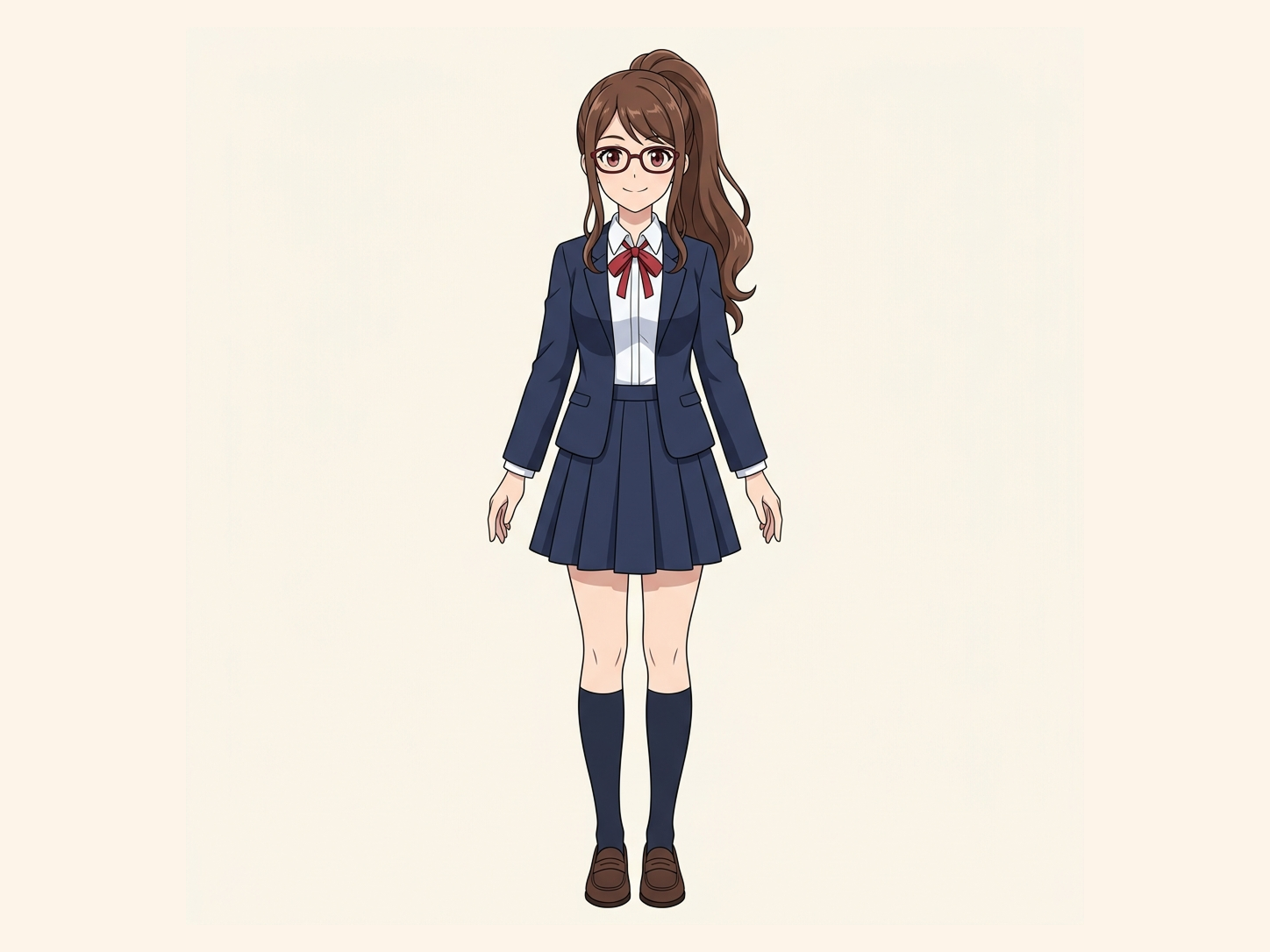
Need hair, face, eyes, mouth, clothing, or body-part layers?
Settings
Leave this blank to let Detailed Layers identify the main editable elements automatically. Or name the parts you want separated.
Want more control over your layers?
Learn how to guide Detailed Layers with simple prompts, choose useful elements, and get cleaner layer structures from different types of images.
Upload an Image to Continue
Private File Handling
Uploaded files are associated with your account and delivered through signed URLs. You can delete completed jobs manually.
Transparent PNG Output
Detailed Layers returns each detected element as its own layer on a transparent background.
From one image to a workable scene
Edit the landscape instead of editing around it
A finished landscape may look complete, but it is difficult to work with once the sky, mountains, buildings, water, trees, and foreground have all been flattened into one image. Landscape to Layers separates the scene into useful visual regions so you can move, hide, replace, recolor, animate, or export them independently.
One source image. Multiple editable scene layers.
One landscape, six editable parts
A flat scene becomes a reusable environment
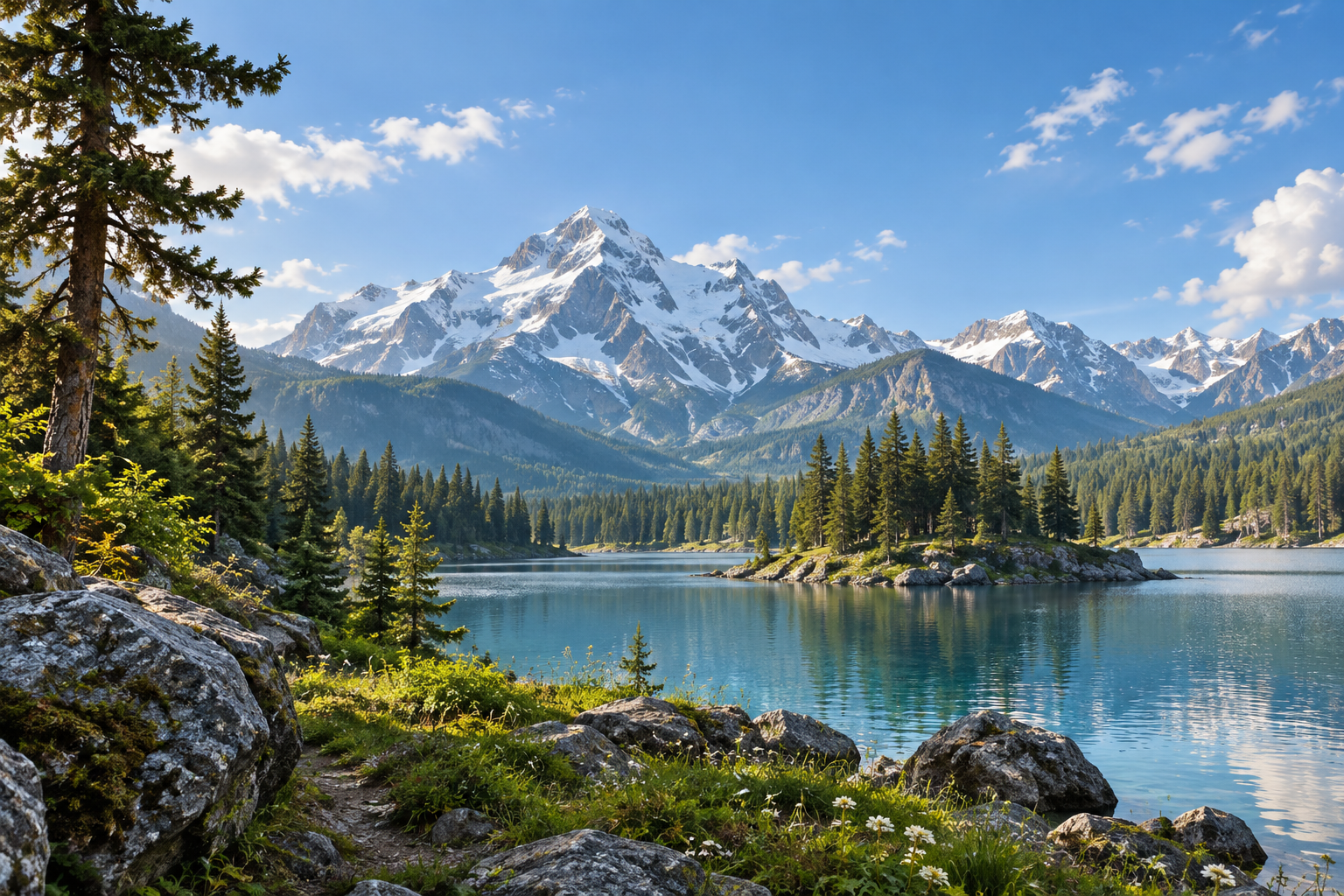
Original scene
Every image is different. Landscape to Layers builds the layer structure around the content it finds rather than forcing every scene into the same template.
See the scene structure
What can become a landscape layer?
Sky & atmosphere
Separate open sky, clouds, haze, distant light, or other large atmospheric regions.
Distant landscape
Keep mountains, far skylines, distant terrain, and horizon elements behind the rest of the scene.
Midground
Separate forests, buildings, hills, shorelines, roads, or other central scene regions.
Foreground
Isolate nearby trees, rocks, plants, framing objects, and terrain for stronger depth movement.
Independent scene elements
Detailed Layers can also separate useful individual objects when keeping them independent makes the scene easier to edit.
Choose the right level of detail
Simple depth or finer scene control?
Core Layers
Best for: parallax and simple scene editing
- Separates the main depth regions
- Foreground, midground, background
- A smaller, cleaner layer stack
Detailed Layers
Best for: detailed environment editing
- Separates more independent objects and regions
- Mountains, trees, buildings, water, props
- Layer count varies with the image, up to 17
Want the scene easy to animate? Choose Core Layers. Want more parts editable independently? Choose Detailed Layers.
More layers are not automatically better. A four-layer scene can be ideal for a clean parallax animation, while a more complex environment may benefit from individual trees, buildings, terrain regions, or foreground objects.
Make depth visible
Turn one still image into a parallax-ready scene
Once near and far parts of the landscape are separated, they can move at different speeds to create the feeling of camera depth. Foreground elements move more noticeably while distant mountains and sky move less, creating a 2.5D effect from one flat image.
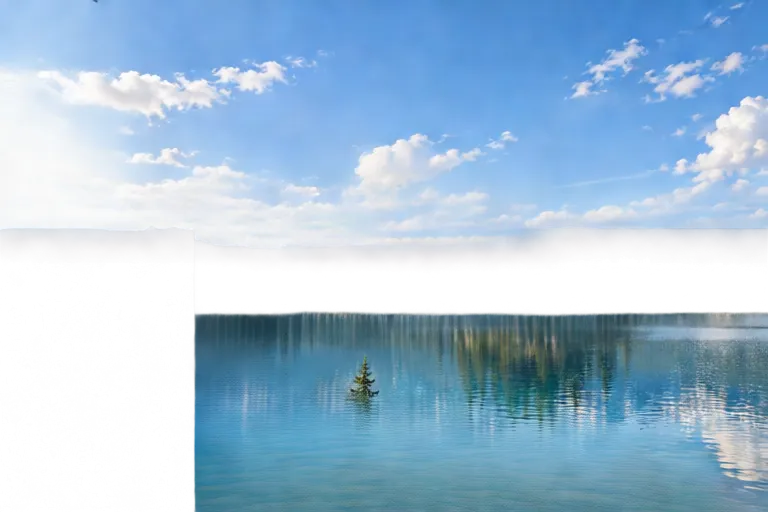
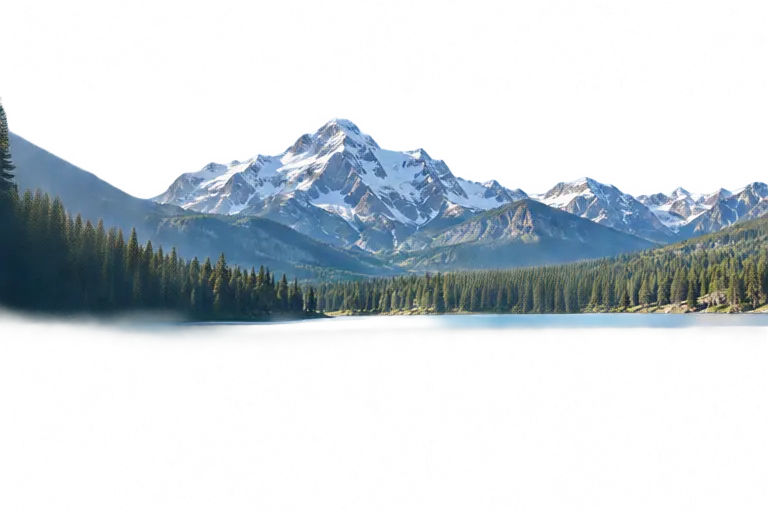

Layers
Landscape to Layers produces depth-ordered visual layers, not a continuous 3D depth map.
Move layers without empty holes
Fill the areas a moved layer leaves behind
When a tree, building, rock, or other foreground element is separated from a flat image, the pixels behind it were never visible in the source. After generating your layers, use the AI Editor on the result page to paint in a plausible fill for any gap that appears when you move, hide, or resize a layer.
Filled areas are AI-generated estimates, not recovered original pixels. Review them when scene accuracy matters.
One scene, more ways to use it
What can you do with layered landscapes?
2.5D parallax animation
Separate near and far regions, then move them at different speeds for camera pushes, pans, scroll effects, and cinematic scene depth.
Game backgrounds
Turn a single environment image into reusable background planes for visual novels, side-scrollers, menus, cutscenes, and other game scenes.
Interactive websites
Use transparent scene layers in CSS, Canvas, WebGL, or Three.js to build responsive hero sections, scroll effects, and interactive environments.
Environment editing
Replace a sky, adjust the mountains, remove foreground objects, recolor vegetation, or revise one region without rebuilding the entire image.
Not just landscape photography
Use the scene you already have
Landscape photos
Mountains, beaches, forests, city views, lakes, travel photos, and outdoor scenes.
Environment art
Game backgrounds, matte paintings, concept art, cinematic environments, and fantasy scenes.
AI-generated images
Turn a flattened AI-generated scene into a more editable environment after generation.
Illustrations
Separate scenic illustrations into near, middle, far, and independent visual elements.
From flat image to editable scene
How Landscape to Layers works
- 01
Upload your landscape
Start with the highest-quality version of your landscape photo, environment illustration, or scenic image.
- 02
Choose a layering mode
Use Core Layers for the main depth structure or Detailed Layers when you want more individual scene elements separated.
- 03
Let AI analyze the scene
The system looks for useful visual regions and depth relationships instead of treating the image as one flat surface.
- 04
Review the layer stack
Check which elements were separated, hide layers, and confirm that important boundaries look usable.
- 05
Continue with the scene
Export your layers, edit individual regions, build a parallax effect, or continue in another Image to Layers workflow.
Choose the workflow that matches the image
Do you need scene depth or general object separation?
Landscape to Layers
Best when:
The source is primarily an environment and the spatial relationship between near and far regions matters.
Examples: Mountains, forests, cityscapes, environment art, game scenes
Separate my landscapeImage to Layers
Best when:
You want general subjects and objects separated from a photo or mixed visual scene.
Examples: Person, product, furniture, object groups, background
Open Image to LayersLandscape or animation scene?
Landscape to Layers or Animator Prep?
Landscape to Layers
Best for: scenery and environments
- Structured around near / mid / far scene regions
- Typical source: a landscape or environment
- Goal: depth-based scene editing
- Great for parallax, games, and web scenes
Animator Prep
Best for: complete scenes prepared for motion
- Structured around subject / props / environment / foreground
- Typical source: a scene with a main subject
- Goal: animation preparation
- Great for camera motion, character scenes, motion graphics
If the environment itself is the subject, start with Landscape to Layers. If a character or main subject is the center of the scene you want to animate, Animator Prep may be the better workflow.
Keep working after the split
Take the layers into your next workflow
Transparent PNG layers
Use individual raster layers in your editor, animation software, game engine, or website.
Layered PSD
Continue working with an organized layer stack in Photoshop-compatible software.
Layer ZIP
Download the separated assets together for development or production workflows.
Open in Animator Prep
Continue directly into a motion-focused scene workflow.
AI separation gives you an editable starting point
Landscape to Layers is designed to make flat scenes easier to continue editing. It does not restore the original source file or recover hidden information exactly as it existed before the image was flattened. Results depend on the complexity of the scene, overlap between elements, transparency, fine branches or foliage, lighting, reflections, and the resolution of the source.
Good candidates
Clear foreground objects, distinct mountain ranges, separate skylines, buildings, forests, water, sky, and illustrated scene regions.
More challenging
Fine tree branches, fog, smoke, reflections, transparent surfaces, dense foliage, complicated shadows, and scenes where many objects overlap heavily.
AI-generated and AI-edited results may vary. Review important visual details before using outputs in production.
Frequently asked questions
What is Landscape to Layers?
Landscape to Layers turns a flat landscape, environment image, or scenic artwork into separate visual layers that can be edited, moved, hidden, animated, or exported independently, instead of treating the landscape as one flat image.
What kinds of layers can it create?
Depending on the image, layers may include foreground objects, vegetation, buildings, water, midground terrain, distant mountains, skyline regions, sky, and other useful scene elements. The exact structure depends on the content of the image.
What is the difference between Core Layers and Detailed Layers?
Core Layers focuses on the main scene and depth regions, making it useful for parallax and simpler editing. Detailed Layers looks for more individual scene elements so you can control more parts independently. More layers are not always better — the best mode depends on what you want to do next.
How many layers can Detailed Layers create?
Detailed Layers can return up to 17 layers, including the base or background. The actual number depends on the scene — a simple landscape may naturally need fewer layers than a complex environment.
Does Core Layers always create foreground, midground, background, and sky?
No. Those are common landscape regions, not a fixed template. A beach, city skyline, forest, or mountain scene may each need a different structure.
Can I use the layers for parallax animation?
Yes. Separating foreground, middle-distance, and distant scene regions makes it possible to move them at different speeds to create a 2.5D parallax effect. The exported layers can also be continued in animation or compositing software.
Does Landscape to Layers create a depth map?
Not necessarily. Landscape to Layers primarily creates separate depth-ordered visual layers rather than a continuous grayscale depth map — useful when you want to edit or animate actual parts of the scene independently.
Can I use it with game backgrounds?
Yes. It can be useful for separating a flat environment into reusable scene planes for visual novels, side-scrollers, cutscenes, menus, backgrounds, and other game workflows. Always review the generated layers before putting them into a production build.
Does it work with AI-generated landscape images?
Yes. You can use a flattened AI-generated landscape or environment as the source and separate it into more editable visual parts afterward. Results depend on how clearly the elements are defined in the original image.
Does it work with illustrations and concept art?
Yes. Landscape to Layers can also be useful for environment illustrations, matte paintings, fantasy scenes, game art, and other scenic artwork. Illustrations with clear depth regions can be especially suitable for layered animation.
Can I separate only the sky?
If the sky is visually distinguishable from the rest of the scene, it may be separated as its own layer or scene region. If your goal is one very specific element rather than the full scene structure, a targeted extraction workflow may be more appropriate.
What happens to the area behind a removed foreground object?
That area was never visible in the source image. After separating your layers, you can use the AI Editor on the result page to fill in the gap left behind a moved or hidden element — the filled area is AI-generated, not recovered original pixels.
Will every edge be perfect?
No. Fine foliage, branches, hair-like structures, haze, reflections, transparency, and soft shadows can make separation more difficult. Review critical edges before using the result in production.
Can I export the result as a PSD?
Yes. You can export the separated scene as a layered PSD for continued editing, or download individual transparent PNG layers for use across a wider range of tools.
What is the difference between Landscape to Layers and regular Image to Layers?
Landscape to Layers is designed around scene depth and environment structure. Regular Image to Layers is better for general subject and object separation. If near, middle, and far scene relationships matter, Landscape to Layers is the better starting point.
What is the difference between Landscape to Layers and Animator Prep?
Landscape to Layers is best when the landscape or environment itself is the main thing you want to separate. Animator Prep is better when you have a complete scene with a main character or subject that you want to prepare for animation.
Start with one landscape. Leave with editable scene layers.
Upload the landscape you already have, choose how much detail you need, and turn the flat scene into reusable layers for animation, design, games, or the web.
Core Layers for simpler depth · Detailed Layers for finer scene control