
AI Photo Editor Online
Upload an image and describe what you want to change. Remove objects, replace backgrounds, change outfits, relight scenes, and refine product photos with AI.
AI Image Editor
Free WorkspaceUpload an image, describe the desired transformation, and generate instantly online.
Quick Edit
ActiveFast previews for simple edits.
Click to browse or drop an image
PNG, JPG, or WebP up to 10 MB
Only edit photos you own or have permission to use. Face swapping and impersonating other people are not allowed.
Edited Result
Live Demo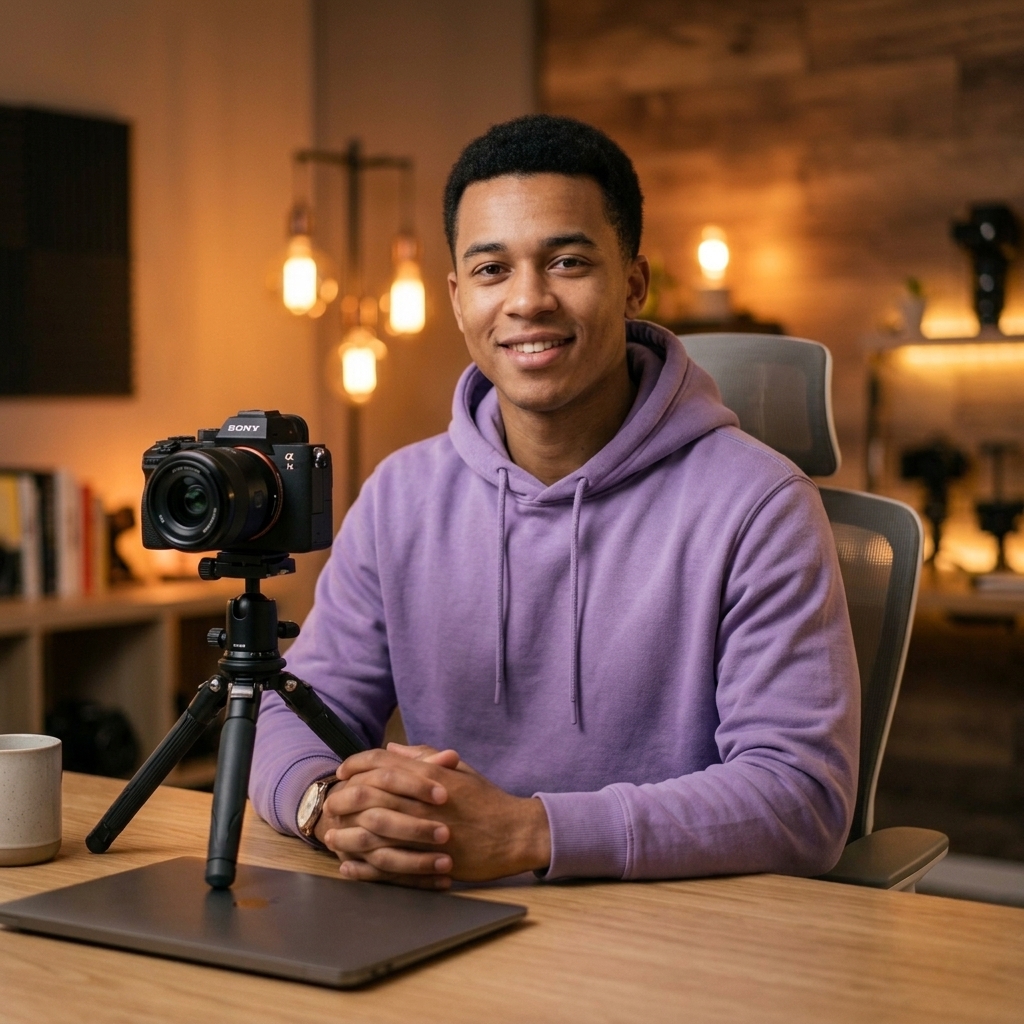
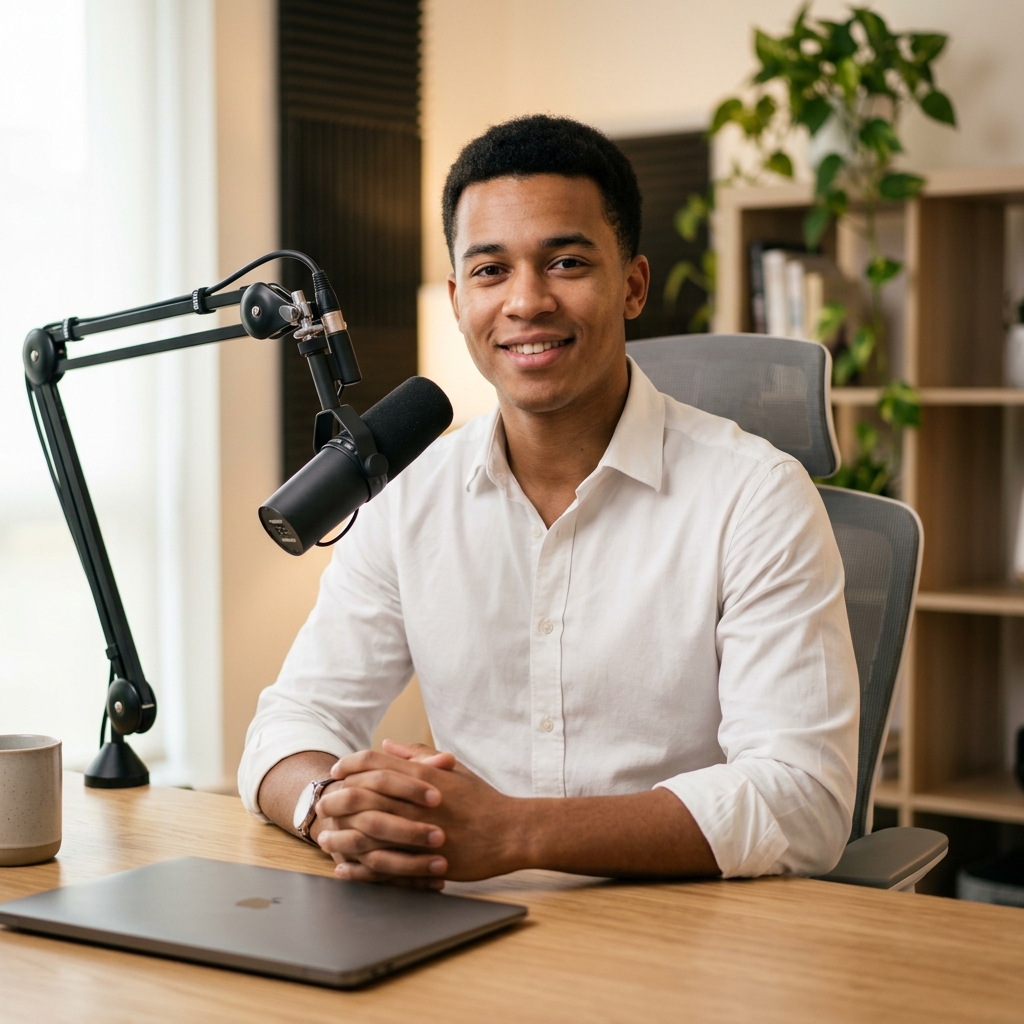
Real-time AI Image Transformation
Upload any photo and describe what to change — change outfits, modify backgrounds, adjust lighting, or edit details naturally.
Your Recent Results
Select an image to preview, download, or use it as your next input.
No results yet. Your completed edits will appear here.
Edit an image above to start building your gallery.
AI results may vary. Review faces, hands, logos, product geometry, and small text before publishing.
See What You Can Edit with AI
Make one focused change or transform an entire scene with a simple prompt.
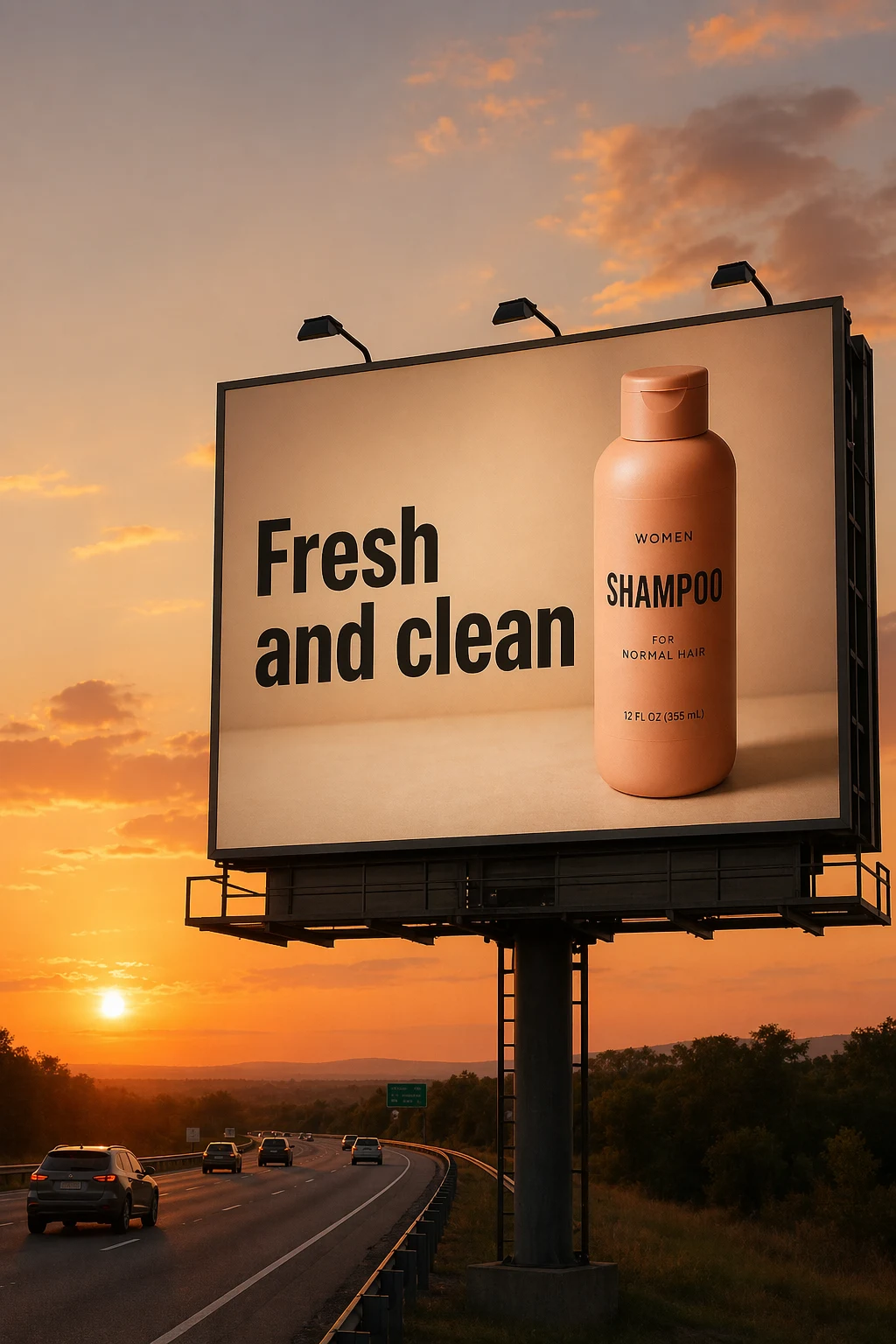
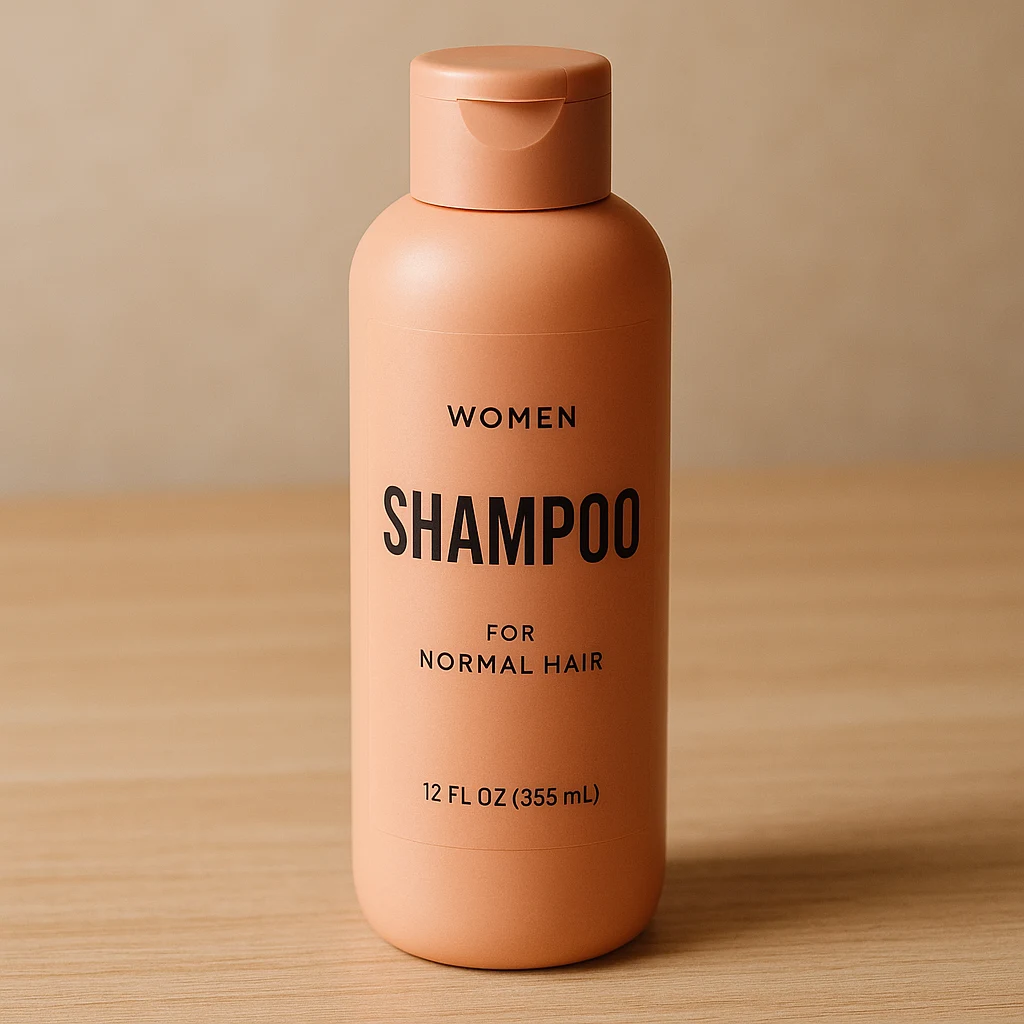
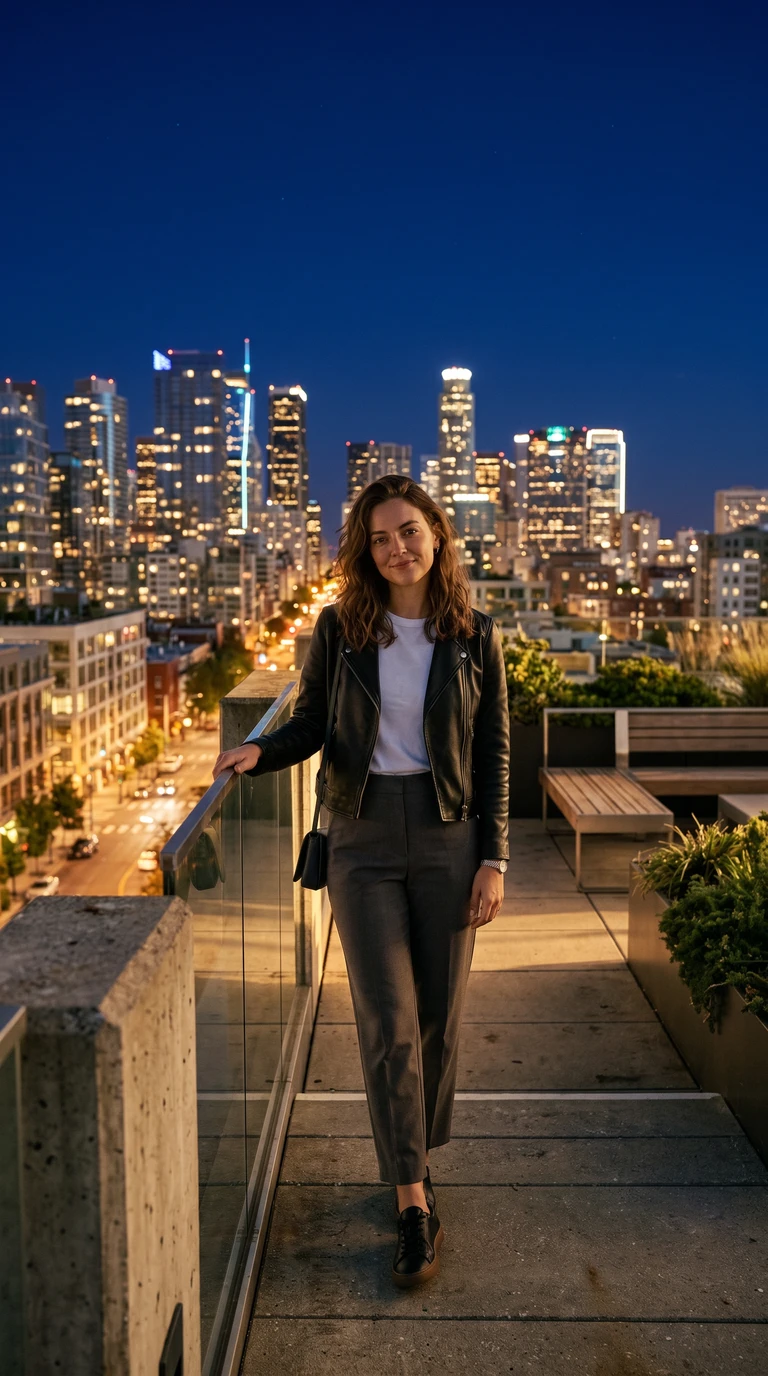
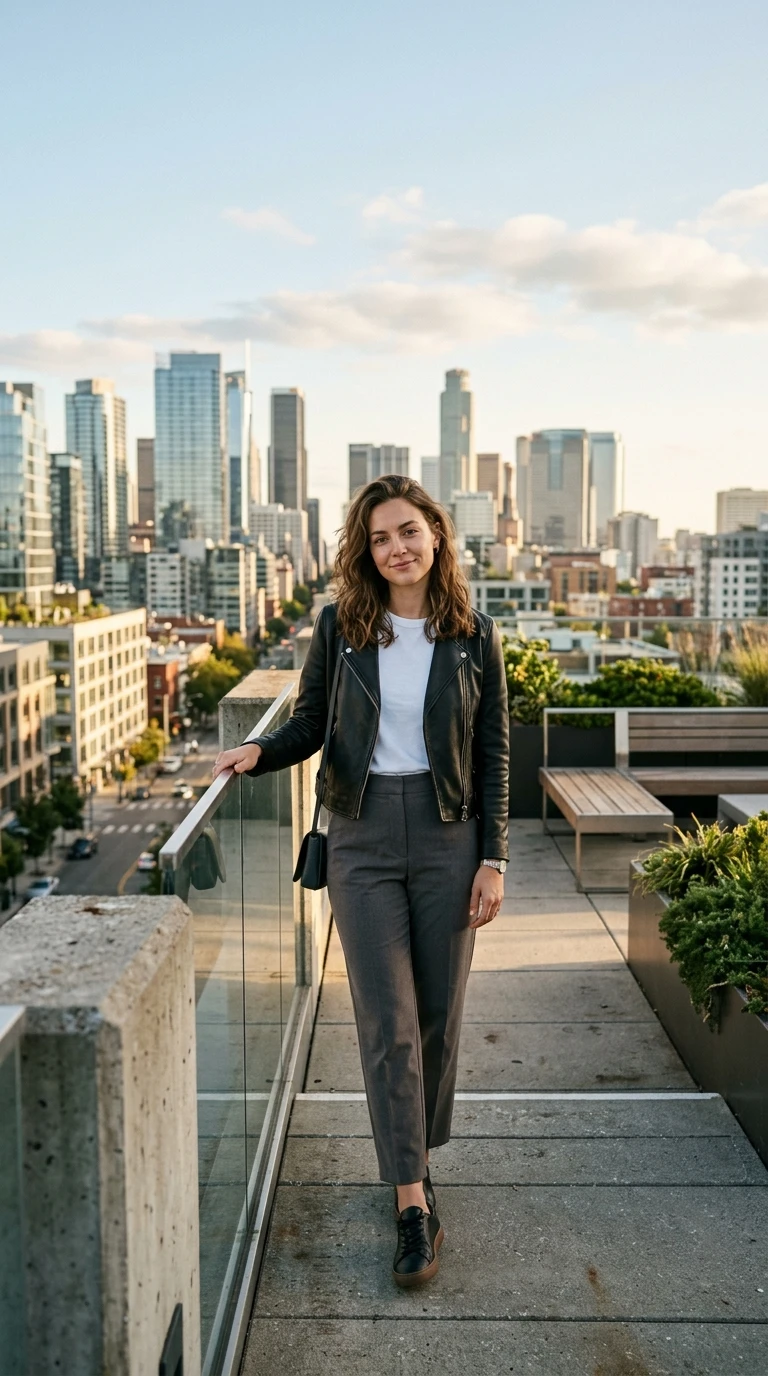
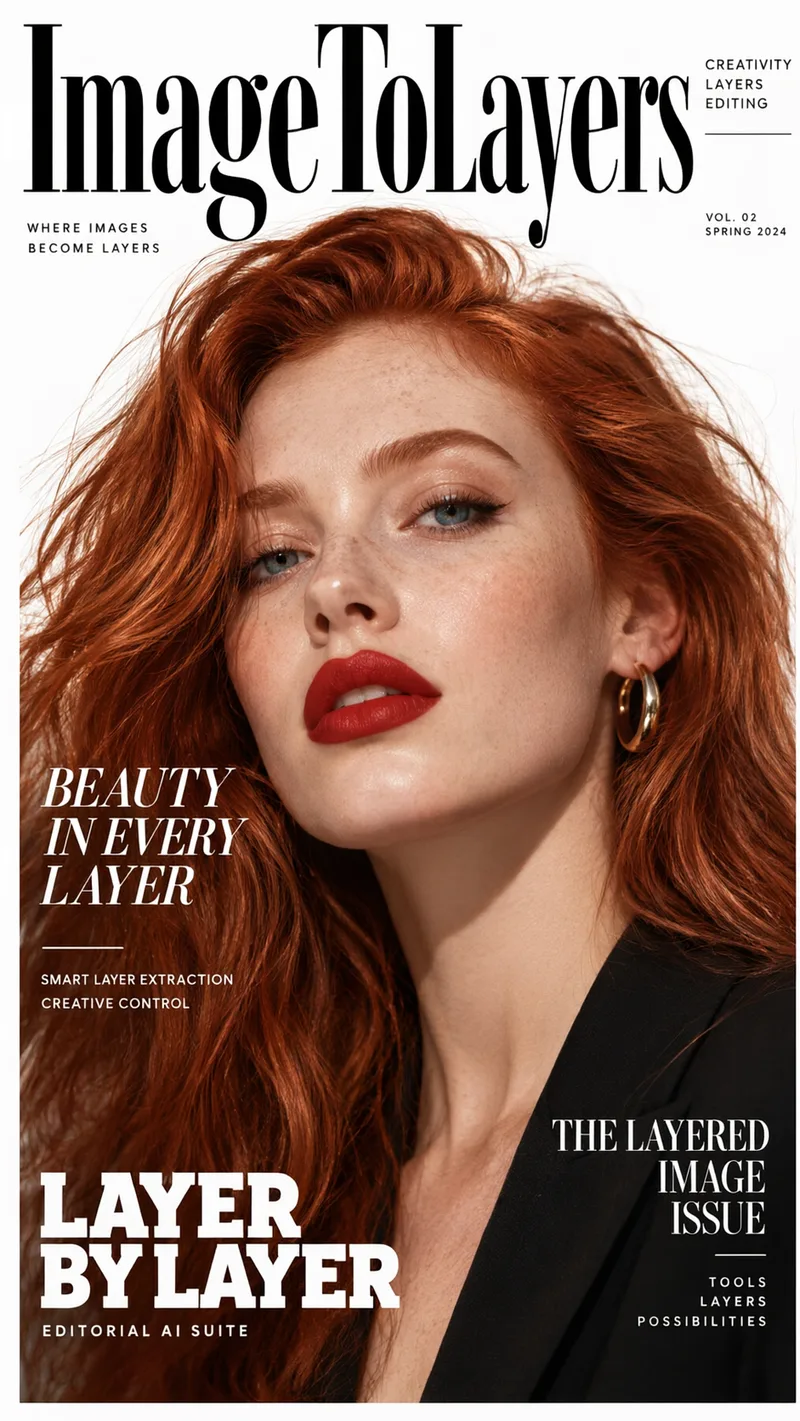
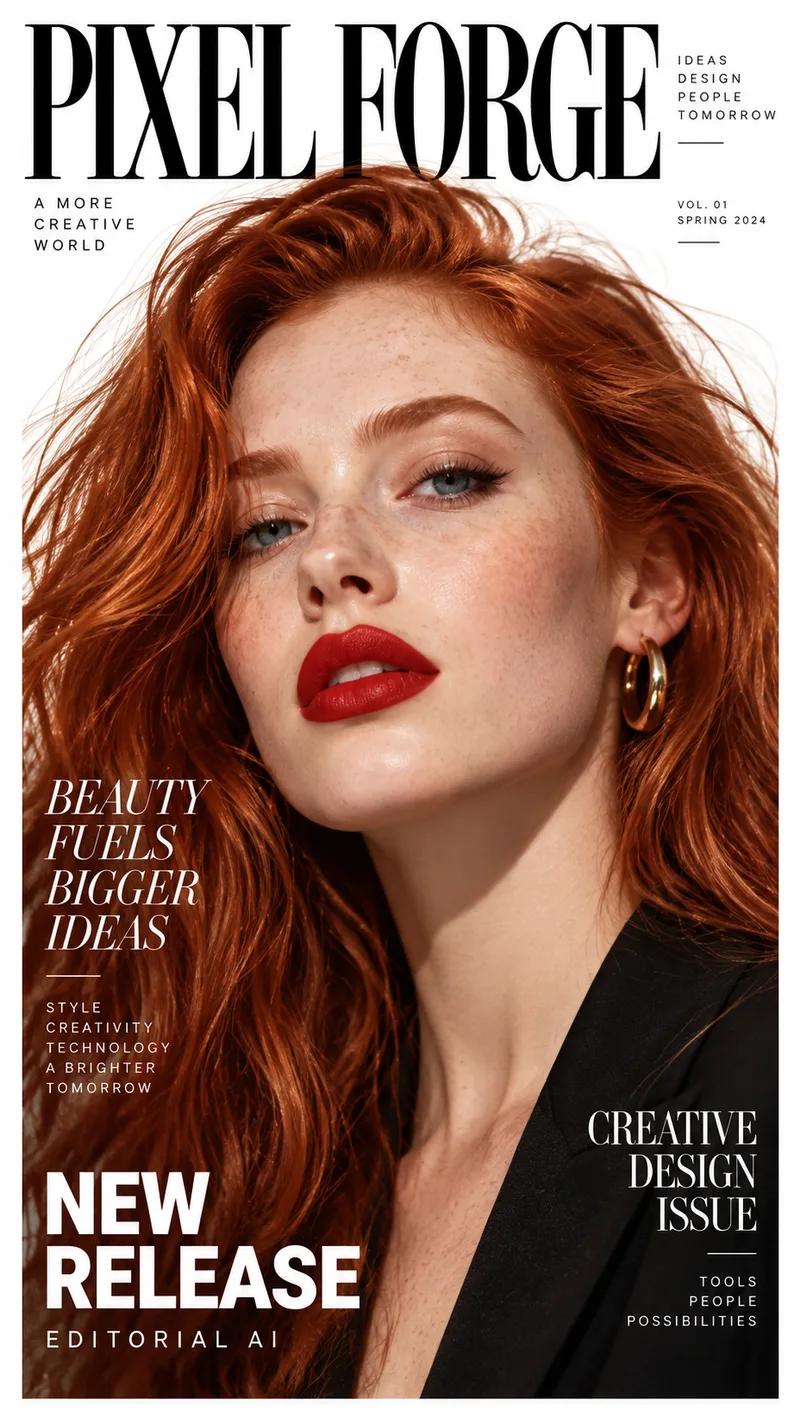
Choose your mode
Quick Edit or Pro Edit?
Quick Edit is built for fast, everyday image changes. Choose Pro Edit when faces, products, text, fine details, or missing image content need more careful reconstruction.
Pro Edit
RECOMMENDEDBetter for precise instructions, identity, text, products, and fine details.
Get a More Precise EditSimple everyday edits
Precise instructions
Object & detail edits
Faces & identity
Text & logos
Products & packaging
Reference images
Output resolution
Fast free previews for simple changes. · 1 free preview daily
Not sure which one to choose?
Use Quick Edit for fast, simple changes and quick previews. Choose Pro Edit when you need precise instructions, accurate details, consistent faces, legible text, product packaging, or high-resolution output.
See What You Can Edit with AI
Make one focused change or transform an entire scene with a simple prompt.
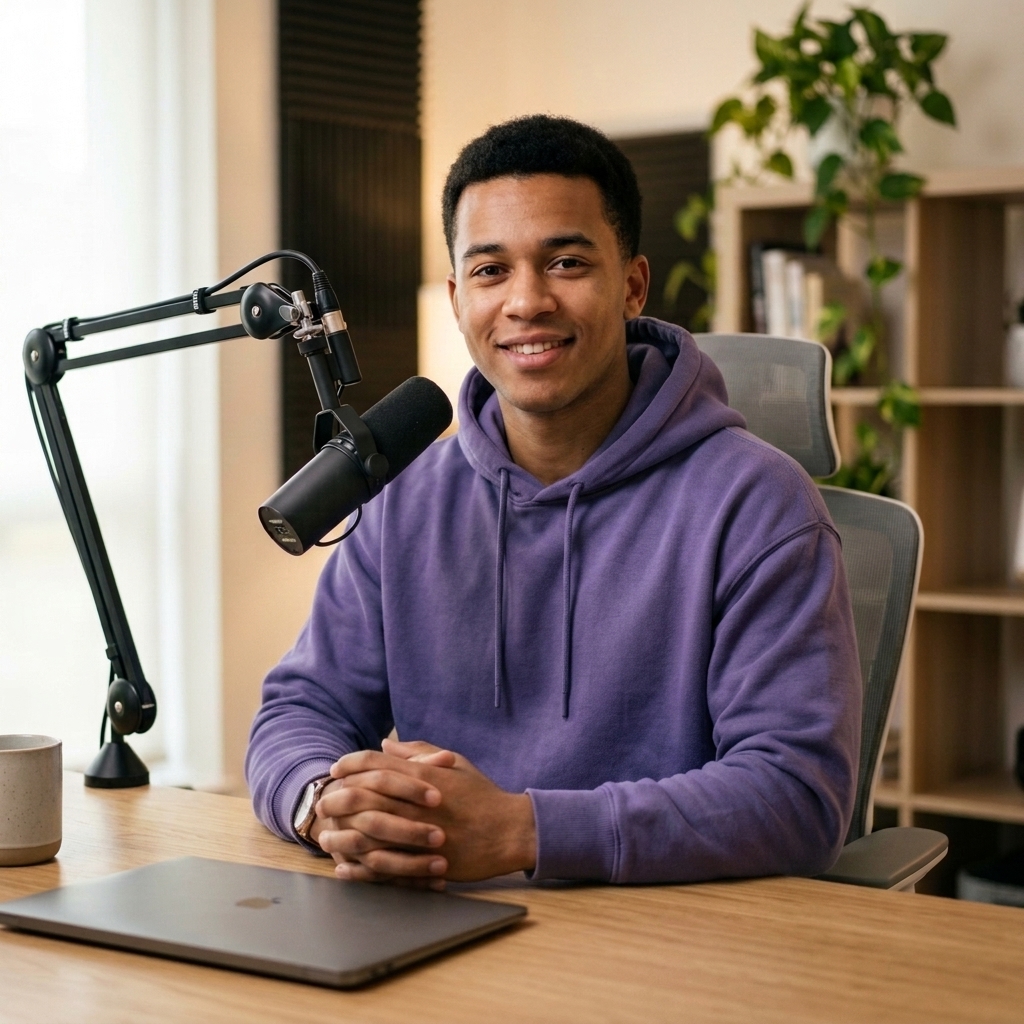
“Replace the white shirt with this purple hoodie.”
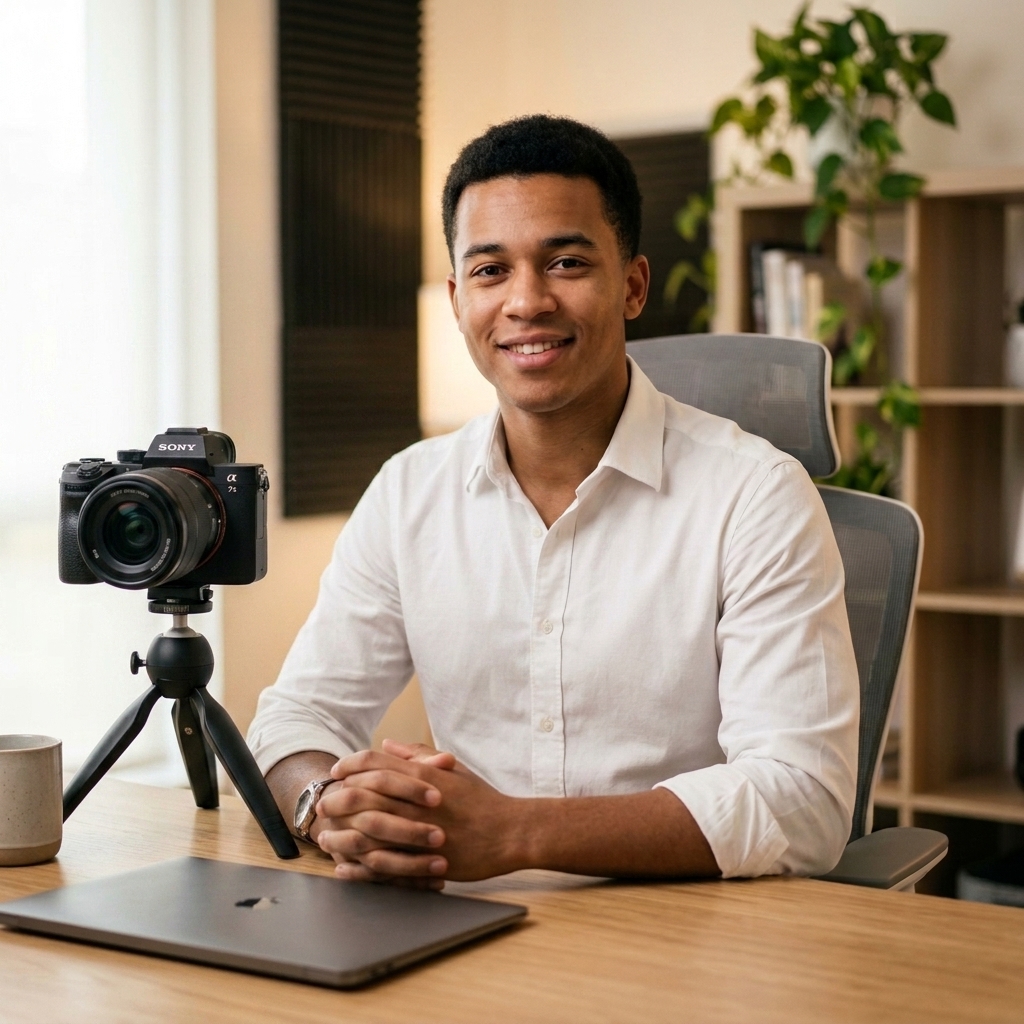
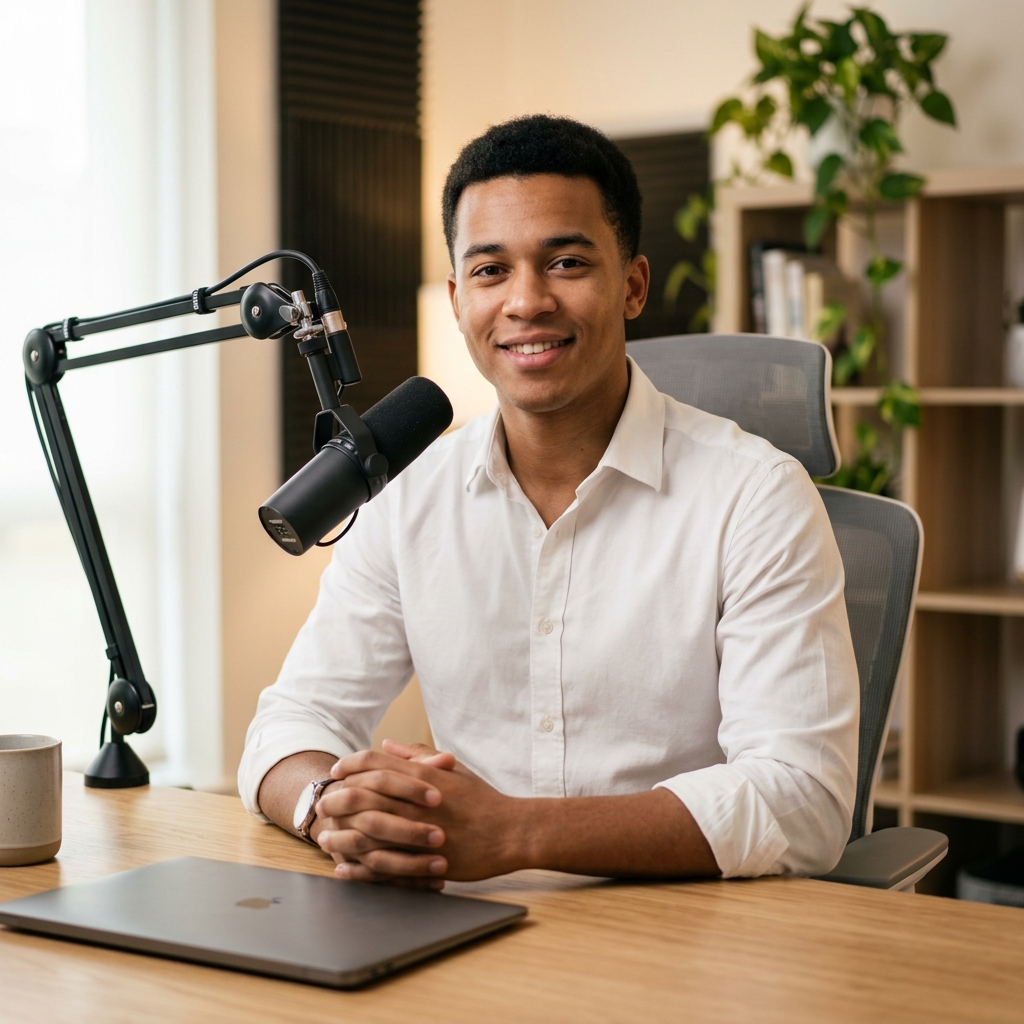
“Replace the microphone with this camera.”
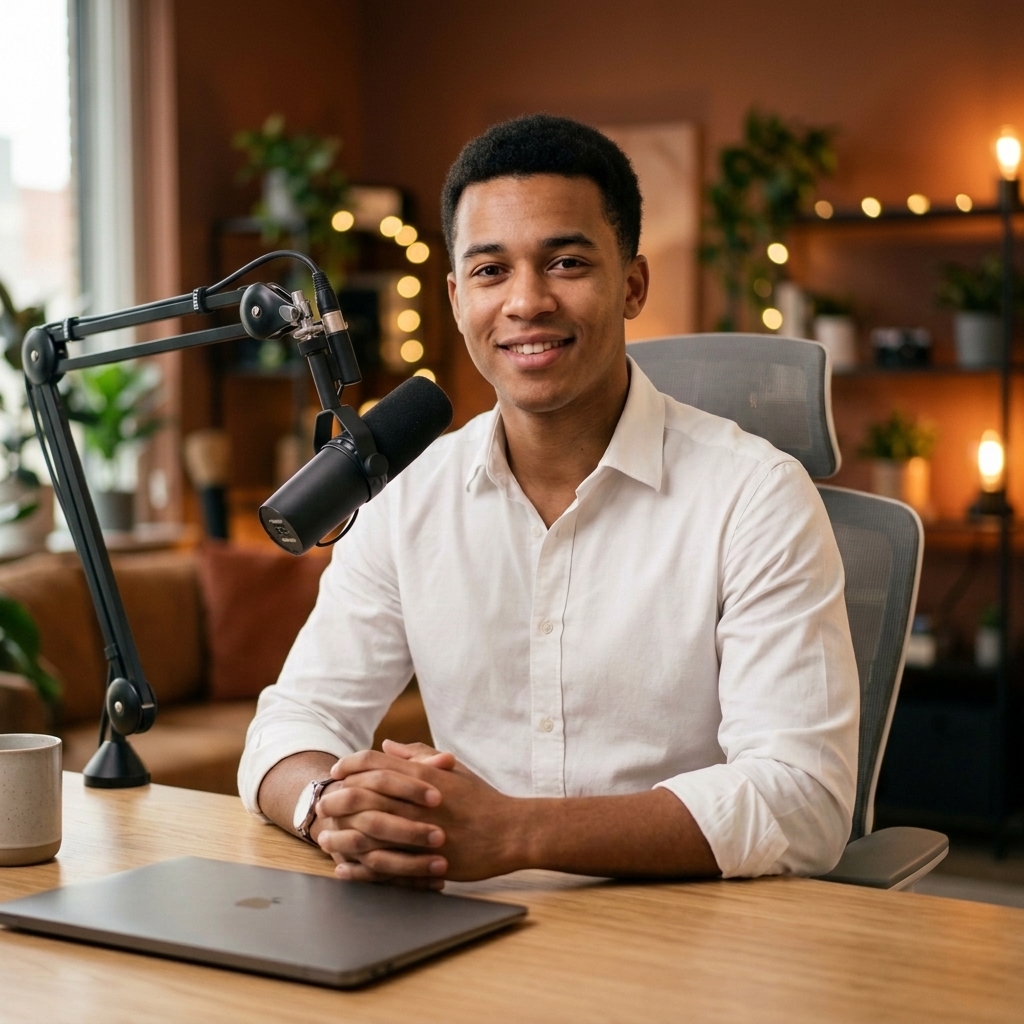
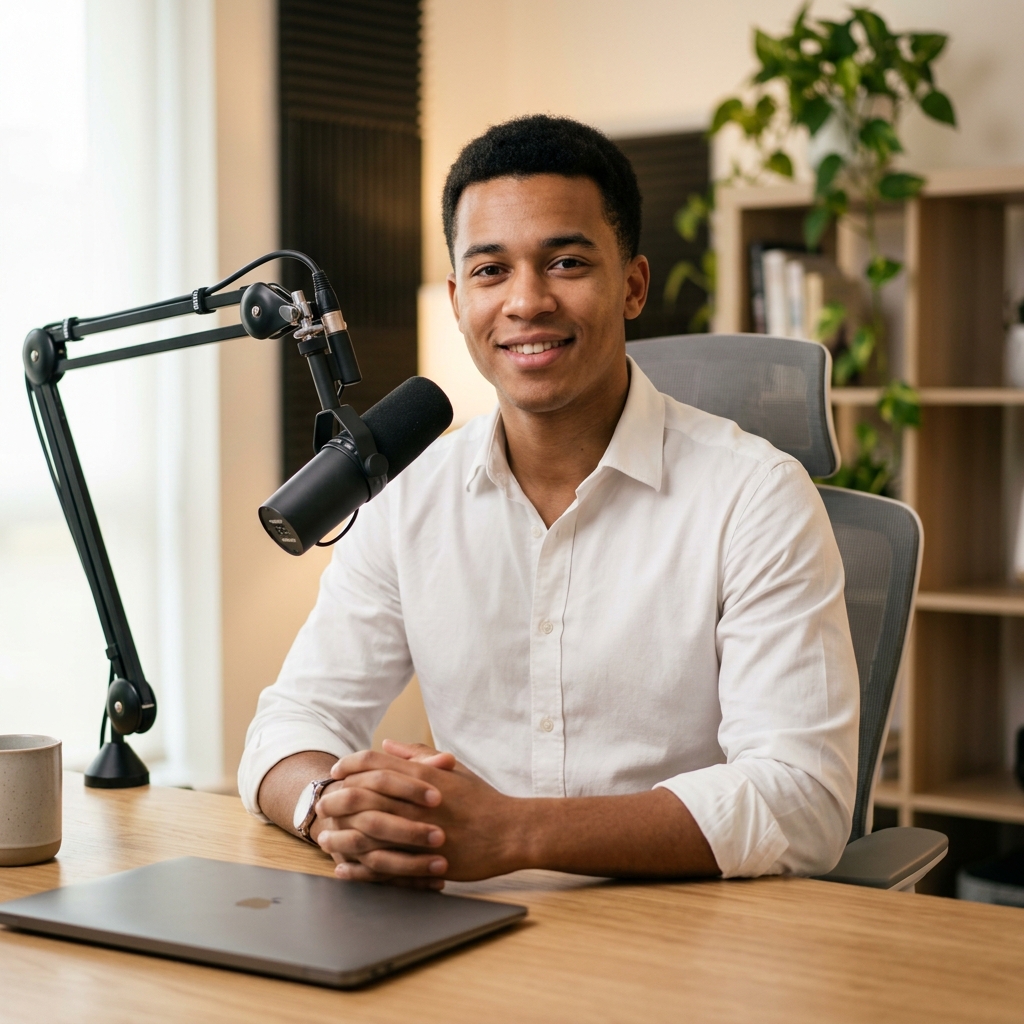
“Place me in a warm creative studio.”
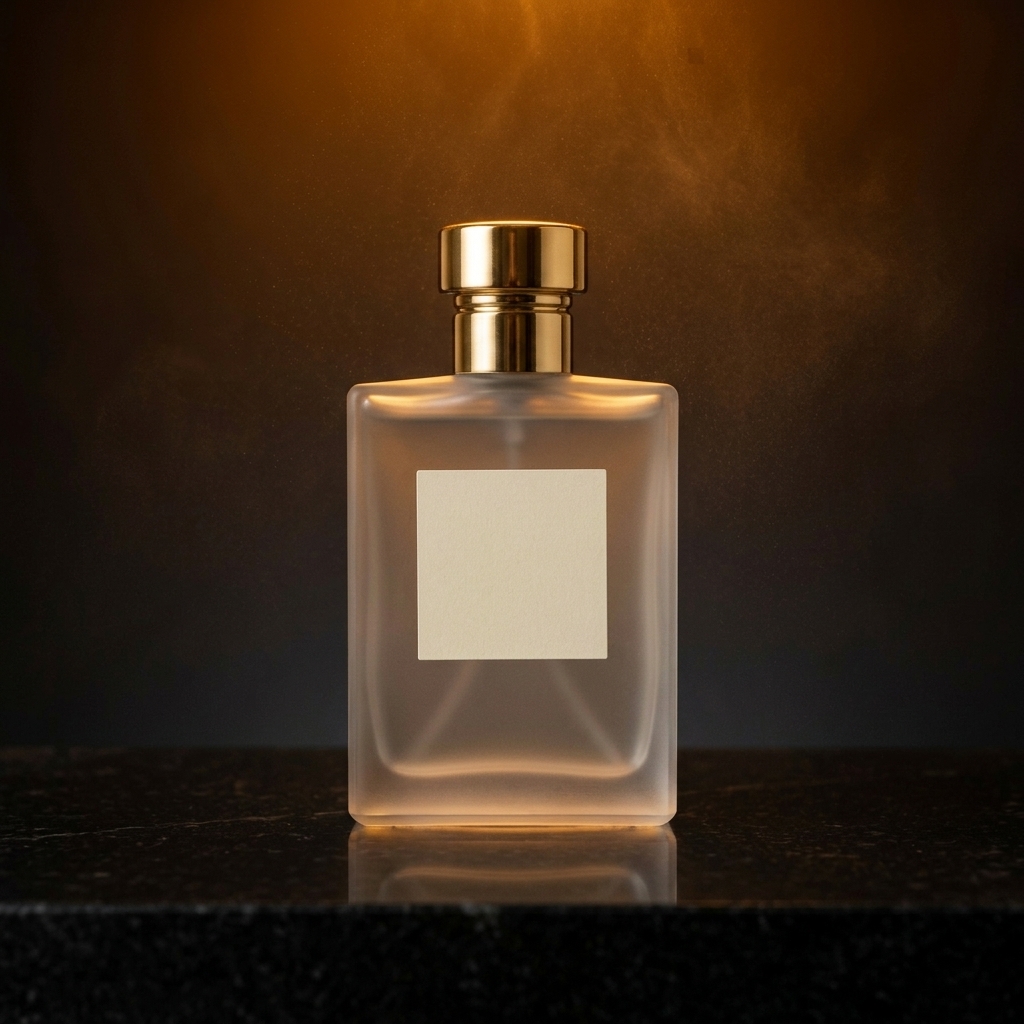
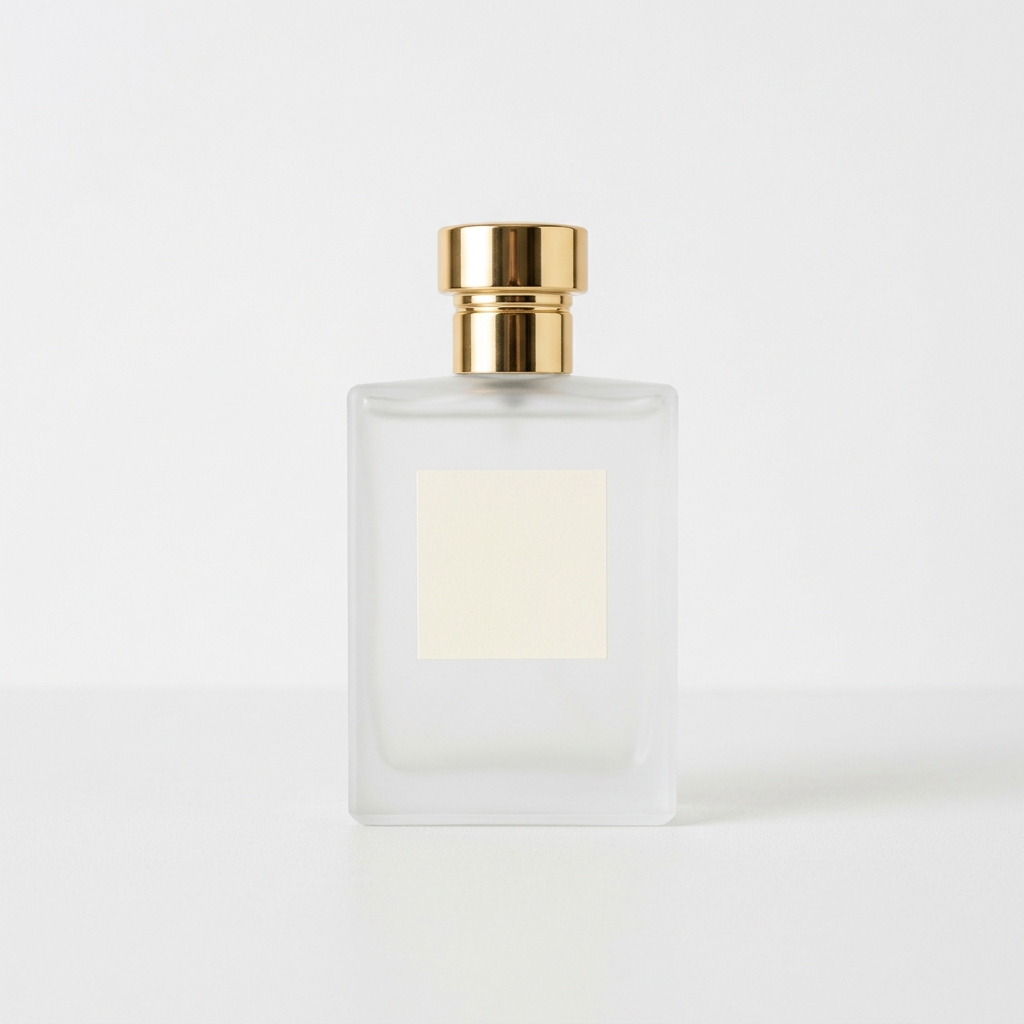
“Turn this product photo into a luxury campaign image.”
Creative Examples & Prompts
Explore curated prompts and high-fidelity examples generated by Nano Banana Pro.
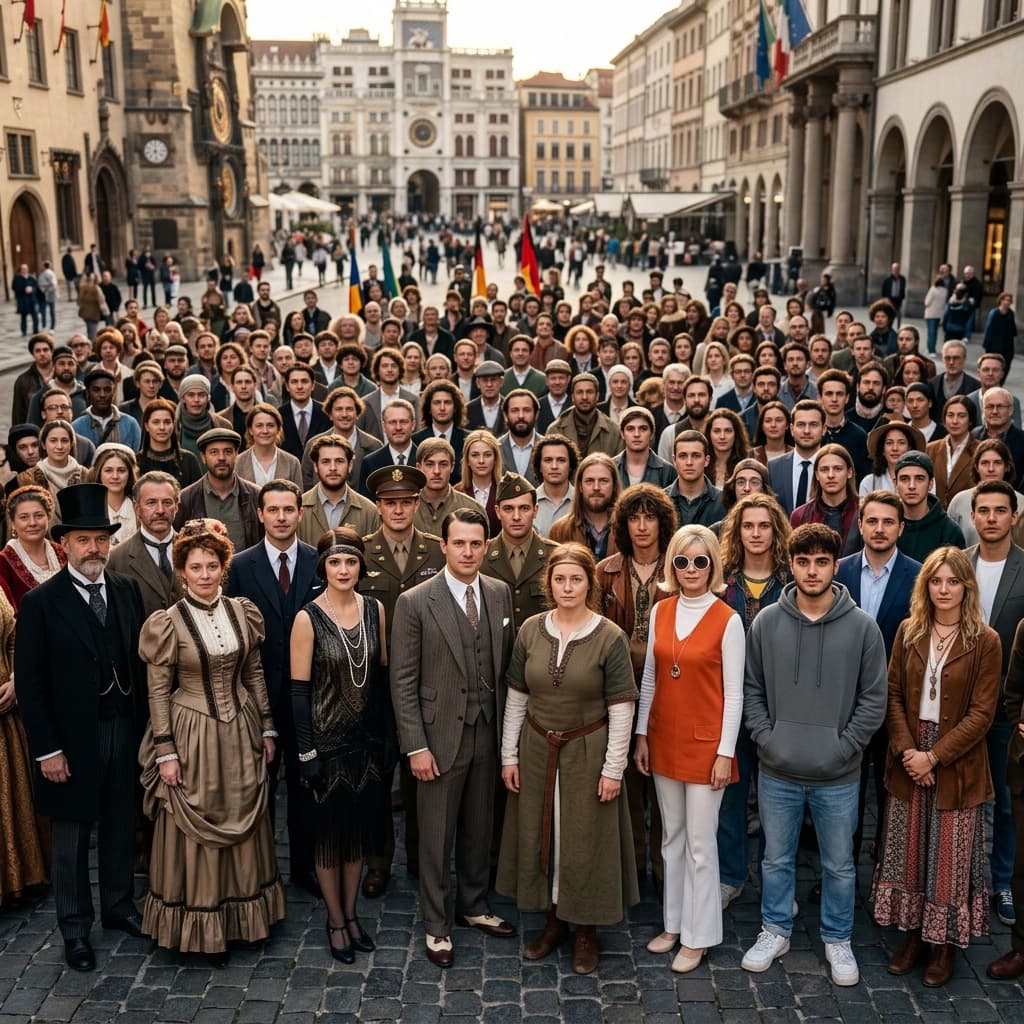
Photorealism & Aesthetics
High-fidelity rendering of complex lighting, textures, and lifelike skin.
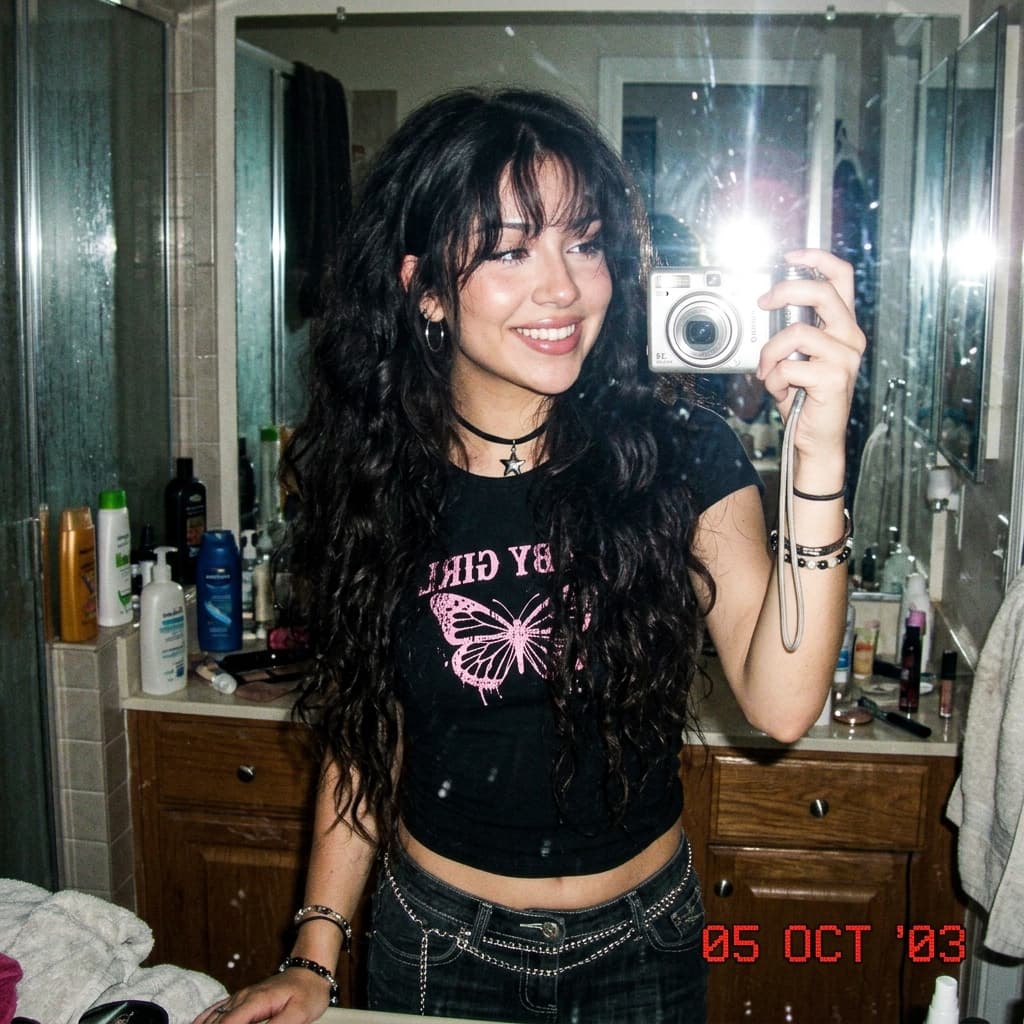
2000s Aesthetic Mirror Selfie
Authentic early-2000s vibe with flash photography and nostalgic elements.
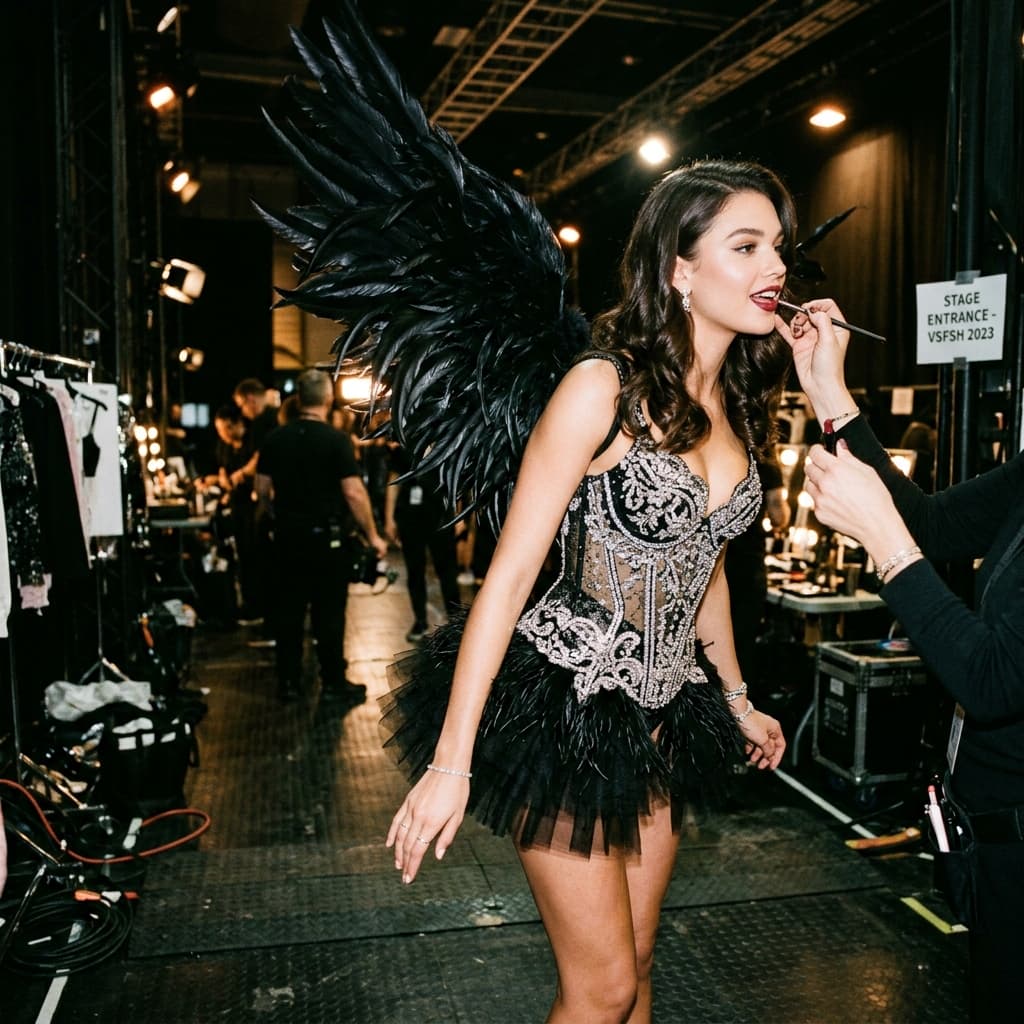
Glamorous Photoshoot
High-glamour, backstage-style fashion photography with intricate details.
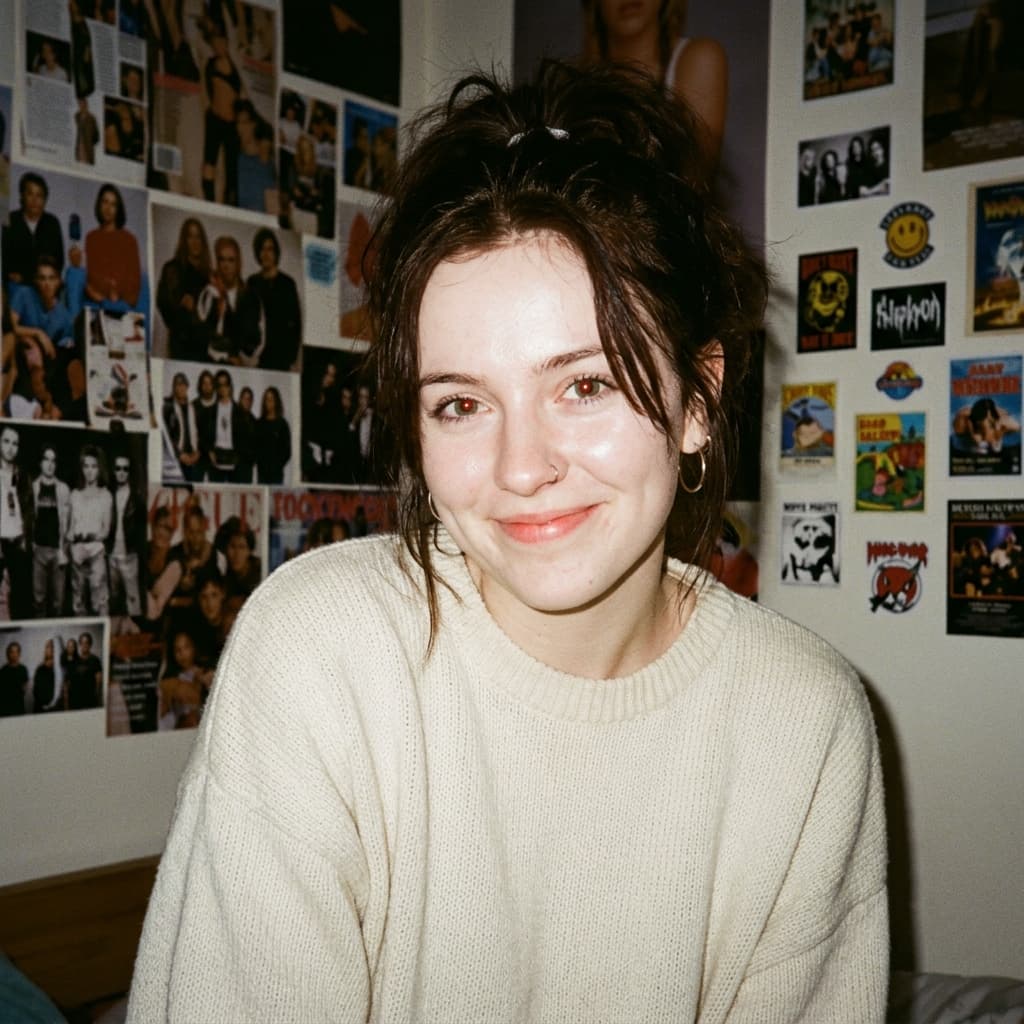
1990s Camera Style Portrait
Test the model's ability to replicate specific film textures, flash photography, and era-specific atmosphere.
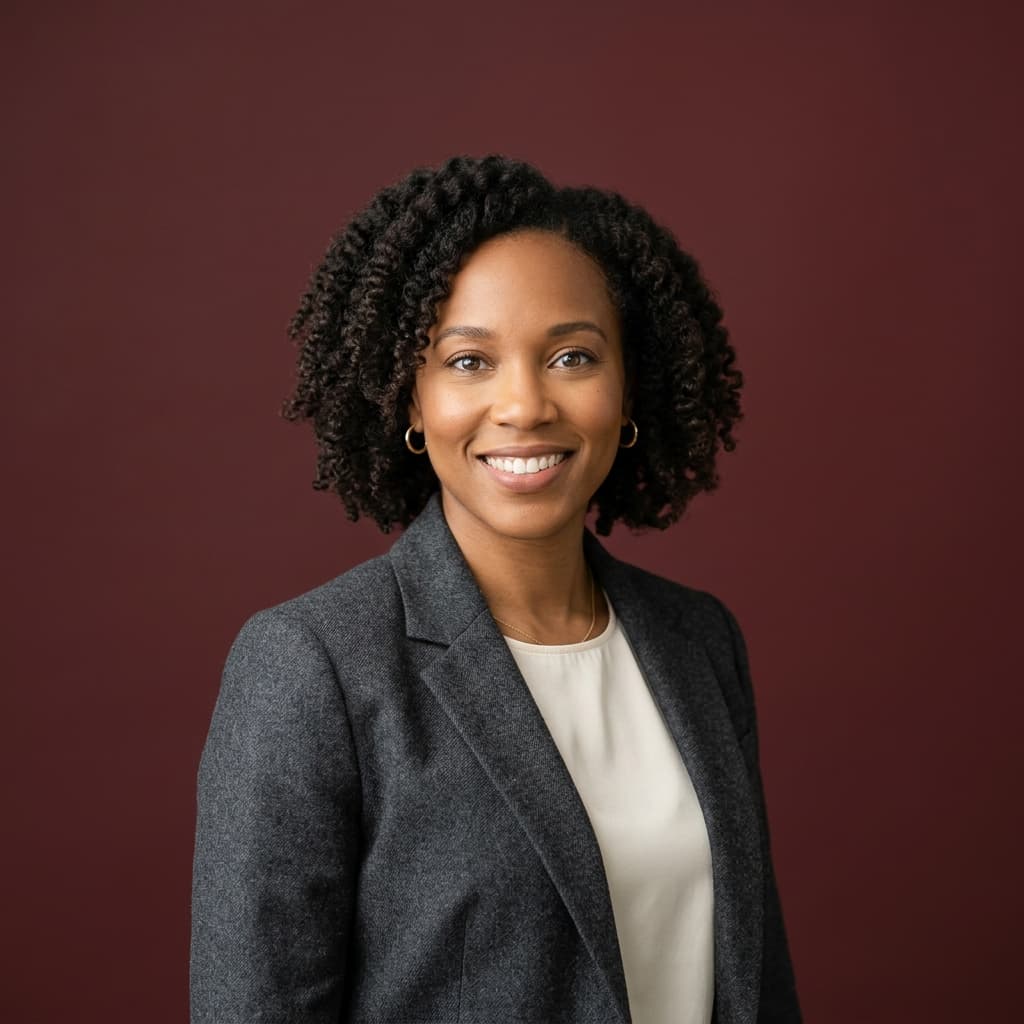
Professional Headshot Creator
Transforms casual photos into professional studio headshots using specific lens and lighting instructions.
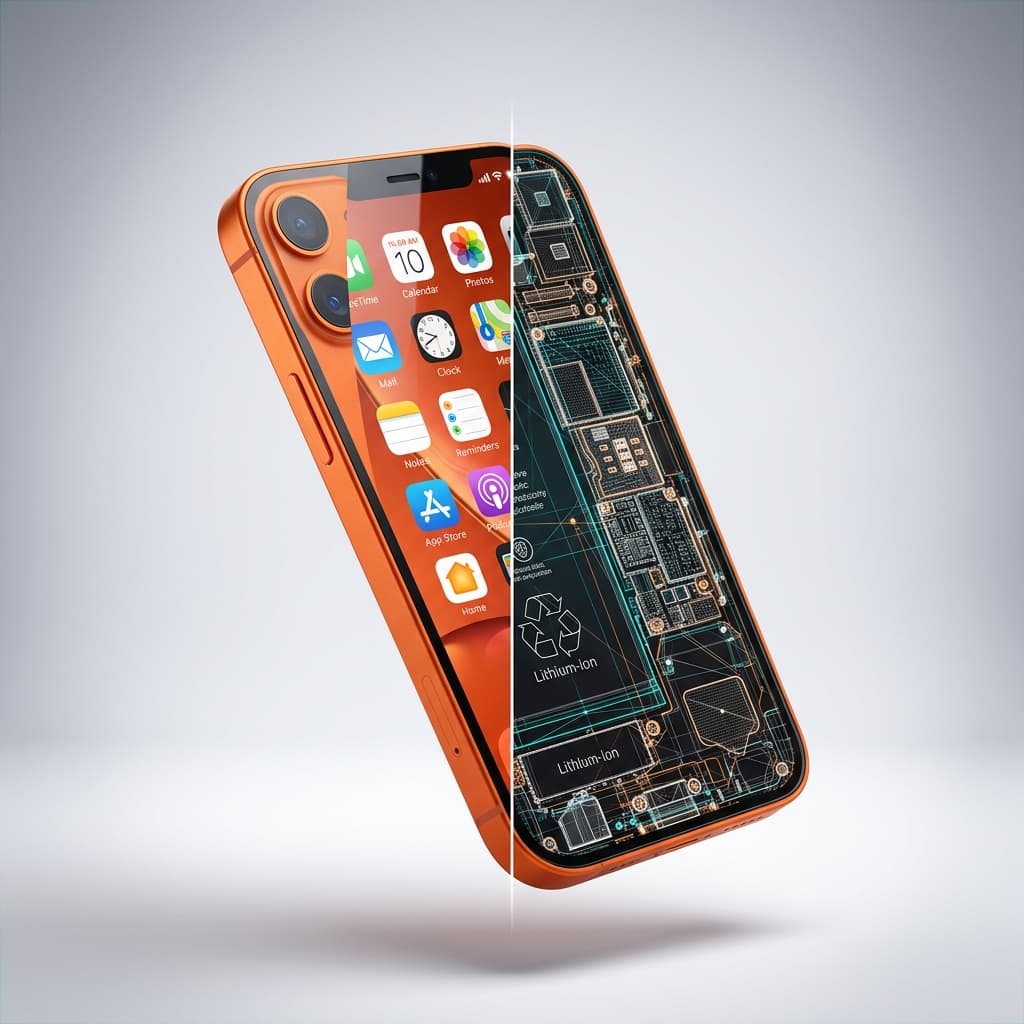
Split View 3D Render
Create a 3D render with realistic left half and wireframe right half.
Edit Images with Simple Instructions
Remove Unwanted Objects
Erase people, text, wires, props, and distractions.
Replace Objects
Swap clothing, products, furniture, and visual elements.
Change Backgrounds
Move a subject into a new environment with matching light.
Edit Specific Areas
Use a mask to control exactly where the edit happens.
Relight and Restyle
Change lighting, color, mood, and visual style.
Create Product Visuals
Clean up product photos and create campaign-ready scenes.
Edit a Photo in Four Steps
Upload an image
Start with a PNG, JPG, or WebP image from your device.
Describe the change
Tell the editor what to remove, replace, add, or restyle. Add a mask or reference image when you need more control.
Review and refine
Check the result and use a follow-up prompt to adjust details without starting over.
Export or continue into layers
Download the edited image, or send it to Image to Layers for further separation and production work.
Edit First. Separate into Layers Next.
Most AI photo editors stop at another flat image. ImageToLayers lets you continue by separating the edited result into reusable subjects, objects, shadows, and background layers.
Explore More AI Tools
AI Image Editor
Edit an entire image or a selected area using natural-language prompts.
Remove Unwanted
Remove people, objects, text, wires, and visual distractions.
Product Photo Editor
Clean up, relight, and restyle product images for ecommerce and campaigns.
Generative Fill
Add, replace, or repair content inside a selected area.
Background Editor
Remove or replace the background behind a subject with a new environment.
Nano Banana Pro
Generate high-fidelity product visuals with brand-safe detail retention and layer-ready outputs.
Nano Banana 2
Run fast image generation and advanced prompt editing with text-aware output control.
AI Photo Editor FAQ
What is an AI photo editor?
An AI photo editor lets you change an image using natural-language instructions instead of manually editing every pixel.
Can I edit only one part of an image?
Yes. You can describe a focused change and use a mask when you need more precise control over the edited area.
Can I use a reference image?
Supported workflows can use a reference image to guide clothing, products, objects, style, or other visual details.
Will AI preserve the person's face?
The editor is designed to preserve subject identity when the prompt clearly limits the requested change. Complex edits may still require additional refinement.
Can I remove objects from a photo?
Yes. Remove Unwanted can erase objects, people, text, wires, and distractions while reconstructing the covered area.
Can I turn the edited result into layers?
Yes. After editing, you can continue in Image to Layers to separate the result into reusable visual elements and export layered assets.
Ready to Edit Your Image?
Upload a photo, describe the change, and continue refining it in one connected visual workspace.
Start EditingCreative Toolkit Index
Explore More AI Features
Quick access to precision layer extraction, AI photo editing & asset tools.