
Turn Flat Images Into
Editable Layers
Separate subjects, objects, characters, and backgrounds, reconstruct plausible hidden areas behind overlaps, and keep working with the result as editable PSD or PNG layers.
See How Image Separation Works
Separate visual elements into individual layers while reconstructing the background hidden behind them.
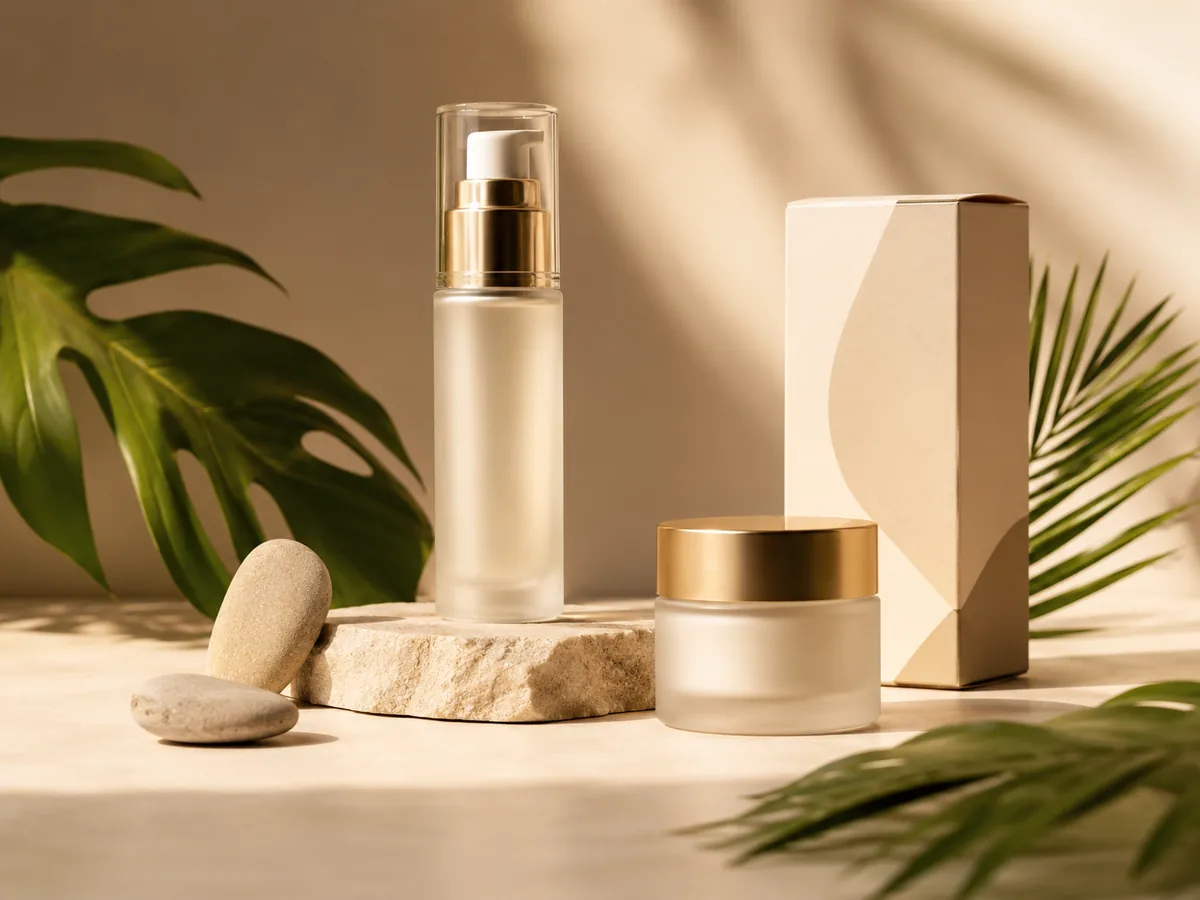
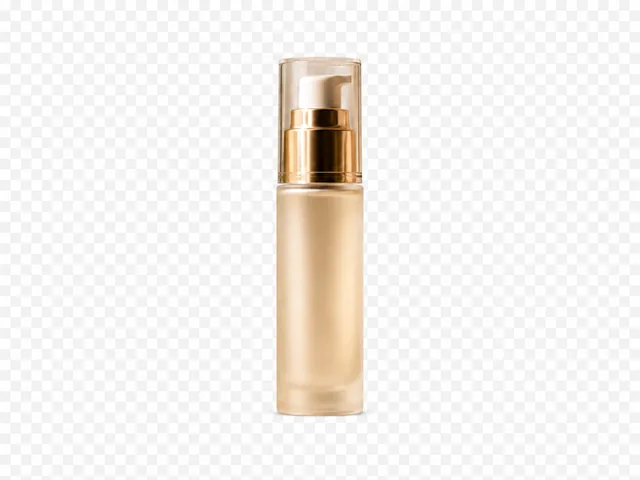 01ITL
01ITLPump bottle
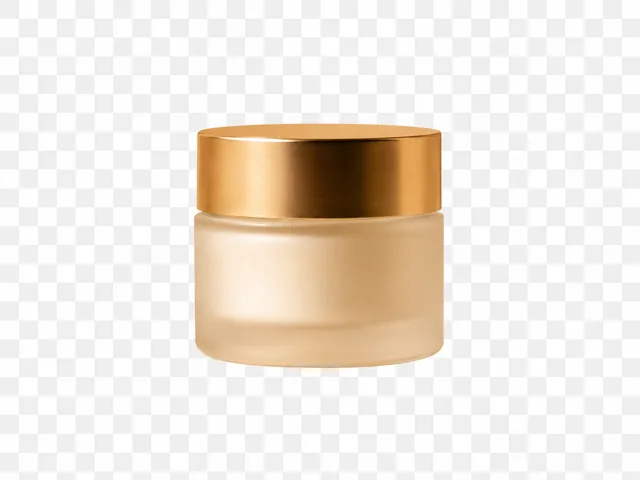 02ITL
02ITLCream jar
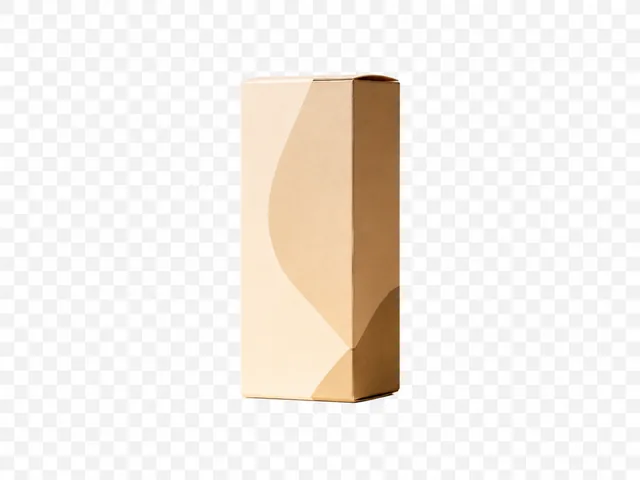 03ITL
03ITLProduct box
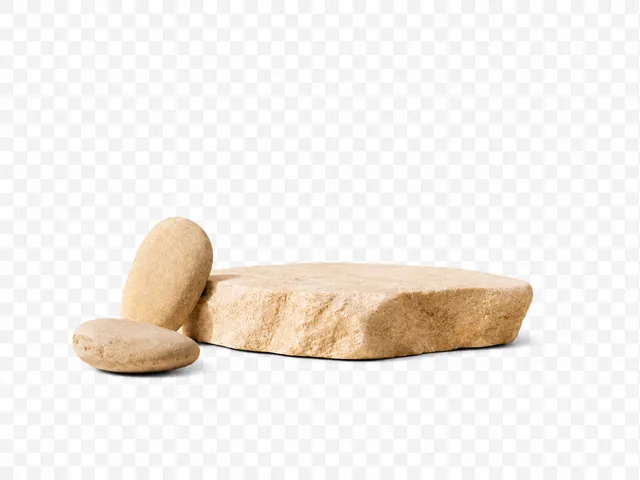 04ITL
04ITLStone props
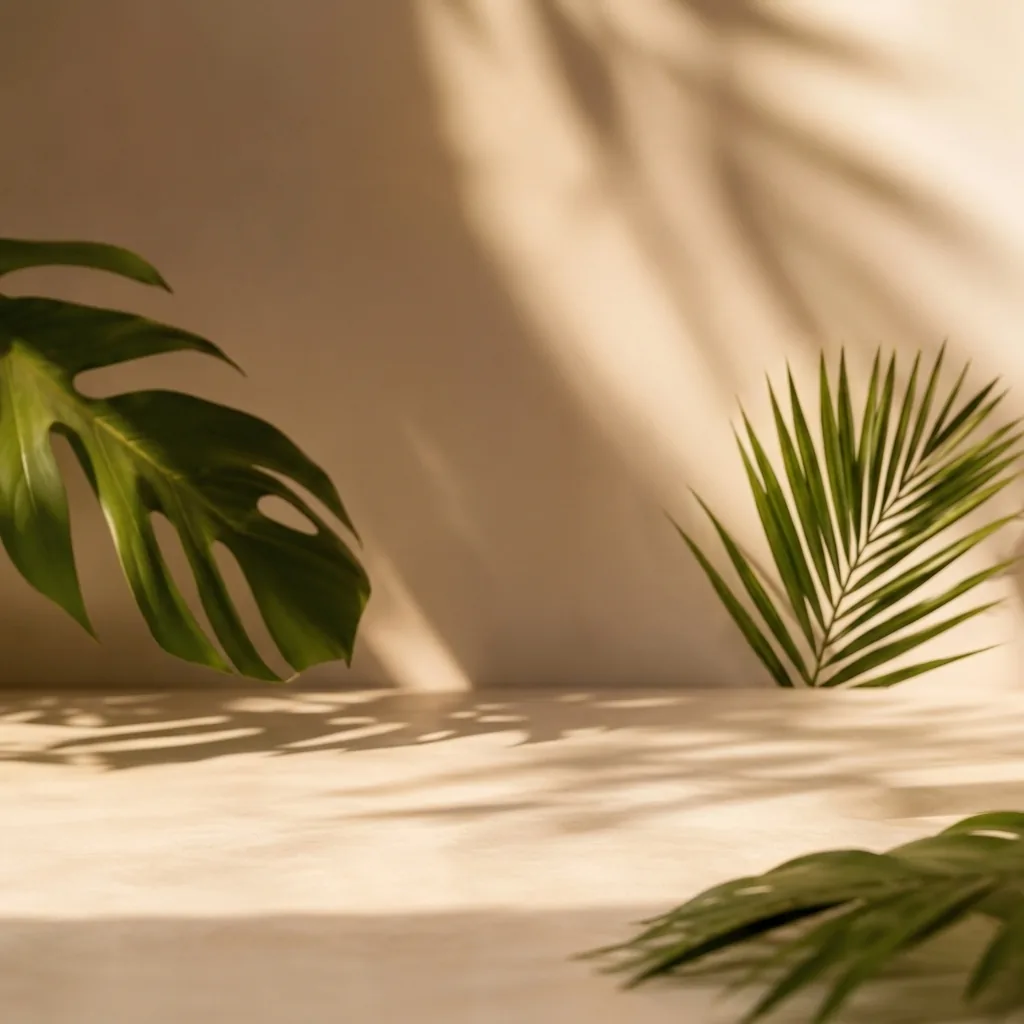 05ITL
05ITLBackground
01ITLPump bottle
02ITLCream jar
03ITLProduct box
04ITLStone props
05ITLBackground
Final Layers
More Than Background Removal
Background removers create a transparent cutout. ImageToLayers also reconstructs the area hidden behind the subject, giving you complete assets for editing and composition.
Most images are processed in 60–120 seconds.
A Flat Image Shouldn't Be a Dead End.
ImageToLayers gives a finished visual structure again: separate what you need, reconstruct what was hidden, and continue editing from there.
Separate Major Elements
Identify subjects, objects, and backgrounds and turn them into independently editable layers.
Reconstruct Hidden Areas
Use AI to rebuild background areas previously covered by foreground objects.
Export Editable Layers
Download your results as transparent PNG layers, a structured ZIP package, or an editable PSD file.
Private File Processing
Your files are processed securely, stored temporarily, and can be deleted from your dashboard.
Need background removal only?
See how simple cutouts compare to full layer decomposition.
Built for Creative Professionals
Prepare layered assets for animation, game design, and product marketing.
Live2D / Spine Animation
Separate characters and supporting elements to reduce manual preparation for Live2D, Spine, and motion workflows.
Game Asset Creation
Separate foreground subjects and backgrounds to prepare artwork for parallax scenes and reusable game assets.
E-commerce & Marketing
Separate products from their backgrounds to create new compositions, campaign visuals, and marketplace images.
Ad Delayer
Need to change just one part of an ad?
Separate a finished ad into editable parts so you can replace the product, background, text area, or decorative elements without rebuilding the whole creative.
Delayer my ad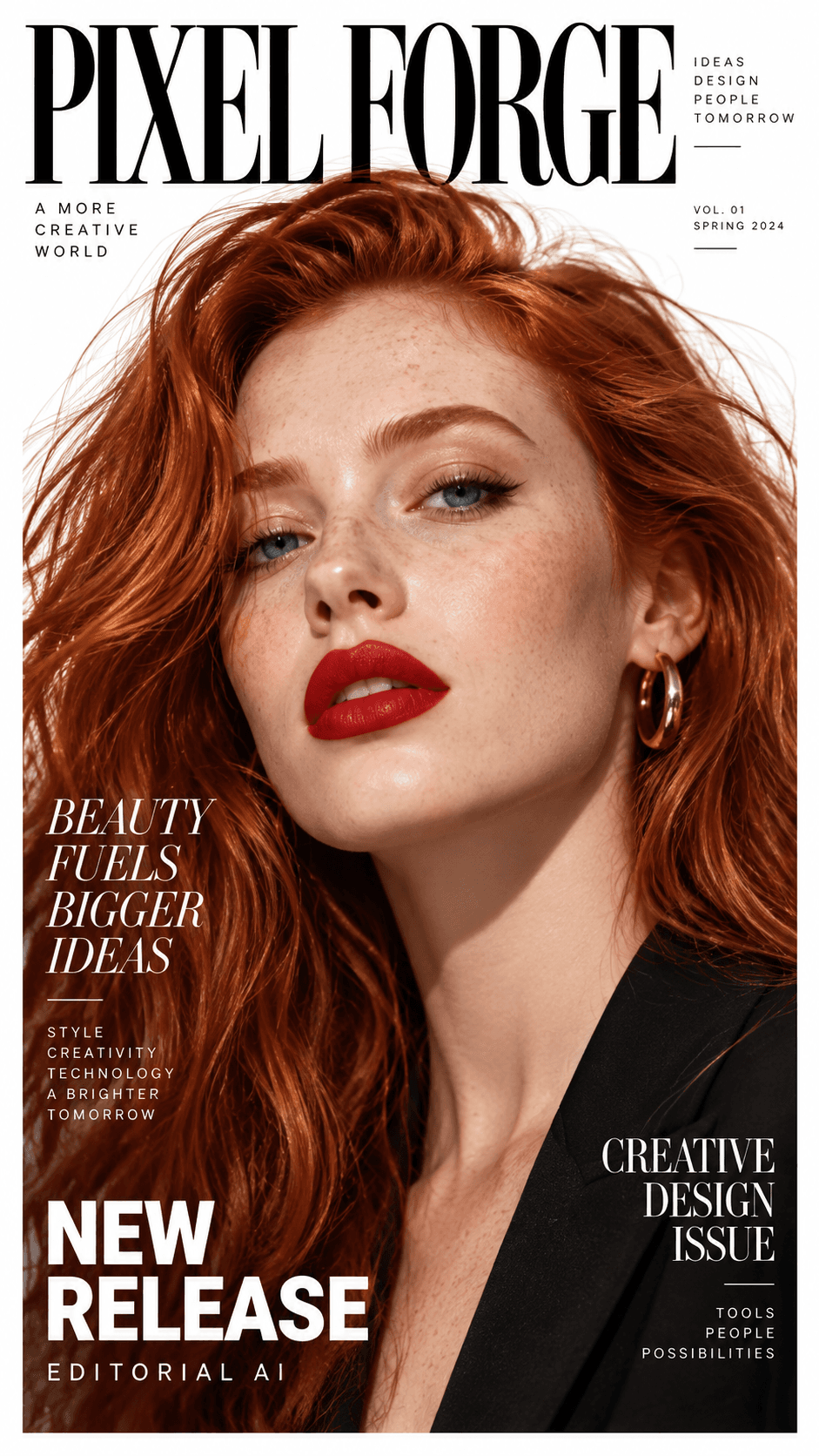
Original ad



One finished ad, ready to edit part by part.
Browse Workflows
Explore Image Layering Workflows
Choose a workflow based on the type of image you want to separate.
Explore visual tools
Create, edit, and separate images
Generate a new visual, prepare a character for animation, or remove text from an existing image. Choose a focused workflow and start creating.
Core Workflow
Image to Editable PSD
More than background removal. Separate your image into editable layers and reconstruct hidden areas.
Separate Image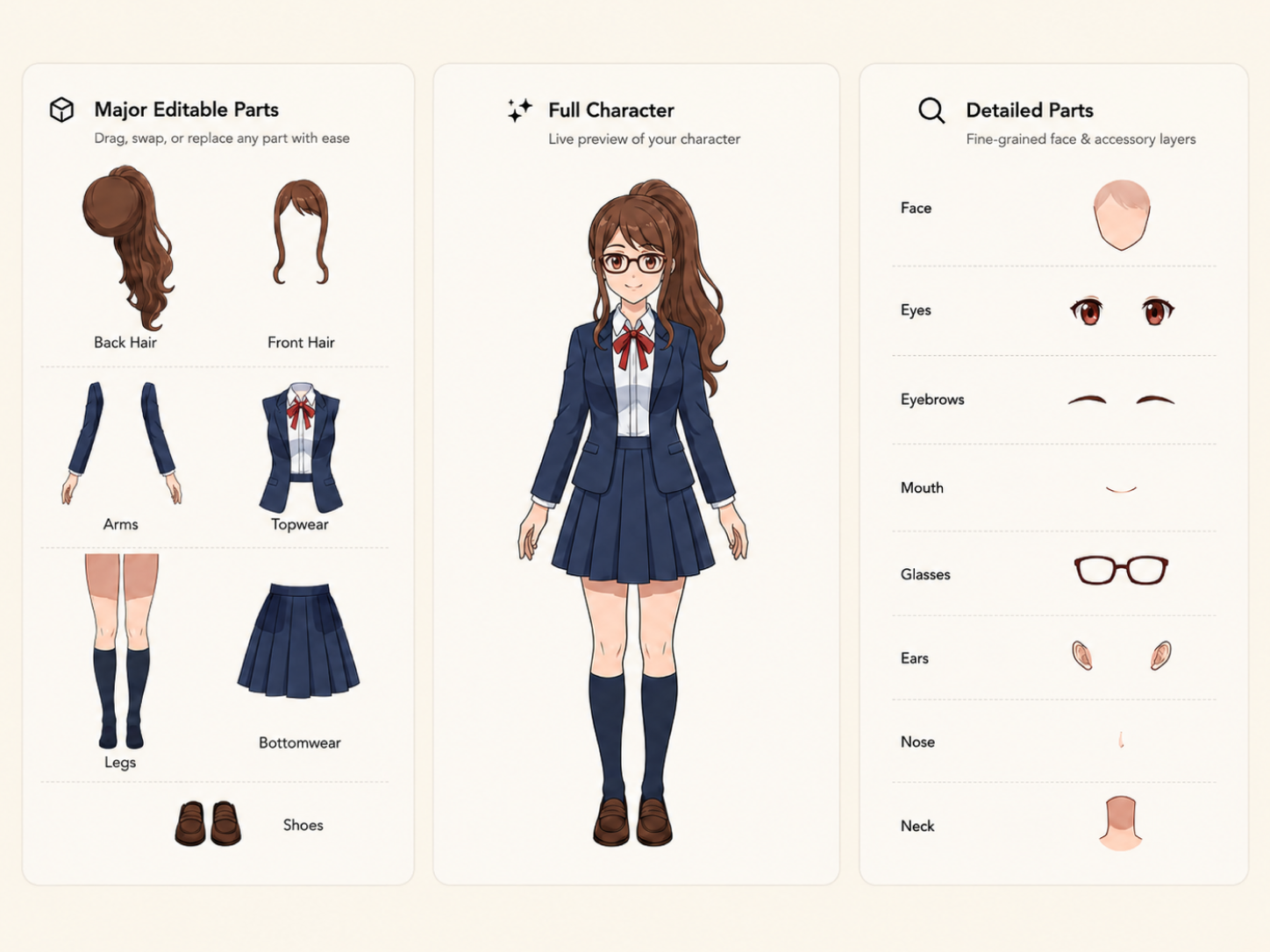
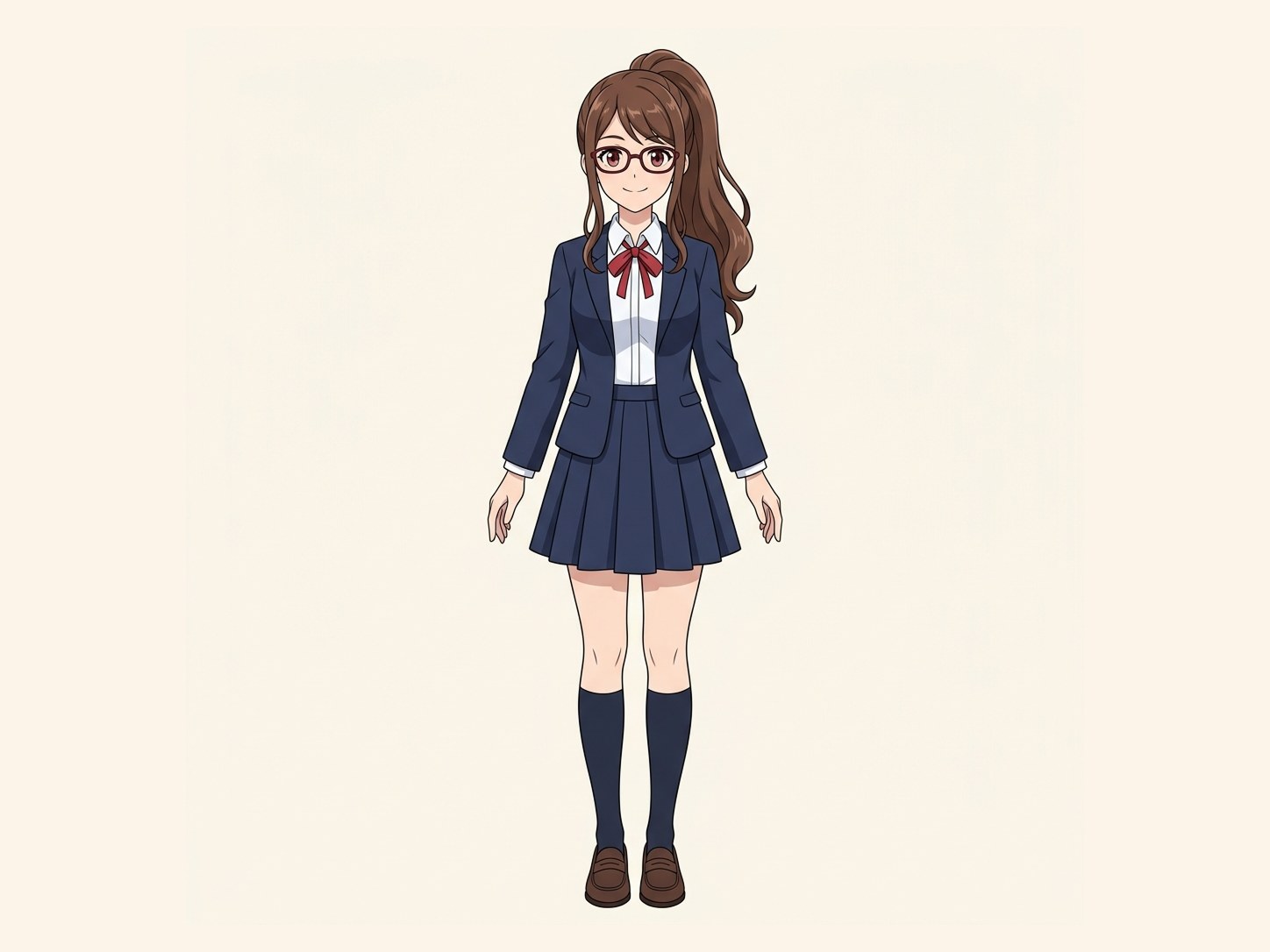
DETAILED CHARACTER PARTS
Character into Layers
Separate supported character regions such as hair, face, body, and clothing into editable layers, with plausible reconstruction where parts overlap.
Separate Character Parts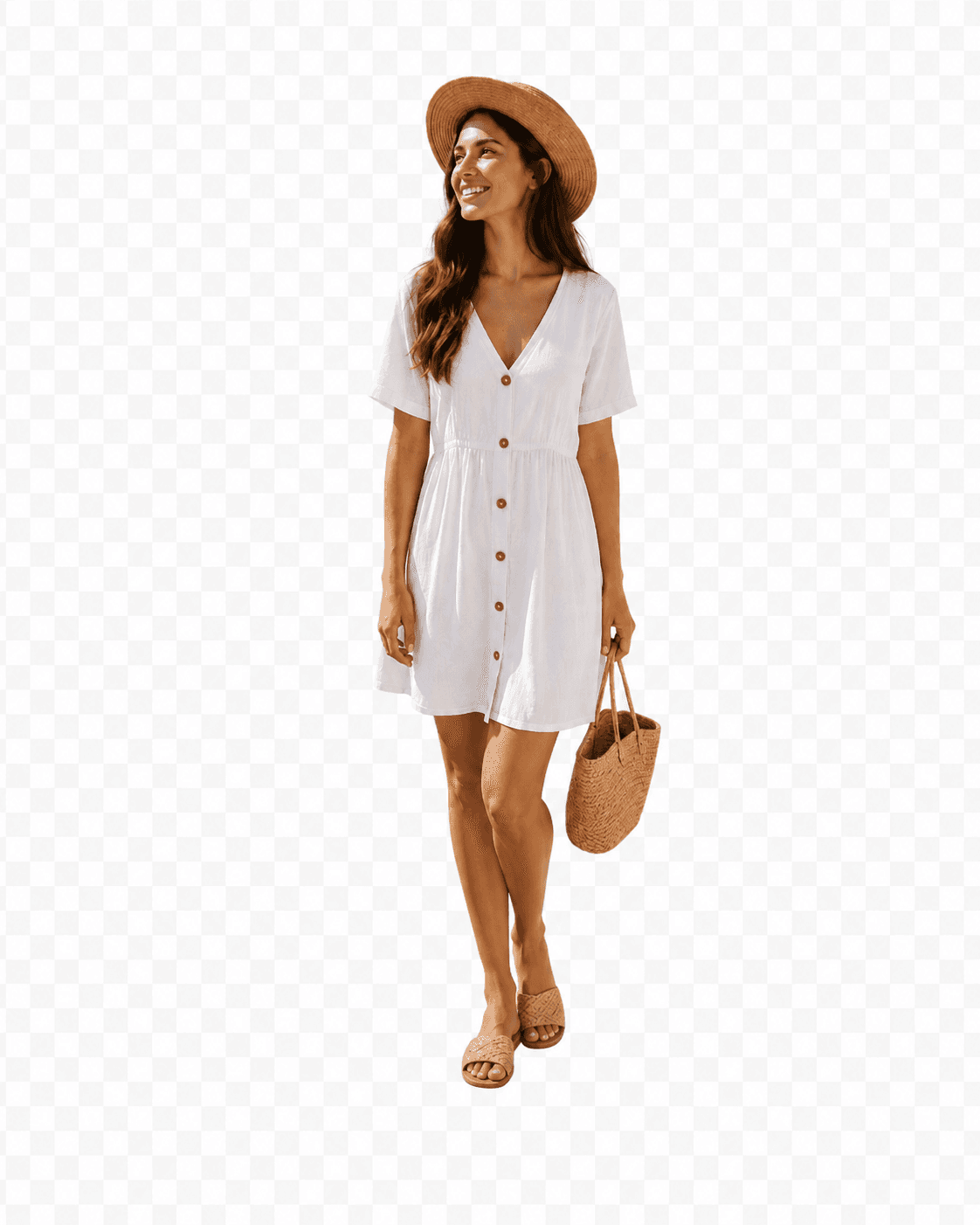
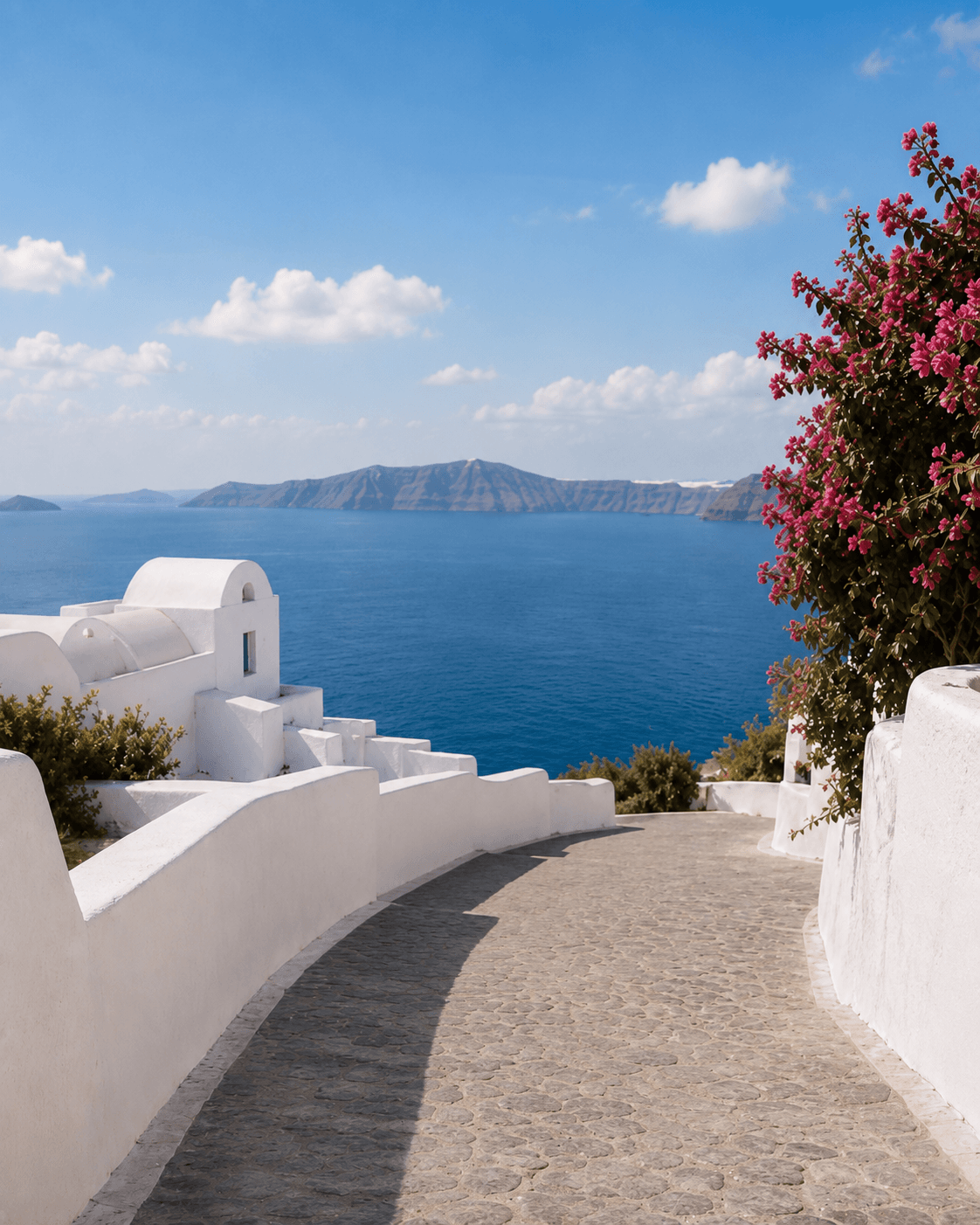
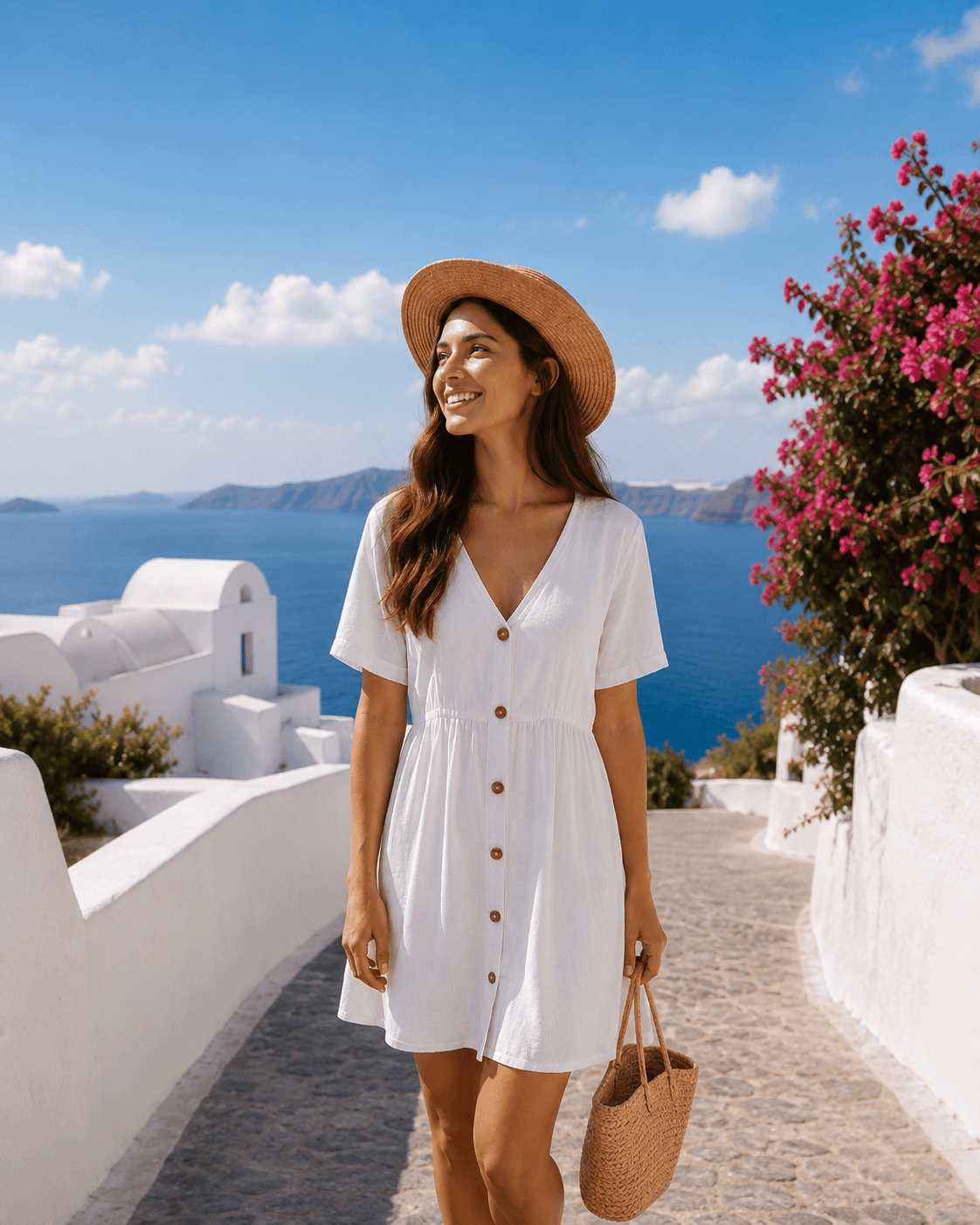
Foreground & Background
Background Splitter
Separate a photo into a transparent foreground and a reconstructed background.
Split Background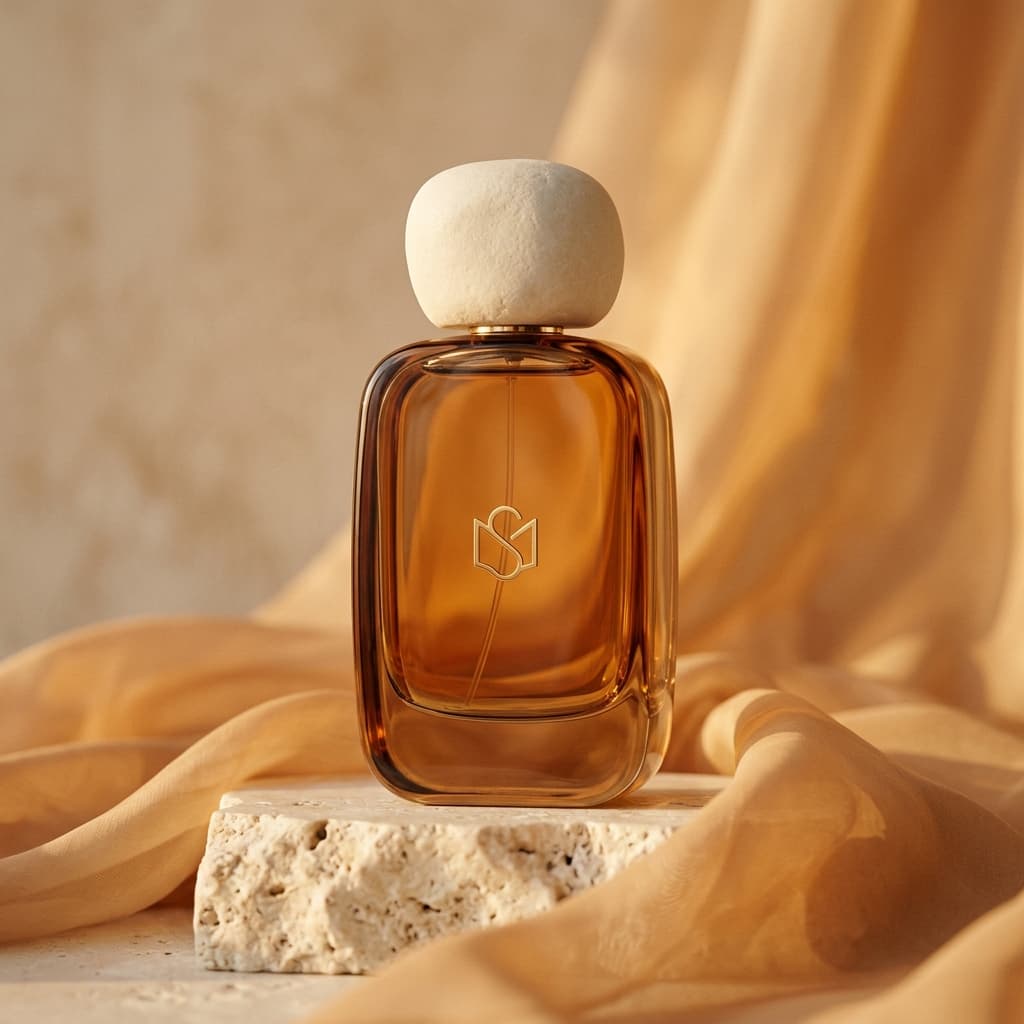
“A luxury perfume bottle on a sculpted stone pedestal, surrounded by translucent amber fabric, warm sunset lighting, soft shadows, premium editorial product photography.”
Prompt to visual
Image Generator
Turn a written direction into a polished visual, then continue editing or separate it into layers.
Generate an image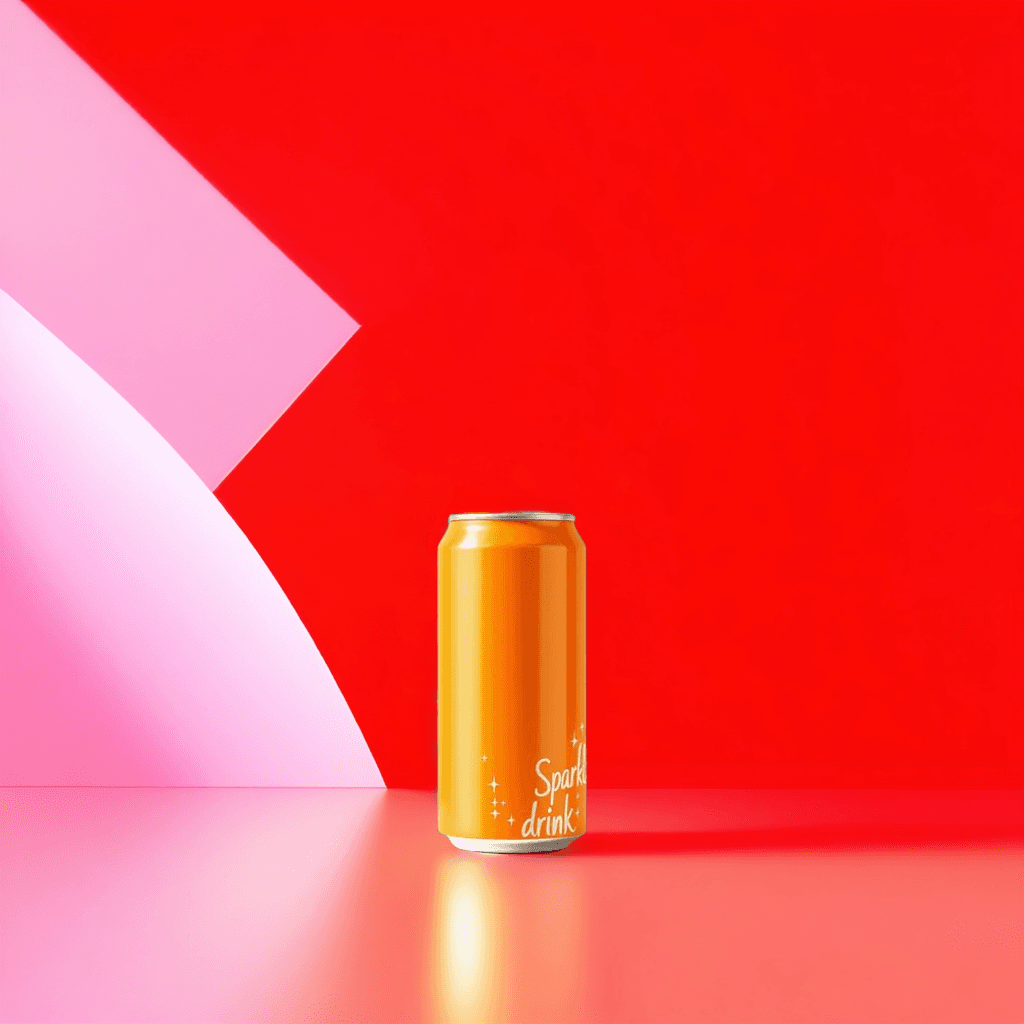 Before
Campaign Motion
AI Video Generator
Turn product photos, generated images, and text prompts into short videos for ads and social media.
Generate Video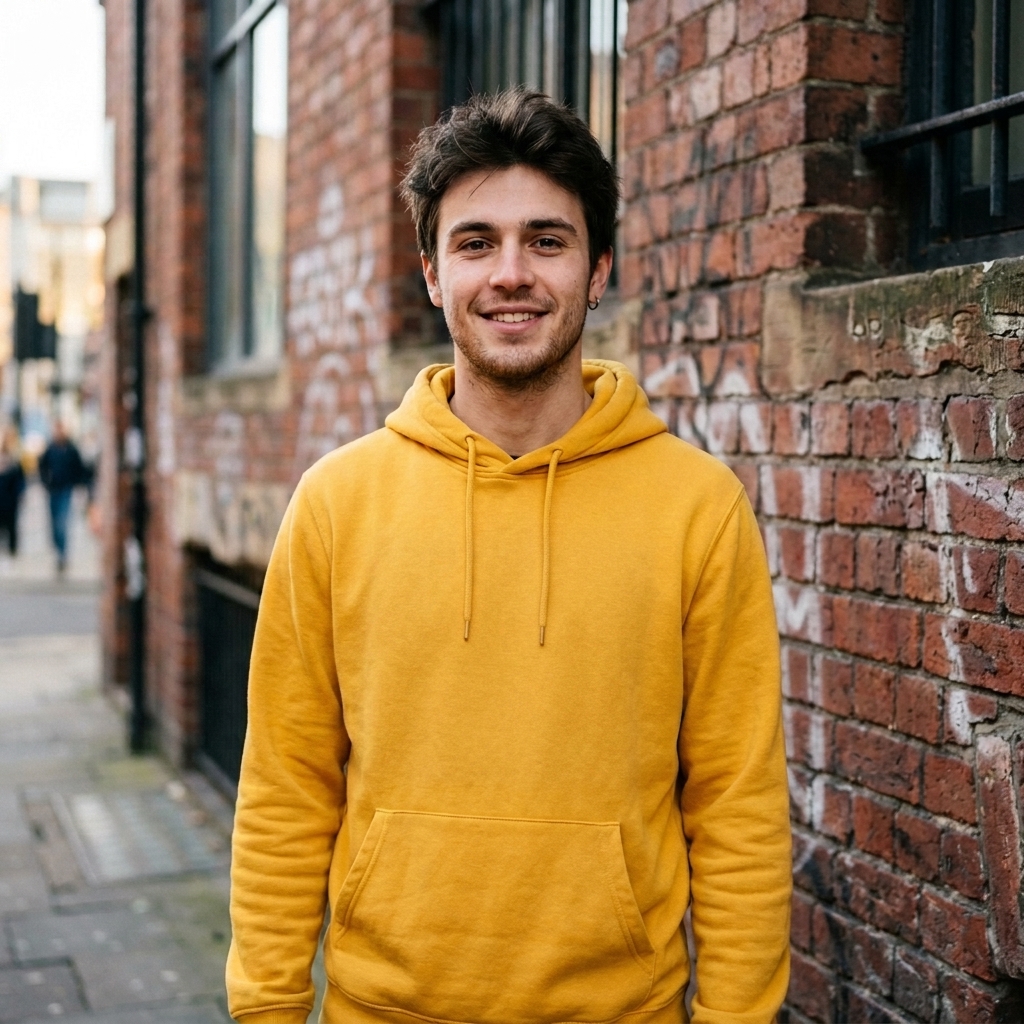
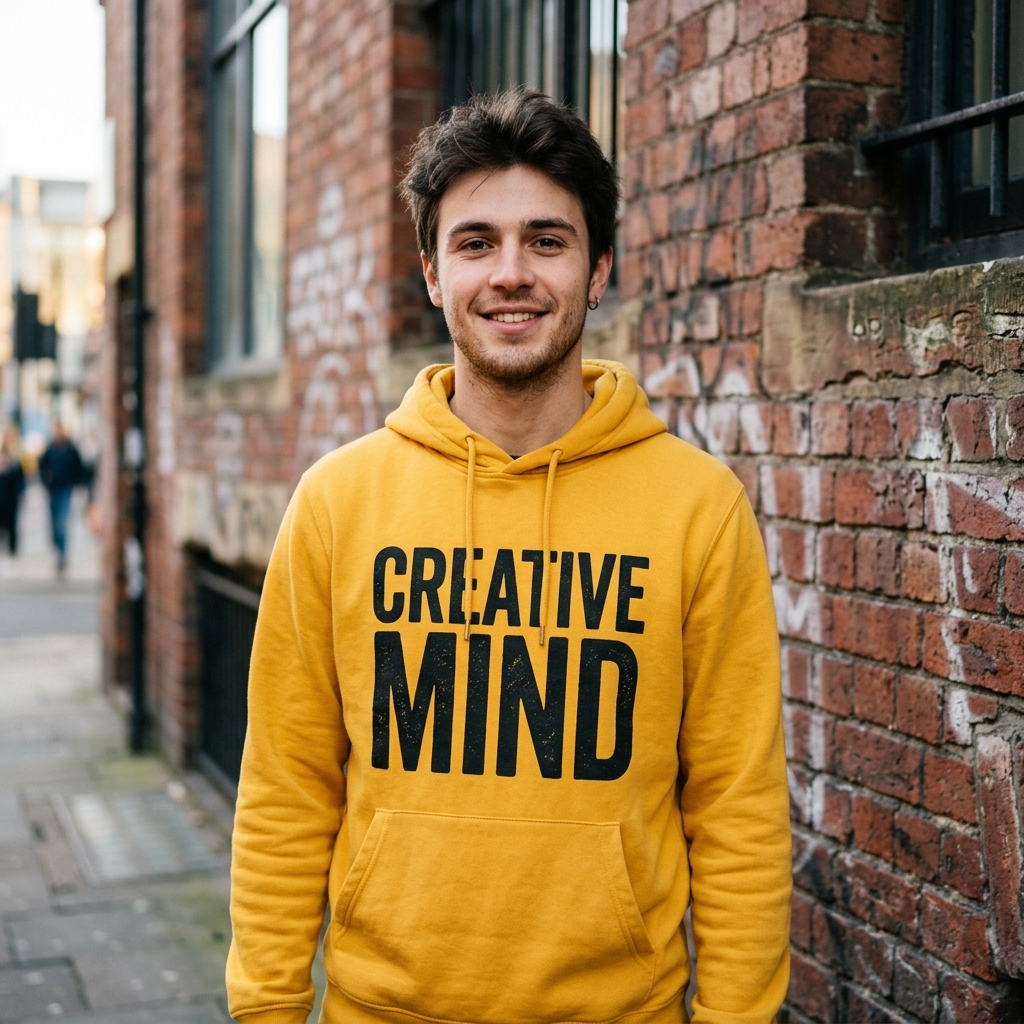
Automatic cleanup
Remove Text from Image
Detect and remove text automatically while rebuilding the hidden background behind it.
Remove image text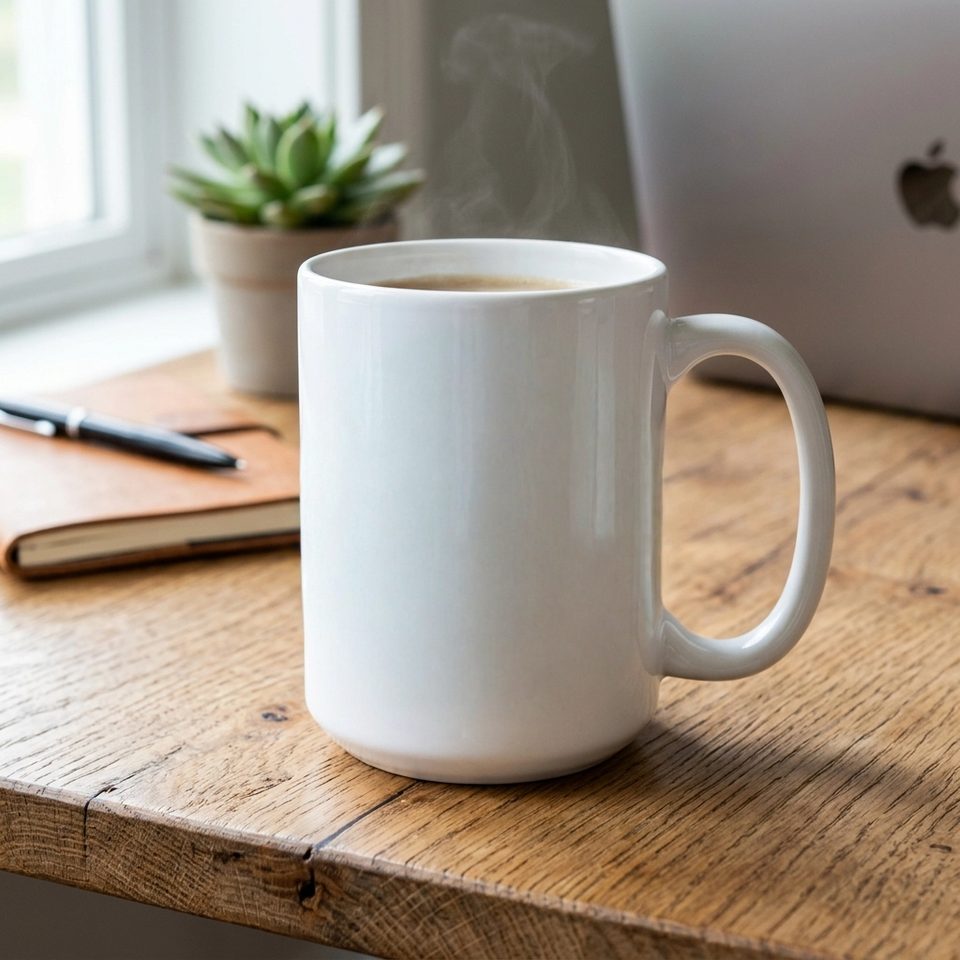
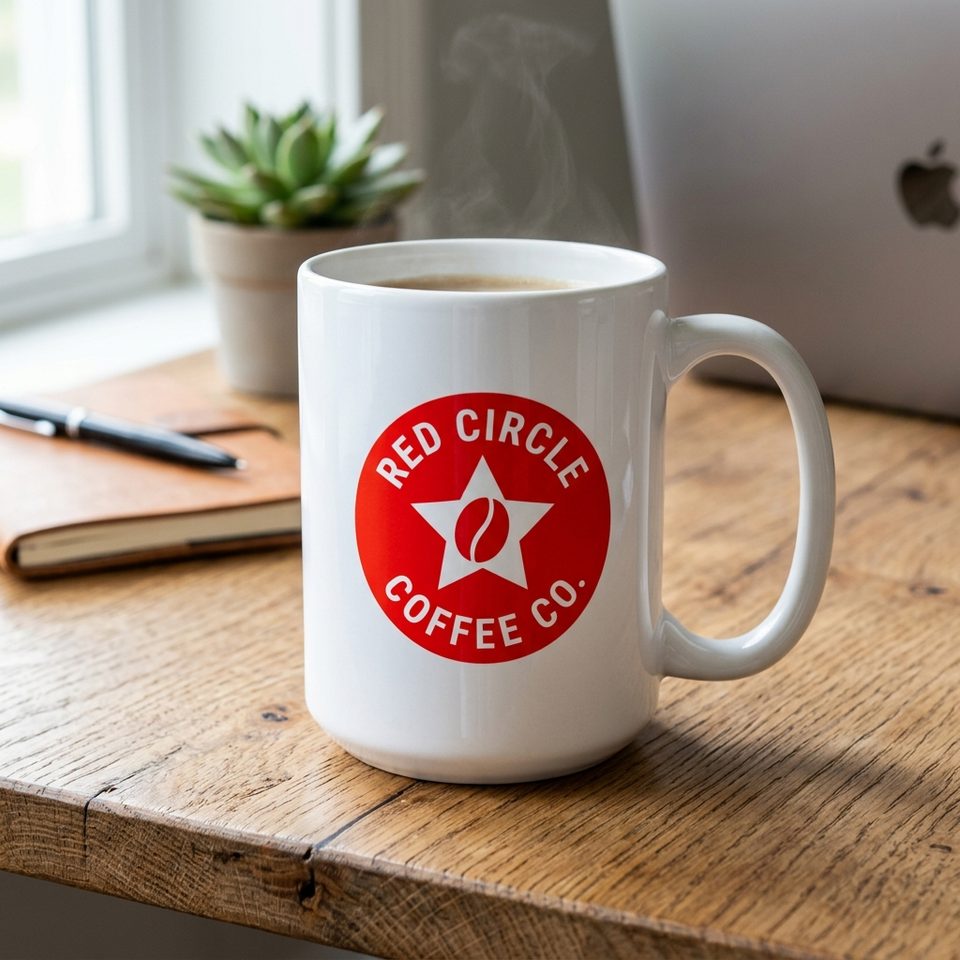
Branding Cleanup
Remove Logos
Easily remove unwanted watermarks, logos, and branding elements while reconstructing the background.
Remove Logo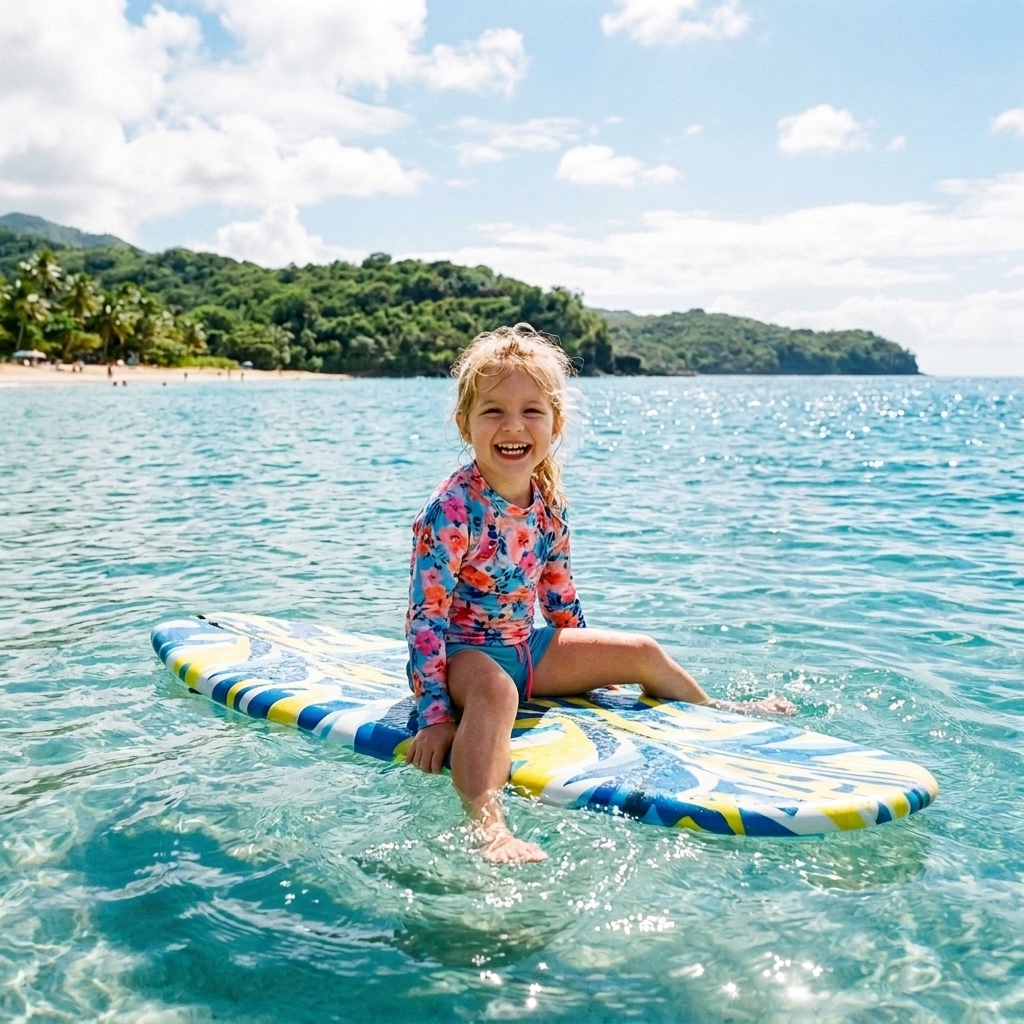
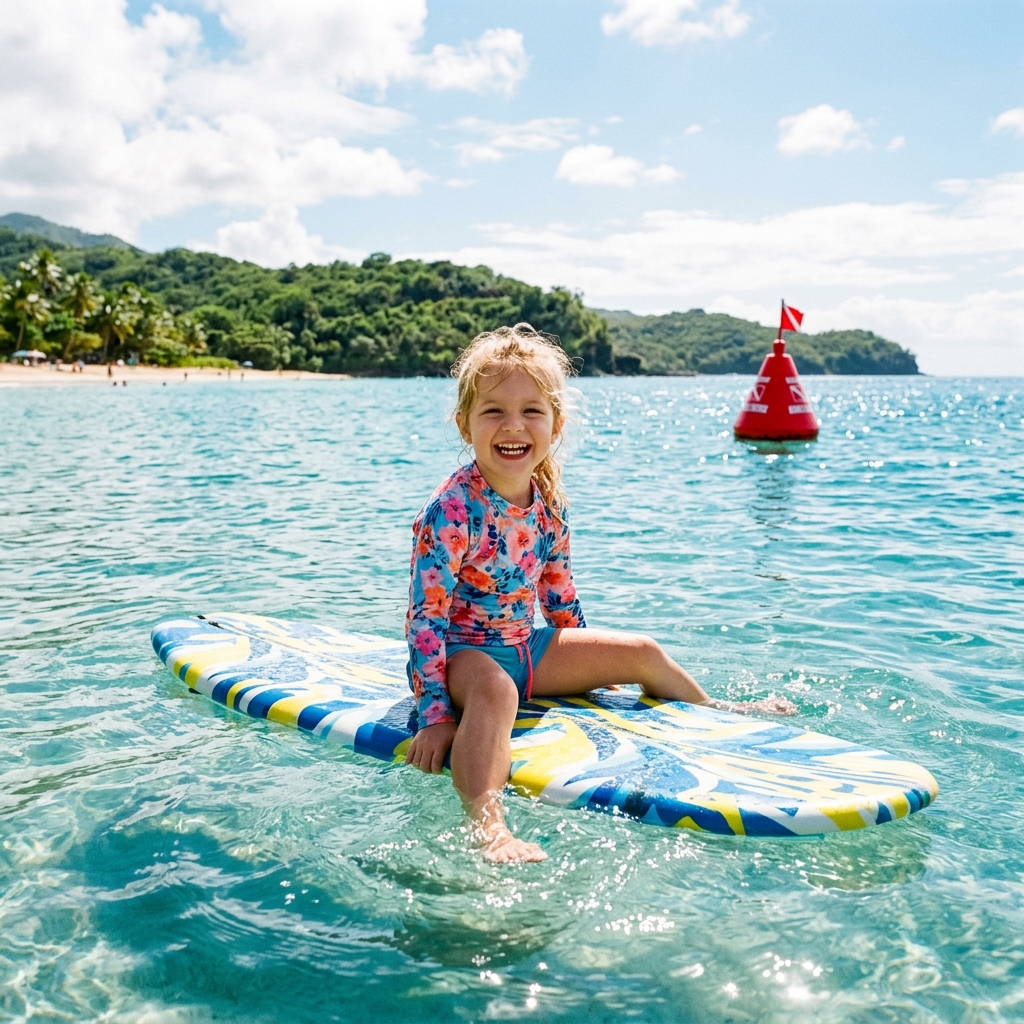
Cleanup Objects
Remove Unwanted
Remove people, wires, watermarks, and clutter with quick AI cleanup or precise mask-based object removal.
Remove Objects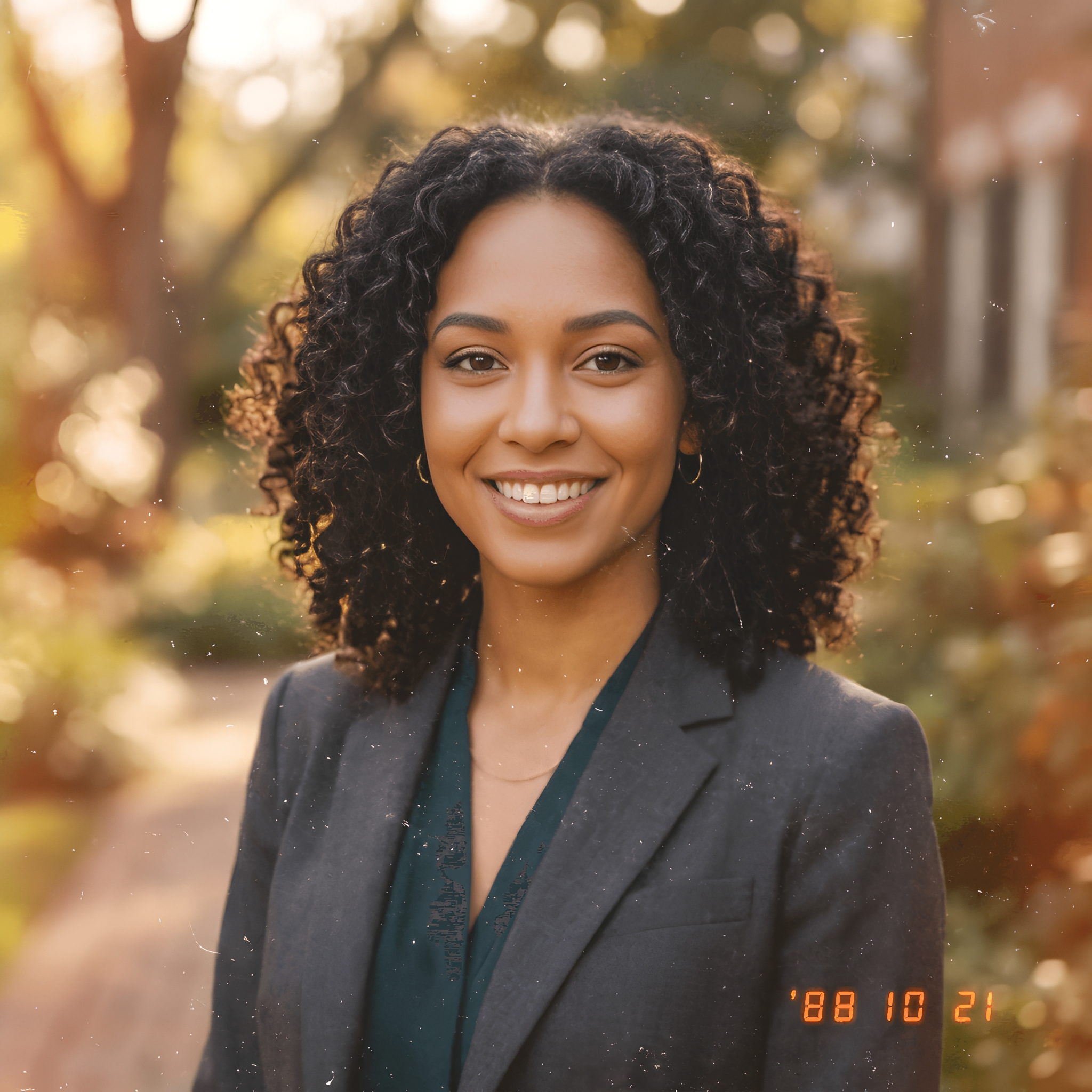
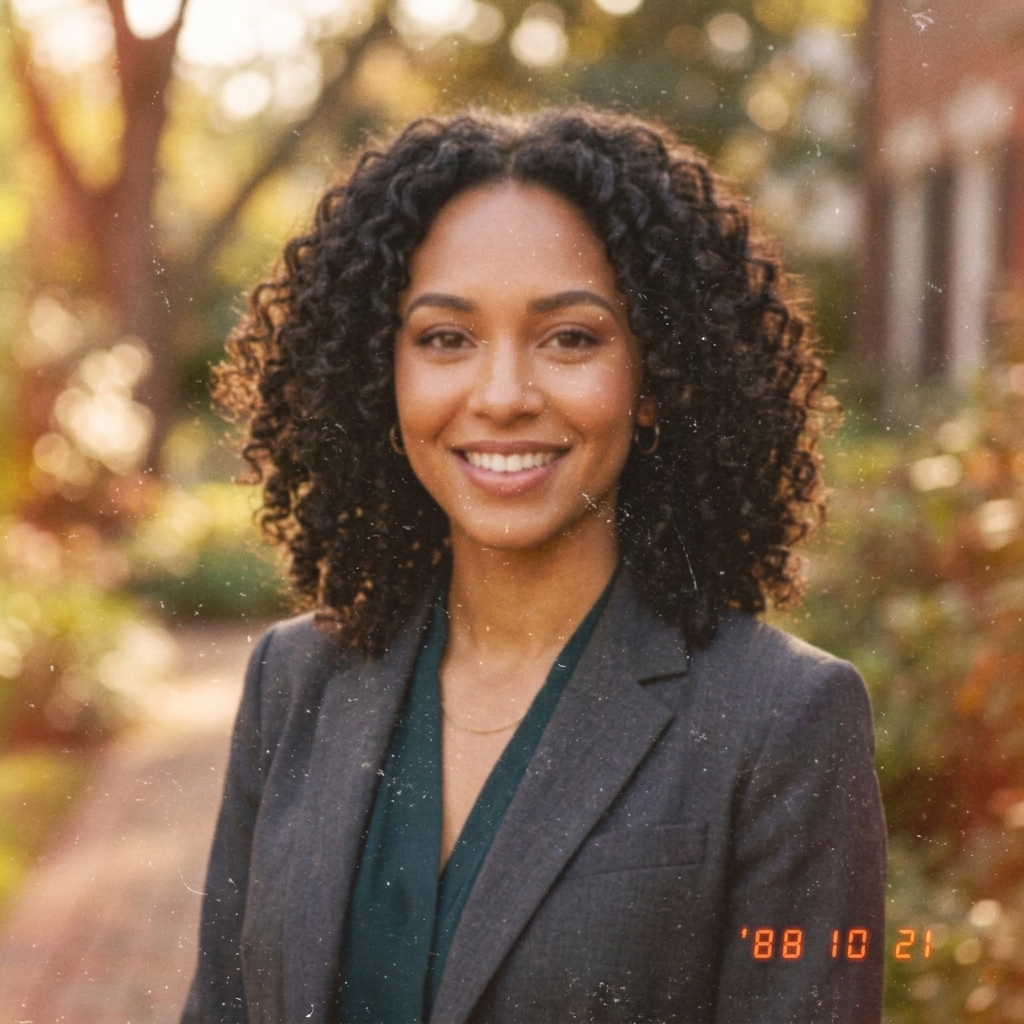
Headshot Enhancement
Image Upscaler
Enhance portraits, team headshots, and profile pictures with a face-focused workflow built to recover sharper facial detail.
Upscale Image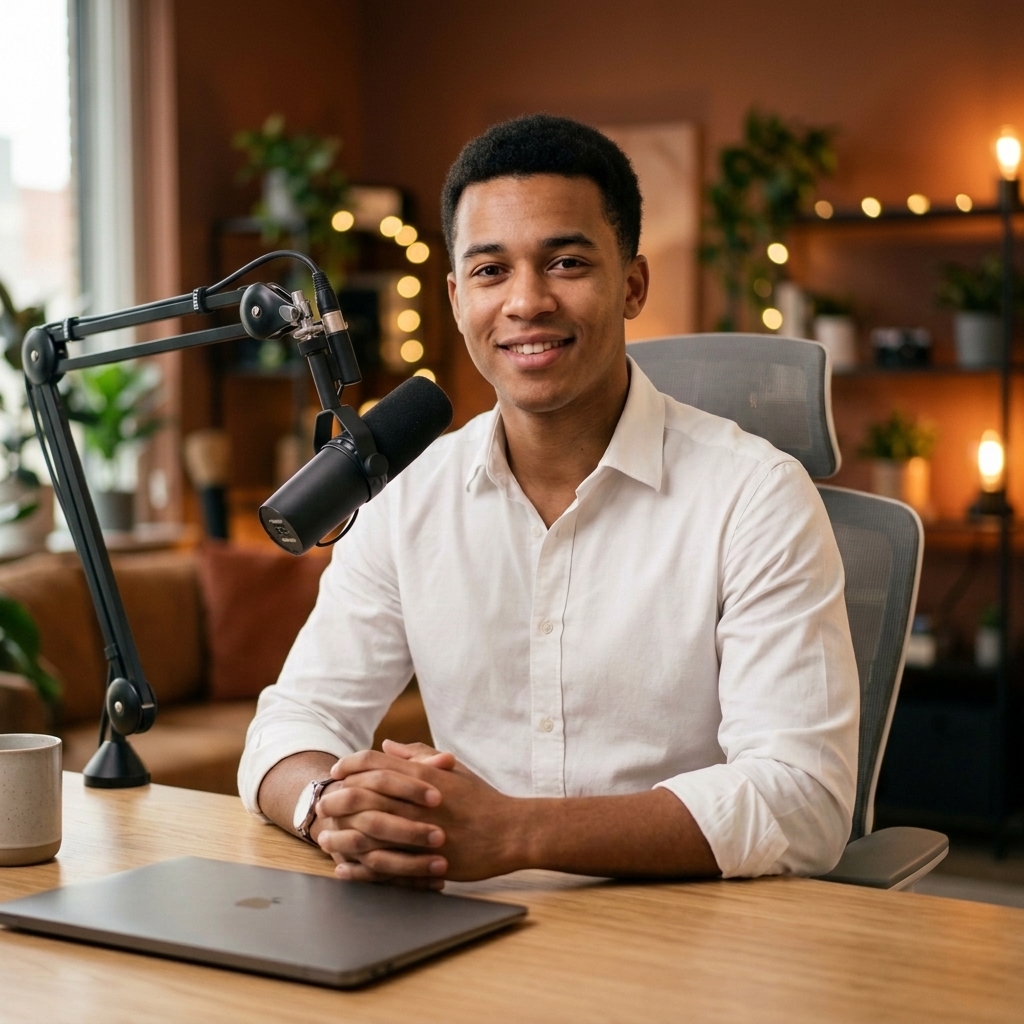
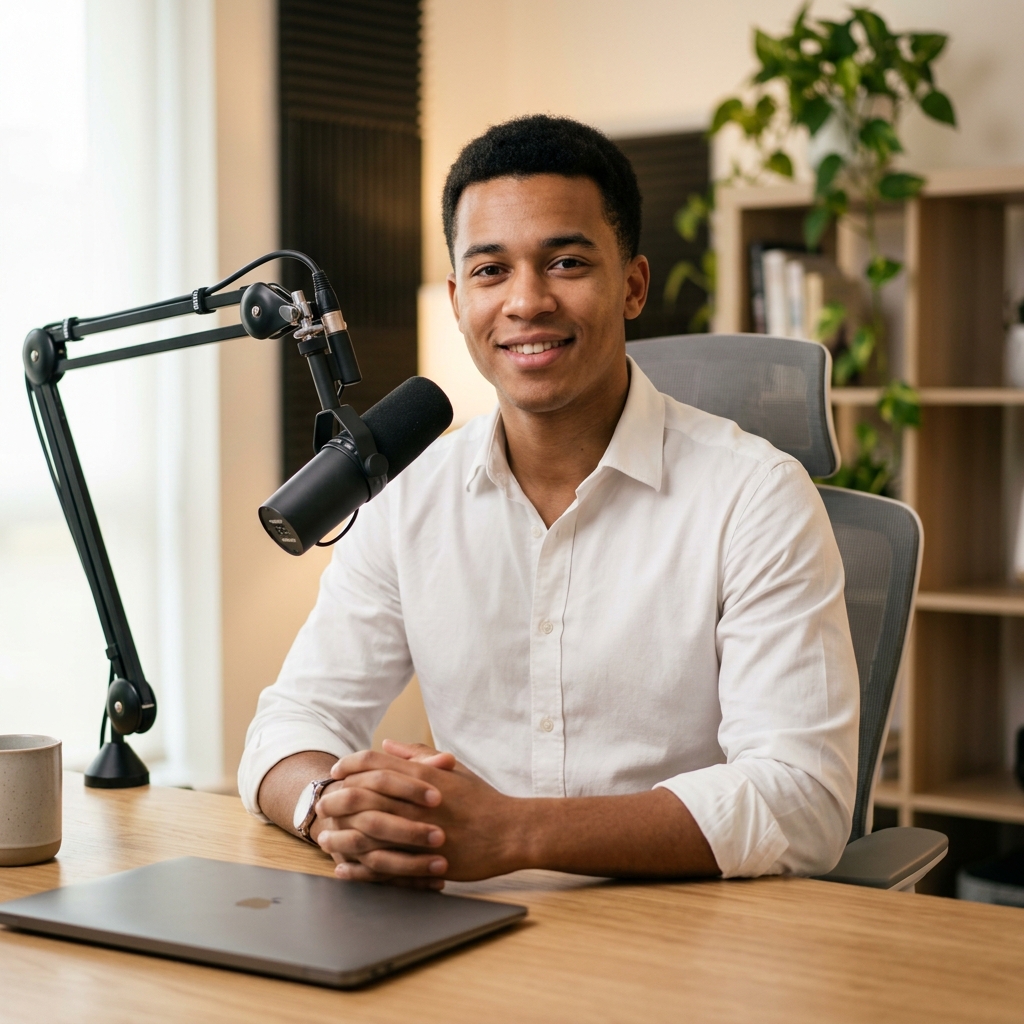
Photo Backgrounds
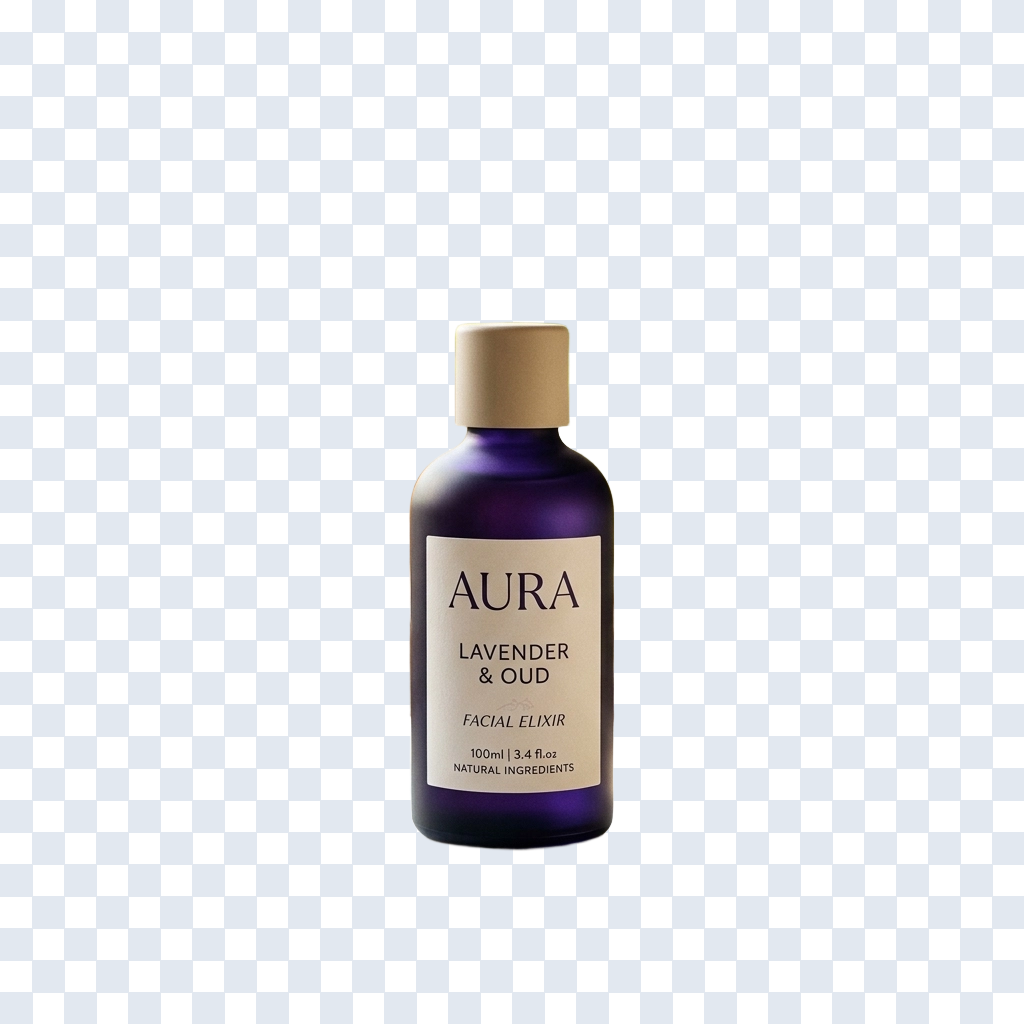
Background Changer
Replace backgrounds for products, portraits, marketing images, and social visuals.
Change Background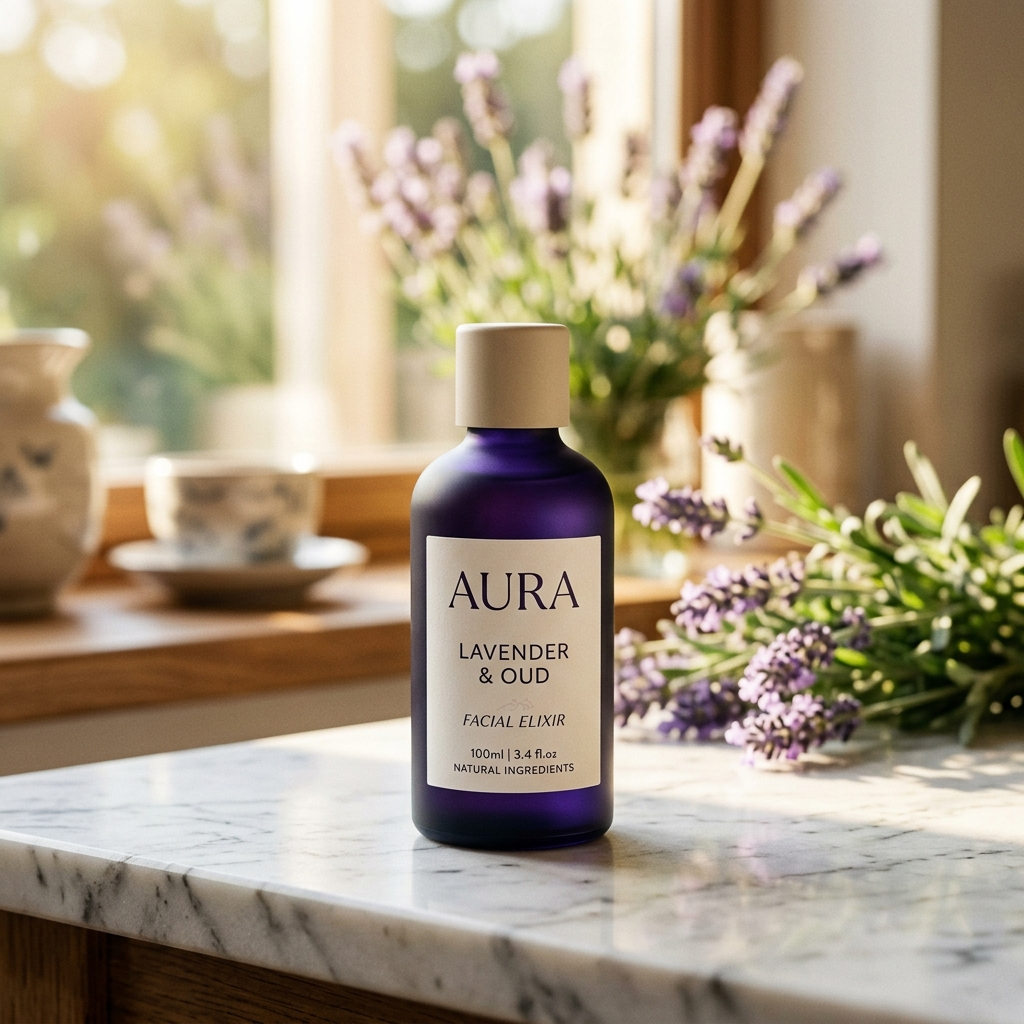
Background Generation
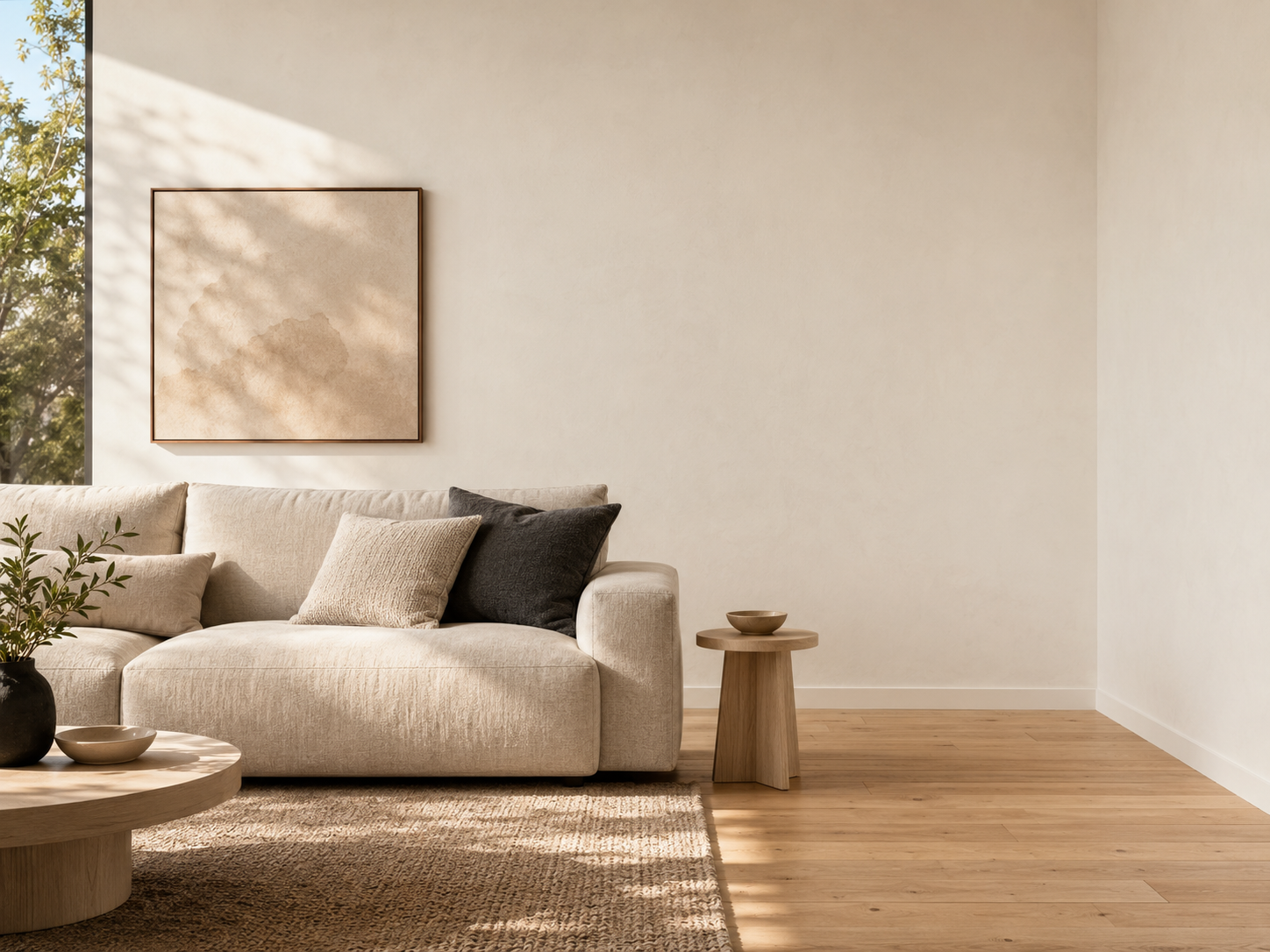
Generate Background
Place your product cutouts into beautiful, AI-generated environments instantly.
Generate Background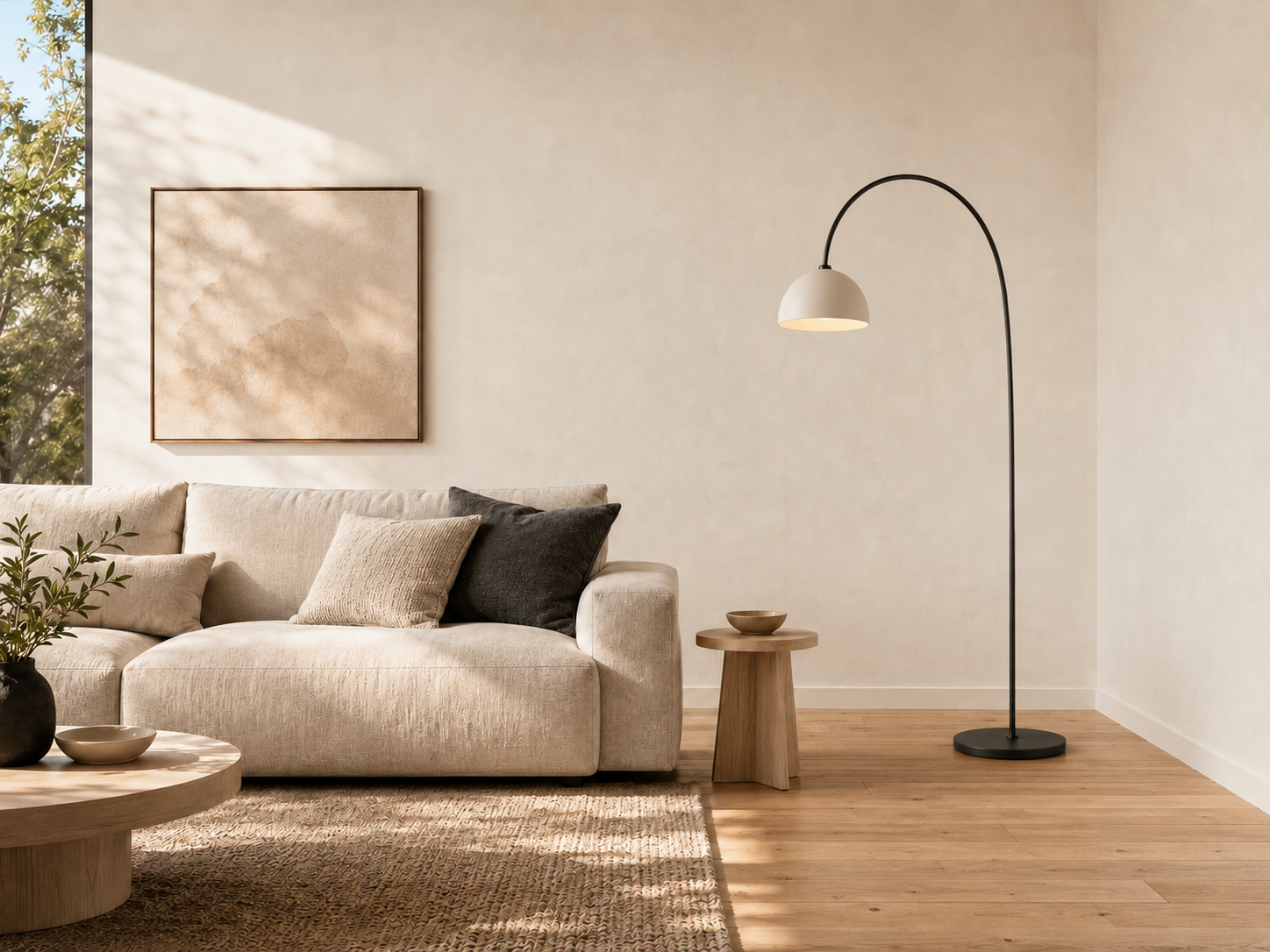
Add & Replace Objects
Generative Fill
Use AI to add, replace, or rebuild content inside any selected area of your image.
Use Generative Fill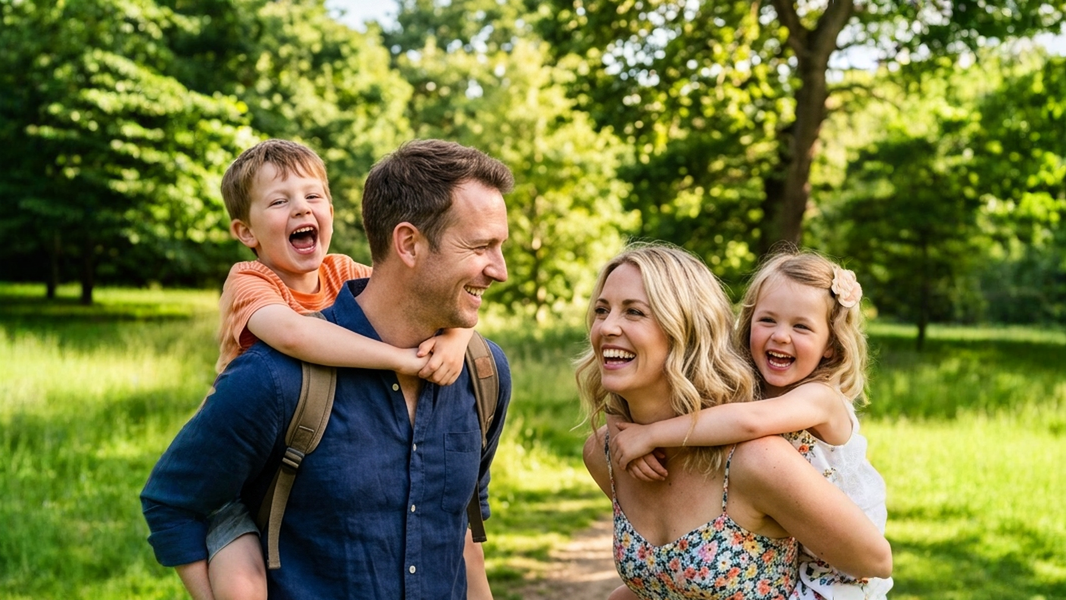
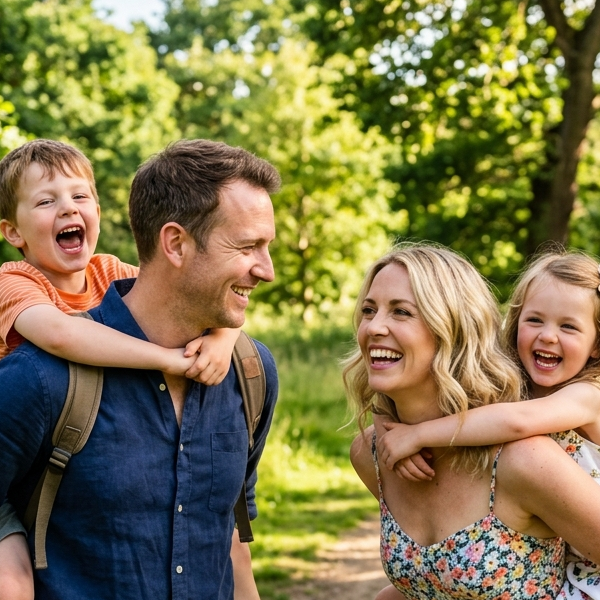
Image Outpainting
Image Extender
Seamlessly uncrop and extend images in any direction while maintaining the original style.
Extend Image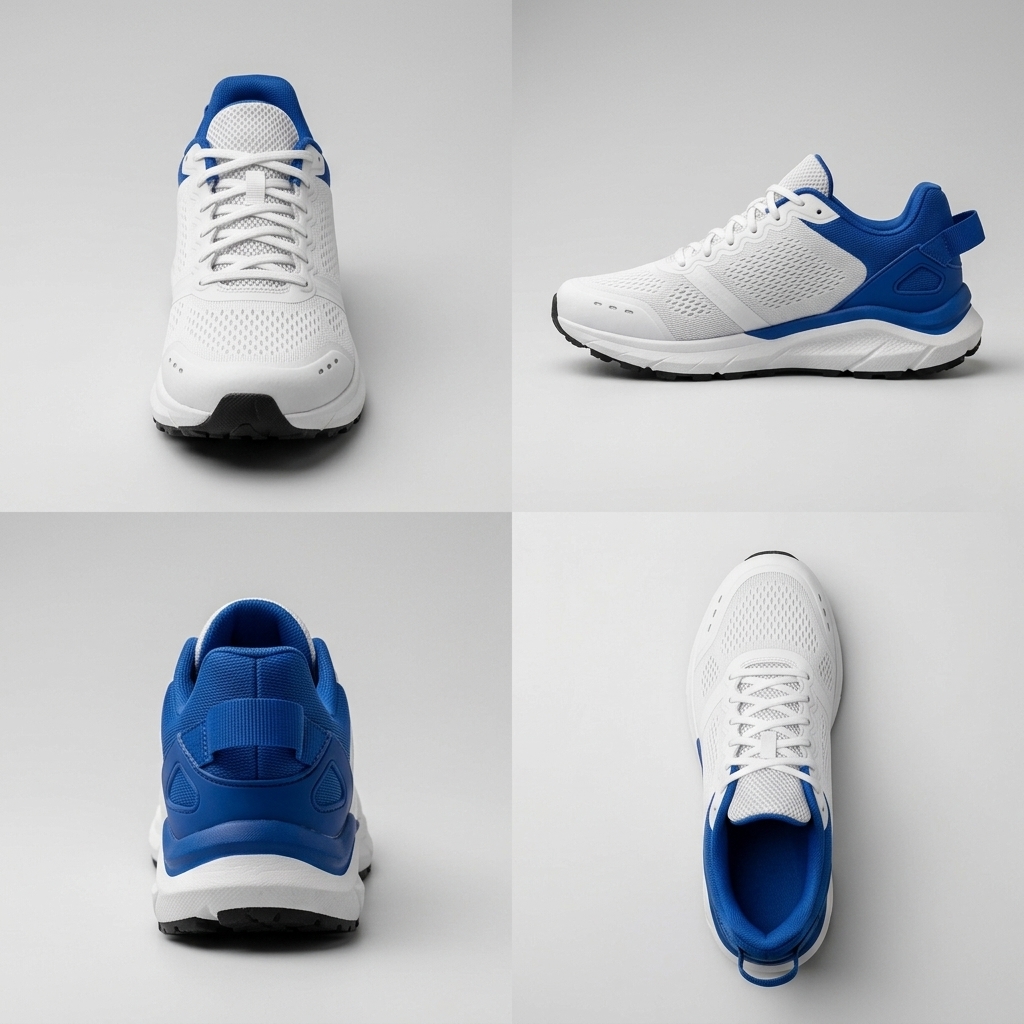
Product Marketing
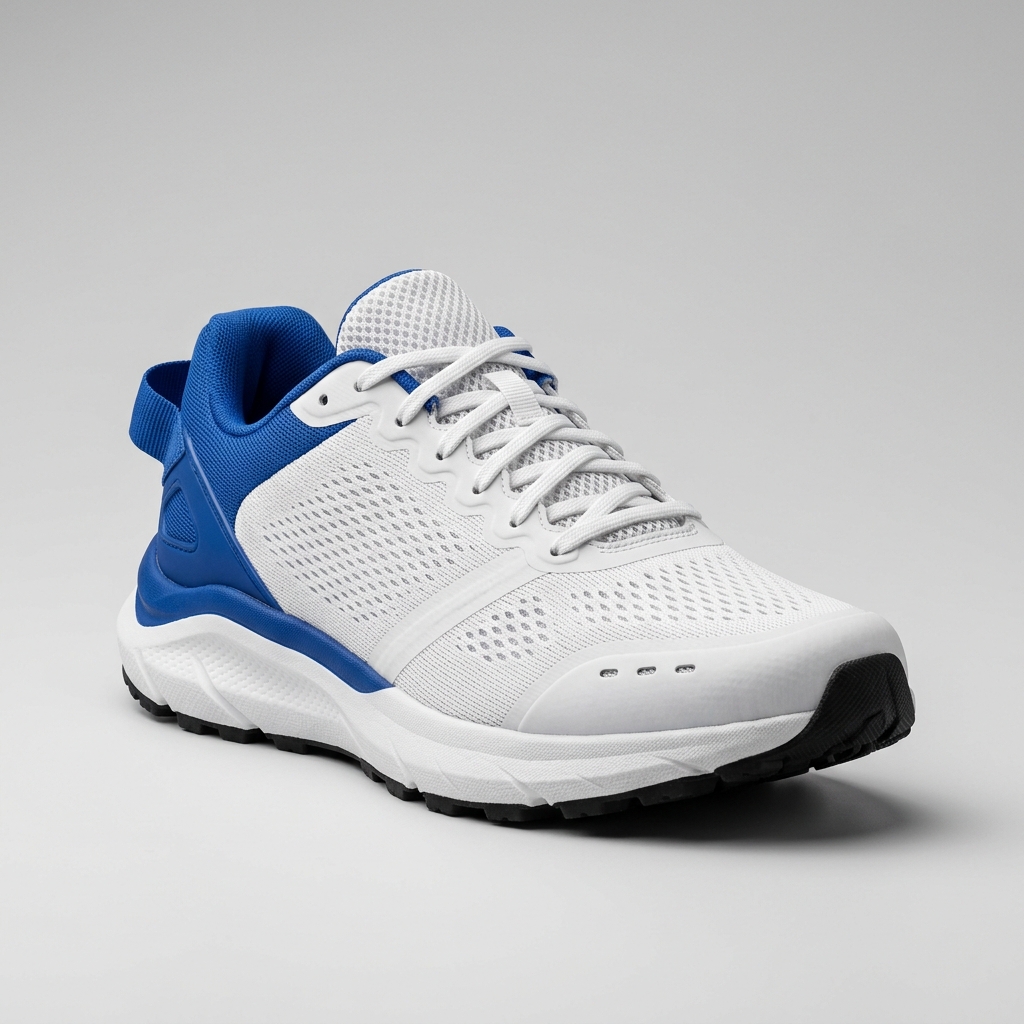
AI Multiple Angles
Generate front, side, and back views from a single product photo without a reshoot.
Generate Angles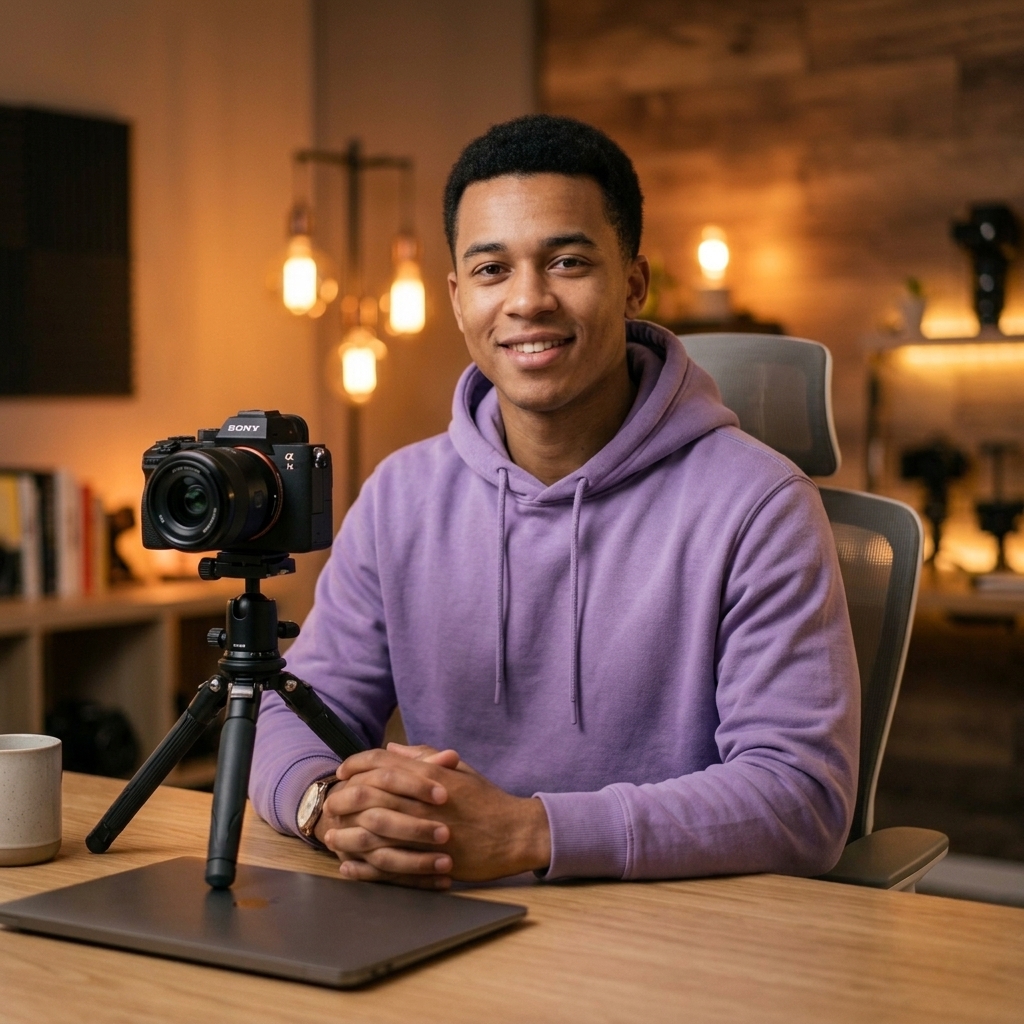
Complete Transformation
Edit Photos with AI
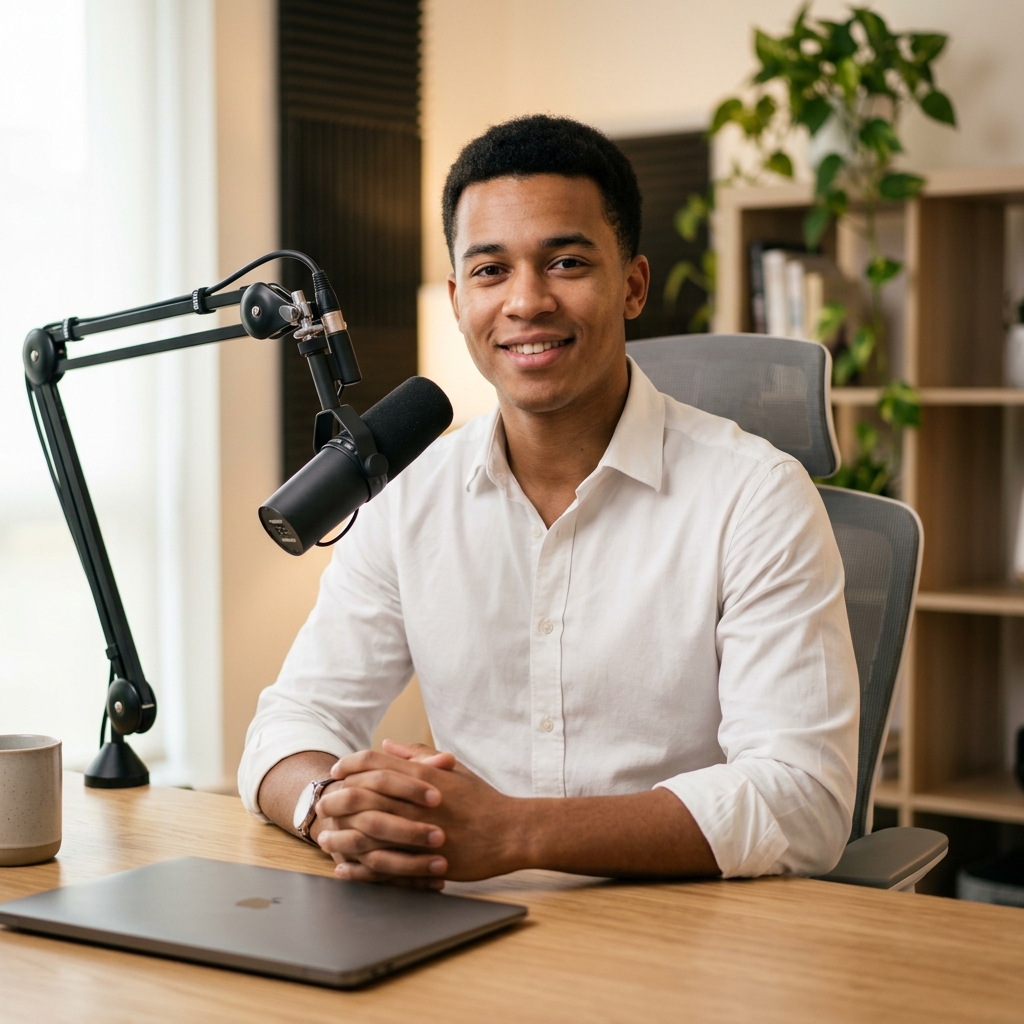
Change his shirt to a purple hoodie, replace the mic with a camera, and change the background to a creative studio.
Try AI Photo EditorSee What You Can Create
Real workflows before you choose a plan
Separate characters, prepare product visuals, and generate additional viewpoints with focused image workflows.
Explore workflows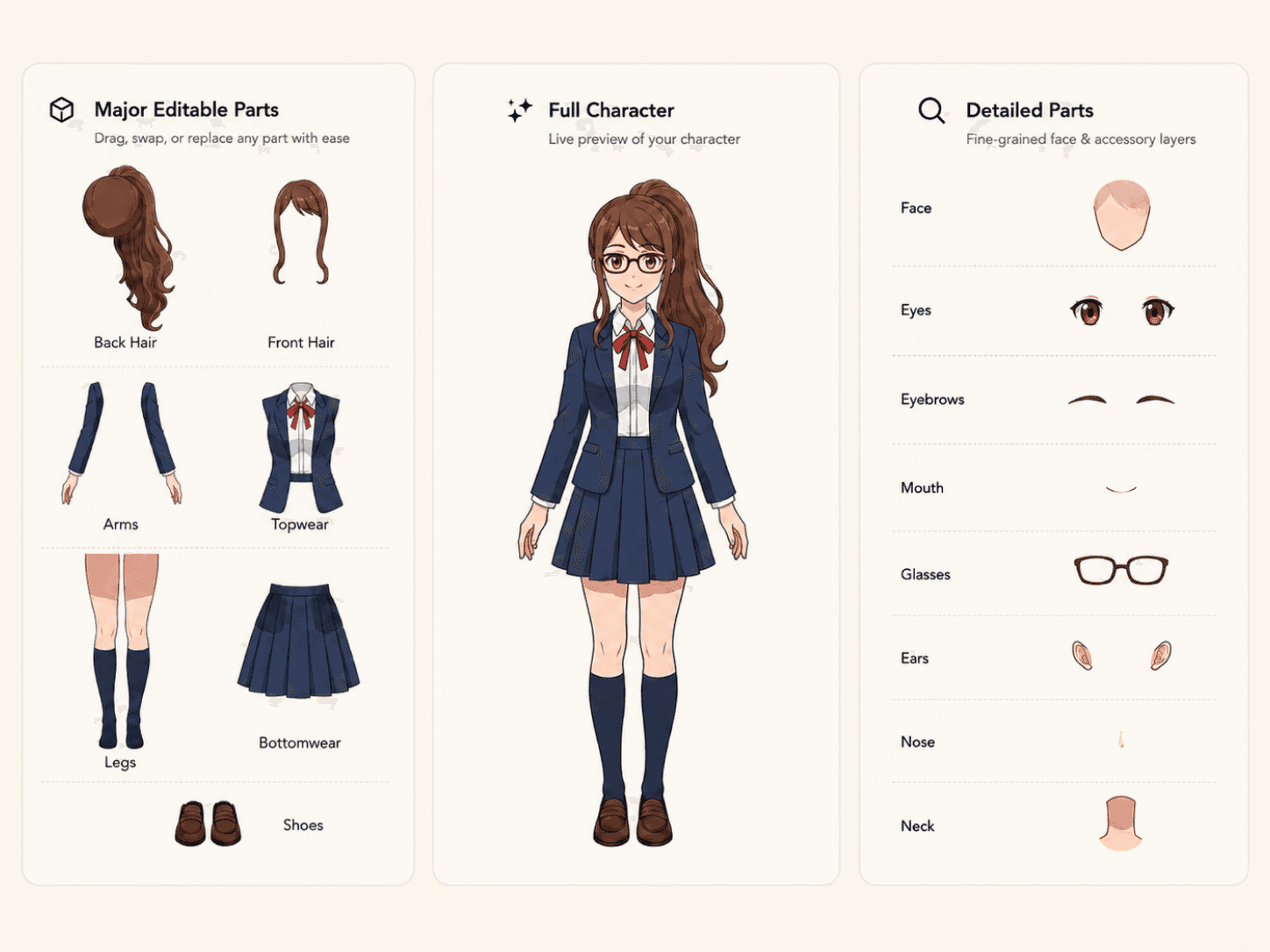
Character layers
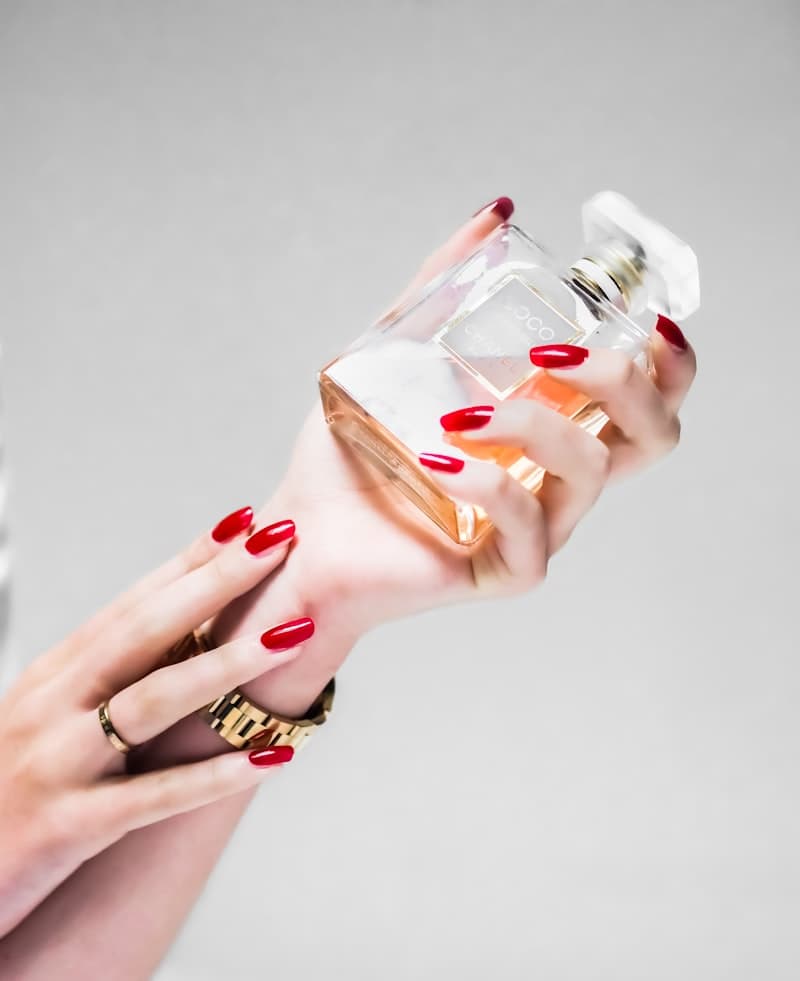
Product visuals
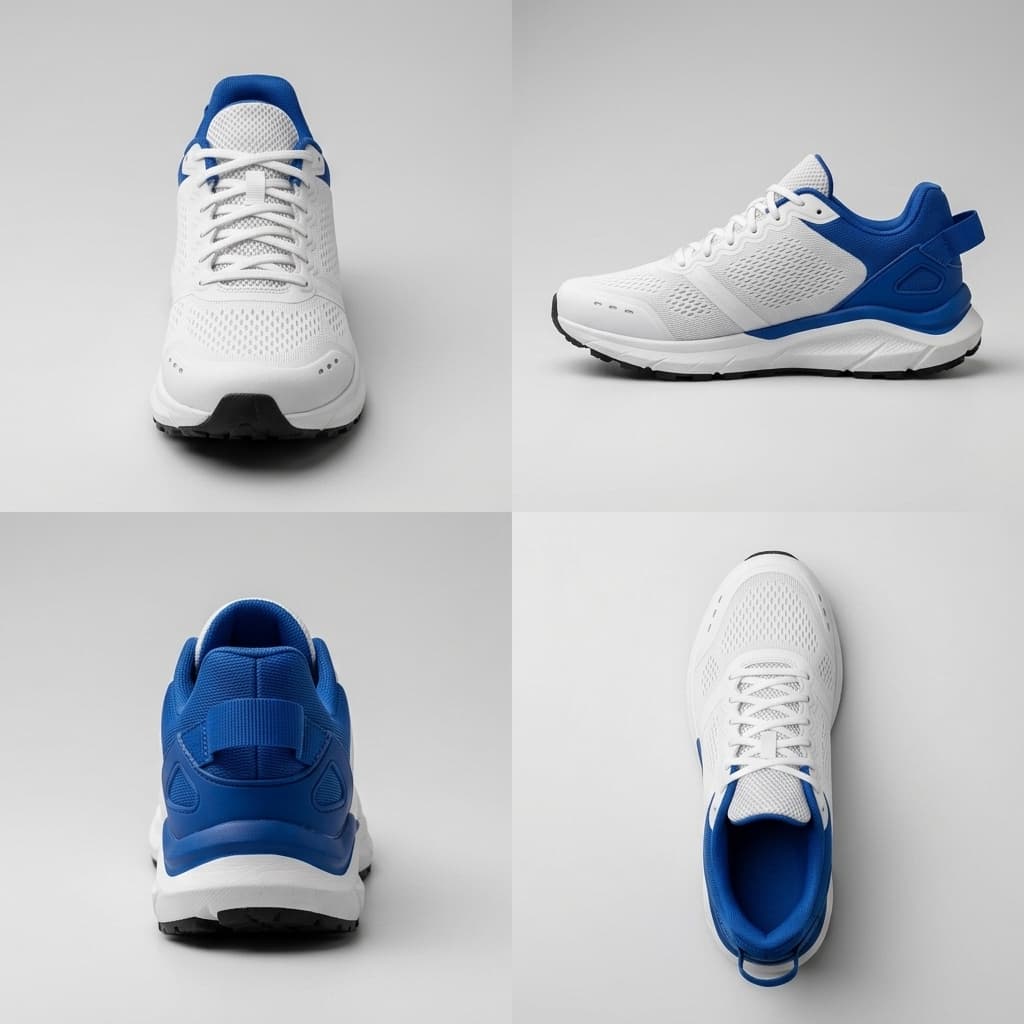
Multiple angles
One Credit Balance for Every Image and Video Workflow
Use the same credits for layer separation, background tools, image editing, image generation, and video generation.
- 20 one-time credits
- No subscription required
- Eligible workflows: Background Remover, Image Generator (Turbo), Generate Background
- Layered Preview — no credits required
- 7-day file retention
- Nano
- GPT
- Hailuo
- Kling
- Seed
- Horse
- Veo
- 12,000 credits/year
- Priority feature requestsAnnual exclusive
- All credit models supported: Z-Image Turbo, Nano Banana Pro, Nano Banana 2, GPT Image 2, Hailuo, Kling 2.1, Runway Gen-4.5, HappyHorse 1.1, Seedance 2.5, Veo 3.1
- Core workflows: Image to Layers, Character to Layers, Character Turnaround (Front / Side / Back + Character Consistency Beta), Image Generator, AI Photo Editor, Remove Unwanted, Generate Background, AI Multiple Angles
- PSD and ZIP export
- 30-day file history
- Commercial use
- Nano
- GPT
- Hailuo
- Kling
- Seed
- Horse
- Veo
- 36,000 credits/year
- Priority feature requestsAnnual exclusive
- Everything in Creator
- All credit models supported: Z-Image Turbo, Nano Banana Pro, Nano Banana 2, GPT Image 2, Hailuo, Kling 2.1, Runway Gen-4.5, HappyHorse 1.1, Seedance 2.5, Veo 3.1
- Core workflows: Image to Layers, Character to Layers, Character Turnaround (Front / Side / Back + Character Consistency Beta), Image Generator, AI Photo Editor, Remove Unwanted, Generate Background, AI Multiple Angles
- Priority processing
- Team collaboration
- API access
- 1-year file retention
From One Image to Finished Creative Assets
Move from one source image to cleanup, generation, composition, and export without switching tools.
Choose a Workflow
Start with the workflow that matches your asset, then choose a plan based on your processing volume.
General
Image into Layers
Start with the main workflow for converting one image into editable PSD-ready layers.
Vector
Logo to SVG
Convert raster logos into clean, editable and scalable SVG vector paths.
Apparel
Virtual Try-On
Preview shirts, jackets, pants, and complete outfits on your photo with AI.
Characters
Character to Layers
Separate anime, game art, and character illustrations into distinct body, hair, clothing, and background layers.
Animation
Animator Prep
Separate foreground, characters, midground, and backgrounds, then reconstruct hidden areas for parallax and motion workflows.
Ready to Separate an Image?
Upload a JPG, PNG, or WebP and create editable layers in minutes.
Not Sure Which Tool You Need?
Compare Workflows
Continue Working
BetaContinue Beyond Layer Separation
Take your separated assets into Agent Workspace to edit images, change backgrounds, generate product variations, create new angles, and keep every result connected in one project.
Open Agent WorkspaceNeed One Result?
Use a focused tool for layer separation, background removal, or product editing.
Need a Complete Workflow?
Use Agent Workspace to move between tools, compare versions, and continue from previous results.
Frequently Asked Questions
What does ImageToLayers actually do?
ImageToLayers turns a flat image into separate, editable visual layers. Instead of keeping subjects, backgrounds, characters, and other visual elements permanently merged into one image, it creates a new layered structure you can inspect, edit, rearrange, and continue working with.
Are these the original layers from my source image?
No. Once an image has been flattened into a PNG, JPG, or similar format, the original layer structure is no longer contained in the file. ImageToLayers creates a new layered interpretation of the visible image; it does not recover the exact layers originally created by the designer or artist.
What happens to areas hidden behind other objects?
When one part of an image covers another, ImageToLayers can reconstruct plausible hidden areas behind the overlap. These reconstructed areas are AI-generated estimates, not recovered original pixels.
Can I edit the layers after separation?
Yes. Separation is only the starting point. You can continue working with the result inside ImageToLayers, select individual layers, adjust the composition, and use AI editing to change the parts you want without regenerating the entire image.
Do I have to download the layers before I can edit them?
No. You can continue editing the separated result directly inside ImageToLayers. Export is there when you are ready to take the result elsewhere.
How is ImageToLayers different from a background remover?
A background remover usually separates one foreground subject from the background. ImageToLayers separates multiple meaningful visual regions, creates a layered structure, and can reconstruct plausible hidden areas behind overlaps.
What can I do with the separated layers?
You can hide or reposition layers, change the composition, use AI to edit selected layers, create new visual variations, continue refining the image inside ImageToLayers, and export the result for another application.
What kinds of images work best?
Images with clear visual structure usually produce the most useful results. Distinct subjects, recognizable edges, and clear foreground and background relationships make it easier to create clean layers. Fine details, heavy blur, extreme overlap, or ambiguous boundaries may require additional editing.
Will every image produce the same number of layers?
No. ImageToLayers analyzes the image you upload, so the layer structure depends on what is actually present. A simple product photo may produce only a few useful layers, while a character illustration or complex composition may contain many distinct regions.
Can I use ImageToLayers for character artwork?
Yes. Character artwork can be separated into supported regions such as hair, face, body, clothing, and other distinguishable areas. The exact layers depend on the artwork you upload.
Can I use the result in Photoshop or other editing software?
Yes. You can export your layered result and continue working in external editing or production software, or keep editing inside ImageToLayers.
Will ImageToLayers change my original image?
No. Your uploaded image remains the source you started from. Layer separation, AI edits, and reconstructed regions create new working results rather than changing the original source image itself.
What if the layer separation isn't perfect?
AI separation will not be perfect for every image. You can review the separated layers, continue editing individual parts, or try a different approach instead of starting the entire image again.
Do I need the original PSD or layered source file?
No. You can start with a PNG, JPG, or other supported image and create a new editable layered version without access to the original Photoshop or design file.
Can I separate layers from an AI-generated image?
Yes. Upload a finished image from an AI image generator to turn it into a new editable layer structure. You can work on individual layers, use the AI Editor to modify selected parts, adjust the composition, and export the result without regenerating the entire image. The generated layers are a new interpretation of the flattened image, not the original internal layers used by the image generator.
Create Your First Layered Image
Upload a JPG, PNG, or WebP and export the result as editable PSD or transparent PNG layers.
Upload an Image