
AI background remover for clean cutouts
Remove backgrounds from product photos, portraits, and design assets. Export a clean transparent PNG in seconds.
Upload an image
PNG, JPG, and WebP · up to 20 MB
Drag & drop, or paste
No credits used until you run it
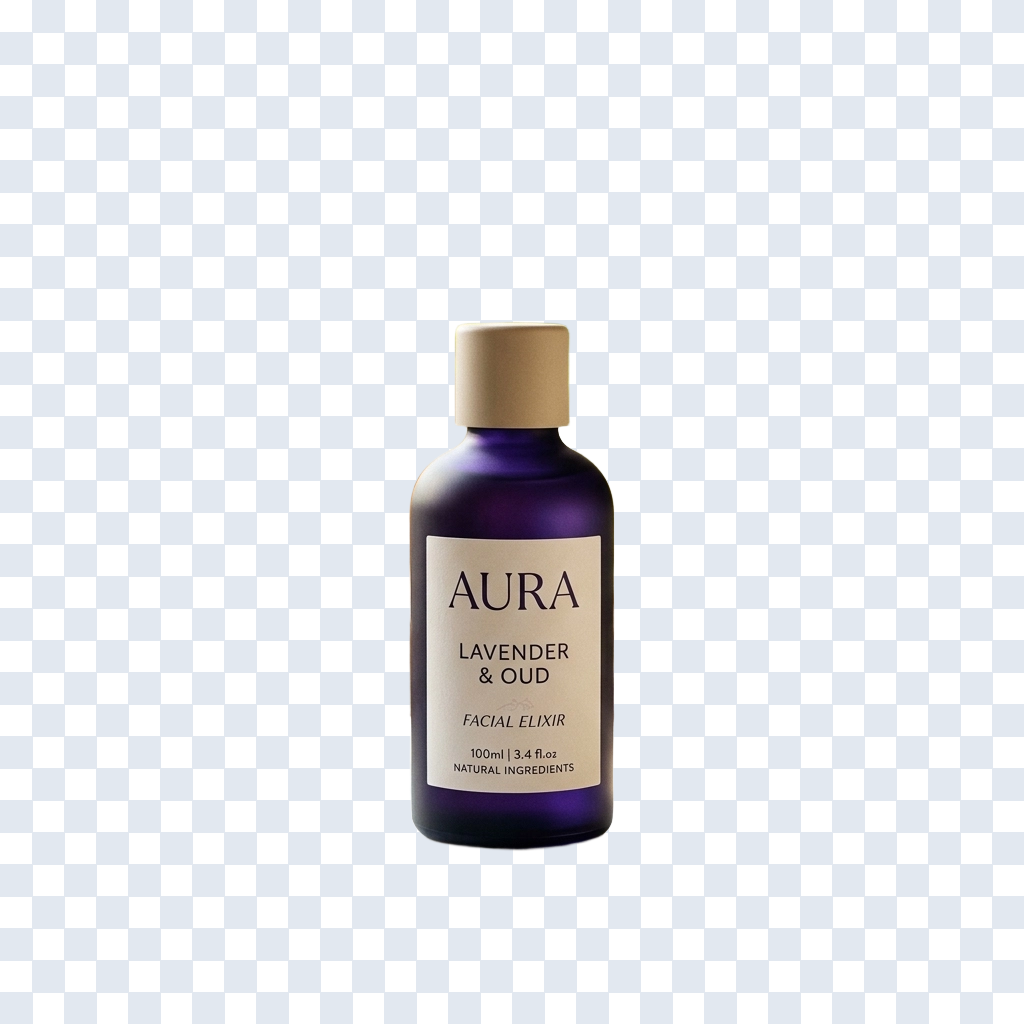

Photo with a background → a clean transparent cutout in seconds.
Your source image stays private
Standard 15 · High quality 30 credits
Runs in seconds
Fast cutouts
Upload an image and get a clean transparent subject back in seconds.
Transparent PNG
Download a subject cutout with a transparent background, ready for web, print, and ads.
Layer-ready handoff
Send the result to Image to Layers when you need shadows, backgrounds, or a PSD.
Choose your workflow
Need more than background removal?
Choose a quick cutout, higher-quality edge removal, or split your image into a reusable foreground and reconstructed background.
Standard removal
15 creditsFast background removal
Best for simple products, portraits, and everyday images where you mainly need a transparent subject.
- Transparent foreground
- Fast everyday cutouts
- Simple products and portraits
High-quality removal
30 creditsCleaner difficult edges
Better suited for hair, fur, soft edges, and subjects where cutout quality matters more.
- Better hair & fur edges
- Better fine-detail handling
- Transparent foreground
Background Splitter
Best for editingFrom 30 credits
Keep the subject and the background
Get a transparent foreground, an AI-reconstructed background, and a subject mask so you can keep editing instead of stopping at a cutout.
- Transparent foreground
- Reconstructed background
- Subject mask included
- Built for compositing and further editing
Need both sides of the image?
Background removal stops at a transparent cutout. Background Splitter gives you both the foreground and a reconstructed background so you can continue with compositing, layout changes, parallax, or background editing.
Compare in detail
Choose what you need from your image
Need a quick transparent cutout, cleaner fine edges, or editable image parts? Choose the workflow that matches what you want to do next.
Background removal
Standard removal
Fast, clean removal for everyday images.
15 credits
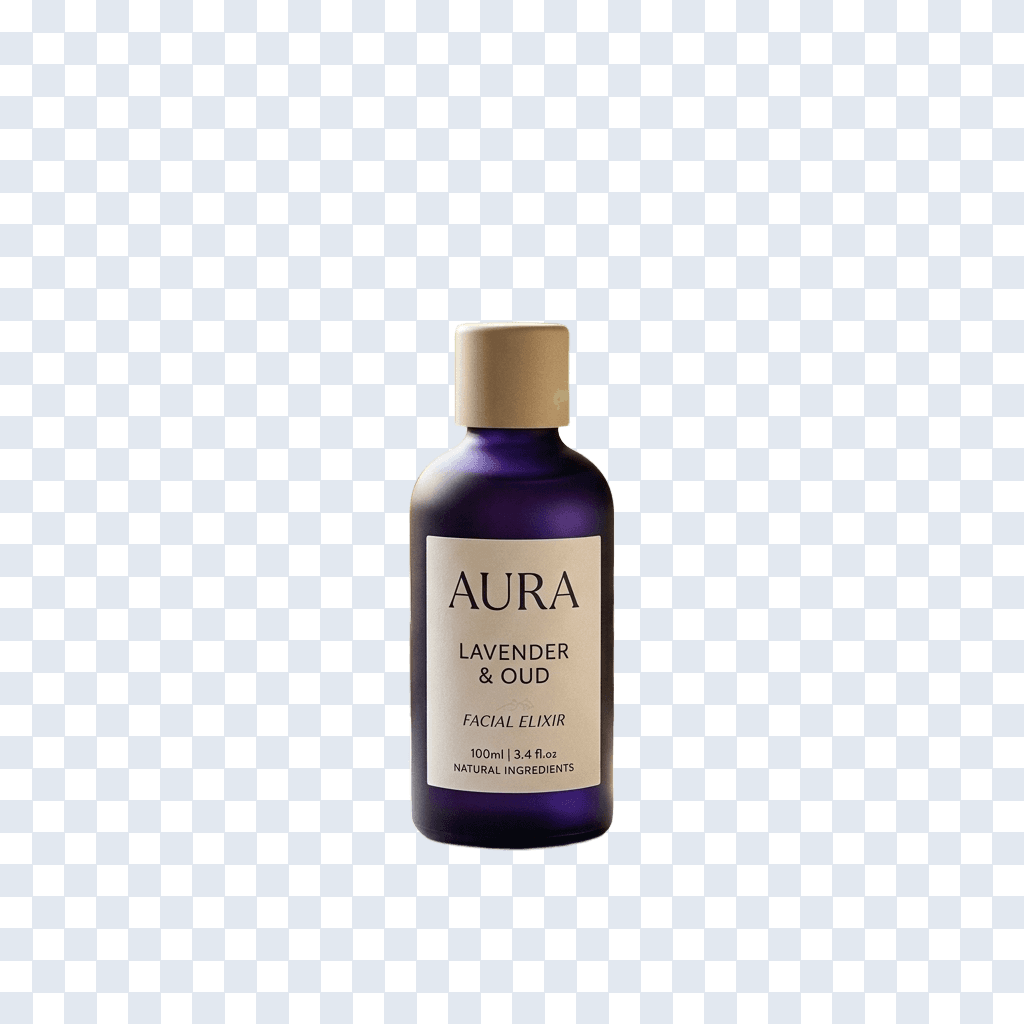
- Clear products
- Simple edges
- Quick transparent PNG
Better for final assets
High-quality removal
Better detail where difficult edges matter.
30 credits
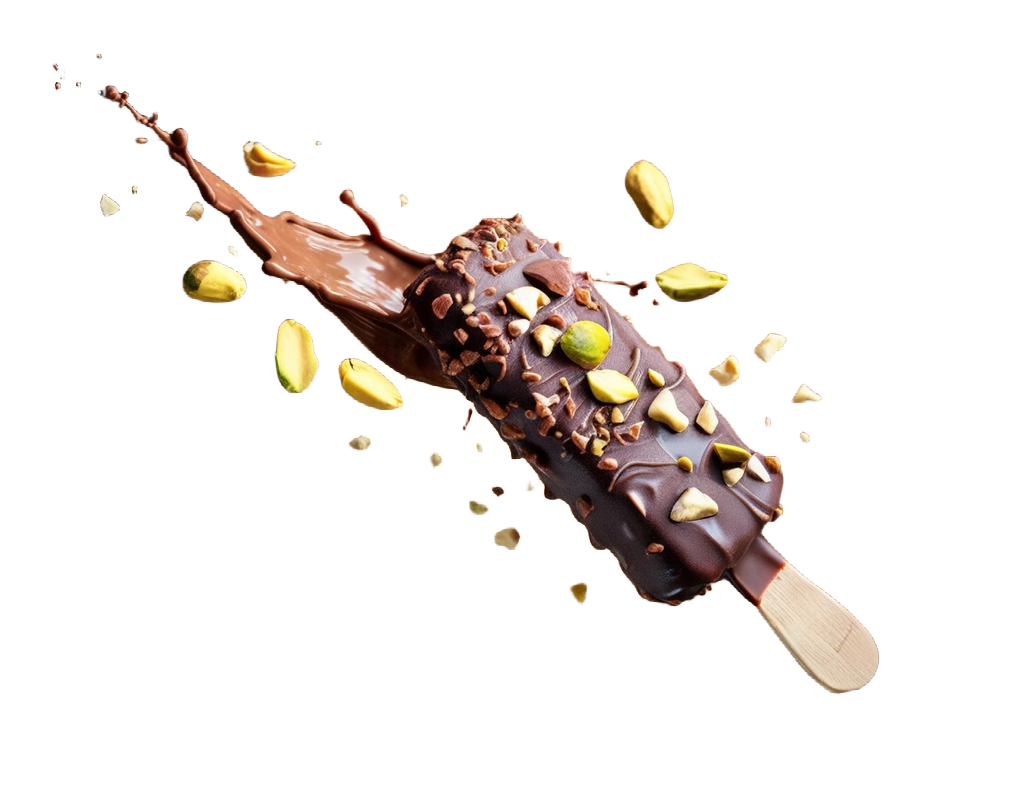

- Hair & fur
- Glass & transparency
- Fine product edges
Only need a transparent PNG? Choose Standard or High Quality.
Need editable parts? Use Image to Layers.
Compare all details
| What you need | Standard | High quality | Background Splitter |
|---|---|---|---|
| Transparent subject | Yes | Yes | Yes |
| Background removed | Yes | Yes | Yes |
| Fine hair & fur edges | Good | Better | Good |
| Glass / soft transparency | Standard | Better suited | Depends on subject |
| Reconstructed background | Not available | Not available | Yes |
| Hidden area reconstruction | Not available | Not available | Generated with AI |
| Separate foreground layer | Cutout only | Cutout only | Yes |
| Subject mask | Not available | Not available | Included |
| Best for | Quick everyday cutouts | Final cutouts & difficult edges | Layered editing & compositing |
| Typical use | Ecommerce, profile images, simple products | Hair, fur, transparent or detailed edges | Text behind subjects, parallax, background editing |
| Credits | 15 credits | 30 credits | From 30 credits |
Need more than a cutout?
Image to Layers
Turn one flat image into editable visual parts — background, subject, objects, and more.


Background
Subject
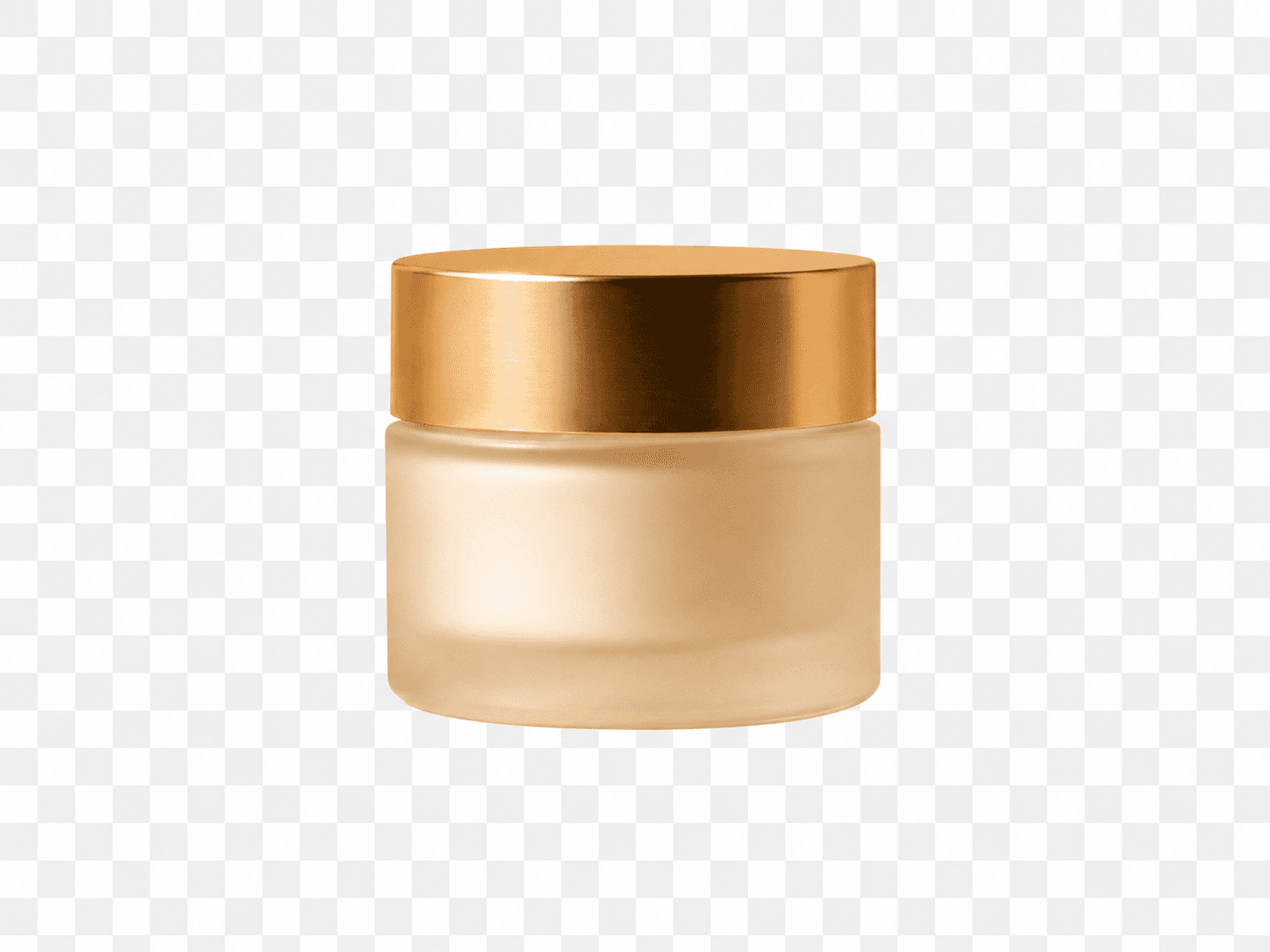
Object
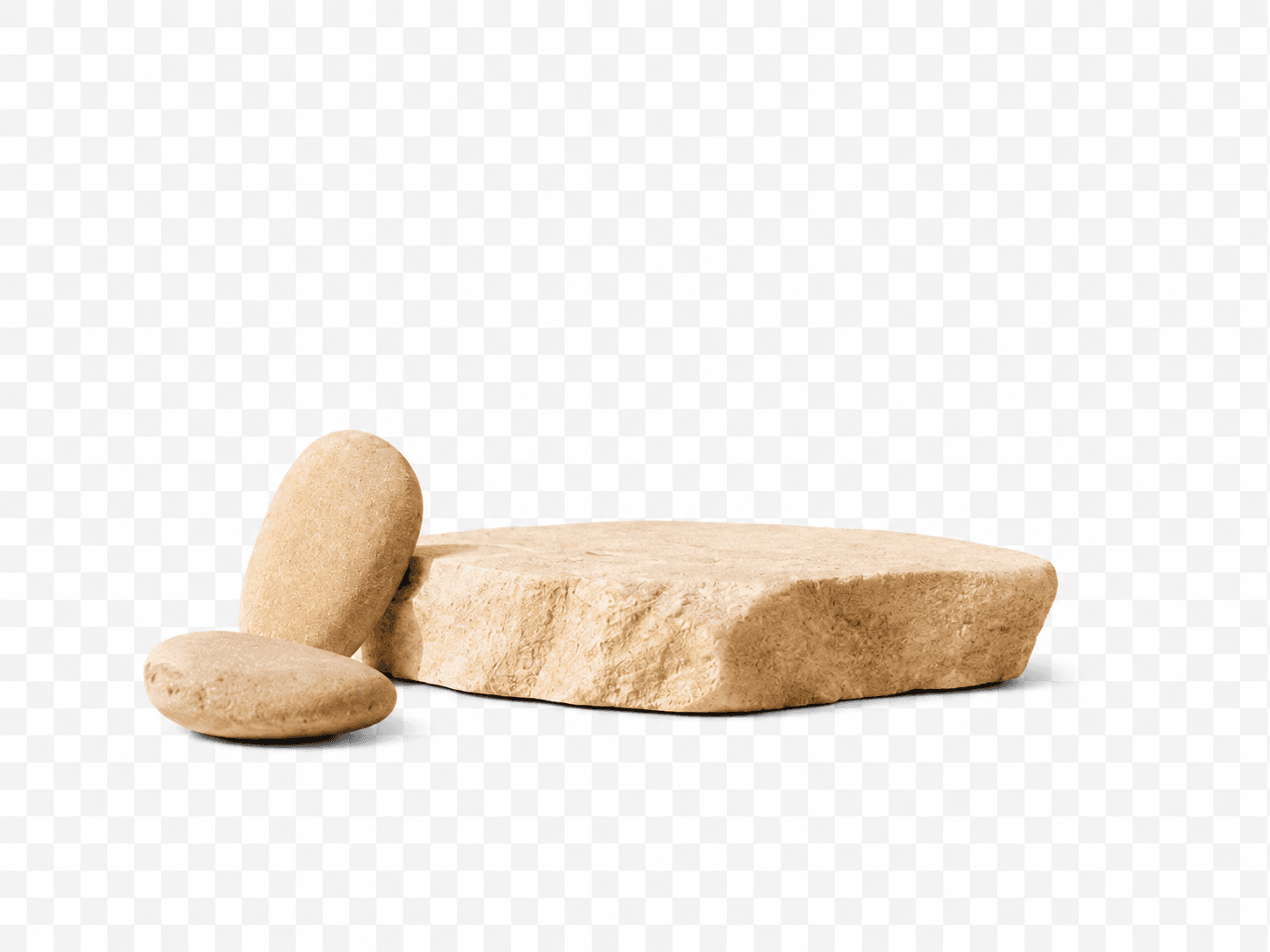
Detail
How it works
Remove a Background in Four Steps
Upload an image, pick the quality you need, check the cutout, and download a transparent PNG.
Upload your image
Choose a JPG, PNG, or WebP with the subject you want to keep.
Choose the result quality
Use Standard for everyday cutouts, or High Quality when hair, fur, glass, or fine edges need more care.
Review the cutout
Check the subject edges and transparent areas before downloading.
Download or keep editing
Download the transparent PNG, or continue into Image to Layers when you need more editable parts.
What you get
What You Get
Transparent PNG
A subject cutout with the background removed.
Two quality options
Choose Standard for everyday images or High Quality for more difficult edges.
Individual image processing
Process one image at a time. Need a batch? Use Bulk Background Remover.
Continue editing
Take the result into Image to Layers when you need separate objects, backgrounds, or other editable parts.
Specs
- JPG, PNG, and WebP input
- Up to 20 MB per image
- Transparent PNG output
- Standard Removal — 15 credits
- High-Quality Removal — 30 credits
- Single-image processing
Uploads are processed to create your result, stored temporarily, and can be deleted from your dashboard at any time.
Use cases
Where Background Removal Works Best
Product photos
Create transparent product cutouts for listings, ads, catalogs, and product cards.
Portraits
Remove the scene behind a person for profile images, layouts, and creative designs.
Design assets
Isolate a subject before placing it into a banner, presentation, thumbnail, or social post.
Marketplace images
Prepare clean product images for stores and marketplaces that require simple or transparent backgrounds.
Need to remove backgrounds in bulk?
Use Bulk Background Remover when you have an image set and want the same background, size, and export settings across every file.
Known limitations
When Background Removal Needs More Care
Hair and fur
Fine strands can be difficult to separate perfectly. High Quality is better suited to these images, but review the result before final use.
Glass and transparency
Transparent or reflective objects may lose some detail during separation.
Soft shadows
A transparent cutout may not preserve the original natural shadow as a separate editable element.
Busy backgrounds
Similar colors or heavy overlap between the subject and background can make edges harder to separate.
Low-resolution images
Small or pixelated source images give the tool less detail to work with.
Frequently asked questions
What is the difference between Standard and High Quality?
Standard is built for everyday cutouts with clear edges and costs less. High Quality spends more effort on difficult areas like hair, fur, fabric, and glass, so it is the better choice when the result needs to hold up in a final asset.
What image formats can I upload?
JPG, PNG, and WebP files up to 20 MB.
Will I get a transparent PNG?
Yes. The result is a subject cutout on a transparent background, so you can place it on any color or scene.
Which mode should I use for hair, fur, or glass?
Use High Quality. It handles fine edges and semi-transparent areas more carefully than Standard, though very complex cases can still need a quick manual touch-up.
Can I keep the original shadow?
No. A background-removed cutout does not include the original shadow as a separate layer. If you need the shadow preserved, use Image to Layers instead.
Can I remove backgrounds from multiple images at once?
This page processes one image at a time. For multiple images, use Bulk Background Remover, which applies the same background, size, and export settings across the whole set.
Is this good for product photos?
Yes. It works well for product photos with clear edges when you need a transparent image for listings, catalogs, ads, or product cards. For glass, soft shadows, or very fine edges, High Quality is usually the better choice.
What happens if background removal fails?
If a job does not complete, the credits for that attempt are returned and you can try again with a different image or quality setting.
When should I use Image to Layers instead?
Use Image to Layers when you need more than a cutout: separate subject, shadow, and background layers, hidden areas rebuilt, or a PSD export for further editing.
How are my uploaded images handled?
Images are processed to produce your result, stored temporarily, and can be deleted from your dashboard. They are not used for anything else.
Ready for a Clean Cutout?
Upload an image, choose the quality you need, and download a transparent PNG.
Remove Background