
Separate an Image Into
Layers for Animation
Turn a flat illustration, game scene, photo, or AI artwork into foreground, subject, prop, and reconstructed background layers — animation-ready assets for parallax, camera moves, and motion graphics.
Drop a Scene to Prepare for Animation
JPG, PNG or WebP
Scene Complexity
Recommended for most scenes
Start simple. Add more layers only when your scene needs independent depth or separately moving objects.
View Layer Count GuideExpected Structure · 3 Layers
Output
30 credits per run
Need hair, face, or clothing layers instead? Use Character into Layers
Want a finished character animation video instead? Try the AI Character Animation Generator
Example Output · 4 Layers
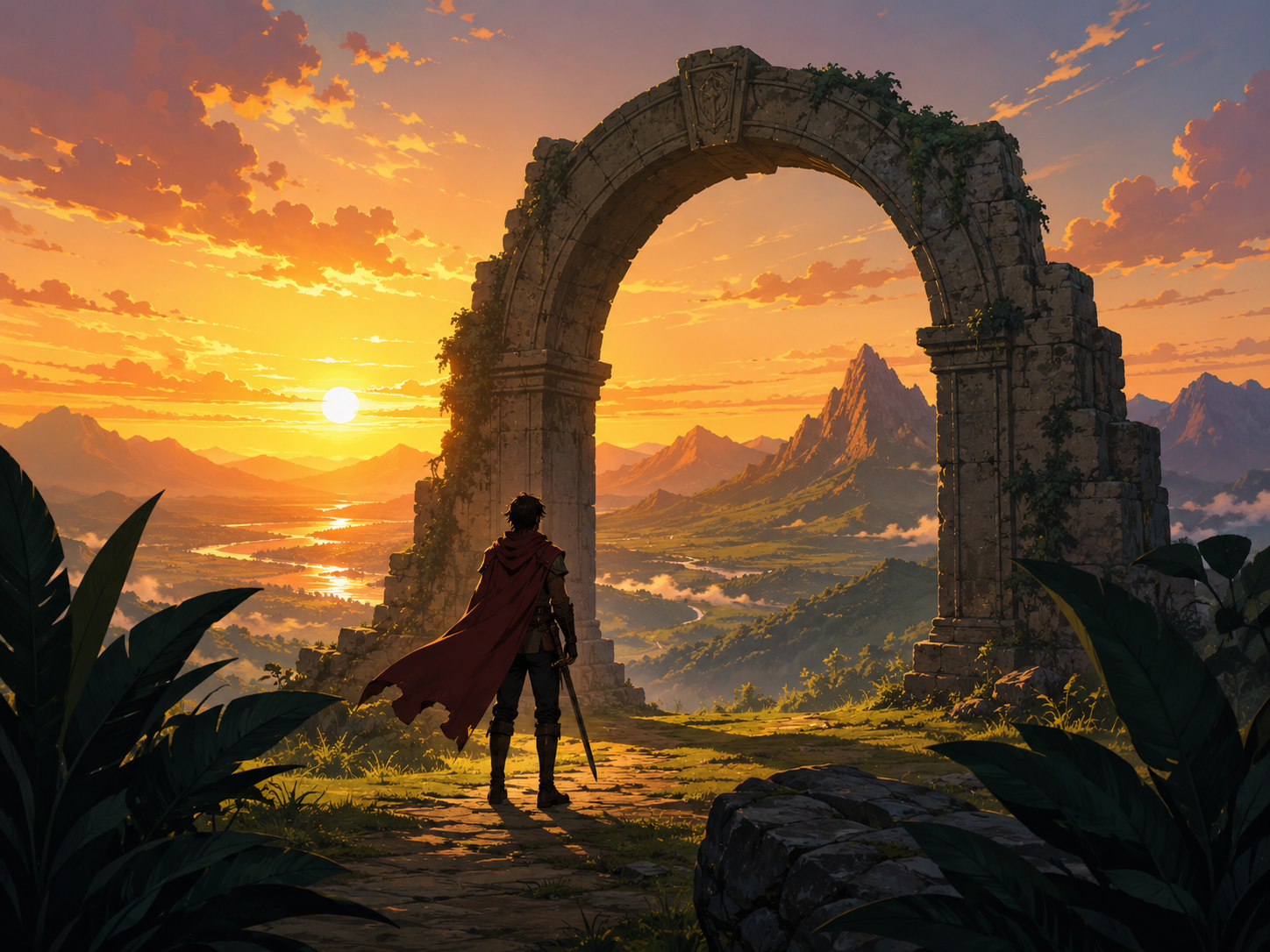
Input Scene
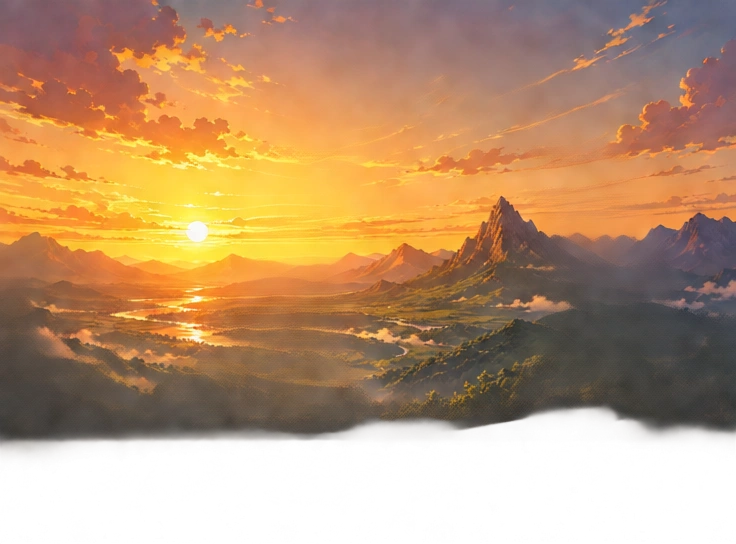
Reconstructed BG
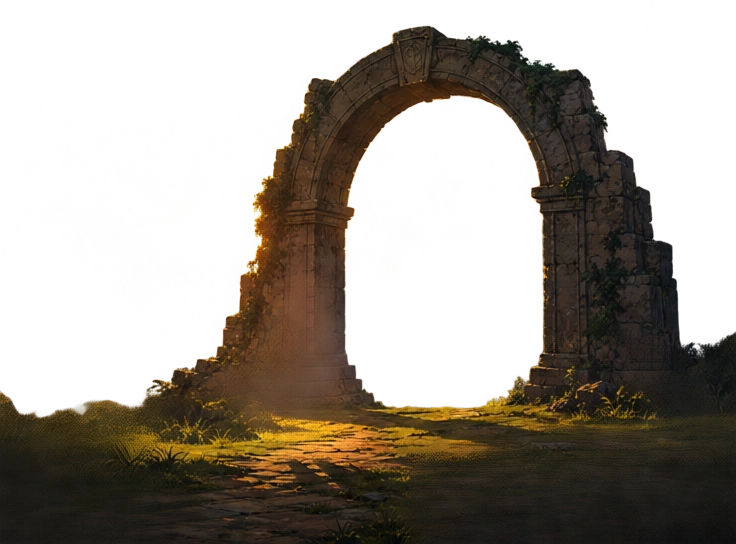
Midground
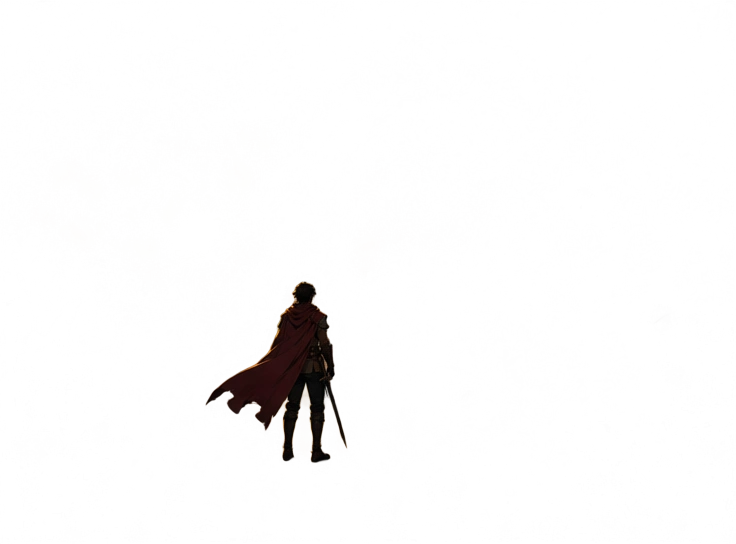
Subject · PNG
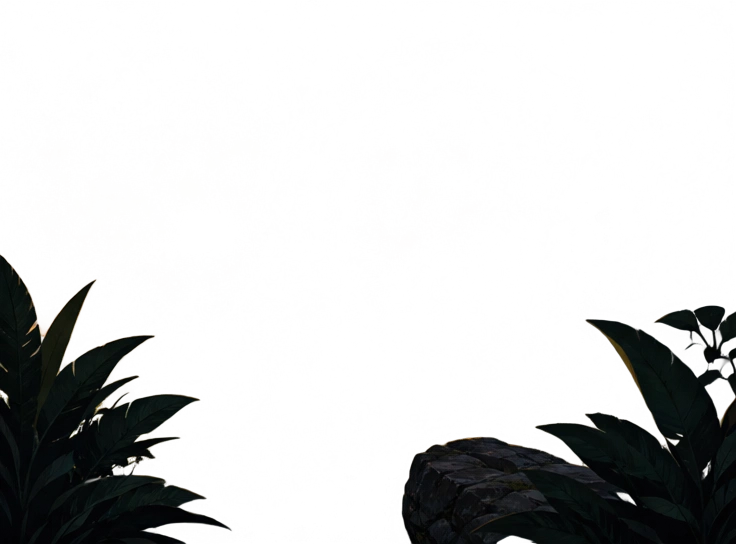
Foreground
From One Image to Editable Layers
One flat scene is split into stacked depth layers — a reconstructed background at the base, then midground, subject, and foreground — each ready to animate on its own.
Reconstructed Background
Base layer — areas hidden behind everything else, rebuilt by AI
Midground
The stone arch — transparent PNG
Subject
The traveler, isolated — transparent PNG
Foreground
Foliage and framing details — transparent PNG
See What Was Reconstructed
Drag to compare the original scene with the AI-reconstructed clean background. The area behind the subject is generated — not cropped.
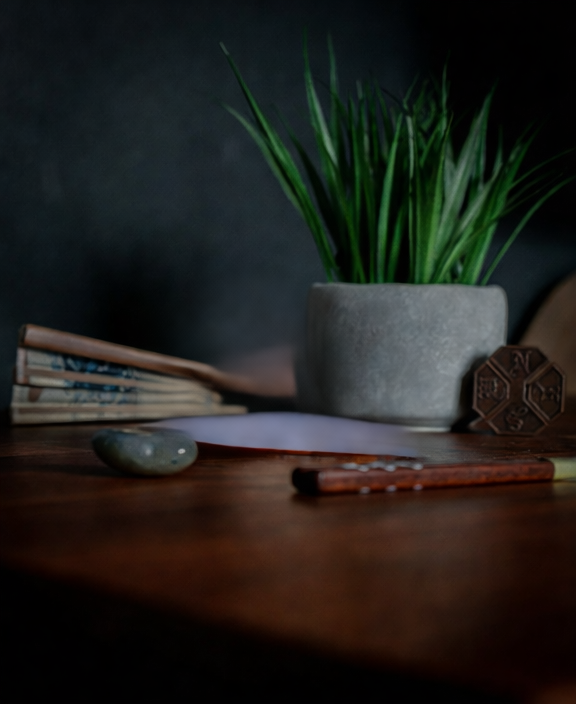

Used to create
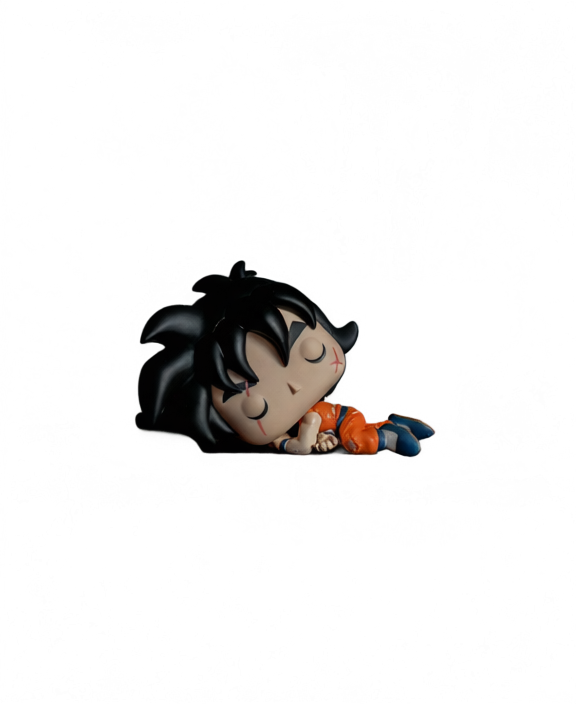
Subject Layer
Reconstructed Background
See It Move
Toggle layers on or off. Hit Play to see how each depth layer moves at a different speed — the foundation of any 2.5D parallax effect.
Layer Breakdown · Back to Front
Reconstructed BG
Midground · Arch
Subject · Traveler
Foreground · Foliage
Layers
Scene Layers or Character Parts?
Animator Prep
Use for:
Foreground · Complete Character · Props · Midground · Background
Prepare Scene LayersCharacter into Layers
Use for:
Hair · Face · Eyes · Mouth · Clothing · Limbs · Accessories
Separate Character PartsJust want a character image turned straight into a motion video — no compositing? Use the AI Character Animation Generator
Who Uses Animator Prep
2.5D Parallax Animation
Move foreground, subject, midground, and background at different speeds to create cinematic depth and camera push effects.
AI Art You Want to Animate
You generated a great Midjourney, GPT Image, or Flux picture but only have one flat PNG. Split it into scene layers you can move in a video workflow.
Motion Graphics
Separate a poster or campaign visual into elements you can keyframe individually — no rebuilding the composition from scratch.
Game & Visual Novel Scenes
Prepare foreground foliage, characters, props, and backgrounds independently for cutscenes, camera moves, and environmental motion.
What You Get
Every run produces a complete set of animation-ready files.
Transparent PNG Layers
Each visual element on its own transparent layer — ready to move, scale, or animate independently.
Reconstructed Background
A clean background plate with AI-estimated content behind removed subjects — no holes when layers move.
Layered PSD
Open in Photoshop, After Effects, or any compatible editor with all layers intact and named.
Independent Elements
Foreground, subject, and supporting objects separated so each can be keyframed or rigged on its own timeline.
Animation-Ready Assets
Files sized and formatted for parallax, camera push-ins, cutout animation, and motion graphics workflows.
How Animator Prep Works
Upload a Scene
Upload an illustration, product visual, game scene, or photo with a subject you want to animate independently.
Separate Visual Layers
AI identifies the subject and background, producing transparent PNG layers for each.
Reconstruct Hidden Areas
AI estimates and fills in the background areas that were hidden behind the subject — so no holes appear when layers move.
Export for Animation
Download transparent PNG layers or a layered PSD ready for After Effects, Blender, or any motion graphics tool.
Accuracy and Limitations
Best results come from scenes with clearly separated subjects and visible depth.
Complex occlusions, fine hair edges, or heavily overlapping objects may require manual touch-up after export.
Animator Prep does not separate internal character parts. For hair, face, clothing, and limbs, continue with Character into Layers.
Only need two layers?
Just the subject and the background? Try Background Splitter
When a photo only has one subject in front of a background, Background Splitter gives you a transparent foreground and a reconstructed background in one step, without setting up a full multi-object layer split.

Original photo
The source image with a single subject and background.
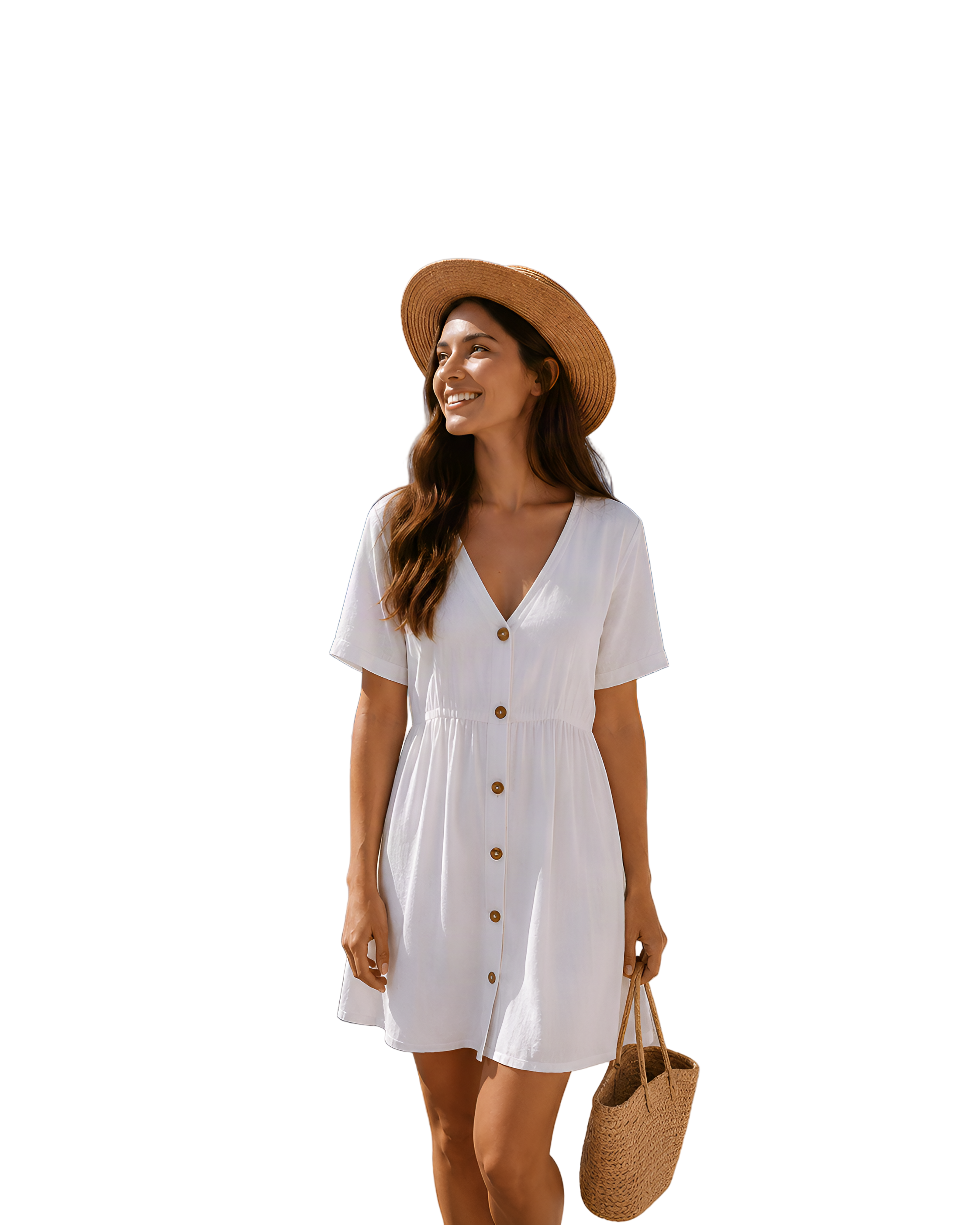
Transparent foreground
The subject isolated as a clean transparent PNG.

Reconstructed background
The scene behind the subject, rebuilt and reusable on its own.
Need more than two layers, multiple objects, props, or text? Use the workspace above instead.
Frequently Asked Questions
What layers does Animator Prep create?
Can I use the result for parallax animation?
Does Animator Prep separate hair, face, clothing, and limbs?
Can it reconstruct the background behind a character or object?
What kinds of images work best?
Can I export the result as PNG layers or a PSD?
Does this create a finished animation?
How is this different from the AI Character Animation Generator?
Can I use Animator Prep for character animation?
How many credits does Animator Prep use?
Ready to Animate?
Upload a scene, get animation-ready layers.