
AI Background Tools for Image Editing
Remove backgrounds, separate foregrounds, reconstruct hidden areas, and create new scenes with AI-powered background workflows.
Choose your background workflow
Start with the outcome you need. Each workflow is focused on a different background editing job.
Remove background
Create a clean transparent cutout from any image.
Split foreground and background
Separate the subject and reconstruct the hidden background as editable layers.
Background changer
Replace the background of products, portraits, marketing images, and social visuals.
Generate background
Create new environments for your products, portraits, and designs.
See what you can create
Use the background hub to move from a single flat image to practical assets for ecommerce, campaigns, and design production.
Original
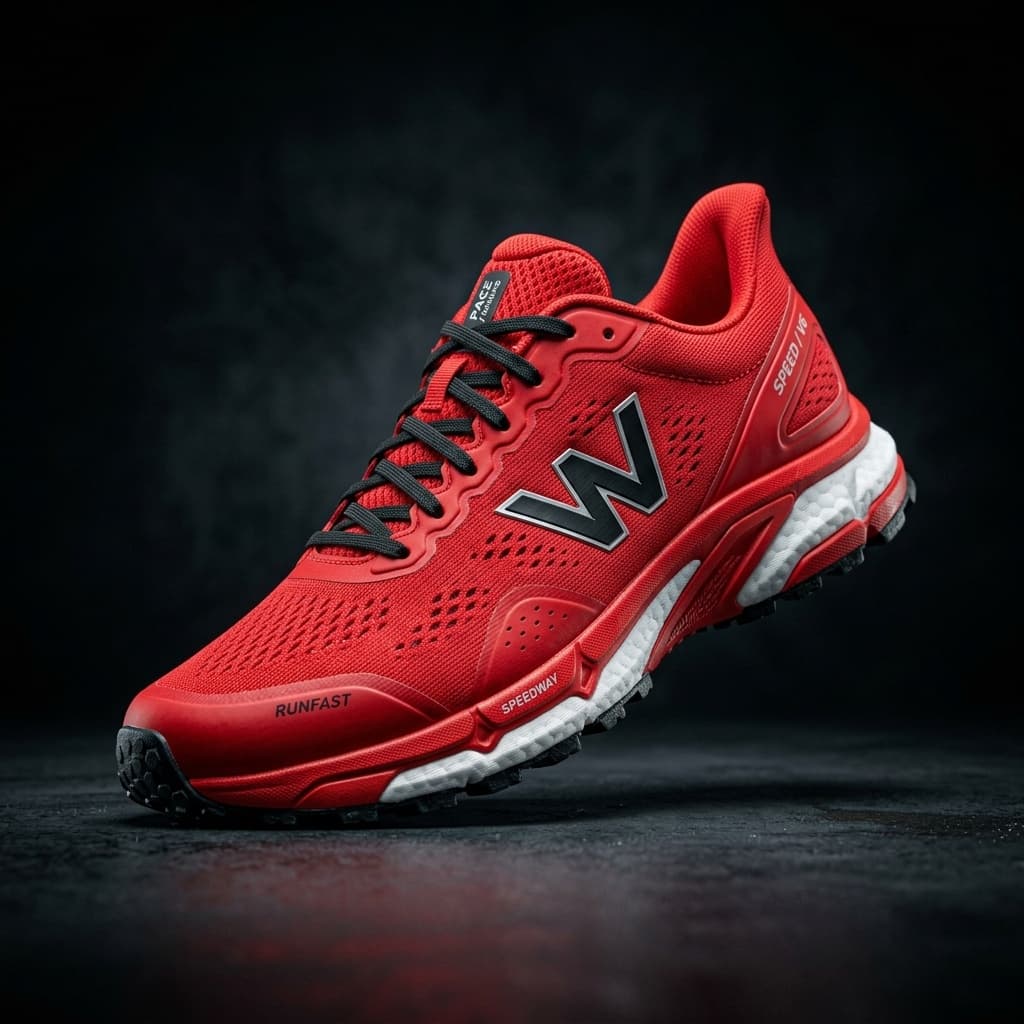
Luxury marble studio background
Product background
Ecommerce hero images

Original

Modern office environment
Portrait background
Profile photos and marketing creatives

Original

Reconstructed background with room for layout
Social media design
Posters and campaigns

Cutout

Lifestyle environment
Product scene
Advertising visuals
More than just removing backgrounds
Background removal is one step. Background editing also needs reconstruction, layer separation, and new scene generation.
Which background tool should you use?
Pick the workflow that matches your next edit instead of guessing from tool names.
I only need a transparent image
Background remover
Use this when the goal is a single clean subject cutout.
Background removerI want to edit foreground and background separately
Background splitter
Use this when you need both a transparent subject and a reconstructed background layer.
Background splitterI want a completely new environment
Generate background
Use this when the original background should become a studio, lifestyle, or campaign scene.
Generate backgroundHow AI background editing works
The background hub connects focused tools into a single editing path: isolate, rebuild, replace, and reuse.
Choose the workflow
Start with removal, splitting, generation, fill, or expansion depending on the edit you need.
Upload the source image
Use a clear product, portrait, poster, or campaign image with enough visible context around the subject.
Review AI output
Check edges, shadows, text, reflections, and reconstructed areas before exporting or continuing to another tool.
Continue editing
Send the result into layer separation, generative fill, image expansion, or a new background workflow.
AI background tools FAQ
What is an AI background remover?
An AI background remover detects the main subject in an image and returns a transparent cutout with the original background removed.
How can I remove a background from an image?
Open Background Remover, upload a JPG, PNG, or WebP image, and let the tool create a transparent subject cutout.
What is the difference between background removal and background replacement?
Background removal creates a transparent cutout. Background replacement keeps the subject but generates or applies a new environment around it.
Can AI recreate the missing background?
AI can generate a visually plausible reconstruction of hidden areas, but it cannot recover the exact pixels that were covered.
Can I create product backgrounds with AI?
Yes. Generate Background is designed for product photos where you want a new studio, lifestyle, or campaign-ready scene around the subject.
Can I use AI-generated backgrounds for ecommerce images?
Yes, but review the output for product accuracy, shadows, reflections, logos, and marketplace image requirements before publishing.