
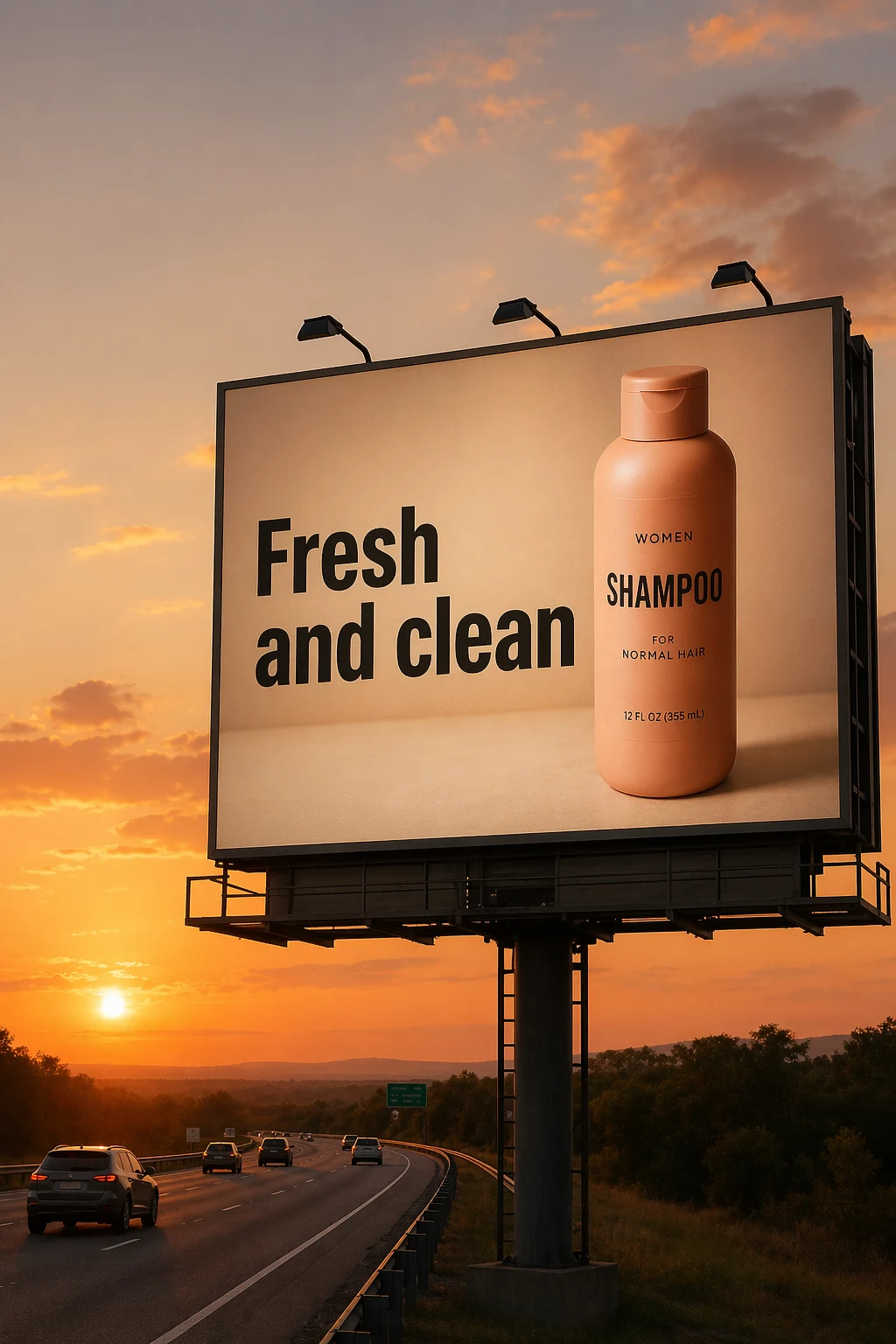
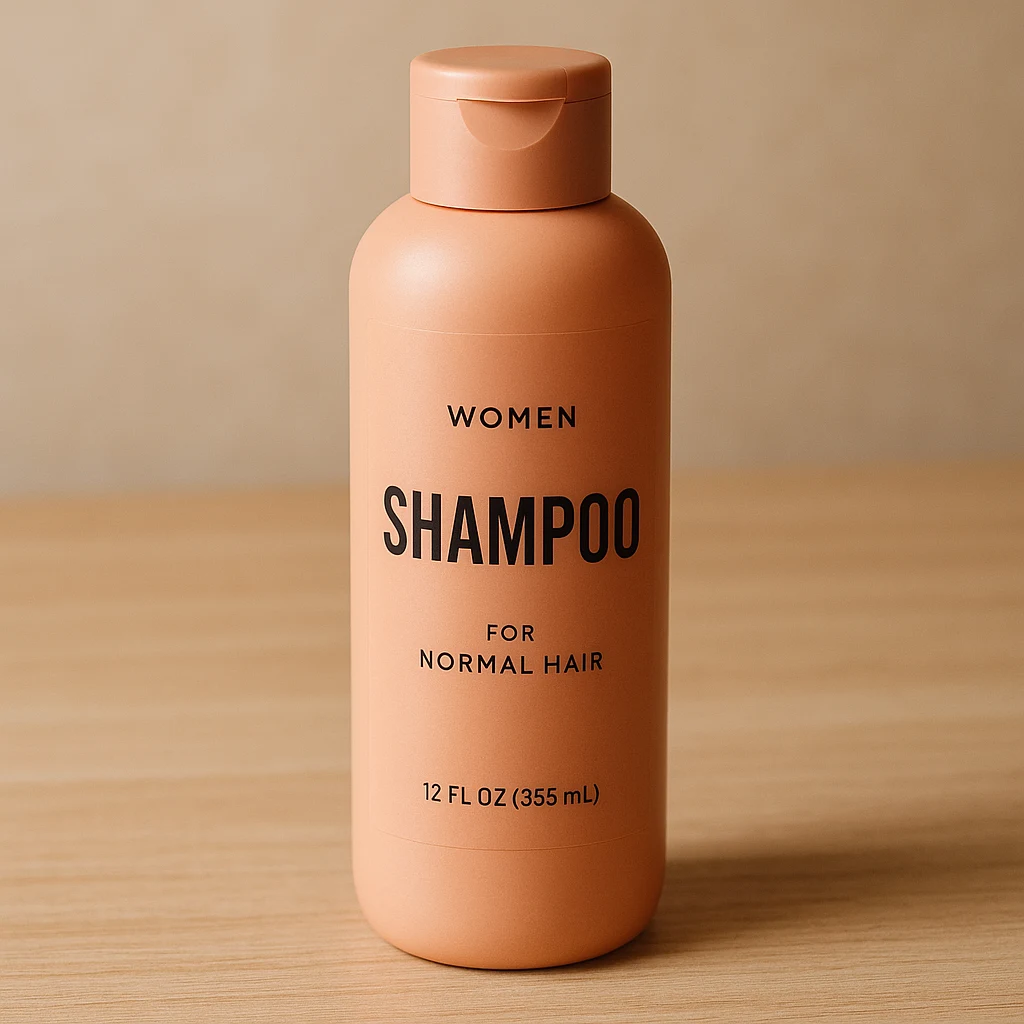
NEWGPT Image 2.6 is here — make focused edits with less rework.

Try GPT Image 2.6

GPT Image 2.6 Flare · AI image editing

Edit Your Images with GPT Image 2.6 Flare

You already have an image you like. Upload it, describe the change you want, and create a new version while keeping the composition and details that matter to you.

Image-to-image editing · Reference images · Focused changes · Creative variations

GPT Image 2.6 Studio

Visual Synthesis

Prompt-to-image synthesis, multi-reference blend, and intelligent background segmentation.

50 Credits

Image

Optional

PNG, JPG, JPEG, or WEBP. The upload card is the primary starting point.

Required

Enter a clear edit instruction. Cmd/Ctrl + Enter runs when ready.

0/500

Advanced

Create Result

Add a prompt before running.

Direct Layer Split

GPT Image 2.6 · Proofing Canvas

Interactive before / after inspection

4K Native Pipeline
BEFORE · SourceAFTER · Generated
After
Before

Studio Quality Standard

Native 4K canvas
Font & layout fidelity
Direct PSD layer split
Commercial license includedDedicated GPU cloud pipeline

Recent Sessions

Loading GPT Image 2.6 sessions...

Studio capabilities

Prompt-only generation
Source image editing
Reference images
Conversational revisions
Variant switching
Result reuse and branching

Reference images (up to 10) guide composition and style. Mask-guided editing isn't available for this model — use a full-image edit or Send Revision instead.

See what you can change

Your Original Image. A Different Possibility.

These edit briefs show how to direct a focused change from an existing image. Generate and review the result in the workspace above before using it in a project.

A small change can make the whole image feel right

A small change can make the whole image feel right

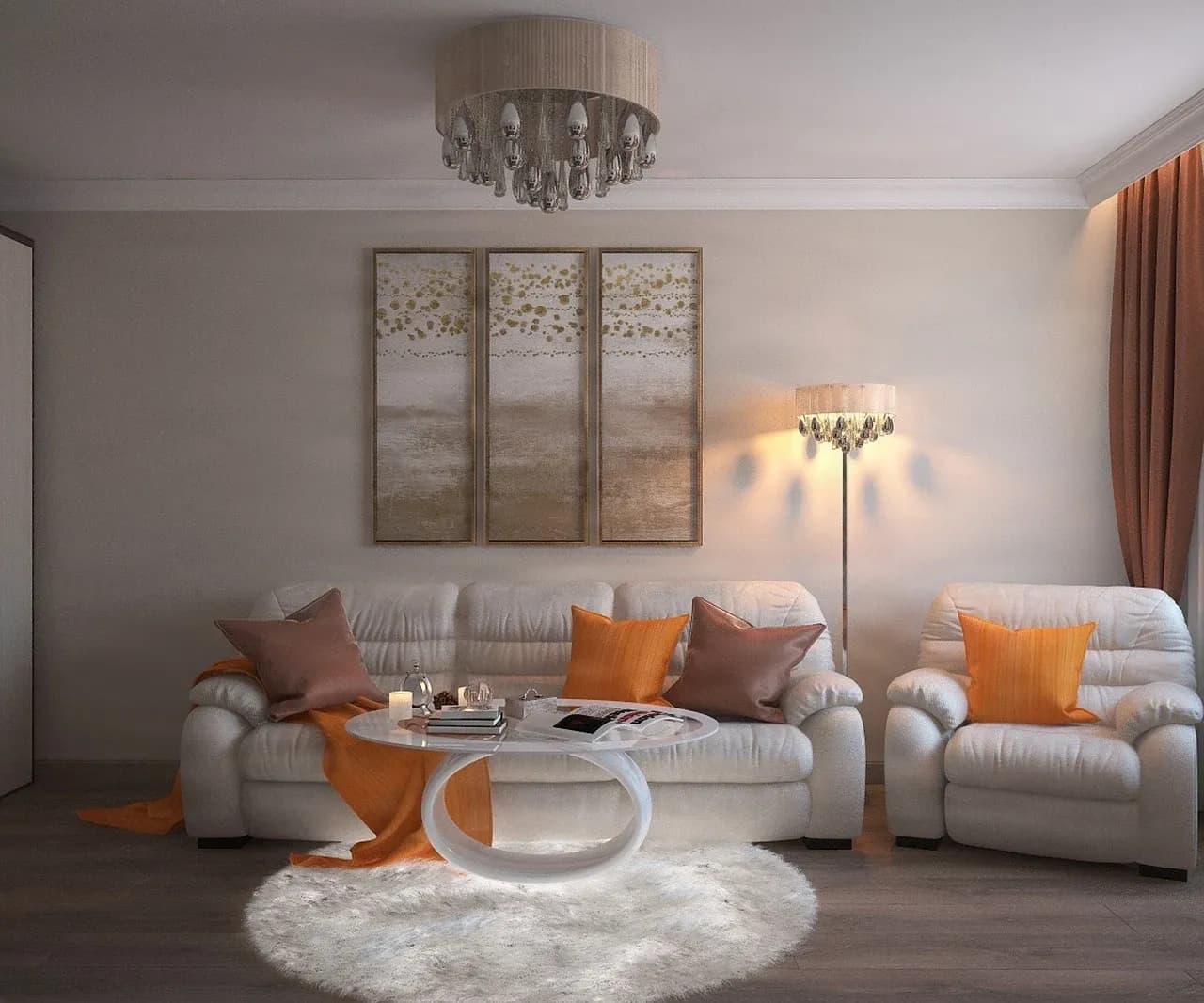
Love the room, furniture, and natural lighting, but want to change one decorative object?

Starting image: A cozy living room with a pale ceramic vase on a wooden side table.

Requested change: Change the vase to deep cobalt blue while keeping the room consistent.

“Change only the pale ceramic vase on the side table to a deep cobalt-blue glaze. Keep the room layout, furniture, camera angle, daylight, and shadows as close to the original as possible.”
Explore a new object color

Explore a new object color

Try a different finish for an existing object without rebuilding the scene.

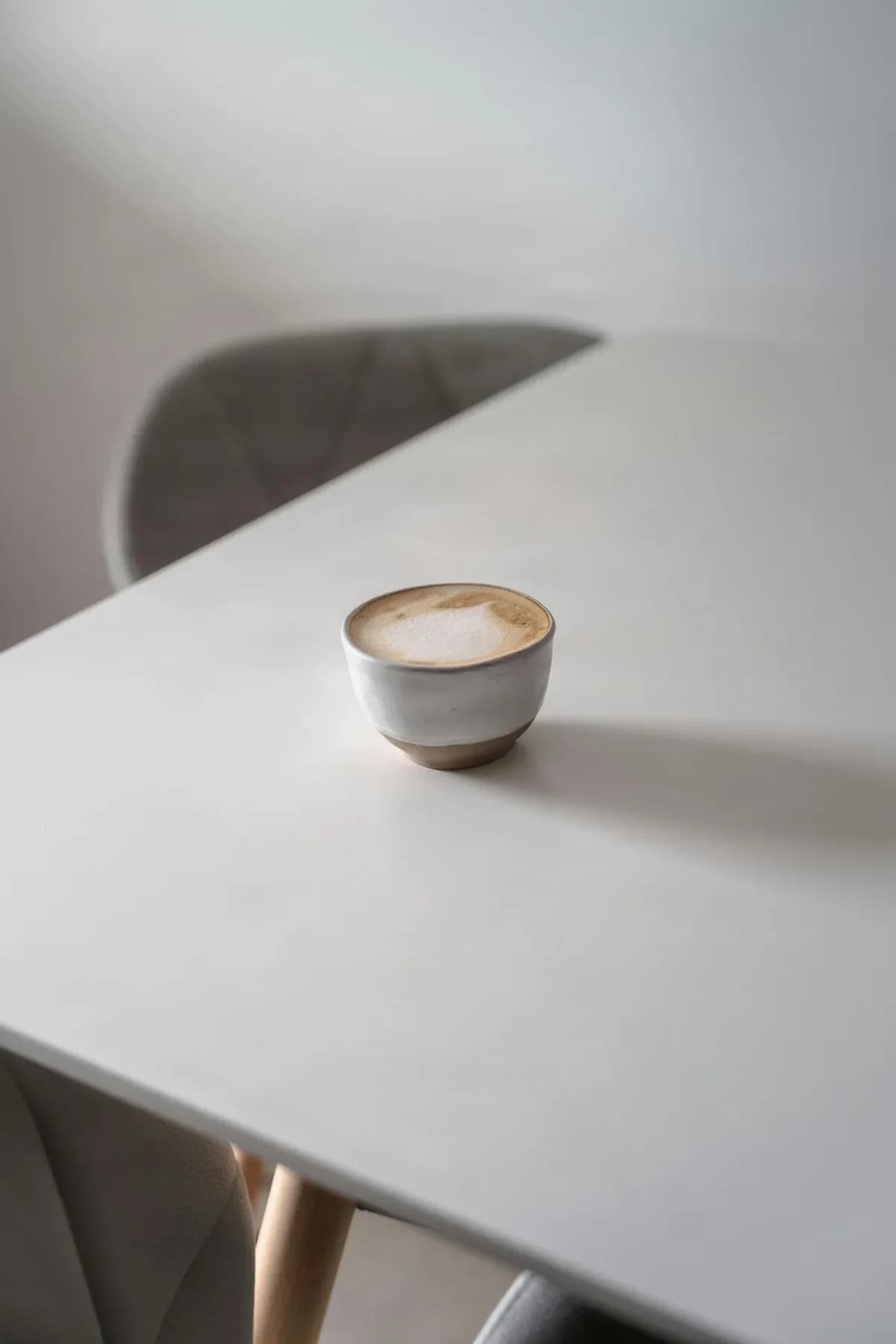
Starting image: A ceramic coffee cup photographed on a modern table.

Requested change: Explore a new glaze color while preserving the cup shape and scene.

“Change the ceramic cup to a deep forest-green glaze. Preserve its shape, handle, surface details, camera angle, table, and natural lighting.”
Give a favorite object a new setting

Give a favorite object a new setting

Use an existing object as the starting point for a different atmosphere.

Starting image: A ceramic coffee cup photographed on a modern table.

Requested change: Place the same cup in a warm breakfast scene near a window.

“Place this same ceramic cup on a warm wooden breakfast table beside a softly lit window. Keep its shape, handle, color, and visible surface details recognizable.”

The cards use the verified Flare input sources in this repository. They describe the intended edit; always review the generated result because nearby details can change.

Keep the good parts

Why Start Over When Most of Your Image Already Works?

You've found a picture you want to keep. The subject looks good, the composition feels balanced, and the colors are close to what you imagined. Maybe the background is too busy, one object does not belong, or the lighting needs a different mood.

Generating a completely new image can mean losing the details that made the first one special. Start from the image you already like and give the editor one clear direction.

Keep your favorite composition

Start from the image you already like rather than describing the entire scene again.

Make your intent clear

Tell the editor what you want changed and which details matter most.

Explore without rebuilding

Try another background, outfit color, product setting, or visual mood.

Keep your options open

If one result is not quite right, refine the direction with another focused edit.

Your original image is worth building on, but every generative edit still needs a visual review.

Everyday creative possibilities

Make the Changes You Have in Mind

Change backgrounds

Keep the subject while exploring a brighter environment, a new product backdrop, or a different atmosphere.

Replace objects

Describe a different chair, accessory, decoration, or background object and what should remain consistent.

Add missing details

Add flowers, a lamp, or another decorative element by describing its location, size, and lighting.

Remove distractions

Ask for an unwanted background element to be removed and inspect the repaired area afterward.

Adjust color and lighting

Try warmer sunlight, cooler tones, evening light, or another color treatment.

Explore visual styles

Try an illustrative, cinematic, or otherwise different creative direction while preserving the important details.

From your image to your next version

How to Edit an Image with GPT Image 2.6 Flare

Step 1 — Upload your image

Choose the photo, illustration, or AI-generated picture you want to change.

Step 2 — Describe your edit

Write what should change using everyday language and mention the details you want to keep.

Step 3 — Add references or select an area

Use reference images to show a color, mood, or material. For supported edits, identify the region that needs attention.

Step 4 — Generate and compare

Review the new image next to your original and check the details that matter to you.

Step 5 — Download or refine

Save a result you like or continue with another focused instruction.

Show it what you mean

Use Reference Images to Guide Your Edit

Sometimes it is easier to show an example than to describe it. A reference can communicate the jacket color, lighting, material, or artistic mood you want to explore.

Reference images guide the edit; they do not guarantee exact reproduction. Use only images you own or have permission to provide.

Show a color or material

Demonstrate the finish, texture, or color direction you want to try.

Guide the visual mood

Provide an example of lighting, atmosphere, or artistic treatment.

Keep a subject recognizable

Use suitable references when a recurring character, product, or object matters.

Choose the right creative approach

Quick Creative Changes or More Demanding Image Edits?

Choose a focused edit when you want to explore a new direction. For intricate product details, constrained layouts, or difficult typography, inspect the result carefully and consider a specialized workflow.

Choose Flare when…

You want to explore a background, color, replacement object, or creative variation on an existing image.

Use a detail-focused workflow when…

Exact product details, typography, or placement are essential and must be checked closely.

Ask which detail matters most

If creative exploration is the goal, start with a focused edit. If precision is the goal, use stronger preservation instructions and review every result.

Better inputs, better direction

Simple Ways to Get More Useful Results

Start with a good source image

A sharp, clearly framed image gives the editor a better view of what you want to keep.

Change one main thing at a time

A focused instruction makes it easier to evaluate whether the requested change happened.

Describe what must stay

Mention faces, object shapes, clothing, logos, colors, and other important elements.

Be clear about placement

When adding an object, say where it should appear and roughly how large it should be.

Use references thoughtfully

A well-chosen reference can communicate a style or detail more clearly than a long description.

Check before downloading

Compare the original and edited image, including smaller details around the changed area.

Creative control with realistic expectations

AI Can Make Focused Changes, but Results Still Need Review

Important details can shift

Even a focused edit may alter nearby textures, colors, text, or small objects.

Faces and products need checking

Ask for recognizable details to be preserved, but do not assume perfect consistency.

Text may need another pass

AI-generated or edited lettering can contain spelling mistakes, altered fonts, or imperfections.

Difficult edits need more direction

Reflections, transparent objects, overlapping subjects, and complex patterns can be harder to change precisely.

Selection is not perfect isolation

If you select an area to edit, review the surrounding pixels for unintended differences.

Outputs are not layered documents

A completed image edit is different from a PSD with separate editable components. Use Image to Layers when you need independent elements.

Don't know what to type?

Try These Image Editing Prompts

A helpful instruction usually includes what to change, what to keep, and what the finished result should feel like.

For a portrait

“Change the background to a softly lit garden at golden hour. Keep the face, expression, hairstyle, pose, and framing as close to the original as possible.”

For a product photo

“Place the same ceramic object on a warm wooden table near a window. Preserve its shape, color, surface details, lighting, and perspective.”

For a room photo

“Replace the small dark side table with a light oak table. Keep the rest of the furniture, layout, window lighting, and camera angle consistent.”

For an illustration

“Change the daytime sky to a peaceful twilight atmosphere. Keep the main character, pose, clothing, and composition recognizable.”

For a color change

“Change the jacket from beige to forest green. Preserve the fabric texture, folds, pose, and surrounding scene.”

For a cleanup

“Remove the unwanted object in the selected area and reconstruct a natural-looking background that blends with the surrounding image.”

GPT Image 2.6 Flare FAQ

Answers to common questions about editing existing images with Flare.

What is GPT Image 2.6 Flare?

GPT Image 2.6 Flare is an AI image model designed for image generation and editing. On this page, you can use its editing capability to create a revised version of an uploaded image.

Can I edit an existing photo with GPT Image 2.6 Flare?

Yes. Upload a supported image and describe what you want changed, such as an object, background, color, lighting, or other visual detail.

Do I need to write a complicated prompt?

No. Start with a clear description of the change. For better control, mention the elements you want to keep recognizable.

Can I change the background without changing the person?

You can request a background change while asking to preserve the face, pose, clothing, and framing. Exact preservation is not guaranteed.

Can I replace an object in my image?

Yes. Describe the object to replace and what should appear instead, including useful details such as color, size, position, and lighting.

Can I remove unwanted objects?

You can request object removal. Review the repaired background, especially when the original contains complex textures.

Can I edit only one part of the image?

The model supports image-guided editing and region-aware workflows. The controls available on this page determine how you specify the area, and nearby pixels can still change.

Can I use more than one reference image?

The image-editing workflow supports multiple input images subject to the upload limits shown in the workspace.

Can I change clothing colors in a photo?

Yes. Request a new color and ask that fabric texture, fit, pose, and the surrounding scene remain similar. Check seams and small details in the output.

Can I use GPT Image 2.6 Flare for illustrations?

Yes. You can edit illustrated scenes, characters, and other artwork by describing the change and the artistic details to preserve.

Can I edit AI-generated images from another model?

Yes, provided you have the right to use and edit the source image. You do not need the original prompt to start an image edit.

Will the edited image be identical outside the changed area?

Not necessarily. Generative editing can alter small details beyond the requested change, so compare the output with your source.

Can I keep a character consistent across multiple edits?

Preservation instructions and suitable references can improve continuity, but facial features, clothing, accessories, and proportions may still vary.

Can I change text inside an image?

You can request text changes, but precise spelling and typography are not guaranteed. For focused text work, use the dedicated Edit Text in Image tool.

Can I create a transparent background?

The underlying model may support transparent output, but availability depends on the current editor settings shown in the workspace.

Can I download my edited picture?

Yes. Once the edit is completed successfully, use the result controls to download the supported image format.

Does this page support animated GIFs?

Use the formats shown in this page's editor. Do not assume animated output is enabled merely because a model capability is described elsewhere.

How much does an edit cost?

The required credits depend on the selected settings and the pricing shown in the workspace. Review the displayed cost before submitting.

Can I use the resulting image commercially?

Commercial use depends on the service terms, your account rights, and third-party content in the source image. Make sure you have appropriate permission.

Is GPT Image 2.6 Flare better than every other image editor?

No single model is best for every task. Flare is designed for responsive editing and creative iteration; highly precise details, layouts, or text may benefit from a specialized workflow.

Keep the Image. Explore the Possibilities.

Upload a picture you already like, describe what you want to change, and explore a new version with GPT Image 2.6 Flare.

Review your source image, editing options, and credit cost before generating.

    GPT Image 2.6 Flare – AI Image Editor Online | Image to Layers | Image to Layers