
Add or Replace Objects with AI Generative Fill
Paint over the area you want to change, describe what should appear, and let AI generate new content that blends with the surrounding image.
Best for adding props, replacing objects, filling empty areas, and repairing selected parts of a background.
1. Upload an Image to Edit
Drag & drop or click to upload
3. STEP 2 · SELECT AN AREA
Upload an image to start marking the area to change.
4. What should appear in the selected area?
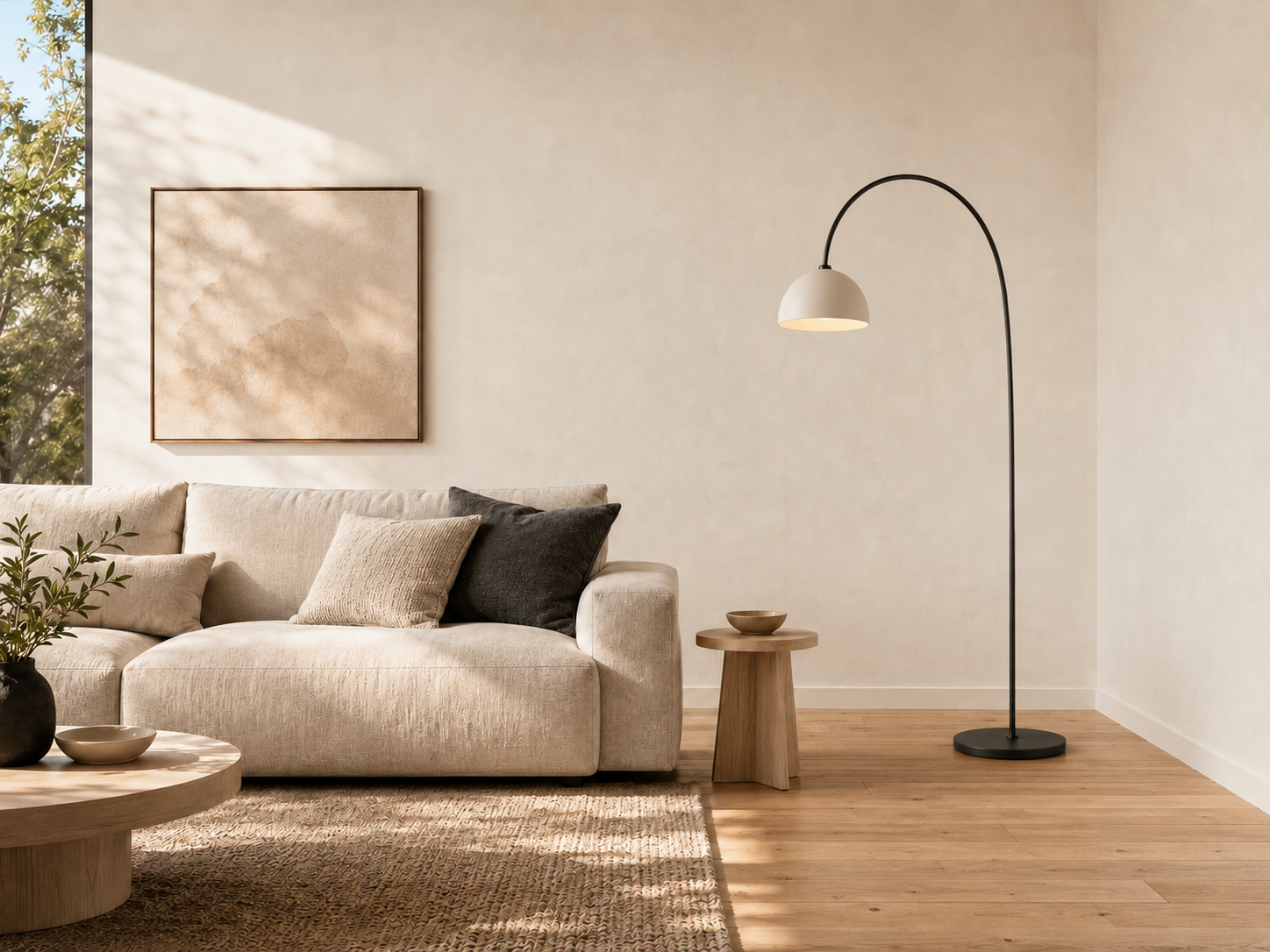
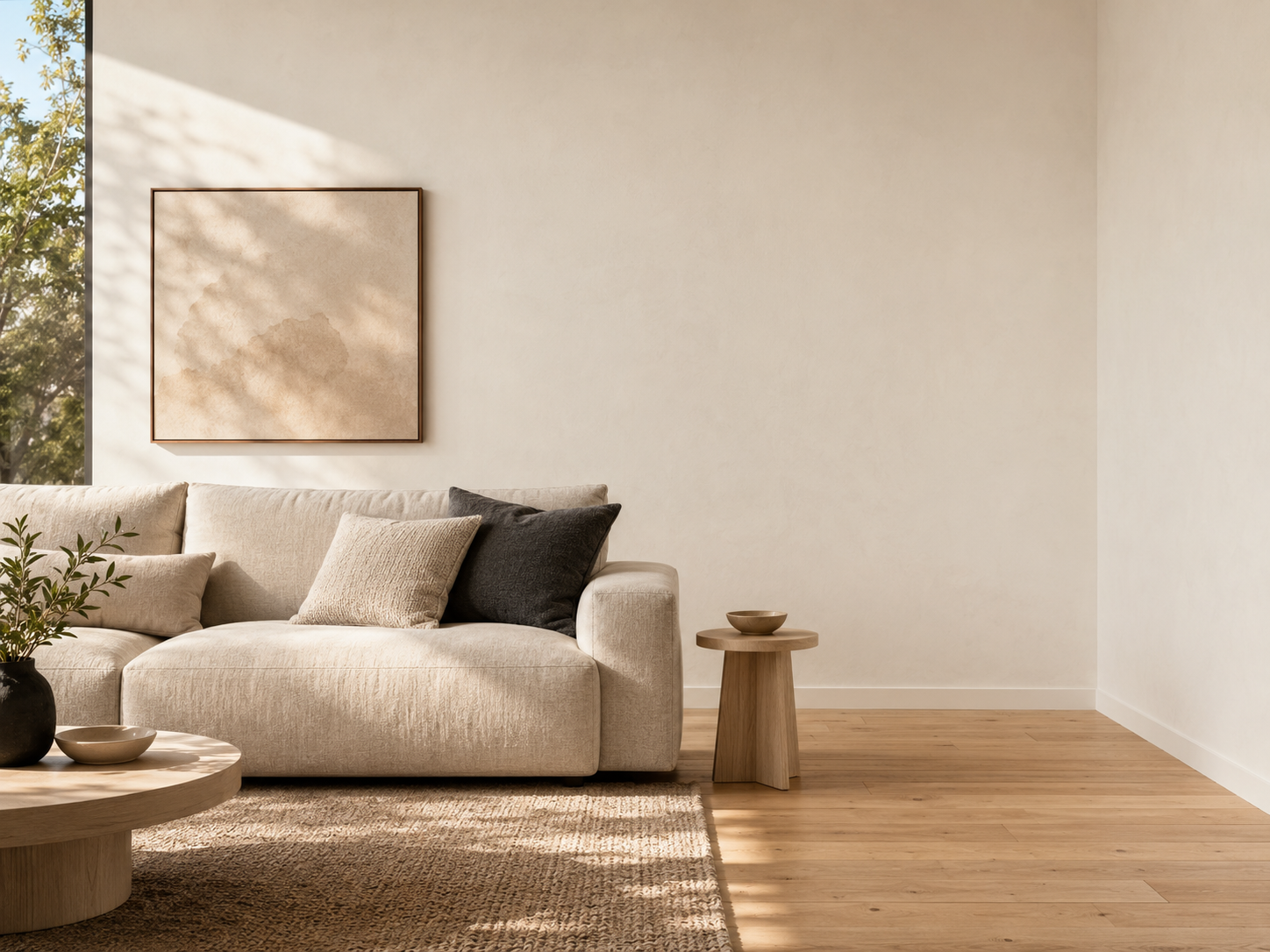
Recent Sessions
Add New Objects
Add props, furniture, decorations, or scene details inside a selected area.
Replace Existing Objects
Mask an existing object and describe what you want to place in the same area.
Fill Missing Areas
Reconstruct selected parts of a background using the surrounding visual context.
AI Context Matching
AI uses the surrounding image as context when generating perspective, lighting, and shadows.
How to Use AI Generative Fill
Upload an image, select the area you want to change, describe the new content, and review the generated result.
Upload Your Image
Choose a PNG, JPG, or WebP image from your device.
Paint the Edit Area
Use the brush to cover the object or background area you want to modify.
Describe the Result
Write what should appear in the selected area. Include relevant details such as color, material, position, lighting, and style.
Generate and Review
Generate the edit, inspect the mask edges and surrounding details, and download the result when it looks right.
What Can You Do with Generative Fill?
Use a mask and text prompt to make focused changes without regenerating the entire image.
Mask-Guided Editing
Choose where the edit should happen by painting directly over the image.
Add Objects
Generate a new object or scene detail inside an empty or selected area.
Replace Objects
Cover an existing object and describe the replacement you want to create.
Repair Background Areas
Fill selected gaps using visual information from the surrounding background.
Prompt-Based Control
Guide the result with details about the object, material, color, lighting, and composition.
Common Generative Fill Uses
Product Photo Adjustments
Add or replace supporting props while keeping the main product as the visual focus.
Interior Concepting
Explore furniture and decor ideas by replacing selected objects or filling empty areas in a room.
Marketing Visual Variations
Adapt selected parts of an image for a new campaign direction, season, or visual theme.
Social and Design Assets
Replace props, backgrounds, or scene details to create a different visual direction.
Concept Art
Add props and environmental details without redrawing the entire scene.
Example Generative Fill Workflows
Add a Prop to a Product Scene
Mask an empty area beside the product and prompt the AI to add a supporting prop that matches the composition.
Replace Furniture in a Room
Paint over an existing chair and describe a replacement with the preferred material, color, and style.
Repair a Background
Mask a damaged or unwanted background area and ask the AI to continue the surrounding wall, floor, or landscape.
What Is AI Inpainting?
AI inpainting generates new content inside a selected part of an existing image. You paint a mask over the area you want to change, then describe what should appear. This technique is commonly used for generative fill, object replacement, and background repair.
Frequently Asked Questions
Is generative fill the same as AI inpainting?
Generative fill is a user-facing form of AI inpainting. Both use the surrounding image as context to generate new content inside a selected area. “Generative fill” usually describes the editing workflow, while “inpainting” describes the underlying technique.
What is AI generative fill?
AI generative fill changes a selected part of an image based on a mask and text prompt. It can add new content, replace an object, or reconstruct part of a background.
What is the difference between generative fill and background replacement?
Generative fill edits a selected area inside an image. Background replacement changes most or all of the background around the main subject.
Can I add an object to a photo?
Yes. Paint a mask over the area where the object should appear, then describe the object, position, material, lighting, and other relevant details.
Can I replace an existing object?
Yes. Cover the complete object and any connected shadow or reflection, then describe the replacement you want.
Will areas outside the mask remain unchanged?
The model focuses the edit on the masked area, but small changes may appear near the mask boundary. Review surrounding edges before downloading the result.
How can I get a cleaner result?
Cover the full target area, extend the mask slightly beyond object edges, and write a prompt that describes the replacement clearly. Include material, color, perspective, and lighting when they matter.
Can generative fill reproduce text and logos accurately?
Not reliably. AI-generated text, logos, labels, and brand marks may be altered or misspelled. Review these details carefully or add them back with a dedicated design tool.
Can I use the result commercially?
Commercial use depends on your plan, the applicable model terms, your rights to the source image, and the content of the final output. Review trademarks, identifiable people, product details, and any applicable disclosure requirements before publishing.
How long does generation take?
Processing time varies with image size, service demand, and model availability.
Which formats are supported?
You can upload PNG, JPG, and WebP images. Available output formats are shown before download.
Make a Focused Change with AI Generative Fill
Upload an image, paint the area you want to edit, and describe what should appear.
Start Generative Fill