
Logo to layers
Turn a Flat Logo Into Separate Editable Parts
Separate a flattened logo into reusable icon, wordmark, shape, effect, and background layers — so you can animate, rearrange, reuse, or export individual parts without manually cutting them out.
Best when the original SVG, Illustrator, or layered source file is no longer available.
Creates raster layers. It does not restore the original vector source or font files.
Click or drag image to upload
Click or drag image to upload
JPG, PNG, or WebP · Maximum 10 MB
Need hair, face, eyes, mouth, clothing, or body-part layers?
Settings
Leave this blank to let Detailed Layers identify the main editable elements automatically. Or name the parts you want separated.
Want more control over your layers?
Learn how to guide Detailed Layers with simple prompts, choose useful elements, and get cleaner layer structures from different types of images.
Upload an Image to Continue
Private File Handling
Uploaded files are associated with your account and delivered through signed URLs. You can delete completed jobs manually.
Transparent PNG Output
Detailed Layers returns each detected element as its own layer on a transparent background.
Already have an editable SVG? Use the original vector file when possible. Uploaded SVG files are rasterized before AI layer separation.
When the source file is gone
Get the useful parts back without tracing everything by hand
A logo can survive for years as a single PNG or JPEG even after the original Illustrator, SVG, or PSD file disappears. That usually becomes a problem when you need the symbol without the wordmark, want to animate the logo, need one graphic element for social media, or want to rearrange an older logo lockup. Logo to Layers creates a new set of separate raster elements from the flattened image so you can keep working with the visible parts.
It does not recreate the lost source file. It gives you a new editable raster starting point.
Real logo tests
Simple logos separate differently from complex ones
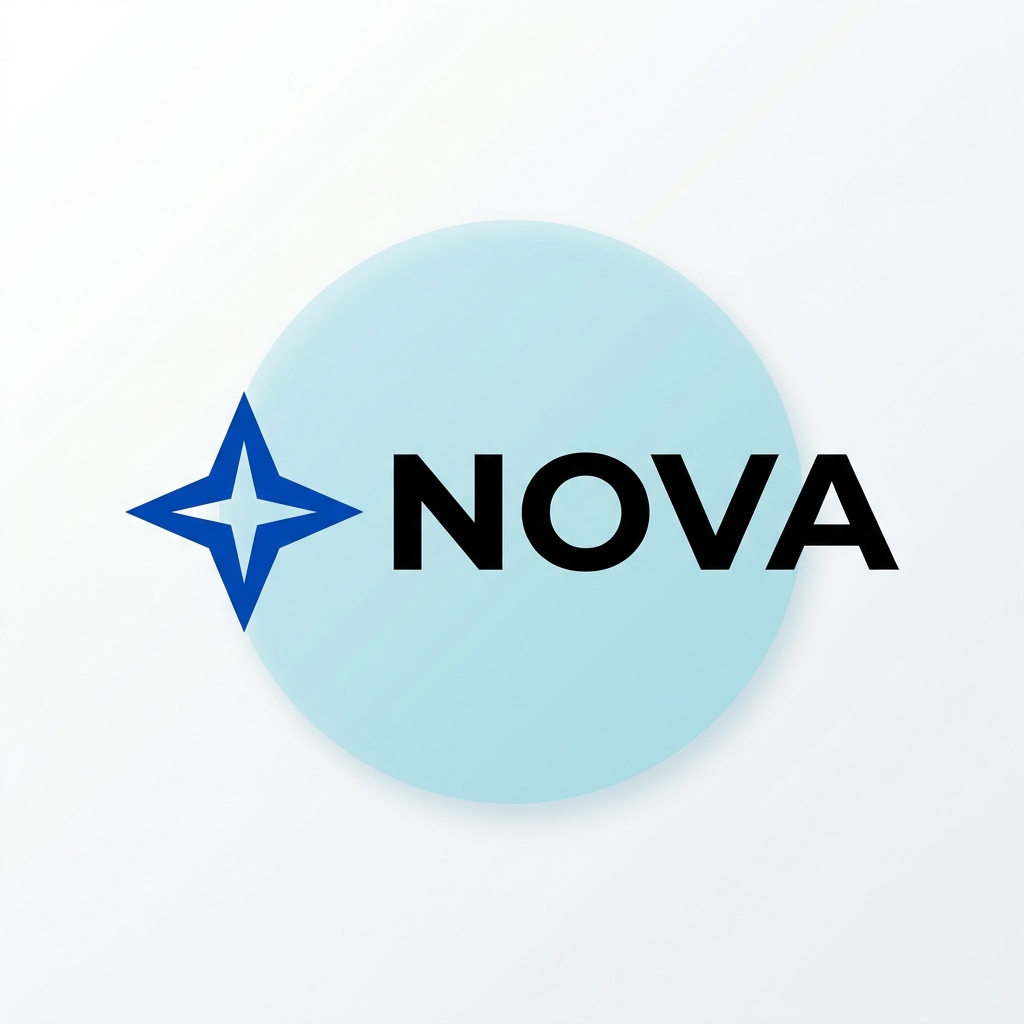
NOVA — a simpler logo structure
A logo with a clearly separated icon, wordmark, and background shape gives the model relatively clear visual boundaries to work with.
Separated layers
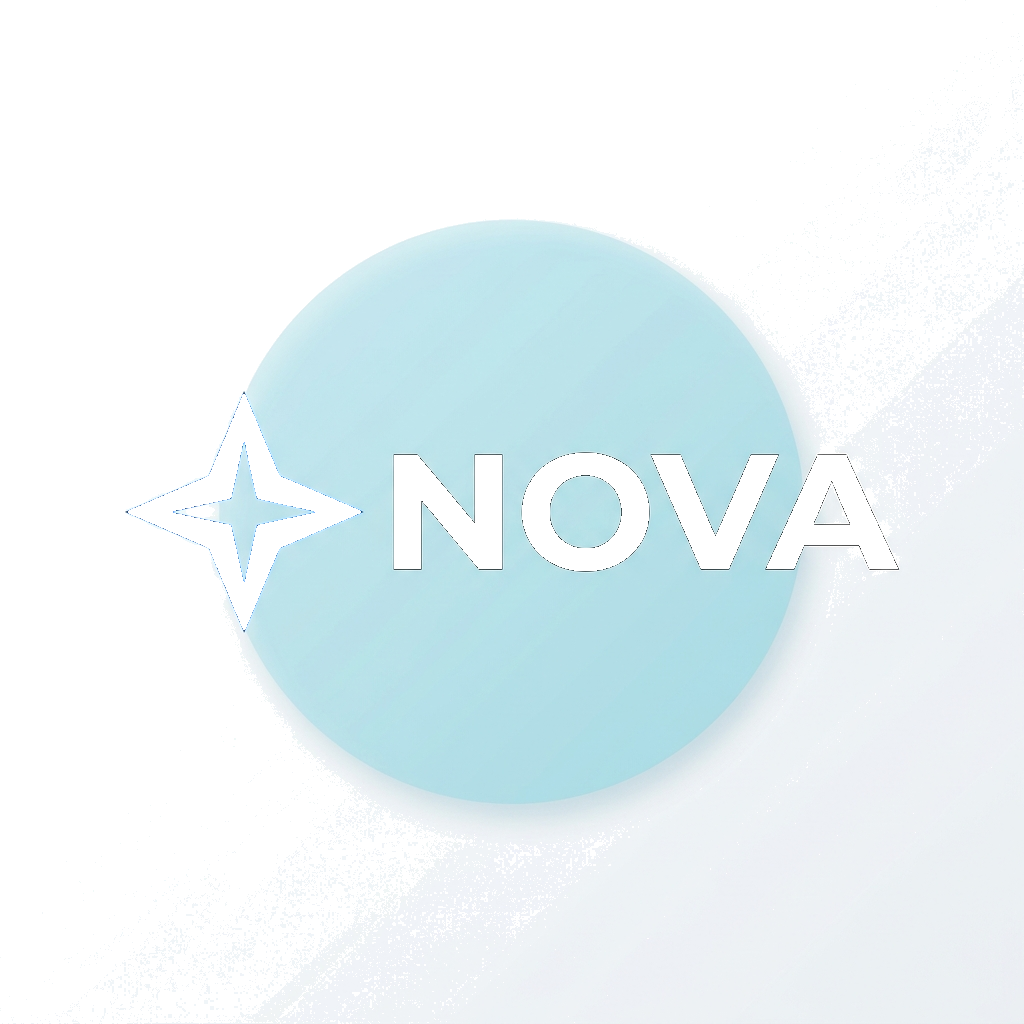 Background
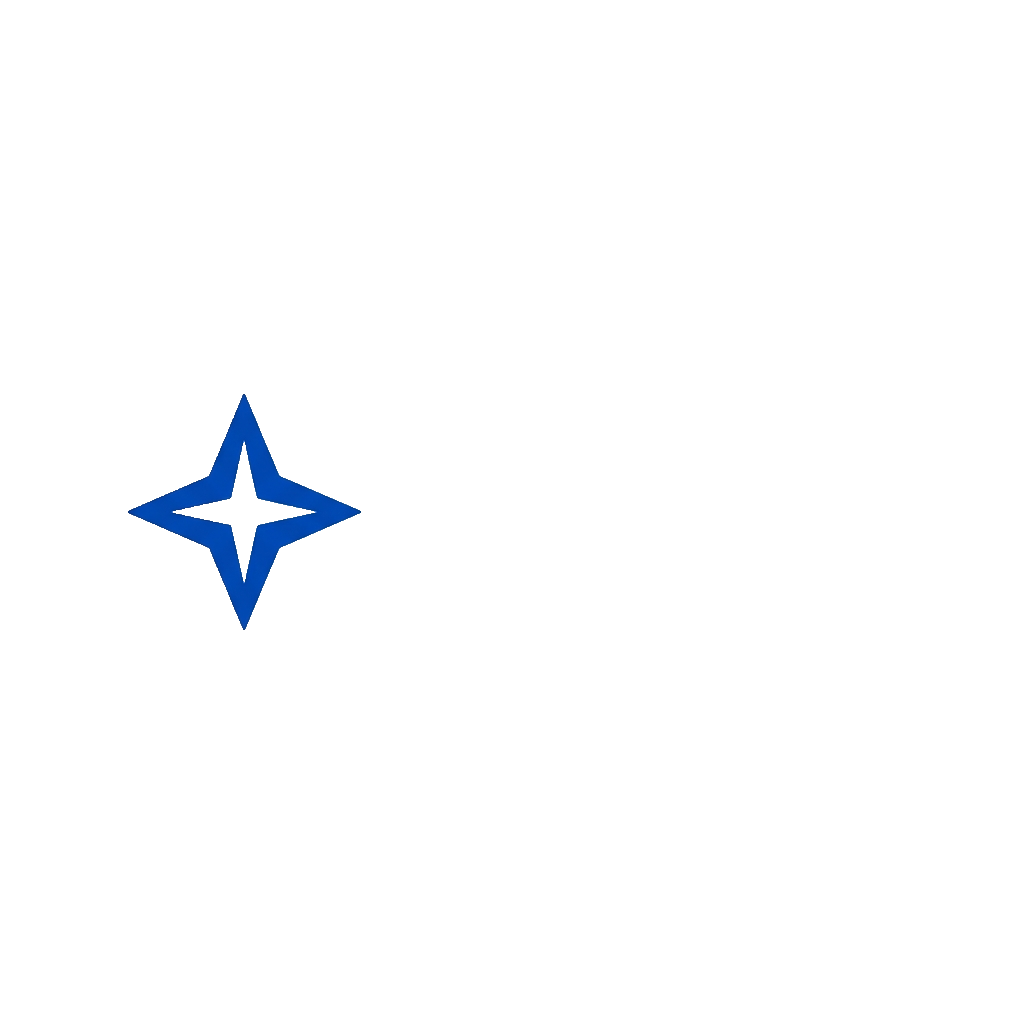 Icon
Icon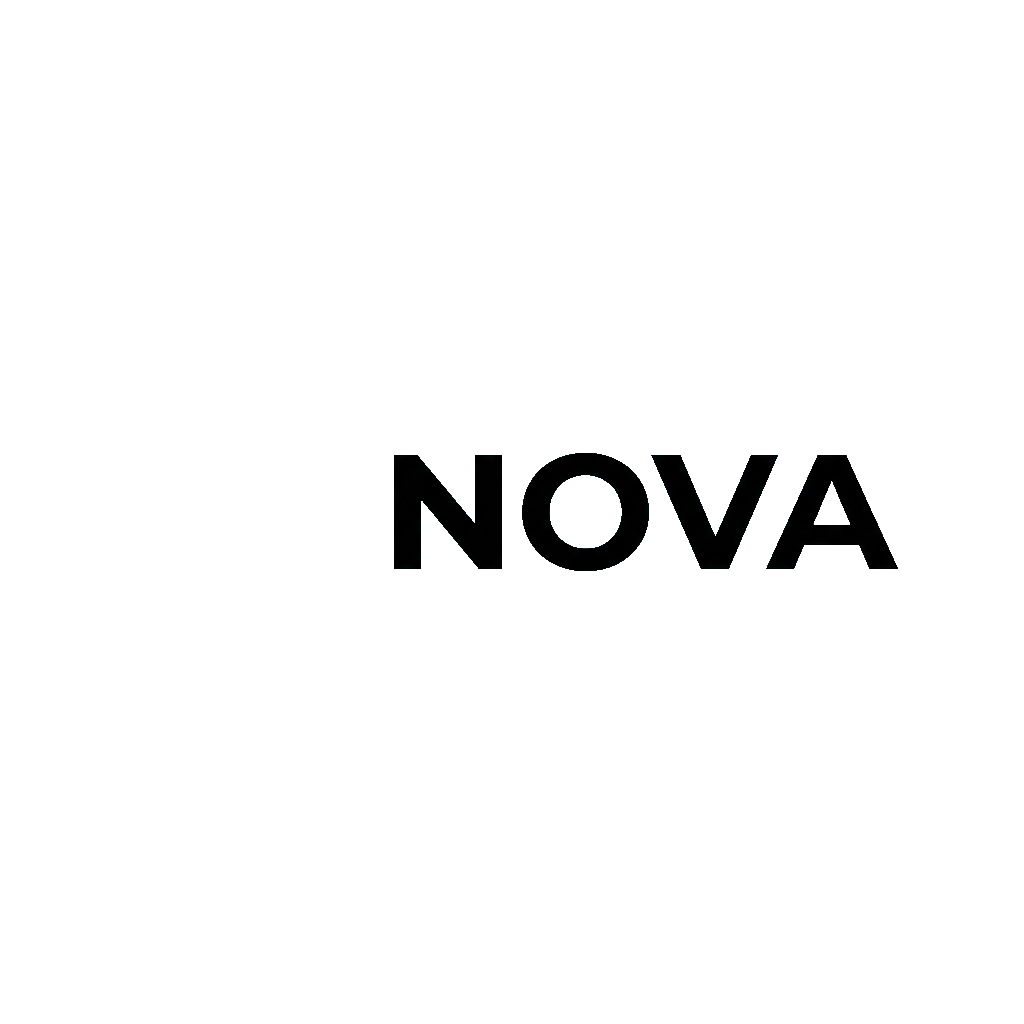 Text
TextSimple, high-contrast logo structures are generally easier to separate than overlapping effects and gradients.
Original
Original

LUMI — a more difficult structure
Gradient fills, overlapping shapes, glow, and soft shadows can cross visual boundaries, which makes them harder to turn into clean independent raster layers.
Separated layers
 Ribbon
 Text
TextReview gradient edges, shadows, and overlapping effects carefully before production use.
Separate the parts you actually need
What can become a logo layer?
Icon or symbol
Separate the brand mark so it can be reused for avatars, app icons, favicons, motion graphics, or compact placements.
Wordmark
Keep the visible brand name separate from the symbol when the source logo makes that boundary identifiable.
Tagline
Supporting lettering may be isolated as a separate raster element when it is visually distinct.
Separated lettering remains an image layer, not live editable text.
Supporting shapes
Separate circles, ribbons, badges, frames, containers, and other major graphical structures.
Effects
Highlights, shadows, glow, or gradients may sometimes become separate layers, although these are harder than flat shapes.
Background
Separate a solid field, badge background, container shape, or other underlying visual region when useful.
Not every logo needs every layer type. The structure depends on what is actually visible in the source.
Choose the right level of separation
A simpler logo stack or more individual parts?
Core Layers
Best for: common logo structures
- Separates the main logo elements
- Symbol, wordmark, background
- A cleaner, more manageable layer stack
Detailed Layers
Best for: more complex logos
- Separates more individual shapes and effects
- Badges, ribbons, decorations, highlights, shadows
- Layer count varies with the logo, up to 17
Mainly need the icon, wordmark, and background separated? Choose Core Layers. Need smaller shapes or effects independently editable? Choose Detailed Layers.
More layers are not automatically better for a logo. If you mainly need the icon, wordmark, and background separated, Core Layers will usually give you the cleaner working structure. Choose Detailed Layers when smaller shapes or effects genuinely need to move, hide, or be reused independently.
What "editable" means here
You can edit the parts — but they are still raster assets
Once separated, each layer can be moved, hidden, transformed, recolored, composited, animated, or reused independently. But Logo to Layers does not recreate the original design objects.
You can
- Move layers
- Hide layers
- Reposition elements
- Recolor raster elements
- Animate parts independently
- Export transparent PNGs
- Continue in a layered PSD
It does not restore
- Original SVG paths
- Illustrator objects
- Original fonts
- Live editable typography
- Original kerning
- Original effects
- Original source-document history
Text becomes a raster image layer. Shapes remain raster layers rather than original vector paths.
One flat logo, more ways to use it
Why separate a logo in the first place?
Animate the logo
Move the icon, wordmark, or supporting shapes independently for reveals, intros, transitions, social motion, and video graphics.
Use the symbol by itself
Pull the icon out of an older flattened lockup for avatars, favicons, app graphics, or compact placements.
Create another lockup
Reposition the existing visible parts when you need a horizontal, stacked, or simplified composition.
Reuse one graphic element
Export a badge, symbol, ribbon, or decorative part as a transparent PNG for another creative.
Build a layered PSD
Continue from separate raster elements instead of manually tracing selections from one flat logo.
When one part covers another
Rebuild what was hidden behind the top layer
Sometimes a wordmark sits over a ribbon, an icon overlaps a badge, or one shape covers part of another. In a flattened logo, the pixels underneath are no longer visible. When possible, AI can estimate those hidden areas so the lower layer is more useful on its own.
Reconstructed areas are AI-generated estimates, not recovered original artwork.
Choose the output you actually need
Do you need separate layers or scalable vectors?
Logo to Layers
Best for: Separating visual parts
- Output: raster PNG / PSD layers
- Independent elements: yes
- Infinite scaling: no
- Motion preparation: good
Logo to SVG
Best for: Creating scalable vector artwork
- Output: SVG paths
- Independent elements: depends on vectorization
- Infinite scaling: yes
- Print / cutting: better suited
Choose Logo to Layers when the parts need to move or be reused independently. Choose Logo to SVG when your main goal is scaling, path editing, cutting, engraving, or vector-based print work.
Layers or just the PSD file?
Logo to Layers or Logo to PSD?
Logo to Layers
Main intent:
"Give me the separate elements."
Best when you want to inspect, reuse, export, and continue working with the individual separated parts.
Logo to PSD
Main intent:
"Give me a layered PSD."
Best when your main goal is simply getting the result into a layered Photoshop-compatible file.
Only need a PSD? Open Logo to PSDBoth can use the same underlying separation workflow, but the destination is different.
Use the logo parts wherever you need them next
Transparent PNG layers
Reuse individual logo elements in design, animation, presentation, social, and web workflows.
Layered PSD
Continue with the separated raster elements in software that supports layered PSD files.
ZIP package
Download the separated PNG assets together for handoff, storage, or use in another workflow.
A better source makes a better starting point
Choose the cleanest logo file you have
- Use the highest-resolution version available.
- Flat colors and clear boundaries are generally easier to separate than gradients, glow, transparency, and soft shadows.
- Avoid screenshots when you still have the original PNG or JPEG export.
- Heavy JPEG compression can make text and edges harder to separate cleanly.
- If you already have a clean editable SVG or original Illustrator file, use that source instead of reconstructing the logo with AI.
A new working structure — not the lost original logo file
Logo to Layers analyzes the visible pixels in the flattened logo and creates a new raster layer structure. Information that no longer exists in the flattened image cannot be restored exactly.
Usually easier
Flat-color logos, simple icon-and-wordmark layouts, clean geometry, high contrast, and clearly separated shapes.
More challenging
Gradients, glow, soft shadows, transparency, thin lettering, tiny taglines, heavy overlap, complex texture, and low-resolution source images.
Compare the result against your approved brand master before replacing an official logo asset.
AI-generated and AI-edited results may vary. Review important brand details before using the output in production.
Frequently asked questions
What is Logo to Layers?
Logo to Layers takes a flattened logo and creates separate raster layers from visible elements such as the symbol, wordmark, supporting shapes, effects, and background. It is designed for situations where you still have the logo image but no longer have a useful layered source file.
Can I turn a PNG logo into separate layers?
Yes. A flattened PNG can be analyzed and separated into independent visual elements when the logo structure is identifiable. The result is a new raster reconstruction rather than the original source document.
Can I turn a JPEG logo into a layered PSD?
Yes. You can use a flattened JPEG as the source and export a layered PSD when PSD export is available for the result. JPEG compression may make fine edges and small lettering harder to separate cleanly.
What is the difference between Core Layers and Detailed Layers?
Core Layers focuses on the main logo elements and keeps the layer stack smaller and easier to manage. Detailed Layers attempts to separate more individual shapes and effects when finer control is useful.
How many layers can Detailed Layers create?
Detailed Layers can return up to 17 layers, including the base or background. The actual number depends on the logo — a simple icon-and-wordmark logo may only need a few useful layers.
Is Detailed Layers always better for logos?
No. For many logos, fewer meaningful layers are easier to work with. If you mainly need the icon and wordmark separated, Core Layers may be the better choice.
Can it separate the icon from the wordmark?
Yes, when the icon and wordmark are visually distinct enough for the model to identify as separate elements. Overlap, effects, and very small details can make separation harder.
Will the wordmark become editable text?
No. Separated lettering is a raster image layer, not live editable typography. You cannot reliably change the wording, font family, kerning, or text styles as though you had the original design file.
Can it identify the original font?
No. Logo to Layers does not guarantee identification of the original typeface. If the font matters, refer to the brand guidelines or original design source when available.
Does it recreate vector paths?
No. Logo to Layers produces raster visual layers rather than original SVG or Illustrator vector paths. If you need scalable vector artwork, use a Logo to SVG workflow instead.
What is the difference between Logo to Layers and Logo to SVG?
Logo to Layers is for separating visible parts so they can be moved, hidden, animated, or reused independently. Logo to SVG is for creating scalable vector paths when resizing and vector editing are more important than raster layer separation.
What is the difference between Logo to Layers and Logo to PSD?
Logo to Layers is focused on separating and working with the individual parts. Logo to PSD is useful when your main goal is getting the result into a layered Photoshop-compatible file.
Can it separate gradients and shadows?
It can attempt to separate them, but gradients, soft shadows, glow, and transparency are more difficult than flat, high-contrast shapes. Review these layers carefully before production use.
What happens when one logo element overlaps another?
The model may attempt to reconstruct the area hidden underneath the foreground element. Any reconstructed region is AI-generated and should not be treated as recovered original artwork.
Can I use the separated layers for logo animation?
Yes. Separating the icon, wordmark, supporting shapes, or effects can give you useful independent assets for motion design. The tool itself creates the layers; the final animation is completed in your preferred motion workflow.
What if my logo is low resolution?
The tool can still attempt separation, but low-resolution or heavily compressed sources can produce less reliable edges, lettering, and small details. Use the highest-quality version available.
Should I upload an SVG logo?
If you already have a clean editable SVG, use that original vector file whenever possible. AI separation is most valuable when your usable source is flattened or when you specifically need raster elements separated. If an SVG is uploaded to this workflow, it is rasterized before processing rather than preserving its original vector structure.
Can I recolor the separated logo parts?
Yes. Once a visual element is independent, you can edit or recolor the raster layer in compatible design software. For an official brand asset, verify the final colors against the approved brand specification.
Can I use the result for print?
You can use sufficiently high-resolution raster assets in print workflows, but they do not have the infinite scalability of true vector artwork. For logos that must scale across many print sizes, an approved vector source or SVG is usually preferable.
Does separating a logo change my rights to use it?
No. Layer separation does not create new ownership rights in the logo. Only upload and reuse logos that you own or have permission to use.
Turn the flat logo into parts you can work with again
Upload the flattened logo you already have, choose how much separation you need, and create reusable raster layers for editing, motion, brand asset reuse, or PSD workflows.
Core Layers for a cleaner structure · Detailed Layers for finer separation
Need scalable vectors instead? Use Logo to SVG.