
Generate backgrounds with AI
Turn an existing image into a new scene with AI. Upload your image, describe the background you want, and generate a complete environment around the main subject with matching surfaces, depth, lighting, and visual context.
Upload your image
Drag and drop or browse files
Quick styles & ideas:

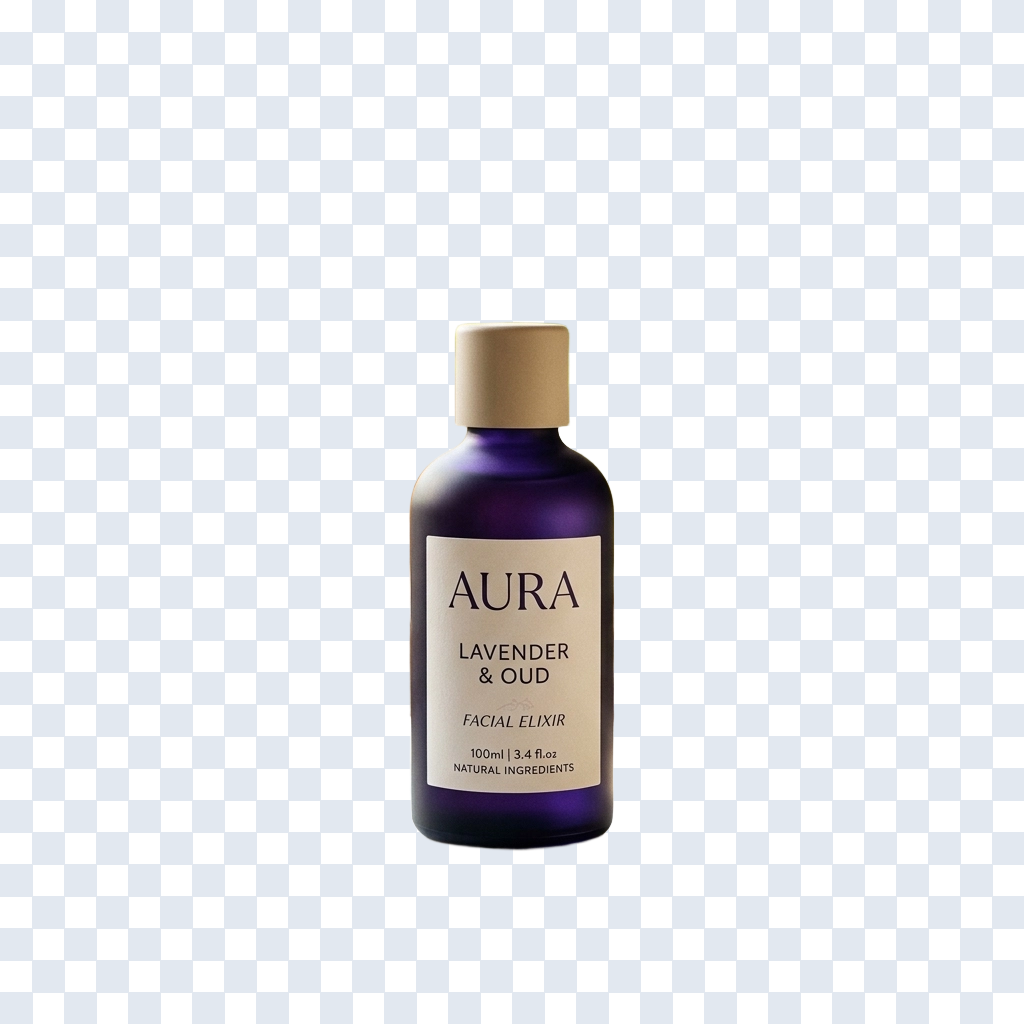
Generate a complete background around your existing image
A background is more than a flat color. It can include surfaces, walls, landscapes, lighting, depth, shadows, materials, atmosphere, and other visual elements that determine how the main subject feels inside the image. ImageToLayers uses your uploaded image as the starting point and generates a new surrounding scene based on the background you describe.
Text-guided backgrounds
Describe the scene, surface, lighting, and mood in plain language.
Multiple scene directions
Generate studio, indoor, outdoor, minimal, or seasonal environments from the same image.
AI lighting and depth
Generated scenes include shadows, depth, and lighting that help ground the subject.
High-resolution output
Download a full-resolution result ready for web or print use.
What kind of background can you generate?
Studio backgrounds
Create clean, neutral, gradient, textured, or premium studio-style environments with surfaces and controlled lighting.
Indoor scenes
Place the main subject inside kitchens, living rooms, offices, bathrooms, stores, studios, or other interior environments.
Outdoor backgrounds
Generate beaches, gardens, streets, landscapes, architectural settings, and other outdoor surroundings.
Minimal backgrounds
Use simple colors, gradients, matte surfaces, subtle shadows, and uncluttered compositions when you want the subject to stay dominant.
Premium and editorial scenes
Create darker lighting, refined materials, dramatic surfaces, controlled reflections, and more stylized visual directions.
Seasonal backgrounds
Generate seasonal or occasion-based environments for holidays, launches, campaigns, or temporary creative directions.
Generate a new scene, replace it, or remove it completely?
All three tools start from the same uploaded image. Choose based on whether you want a brand-new AI scene, a specific replacement, or transparency.
Create a new background from an existing image
The uploaded image provides the main subject. Your prompt tells AI what kind of environment should appear around it, including new surfaces, lighting, depth, shadows, and other environmental details.
- Step 101
Upload your image
Choose an image containing the subject you want to keep while changing the surrounding environment.
- Step 202
Choose a background direction
Start with a preset such as Clean Studio, Lifestyle Interior, or Outdoor Scene, or describe your own idea.
- Step 303
Describe the scene
Mention the type of environment, surface, lighting, colors, and mood when they matter to the final result.
- Step 404
Generate and review
Check edges, lighting direction, contact shadows, perspective, and scale before using the result.
How to describe a better AI background
You do not need an extremely long prompt. A useful background prompt usually describes the environment first, followed by the surface, lighting, colors, materials, and overall mood.
Studio
Clean, controlled surface and lighting for a premium studio look.
Lifestyle interior
A believable indoor setting with natural daylight.
Outdoor scene
Natural surroundings with realistic depth and light.
Tips for better AI-generated backgrounds
Use a clear source image
Well-lit images with clear subject edges give the generator a stronger starting point.
Keep the subject visible
Keep the main subject fully visible when possible for cleaner integration.
Describe the environment first
Mention the scene and surface before small decorative details.
Mention lighting for realism
Lighting direction and mood have a large effect on how believable the scene looks.
Start simple
Keep early prompts relatively simple, then add detail once you like the direction.
Generate variations
Try a few generations when exploring a new creative direction.
Create backgrounds for different visual needs
Ecommerce and products
Generate cleaner, more polished environments for products, packaging, catalog imagery, and online storefronts.
Social media
Create new visual settings for posts, promotional images, covers, and campaign content.
Marketing creatives
Generate backgrounds with more room for headlines, offers, campaign styling, or branded creative direction.
Presentations and editorial images
Turn a plain source image into a more visually complete image for articles, decks, graphics, or editorial layouts.
Seasonal campaigns
Create temporary seasonal settings without rebuilding the source image from scratch.
Creative exploration
Try several environments, materials, lighting directions, and moods around the same source image.
AI generates new visual content
Generated backgrounds are newly created visual content. AI uses the source image and your description to infer what the new environment should look like.
The result can sometimes affect fine edges, reflections, transparent areas, text, logos, or other small details near the subject. Review visually important details before publishing or using the image commercially.
Questions about AI background generation
What is an AI background generator?
An AI background generator creates a new visual environment around an existing image using generative AI. Instead of simply filling the background with one color, it can generate surfaces, scenery, lighting, depth, shadows, materials, and other scene details.
How do I generate a new background for an image?
Upload your image, choose a preset or describe the environment you want, and start the generation. AI uses the uploaded image as visual context and creates a new surrounding scene based on your instruction.
Do I need to remove the original background first?
Not necessarily. The generator is designed to work from an uploaded source image and create a new background around the main subject. A cleaner source can sometimes make subject separation easier, but manual background removal is not always required.
Can I describe any kind of background?
You can describe a wide range of studio, indoor, outdoor, minimal, lifestyle, premium, seasonal, or abstract environments. The more visually specific the request is, the easier it is for the generator to understand the intended direction.
Can AI generate both the background and the floor or surface?
Yes. A generated scene can include both the backdrop and the surface beneath or around the subject. Mention the surface explicitly if it matters, such as stone, wood, fabric, concrete, or a seamless studio sweep.
Can the generator add lighting and shadows?
The generated environment can include visual lighting, depth, reflections, and shadows that help integrate the subject into the new scene. Because these elements are AI-generated, review important contact points and lighting relationships in the final image.
Can I generate a studio background?
Yes. Studio environments are a common use case. You can request clean white, gray, beige, gradient, textured, dark, or editorial studio setups.
Can I create an outdoor background?
Yes. You can describe outdoor environments such as gardens, beaches, streets, landscapes, or other scenery. Results depend on how well the generated perspective and lighting fit the uploaded subject.
Can I make several backgrounds from the same image?
Yes. You can reuse the same source image with different prompts or presets to explore several visual directions. Each generation is a new AI result, so compositions and environmental details may vary.
Will the main subject stay exactly the same?
The source image provides the main subject, but generative processing can sometimes affect fine edges, reflections, transparent areas, text, logos, or other small details. Review important visual details before using the result.
Can I generate a simple background instead of a complex scene?
Yes. You can request a minimal gradient, simple studio sweep, soft wall and floor, or other restrained environment. Keeping the prompt simple is often useful when you want the subject to remain dominant.
What is the difference between an AI Background Generator and Background Changer?
A Background Generator creates a new environment using generative AI. A Background Changer is better when you primarily want to replace the existing backdrop with another known image or simpler background.
What is the difference between Background Generator and Background Remover?
Background Generator creates new surroundings. Background Remover does the opposite: it removes the surrounding environment so the subject can be isolated or exported with transparency.
Why does the generated background sometimes look different between attempts?
Generative AI can produce different interpretations from the same source image and prompt. That variation is useful for exploring creative directions, but it also means two generations are not guaranteed to match exactly.
Can AI recover a background that was originally behind the subject?
No. AI cannot know the exact hidden original pixels if they are no longer visible. It generates new content based on the visible image and your instruction rather than recovering an unseen original background.
Can I use generated backgrounds for commercial images?
Generated backgrounds can be useful for marketing, ecommerce, social media, campaigns, presentations, and other commercial visual workflows. You should still review the final result for product accuracy, logos, text, branding, and other details that matter to your specific use.
Related tools
AI Product Background Generator
Generate studio, lifestyle, and campaign backgrounds built specifically for product photos.
Background Changer
Replace an existing background with one you already have in mind.
Background Remover
Remove the background entirely for a transparent, isolated subject.
Generative Fill
Add, remove, or repair specific parts of an image with a text prompt.
Turn your image into a new environment
Upload an image, describe the background you want, and generate a complete new scene around the main subject.
Generate a background