
AI Background Splitter
Keep the Subject. Keep the Background.
Separate a photo into a transparent foreground and a reusable reconstructed background. Move the subject, place content behind it, edit the scene independently, or prepare the image for layered compositing.
Also includes a subject mask for further editing.
Upload an image
Separate one image into a transparent foreground, reconstructed background, and reusable subject mask.
Upload an image to split
Keep the subject and create a reusable background behind it.
Drag and drop your image here or browse files



The covered background area is reconstructed with AI using the visible scene as context.
Processing time varies with image complexity. Large subjects and detailed backgrounds may require more reconstruction.
Three outputs from one image
More Than a Transparent Cutout
Background Splitter gives you the subject, the rebuilt scene behind it, and a mask you can reuse in editing workflows.

Transparent foreground
The main person, product, or object isolated as a transparent PNG.

Reconstructed background
A reusable background plate with the covered area filled using surrounding visual context.
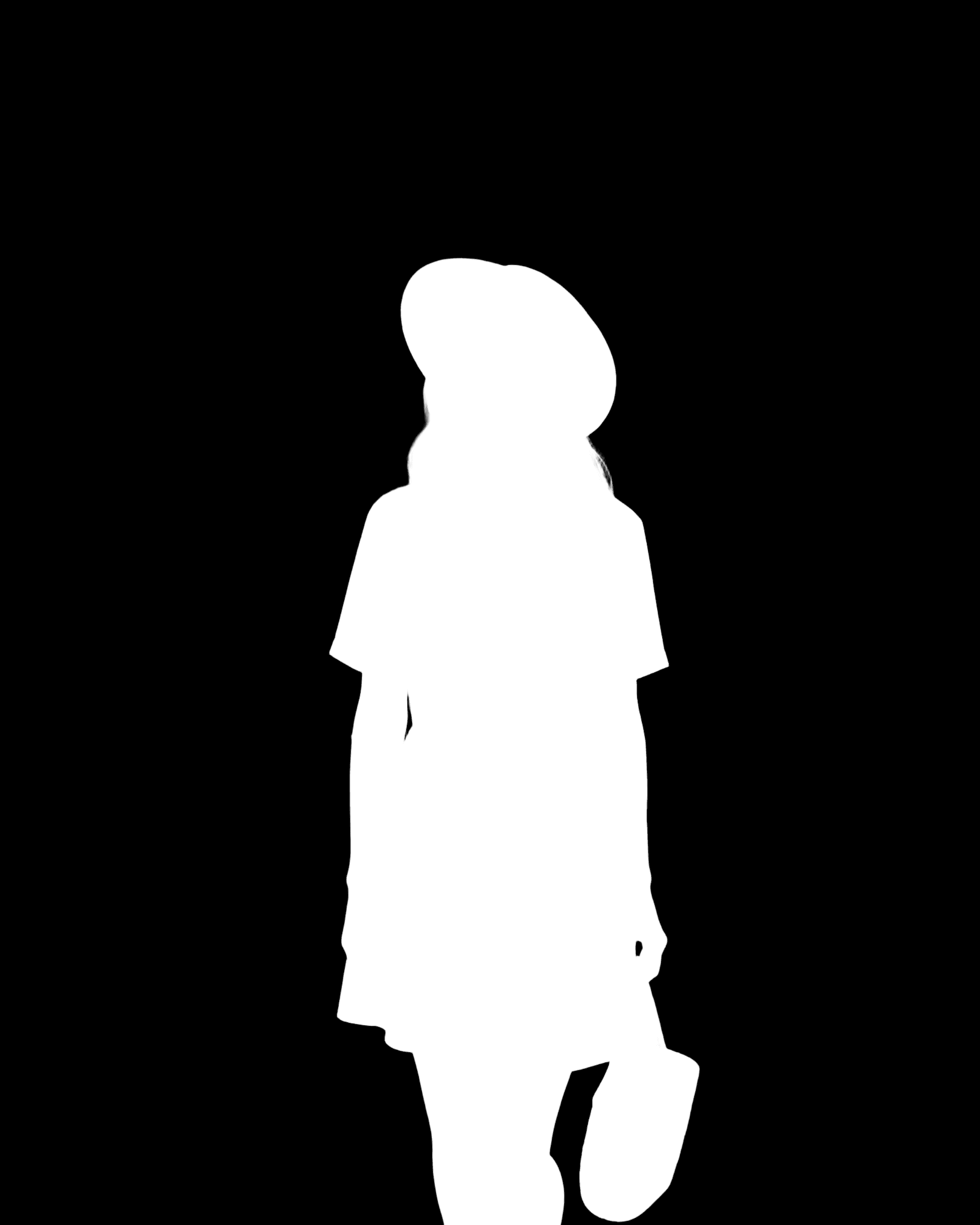
Subject mask
A grayscale mask showing the detected foreground area for compositing, masking, or further edits.
Remover or splitter?
A Background Remover Gives You Half the Workflow
Background Remover
Best when you only need the subject.
Best for
- Product cutouts
- Profile images
- Replacing the entire background
- Transparent PNG exports
Background Splitter
Best for editingBest when you need both sides of the image.
Best for
- Text behind subjects
- Independent background editing
- Compositing
- Parallax and motion design
What the extra background enables
Keep Editing After the Subject Is Removed
Put text behind a person
Place headlines, titles, logos, or graphics between the reconstructed background and the transparent foreground.
Move the subject
Reposition the foreground without leaving the original subject-shaped hole behind.
Edit the background independently
Blur, recolor, extend, relight, or replace parts of the background without modifying the extracted subject.
Build simple depth effects
Move the foreground and background independently to create parallax, camera motion, or layered animation.
How reconstruction works
Hidden Background Details Are Generated, Not Recovered
Pixels covered by the original subject do not exist in the visible image. Background Splitter uses surrounding context to generate a plausible continuation of the scene after the subject is removed.
Original
Covered area
Generated continuation
Simple walls, skies, floors, and repeating environments are often easier to continue. Large covered areas, text, faces, intricate patterns, or unique objects may require additional editing.
How it works
From Flat Photo to Reusable Foreground and Background
Three steps from a single photo to separate, reusable outputs.
Step 1
Upload one image
Choose a JPG, PNG, or WebP with a clearly recognizable foreground subject.
Step 2
Separate and reconstruct
AI isolates the subject, creates a transparency mask, and generates the background area previously hidden behind it.
Step 3
Download the outputs
Open the result page and download the foreground, reconstructed background, or mask as separate files.
For better results
Start With a Clear Subject and Enough Background Context
Clear foreground
Use an image where the main person or object is easy to distinguish from the background.
Visible surroundings
More surrounding background gives AI more context when reconstructing covered areas.
Clean source image
Higher-resolution images with less motion blur usually provide cleaner boundaries.
Moderate occlusion
Smaller hidden areas are easier to reconstruct than scenes where the subject covers most of the frame.
Hair, fur, transparent materials, fine structures, and highly detailed backgrounds can require additional cleanup.
Choose the right tool
When You May Need Something Else
You only need a transparent cutout
Use Background Remover. It is the simpler workflow when you do not need to preserve or rebuild the background.
You need more than foreground and background
Use Image to Layers when you need multiple editable objects, design elements, or depth layers instead of a two-part scene split.
You need animation depth layers
Use Animator Prep when the goal is to separate a scene into multiple motion-ready foreground, subject, midground, and background layers.
Frequently Asked Questions
What does Background Splitter create?
It creates a transparent foreground, an AI-reconstructed background, and a subject mask from one uploaded image.
How is it different from Background Remover?
Background Remover is designed primarily to give you a transparent cutout. Background Splitter also generates a reusable background plate behind the removed subject.
Does it recover the real hidden background?
No. The hidden pixels are not present in the source image. AI generates a plausible continuation based on the visible surroundings.
What images work best?
Images with one clear foreground subject, good resolution, and enough visible background around the subject usually work best.
Can I put text behind a person?
Yes. Place the reconstructed background at the bottom, your text or graphic in the middle, and the transparent foreground on top.
Can I move the person or product after splitting?
Yes. The foreground is a separate transparent asset, so it can be repositioned independently from the reconstructed background.
Can I edit the reconstructed background?
Yes. You can use it as a normal image in Photoshop, Figma, After Effects, or other editing tools.
Does it work with hair and fur?
It can preserve detailed edges, but results vary with resolution, contrast, motion blur, transparency, and background complexity.
What is the subject mask for?
The mask can be reused for compositing, selections, masking, or additional image-editing workflows.
Should I use Background Splitter or Image to Layers?
Use Background Splitter when you mainly need foreground + background. Use Image to Layers when you need multiple objects or visual elements separated independently.
Keep Both Sides of the Image
Separate the subject, rebuild the covered background, and keep both assets available for whatever you want to edit next.
Standard 30 credits · HD 50 credits