
Print design to layers
Turn Flat Print Artwork Into Editable Visual Layers
Separate packaging, labels, catalogs, brochures, and other flattened print designs into reusable products, graphics, decorations, and background layers — so you can keep editing even when the original source file is missing.
Recover a workable design structure first. Complete CMYK conversion, bleed, spot colors, trapping, and final prepress in your professional design or RIP software.
Click or drag image to upload
Click or drag image to upload
JPG, PNG, or WebP · Maximum 10 MB
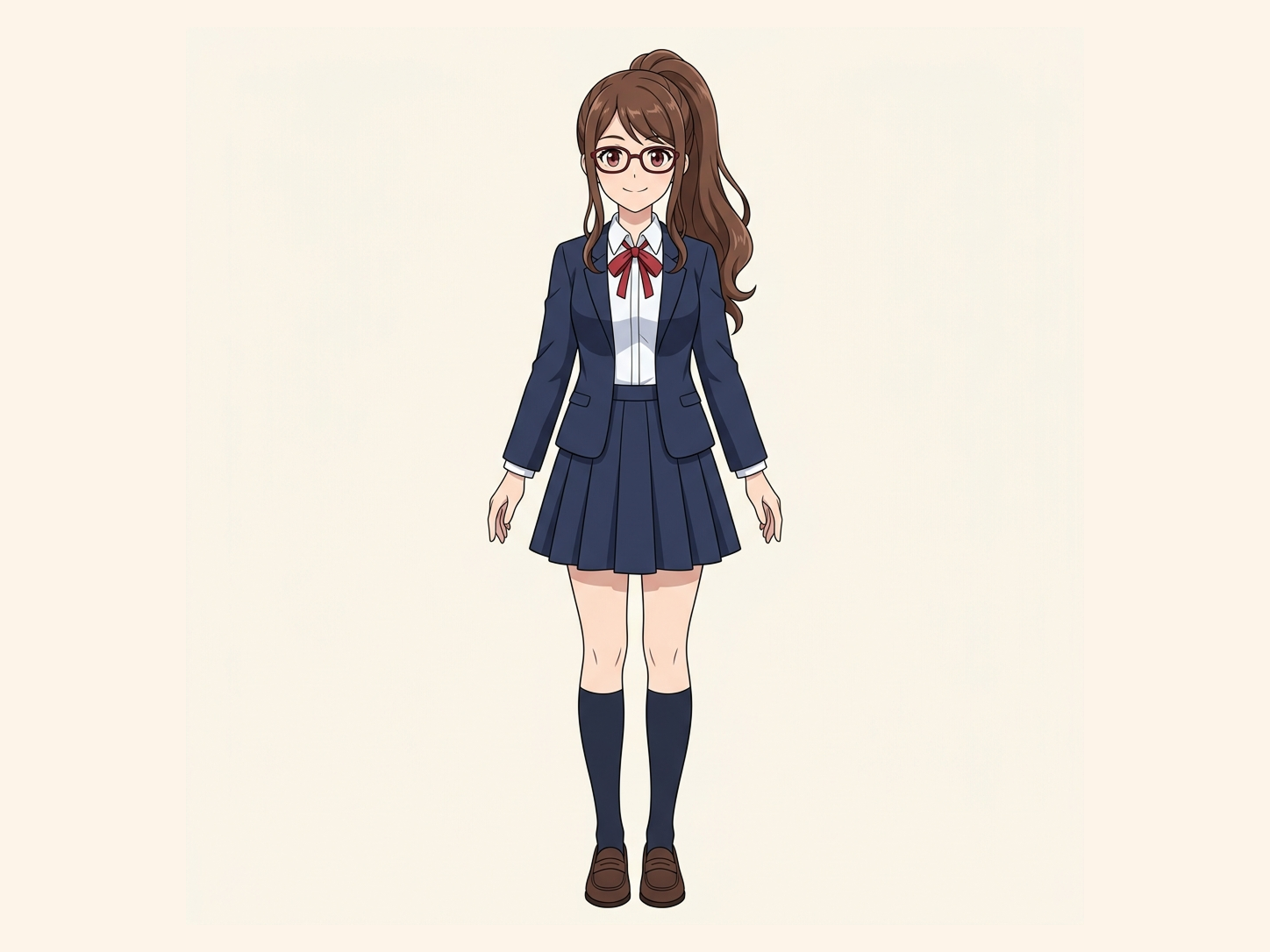
Need hair, face, eyes, mouth, clothing, or body-part layers?
Settings
Leave this blank to let Detailed Layers identify the main editable elements automatically. Or name the parts you want separated.
Want more control over your layers?
Learn how to guide Detailed Layers with simple prompts, choose useful elements, and get cleaner layer structures from different types of images.
Upload an Image to Continue
Private File Handling
Uploaded files are associated with your account and delivered through signed URLs. You can delete completed jobs manually.
Transparent PNG Output
Detailed Layers returns each detected element as its own layer on a transparent background.
Common elements we can separate
When the file is flat but the design still needs changes
Keep working even when the source file is gone
A packaging preview, label export, catalog page, or approved print visual may be all you have left. That becomes a problem the moment something changes: a product image needs replacing, a decorative element needs moving, a background needs updating, or an older visual needs to become the starting point for a new version.
Print Design to Layers creates a new visual layer structure from the flattened artwork so you can recover useful pieces before continuing the design.
It does not recreate the lost Illustrator, InDesign, or Photoshop file. It gives you a new editable starting point.
From one flat export to reusable parts
Separate the artwork you need to revise
Instead of rebuilding the whole design, separate the parts you actually need to change.

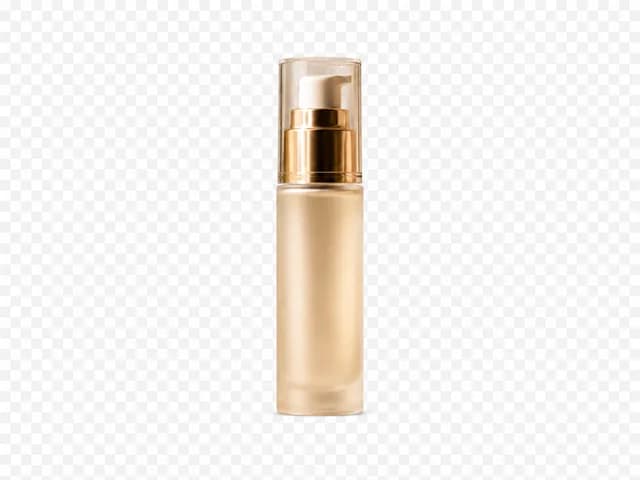
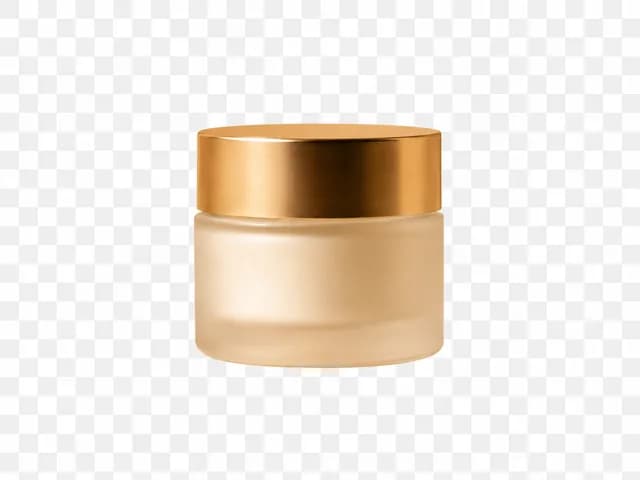
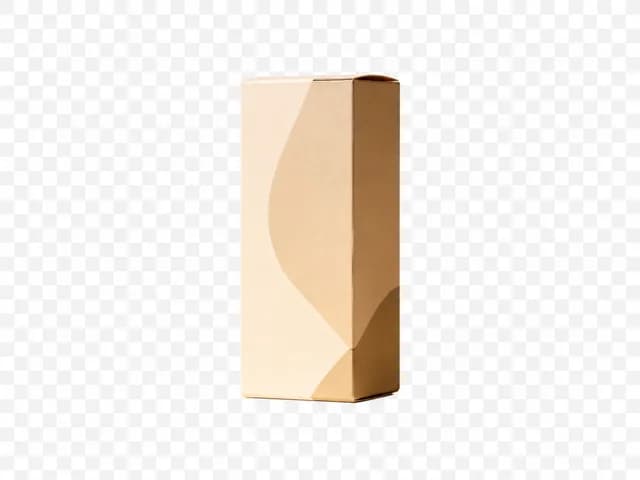

After — editable visual layers
The exact layer structure depends on what is visible in the source artwork.
Recover the parts you still need
What can be separated from print artwork?
Product imagery
Keep bottles, boxes, containers, devices, food products, or other hero product visuals separate from the surrounding layout.
Brand and decorative graphics
Separate badges, illustrations, icons, ornaments, shapes, and other visible graphic elements when they can be identified clearly.
Supporting imagery
Recover secondary product photos, lifestyle imagery, props, or visual accents for reuse in another version.
Background artwork
Separate textures, scenes, gradients, color fields, and other background imagery from foreground content.
Visible lettering
Some text regions may be isolated as visual image layers depending on the source and workflow.
Layer separation does not guarantee recovery of the original font or live editable typography.
Working with a promotional ad or banner where editable text is important? Use Ad to Layers instead.
Open Ad to LayersChoose the right amount of separation
Do you need a cleaner stack or more individual parts?
Core Layers
Best for: straightforward revisions
- Separates the main parts of the artwork
- Product, major graphics, artwork, background
- A cleaner, more manageable layer stack
Detailed Layers
Best for: finer element-level control
- Separates more individual design elements
- Smaller objects, decorations, visual labels, icons
- Layer count varies with the artwork, up to 17
Need a cleaner working file for product or background changes? Choose Core Layers. Need smaller graphics and decorations independently editable? Choose Detailed Layers.
More layers do not automatically make a print file better. If you only need the hero product, major artwork, supporting imagery, and background separated, Core Layers may be easier to work with. Use Detailed Layers when smaller visual elements also need to be moved, replaced, or reused independently.
Built around real print revisions
Where layer recovery can save you from rebuilding the artwork
Packaging revisions
Recover product imagery, packaging mockups, decorative elements, and background artwork before updating an older package design.
Labels and stickers
Separate visible brand graphics, illustrations, icons, visual text regions, and backgrounds when the original working file is unavailable.
Catalogs and brochures
Recover reusable product imagery and design assets from flattened pages before creating new layouts or updated editions.
Point-of-sale materials
Reuse products, campaign artwork, decorations, and background assets from flattened retail graphics.
Layer separation is not prepress
Separate the artwork first. Prepare it for press afterward.
Print Design to Layers works on the visual structure of flattened artwork. It does not create printing plates or replace professional color and prepress preparation.
Step 1 — Image to Layers
- Flat artwork
- Separate visual elements
- Review the layers
- Export working assets
Step 2 — Your print workflow
- CMYK conversion
- ICC / color profile
- Spot colors
- Bleed & trim
- Trapping
- Overprint checks
- Preflight
- Final press-ready output
Two different kinds of "separation"
Visual layer separation is not CMYK color separation
Visual layer separation
- Product
- Illustration
- Decoration
- Background
- Other visible design elements
Purpose:
Editing the design
CMYK color separation
- Cyan
- Magenta
- Yellow
- Black
- Spot plates when applicable
Purpose:
Printing the design
This tool does the first job, not the second.
Looking for CMYK color separation?
This tool separates design elements, not Cyan/Magenta/Yellow/Black printing plates. For commercial printing, complete color separation and prepress setup in dedicated design or RIP software.
Recover first. Revise next.
What becomes easier once the artwork has layers?
Move or replace a product image
Update the hero product without recreating every other visual element.
Reuse old artwork
Pull decorations, imagery, or background elements out of an older approved design.
Build a new package variation
Use recovered visual assets as a starting point for another SKU, size, flavor, or campaign version.
Prepare localization
Separate visuals before rebuilding translated text and adjusting the final layout.
Hand off a better working file
Give another designer transparent assets or a layered PSD instead of only a flattened preview.
Keep the real print workflow in your print tools
Take the recovered assets into the software you already use
Photoshop
Continue image editing, color work, masking, retouching, and layered composition.
Illustrator
Bring recovered raster assets into packaging, label, or artwork layouts alongside your production vectors and typography.
InDesign
Reuse separated visual assets inside catalog, brochure, or other page-layout projects.
Affinity
Continue raster or layout work using the recovered visual assets.
Importing recovered layers does not recreate the original Illustrator or InDesign objects, text frames, vectors, linked files, or layout settings.
Print work or general design?
Print Design to Layers or Graphic Design to Layers?
Print Design to Layers
Best for:
Packaging, labels, catalogs, brochures, POS artwork, and other print-bound designs
Recover assets before continuing a professional print-production workflow.
Separate my print artworkGraphic Design to Layers
Best for:
Social graphics, general posters, presentations, digital campaign visuals, and general visual asset reuse
Recover reusable design assets for general editing.
Open Graphic Design to LayersIf the final destination is commercial print, use Print Design to Layers. If the design is mainly for screen or general creative reuse, Graphic Design to Layers is usually the better fit.
What if the artwork is an advertisement?
Is this a print piece or an ad?
If your source is a promotional ad, banner, poster, or campaign creative and editable text or lettering is central to the job, Ad to Layers is designed around that structure.
If your main task is recovering visual assets from packaging, labels, catalogs, or other print artwork before continuing in a print workflow, stay with Print Design to Layers.
Open Ad to LayersWhat You Get
- Transparent PNG layersReuse individual separated elements across most professional design applications.
- Layer previewsInspect what was separated before continuing the workflow.
- Layer ZIPKeep the generated assets together with supporting layer metadata.
- Layered PSDContinue with an organized layered file when PSD export is available for the result.
A reconstructed working file — not the original production artwork
Print Design to Layers creates new visual layers from what remains visible in the flattened artwork. It cannot recover source information that is no longer stored in the exported pixels, including:
Original Illustrator vectors
Original InDesign text frames
Font files
Hidden objects
Linked source images
Smart Objects
Original masks
Spot-color definitions
Pantone assignments
Bleed settings
Trapping
Overprint settings
Original ICC profiles, if not present in usable source metadata
Usually easier
Large products, clean packaging renders, clear illustrations, distinct decorations, large icons, and visually separate backgrounds.
More challenging
Tiny legal copy, barcodes, fine dieline-like marks, small logos, foil or metallic effects, transparency, fine gradients, shadows, and heavily overlapping artwork.
Always verify barcodes, regulatory copy, ingredient text, dimensions, logos, and other production-critical details against an authoritative source before printing.
AI-generated and AI-edited results may vary. Review important visual details before using outputs in production.
Only need two layers?
Just the subject and the background? Try Background Splitter
When a photo only has one subject in front of a background, Background Splitter gives you a transparent foreground and a reconstructed background in one step, without setting up a full multi-object layer split.

Original photo
The source image with a single subject and background.

Transparent foreground
The subject isolated as a clean transparent PNG.

Reconstructed background
The scene behind the subject, rebuilt and reusable on its own.
Need more than two layers, multiple objects, props, or text? Use the workspace above instead.
Frequently asked questions
What is print design layer separation?
Print design layer separation turns flattened packaging, labels, catalogs, brochures, and other print artwork into separate visual elements that can be reused or edited independently. It creates a new working structure from the visible artwork.
Can I turn a flattened packaging JPG or PNG into layers?
Yes. A flattened packaging preview or exported artwork can be used as the source for creating new visual layers. The result is a reconstruction, not the original production file.
What is the difference between Core Layers and Detailed Layers?
Core Layers focuses on the main parts of the artwork and creates a smaller, easier-to-manage stack. Detailed Layers attempts to separate more individual visual elements when finer editing control is useful.
How many layers can Detailed Layers create?
Detailed Layers can return up to 17 layers, including the base or background. The actual number depends on the artwork.
Is Detailed Layers always better for print design?
No. If your revision only requires the main product imagery, major artwork, and background, Core Layers may produce a more manageable working file. Use Detailed Layers when additional independent visual elements are genuinely useful.
Does this create CMYK color separations?
No. This tool separates visual design elements, not Cyan, Magenta, Yellow, and Black printing plates. CMYK and other press separations should be completed in professional prepress or RIP software.
Can it create spot-color or Pantone plates?
No. AI visual layer separation is not a substitute for defining spot colors, Pantone inks, varnish plates, white ink, foil, or other production separations in professional print software.
Can it make my artwork print-ready automatically?
No. The result can give you a more editable starting point, but professional print preparation may still require CMYK conversion, color profiles, bleed, trim, trapping, overprint checks, preflight, and other production work.
Can it recover the original Illustrator file?
No. A flattened bitmap does not contain the original Illustrator objects, paths, layers, fonts, effects, or document structure. The tool creates new raster visual layers from what it can identify.
Can it recover my original InDesign document?
No. It cannot recreate InDesign text frames, master pages, linked files, paragraph styles, layout grids, or other source-document information from a flattened export.
Can it recover editable text?
Text regions may sometimes be isolated visually, but Print Design to Layers does not guarantee recovery of the original font or a live editable text object. For production copy, rebuild the text from an authoritative source rather than relying on pixels alone.
Can I use it for packaging localization?
It can help separate visual assets before localization. Translated copy, regulatory text, typography, and final layout should then be rebuilt and reviewed in professional design software.
Can I use the result in Photoshop?
Yes. Transparent PNG layers can be imported into Photoshop, and layered PSD export can be used where available.
Can I use the assets in Illustrator or InDesign?
Yes. Recovered raster assets can be placed into Illustrator or InDesign as part of a new or existing layout. They do not become the original vectors or native source objects automatically.
What kinds of print designs work best?
Packaging renders, labels, catalog artwork, brochures, retail graphics, and other designs with relatively clear visual elements are good candidates. Very small text and complicated print effects are more challenging.
Can it recover a background hidden behind a product?
When background reconstruction is supported, AI may estimate areas that were hidden by foreground content. Those areas are generated approximations rather than recovered original pixels.
Should I trust barcodes or legal text recovered from the image?
No production-critical information should be trusted solely because it appears in an AI-separated result. Verify barcodes, ingredient lists, regulatory text, dimensions, claims, logos, and other critical information against the authoritative production source before printing.
What is the difference between Print Design to Layers and Graphic Design to Layers?
Print Design to Layers is organized around packaging, labels, catalogs, brochures, and workflows that will continue into professional print preparation. Graphic Design to Layers is better suited to general digital designs and reusable visual assets where commercial print preparation is not the main goal.
Keep working with the artwork you still have
Recover the visual parts before you rebuild the print file
Upload the flattened packaging, label, catalog, or print artwork you still have. Separate the useful visual elements, review the result, and continue the real production work in your preferred design software.
Core Layers for a cleaner structure · Detailed Layers for finer separation