
AI Inpainting Online
Remove, replace, or add content to any part of an image. Brush over the area you want to edit, describe the result, and let AI regenerate it naturally.
What Would You Like to Do?
Replace the selected object or area with something new using a text prompt.
Image
RequiredAdd Image
Click or drag one source image here to start editing.
PNG, JPG, JPEG, or WEBP. The upload card is the primary starting point.
Precise AI editing
Original Image vs. AI Inpainting
Use the comparison slider to see how the selected area was regenerated while the surrounding image remained intact.
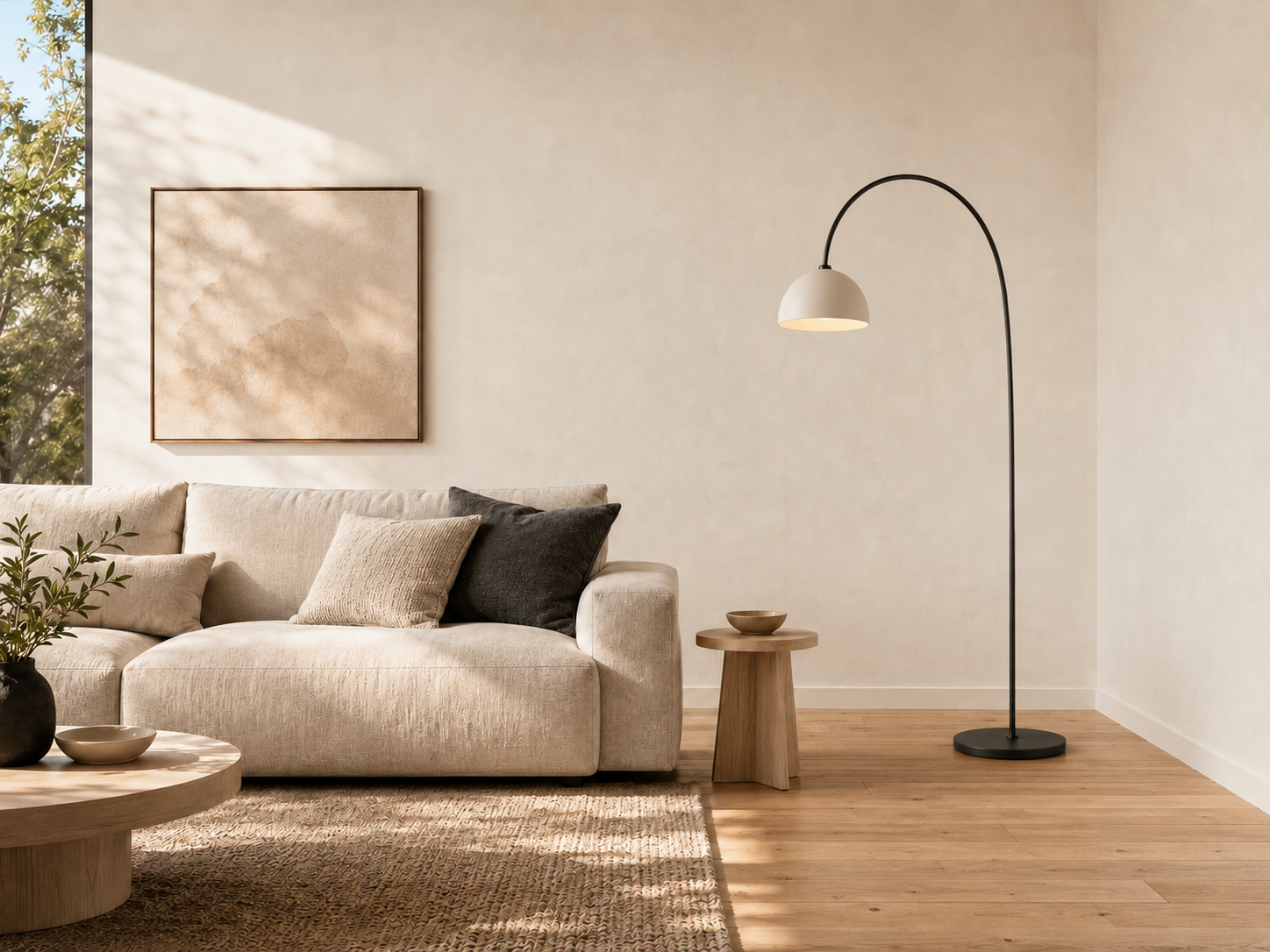
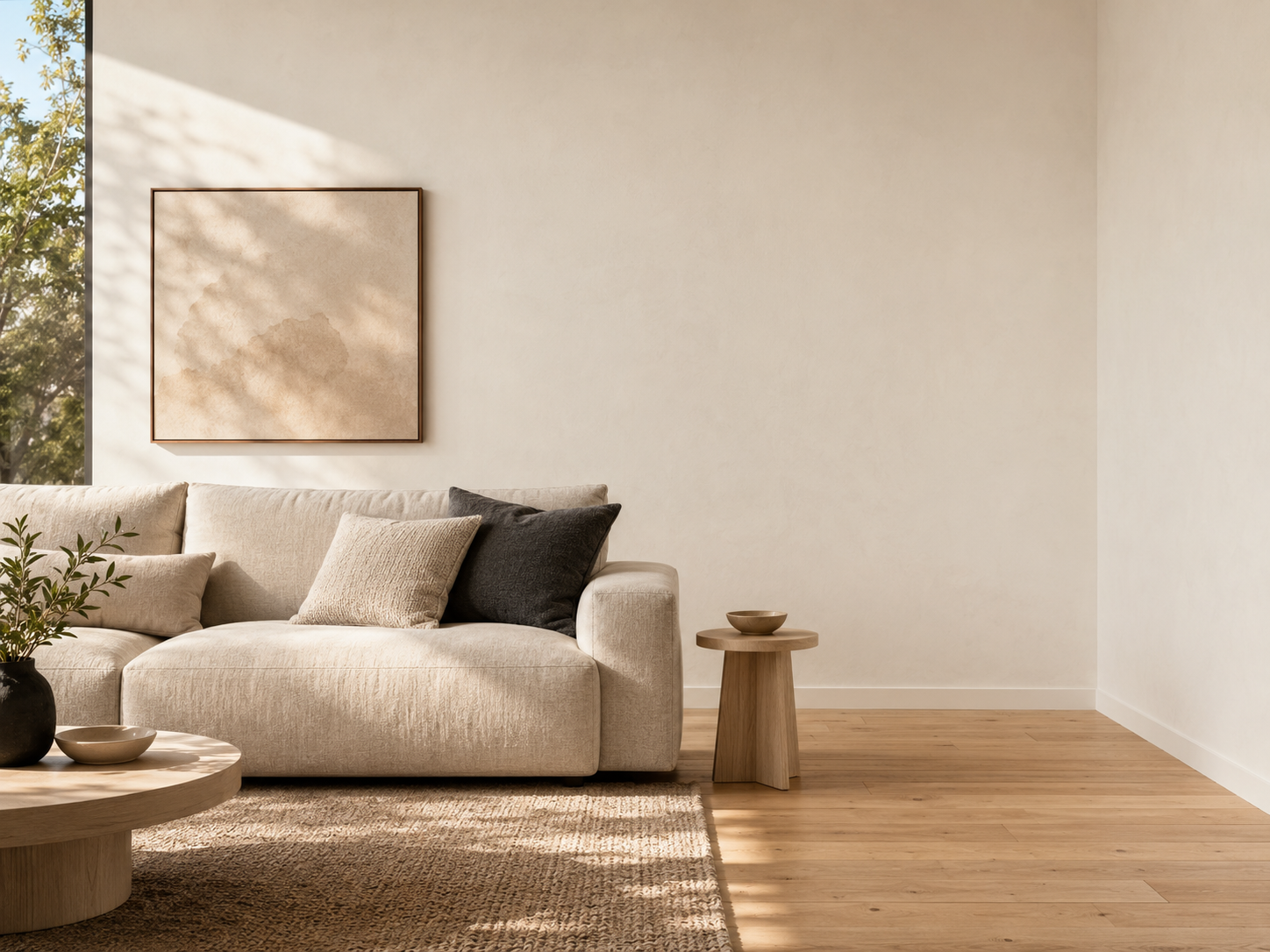
- Cover the complete object and its visible edges with the brush.
- Include shadows when removing an object from a surface.
- Leave a small margin around the selected area so the new content can blend naturally.
- Use a smaller brush near faces, text, hands, and detailed edges.
- If the first result is not right, adjust the mask or add more detail to the prompt.
Recent Sessions
Change Part of an Image Without Recreating the Whole Picture
AI inpainting lets you regenerate a selected part of an image while preserving the surrounding content. Instead of editing the entire picture, you use a brush to create a mask over the exact area you want to change.
You can remove distracting objects, replace existing details, add something new, or reconstruct a damaged area. The AI uses the surrounding colors, lighting, texture, and perspective to blend the generated content into the original image.
What Can You Do with AI Inpainting?
Use text-guided inpainting for quick corrections, creative edits, and detailed image modifications.
Remove Unwanted Objects
Paint over people, signs, products, distractions, or other unwanted objects and reconstruct the background.
Replace Image Elements
Swap furniture, clothing, decorations, materials, and other selected details without rebuilding the whole image.
Add New Objects
Select an empty area and describe the object you want AI to place inside the scene.
Change Clothing and Colors
Modify selected clothing, accessories, colors, and materials while preserving the rest of the person and image.
Repair Missing Areas
Reconstruct damaged, erased, or incomplete regions using the surrounding visual context.
Create Product Variations
Change product colors, materials, details, props, and backgrounds for new visual concepts.
How to Use AI Inpainting Online
Edit a selected image area in four simple steps.
Upload an Image
Choose a JPG, PNG, or WebP image from your device.
Brush Over the Area
Paint a mask over the object or region you want to remove, replace, or regenerate.
Describe Your Edit
Enter a clear prompt explaining what should appear inside the selected area.
Generate and Download
Let AI regenerate the selected region, compare the result, and download your edited image.
Tips for Selecting the Inpainting Area
- Cover the complete object and its visible edges with the brush.
- Include shadows when removing an object from a surface.
- Leave a small margin around the selected area so the new content can blend naturally.
- Use a smaller brush near faces, text, hands, and detailed edges.
- If the first result is not right, adjust the mask or add more detail to the prompt.
How to Write a Better Inpainting Prompt
Describe the desired result rather than only naming the object you want removed.
Describe the Replacement
“Replace the selected chair with a minimalist beige fabric armchair.”
Include Visual Details
“Add a small ceramic vase with white flowers and soft natural shadows.”
Match the Existing Scene
“Create a natural wooden floor matching the surrounding color, lighting, and perspective.”
Keep the Request Focused
“Change the red shirt to a dark blue denim jacket.”
AI Inpainting for Creative and Practical Image Editing
Edit selected areas of photographs, product visuals, artwork, and generated images.
Product Photography
Replace props, change product details, remove distractions, and create visual variations for ecommerce.
Portrait Editing
Change clothing, accessories, small background elements, or other selected details in a portrait.
Interior Design
Replace furniture, wall decorations, lighting fixtures, materials, and decorative objects.
Real Estate Photos
Remove clutter, replace distracting objects, and clean up selected areas in property images.
Social Media Content
Quickly modify image details, remove unwanted elements, or create new versions for social posts.
AI-Generated Artwork
Fix incorrect details, regenerate hands or objects, and refine selected areas without starting over.
AI Inpainting Online FAQ
Common questions about editing selected parts of an image with AI.
What is AI inpainting?
AI inpainting regenerates a selected part of an image using the surrounding image and an optional text prompt as context. It can remove, replace, add, or repair visual content.
How do I select the area to inpaint?
Use the brush to paint over the object or region you want to change. The painted mask tells the AI which part of the image it is allowed to regenerate.
Can I remove an object with AI inpainting?
Yes. Brush over the complete object and choose Remove. The AI will attempt to reconstruct the background based on the surrounding image.
Can I replace an object instead of removing it?
Yes. Select the existing object, choose Replace, and describe what you want to appear in its place.
Can I add something to an empty part of an image?
Yes. Brush over the area where you want the new object to appear, choose Add, and describe the object, style, position, and appearance.
Will AI inpainting change the whole image?
The tool is designed to regenerate the selected region while preserving the surrounding image. Small blending adjustments may appear near the edge of the mask.
Why does the generated result extend outside my selection?
AI may modify pixels near the mask boundary to blend the new content naturally. Using a more precise mask can help reduce changes outside the intended area.
How do I get better inpainting results?
Cover the complete area you want to change, include a small blending margin, and write a focused prompt describing the desired content, lighting, material, and perspective.
Can AI inpainting edit text in an image?
It can replace selected text areas, but exact spelling and typography may not always be reproduced perfectly. A dedicated text or design editor may be better for precise lettering.
What image formats are supported?
The editor supports common image formats including JPG, JPEG, PNG, and WebP. The available download format may depend on your export settings.
Edit Any Part of Your Image with AI
Upload an image, brush over the area you want to change, and regenerate it with a simple prompt.
Start AI Inpainting