
Remove the Background or Create Editable Layers?
Choose a transparent PNG cutout for quick design work, or use Image to Layers when you need separate subjects, shadows, objects, and a reconstructed background.
Remove Background · 15 credits
Creates a transparent subject cutout. No editable layers.
Drop an image to remove the background
Drag and drop your image here or browse files
Need to edit individual objects and the background? Explore Image to Layers — 30 credits credits
Choose the Output You Actually Need
Transparent PNG
Best for profile photos, product cards, thumbnails, and quick compositions.
- One isolated subject
- Transparent background
- Fast 10-credit workflow
Editable Layers
Best for professional compositing, animation preparation, and PSD-based editing.
- Separate subjects and objects
- Preserve shadows when detected
- Reconstruct the hidden background
- Export ZIP or PSD
A Cutout Removes the Background. Layers Preserve the Scene.
Background removal gives you one transparent subject. Image to Layers creates reusable visual parts so you can rearrange the composition without rebuilding everything manually.
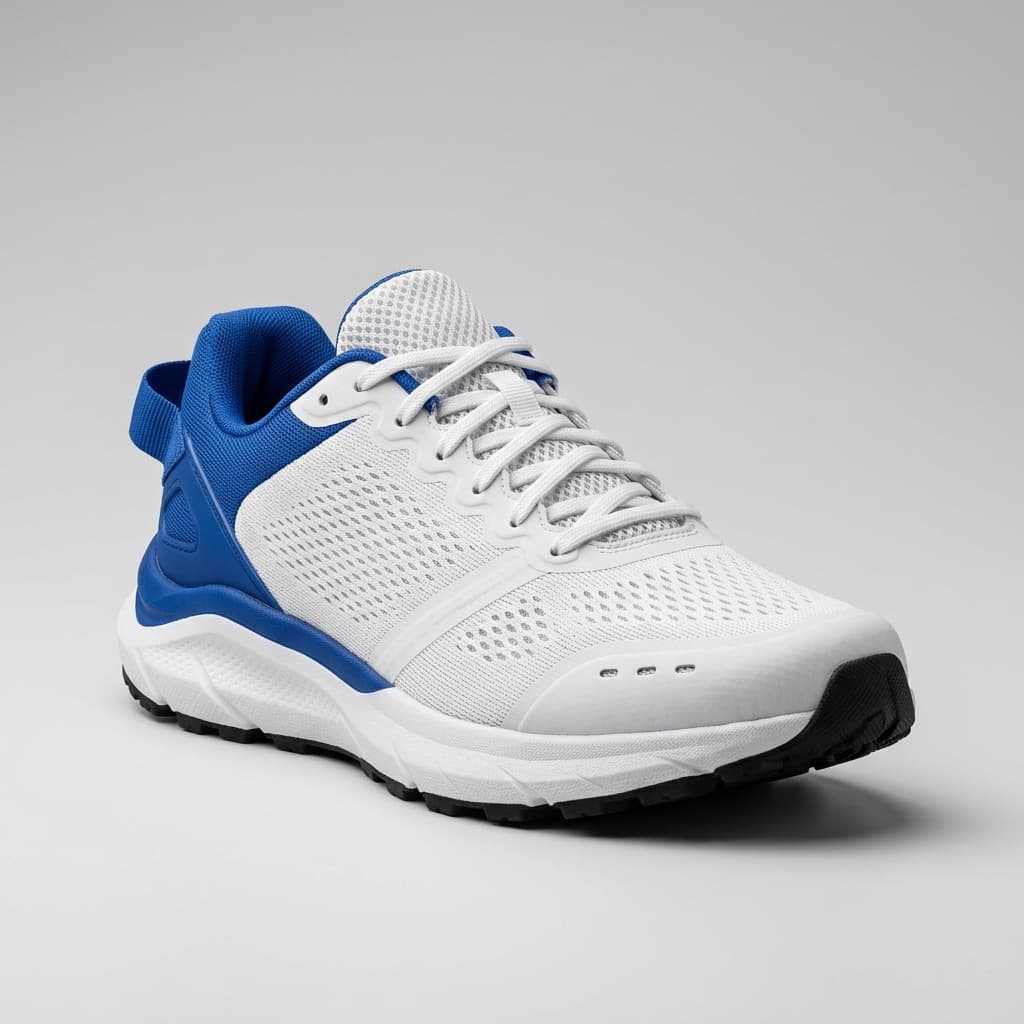
Original
Source photo, background included
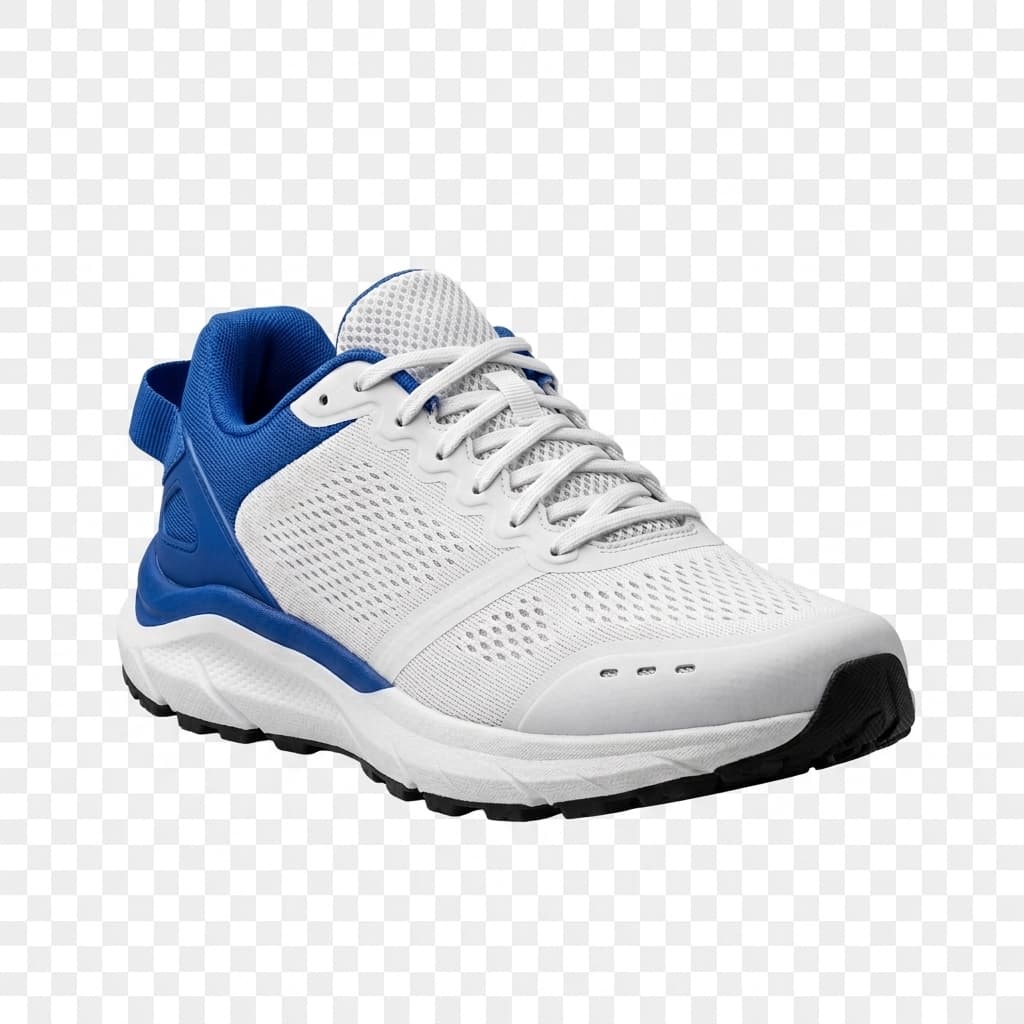
Transparent Cutout
Background Remover output · subject only


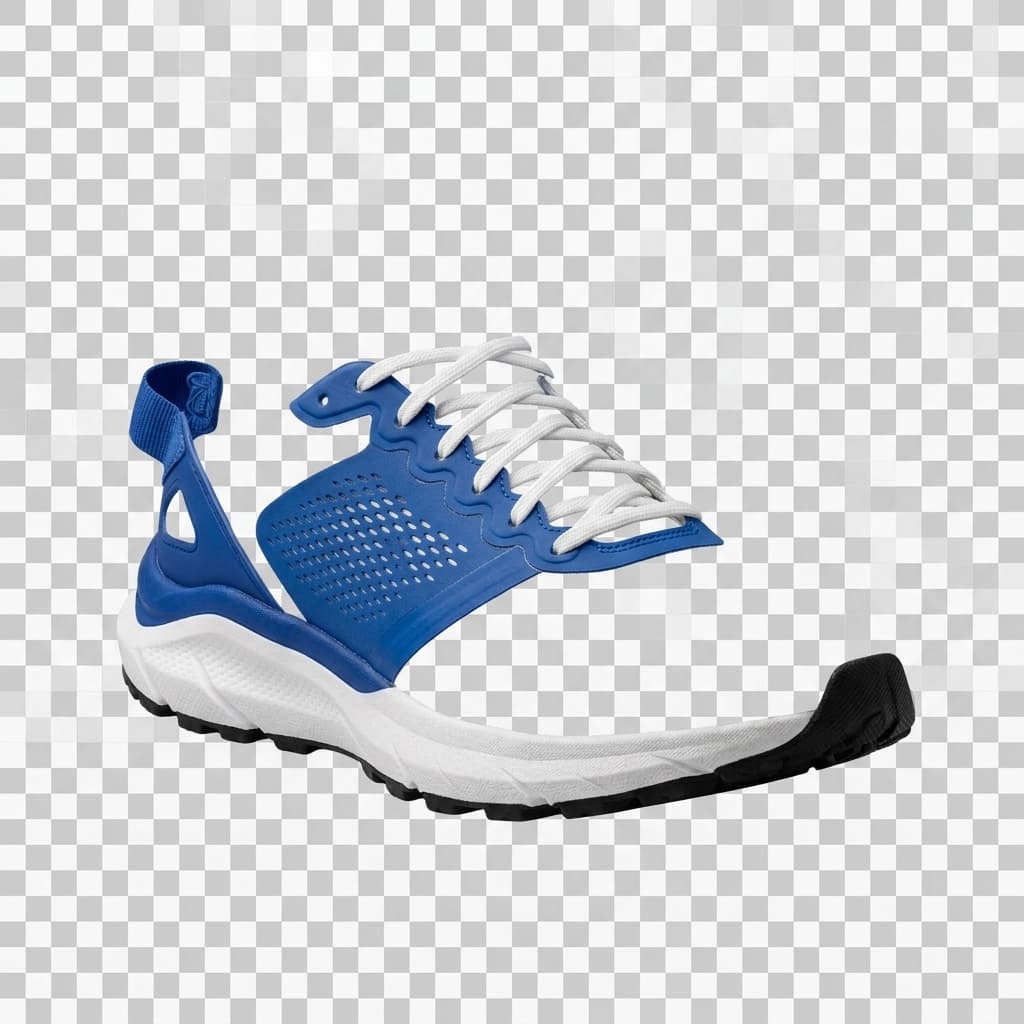
Editable Layer Stack
Image to Layers output · separate, reorderable layers
Background Remover vs Image to Layers
When Is Background Removal Enough?
- Marketplace product cards
- Profile photos
- Thumbnails
- Simple website compositions
- Quick transparent assets
When Should You Choose Image to Layers?
- Product hero compositions
- Character and animation preparation
- Shadow-preserving edits
- Reusable campaign assets
- PSD production handoff
How the Two Workflows Differ
Background Remover
Image to Layers
Frequently Asked Questions
Do I get editable layers from Background Remover?
No. Background Remover outputs a single transparent PNG cutout of the subject. For separate, editable layers, use Image to Layers.
Can Image to Layers also create a transparent PNG?
Yes. The subject layer exports as a transparent PNG, plus you get the reconstructed background and any other detected layers.
Which workflow preserves shadows?
Image to Layers preserves a shadow as its own layer when one is detected in the source photo. Background Remover does not — the cutout is subject-only.
How many credits does each workflow use?
Background Remover costs 10 credits per image. Image to Layers costs 30 credits per image.
Which option is better for ecommerce?
Product cards and thumbnails usually only need a transparent cutout — Background Remover is faster and cheaper. Hero images and lifestyle composites benefit from Image to Layers' reconstructed background and shadow layer.
Can I reconstruct the hidden background?
Yes, but only with Image to Layers. It uses AI inpainting to rebuild the area behind the subject instead of leaving it transparent.
What export formats are available?
Background Remover exports a single PNG. Image to Layers exports a ZIP of PNG layers with a manifest, or a layered PSD.
How does this compare with Remove.bg?
Background Remover produces a comparable subject cutout to Remove.bg. Image to Layers goes further, adding background reconstruction and multi-layer export that Remove.bg does not offer.