
Need Your Image Layers Outside Canva?
Canva Magic Layers Alternative for Exportable Image Layers
Canva Magic Layers is useful when you want to turn a flat image into editable elements and keep working inside Canva. But what if you need the layers for Photoshop, animation, compositing, game assets, or another editor?
ImageToLayers separates your image into reusable raster layers you can export as transparent PNGs or a layered PSD.
Built for creators who need portable layers — not just editable elements inside one editor.
Turn Your Flat Image Into Separate Layers
Upload a JPG, PNG, or WebP and let AI separate major subjects, objects, foreground elements, and background into independently manageable raster layers.
Core Layers
Detailed Layers
More layers do not always mean a better result. Start with the main visual groups, then refine the layers that still need separation.
Click or drag image to upload
Click or drag image to upload
JPG, PNG, or WebP · Maximum 10 MB
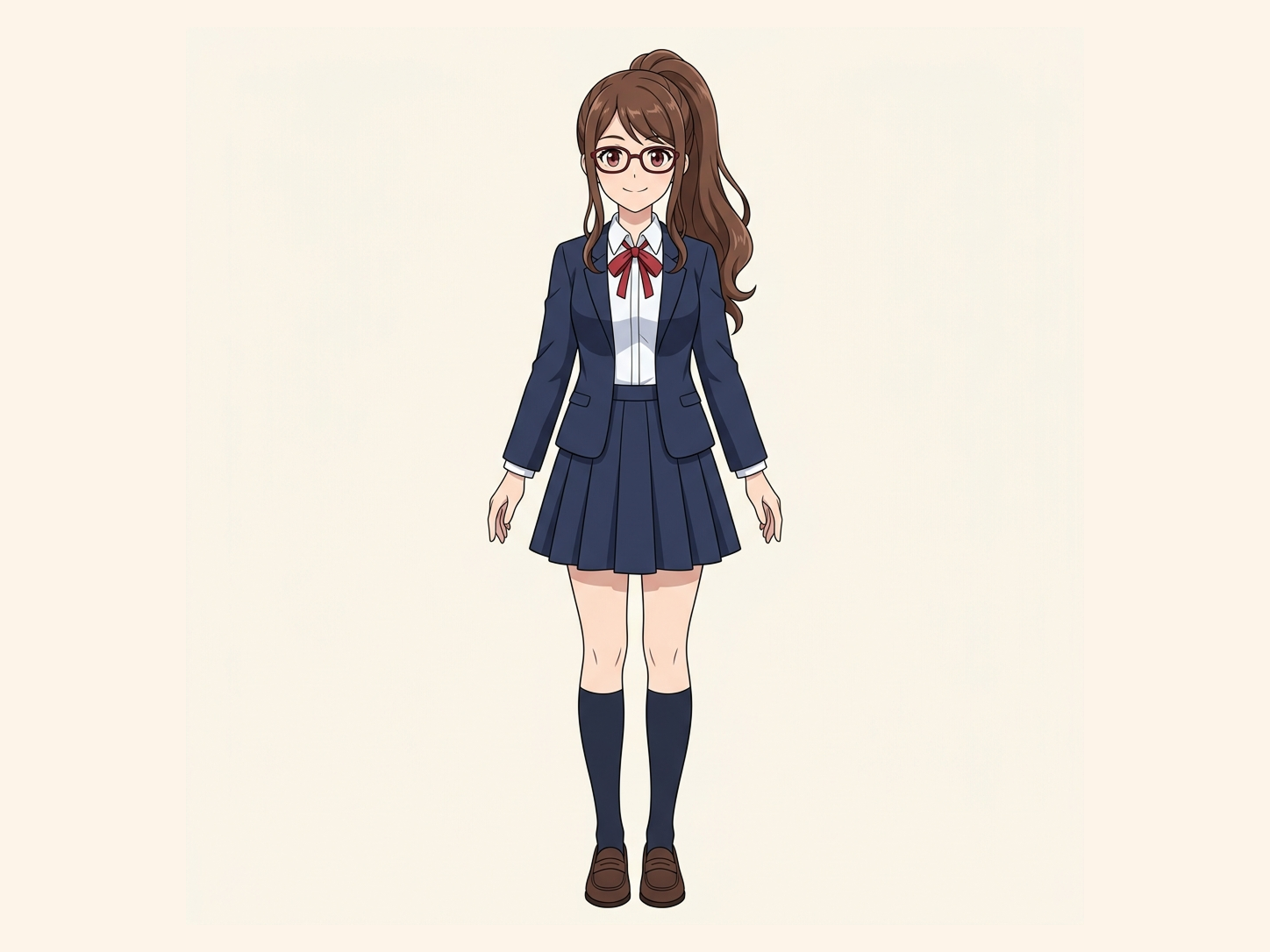
Need hair, face, eyes, mouth, clothing, or body-part layers?
Settings
Leave this blank to let Detailed Layers identify the main editable elements automatically. Or name the parts you want separated.
Want more control over your layers?
Learn how to guide Detailed Layers with simple prompts, choose useful elements, and get cleaner layer structures from different types of images.
Upload an Image to Continue
Private File Handling
Uploaded files are associated with your account and delivered through signed URLs. You can delete completed jobs manually.
Transparent PNG Output
Detailed Layers returns each detected element as its own layer on a transparent background.
AI may reconstruct plausible content behind separated objects where the original image did not contain visible pixels.
Your Separated Layers
The shared workspace handles upload, generation, review, and export. A completed project can contain the original image plus independently manageable raster layers.
Your Separated Layers
Continue Where You Want
Your workflow does not have to stop inside the layer-separation tool.
Canva Magic Layers and ImageToLayers Solve Different Problems
Canva Magic Layers rebuilds a flat image as an editable Canva design. ImageToLayers turns a flat image into portable raster assets you can continue using elsewhere.
When Canva Magic Layers is the better choice
Magic Layers turns a JPG or PNG into a structured design inside the Canva editor. Canva says it can identify elements, preserve layout relationships, and restore recognized text as editable text boxes.
- Keep editing inside Canva
- Move and resize design elements
- Change text in the Canva editor
- Rework layouts and replace visual elements
- Continue into Canva publishing workflows
When you need the layers outside Canva
ImageToLayers separates a flat image into AI-generated raster assets that can leave the platform. The output is designed for file-based handoffs and compositing.
- Export individual image layers
- Download transparent PNG assets
- Create a layered PSD
- Continue editing in Photoshop
- Prepare layers for animation
- Move assets between creative tools
Neither workflow has to replace the other. They are useful for different destinations.
Canva Magic Layers vs ImageToLayers
A practical comparison based on output, editability, and destination.
Turn a flat image into editable parts
Edit inside Canva
Move individual visual elements
Restore editable text
Graphic designs and illustrations
Photographic image separation
Transparent individual PNG layers
Layered PSD output
Reconstructed hidden background
Photoshop handoff
Animation and compositing assets
Recover original source layers
Both products use AI to infer structure from a flattened image. Neither can recover the exact original authoring file or hidden source data.
Stay in Canva When the Design Is the Destination
Canva Magic Layers may be the better choice when your next step is still inside Canva.
Social Graphics
Posters and Marketing Designs
Editable Text
Canva-Native Publishing
Stylized Designs
If that is your workflow, Canva may already give you exactly what you need.
Use ImageToLayers When the Layers Need to Travel
Choose ImageToLayers when the separated pieces are the asset — not just the Canva document.
Photoshop Editing
Transparent PNG Assets
Animation
Product Photography
Character and Illustration Work
External Creative Pipelines
You Don't Have to Choose One or the Other
ImageToLayers can work before Canva.
- Step 1
Separate the Image
Upload the flat image and generate independent visual layers.
- Step 2
Export the Assets
Download the layers as transparent PNGs or a layered PSD.
- Step 3
Bring What You Need Into Canva
Upload individual PNG assets into Canva and arrange them as separate design elements.
- Step 4
Add Canva-Native Text and Layout
Use Canva for typography, templates, resizing, publishing, and final design work.
Use ImageToLayers for decomposition. Use Canva for layout.
Background Removal Gives You One Cutout. Layer Separation Gives You a Scene.
A background remover usually creates subject plus transparency. That can be enough when all you need is a cutout.
A more complex image may contain:
- Main subject
- Secondary object
- Product packaging
- Shadow
- Foreground decoration
- Background
ImageToLayers attempts to separate meaningful visual groups instead of reducing the entire image to one foreground object.
What Happens Behind the Object?
When an object is removed from a flattened image, the pixels behind it do not exist in the source file. ImageToLayers can attempt to generate plausible background content for those hidden areas.
This can make the background more reusable when you:
- Move the subject
- Reposition products
- Create parallax
- Change compositions
- Build alternate layouts
Generated hidden areas are AI reconstructions. They are not recovered original pixels.
Turn a Flat Image Into a More Useful PSD
A basic JPG-to-PSD converter usually places the entire image on one layer. That changes the file format, but it does not meaningfully separate the image.
ImageToLayers can create a PSD containing multiple AI-generated raster layers such as:
You can then move, hide, reorder, mask, or transform those raster layers in a compatible editor.
The PSD does not recover the original Photoshop document, fonts, vectors, smart objects, masks, or design history.
One Flat Image. Two Different Editing Destinations.
The difference is where the result needs to go next.
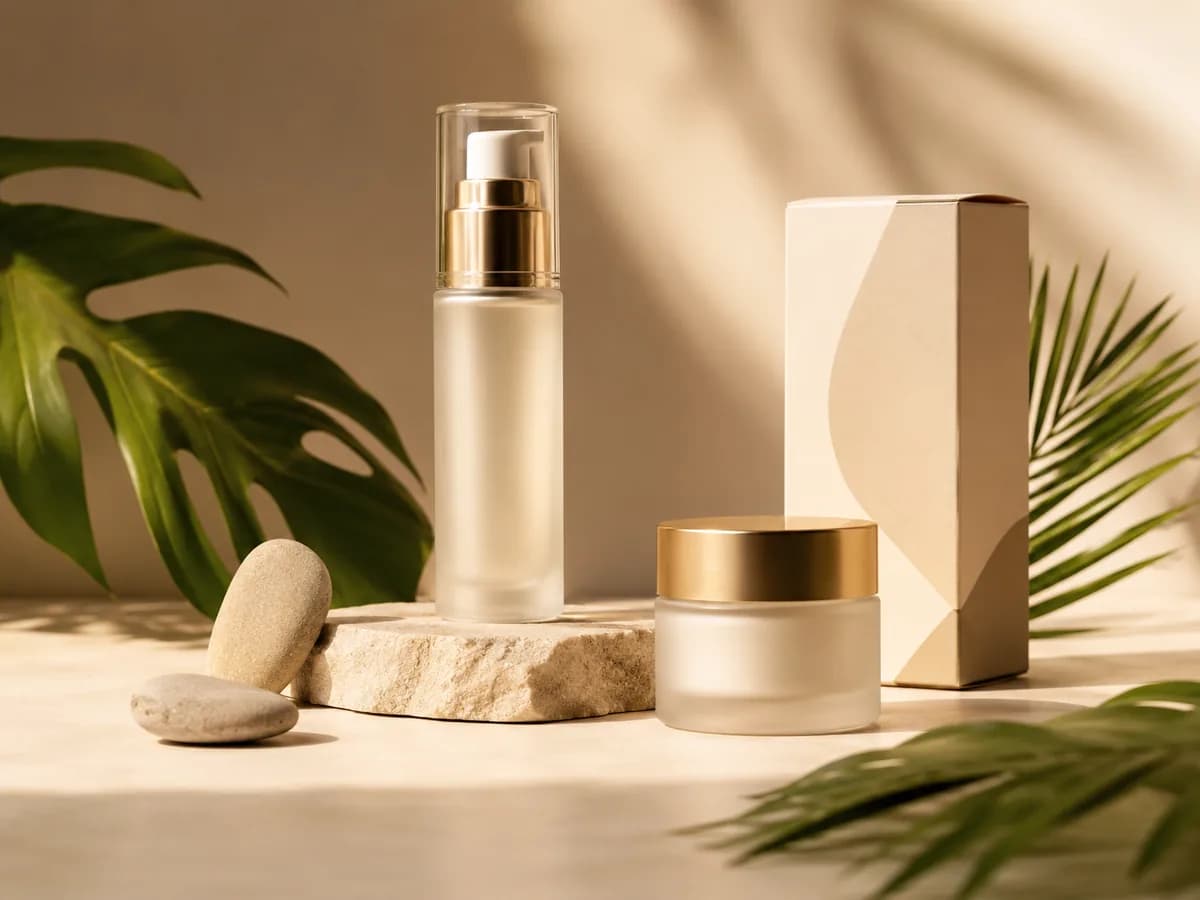
Original Flat Image
Editable Design Workflow
Best when your next step is layout editing
Move elements, change text, adapt the layout, and continue inside a design editor.
Exportable Layer Workflow
Best when your next step is asset editing
Export individual layers and continue in PSD, compositing, animation, or another creative tool.
What Can You Do With Exportable Layers?
Portable raster layers support creative work beyond a single editor.
Photoshop Handoff
Product Creative Variations
Motion and Parallax
Social Creative Production
Game and Interactive Assets
Canva Companion Assets
Layer Separation Is Not Source-File Recovery
A flattened JPG or PNG does not contain the original layer stack. ImageToLayers uses AI to create a new layer structure based on what it sees.
It does not recover:
- Original Photoshop layers
- Original Canva objects
- Original fonts
- Original vector paths
- Original masks
- Smart objects
- Original design history
The output is a new AI-generated raster-layer structure designed to make the image easier to edit.
Choose Based on What You Want to Do Next
Choose Canva Magic Layers If...
- Your work stays inside Canva.
- You need live editable text.
- You are rebuilding posters, graphics, layouts, or stylized designs.
- You want to resize and publish directly from Canva.
Choose ImageToLayers If...
- You need individual raster assets.
- You need transparent PNG layers.
- You want a layered PSD.
- You are working with photos, product images, characters, or scene elements.
- You need the assets for Photoshop, animation, compositing, or another editor.
Use Both If...
Frequently Asked Questions
Does Canva have image layer separation?
Yes. Canva Magic Layers can turn a flat JPG or PNG into editable design elements inside Canva. It can separate visual elements, isolate backgrounds, and restore detected text as editable Canva text.
Is ImageToLayers a replacement for Canva Magic Layers?
Not necessarily. The tools overlap, but they are optimized for different workflows. Canva Magic Layers is useful when you want to keep editing inside Canva. ImageToLayers is designed for users who need exportable raster layers for PSD, transparent PNG, animation, compositing, or external editors.
What is the biggest difference between Canva Magic Layers and ImageToLayers?
The biggest difference is what you want to do with the result. Canva rebuilds the image as an editable Canva design. ImageToLayers creates raster layers you can export and reuse outside the platform.
Can ImageToLayers export a layered PSD?
Yes. You can create a PSD containing multiple AI-generated raster layers for continued editing in Photoshop or another compatible editor.
Does ImageToLayers recover the original Photoshop layers?
No. A flattened JPG or PNG does not contain its original Photoshop layer structure. The tool creates a new AI-generated layer stack based on the visible image.
Can ImageToLayers make text editable?
Not in the same way Canva Magic Layers can. Text may remain part of a raster layer. If live editable text is your main goal, Canva Magic Layers may be the better workflow.
Which is better for graphic designs and posters?
Canva Magic Layers is particularly well suited to graphic designs, illustrations, and stylized layouts, especially when you want to edit text and layout inside Canva. ImageToLayers makes more sense when you need those visual elements as exportable raster assets.
Which is better for photographs?
Canva states that Magic Layers works best with graphic designs, illustrations, and stylized visuals, and that photorealistic imagery may vary. ImageToLayers is built around separating visual elements from flattened images, including photographic and commercial compositions. Results still depend on image complexity and visibility.
Can I use ImageToLayers with Canva?
Yes. A common workflow is to separate the image first, download transparent PNG layers, then upload those individual assets into Canva. You can then use Canva for layout, text, resizing, and publishing.
Can it separate shadows?
When the visual structure is clear, shadows may be separated as their own raster layer. Results depend on contrast, overlap, lighting, and image complexity.
Can it reconstruct the background behind an object?
It can attempt to generate plausible content for areas hidden behind separated subjects. That reconstructed content is AI-generated and may differ from the real original scene.
Can I download transparent PNG layers?
Yes. Separated elements can be exported as transparent raster assets where supported by the generated layer structure.
Is ImageToLayers just a background remover?
No. A background remover usually isolates one foreground subject. ImageToLayers attempts to break an image into several meaningful visual groups such as subjects, objects, shadows, foreground elements, and background.
Can I use the output for animation?
Yes. Separate subject, foreground, object, and background layers can be useful for parallax, motion graphics, scene animation, and compositing workflows.
Can I use it for product photos?
Yes. Product images are a strong use case because products, packaging, props, shadows, and backgrounds can often benefit from being managed separately.
Which tool should I use if I already do everything in Canva?
If your entire workflow happens inside Canva and you mainly need editable design elements and text, Canva Magic Layers may be the more direct choice. Use ImageToLayers when you need portable assets, PSD output, transparent PNG layers, or an external editing workflow.
Can Canva Magic Layers recover the original source file?
No. It rebuilds a flattened image into editable Canva elements. That is not the same as restoring the exact original source document and its original editing history.
Do I need to stop using Canva to use ImageToLayers?
No. The two tools can work together. Use ImageToLayers to separate and export the assets, then bring those assets into Canva for layout, typography, resizing, and publishing.
Use the Right Layers for the Workflow You Actually Have
Staying inside Canva?Magic Layers may already be a great fit.
Need portable layers?That's where ImageToLayers fits for PSD, PNG, Photoshop, animation, and external editing.
Turn one flat image into reusable visual assets you can take into the rest of your workflow.