
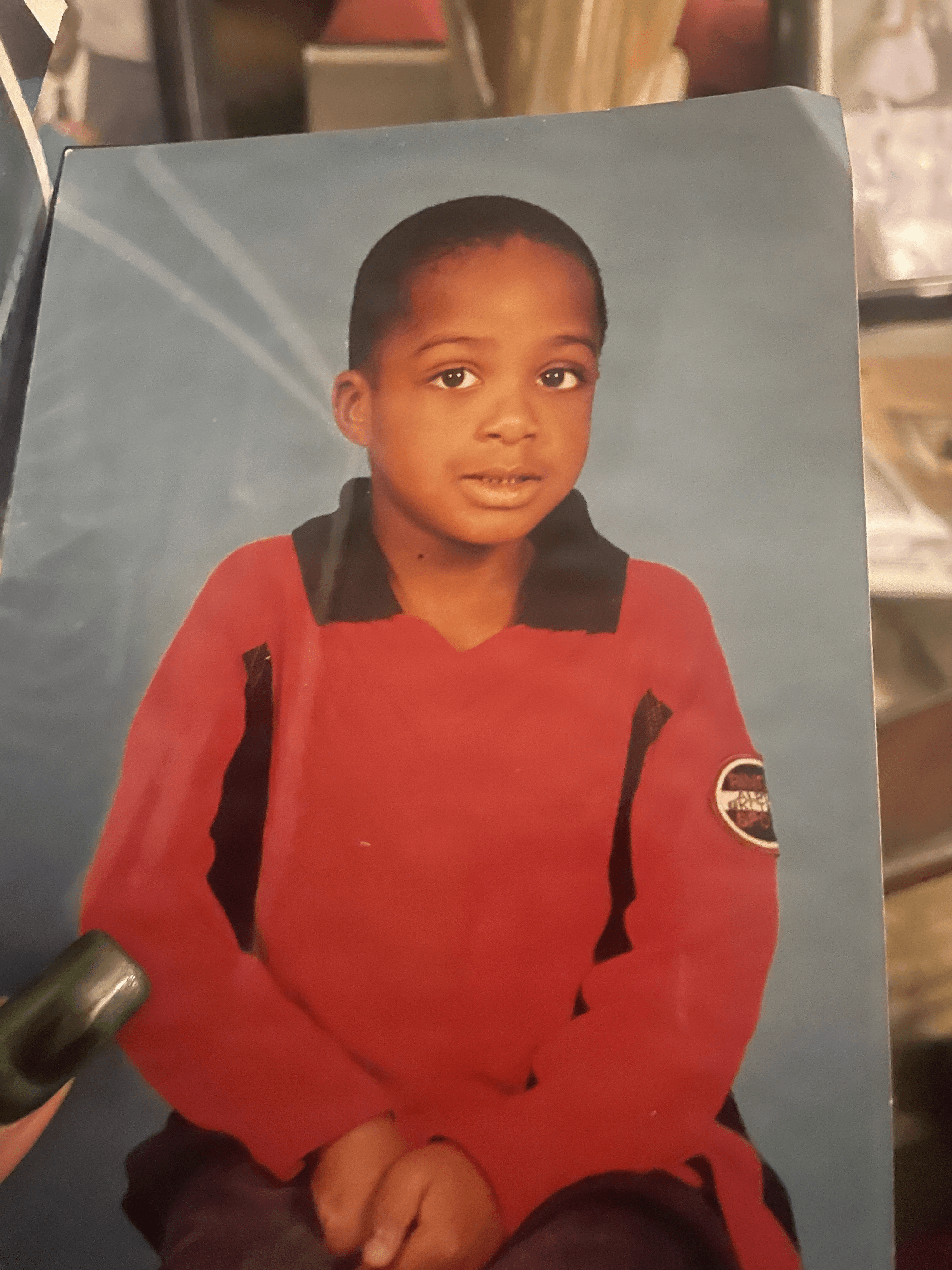
 Before
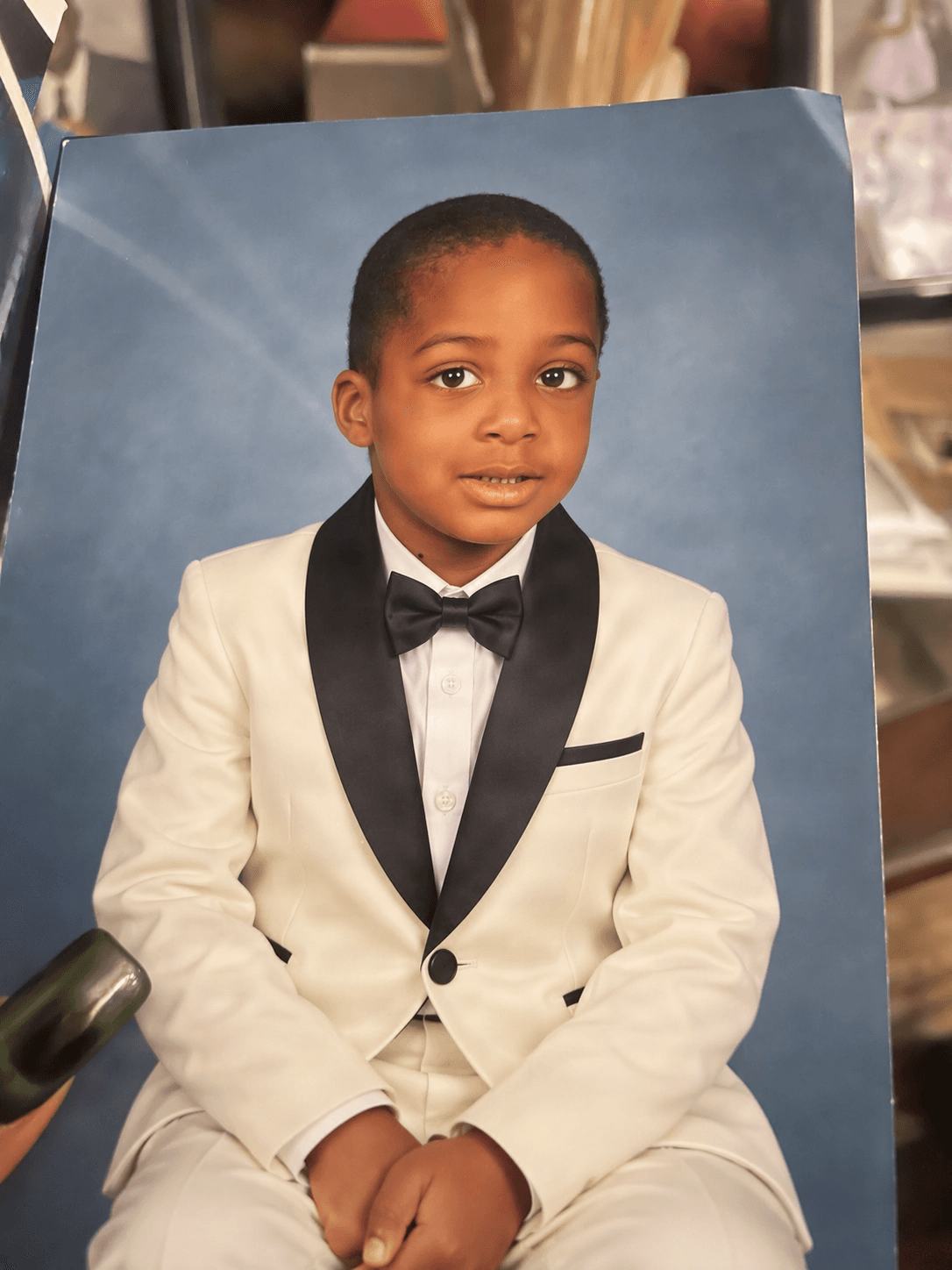 After
AfterChange the outfit. Keep the portrait.
“Replace the red shirt with an ivory tuxedo and black bow tie. Keep the child, pose, framing, and blue studio background unchanged.”
Outfit changedPose preservedBackground preserved
Upload an image and describe the change you want. Replace an outfit, move a product into a new scene, update part of a design, change the background, or refine a specific detail while keeping the rest as consistent as possible.
GPT Image 2.5 Studio
Visual SynthesisPrompt-to-image synthesis, multi-reference blend, and intelligent background segmentation.
Image
OptionalAdd Image
Click or drag one source image here to start editing.
PNG, JPG, JPEG, or WEBP. The upload card is the primary starting point.
Enter a clear edit instruction. Cmd/Ctrl + Enter runs when ready.
0/500Advanced
Create Result
Add a prompt before running.
Interactive before / after inspection
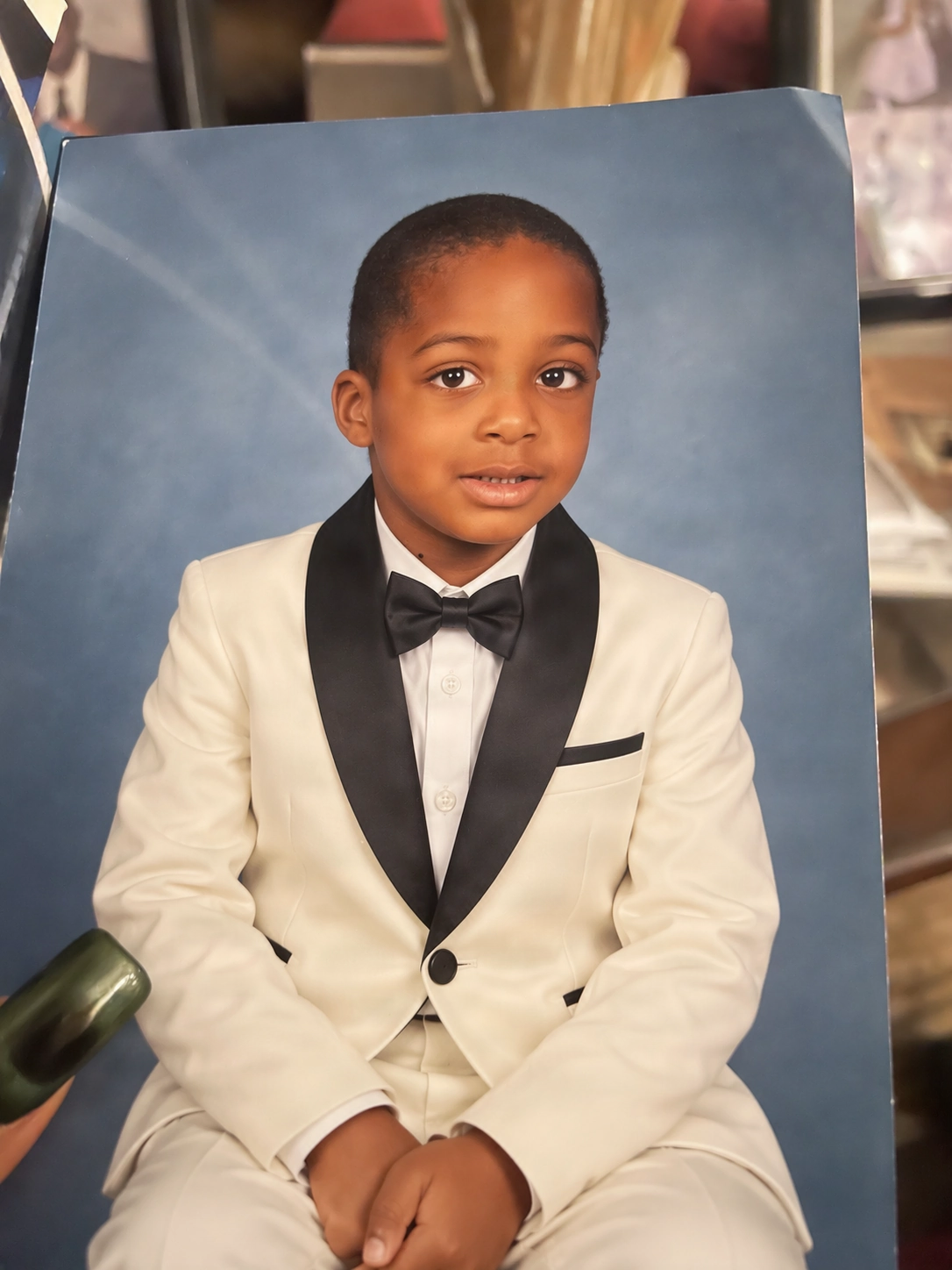
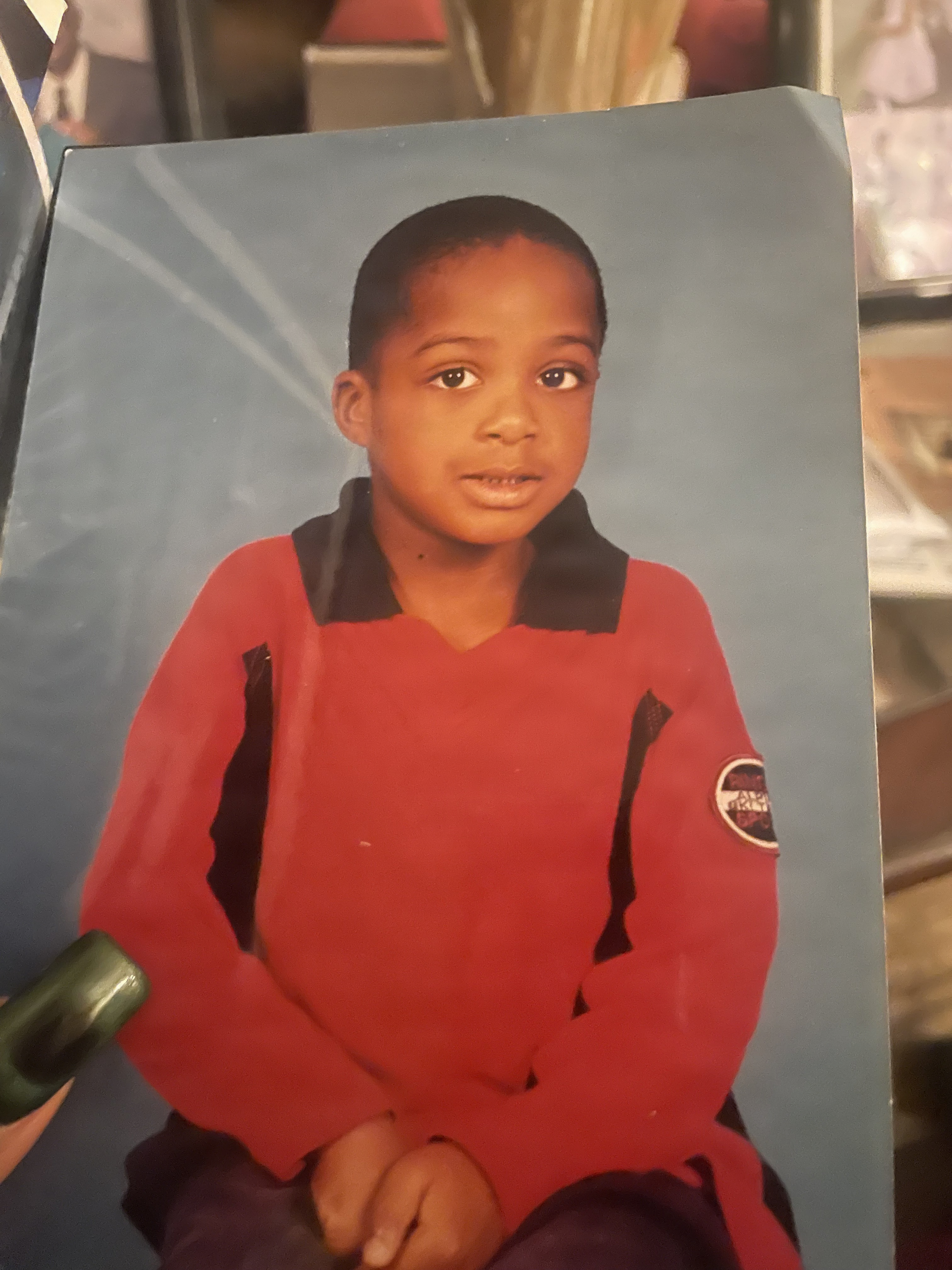
Studio Quality Standard
Studio capabilities
Reference images (up to 10) guide composition and style. Mask-guided editing isn't available for this model — use a full-image edit or Send Revision instead.
Focused edits
When most of the image is already right, you should not have to rebuild all of it. Give the editor one clear change and anchor the details that matter.
BeforeAfter“Replace the red shirt with an ivory tuxedo and black bow tie. Keep the child, pose, framing, and blue studio background unchanged.”
BeforeAfter“Make one focused change to the uploaded image and preserve the subject, composition, lighting, and details that already work.”
What you can change
Update clothing while keeping the person, pose, and framing recognizable.
Swap one product or prop without rebuilding the entire scene.
Move a subject into a new setting while preserving its visual role.
Refresh campaign visuals, labels, headlines, and supporting details.
Describe the exact change and say what should stay the same.
Prompt formula
Use this simple structure: Change [element] to [new direction]. Keep [subject, pose, framing, lighting, text, or background] unchanged. The more useful constraints you provide, the easier it is to judge the result.
How it works
Yes. Upload a source image and describe the specific change you want.
That is the intended workflow. Name the element to change and list the details to preserve.
No. Preserve instructions guide the edit, but generative editing can still introduce changes.
Yes. Compare the result, then make another focused request when the workflow supports it.
Open the shared editor and start with the image you already like.
Start editingCreative Toolkit Index
Quick access to precision layer extraction, AI photo editing & asset tools.