
All AI Image Tools
Explore every ImageToLayers tool for separating images into layers, editing existing visuals, generating new content, preparing characters, creating product imagery, changing backgrounds, generating new viewpoints, enhancing images, and more.
Generate new visuals
Generate
Start from a prompt, a reference image, or one product photo when you need new image directions.
AI Image Generator
Generate original visuals from text prompts.
Reference Image Generator
Create reference-guided variations for products and campaigns.
Create Product Visuals From Text
Explore product concepts and merchandising visuals from written direction.
Text to Image for Ads
Draft advertising image concepts for hooks, layouts, and campaign tests.
AI Video Generator
Create short motion assets from prompt-led direction.
MiniMax H3 Video Generator
Create fast short-form video concepts from a dedicated motion model entry page.
AI Character Animation Generator
Animate a character image into a short motion clip.
AI Video Relighting
Change the lighting of an existing video without reshooting it.
AI Lip Sync Generator
Turn a photo and audio into a talking video with synchronized lip movements.
AI Video Upscaler
Upscale short low-resolution video clips to a larger, sharper version.
AI Video Scene Inserter
Replace part of a video with a new AI-generated scene and continue with your original footage.
AI Talking Avatar
Turn a photo and your own voice into a talking presenter video.
Consistent AI Talking Avatar
Reuse the same character reference to make new talking videos with different audio.
AI Product Ad Generator
Generate product advertising images for launches, listings, and campaign tests.
AI Sketch Generator
Turn prompts or references into sketch-style visual concepts.
AI Holiday Portrait Generator
Turn a photo into a festive holiday portrait with seasonal presets.
AI Vintage Style Generator
Give a photo the look of 90s flash, disposable, Polaroid, Y2K digicam, or classic film.
90s AI Photo Generator
Turn a photo into a 90s flash, disposable, yearbook, glamour, or mall snapshot.
AI Animal Generator
Generate realistic wildlife, pets, cartoon animals, and fantasy creatures from a prompt.
AI YouTube Thumbnail Generator
Draft thumbnail compositions for videos, channels, and social campaigns.
Image Generator Templates
Start from ready-made prompt patterns for common image generation workflows.
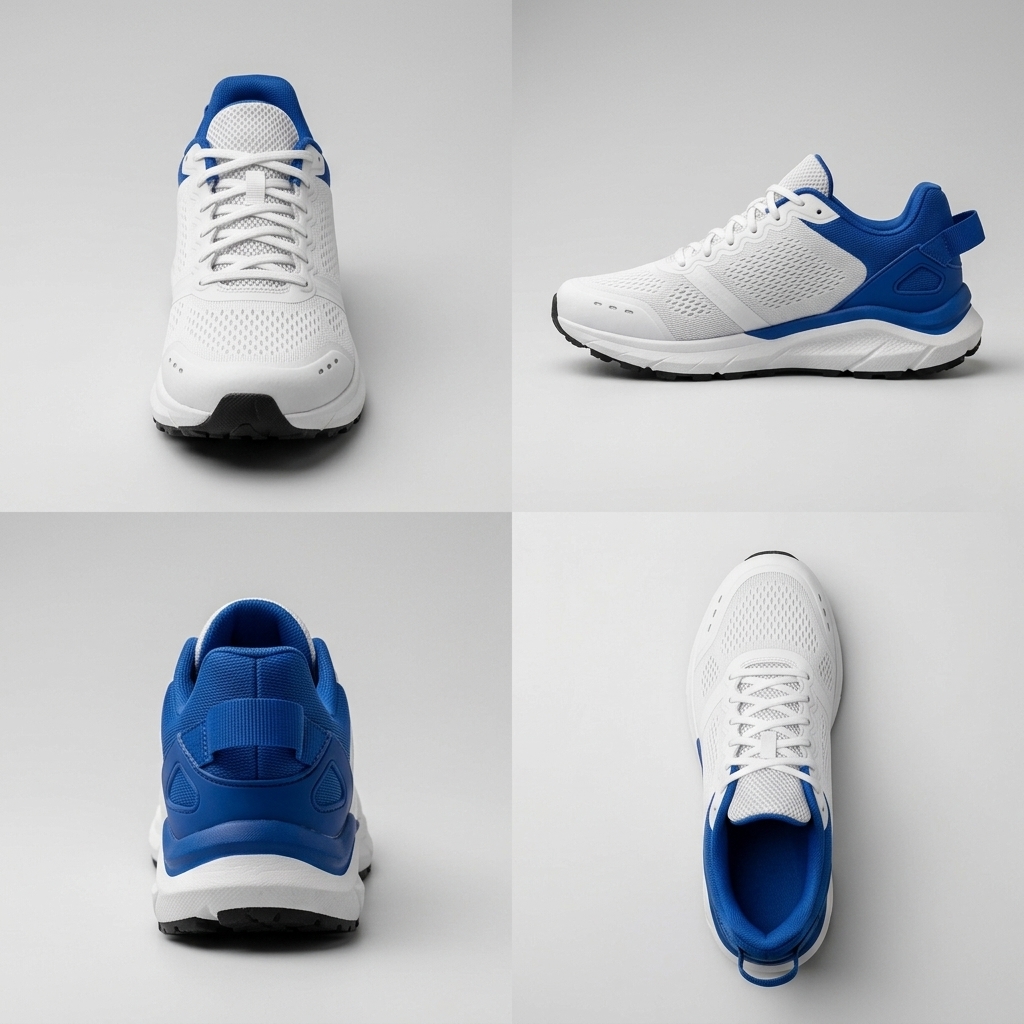
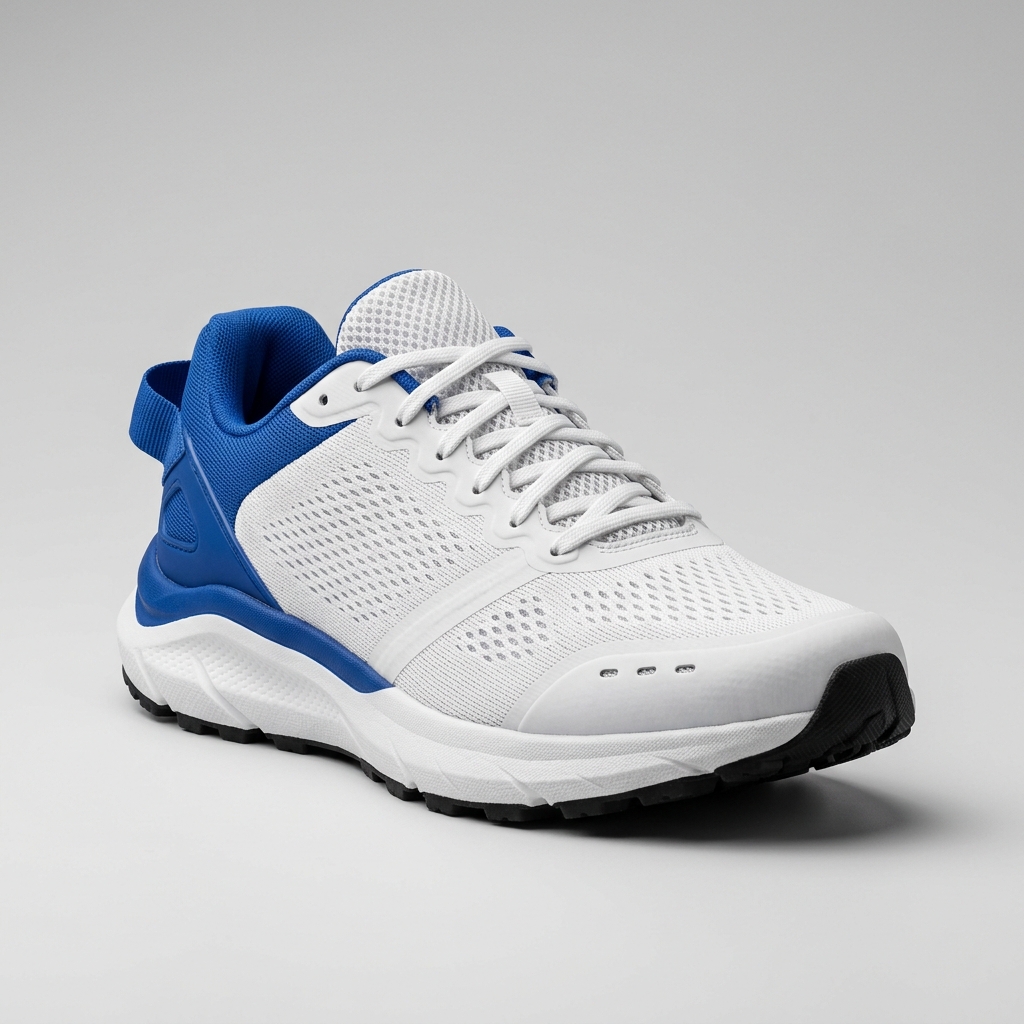
AI Multiple Angles
Generate consistent front, side, and back views from one photo.
Multi-View Image Generator
Create several consistent views from one source image for product or object workflows.
Product 360 View Generator
Create additional product viewpoints for 360-style product presentations.
AI Character Turnaround Generator
Generate front, side, back, and three-quarter character reference views.
Shoe Angle Generator
Create side, heel, top, outsole, and product gallery views from one shoe photo.
Amazon Product Photo Angles
Generate extra product angles for marketplace listing workflows.
Shopify Product Views
Create consistent product views for Shopify catalog pages.
Furniture Angle Generator
Generate furniture views for room scenes, catalogs, and visualizers.
Ecommerce Angle Generator
Create additional product angles for ecommerce imagery at scale.
Revise existing images
AI Image Editing
Change content, remove distractions, enhance quality, and refine product images without leaving the browser.
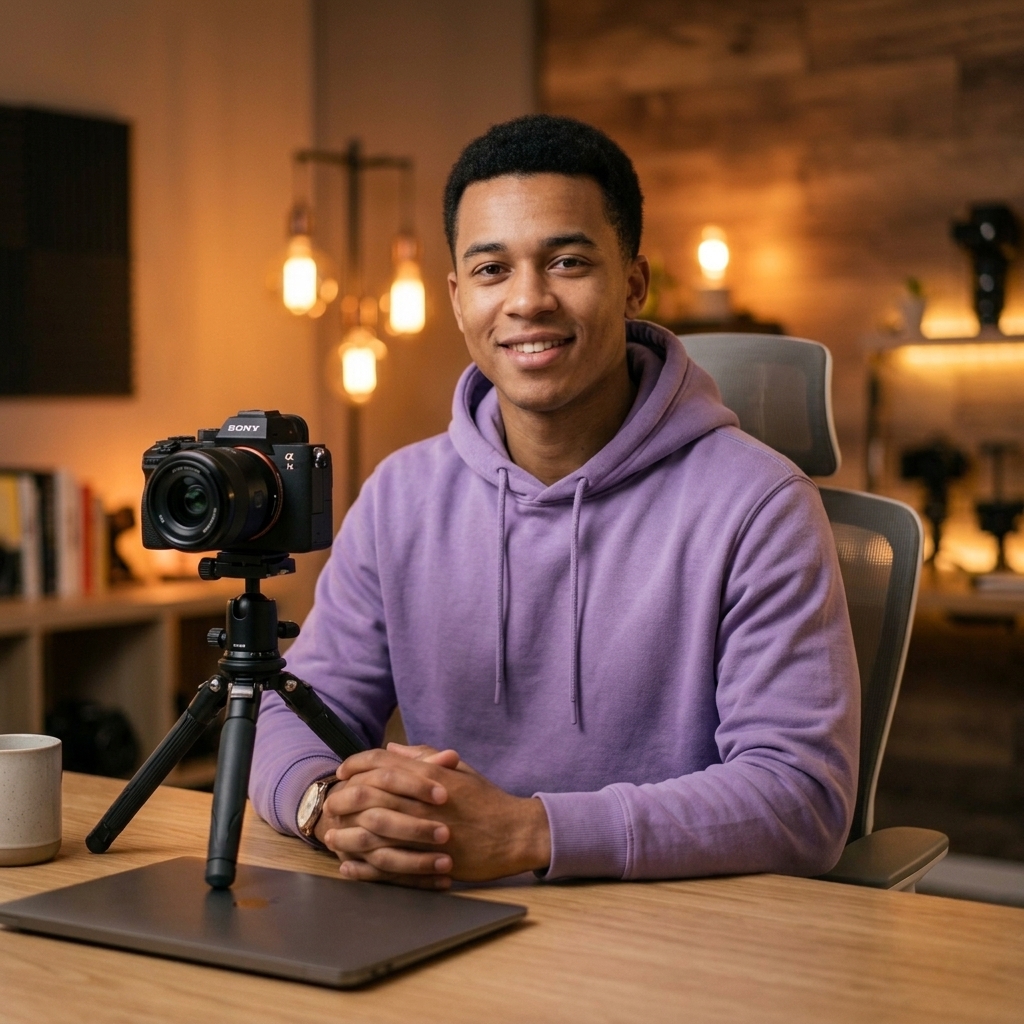
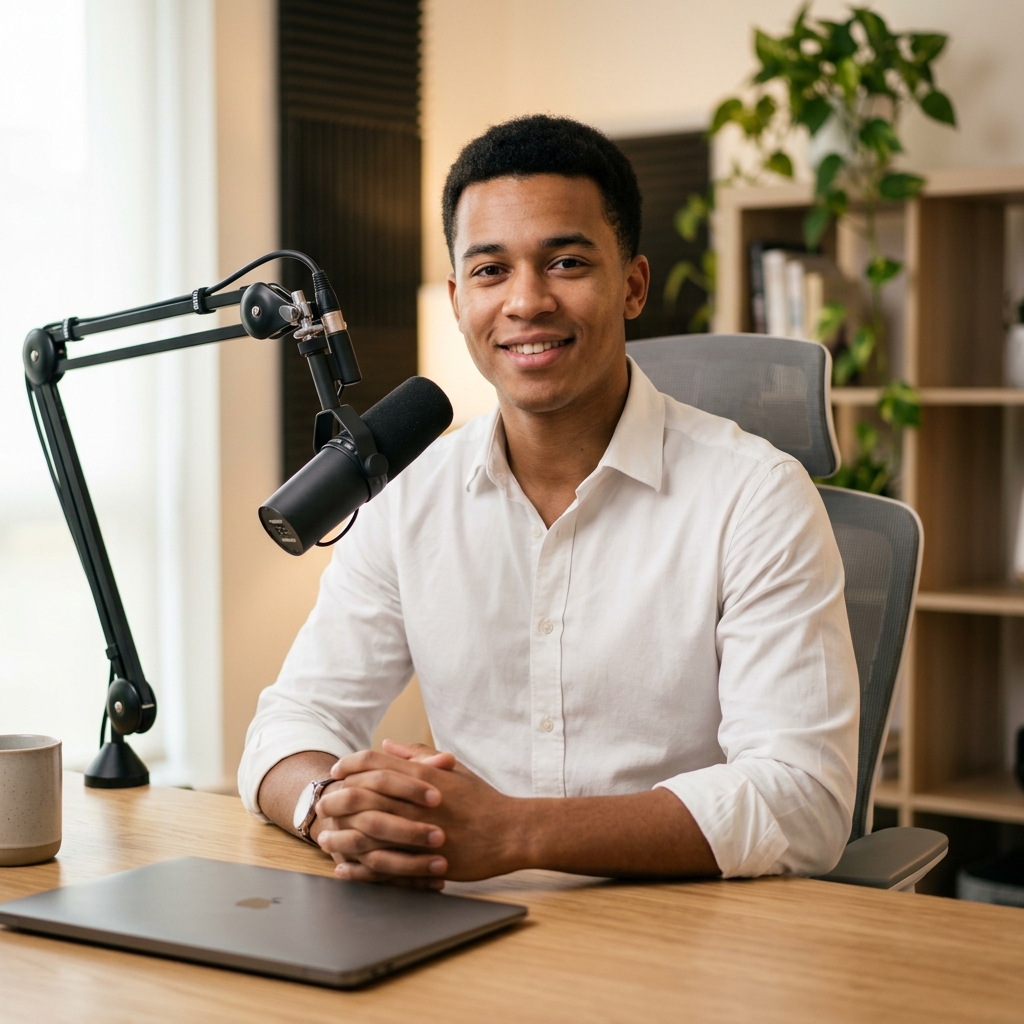
AI Photo Editor
Edit, regenerate, and clean up images in one workspace.
Translate Text in Image
Localize text inside posters, ads, product graphics, menus, and social creatives while preserving the visual design.
Text-Rich Infographic Generator
Create structured diagrams, timelines, comparisons, educational visuals, and business graphics with readable generated text.
High-Fidelity Product Visual Editor
Open the advanced product visual editor for detail-sensitive image generation and editing.
Fast Prompt Image Editor
Use the fast prompt-led editor for quick image generation and layout revision.
Advanced Image Editing Studio
Open the prompt-led image editing workspace for detailed revisions and generated variants.
High-Quality Image Editor
Use the high-quality editing entry for polished image generation and revision workflows.
Edit Text in Image
Change readable text inside posters, product graphics, menus, and social visuals.
Product Photo Editor
Relight products, change scenes, and prepare campaign images.
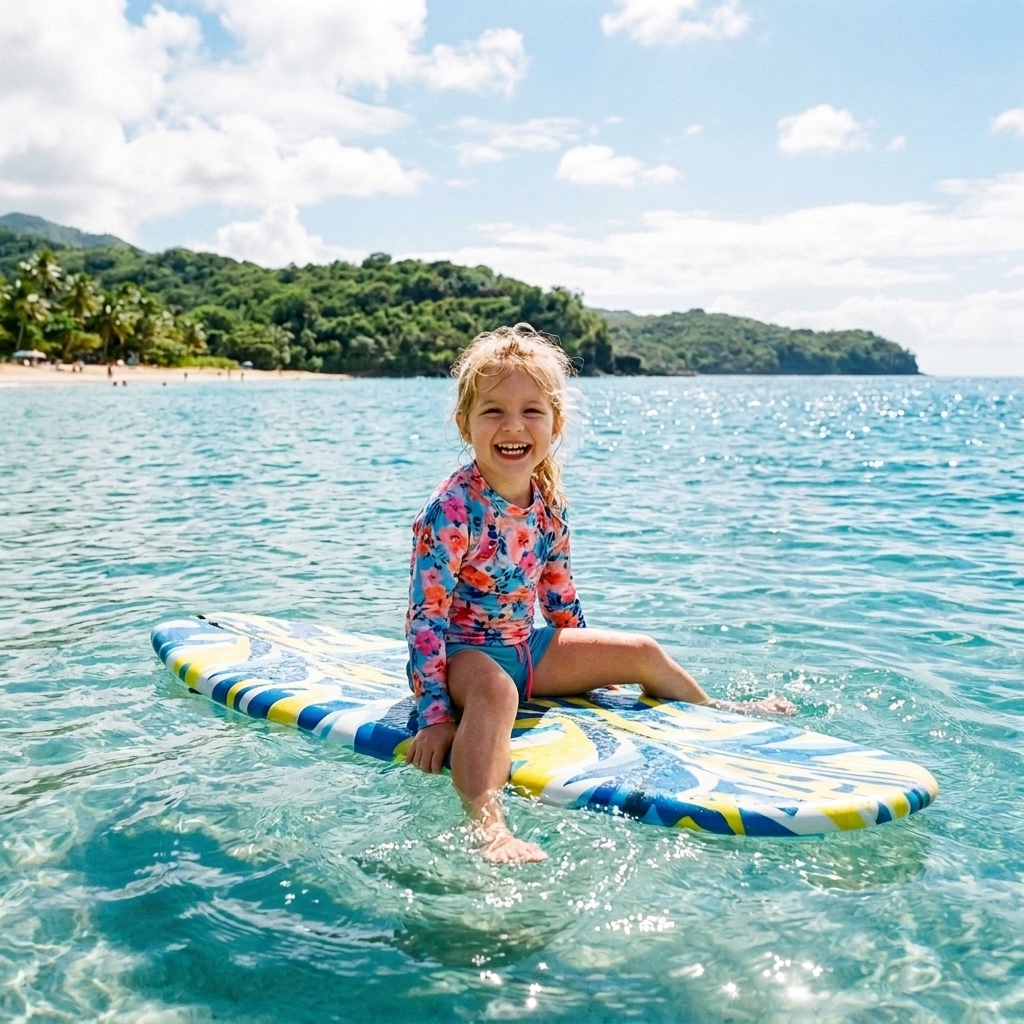
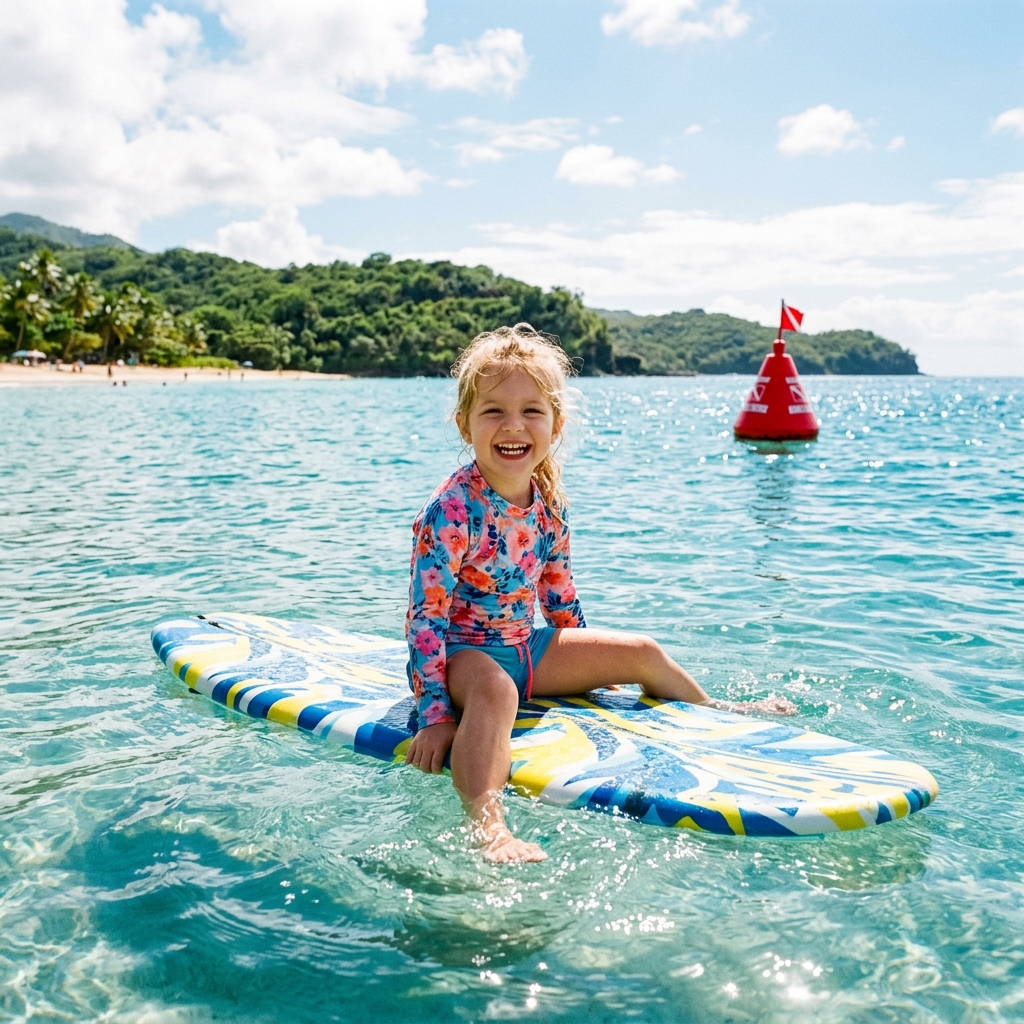
Remove Unwanted
Remove people, wires, clutter, marks, and unwanted objects.
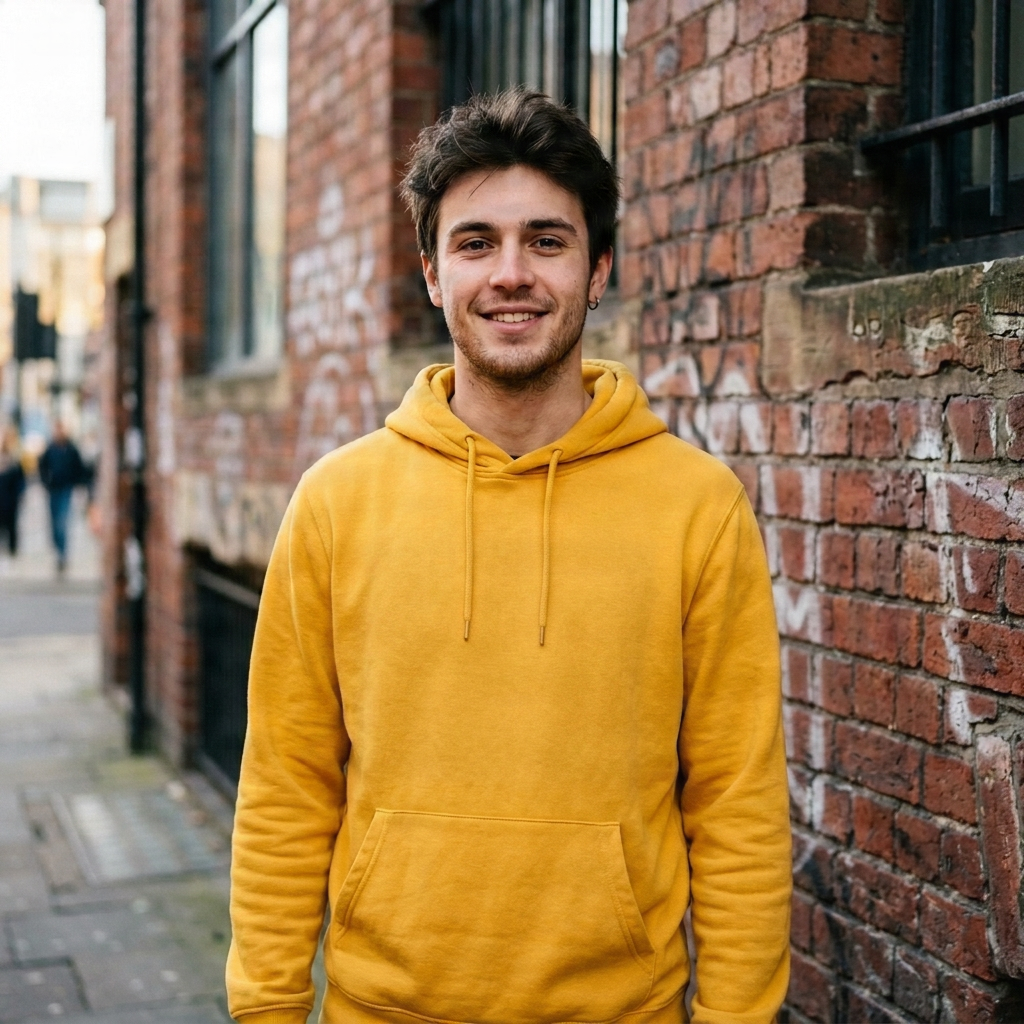
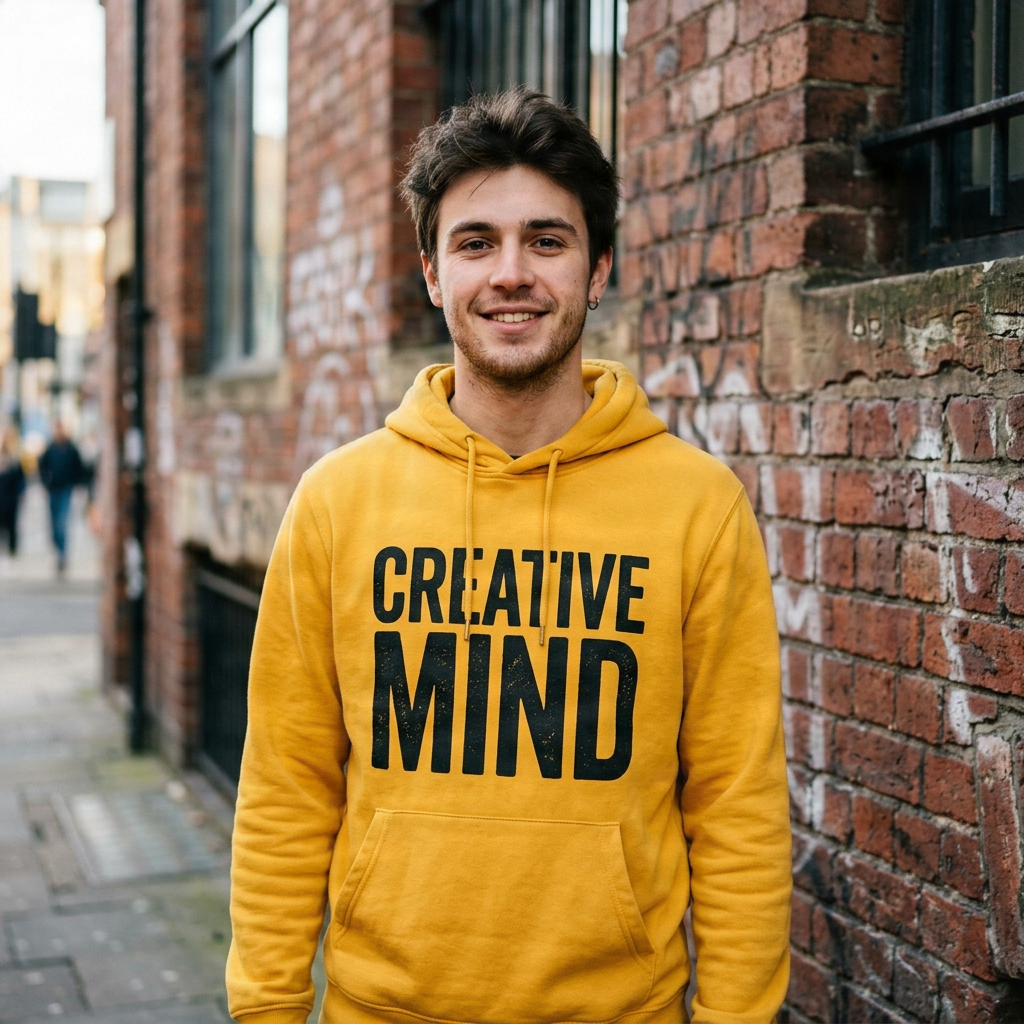
Remove Text
Remove text overlays while rebuilding the hidden background.
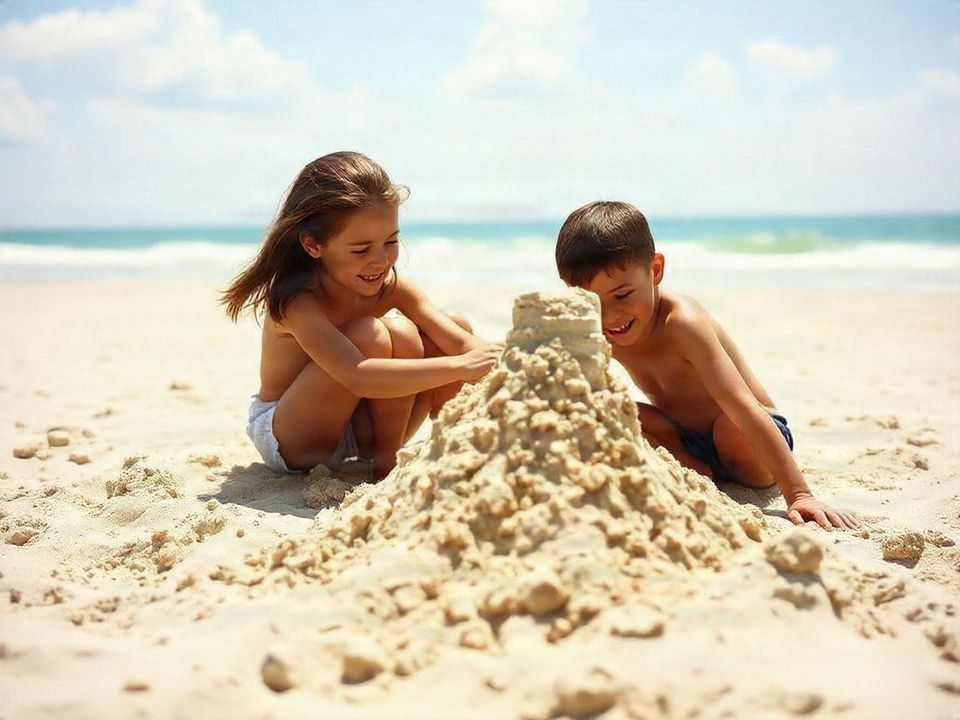
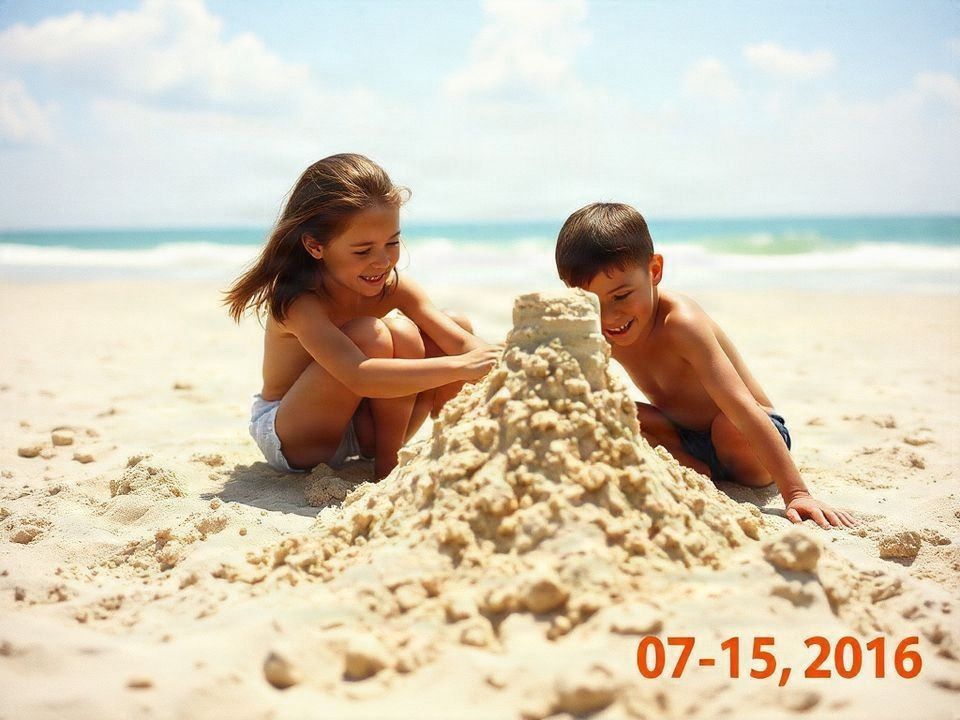
Remove Text From Photo
Clean text from ordinary photos while preserving the surrounding image.
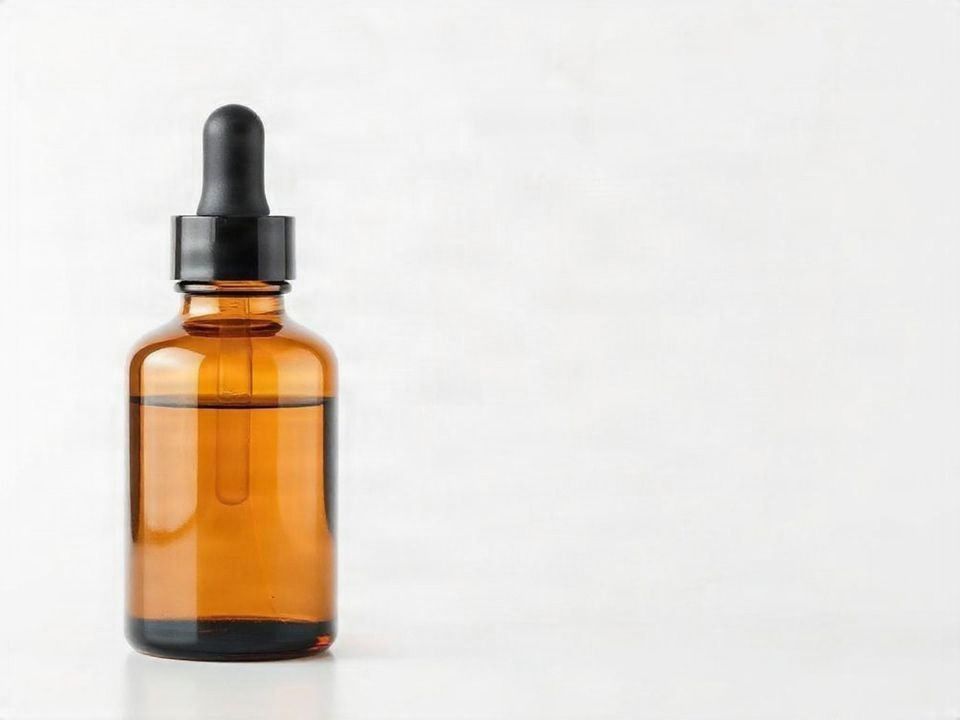
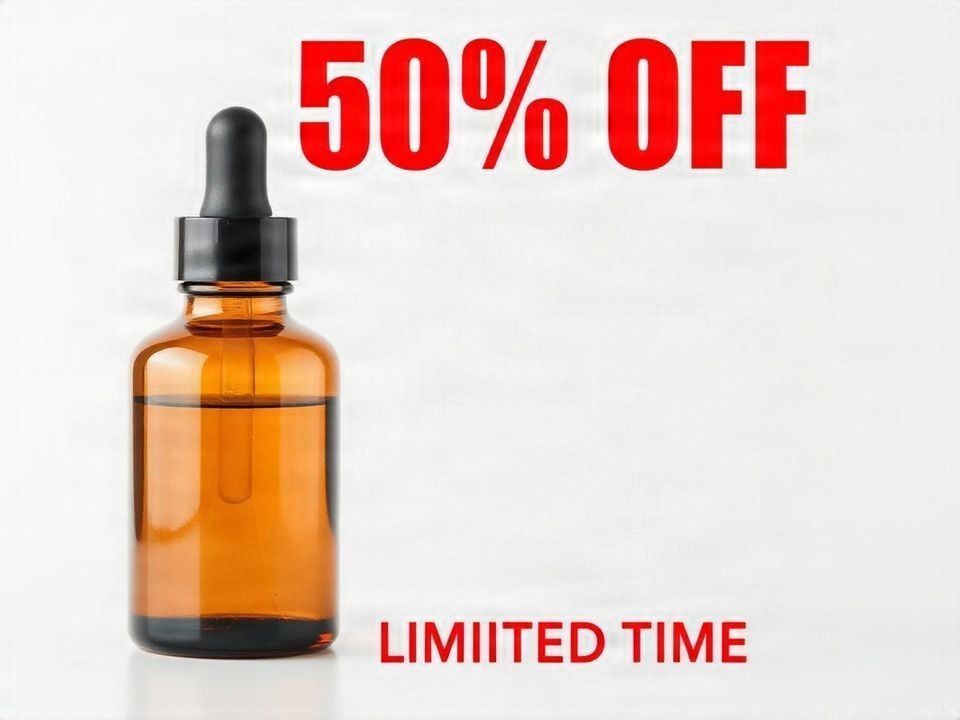
Remove Text From Product Images
Clean product labels, overlays, and listing graphics for reuse.
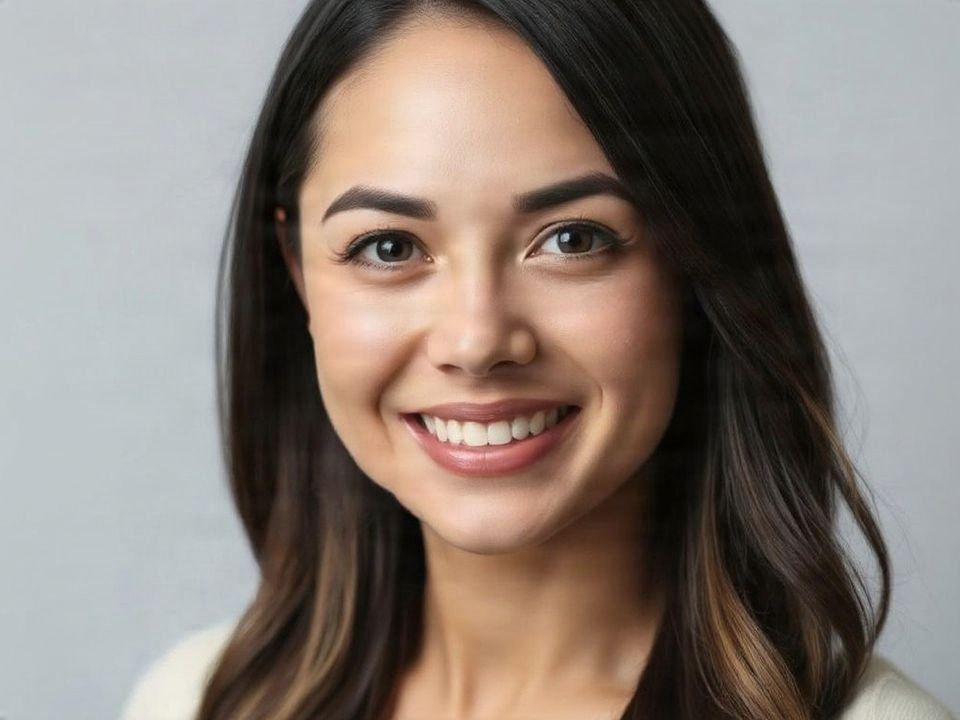
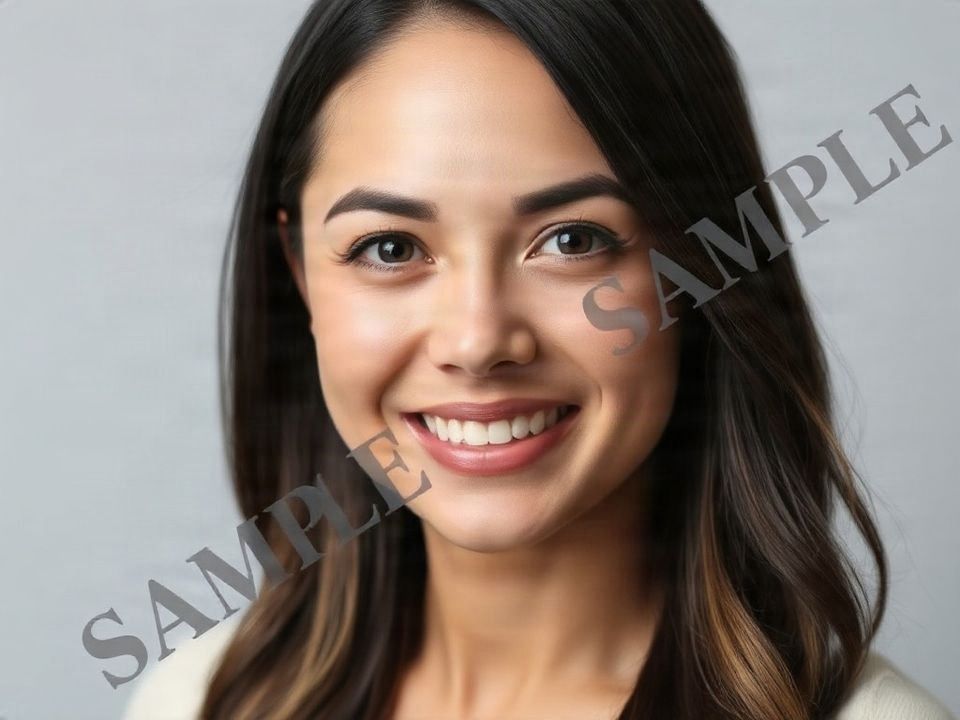
Remove Watermark
Remove visible watermark-style overlays from images you are allowed to edit.
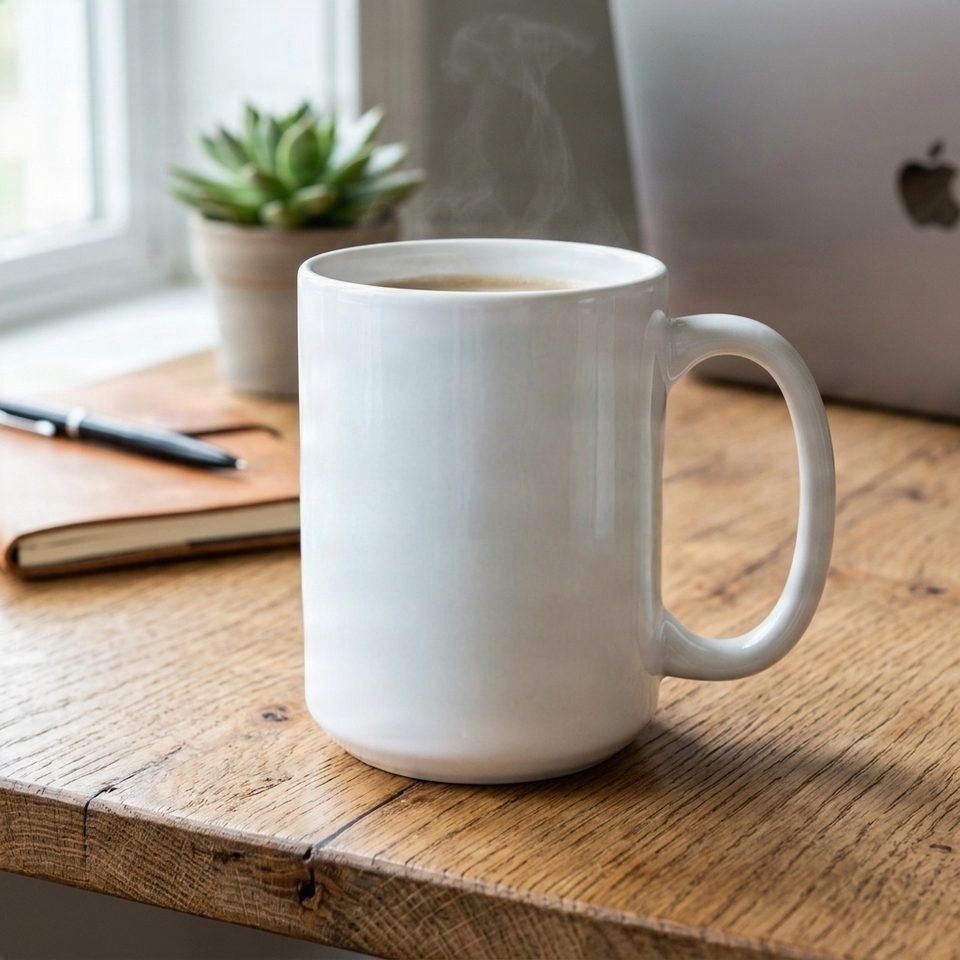
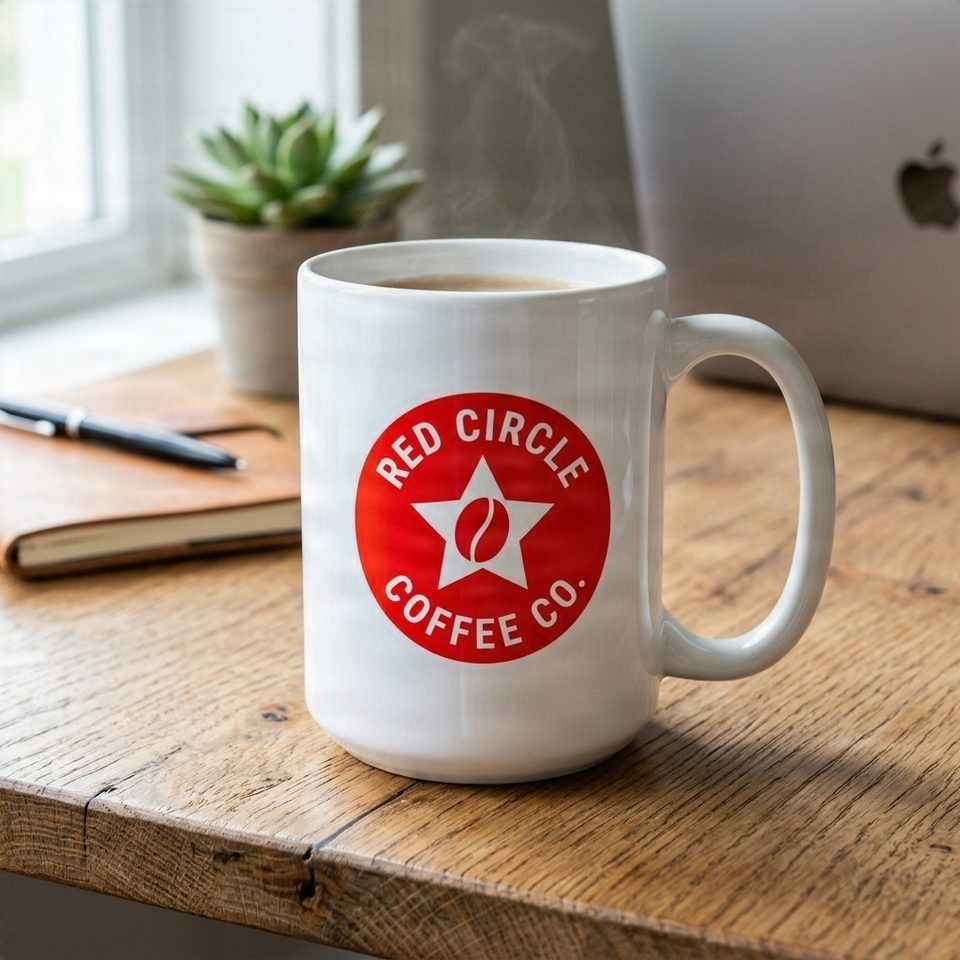
Remove Logos
Clean unwanted logo and branding elements from images.
Image Upscaler
Upscale and enhance photos, logos, products, and artwork.
Headshot Photo Upscaler
Enhance portraits, profile photos, and team headshots.
Product Photo Upscaler
Prepare larger product images for listings, ads, and catalogs.
Anime Image Upscaler
Upscale anime art, illustrations, and character artwork.
JPG Image Upscaler
Increase JPG and JPEG image resolution for sharper output.
Logo Upscaler
Make raster logos larger and cleaner for digital layouts.
AI Image Enhancer
Improve image clarity, color, lighting, and detail.
Cut out, rebuild, or extend
Background
Handle transparent cutouts, new product scenes, background repair, and image expansion.
Background Tools
Browse the background workflow hub for cutouts, replacement, staging, and fill tools.
Background Remover
Create clean subject cutouts with transparent PNG output.
Bulk Background Remover
Remove backgrounds from multiple images with consistent batch settings.
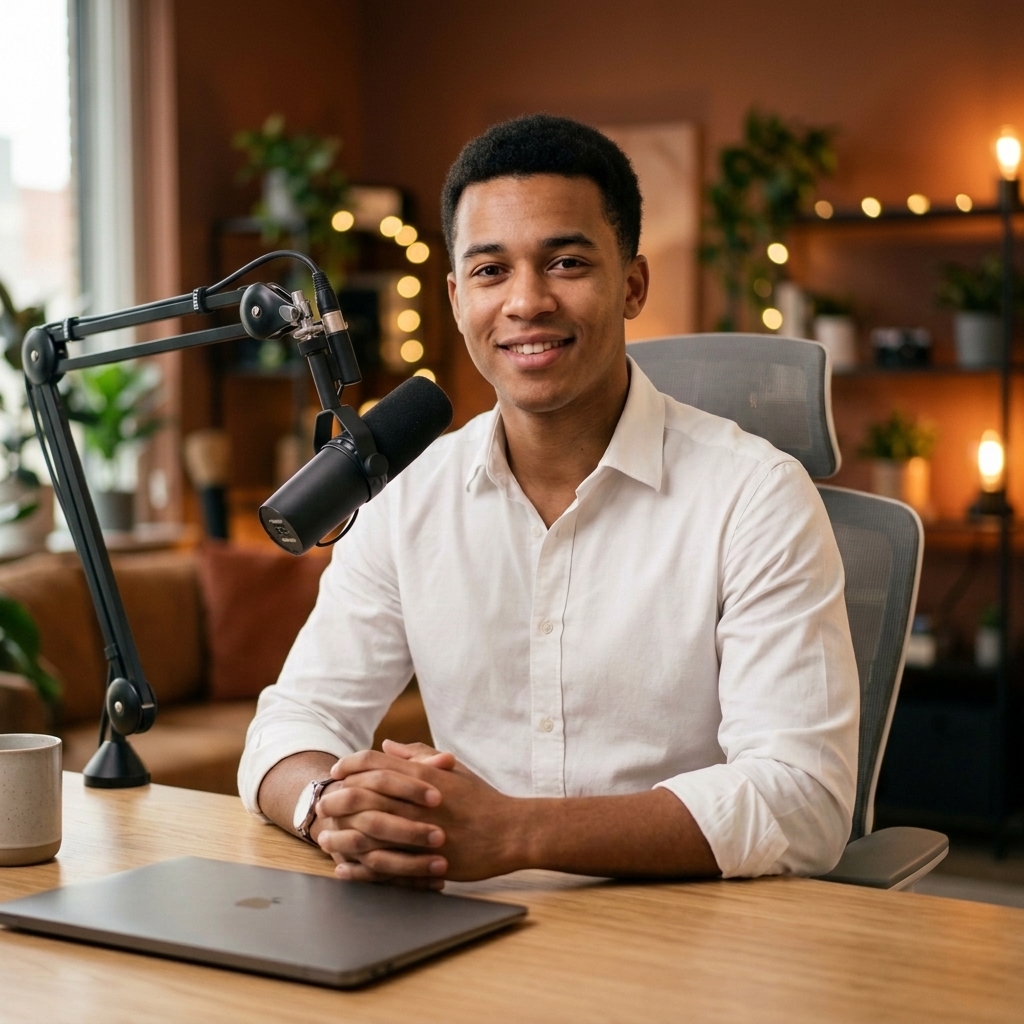
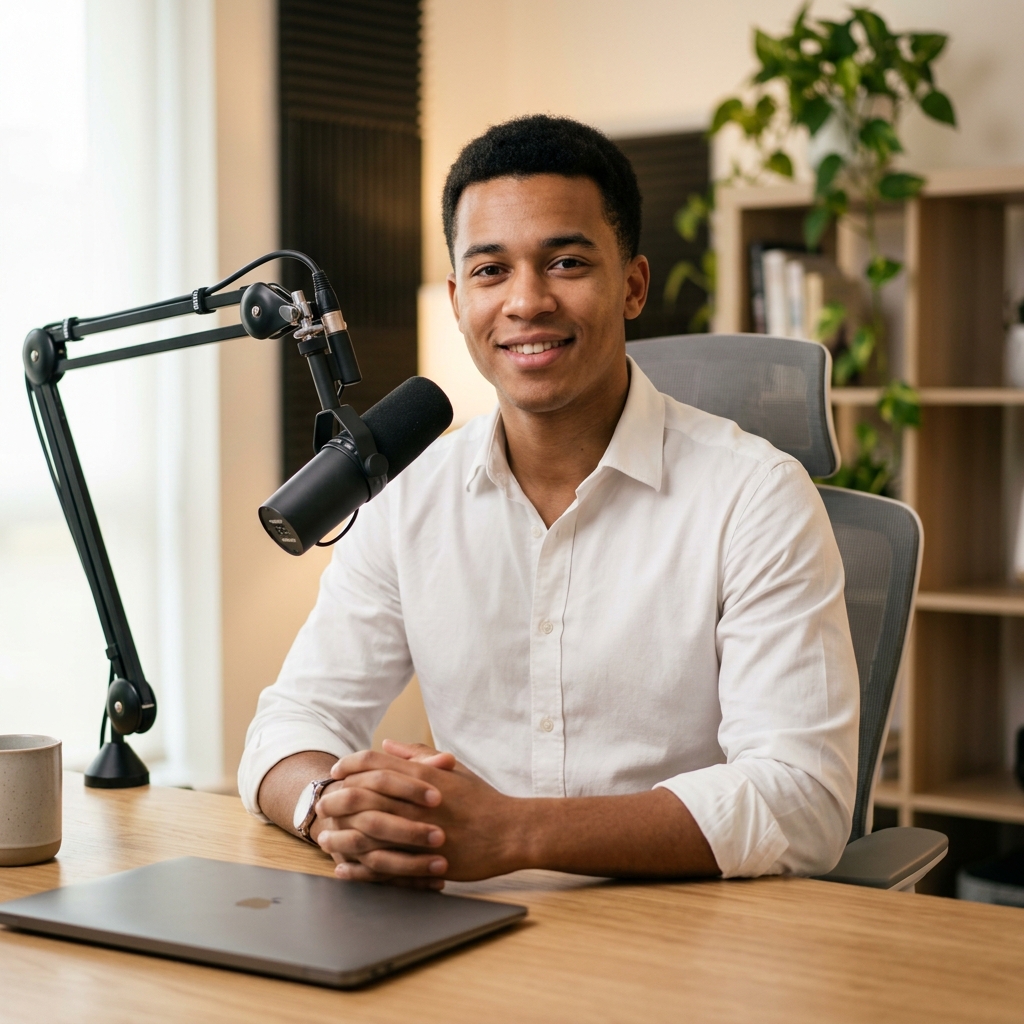
Background Changer
Replace photo backgrounds with AI prompts, uploaded background references, colors, or presets.
Background Splitter
Split subject and background into editable assets.

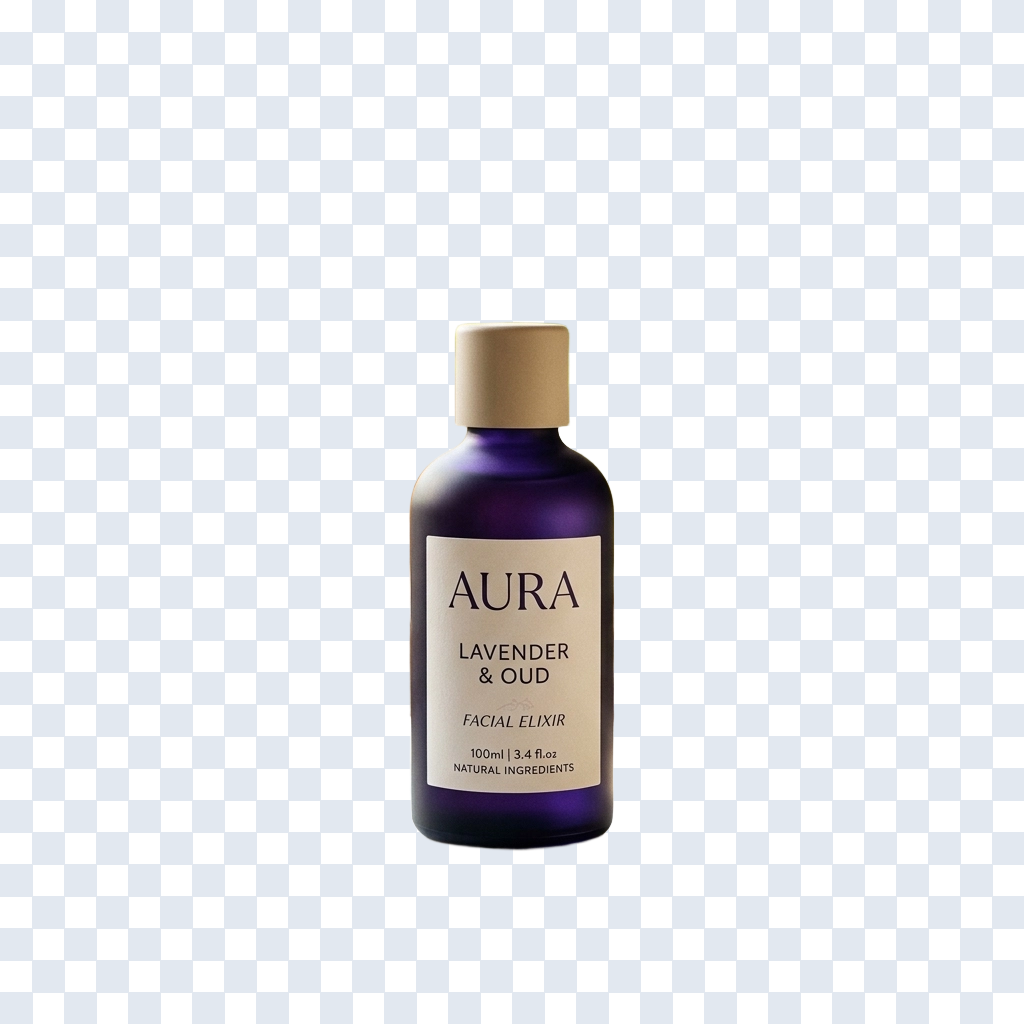
Generate Background
Place products and subjects into new generated scenes.
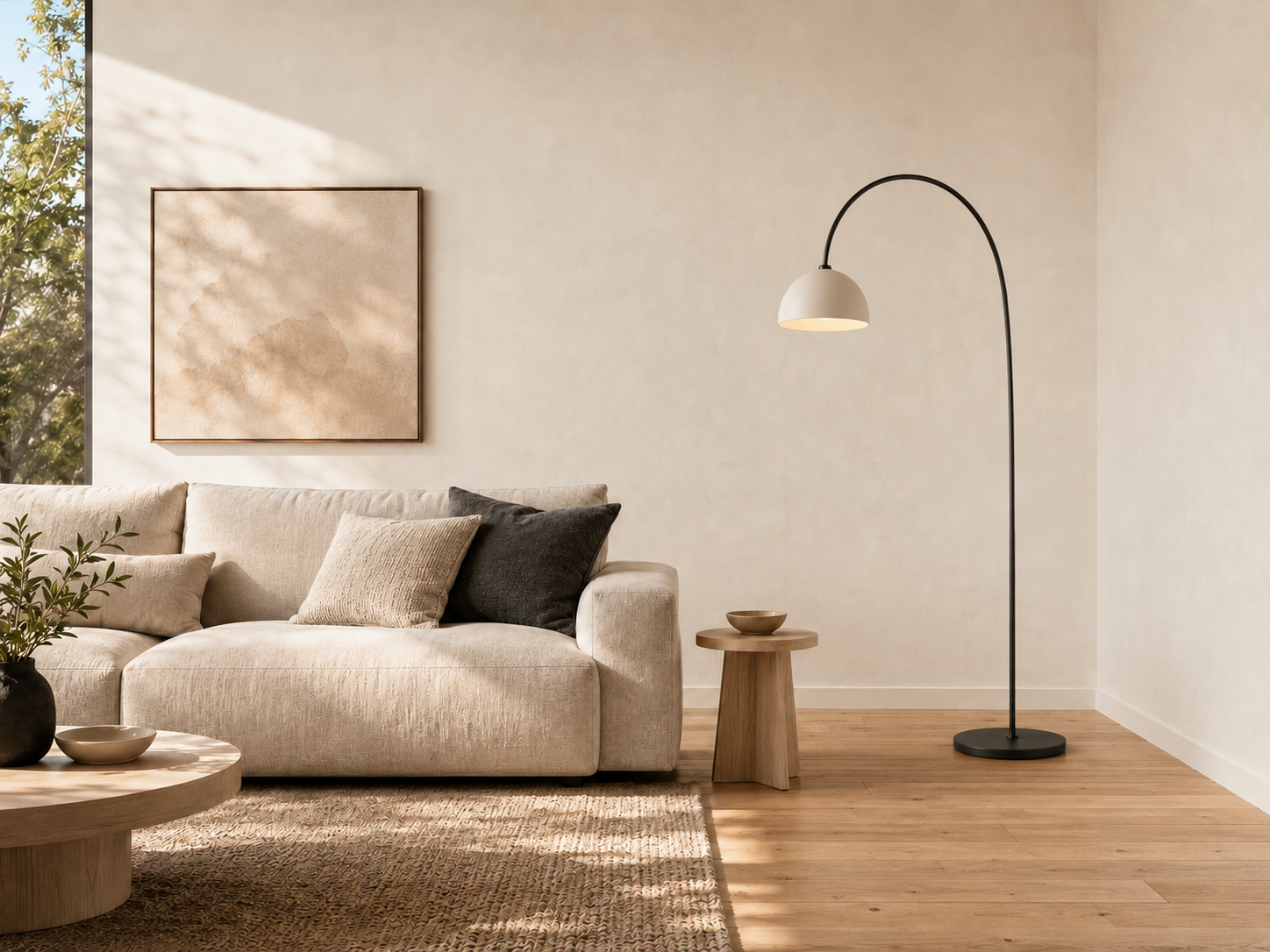
Generative Fill
Add, replace, or repair content inside selected areas.
Add Object to Photo
Insert a new object into a selected part of an existing image.
Replace Object in Photo
Swap a selected object while preserving the rest of the image.
Repair Background With AI
Fix damaged, empty, or inconsistent background regions.
Add Furniture to Room Photo
Place furniture into room images for interior design previews.
Add Props to Product Photos
Add contextual props around products for campaign visuals.
AI Inpainting Online
Edit masked regions precisely while leaving the rest unchanged.
Image Extender
Expand an image beyond its original borders.
Scene Outpainting
Extend a landscape, interior, or environment beyond the original frame.
AI Product Photography
Create product photography scenes for ecommerce, ads, and merchandising.
AI Virtual Staging
Stage rooms and interiors with generated furniture and decor directions.
Export editable assets
Layering
Convert flat images into separated layers for PSD export, motion, design, and production handoff.
Image to Layers
Separate any image into editable, exportable layers.
Split Image Into Layers
Split one flat image into several separate editable image layers.
Character to Layers
Split character art into rig-ready parts.
Character Parts Extractor
Extract visible character parts for focused editing and asset preparation.
2D Character Rigging Prep
Prepare separated character artwork before manual cleanup and 2D rigging.
Game Character Layer Separator
Create editable character regions for game asset review and production.
Anime Art into Layers
Separate anime-style artwork into editable character and scene parts.
Comic & Manga Into Layers
Separate comic and manga artwork into editable visual regions.
Character Layer Separator
Split characters into structured parts for production handoff.
Live2D Character Layers
Prepare character artwork for Live2D-style rigging workflows.
VTuber Character Layers
Separate avatar artwork into parts for VTuber model preparation.
Spine Character Layers
Prepare character parts for Spine-style 2D animation workflows.
Image to PSD
Convert image assets into PSD-ready layered output.
Extract Layers From Image
Recover separated visual parts from one flattened image.
Image Layer Separator
Separate subjects, objects, and backgrounds into editable semantic layers.
Product Photo to Layers
Separate product imagery into editable production assets.
Portrait to PSD
Turn portrait photos into layered files ready for retouching.
Logo to PSD
Convert flat logo artwork into layered production files.
Image to SVG
Vectorize logos, icons, line art, and flat illustrations into scalable SVG paths.
Image to SVG for Laser Cutting
Create cleaner vector paths for laser cutting and engraving preparation.
PNG to SVG for Cricut
Convert PNG artwork into SVG paths for craft and cutting workflows.
Logo to SVG
Convert raster logos into scalable SVG artwork for brand assets.
Transparent Layer Assets
Explore transparent layer outputs for design and compositing.
What Is Image Layering?
Learn how image layering turns flat visuals into editable parts.
Alternative Layer Workflow Guide
Review an additional image-to-layer workflow entry for comparing layer-separation approaches.
Build longer flows
Creative Workspace
Move beyond a single result with project memory, browser tools, API access, and prompt extraction.
Agent Workspace
BetaContinue results across editing, generation, variants, and handoff.
Ecommerce Creative Agent Workflow
BetaOpen a guided workspace for ecommerce creative production.
Amazon Product Launch Agent Workflow
BetaPlan marketplace launch imagery inside a guided workspace.
Shopify Growth Agent Workflow
BetaCreate product and campaign flows for Shopify growth work.
TikTok Shop Agent Workflow
BetaBuild commerce creative workflows for short-form selling.
Image to Prompt
Extract prompt direction from an existing image.
Object Layer Editor
Preview object selection before moving into a layer workflow.
More ImageToLayers Resources
Need a workflow, guide, or developer resource?
If you already know the tool you need, browse the directory above. If you are solving a broader creative problem, explore Solutions instead.
Solutions
Explore real creative workflows and production problems.
ExploreAPI access
Connect image workflows to your own product or production system.
ExploreCompare
Understand how ImageToLayers workflows differ from adjacent tools.
ExploreLearn
Read guides, technology explainers, and workflow documentation.
ExploreTool selection guide
Frequently Asked Questions
Understand how the directory, individual tools, and broader workflows fit together.
What is the All Tools page?
The All Tools page is the complete directory of ImageToLayers tools and major creative capabilities. Use it when you already know what you want to do, such as separating an image into layers, editing an existing image, preparing character artwork, changing a background, generating new viewpoints, enhancing an image, or creating new visual content.
How do I choose the right ImageToLayers tool?
Start with the result you want. If you want to separate a flat image, start with Image to Layers. If you want to modify an existing image, browse the AI Image Editing tools. For character artwork, use Character to Layers. For new viewpoints, use AI Multiple Angles. If you know the problem but are not sure which tool to use, visit Solutions instead.
What is the difference between All Tools and Solutions?
All Tools is organized around specific capabilities — what you want the software to do. Solutions is organized around real creative problems and workflows — what you ultimately want to accomplish. Remove Text is a tool; updating a finished design when you no longer have the source file is a broader solution that may involve several tools.
Is ImageToLayers only for separating images into layers?
No. Layer separation is a core ImageToLayers capability, but the platform also includes tools for AI image editing, character workflows, backgrounds, product visuals, multiple angles, image generation, enhancement, conversion, and other creative tasks.
Where should I start if I only have a flat PNG or JPG?
If you want to regain more control over the image, Image to Layers is usually the best starting point. It can turn a flattened image into separate visual layers that you can inspect and continue editing instead of treating the entire image as one permanent bitmap. If you know the exact change you want, go directly to that tool.
Can I edit an image instead of generating a new one?
Yes. Many ImageToLayers tools are designed around images you already have. You can separate existing visuals into layers, edit selected parts, remove or replace elements, change backgrounds, extend images, enhance them, or continue refining a previous result without regenerating the entire image.
Can I continue editing after using one of the layer tools?
Yes. Layer separation is intended to give you a more editable starting point. After separation, you can continue working with individual layers using ImageToLayers editing tools and AI editing workflows, then export the result when you are ready.
Which tools should I use for character artwork?
Start with Character to Layers if you have a flat illustrated character that you want to separate into editable regions. There are also focused character workflows for extracting parts, preparing artwork before 2D rigging, working with game characters, and preparing assets for Live2D or Spine.
Which tools should I use for product images?
ImageToLayers includes workflows for editing existing product photos, creating new product visuals, changing backgrounds, generating additional viewpoints, enhancing images, and preparing creative assets for ecommerce or marketing. Choose the tool based on the change you need.
Can I use ImageToLayers with AI-generated images?
Yes. A finished AI-generated image is usually flattened, which can make targeted editing difficult. You can bring it into ImageToLayers, separate or edit specific visual elements, create additional variations, and continue working without necessarily regenerating the entire image.
Do I need to know which AI model a tool uses?
No. Choose a tool based on the task you want to complete. ImageToLayers workflows are designed around the result you need, so you generally do not need to understand or select the underlying processing technology.
Are all ImageToLayers tools part of the same workflow?
Not necessarily. Some tools are standalone utilities for a specific task, while others are designed to work as part of a larger creative workflow. You might separate an image into layers first, edit an individual element next, and export afterward. Other tasks may only require a single tool.
What is the difference between a tool and a workflow?
A tool performs a specific task, such as removing text, upscaling an image, or separating an image into layers. A workflow connects one or more capabilities to reach a broader creative result, such as preparing character artwork for animation or updating a finished design without the original source file. For broader workflows, browse Solutions.
Do I need Photoshop or another editor to use these tools?
No. You can perform supported image separation, generation, and editing tasks directly in ImageToLayers. When you want to continue working elsewhere, supported workflows can also provide export options for other creative software.
What if I still don’t know which tool I need?
Start with Solutions if you know the problem you are trying to solve but not the exact tool. If you know the action you want — such as separating layers, removing text, changing a background, generating another angle, or upscaling an image — use the matching tool directly from All Tools.