
Repair a Photo Background with AI
Paint over a missing, damaged, or inconsistent part of the background and let AI generate new content using the surrounding image as visual context. Best for walls, floors, skies, landscapes, studio backdrops, and gaps left after earlier edits.
1. Upload an Image to Edit
Drag and drop an image here, or click to choose a file.
3. STEP 2 · SELECT AN AREA
Upload an image to start marking the area to change.
4. Describe the background continuation
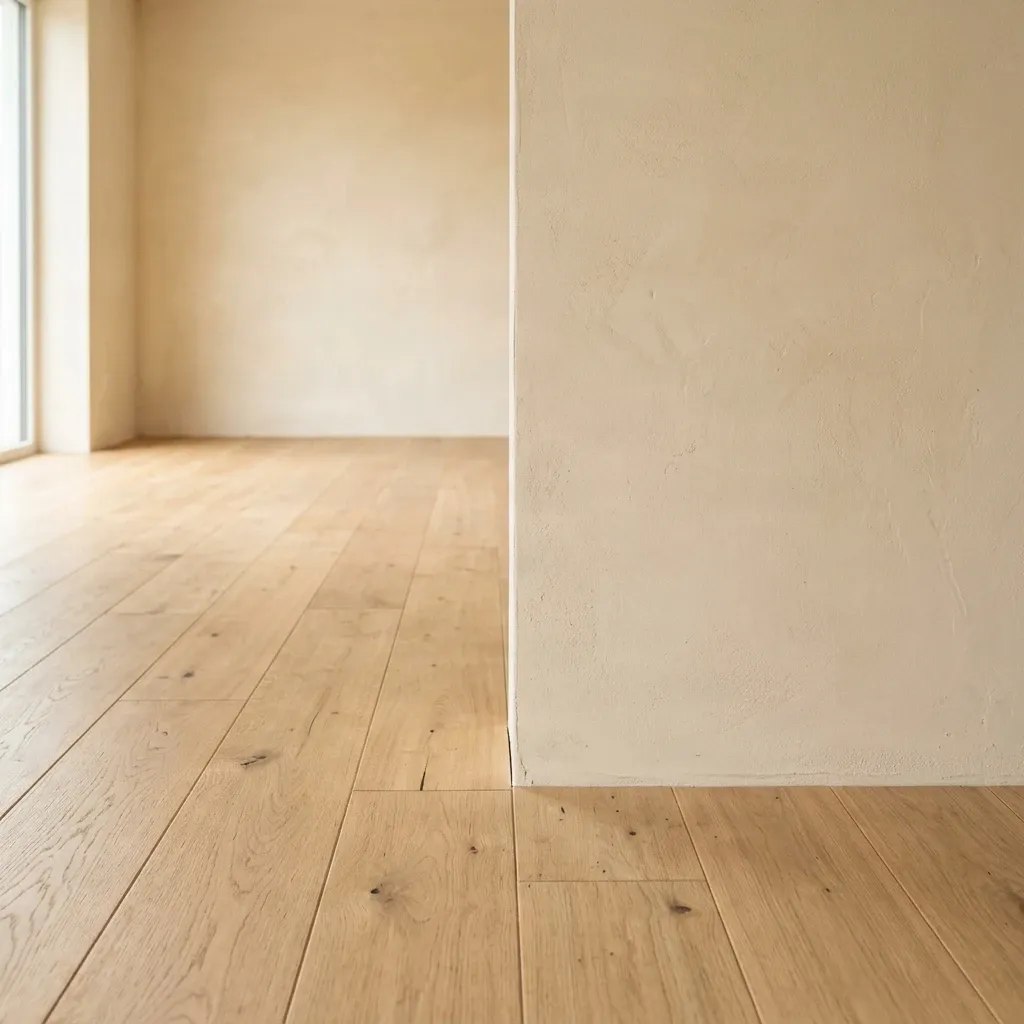
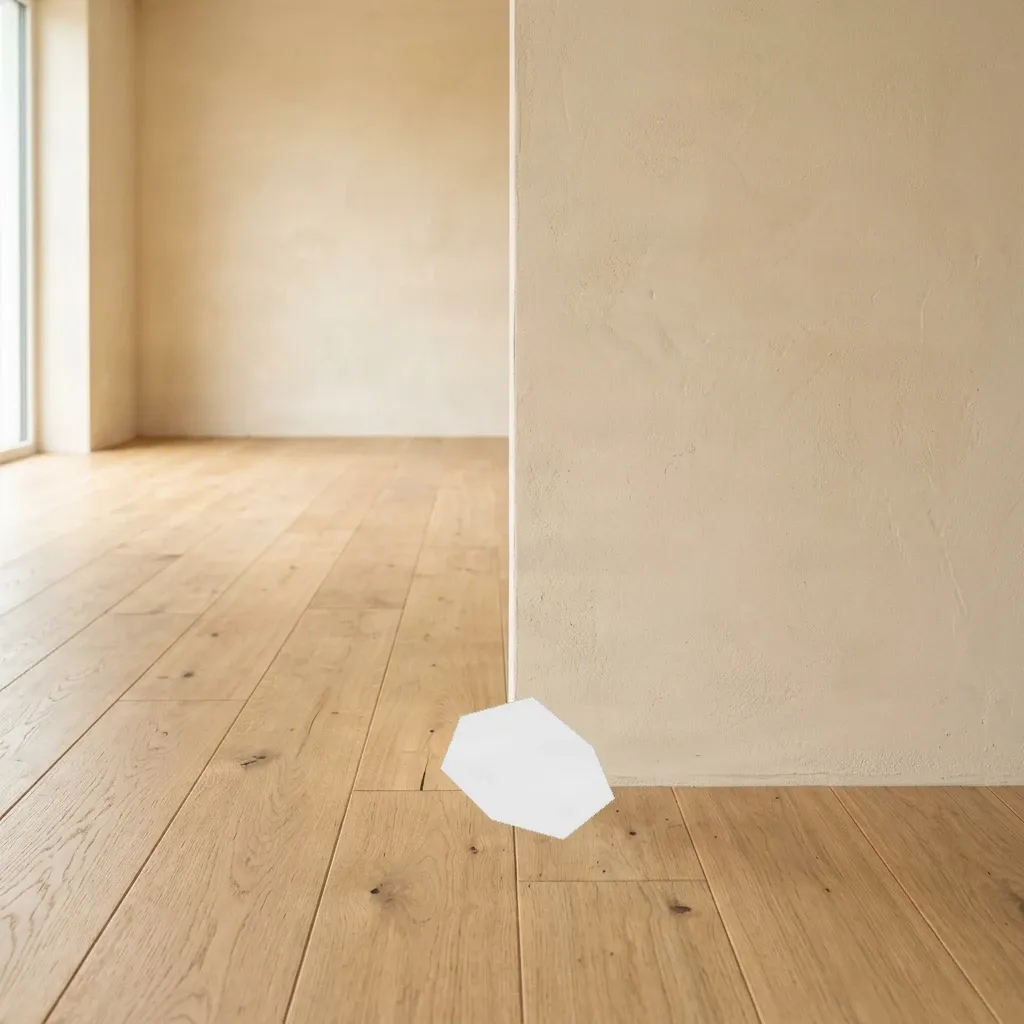
Recent Sessions
Inpainting in 4 Steps
Upload the Photo
Start with your image.
Paint the Missing or Damaged Area
Cover the complete damaged or missing area and extend the mask slightly into the surrounding background.
Describe What Should Continue Through the Area
For cleaner transitions, include a small amount of the surrounding wall, floor, sky, or landscape inside the mask description.
Generate and Inspect the Repair
Generate a plausible continuation of the surrounding background.
When to Repair Backgrounds
Fill Gaps After an Edit
Repair empty areas left after moving, extracting, or changing part of an image.
Continue Walls and Floors
Generate missing sections of an interior surface using nearby texture and perspective as context.
Repair Studio Backdrops
Fill creases, gaps, or inconsistent areas inside a selected part of a product-photo background.
Continue Natural Backgrounds
Repair selected areas of grass, sky, sand, water, or foliage without regenerating the full scene.
Prompt Examples
““Continue the warm cream wall, white baseboard, and light oak floor through the selected area. Match the existing perspective and soft daylight.””
““Repair the seamless paper backdrop, removing the crease and continuing the solid soft blue color.””
““Fill the gap in the foliage with matching green leaves and blurred depth of field.””
““Continue the sandy beach texture into the empty patch.””
Frequently Asked Questions
Can AI recover the original missing background?
No. AI generates a plausible continuation based on the visible surroundings; it cannot recover pixels or scene details that are no longer present.
What types of backgrounds can I repair?
Generative Fill can help with selected areas of walls, floors, studio backdrops, skies, landscapes, and other visually consistent surfaces.
How is this different from removing an object?
Remove Unwanted is designed to erase a visible object. Background Repair is intended for an area that is already missing, damaged, or visually inconsistent.
How is this different from Image Extender?
Background Repair edits an area inside the existing image. Image Extender generates content beyond the image’s original borders.
Will the rest of the image remain unchanged?
The model focuses on the masked area, but small changes may appear near the mask boundary. Review surrounding edges before downloading.