
How to Choose the Right Layer Count for an Image
The right layer count is the number of visual groups you need to edit independently — not the largest number available. Simple images may need only three or four layers. Product scenes and multi-object compositions may need four to eight. For highly detailed images, start with stable semantic groups and split only the layers that still contain elements you need to control separately.
On this page
Quick Answer
Choose layers based on independent editing decisions:
- Simple logo or single-subject image: 2–4 layers
- Portrait or simple product scene: 3–5 layers
- Typical commercial composition: 4–6 layers
- Multi-product or naturally complex scene: 6–8 layers
- Highly detailed scene: start broad, then split selected layers further
Don't count every visible object. Count only the groups that need to move, hide, recolor, animate, or receive effects independently.
Count Editing Groups, Not Every Visible Object
Before choosing a layer count, list the changes you plan to make. Two objects can remain in the same layer when they share the same depth, move together, or will always receive the same edit — they need separate layers only when you need independent control. For example, a product box and a nearby leaf can stay grouped if they always move together; if you need to remove the leaf while keeping the box, that group should be separated further.
Practical rule
Count the independently editable visual groups you need — not every object visible in the image.
Choose a Layer Range That Matches the Image
A smaller count creates broader visual groups. A larger count asks the model to separate more detail — useful when the scene genuinely contains that many distinct groups, but risky when it doesn't.
2–4 layers
Simple assets
Best for logos, icons, single-subject photos, and compositions with only a background, one main subject, and one supporting group.
4–6 layers
Typical commercial images
A practical range for many product photos, portraits, and compact campaign visuals containing a main subject, supporting objects, environmental elements, and a background.
6–8 layers
Naturally complex compositions
Useful when the scene contains several clearly distinct products, props, depth planes, or foreground elements that genuinely require independent control.
9+ layers
Usually better as a progressive workflow
For highly detailed scenes, begin with stable semantic groups, review the result, and split only the layers that still contain multiple editable elements.
First-Pass Layer Count vs Final Layer Count
The layer count used for the first pass doesn't have to equal the number of assets in your finished project. A five-layer first pass can produce a stable scene structure, and one of those layers can then be split into two or three more detailed assets afterward. This gives you a larger final layer set without forcing the entire image through an overly detailed first decomposition.
A second-pass split is not a failure. It's the recommended way to add detail only where the editing workflow requires it.
Why Over-Splitting Fails
More layers do not automatically mean a more professional result. If you request more layers than the composition naturally contains, the output may include duplicate objects, partial masks, background patches, or tiny fragments with little editing value.
Match the first-pass count to the number of meaningful visual groups in the image, then use Split Further on a mixed layer only when two elements truly need independent control. This progressive workflow is usually more reliable than requesting nine or ten layers for the whole scene at once.
Case Study: What an Over-Split First Pass Looks Like
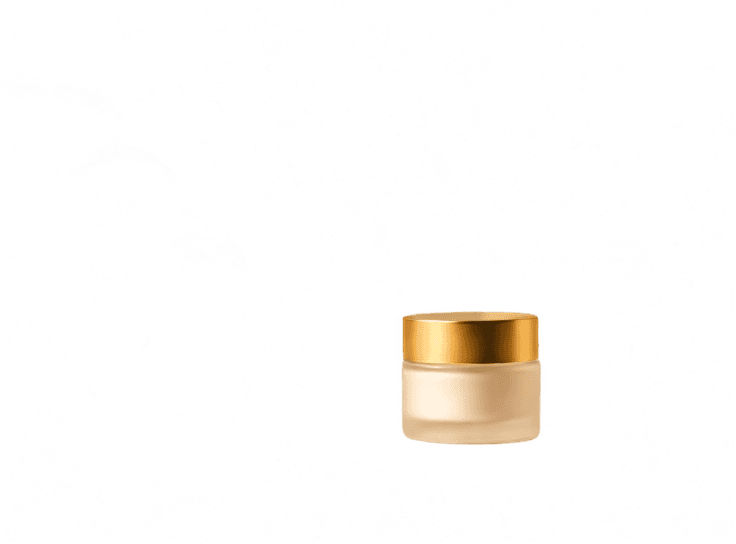
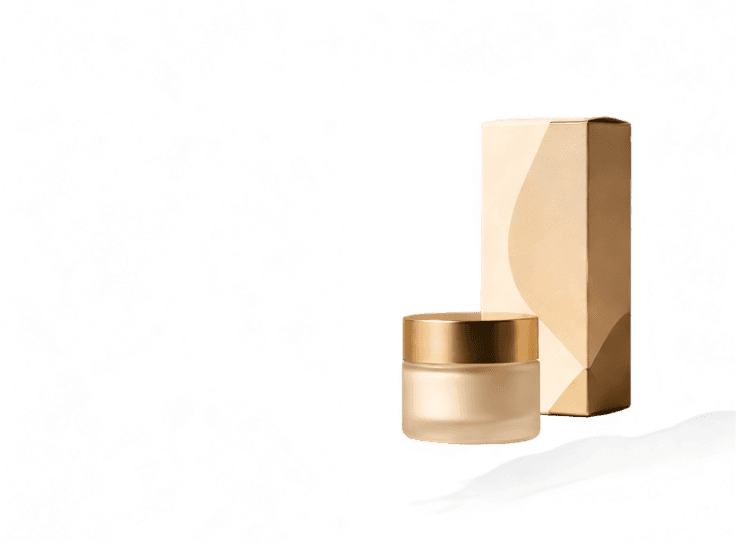
This product composition was requested as ten layers in one pass. The workflow returned the requested number of files, but several layers were duplicates, partial masks, mixed groups, or background fragments rather than useful independent assets.


Background Residue
A large translucent scene fragment remains attached to the layer, making it difficult to move or reuse independently.
Duplicate Product
The same product appears in more than one layer, but the duplicate doesn't provide a meaningful new editing decision.
Unhelpful Mixed Group
The box, jar, and foreground leaf are grouped together even though they may require different edits.
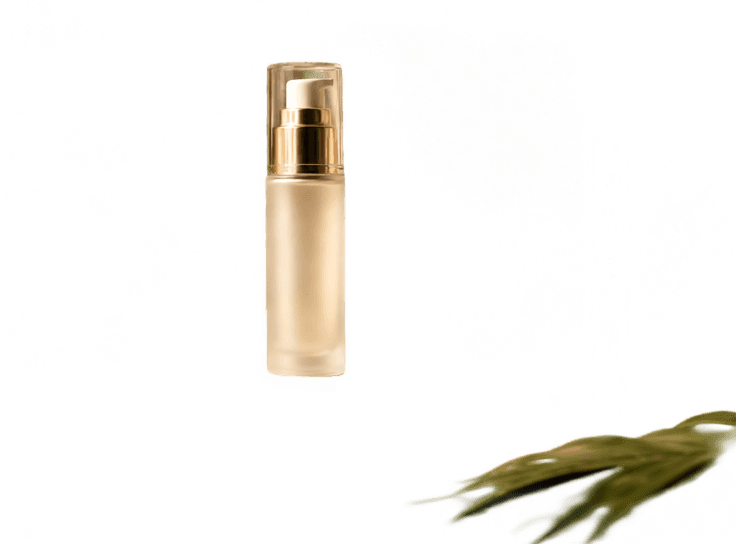
Product with Unrelated Fragments
The bottle is visible, but surrounding foliage and background pixels make the layer difficult to reuse cleanly.
Better workflow: match the count to the scene, review, then split selectively
Begin with broad, stable visual groups sized to the scene's actual complexity. Only run a second decomposition on the specific layers whose contents still need independent control.
Case Study: A Stable 5-Layer First Pass
The same composition was processed with a five-layer first-pass target. The goal wasn't to extract every individual object immediately — it was to create a stable scene structure that could be reviewed and refined progressively.


Layer 1 — Background & Stone Pedestal
Groups the farthest elements — the reconstructed backdrop, the stone pedestal, and the two pebbles — into one base layer. Useful as a first-pass asset, but the pedestal group is still fused with the background rather than isolated on its own.
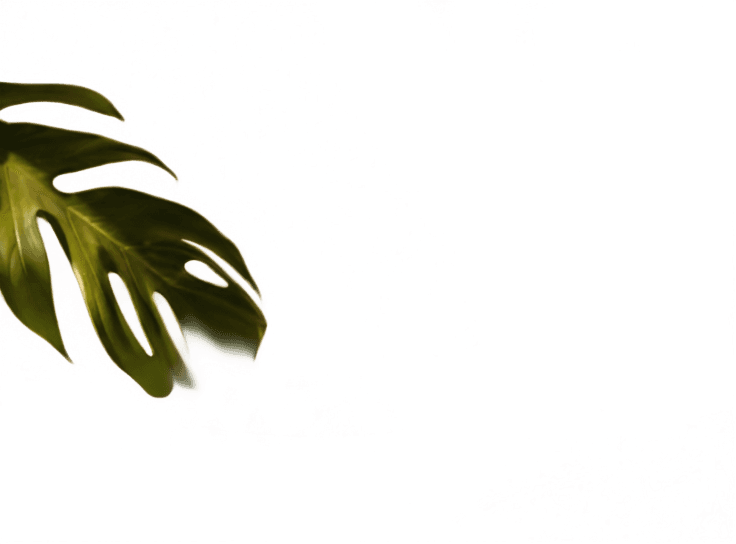
Layer 2 — Foreground Palm Leaf
A cleanly isolated leaf, already usable independently without needing a second pass.
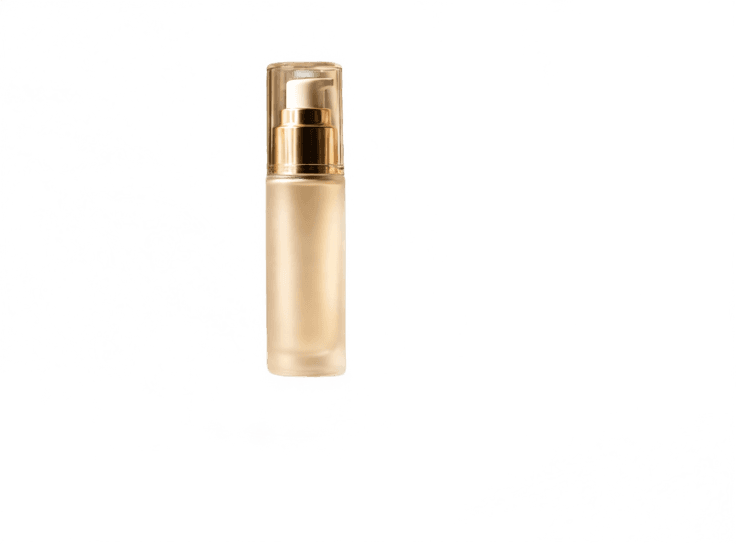
Layer 3 — Pump Bottle
The primary product, already isolated cleanly in the first pass.
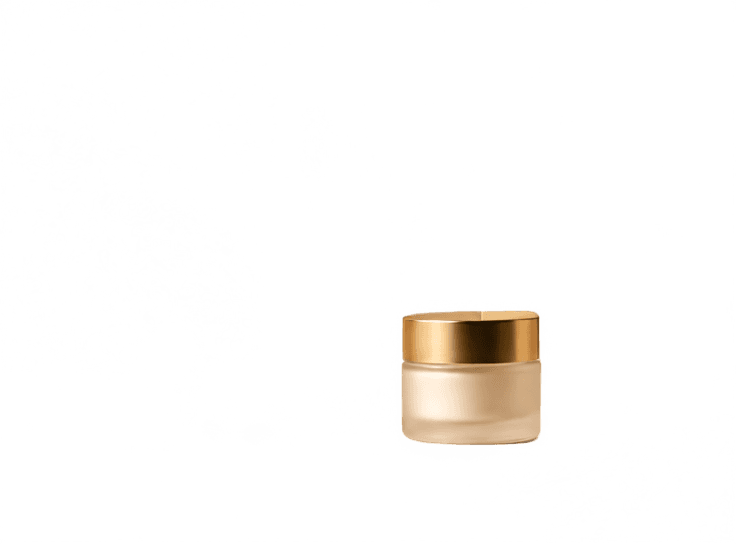
Layer 4 — Cream Jar
The secondary product, also isolated cleanly without needing a second pass.

Layer 5 — Packaging Box & Foreground Residue
Groups the box with leftover leaf pixels and a duplicated edge fragment. This is the other layer that still needed refinement.
A layer doesn't have to contain exactly one object — grouping elements that share a depth plane and always move together can be more useful than forcing a separate file for each one. Two of these five layers still combined more than one editing role, so they were the ones selected for a second pass.
Second-Pass Layer Split: Refining the Two Mixed Layers
After reviewing the five-layer result, two layers still combined more than one editing role: the background layer also carried the stone pedestal group, and the packaging layer still carried leftover leaf pixels and a duplicated edge fragment. Instead of restarting the whole image at a higher first-pass count, we selected just those two layers and ran Split Further on each.
Selected for a second split
The first pass solved the scene structure. The second pass solved the remaining object-level detail — for only the two layers that still needed it.
This keeps the leaf, bottle, and jar layers untouched from the first pass while adding detail only to the parts of the project that needed it.
Second-Pass Result: Final Editable Assets
The four assets below come from the same five-layer first pass. Two of them — the pump bottle and the cream jar — were already clean, independent layers after the first pass and needed no further work. The other two — the packaging box and the stone pedestal group — were extracted by running Split Further on the two mixed layers above.
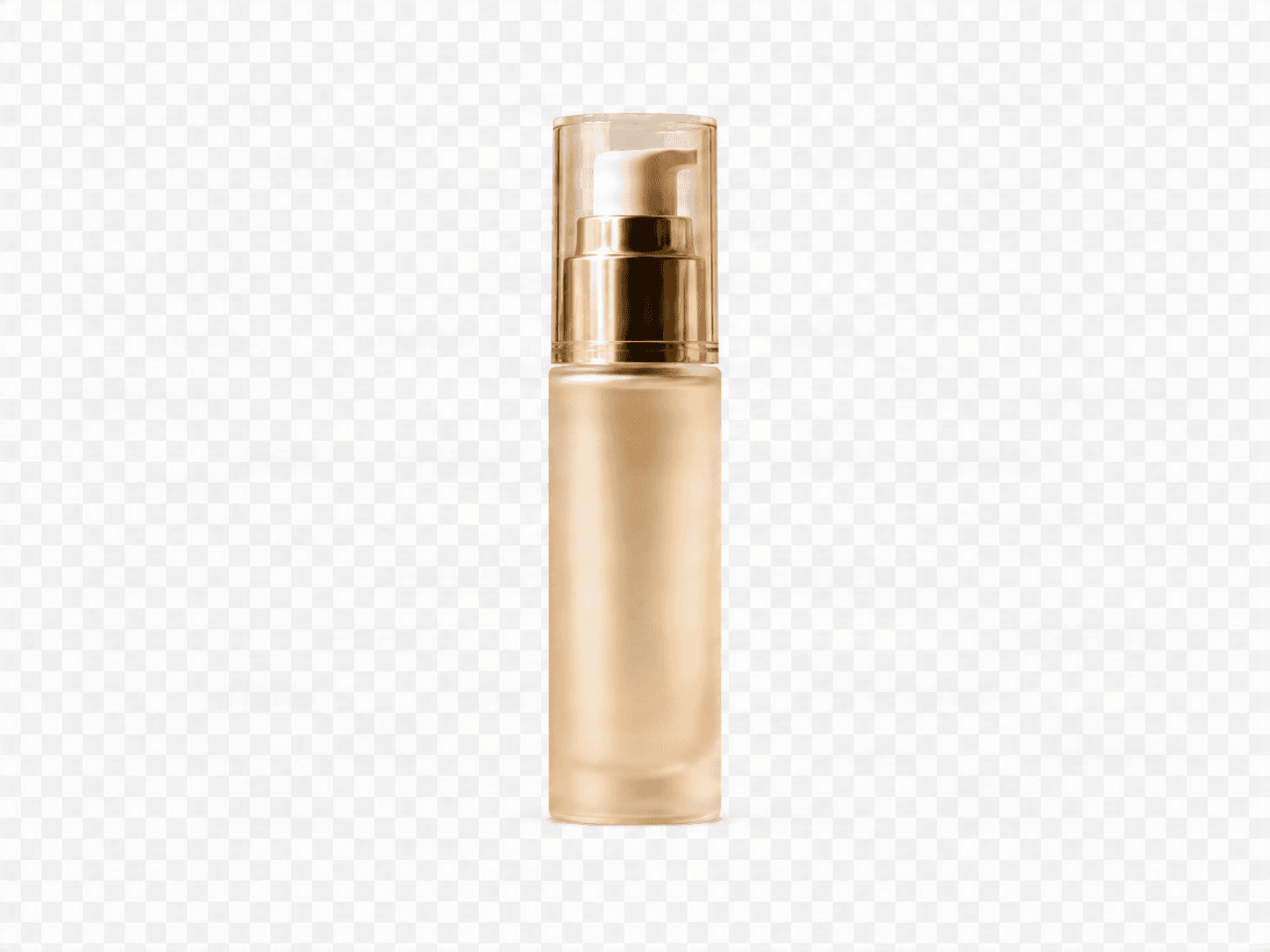
Pump Bottle
Already an independent transparent asset after the first pass — no second split needed.
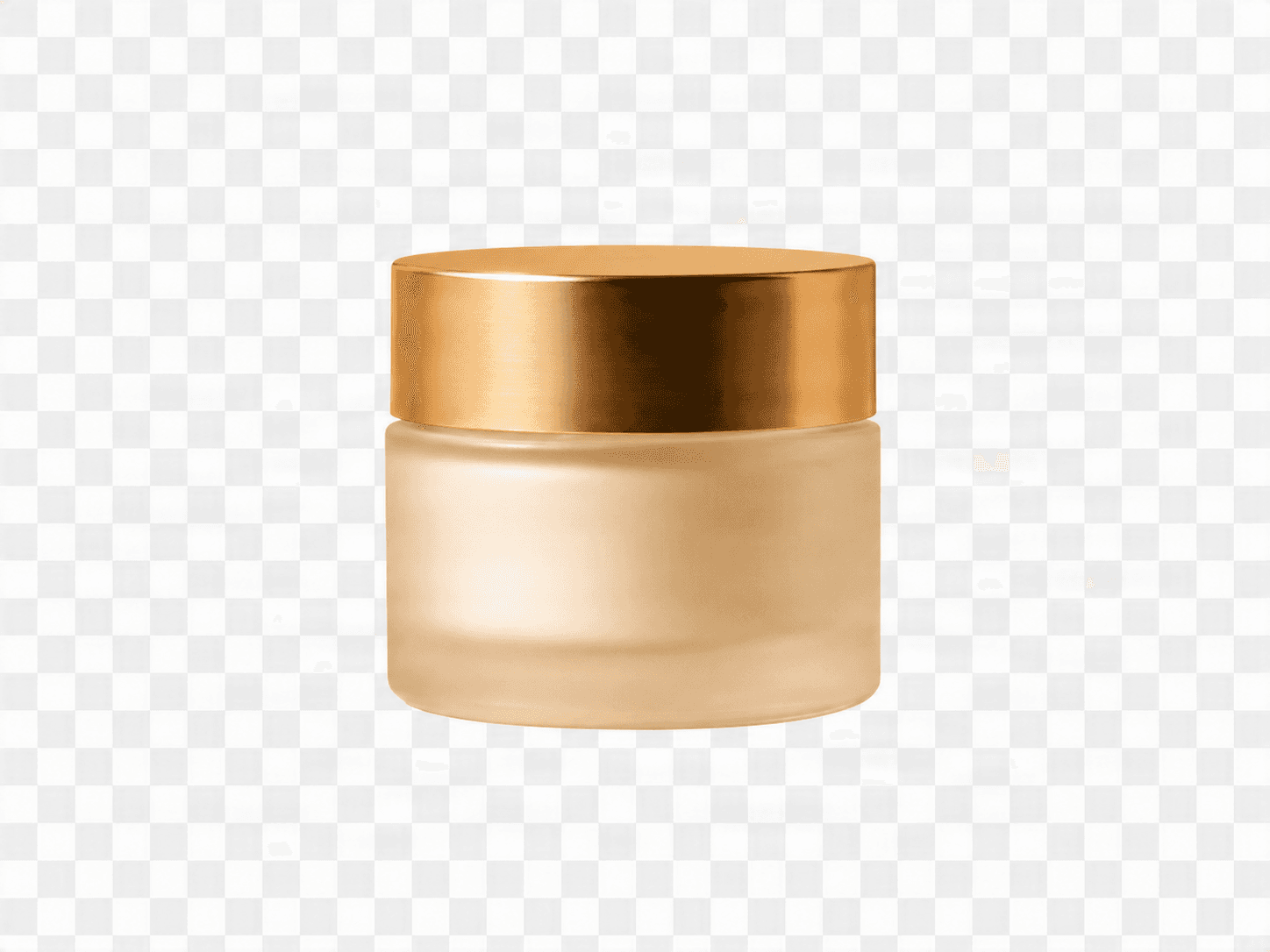
Cream Jar
Already an independent transparent asset after the first pass — no second split needed.
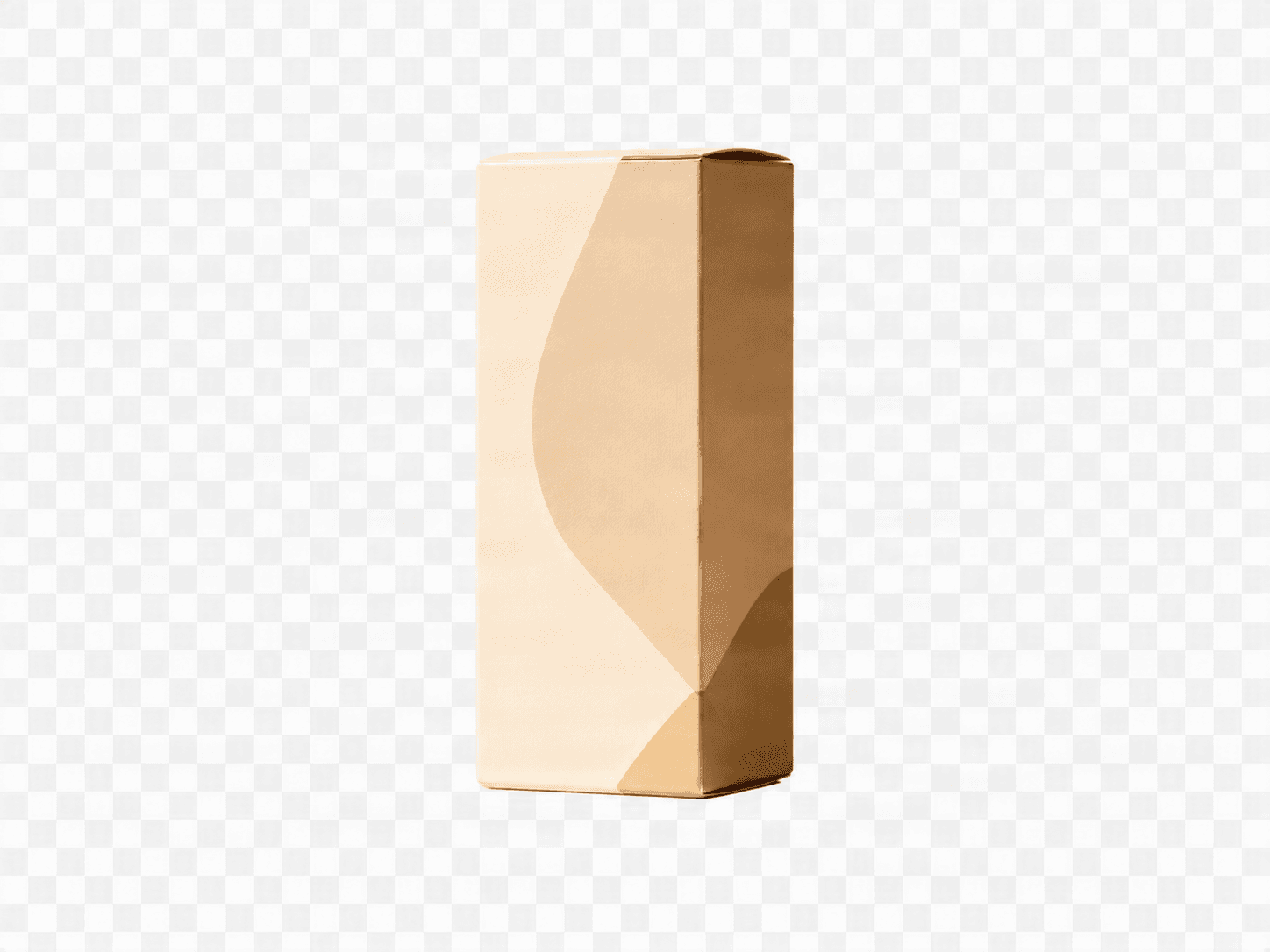
Packaging Box
Extracted by splitting the mixed packaging layer further, removing the leftover leaf pixels and the duplicated edge fragment.
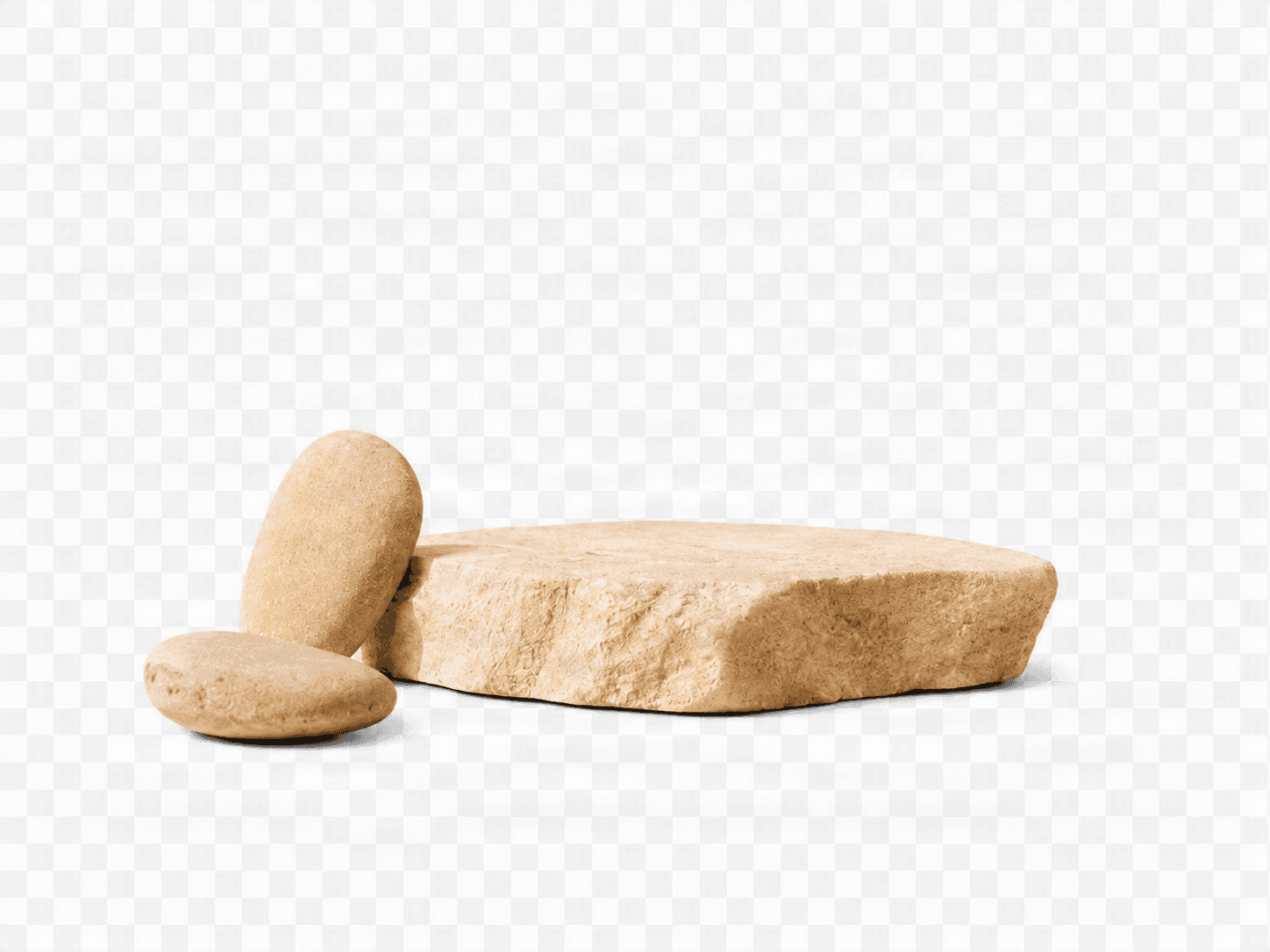
Stone Pedestal & Pebbles
Extracted by splitting the background layer further, separating the pedestal group from the reconstructed backdrop.
The final project can contain more assets than the first-pass layer count. What matters is that each additional split corresponds to a real editing need — not every layer requires one.
Layer Count Checklist
Before starting a layer extraction, answer these questions:
- Which elements must move independently?
- Which elements might need to be hidden or deleted?
- Which objects will receive different effects or color changes?
- Which elements belong to different depth planes?
- Can related objects remain grouped?
- Does text or a logo need independent control?
- Can a mixed layer be split later instead of increasing the entire first pass?
- Would a character, portrait, or logo preset be more appropriate than a general scene count?
Choose the smallest layer range that covers your current editing decisions. Add more detail progressively only when the previews show that it's needed.
Choose the Right Tool Before You Start
Image to Layers, Targeted Layer, and Character to Layers use different workflows and models. Changing the layer count does not switch the tool or model.
Image to Layers
Use this for a general scene, product photo, portrait, logo, or multi-object composition.
Open Image to LayersTargeted Layer
Use this for one specific visible object, person, text block, decoration, or background region.
Open Targeted LayerCharacter to Layers
Use this for a complete character intended for animation or rigging. It uses the dedicated character splitter model, afredzhou/splitter-new.
Open Character to LayersConfirm that you are on the intended tool page before uploading. A general image-layered or targeted-layer job will not produce the same character-specific result as Character to Layers.
Continue Learning About Image Layers
Layer Count FAQ
How many layers should I choose for an image?
Choose enough layers to cover the visual groups you need to edit independently. Simple images may need two to four layers, while product scenes and multi-object compositions may need four to eight.
Is five layers always the best choice?
No. Five layers can be a useful first-pass target for many commercial images, but simpler scenes may need fewer and naturally complex scenes may need more.
Does requesting more layers improve the result?
Not automatically. A higher count can create useful detail when the image contains enough distinct groups, but an unnecessarily high target may produce duplicates, fragments, partial masks, or background residue.
Does every object need its own layer?
No. Objects can remain grouped when they share the same depth, move together, or will always receive the same edit.
What should I do when one layer contains multiple objects?
Use Split Further on that specific layer when its contents need independent control. You usually don't need to restart the entire image with a higher layer count.
Can the final project contain more layers than the first pass?
Yes. A five-layer first pass can become a larger final asset set after one or more selected layers are split further.
How many layers should I use for portraits, logos, or characters?
Use the structure that matches the task. Logos often need only two to four groups. Simple portraits may need three to five. Character animation work usually needs a dedicated character-layer preset rather than one general scene count.
How do I know whether a layer is useful?
A useful layer represents a meaningful editing decision. It should be movable, hideable, replaceable, or editable without bringing unrelated fragments with it.
Next step
Start with Stable Layers, Then Refine What You Need
Upload an image, review the first-pass layer structure, and split selected layers further only when your project requires more independent control.
Ask AI about this page
Continue exploring this page with your preferred AI assistant.