
How to Use Detailed Layers: Full-Scene AI Layer Separation
Detailed Layers looks at a flat image and automatically identifies every major visual element — products, props, plants, and the background — returning each one as its own transparent PNG layer. We ran it twice on the same real product photo, once with no prompt and once with a short prompt, and kept every layer it produced.
On this page
The Source Photo
This is a typical commercial product shot: a serum pump bottle and a cream jar on a stone pedestal, a gift box, two loose pebbles, and monstera and palm leaves in the foreground, all on a warm beige backdrop with soft shadow. Nothing about the file tells Detailed Layers what the individual elements are — it has to identify all of that from the pixels alone.

Auto Mode: What 10 Layers Actually Looked Like
With no prompt at all, Detailed Layers auto-detected 10 separate elements in this single photo — every product, every prop, and the reconstructed background. Nothing was grouped together and nothing was left out.
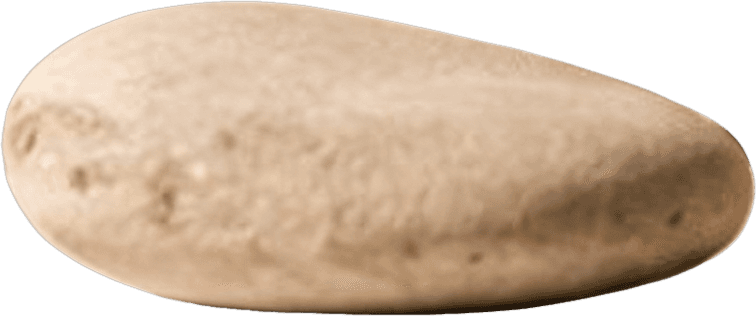
Layer 1 — Pebble (front)
The smaller of the two loose pebbles, isolated with clean edges on a transparent background.

Layer 2 — Background
The empty backdrop and shadow, reconstructed as if every object in front of it had been removed.
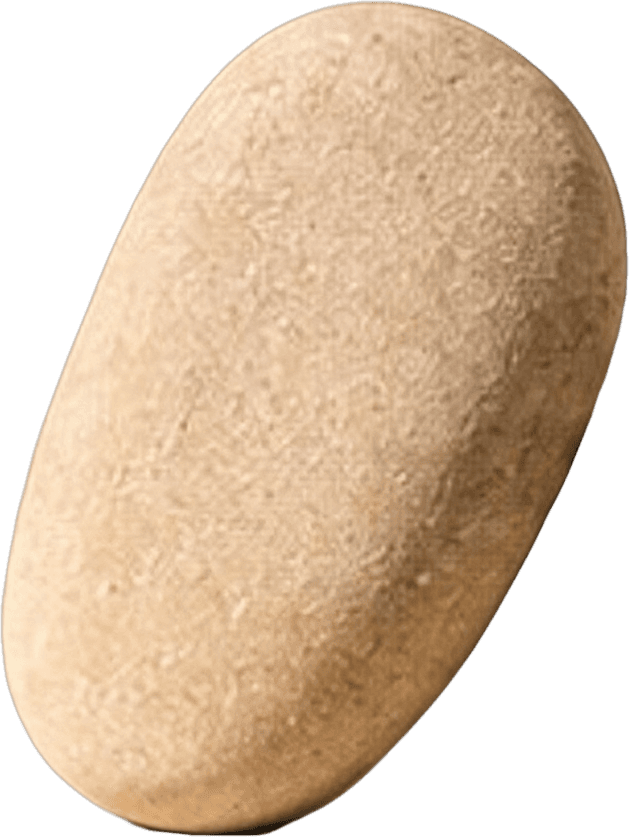
Layer 3 — Pebble (back)
The second pebble, separated even though it overlaps the first and the stone pedestal in the original photo.
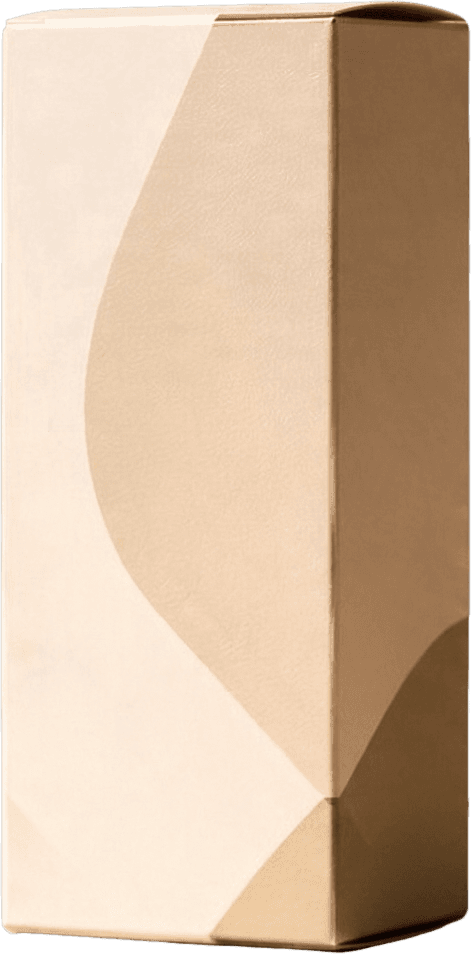
Layer 4 — Gift box
The tall gift box, including its two-tone geometric print, isolated as one clean layer.
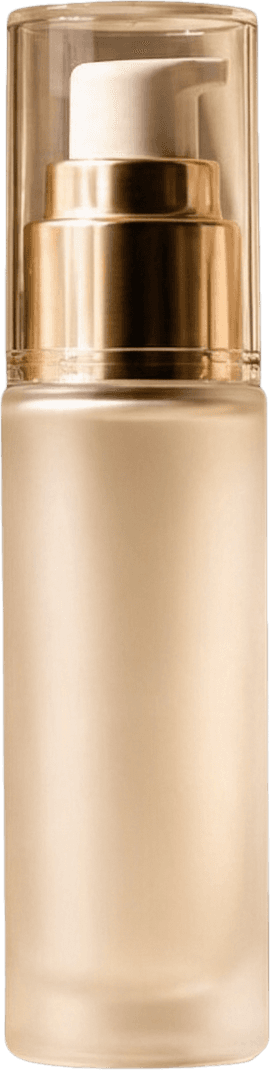
Layer 5 — Serum bottle
The pump bottle, with its gold collar and cap kept intact and separated from the box behind it.
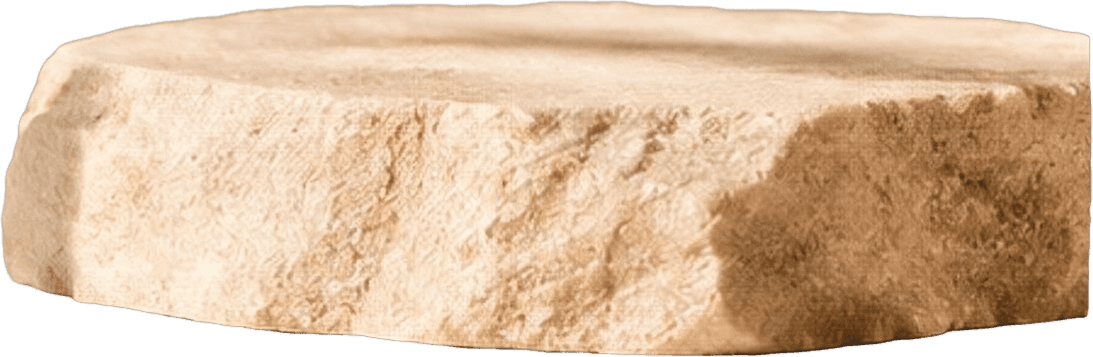
Layer 6 — Stone pedestal
The flat stone slab the bottle stands on, separated from the pebbles resting against it.
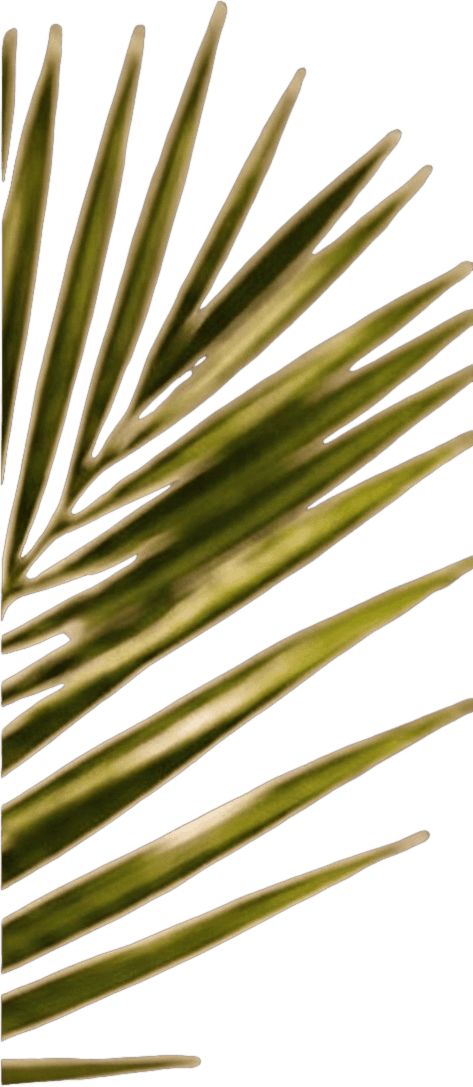
Layer 7 — Palm frond (right)
The in-focus palm leaf on the right of the frame, isolated strand by strand.
Layer 8 — Palm frond (foreground, blurred)
A second, out-of-focus frond low in the frame — kept as its own layer instead of being merged into the background.
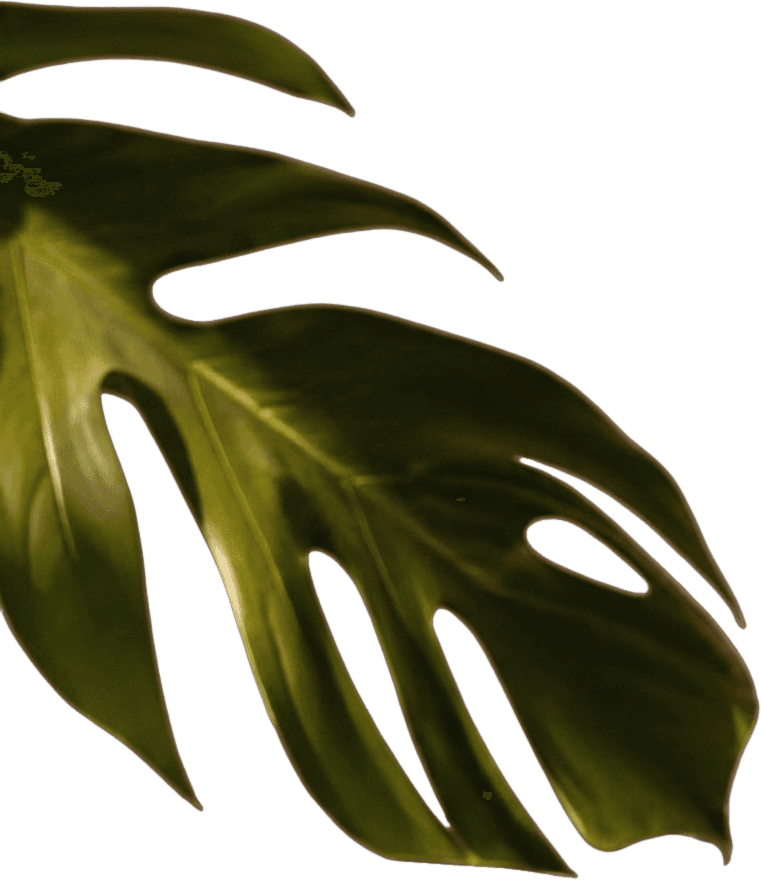
Layer 9 — Monstera leaf
The large split-leaf plant on the left, including the negative space of its natural splits.
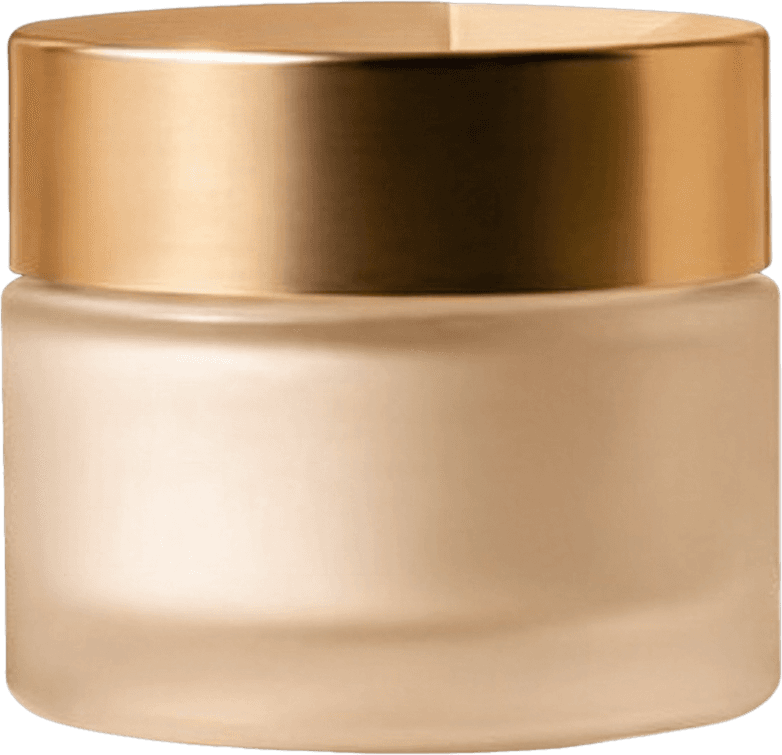
Layer 10 — Cream jar
The jar and its metallic lid, separated from the box directly behind it.
With a Prompt: "The Main Subject" Returned 4 Layers
We ran the same photo again, this time with the prompt "The main subject." It's a deliberately vague, generic prompt — the kind it's tempting to type when you just want "the important thing" out of a busy photo. Detailed Layers did not return one subject. It returned four:
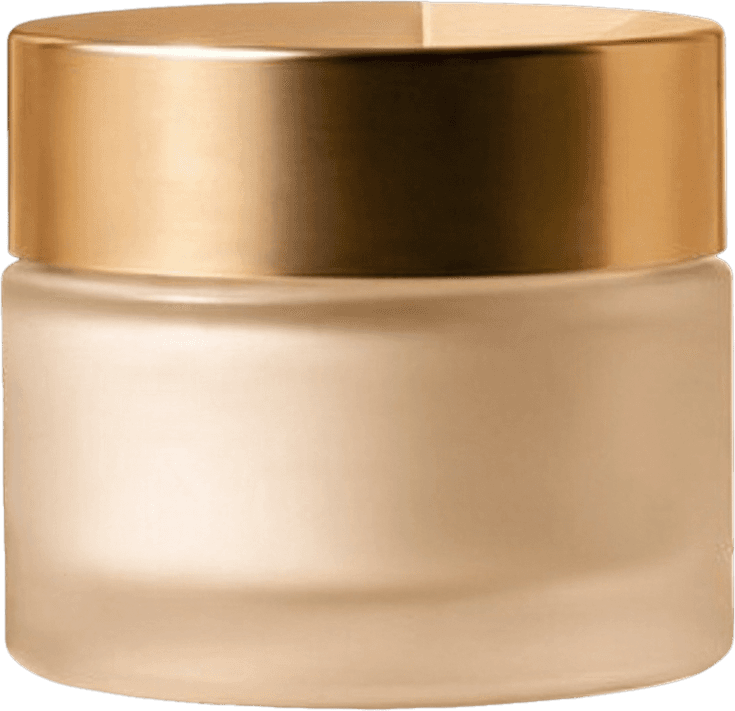
Result 1 — Cream jar
Treated as a candidate main subject on its own.
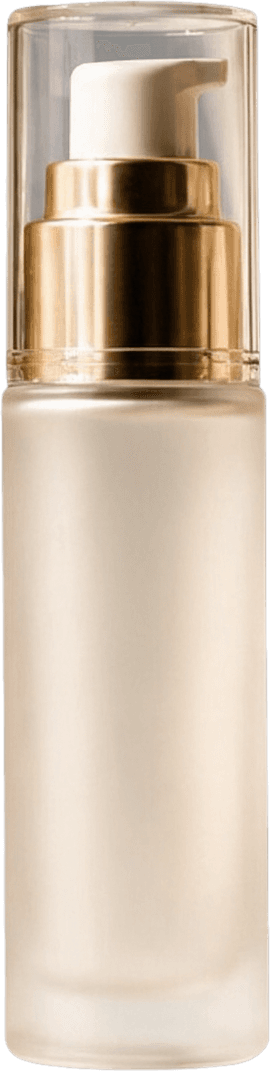
Result 2 — Serum bottle
Treated as a separate candidate main subject.
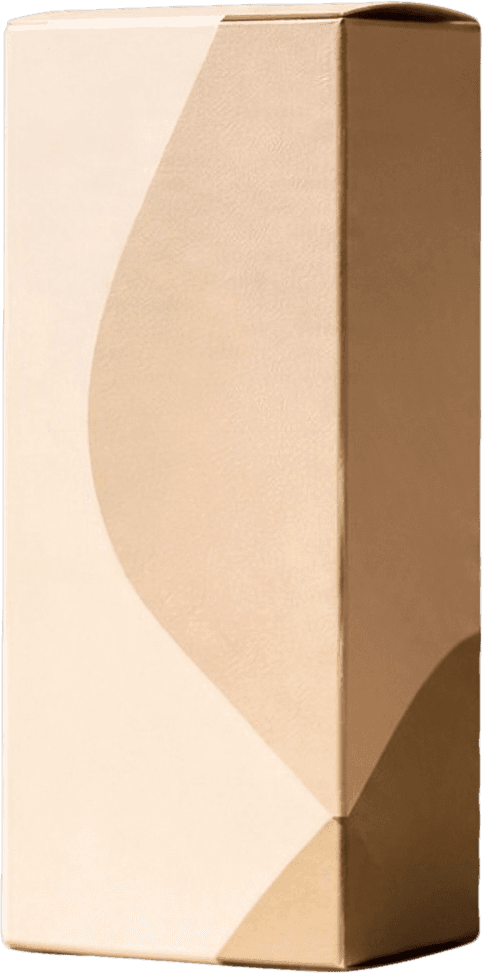
Result 3 — Gift box
Also treated as a candidate main subject.
Result 4 — Everything else
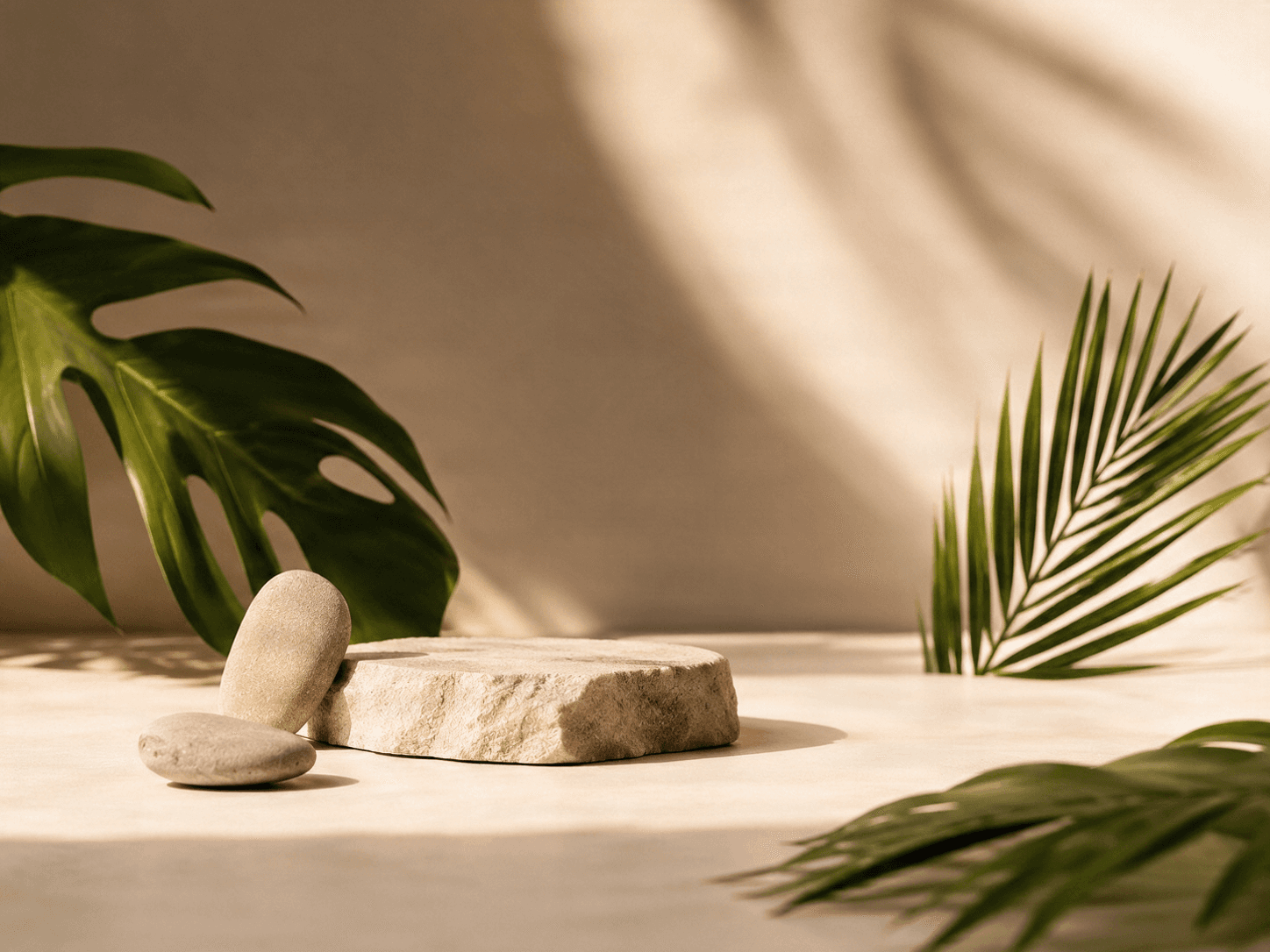
The pebbles, stone pedestal, and both leaves, combined into one remaining layer.
The takeaway: a vague prompt doesn't make Detailed Layers pick one thing for you — it still finds multiple plausible candidates and returns all of them, plus a catch-all layer for the rest of the scene. If you actually want a single specific layer, name the object directly, for example "the cream jar" or "the gift box," instead of a generic phrase like "the main subject."
Tips for Better Results
Leave the prompt blank for full decomposition
If you want every product, prop, and background element broken out into its own layer — like the 10-layer result above — don't type anything. Auto mode is the more thorough option.
Name the exact object, not a category
"The main subject," "the important item," and similar phrases are still ambiguous to the model. "The cream jar" or "the serum bottle" reliably targets one object.
Expect more layers than objects you can count at a glance
Overlapping or partially hidden items, like the two pebbles resting against each other, are still separated into individual layers rather than merged.
Review before you download everything
Auto mode is thorough, not selective — check the layer list and only keep the ones you actually need for your composition.
Step 1
Upload your image
Open Image to Layers and upload the photo you want to separate.
Step 2
Choose Detailed Layers
Select Detailed Layers in the Settings panel.
Step 3
Decide on a prompt
Leave the field blank to auto-detect every major element, or name one specific object to focus the result.
Step 4
Start the run
Review the credit cost, then start. Auto mode typically returns more layers than a targeted prompt.
Step 5
Review each layer
Check edges and grouping on every returned layer before downloading the ones you need.
Frequently Asked Questions About Detailed Layers
Does Detailed Layers always return 10 layers?
No. The layer count depends entirely on how many distinct visual elements the model finds in your image — our test photo happened to produce 10 with no prompt. A simpler photo with fewer objects will return fewer layers.
If I give a prompt, will I only get one layer back?
Not necessarily. As shown above, a vague prompt can still return several candidate layers plus a combined layer for everything else. Name the specific object you want if you need a single result.
Is the background layer editable, or just a cutout?
It's a reconstruction. Areas that were hidden behind objects in the original photo are filled in by the model, so you get a complete background layer rather than a background with holes in it.
Are the output layers transparent?
Yes. Every layer is delivered as a PNG with a transparent background, ready to drop into a composition or reassemble in an editor.
What's the difference between Detailed Layers and Core Layers?
Core Layers lets you choose a target layer count up front (Turbo, Standard, or Pro) for a general first-pass split. Detailed Layers auto-detects every element on its own and optionally lets you focus the result with a prompt, without setting a layer count.
Next step
Try Detailed Layers on Your Own Photo
Upload an image and see exactly how many layers Detailed Layers finds — with or without a prompt.
Ask AI about this page
Continue exploring this page with your preferred AI assistant.