
How I Use Qwen Image Layered Control to Extract Specific Layers
I tested Qwen Image Layered Control on one flattened coastal travel poster to see how precisely it could extract a person, object, text block, decoration, and background using short text descriptions. This guide shows the exact prompts I used, what worked, what failed, and how I refined the results.
Click or drag image to upload
Upload your image
JPG, PNG, WebP up to 10MB · Drag & drop anywhere
Need hair, face, eyes, mouth, clothing, or body-part layers?
Settings
Describe the one element to extract in English, for example "the woman in the red dress" or "the logo text".
New to Targeted Layer?
This article walks through the full workflow, prompt formulas, and real extraction examples below.
Upload an Image to Continue
Private File Handling
Uploaded files are associated with your account and delivered through signed URLs. You can delete completed jobs manually.
Transparent PNG Output
Returns the one described element as an isolated layer on a transparent background.
On this page
Before You Start
Prepare an image containing a clearly visible element you want to isolate. Targeted Layer works especially well with marketing posters, product advertisements, social designs, editorial graphics, invitations, presentations, and other flattened design assets.
For this tutorial, we use one coastal travel poster containing a woman, suitcase, headline, floral wreath, and seaside background.

Complete Workflow
Step 1: Upload Your Image
Open Image to Layers. Click the upload area in the center of the workspace, or drag your image onto it. Wait until the image appears in the editor.
Use the highest-quality version available. Clear edges and readable details usually produce better layers than small or heavily compressed images.
Step 2: Select Targeted Layer
Open the Settings panel on the right and select Targeted Layer. A field named Layer description will appear.
Targeted Layer creates one requested layer per run. Repeat the process when you need additional elements.
Step 3: Describe the Element You Want to Keep
Enter a short English description in the Layer description field. Describe what you want to keep, not what you want to remove.
For the tutorial person, enter: A woman wearing a cream dress and a light blue scarf
Write Prompts Like This
Targeted Layer works best when the prompt names one visible layer to preserve. Use a distinctive detail, position, or relationship only when it helps identify that target.
A clear pale blue sky, soft white clouds, and a calm blue seaWhy
Describes one clear visual layer to keep.
Blue sky, white clouds, the sea, and a white terraceWhy
For this poster, it combines several depth regions and comes close to describing the whole scene. It is not universally invalid, but its scope is too broad here.
An empty white terrace with blue sky, clouds, and the sea, with no people, no luggage, and no animalsWhy
Describes how to edit the image instead of naming the visible layer to extract.
Describe what you want to keep—not what you want to remove.
Use this rule as soon as you write the description
Recommended
A teal suitcaseAvoid
Remove everything except the suitcase[visual element] + [distinctive detail] + [position or relationship when needed]A woman wearing a cream dress and a light blue scarfA teal suitcaseText "COASTAL ESCAPE"A pink and white floral wreathA clear pale blue sky, soft white clouds, and a calm blue seaStep 4: Start the Extraction
Review the current settings and the credit cost shown in the panel. When the description is ready, start the extraction.
Processing time can vary with image complexity.
Step 5: Review the Result
Check that the requested content is present, unrelated content is excluded, important edges are usable, and the result matches the original appearance and placement.
Download a successful result, then repeat the workflow for the next element.
Four checks before downloading
- The correct person, object, text, decoration, or background is visible.
- Unrelated nearby content is excluded.
- Hair, clothing, letters, leaves, corners, and other important edges are usable.
- The extracted layer retains the original appearance, proportions, and placement.
Five Examples from One Poster
Each example requests one coherent visual layer. The descriptions are short enough to understand and specific enough to identify the target.
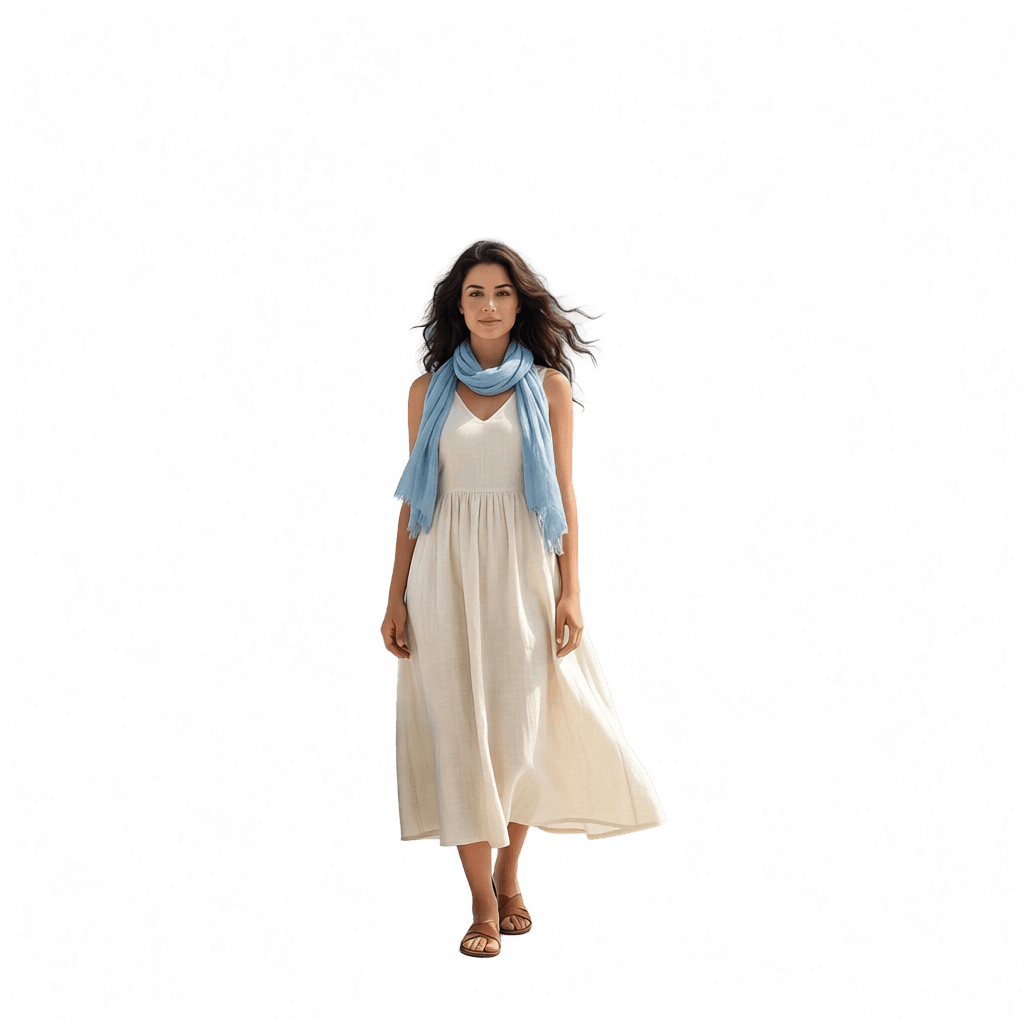
Extract a Person
Recommended
A woman wearing a cream dress and a light blue scarfWhy
The subject type and clothing colors help identify the complete person more precisely than a generic prompt such as “A woman.”
The complete woman is isolated as an independent layer.
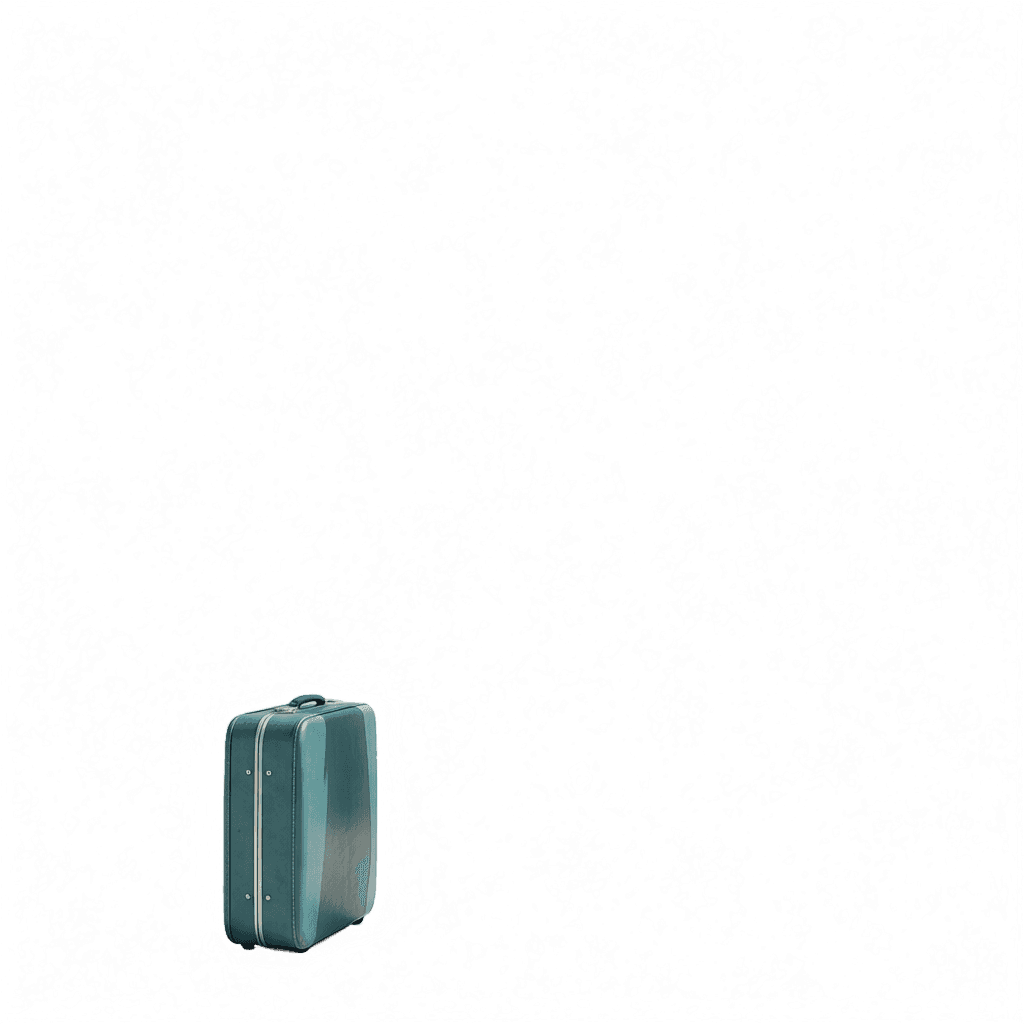
Extract an Object
Recommended
A teal suitcaseWhy
Because the poster contains only one suitcase, a short description is enough. If several similar objects appear, add a position or relationship.
A secondary object can be extracted even when it is not the main subject.

Extract Text
Recommended
Text "COASTAL ESCAPE"Why
Use the exact visible wording when an image contains several text blocks. This helps distinguish the headline from the subtitle and badge.
Use the exact visible wording to target one text block.
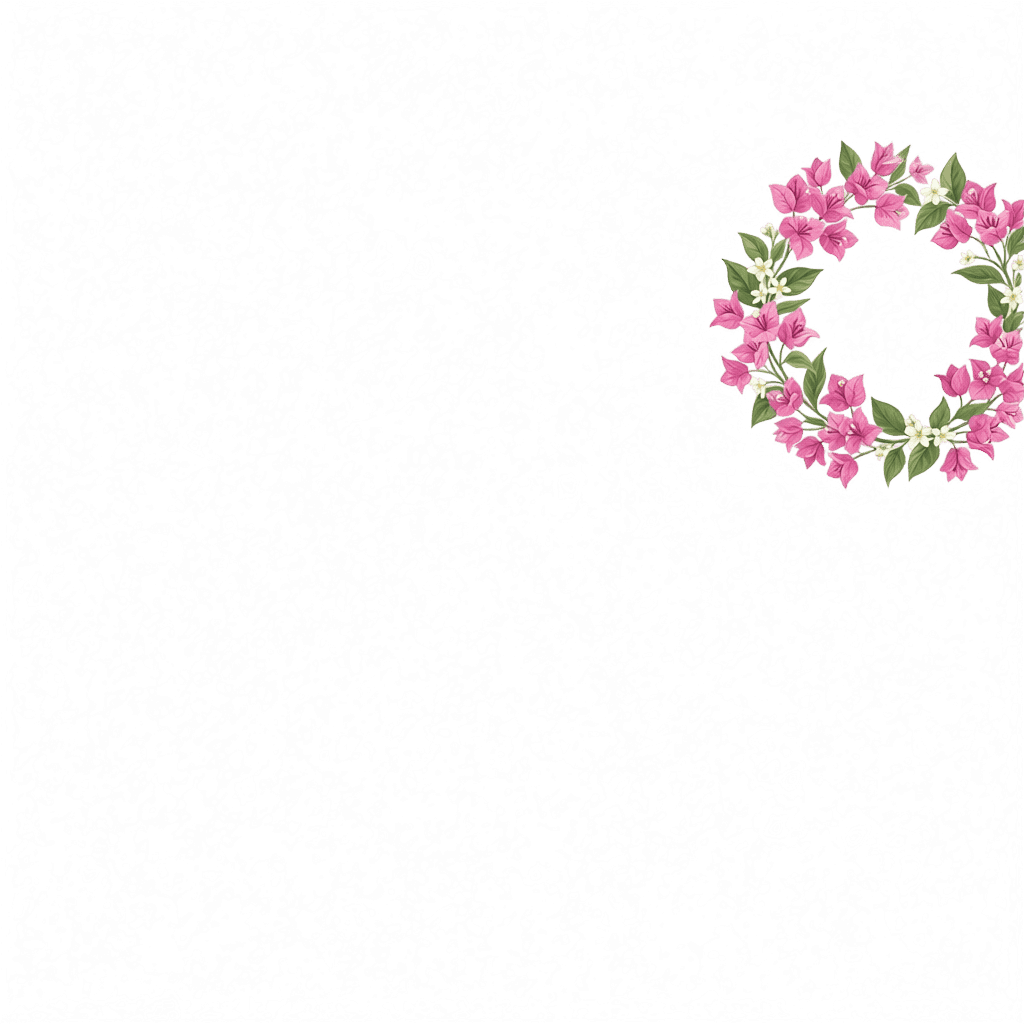
Extract a Decorative Element
Recommended
A pink and white floral wreathWhy
A concise visual description can preserve detailed flowers, leaves, stems, and transparent gaps without including nearby text or graphics.
Detailed decorations can become reusable transparent design assets.
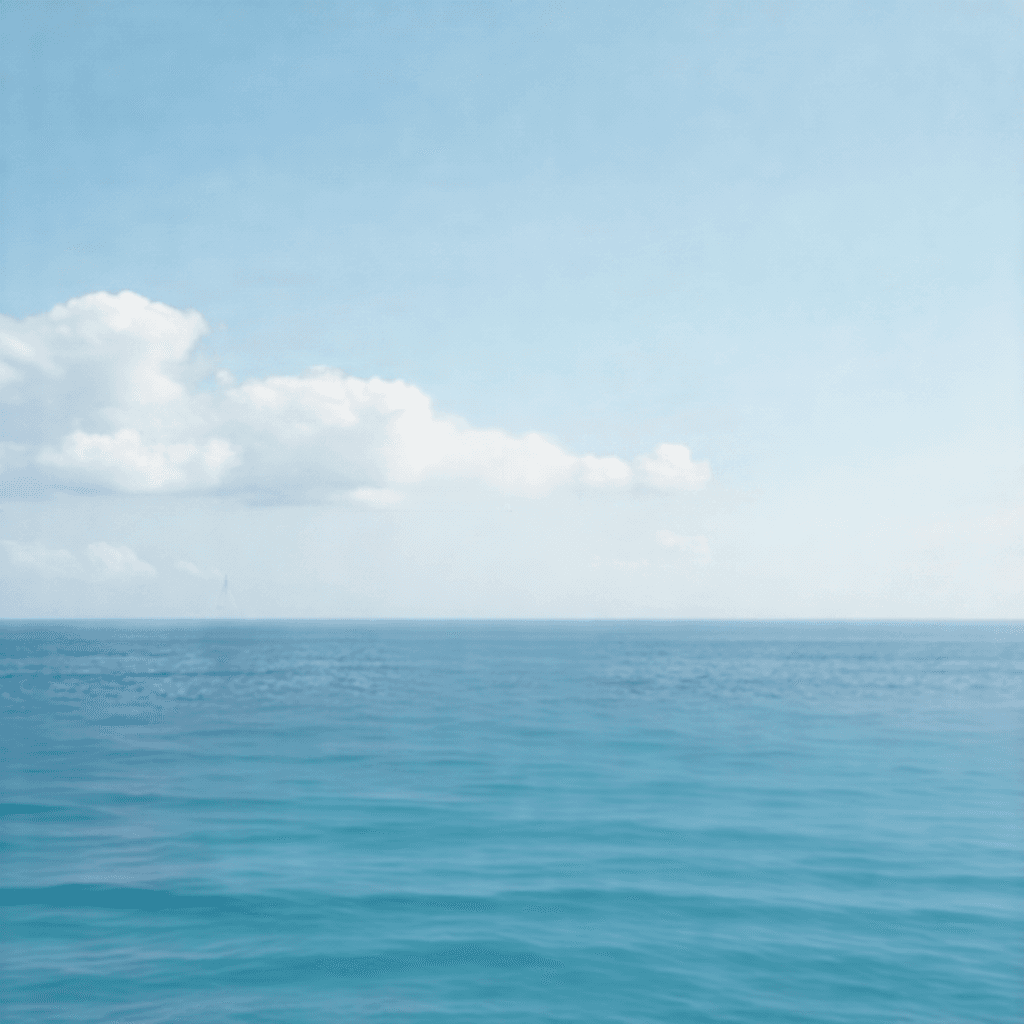
Extract a Background
Recommended
A clear pale blue sky, soft white clouds, and a calm blue seaWhy
Describe one coherent visible environment. Avoid describing the entire scene or turning the prompt into a long list of objects to remove.
A focused positive description produces a clean coastal environment layer.
How to Improve a Result
If the first result misses your target, refine the description gradually instead of immediately writing a long paragraph.
A teal suitcaseA vintage teal suitcaseThe teal suitcase in the lower-left areaThe teal suitcase beside the womanTwo similar objects are mixed
Use position and size to identify one, such as “The larger seagull flying in the upper-left area.” To keep both, describe them as one group: “The two flying seagulls.”
The full original image is returned
Your description is probably too broad. Replace “The coastal travel scene” with one coherent region such as “A pale blue sky with soft white clouds.”
Part of a person is missing
Make the complete boundary explicit: “The full woman wearing a cream dress and a light blue scarf.”
The wrong text is extracted
Use exact visible wording in quotation marks, such as Text “SUMMER” or Text “COASTAL ESCAPE.”
A background layer is fully opaque
This can be normal. A background environment may cover the complete canvas. Judge whether the requested environment remains and foreground elements are excluded, not only whether transparency exists.
Why Background Prompt Wording Matters
These three runs use the same poster. The first two descriptions covered too much of the composition, while the focused positive description defined one coherent environment layer.

Too broad
Blue sky, white clouds, the sea, and a white terraceWhy
Including the terrace expanded the target across most of the composition, so foreground subjects remained.

Removal instructions
An empty white terrace with blue sky, clouds, and the sea, with no people, no luggage, and no animalsWhy
Listing exclusions still describes an editing operation instead of one visible layer to keep.
Focused positive description
A clear pale blue sky, soft white clouds, and a calm blue seaWhy
This describes one coherent environment and produces the usable sky-and-sea background result.
A background layer may be fully opaque because it covers the complete canvas. That is normal when the requested environment is correct and foreground content is excluded.
Four Prompt Problems to Recognize
These are different problems, so the fix should match the reason—not a generic “wrong prompt” label.
The scope is too broad
The coastal travel sceneWhy
This points to almost the complete image.
Recommended
A pale blue sky with soft white cloudsThe prompt describes what to delete
Remove the woman, suitcase, cat, flowers, and textWhy
This is an editing command, not a description of the target layer.
Recommended
A clear pale blue sky, soft white clouds, and a calm blue seaThe target is too vague
The objectWhy
The prompt does not identify which visible object should be kept.
Recommended
The teal suitcaseThe prompt combines unrelated elements
The woman, headline, suitcase, flowers, and backgroundWhy
Targeted Layer should extract one element or one semantically coherent group per run.
Recommended
A woman wearing a cream dress and a light blue scarfA teal suitcaseText "COASTAL ESCAPE"A pink and white floral wreathTargeted Layer vs. Detailed Layers
Use Targeted Layer when
- You know exactly which element you need.
- You want one target per run.
- You need a specific person, object, text block, decoration, or background.
- An automatically generated layer contains mixed content.
- You want direct control over the extraction.
I know exactly what I need → Targeted Layer
Use Detailed Layers when
- You want the image divided into several visual groups automatically.
- You want to choose an initial layer count.
- You are exploring the structure of an image.
- You do not yet know which elements should become separate layers.
I want the system to suggest several layers → Detailed Layers
Recommended Workflow for a Complete Poster
- 1.Upload the original image.
- 2.Select Targeted Layer.
- 3.Extract the main person.
- 4.Extract important products or objects.
- 5.Extract reusable text.
- 6.Extract decorative graphics.
- 7.Extract the visible background.
- 8.Review each result.
- 9.Download the successful layers.
Each run creates one controlled visual layer.
Final Prompt Checklist
- Describes what should remain.
- Refers to one visual element or coherent region.
- Is written in English.
- Uses exact wording for text.
- Adds color, position, or context only when helpful.
- Does not contain a long removal list.
- Does not combine unrelated elements.
- Is clear and easy to understand.
Quick Prompt Examples
| Goal | Enter this |
|---|---|
| Extract a person | A woman wearing a cream dress and a light blue scarf |
| Extract an object | A teal suitcase |
| Extract text | Text "COASTAL ESCAPE" |
| Extract a decoration | A pink and white floral wreath |
| Extract a background | A clear pale blue sky, soft white clouds, and a calm blue sea |
| Extract one bird | The larger seagull flying in the upper-left area |
| Extract both birds | The two flying seagulls |
| Extract badge text | Text "SUMMER" |
Important: Targeted Layer Is Not Character to Layers
These tools use different workflows and models. Targeted Layer extracts one focused visible layer; it does not create rig-ready character layers.
Targeted Layer
Use it for one person, object, text block, decoration, or background region.
Use Targeted LayerImage to Layers
Use it for a general scene or composition that should be decomposed into broad visual groups.
Use Image to LayersCharacter to Layers
Use it for complete character artwork that needs to be separated into editable character regions for further editing or animation preparation.
Use Character to LayersChanging the prompt or layer count inside Targeted Layer does not switch the request to the character splitter model.
Targeted Layer FAQ
Does Targeted Layer create multiple layers at once?
No. Targeted Layer creates one described layer per run. Repeat the process for every element you want to extract.
Should I describe what I want removed?
No. Describe only the visible content you want to keep.
Can I extract text?
Yes. Use the exact visible wording inside quotation marks, for example: Text “COASTAL ESCAPE.”
Can I extract a background?
Yes. Describe the visible environment directly, such as a clear pale blue sky, soft white clouds, and a calm blue sea.
Why did the full image appear in the result?
Your description may cover too much of the original composition. Narrow it to one object, text block, decoration, or coherent environment region.
Do prompts need to be long?
No. Start with a short, clear description. Add position or identifying details only when needed.
Can I extract two related objects together?
Yes. Describe both as one group, such as “The woman and the teal suitcase.” They will be treated as one requested layer.
Next step
Try Targeted Layer
Describe one visual element at a time for the clearest result.
Ask AI about this page
Continue exploring this page with your preferred AI assistant.