
Pro AI Photo Editor
Advanced AI Image EditingHave an image that's almost right? Upload your photo, describe exactly what you want to change, and use advanced AI editing to refine the details. Replace objects, update outfits, change backgrounds, or create new visuals using your own reference images.
Pro Edit Studio
Advanced EditingCreate a new image or refine an existing one with detailed instructions and reference images.
Image
OptionalAdd Image
Click or drag one source image here to start editing.
PNG, JPG, JPEG, or WEBP. The upload card is the primary starting point.
Enter a clear edit instruction. Cmd/Ctrl + Enter runs when ready.
0/5000Advanced
Create Result
Add a prompt before running.
Change the Mood, Keep the Scene
Drag to compare
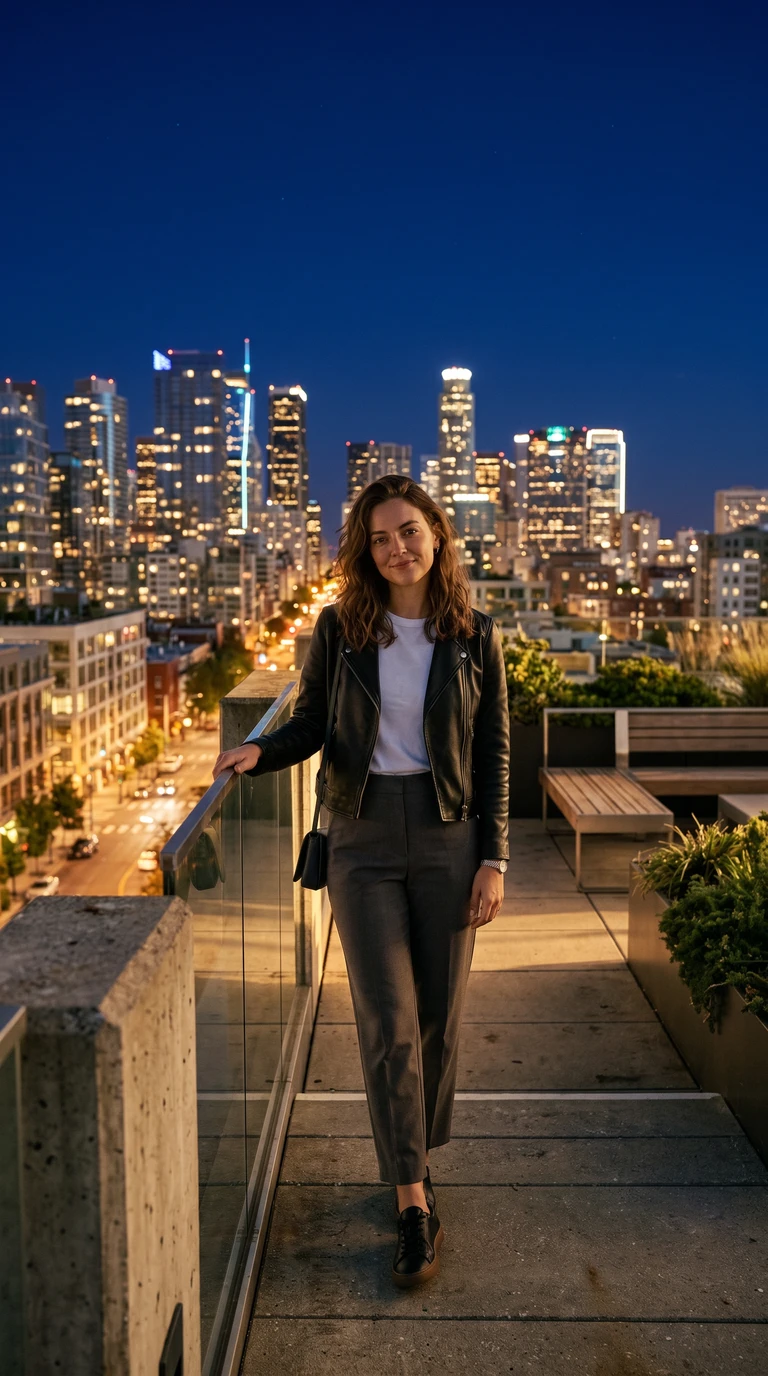
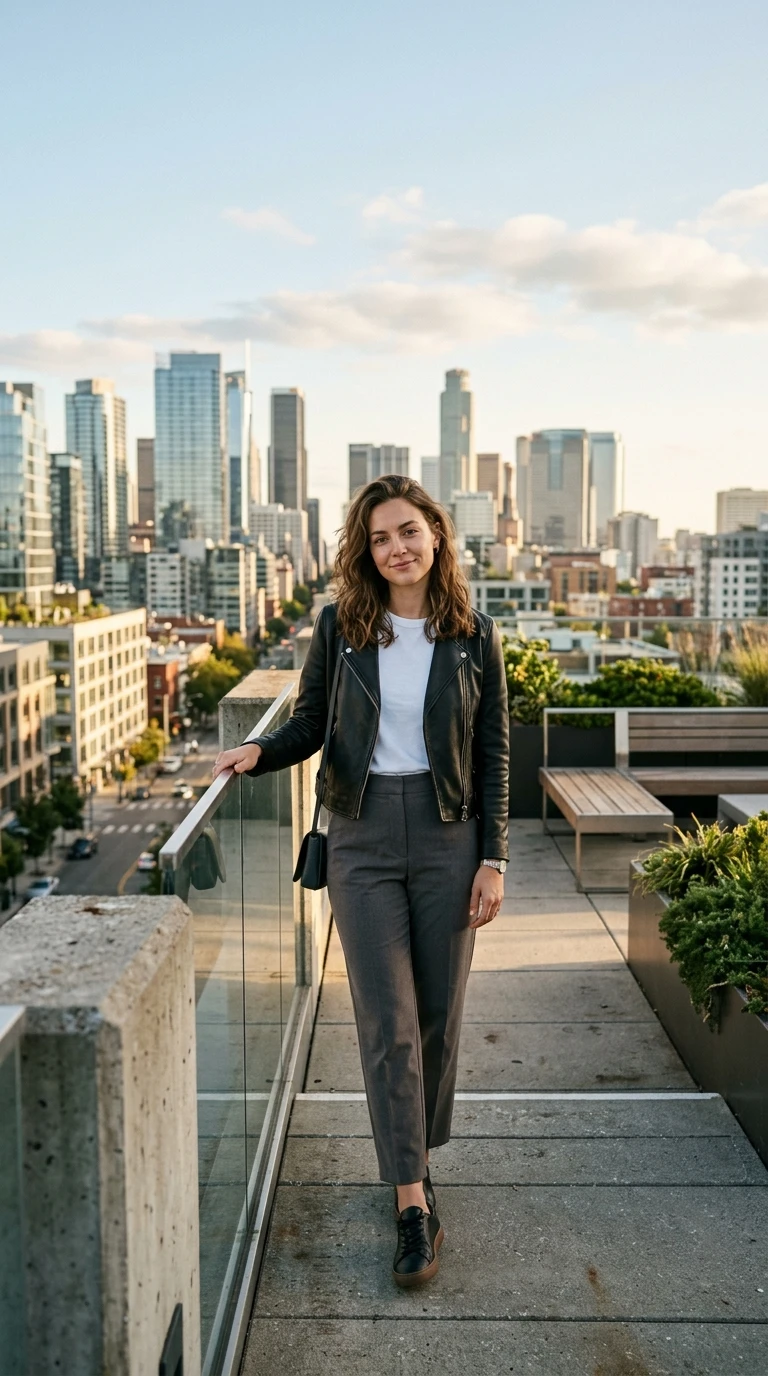
Editing Instruction
“Turn this scene into nighttime.”
Recent Sessions
Studio capabilities
Reference images (up to 10) guide composition and style. Mask-guided editing isn't available for this model — use a source image edit or Send Revision instead.
When Your Image Is Almost Right, You Don't Need to Start Over.
You already have a photo you like.
Maybe the person looks great, but the background is distracting. Maybe your product photo needs better lighting. Or perhaps an advertisement needs a different outfit, object, or headline.
Starting from scratch isn't always the answer.
Pro AI Photo Editor helps you work with what you already have. Tell AI what should change, explain what should stay, and review a new version of your image.
You can also start with a prompt when you want to create something new.
Get the Image You Want in Four Steps
Describe the change, add references if you have them, and refine until it fits.
Upload a Photo or Start With a Prompt
Choose an existing image to edit, or begin with a description of something you want to create.
Describe the Change
Tell AI what to remove, replace, update, or improve. Mention important details you want to keep recognizable.
Add References and Choose Your Settings
Use reference images when you have a specific product, outfit, or visual direction in mind. Choose your preferred aspect ratio and quality.
Review, Refine, and Download
Compare the result, send another instruction if needed, and download the image when you're satisfied.
Advanced Editing Without a Complicated Workflow
One studio for edits, new images, and follow-up changes.
Edit an Existing Photo
Change individual visual elements or update the overall appearance of an image using plain-language instructions.
Create Images From Text
Start with a written description to explore new product scenes, marketing visuals, creative concepts, and other ideas.
Guide Edits With Reference Images
Provide visual examples of clothing, products, colors, compositions, or styles to help communicate what you want.
Refine Portraits and Outfits
Update clothing, backgrounds, or presentation details while asking AI to maintain the person's recognizable appearance.
Rework Product Visuals
Change product surroundings, lighting, supporting objects, or compositions for listings, campaigns, and creative testing.
Create Multiple Variations
Generate different results from one request and compare them before choosing a direction.
Make Follow-Up Adjustments
Use a previous result as the starting point for another edit instead of rebuilding your entire request.
What Do You Want to Make Better?
Improve a Product Photo
Turn an ordinary product photo into a more polished visual for a listing, presentation, or marketing campaign.
- 1.Upload your product photo.
- 2.Describe the background, lighting, or composition you want.
- 3.Add a visual reference if you have one.
- 4.Generate and review the new image.
Change an Outfit
Explore a different outfit or presentation style without organizing another photo session.
- 1.Upload your portrait.
- 2.Describe the new outfit.
- 3.Add a clothing reference if needed.
- 4.Review the result for changes to the person and pose.
Replace a Background
Give an existing photo a more suitable setting for your website, profile, or creative project.
- 1.Upload your image.
- 2.Describe the new environment.
- 3.Include the lighting and mood you want.
- 4.Compare the original and edited versions.
Update a Marketing Design
Try different text, objects, and visual directions for advertisements, banners, or promotional materials.
- 1.Upload the existing design.
- 2.Describe the element you want to replace or update.
- 3.Specify the layout or visual details to preserve.
- 4.Review the generated design for accuracy.
Create a New Visual From Scratch
Generate a creative concept when you don't have a source image yet.
- 1.Describe your idea in the prompt field.
- 2.Add reference images if useful.
- 3.Select an aspect ratio and quality.
- 4.Generate and refine your preferred result.
Continue Into Image to Layers
Move beyond a flat image by sending your finished result into Image to Layers for further separation and editing.
- 1.Create or edit your image.
- 2.Review the final result.
- 3.Open the full job result.
- 4.Continue with Image to Layers.
Quick Edits or More Detailed Creative Control?
Start with Quick Edit for simple changes and fast previews, or choose Pro Edit when you need more detailed instructions, reference images, and additional variations.
| Quick Edit | Pro Edit | |
|---|---|---|
| Best for | Simple everyday changes | Detailed editing and creative work |
| Start from an image | Yes | Yes |
| Prompt-based edits | Yes | Yes |
| Reference images | Not available | Up to 10 |
| Generate from text alone | Not in the current Quick Edit workflow | Yes |
| Follow-up edits | Limited | Supported |
| Multiple results | Limited | Up to 4 |
| Brush-mask editing | Available | Not currently available |
| Pricing | Daily free preview | Uses credits |
Choose Pro Edit when you need more ways to guide an image, not simply a quick preview.
Edit the Images You Actually Need
Product Sellers: Make Product Images More Presentable
Update backgrounds, adjust lighting, and test different visual settings for ecommerce product images. Use your product references to guide the appearance, then review labels and packaging before publishing.
Marketers: Create New Campaign Visuals
Explore different compositions, seasonal styles, and creative directions for advertisements, landing pages, and social content.
Content Creators: Make More From Your Existing Photos
Change outfits, backgrounds, or scene styles to create new visual ideas from photos you already have.
Designers: Explore Ideas Before Final Production
Use generated variations to test creative directions, layouts, colors, and visual concepts without starting every experiment from a blank canvas.
Small Businesses: Create Visuals for Everyday Needs
Prepare images for websites, presentations, announcements, product listings, and other business content.
Online Educators: Improve Images for Lessons
Create supporting visuals, illustrations, diagrams, and presentation images. Verify factual and textual details before sharing them with students.
Spend Less Time Starting Over
A quick edit can help you explore an idea.
But if you have a specific result in mind, you may need to explain more details, provide references, or make another revision.
Pro Edit gives you a workflow for those projects.
Start with the image you like. Describe what needs to change. Use visual references when words alone aren't enough. Then review another version without losing sight of the original goal.
More ways to guide the image. Fewer reasons to begin from scratch.
Tell AI What to Change — and What to Keep.
The more specific your request, the easier it is to evaluate whether the result matches your idea. A useful prompt includes three things:
What to change
The object, background, clothing, colors, text, or other element you want to update.
What to preserve
The important appearance, composition, lighting, product geometry, or other details you don't want changed.
What the result should look like
The overall style, mood, framing, or visual outcome you're aiming for.
Instructions help guide the model, but exact preservation cannot be guaranteed.
AI Editing Gives You More Possibilities, Not Perfect Control.
Fine Details May Change
Small accessories, textures, facial details, and product features can change during generation.
Text May Need Review
Headlines, product labels, logos, and fine typography may contain mistakes or distortions.
Identity Preservation Is Not Guaranteed
You can instruct AI to maintain a person's appearance, but generative edits can still alter facial features or proportions.
Revisions Can Introduce New Changes
A follow-up prompt may change details beyond the specific area you intended to refine.
Brush-Mask Editing Is Not Available Here Yet
This Pro workflow uses prompts and reference images rather than precise native mask inputs. Use Quick Edit for its existing brush-selection workflow.
Output Size Depends on the Model
Choose from the quality options provided in the editor. Exact image dimensions depend on the selected aspect ratio and the generation model.
Pro AI Photo Editor FAQ
What is Pro AI Photo Editor?
What is the difference between Quick Edit and Pro Edit?
Do I need an image to get started?
Can I change only one part of a photo?
Can I keep the original face when changing an outfit?
Can I replace the background of a photo?
Can I edit product photos?
Can I use reference images?
How many images can I generate at once?
How many credits does Pro Edit cost?
Can I change the image quality?
Does Pro Edit support 4K images?
Can I edit text inside an image?
Can I make multiple revisions to an image?
Does Pro Edit support precise mask editing?
Can I download my edited image?
Can I turn my edited image into layers?
Can I use the generated images for commercial projects?
Get Closer to the Image You Have in Mind.
Bring your photo, describe the change, and use Pro AI Photo Editor to create your next version. Whether you're updating a portrait, refining a product image, or making new marketing visuals, start with your idea and keep improving it.
Upload an image or start with a prompt. Credits are shown before generation.
Explore More Ways to Edit Your Images
Creative Toolkit Index
Explore More AI Features
Quick access to precision layer extraction, AI photo editing & asset tools.