
Upscale Headshots and Portraits to 4K
Enlarge professional headshots, profile photos, and portraits while improving facial clarity and reducing visible pixelation.
Image Upscaler
Click to upload or drag & drop image
Supports JPG, PNG, WebP up to 10MB · Paste with Ctrl+V
Upscale Settings
Live 4K Preview
Recovers textures & clear edges
300 DPI ultra-HD export
Retention depends on your plan
✨ Auto-scanning demo: Showing real-time enhancement from low-res original to crisp 4K.
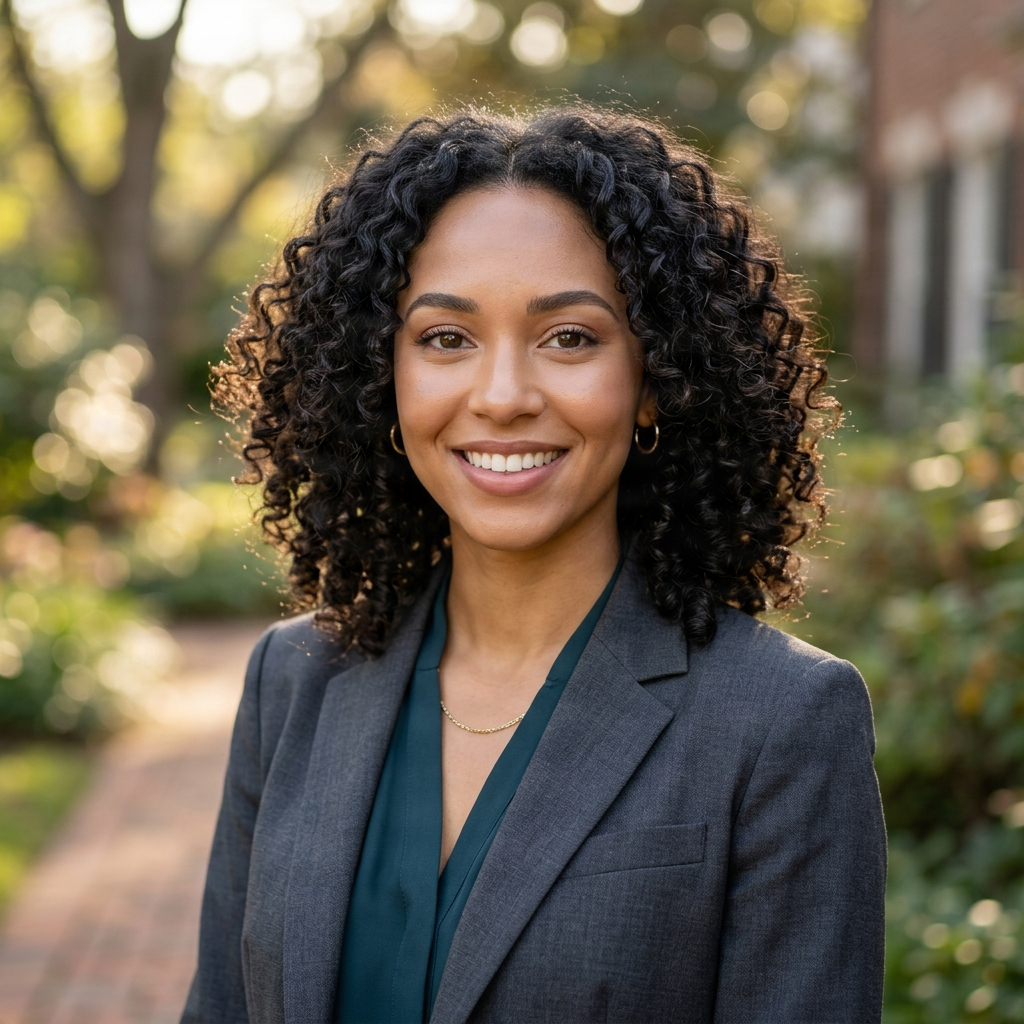
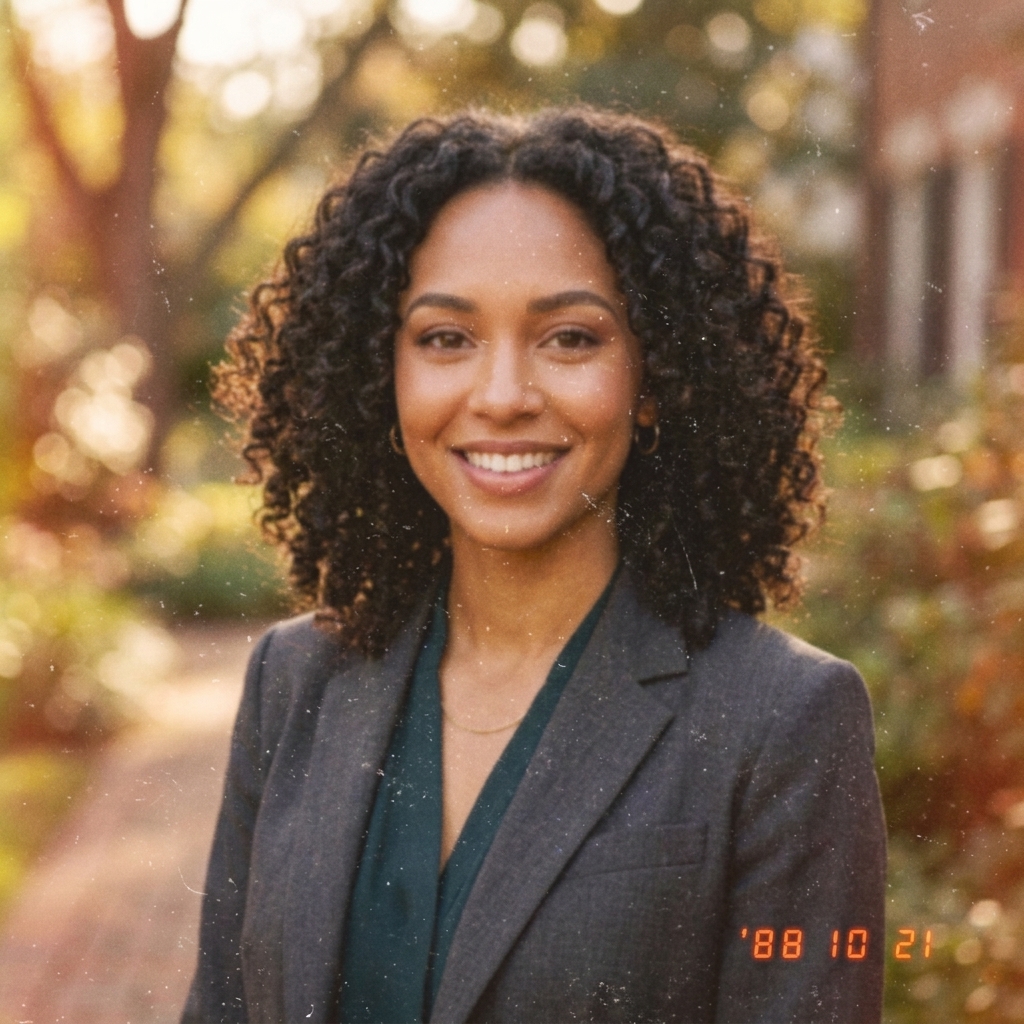
Workflow Steps:
- Step 1 · Upload Your Portrait
- Step 2 · Choose Face Enhance
- Step 3 · Select Upscale Size
Recent Sessions
Professional Headshot Enhancement
See how our Face Enhance model recovers lost facial details, refines textures, and sharpens eyes in a single click.
How to Upscale a Headshot
Upload a clear headshot or portrait photo.
Select Face Enhance as the image type.
Choose an enlargement level based on the displayed output dimensions.
Run the upscaler.
Compare facial features with the original before downloading.
Headshots for Different Uses
Professional Profiles
Prepare larger profile photos for company websites, portfolios, speaker pages, and professional networks.
Creator Profiles
Enlarge portraits for channel graphics, media kits, social profiles, and promotional content.
Team Photos
Improve the presentation size of employee portraits and consistent team directory images.
Older Digital Photos
Reduce visible pixelation in small portrait files while keeping the original available for comparison.
Face enhancement may reconstruct very small details. Always compare identity-defining features—including eyes, teeth, facial marks, jewelry, and hair—with the original image.
Frequently Asked Questions
Can I upscale a headshot to 4K?↓
Yes, if the selected scale produces an output with a width or height of at least 3840 pixels. The editor calculates the expected output dimensions from your uploaded image.
Will Face Enhance change the person’s appearance?↓
The model is intended to improve facial clarity, but small features may be reconstructed during processing. Review the result carefully when identity accuracy is important.
What type of source photo works best?↓
Use a reasonably clear portrait with the face visible and not heavily compressed. Better source images generally produce more consistent results.
Can it fix a completely blurred face?↓
It may improve the appearance of mild softness or pixelation, but it cannot reliably recover the person’s exact facial detail from a severely blurred image.
Create a Larger, Clearer Headshot
Upload your portrait, choose Face Enhance, and preview the expected output size before processing.
Upscale Your HeadshotCreative Toolkit Index
Explore More AI Features
Quick access to precision layer extraction, AI photo editing & asset tools.