
すべてのAI画像ツール一覧
ユーザー、検索エンジン、AIクローラー、AIエージェント向けに、ImageToLayersのツール、ワークフロー、ロングテール・エントリーページ、ガイド、APIを網羅した完全なインデックスです。
新しいビジュアルを創り出す
作成・生成
プロンプト、参考画像、または1枚の商品写真から、新しい画像の方向性を模索・作成します。
AI画像ジェネレーター
テキストプロンプトからオリジナルのビジュアルを生成します。
リファレンス画像ジェネレーター
商品やキャンペーン向けに、参考画像に基づいたバリエーションを作成します。
テキストから商品ビジュアルを作成
テキストの指示から、商品のコンセプトやマーチャンダイジング用のビジュアルを探索します。
広告用Text to Image
フック、レイアウト、キャンペーンテスト用の広告画像コンセプトをドラフトします。
AI動画ジェネレーター
プロンプトの指示から、短いモーションアセットを作成します。
MiniMax H3 動画ジェネレーター
専用のモーションモデルページから、短い動画コンセプトを素早く作成します。
AIキャラクターアニメーション生成ツール
キャラクター画像をアップロードするだけで、短編アニメーション動画を生成します。
AI動画リライティング
再撮影不要で、既存の動画のライティングを自由に変更できます。
AIリップシンク生成ツール
写真と音声をアップロードするだけで、口の動きが完璧に同期した動画を生成します。
AI動画高画質化ツール
低解像度の短い動画クリップを、より大きく鮮明な映像へとアップスケールします。
AI ビデオシーンインサーター
動画の一部を新しくAI生成したシーンに置き換え、元の映像へとシームレスにつなぎます。
AIトーキングアバター
1枚の写真とあなたの声から、まるで話しているようなプレゼンター動画を作成できます。
一貫性のあるAIトーキングアバター
同じキャラクターの参照を再利用して、異なる音声で新しいトーキング動画を作成できます。
AI商品広告ジェネレーター
ローンチ、商品登録、キャンペーンテスト用の商品広告画像を生成します。
AIスケッチジェネレーター
プロンプトや参考画像から、スケッチ風のビジュアルコンセプトを作成します。
AI Holiday Portrait Generator
Turn a photo into a festive holiday portrait with seasonal presets.
AI Vintage Style Generator
Give a photo the look of 90s flash, disposable, Polaroid, Y2K digicam, or classic film.
90s AI Photo Generator
Turn a photo into a 90s flash, disposable, yearbook, glamour, or mall snapshot.
AI Animal Generator
Generate realistic wildlife, pets, cartoon animals, and fantasy creatures from a prompt.
AI YouTubeサムネイルジェネレーター
動画、チャンネル、ソーシャルキャンペーン用のサムネイル構成案を作成します。
画像ジェネレーターテンプレート
一般的な画像生成ワークフロー向けに、用意されたプロンプトパターンから開始できます。
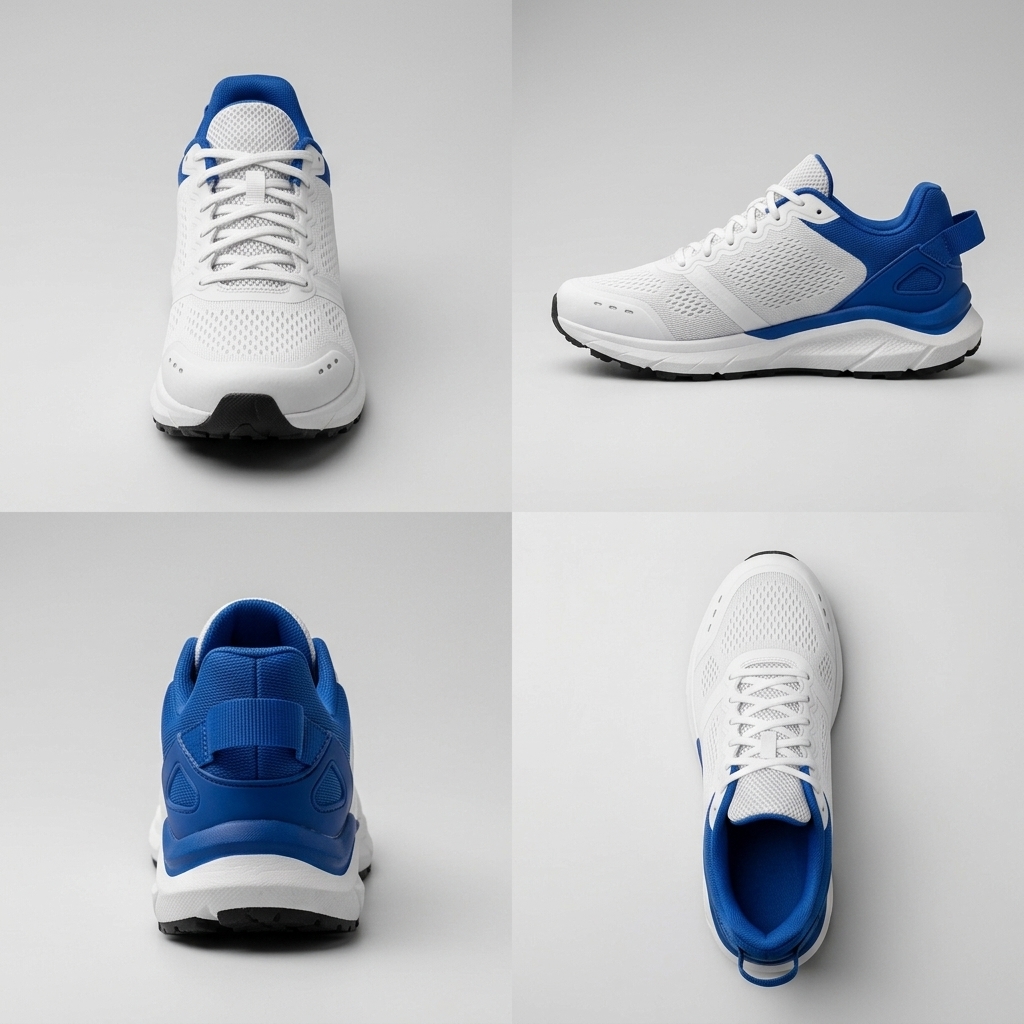
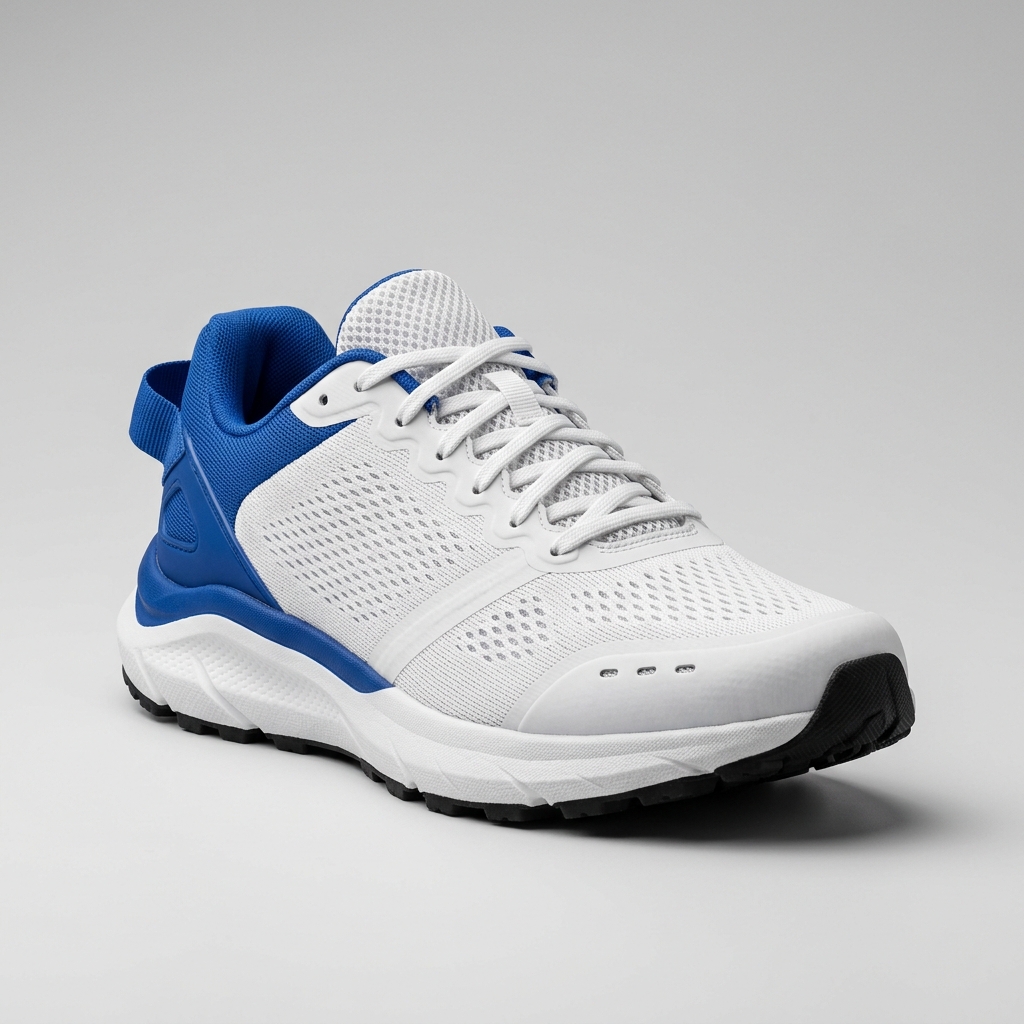
AIマルチアングル生成
1枚の写真から、一貫性のある正面、側面、背面のビューを生成します。
マルチビュー画像ジェネレーター
商品やオブジェクトのワークフロー向けに、1枚の元画像から一貫した複数のアングルを作成します。
商品360度ビュー表示ジェネレーター
360度商品プレゼンテーション用に、追加の商品アングルを作成します。
AIキャラクター三面図ジェネレーター
キャラクターの正面、側面、背面、および斜め(3/4)の参考ビューを生成します。
シューズアングルジェネレーター
1枚の靴の写真から、側面、かかと、上部、アウトソール、ギャラリー用のビューを作成します。
Amazon商品写真アングル生成
ECモールへの出品ワークフロー向けに、追加の商品アングルを生成します。
Shopify商品ビュー生成
Shopifyのカタログページ向けに、一貫性のある商品ビューを作成します。
家具アングルジェネレーター
部屋のシーン、カタログ、ビジュアライザー用の家具アングルを生成します。
EC商品アングルジェネレーター
EC用の商品画像を大規模かつ効率的に生成するための、追加アングルを作成します。
既存の画像を修正する
編集とクリーンアップ
ブラウザを離れることなく、コンテンツの変更、不要なものの削除、画質の向上、商品画像の微調整を行えます。
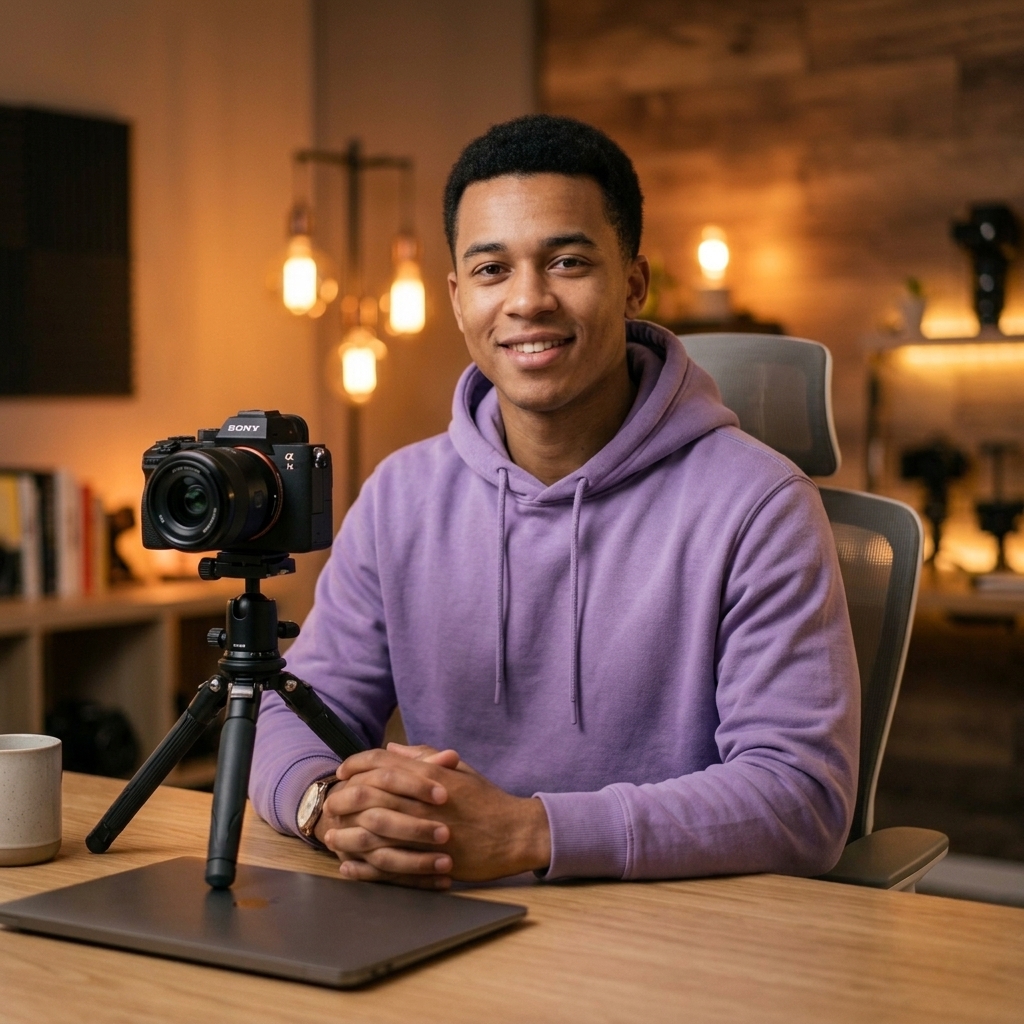
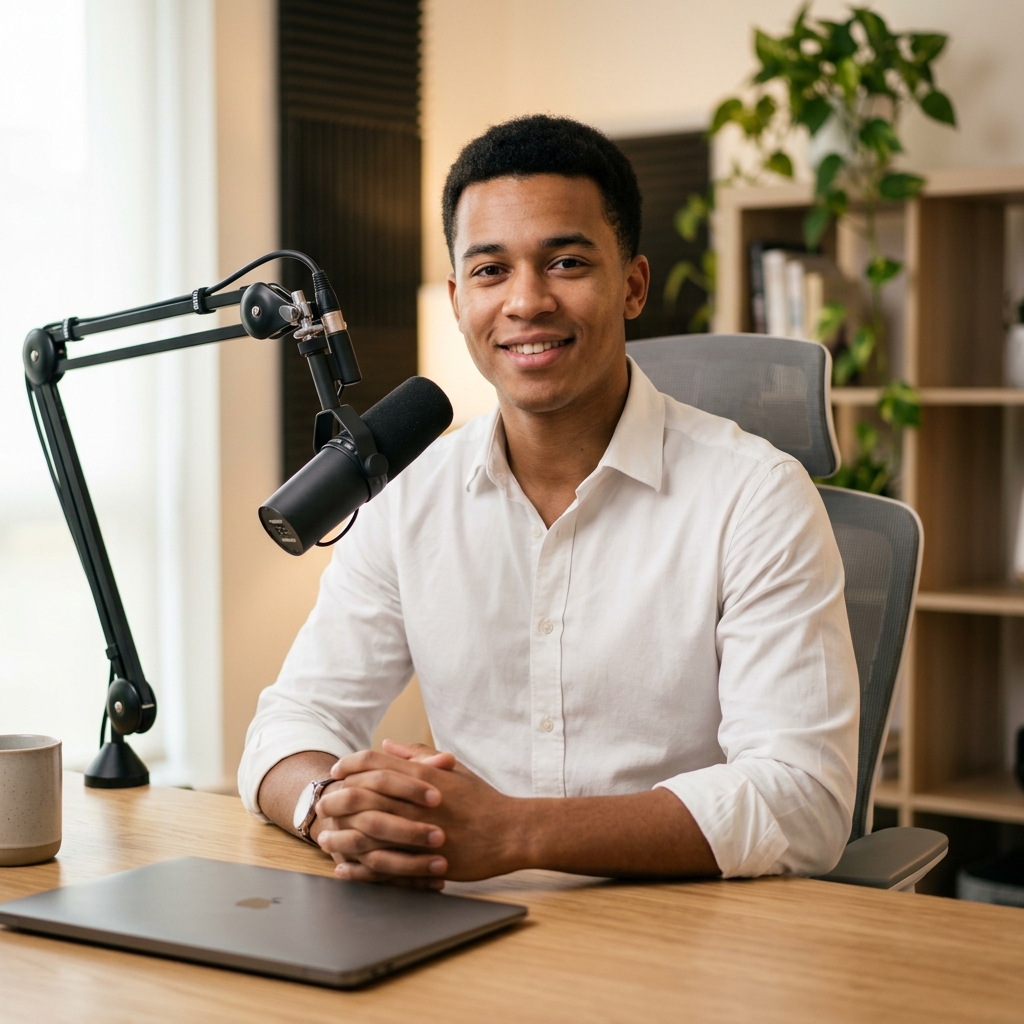
AI写真エディター
画像の編集、再生成、クリーンアップを1つのワークスペースで行えます。
画像内テキスト翻訳
ビジュアルデザインを維持したまま、ポスター、広告、商品グラフィック、メニュー、SNSクリエイティブ内のテキストをローカライズします。
テキスト豊富なインフォグラフィックジェネレーター
読みやすい生成テキストを含んだ、構造化された図、タイムライン、比較表、教育用ビジュアル、ビジネスグラフィックを作成します。
高精度商品ビジュアルエディター
ディテールが重視される画像生成や編集のために、高度な商品ビジュアルエディターを開きます。
高速プロンプト画像エディター
素早い画像生成やレイアウト修正のために、プロンプト主導の高速エディターを使用します。
高度な画像編集スタジオ
詳細な修正やバリエーション生成のために、プロンプト主導の画像編集ワークスペースを開きます。
高品質画像エディター
洗練された画像生成や修正ワークフローのために、高品質な編集エントリーを使用します。
画像内テキスト編集
ポスター、商品グラフィック、メニュー、SNSビジュアル内の読み取り可能なテキストを変更します。
商品写真エディター
商品のライティング調整、シーンの変更、キャンペーン用画像の準備を行います。
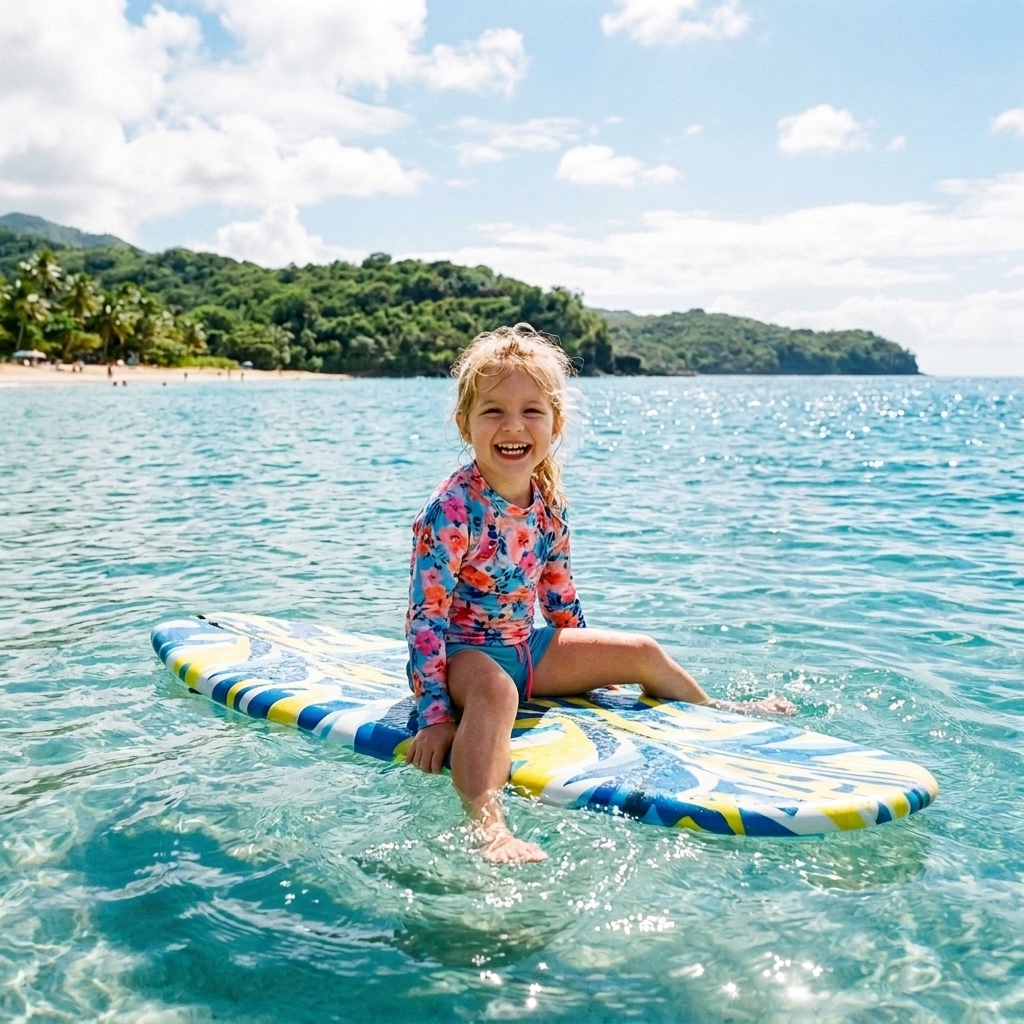
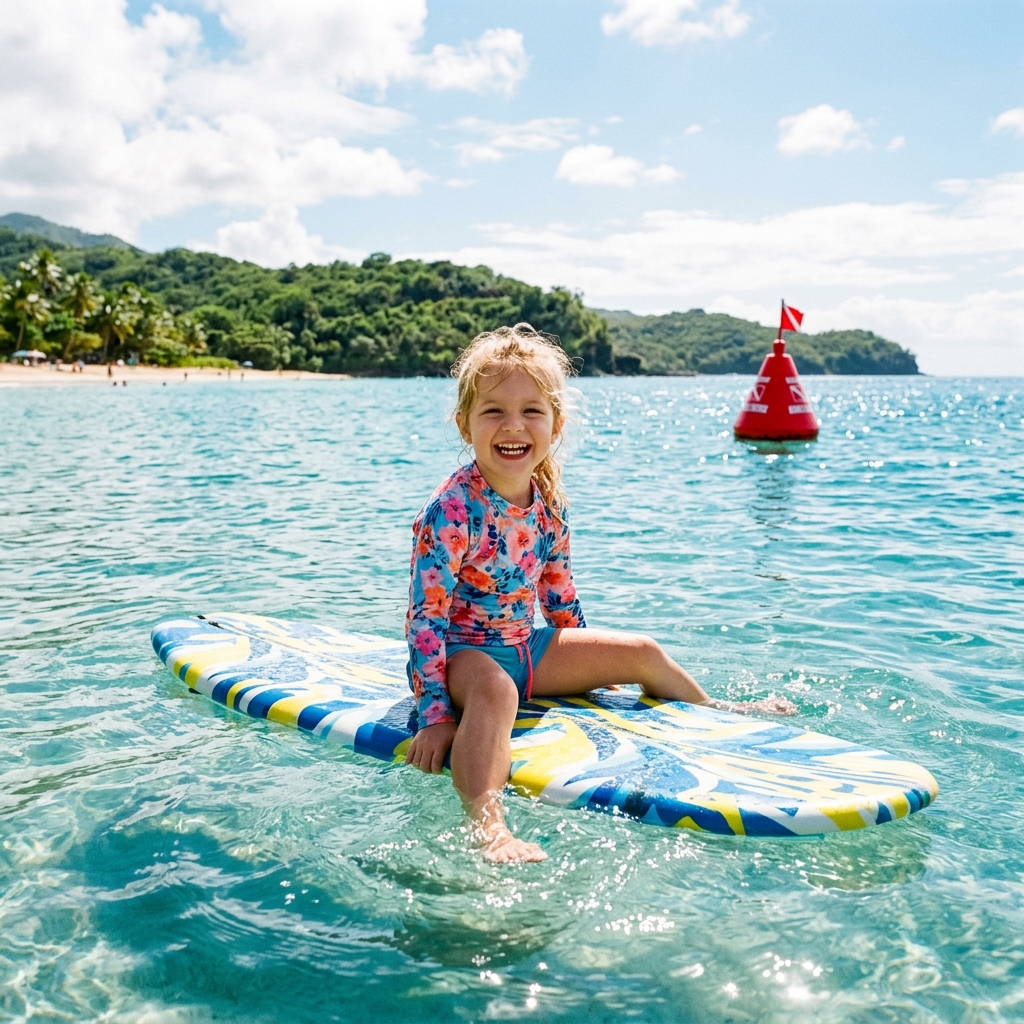
不要なオブジェクトの削除
人物、電線、映り込み、汚れ、不要なオブジェクトを削除します。
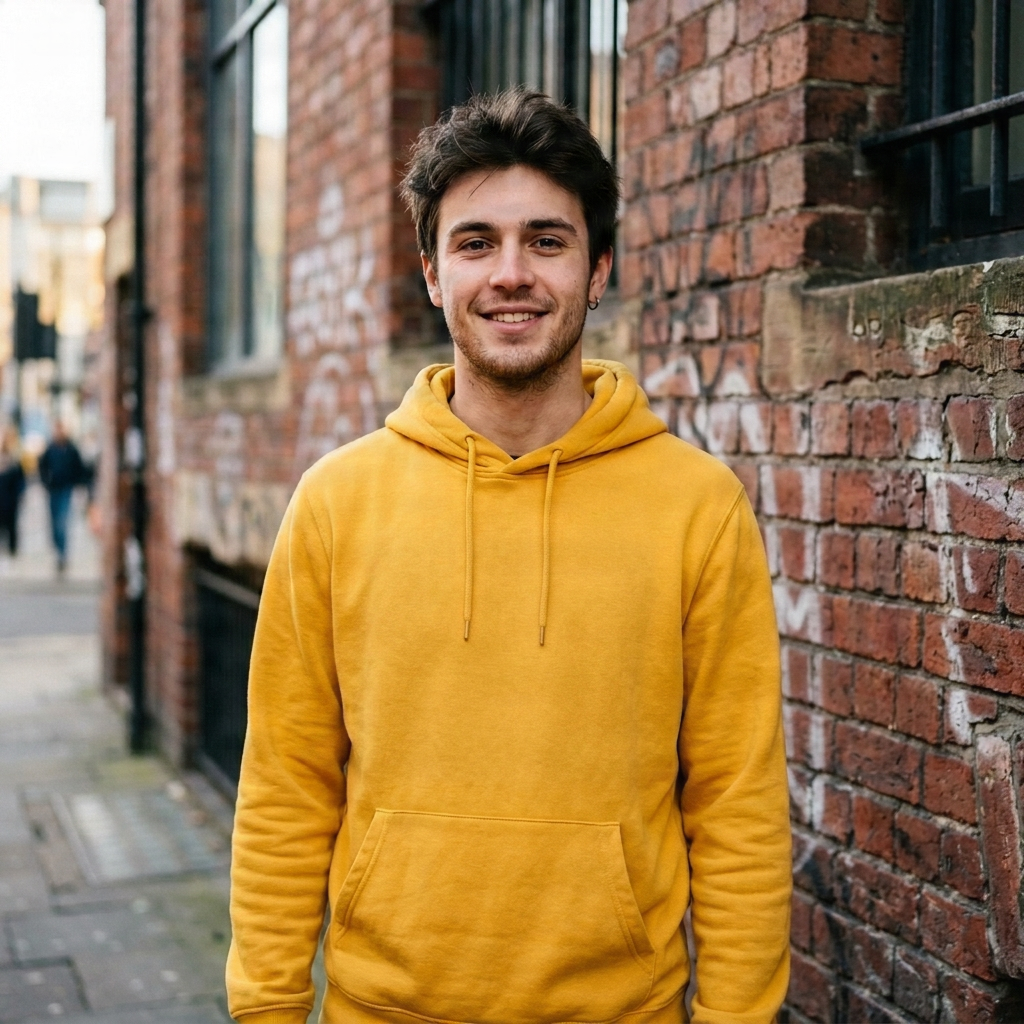
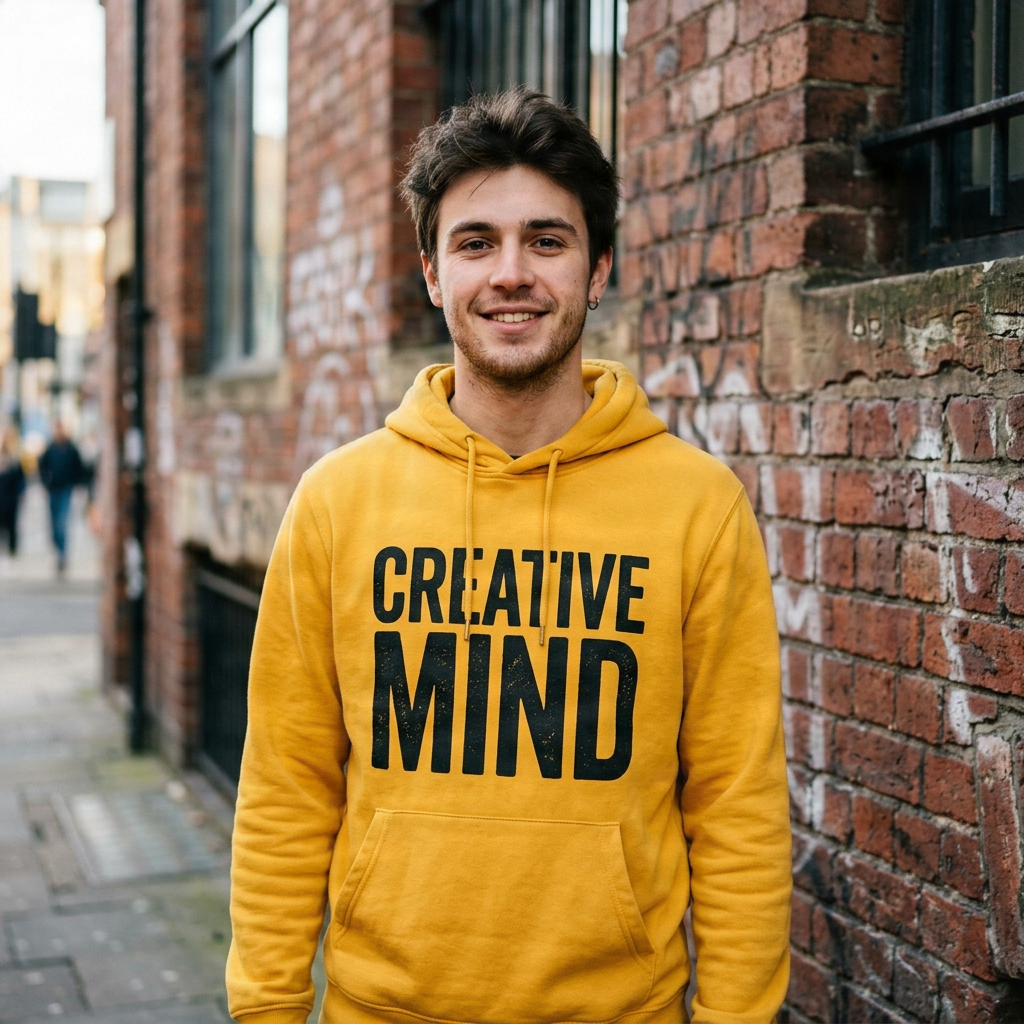
テキスト削除
隠れた背景を再構築しながら、重ねられたテキストを削除します。
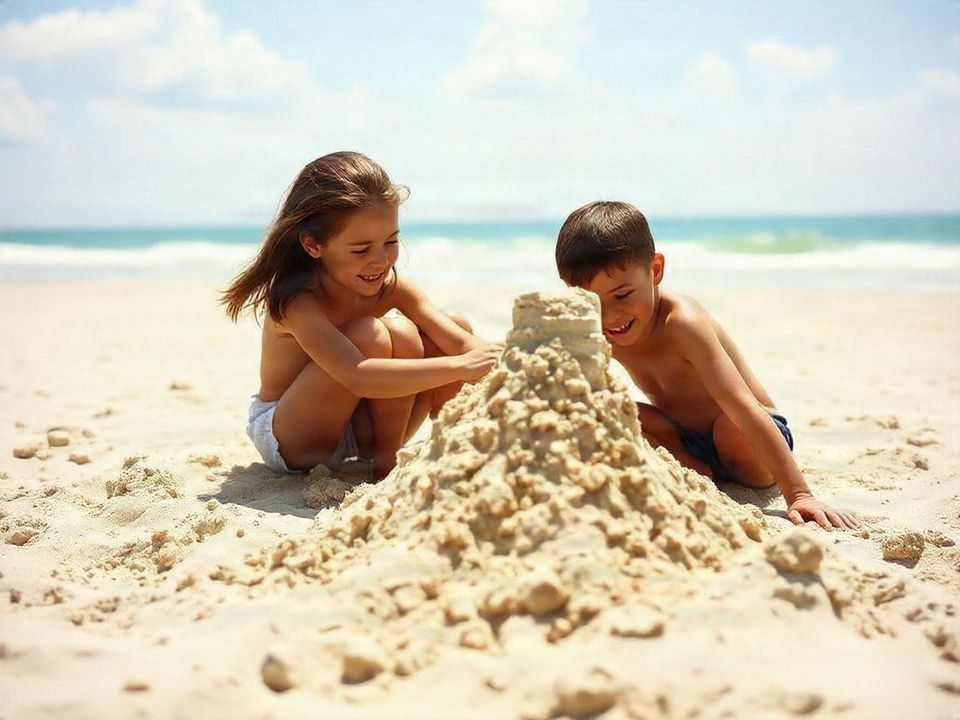
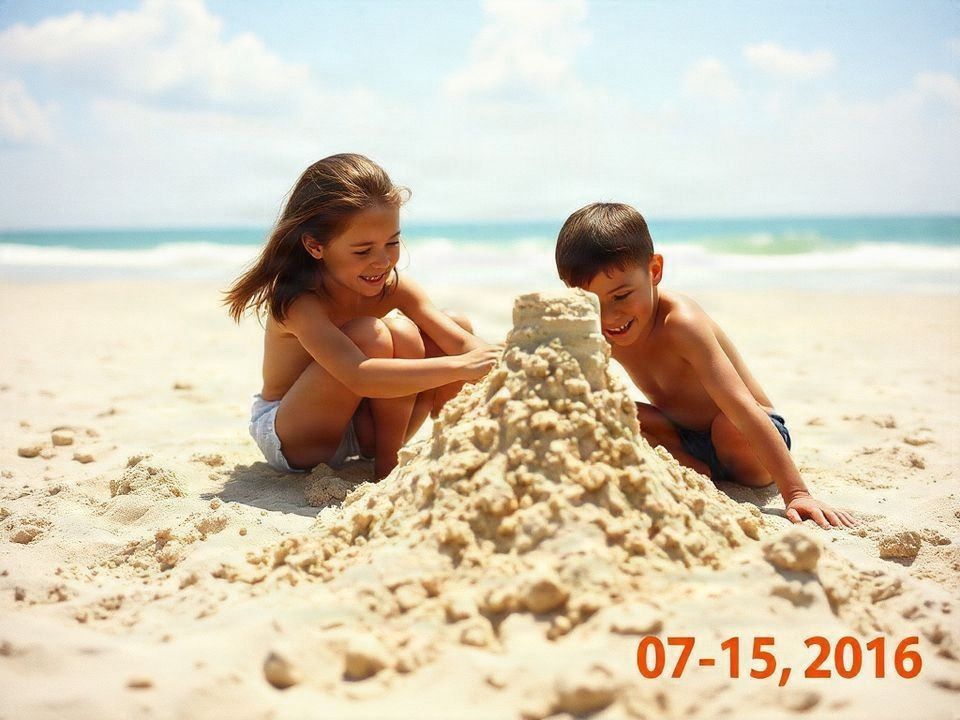
写真からテキストを削除
周囲の画像を維持したまま、通常の写真からテキストをきれいに削除します。
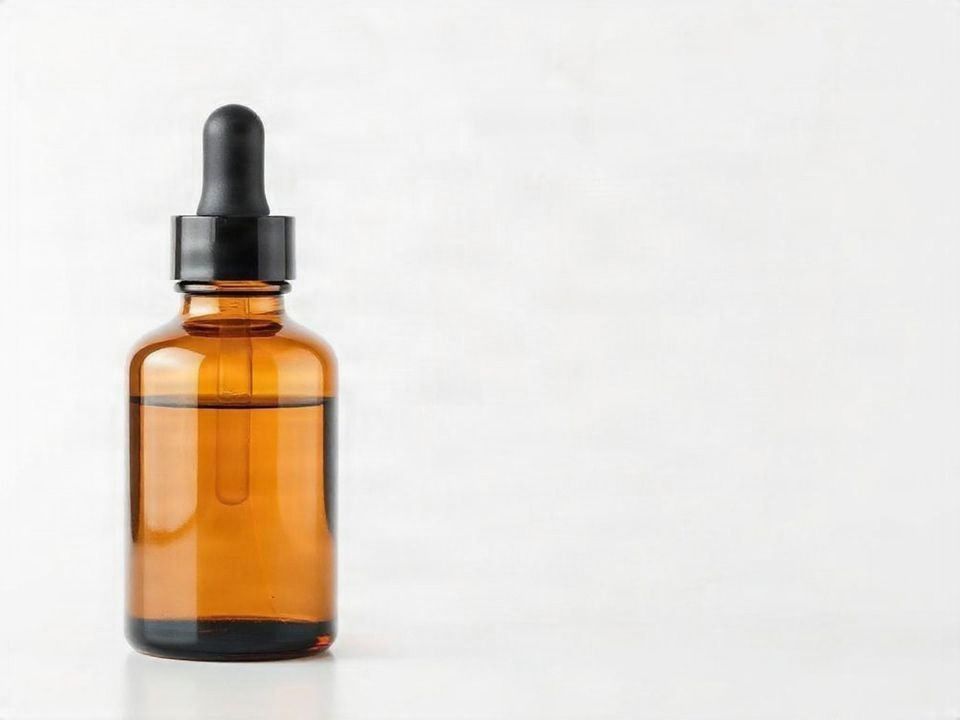
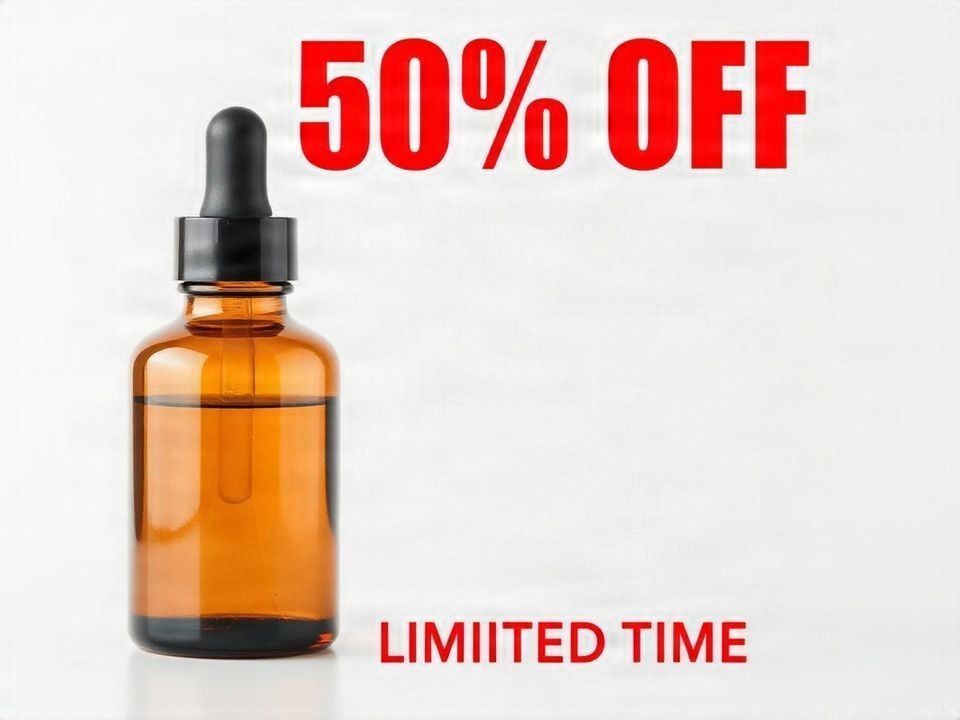
商品画像からテキストを削除
再利用のために、商品のラベル、オーバーレイ、出品用グラフィックをクリーンアップします。
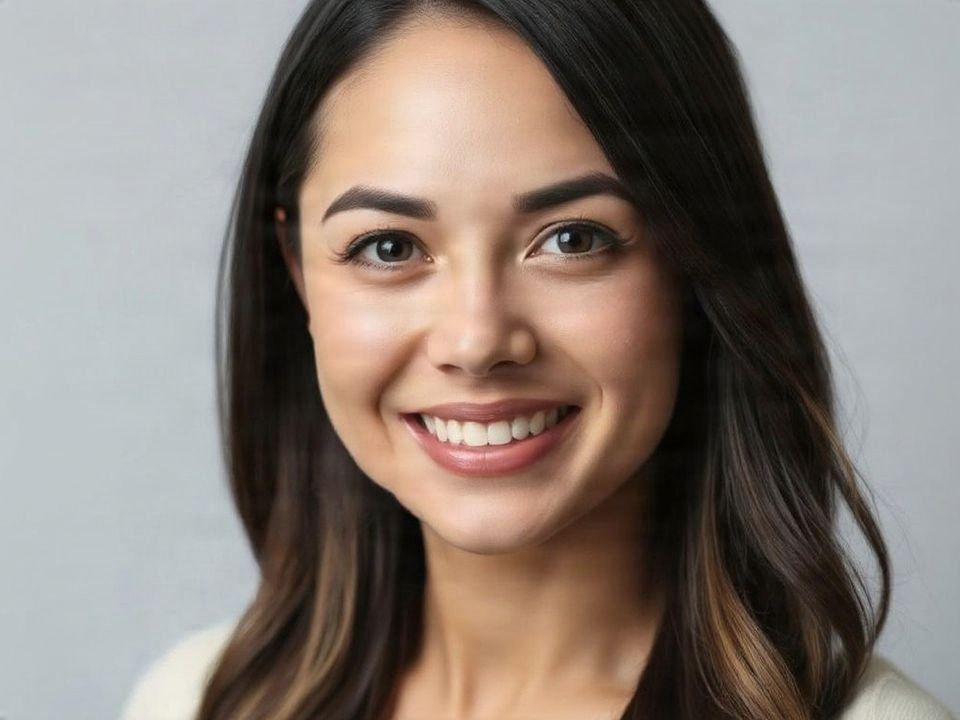
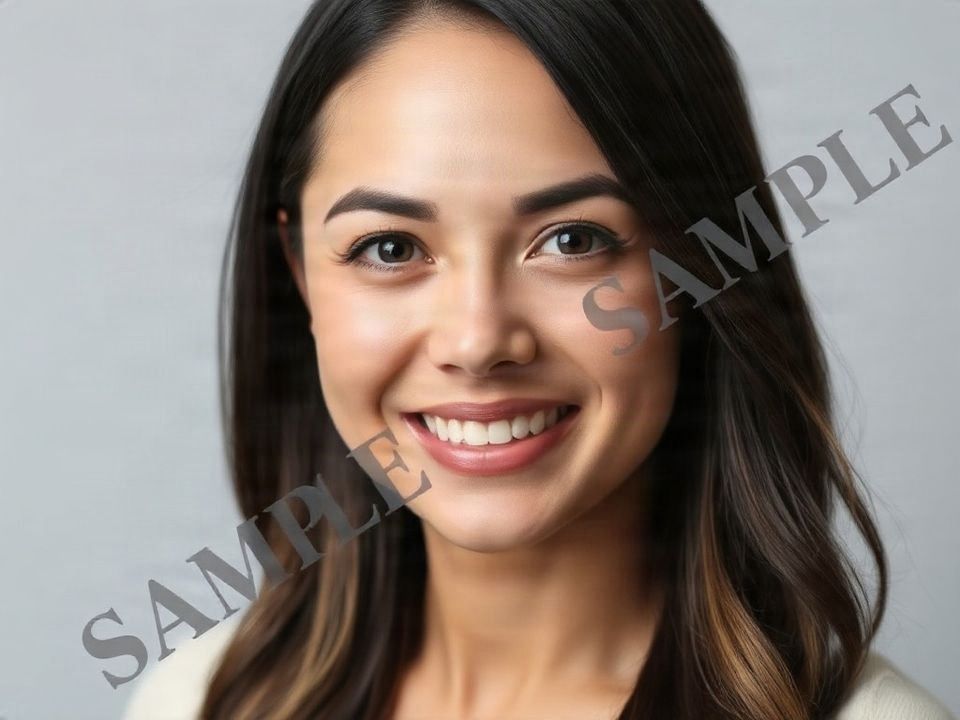
ウォーターマーク(透かし)削除
編集が許可されている画像から、目立つウォーターマークなどのオーバーレイを削除します。
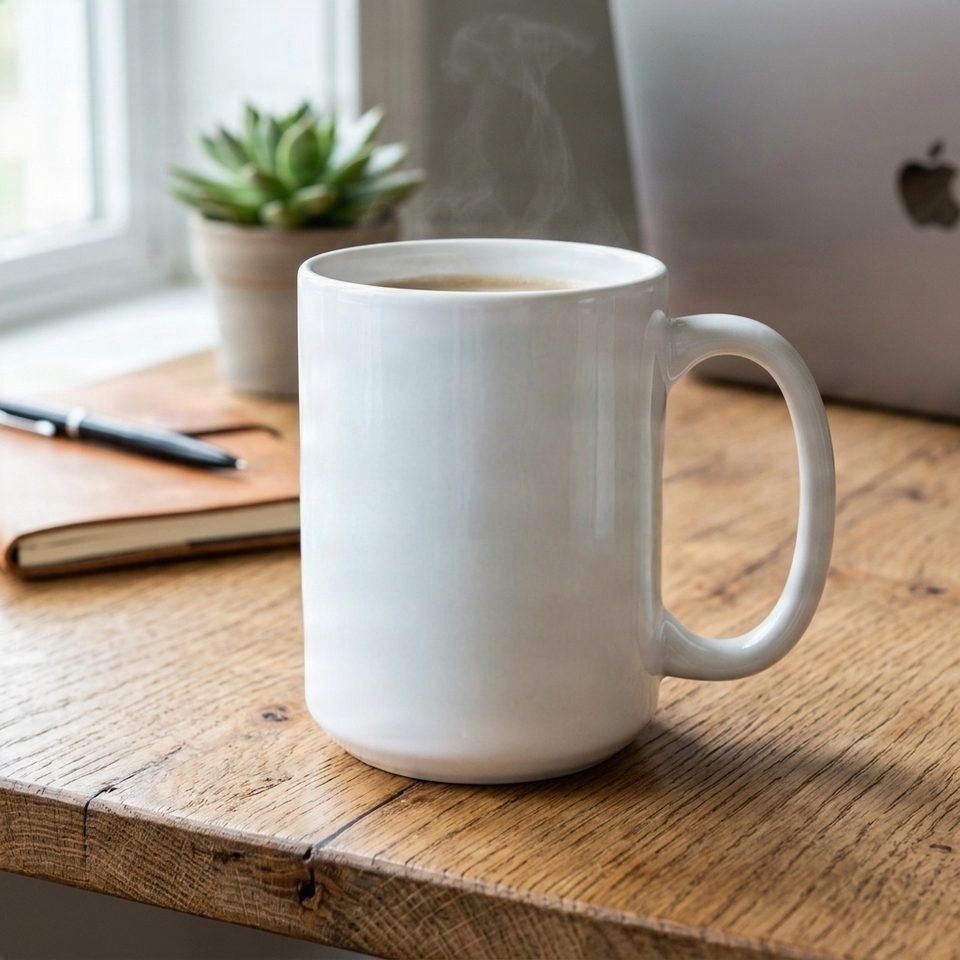
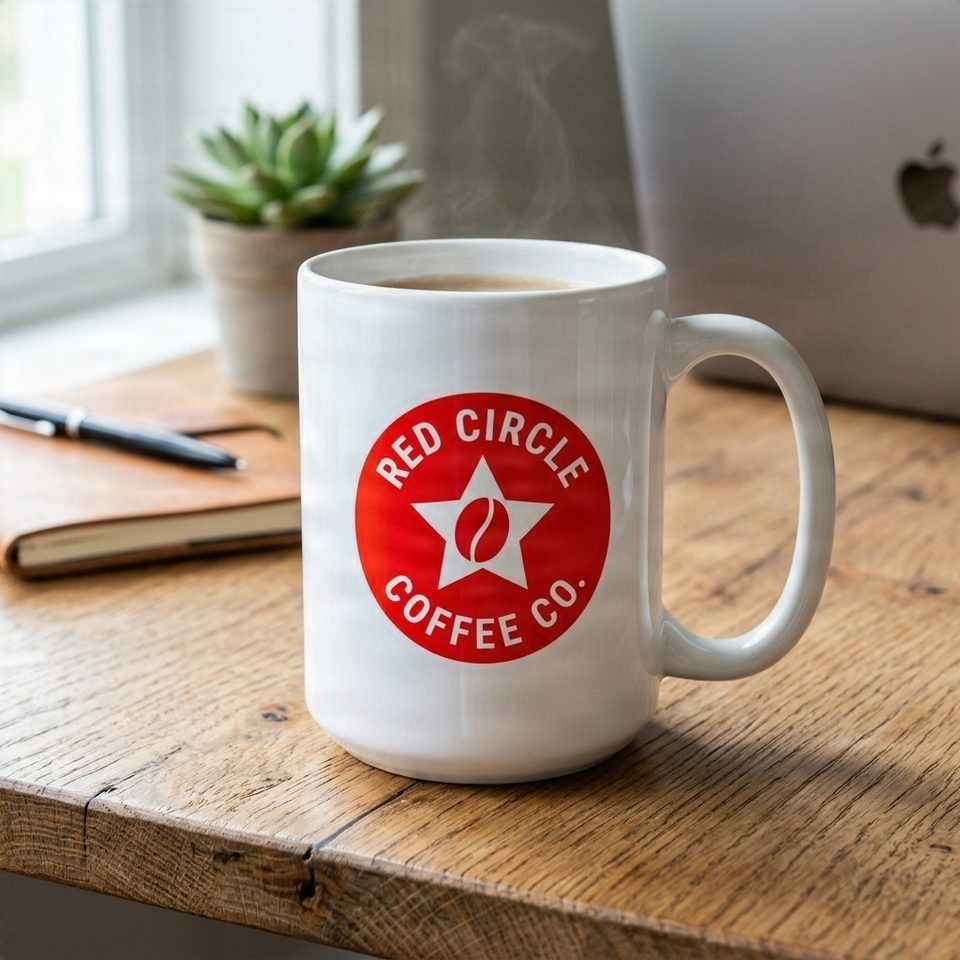
ロゴ削除
画像から不要なロゴやブランディング要素をクリーンアップします。
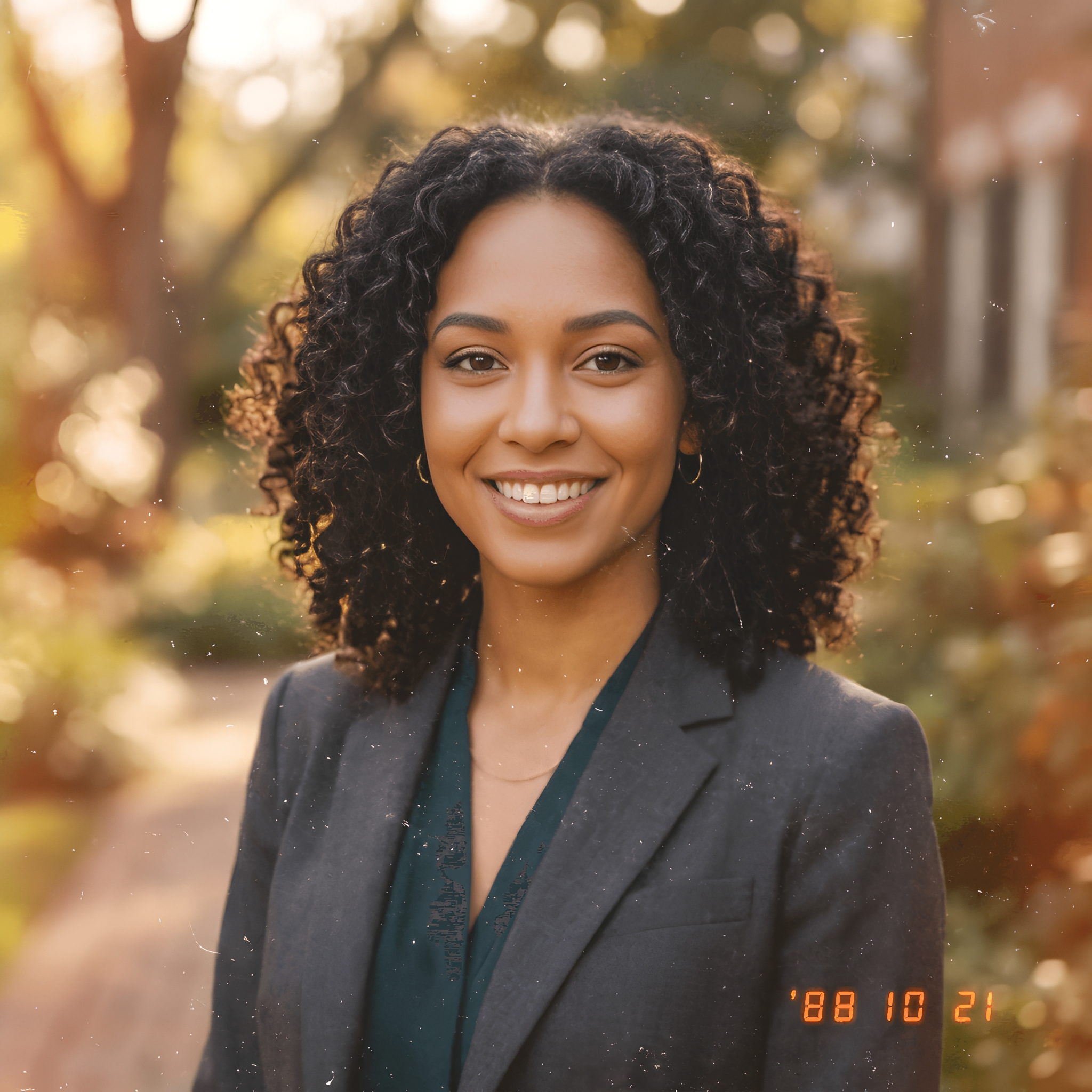
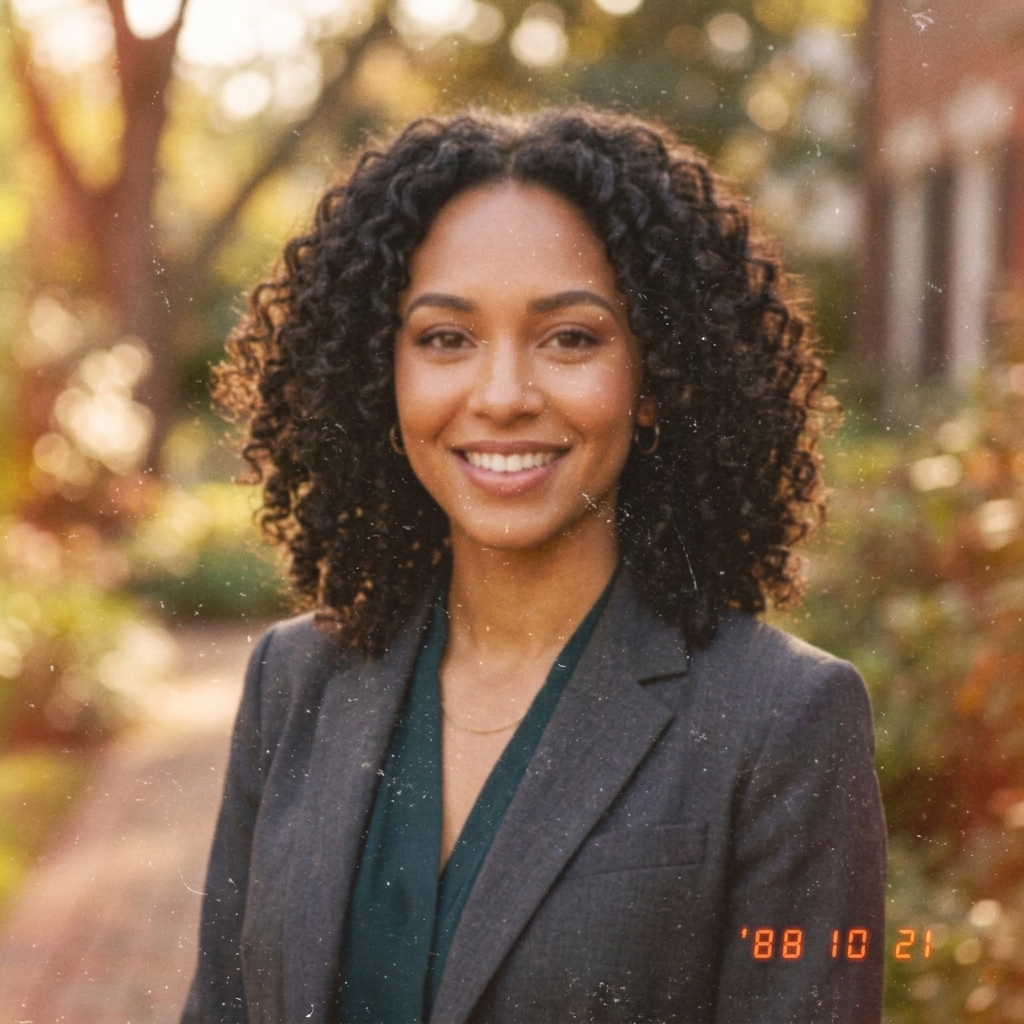
画像アップスケーラー
写真、ロゴ、商品、アートワークの解像度を上げ、画質を向上させます。
顔写真・ポートレートアップスケーラー
ポートレート、プロフィール写真、チームの顔写真を高画質化します。
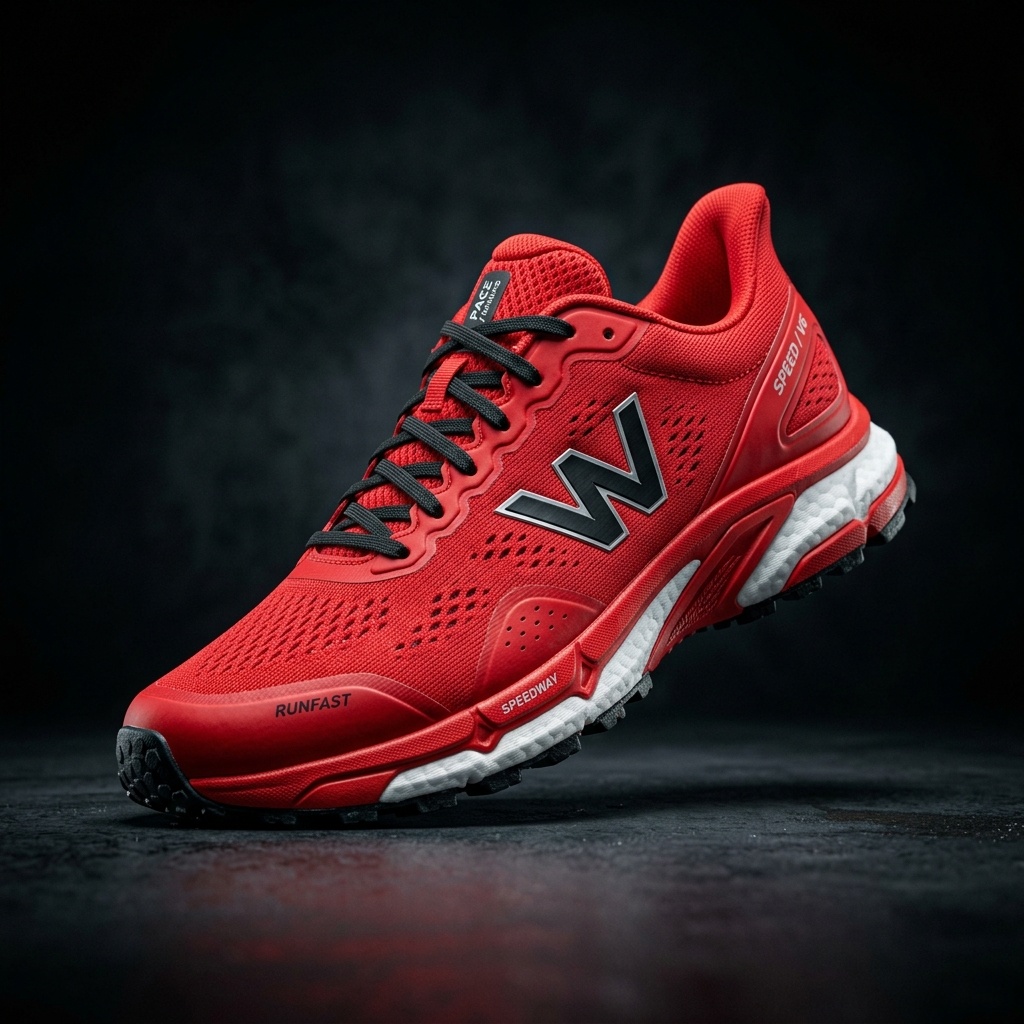
商品写真アップスケーラー
出品、広告、カタログ用に、より大きな商品画像を準備します。
アニメ画像アップスケーラー
アニメアート、イラスト、キャラクターアートワークを高画質化します。
JPG画像アップスケーラー
JPGおよびJPEG画像の解像度を上げ、より鮮明に出力します。
ロゴアップスケーラー
デジタルレイアウト用に、ラスターロゴを拡大してクリアにします。
AI画像高画質化(エンハンサー)
画像の鮮明さ、色合い、ライティング、ディテールを向上させます。
切り抜き、再構築、または拡張
背景処理
透過切り抜き、新しい商品シーンの作成、背景の修復、画像の領域拡張に対応します。
背景ツール
切り抜き、背景置換、ステージング、塗りつぶしツールの背景ワークフローハブを閲覧します。
背景切り抜き
被写体をきれいに切り抜き、透過PNGとして出力します。
一括背景切り抜き
一貫したバッチ設定で、複数の画像から背景を一度に削除します。
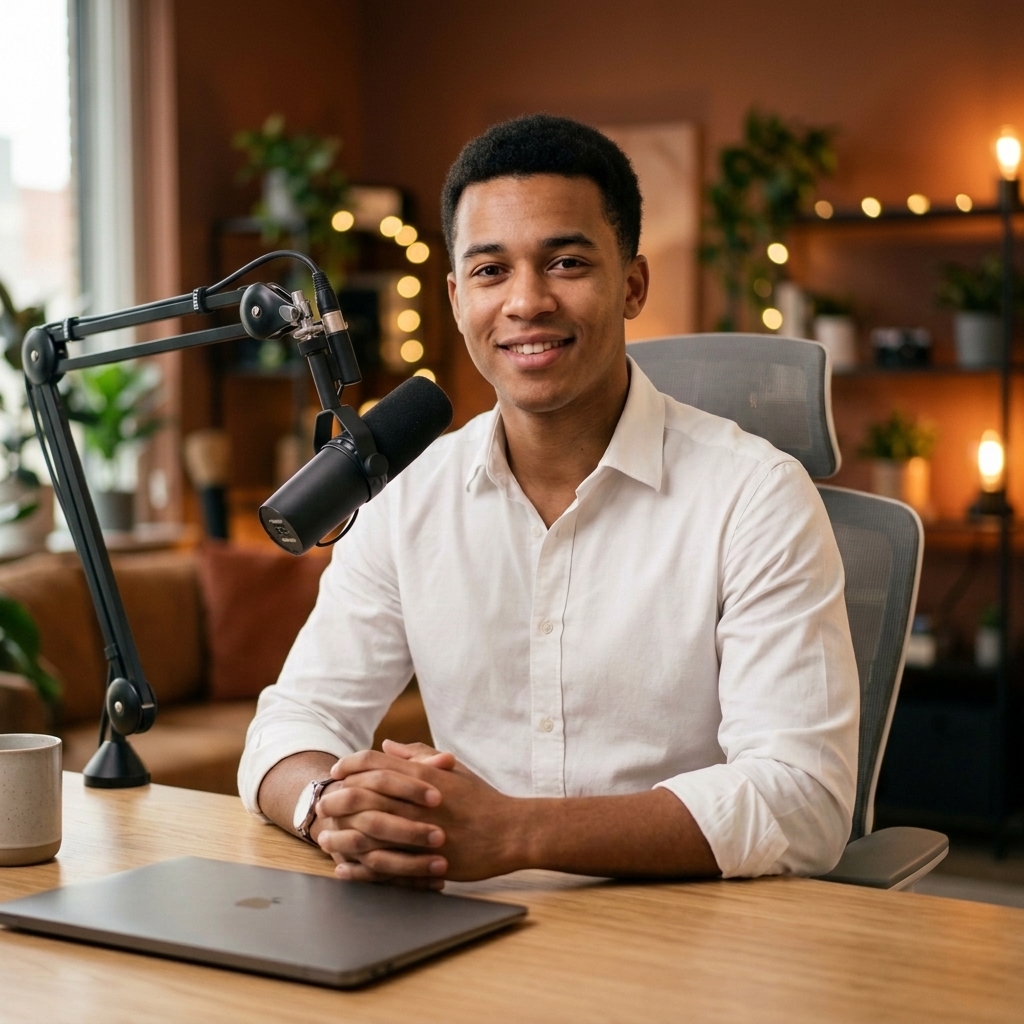
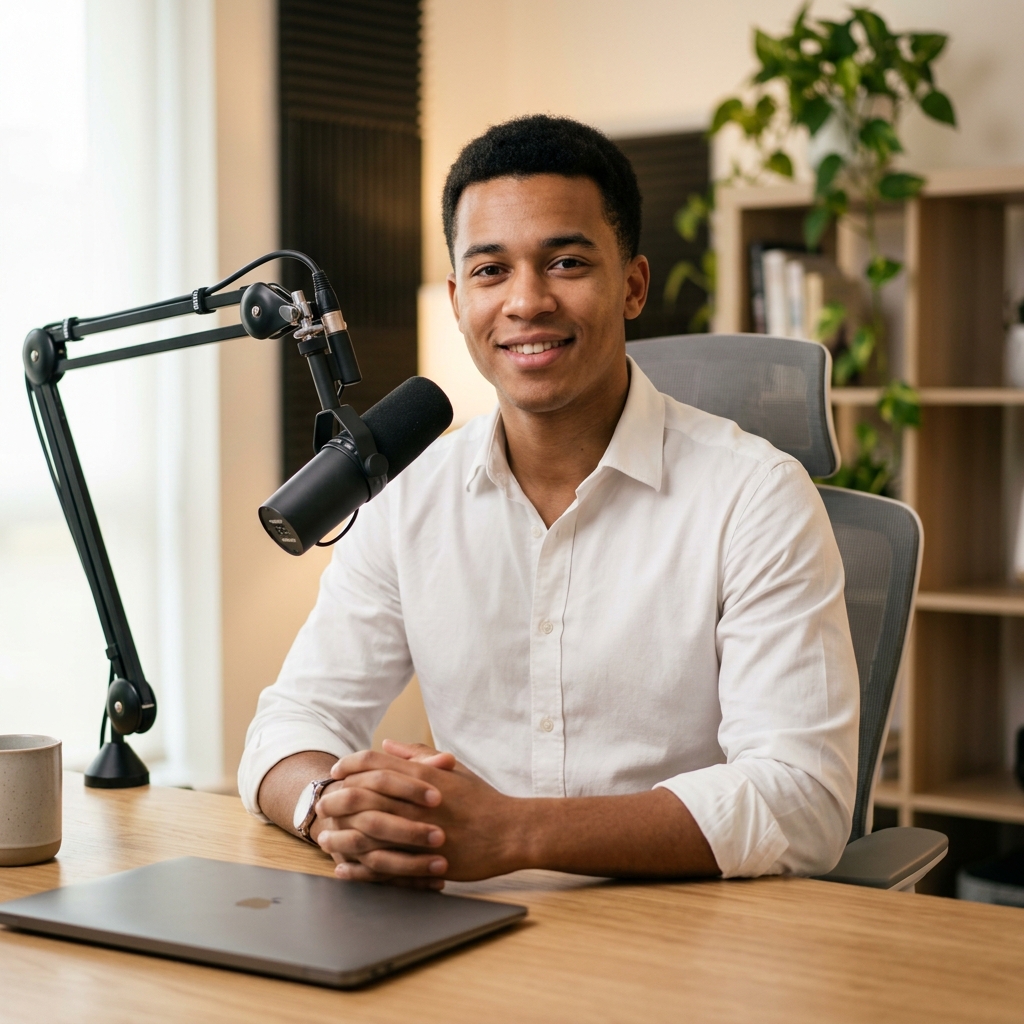
背景チェンジャー
AIプロンプト、アップロードした背景参考画像、カラー、またはプリセットを使用して、写真の背景を置き換えます。
背景・被写体分離ツール
被写体と背景を編集可能なアセットに分割します。

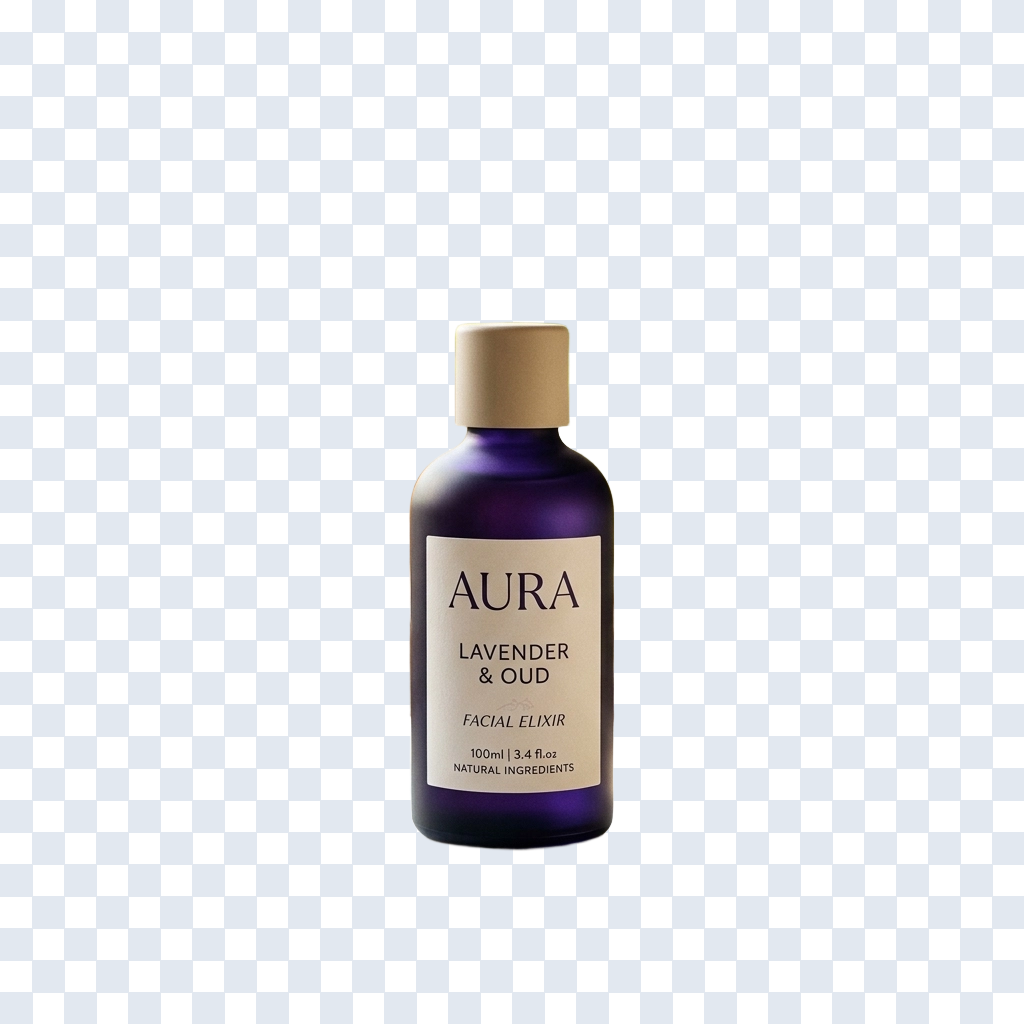
背景生成
商品や被写体を、新しく生成されたシーンに配置します。
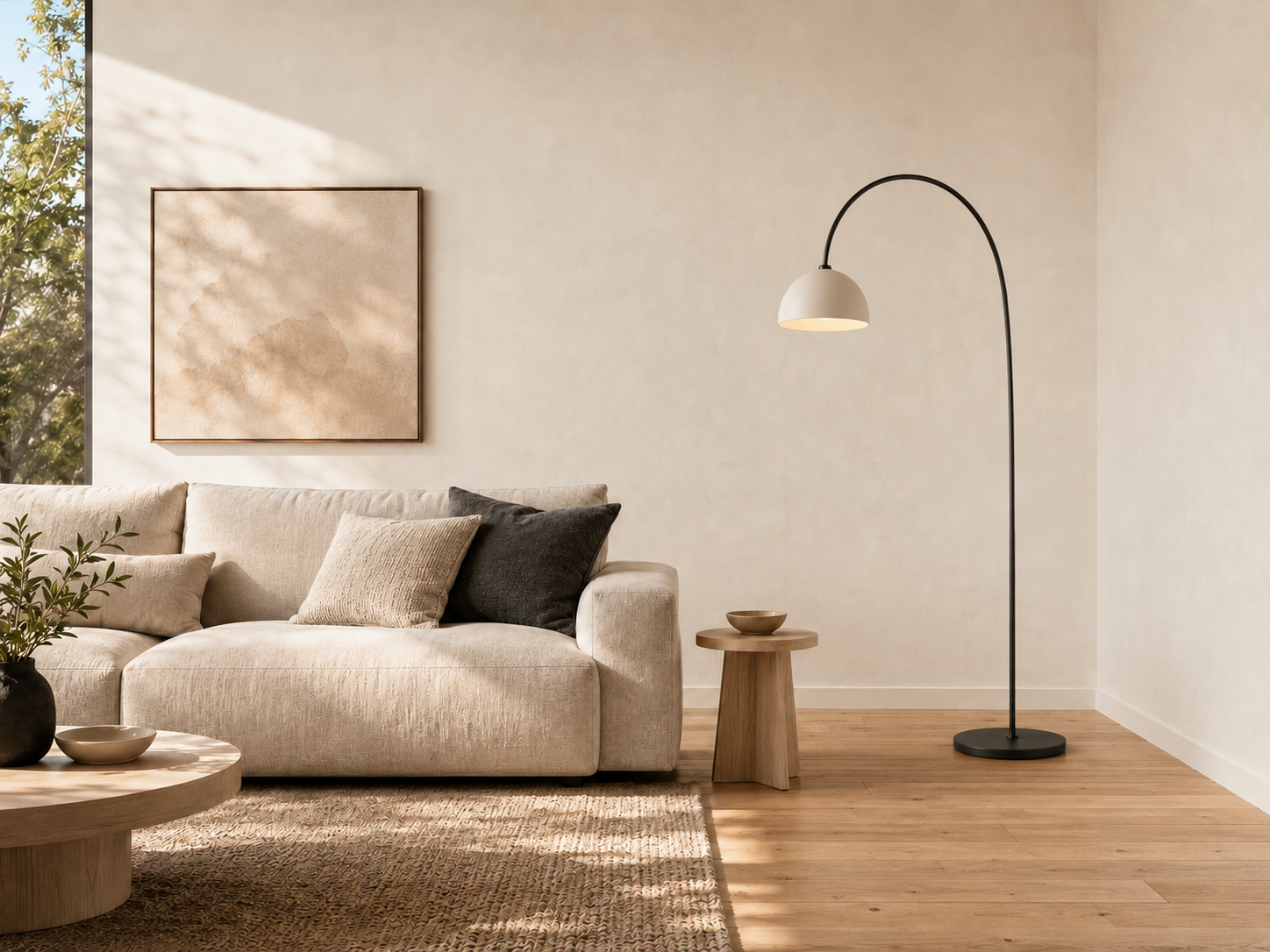
ジェネレーティブ塗りつぶし
選択した領域内のコンテンツを追加、置換、または修復します。
写真へのオブジェクト追加
既存の画像の選択した部分に、新しいオブジェクトを挿入します。
写真内オブジェクトの置換
画像の他の部分を維持したまま、選択したオブジェクトを置き換えます。
AI背景修復
破損した、空白の、または一貫性のない背景領域を修正します。
部屋の写真への家具追加
インテリアデザインのプレビュー用に、部屋の画像に家具を配置します。
商品写真へのプロップ(小物)追加
キャンペーンビジュアル用に、商品の周囲に文脈に合った小物を追加します。
オンラインAIインペインティング
他の部分を変更せずに、マスクされた領域を正確に編集します。
画像エクステンダー(領域拡張)
元の境界線を超えて画像を拡張します。
シーンのアウトペインティング
風景、インテリア、環境などの画像を、元のフレームを超えて自然に拡張します。
AI商品写真撮影
EC、広告、マーチャンダイジング用の商品写真シーンを作成します。
AIバーチャルステージング
生成された家具や装飾の方向性を用いて、部屋やインテリアをステージングします。
編集可能なアセットをエクスポート
レイヤー分割
フラットな画像を、PSDエクスポート、モーション、デザイン、制作の引き渡し用に分割されたレイヤーに変換します。
画像からレイヤー分割
あらゆる画像を、編集・エクスポート可能なレイヤーに分割します。
画像をレイヤーに分割
1枚のフラットな画像を、編集可能な複数のレイヤーに分割します。
キャラクターのレイヤー分割
キャラクターアートをリギング可能なパーツに分割します。
Character Parts Extractor
Extract visible character parts for focused editing and asset preparation.
2D Character Rigging Prep
Prepare separated character artwork before manual cleanup and 2D rigging.
Game Character Layer Separator
Create editable character regions for game asset review and production.
アニメイラストのレイヤー分割
アニメスタイルのアートワークを、編集可能なキャラクターとシーンのパーツに分割します。
Comic & Manga Into Layers
Separate comic and manga artwork into editable visual regions.
キャラクターレイヤー分離ツール
制作の引き渡し用に、キャラクターを構造化されたパーツに分割します。
Live2Dキャラクターレイヤー
Live2Dスタイルのリギングワークフロー用に、キャラクターアートワークを準備します。
VTuberキャラクターレイヤー
VTuberモデル作成の準備として、アバターのアートワークをパーツに分割します。
Spineキャラクターレイヤー
Spineスタイルの2Dアニメーションワークフロー用に、キャラクターパーツを準備します。
画像からPSD変換
画像アセットを、PSD対応のレイヤー化された出力に変換します。
画像からレイヤーを抽出
1枚のフラットな画像から、分割されたビジュアルパーツを復元します。
画像レイヤー分離ツール
被写体、オブジェクト、背景を、編集可能な意味的(セマンティック)レイヤーに分割します。
商品写真のレイヤー分割
商品画像を、編集可能な制作アセットに分割します。
ポートレートからPSD変換
ポートレート写真を、レタッチ準備の整ったレイヤー化ファイルに変換します。
ロゴからPSD変換
フラットなロゴアートワークを、レイヤー化された制作ファイルに変換します。
画像からSVG変換
ロゴ、アイコン、線画、フラットなイラストを、スケーラブルなSVGパスにベクター化します。
レーザーカット用画像SVG変換
レーザーカットや彫刻の準備用に、よりクリーンなベクターパスを作成します。
Cricut用PNGからSVG変換
クラフトやカッティングのワークフロー用に、PNGアートワークをSVGパスに変換します。
ロゴからSVG変換
ブランドアセット用に、ラスターロゴをスケーラブルなSVGアートワークに変換します。
透過レイヤーアセット
デザインや合成用の透過レイヤー出力を探索します。
画像のレイヤー分割とは?
画像のレイヤー分割によって、フラットなビジュアルがどのように編集可能なパーツに変換されるかを学びます。
代替レイヤーワークフローガイド
クローラーや検索での発見用に、追加の画像からレイヤーへのワークフローエントリーを確認します。
より高度なフローを構築する
ワークスペースとAPI
プロジェクト履歴、ブラウザツール、APIアクセス、プロンプト抽出により、単一の処理結果にとどまらない活用を可能にします。
エージェントワークスペース
Beta編集、生成、バリエーション作成、引き渡しにわたり、シームレスに作業を継続できます。
ECクリエイティブエージェントワークフロー
BetaECクリエイティブ制作のための、ガイド付きワークスペースを開きます。
Amazon商品ローンチエージェントワークフロー
Betaガイド付きワークスペース内で、ECモールでのローンチ用画像を計画します。
Shopifyグロースエージェントワークフロー
BetaShopifyのグロース施策向けに、商品およびキャンペーンのフローを作成します。
TikTokショップエージェントワークフロー
Betaショート動画販売向けに、コマースクリエイティブのワークフローを構築します。
画像からプロンプト生成
既存の画像からプロンプトの指示内容を抽出します。
オブジェクトレイヤーエディター
レイヤーワークフローに進む前に、オブジェクトの選択状態をプレビューします。
More ImageToLayers Resources
Need a workflow, guide, or developer resource?
If you already know the tool you need, browse the directory above. If you are solving a broader creative problem, explore Solutions instead.
Solutions
Explore real creative workflows and production problems.
ExploreAPI access
Connect image workflows to your own product or production system.
ExploreCompare
Understand how ImageToLayers workflows differ from adjacent tools.
ExploreLearn
Read guides, technology explainers, and workflow documentation.
ExploreTool selection guide
Frequently Asked Questions
Understand how the directory, individual tools, and broader workflows fit together.
What is the All Tools page?
The All Tools page is the complete directory of ImageToLayers tools and major creative capabilities. Use it when you already know what you want to do, such as separating an image into layers, editing an existing image, preparing character artwork, changing a background, generating new viewpoints, enhancing an image, or creating new visual content.
How do I choose the right ImageToLayers tool?
Start with the result you want. If you want to separate a flat image, start with Image to Layers. If you want to modify an existing image, browse the AI Image Editing tools. For character artwork, use Character to Layers. For new viewpoints, use AI Multiple Angles. If you know the problem but are not sure which tool to use, visit Solutions instead.
What is the difference between All Tools and Solutions?
All Tools is organized around specific capabilities — what you want the software to do. Solutions is organized around real creative problems and workflows — what you ultimately want to accomplish. Remove Text is a tool; updating a finished design when you no longer have the source file is a broader solution that may involve several tools.
Is ImageToLayers only for separating images into layers?
No. Layer separation is a core ImageToLayers capability, but the platform also includes tools for AI image editing, character workflows, backgrounds, product visuals, multiple angles, image generation, enhancement, conversion, and other creative tasks.
Where should I start if I only have a flat PNG or JPG?
If you want to regain more control over the image, Image to Layers is usually the best starting point. It can turn a flattened image into separate visual layers that you can inspect and continue editing instead of treating the entire image as one permanent bitmap. If you know the exact change you want, go directly to that tool.
Can I edit an image instead of generating a new one?
Yes. Many ImageToLayers tools are designed around images you already have. You can separate existing visuals into layers, edit selected parts, remove or replace elements, change backgrounds, extend images, enhance them, or continue refining a previous result without regenerating the entire image.
Can I continue editing after using one of the layer tools?
Yes. Layer separation is intended to give you a more editable starting point. After separation, you can continue working with individual layers using ImageToLayers editing tools and AI editing workflows, then export the result when you are ready.
Which tools should I use for character artwork?
Start with Character to Layers if you have a flat illustrated character that you want to separate into editable regions. There are also focused character workflows for extracting parts, preparing artwork before 2D rigging, working with game characters, and preparing assets for Live2D or Spine.
Which tools should I use for product images?
ImageToLayers includes workflows for editing existing product photos, creating new product visuals, changing backgrounds, generating additional viewpoints, enhancing images, and preparing creative assets for ecommerce or marketing. Choose the tool based on the change you need.
Can I use ImageToLayers with AI-generated images?
Yes. A finished AI-generated image is usually flattened, which can make targeted editing difficult. You can bring it into ImageToLayers, separate or edit specific visual elements, create additional variations, and continue working without necessarily regenerating the entire image.
Do I need to know which AI model a tool uses?
No. Choose a tool based on the task you want to complete. ImageToLayers workflows are designed around the result you need, so you generally do not need to understand or select the underlying processing technology.
Are all ImageToLayers tools part of the same workflow?
Not necessarily. Some tools are standalone utilities for a specific task, while others are designed to work as part of a larger creative workflow. You might separate an image into layers first, edit an individual element next, and export afterward. Other tasks may only require a single tool.
What is the difference between a tool and a workflow?
A tool performs a specific task, such as removing text, upscaling an image, or separating an image into layers. A workflow connects one or more capabilities to reach a broader creative result, such as preparing character artwork for animation or updating a finished design without the original source file. For broader workflows, browse Solutions.
Do I need Photoshop or another editor to use these tools?
No. You can perform supported image separation, generation, and editing tasks directly in ImageToLayers. When you want to continue working elsewhere, supported workflows can also provide export options for other creative software.
What if I still don’t know which tool I need?
Start with Solutions if you know the problem you are trying to solve but not the exact tool. If you know the action you want — such as separating layers, removing text, changing a background, generating another angle, or upscaling an image — use the matching tool directly from All Tools.