
AI Talking Avatar Generator
Turn one photo into a talking presenter.
Avatar Photo
Choose Who Will Present
Upload a photo of the person or character you want to bring to life.
A clear image with one visible face works best. Portraits, professional headshots, and illustrated characters are good starting points.
Voice Audio
Add What Your Avatar Will Say
Upload a recording of the message you want your avatar to deliver.
Use a voice recording, narration, dialogue, or other audio you have permission to use. The audio determines what your avatar says.
Presentation Style
Choose a presentation look for your avatar video. The voice and spoken message come from your uploaded audio.
Video Quality
Choose the output quality that fits your project. Higher quality may take longer to generate.
Your Talking Avatar Will Appear Here
Upload an avatar photo and audio, then generate your video. Open the completed result to preview and download it.
Upload a portrait, add your voice recording, and create a talking avatar video with synchronized speech, natural-looking expressions, and presenter-style movement.
One photo. Your audio. A talking video ready to share.
No camera setup. No reshoots. No animation experience required.
From photo to presenter
Your Next Presenter Could Start With a Photo
You don't always need to step in front of a camera to deliver a message.
Maybe you need a short product introduction. Maybe you want to explain a feature, welcome a customer, or turn a prepared voice recording into a video people can watch.
AI Talking Avatar Generator helps you turn a single portrait and an existing recording into a talking presenter video.
Start with the image you want to use. Add the message you want it to deliver. Let AI create the visual performance.
Less time setting up a shoot. More ways to use the content you already have.
A simpler way to make presenter videos
You Have Something to Say. You Don't Need Another Video Shoot.
Creating a talking-head video can take more work than the message itself.
You may need to find a quiet room, set up lighting, record multiple takes, and repeat the process every time your script changes.
For a short announcement, product explanation, or customer message, that can feel like too much production.
A talking avatar gives you another option.
Create the voice recording, choose the image you want to present it, and generate a video without filming the performance from scratch.
How it works
Create a Talking Avatar in Three Steps
- 1
Upload Your Avatar Photo
Choose a clear portrait, headshot, or character image. This becomes the visual foundation of your talking video.
- 2
Add Your Voice Recording
Upload the speech, explanation, or message you want the avatar to deliver. Choose an optional presentation style if you want more control over the visual look.
- 3
Generate Your Avatar Video
AI creates facial movement and a speaking performance guided by your audio. Preview the finished result and download it for your project.
Why use a talking avatar
Make More Presenter Videos With Less Production
Turn One Photo Into a Presenter
Start with an existing portrait instead of creating a new video recording for every message.
Use the Voice You Want
Record your own narration or use audio you already have permission to use. Your message remains the foundation of the performance.
Bring More Life to Your Message
Add synchronized mouth movement, facial expression, and natural-looking speaking motion to a static image.
Create Different Versions
Use the same source image with different audio recordings to make new announcements, product explanations, or localized versions.
Made for real projects
Make a Talking Avatar for the Content You Need
Marketing Videos
Create Presenter-Style Ads
Turn a product message or campaign script recording into a short talking avatar video. Useful for testing creative ideas, preparing social ads, and making different message variations without arranging a new shoot every time.
Product Demonstrations
Explain What Your Product Does
Create a virtual presenter to introduce a product, highlight its benefits, or explain how a feature works. Use the video alongside product images, interface recordings, or other demonstration footage.
Education and Training
Turn Lessons Into Talking Explanations
Give a voice recording a visual presenter for tutorials, learning materials, employee training, and short educational videos. Create a more personal presentation without filming every lesson.
Business Communication
Make Introductions More Personal
Use a talking avatar for company introductions, onboarding messages, feature announcements, or other business communications. Transform an existing recording into a video format that's easier to share.
Social Media
Create Talking Content From a Portrait
Turn a profile image or character portrait into a short talking video for updates, announcements, creator content, or storytelling.
Multilingual Content
Use Different Voice Recordings for Different Audiences
Start with one avatar image and upload separate recordings in the languages you want to use. Create different video versions without preparing a new visual presenter each time.
For brands and businesses
Let Your Product Message Have a Face
Not every product video needs a studio, a camera crew, or an on-screen actor.
Sometimes all you need is a clear introduction that explains what you're offering.
A talking avatar can help deliver that message in a presenter-style video.
Use it to introduce a new feature, explain a service, welcome customers, or add a speaking character to an existing marketing workflow.
Your product. Your message. A presenter-style video built from a photo and recording.
Make the presentation yours
Choose the Look That Fits Your Message
Different messages benefit from different visual presentations.
A product introduction may work best with a clean, professional look. A creator announcement might feel more approachable with a relaxed presentation. A lesson may benefit from a steady camera and a simple background.
Choose a presentation style or add optional visual directions to guide the result.
Clean Studio
A simple, well-lit presentation with minimal visual distractions.
Friendly Creator
An approachable, relaxed talking-head style.
Professional Presenter
A polished composition for business and marketing content.
Calm Educator
A straightforward presentation with steady framing and restrained movement.
Custom Visual Direction
Guide the framing, lighting, background, or movement with a short description.
Presentation styles guide the generated visuals. They do not change the words or voice in your uploaded audio, and exact visual results can vary.
Your message comes first
Keep Control of What Your Avatar Says
Your uploaded audio drives the speaking performance.
Use your own recording to control the wording, language, tone, pacing, and pauses of the message.
That makes this tool useful when you have already prepared exactly what you want to say.
For clearer results, use a recording with understandable speech, limited background noise, and natural pauses.
Your audio determines the message. AI creates the visual performance.
Example
See a Photo Become a Presenter
One portrait and one recorded line became this presenter video.
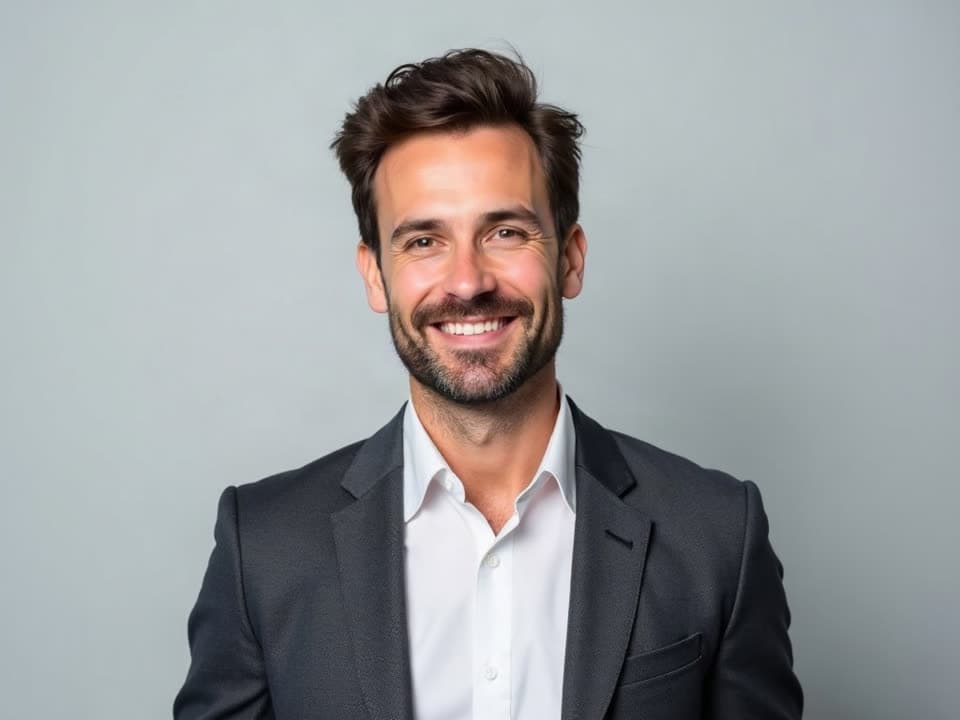 Source Photo
The example portrait and voice were created with AI for this demonstration.
From still to speaking
One Image. A Completely Different Way to Present It.
The source image provides the appearance, while the audio guides the performance. The AI generates the movement needed to turn the still image into a talking video.
Before — Still Photo
- A portrait, headshot, or character image.
- No recorded speaking performance.
- No facial animation.
After — Talking Avatar Video
- A speaking video generated from the image.
- Lip movement guided by your audio.
- AI-generated facial expression and presentation motion.
- A video you can preview and download.
Choose the right workflow
Talking Avatar or Lip Sync: What's the Difference?
Both tools can turn a still image and an audio recording into a talking video, but they are designed around different goals.
AI Talking Avatar Generator
Best when you want the image to behave more like an on-screen presenter. Use it for business introductions, product explanations, creator messages, and educational speaking videos.
AI Lip Sync Generator
Best when your main priority is making the mouth movements match a particular audio recording. Use it for character dialogue, creative animation, photo lip sync, and other audio-driven speaking clips.
Open AI Lip Sync GeneratorNeed a presenter-style video? Start with Talking Avatar. Focused on mouth synchronization? Try AI Lip Sync Generator.
Tips for your first video
How to Make a Better Talking Avatar
Start With a Clear Face
Use a portrait where the eyes, mouth, and facial shape are easy to recognize.
Choose a Suitable Composition
A front-facing or slightly angled head-and-shoulders portrait is a practical starting point for a presenter-style video.
Use Clean Audio
Clear speech helps the model follow the timing and rhythm of the recording.
Match the Image to Your Message
A professional portrait can suit a business introduction, while a more casual image may suit creator content.
Keep Visual Directions Simple
If you use a custom prompt, describe the camera framing, lighting, and presentation rather than asking for unrelated actions.
Preview the Complete Result
Look at the facial expression, lip movements, timing, and overall presentation before publishing.
Understanding AI-generated performances
A Talking Avatar Is an AI-Generated Performance
AI Talking Avatar Generator creates new movement from a still image and an audio track.
It aims to keep the original subject recognizable while creating mouth movement, expression, and speaking motion.
However, facial details, expressions, hands, clothing, or other visual elements can change during generation.
Results may be less consistent with heavily obscured faces, unusual poses, complex backgrounds, extreme expressions, or unclear audio.
For important marketing or business videos, review the finished output before publishing it.
Create Talking Videos With Permission
Use images and voices that you own or are authorized to use.
Do not generate deceptive endorsements, impersonate someone without permission, or present an AI-generated performance as a real recording when that would mislead viewers.
For branded or commercial content, review the rights to the people, characters, audio, logos, and other materials used.
AI Talking Avatar Generator FAQ
What is an AI talking avatar generator?
An AI talking avatar generator turns a still image and an audio recording into a video where the subject appears to speak. AI creates facial animation, synchronized mouth movement, and presentation motion guided by the supplied audio.
How do I create a talking avatar from a photo?
Upload a portrait or character image, add the audio you want the avatar to perform, choose a video quality and optional presentation style, then generate your video. Preview the result and download it when it is ready.
Do I need to record a video of myself?
No. You can start with a still photo instead of filming a performance. You will need an audio recording for the avatar to speak.
Can I use my own voice?
Yes. Upload a recording of your own voice and the model will use that audio to guide the avatar's speaking performance.
Can I type a script instead of uploading audio?
This tool currently works with uploaded audio rather than generating speech directly from text. If you have a written script, you can record it or create an authorized voice recording separately before uploading it.
Does the talking avatar generator create the voice automatically?
No. The voice comes from your uploaded audio. The generator creates the video performance around that recording.
Can the avatar move more than just its mouth?
The model can generate facial expressions and speaking motion beyond mouth movement. The amount and type of movement depend on the source image, audio, and visual directions. Specific gestures cannot be guaranteed.
What kinds of images work best?
Clear portraits and headshots with one visible face are good starting points. Images with a hidden mouth, extreme facial angles, or very small faces can be more challenging.
Can I create a talking avatar from an illustrated character?
You can try illustrations and character artwork with recognizable facial features. Results depend on how well the model can interpret the character's face and style.
Can I use AI talking avatars for product videos?
Yes. Talking avatars can be used to introduce products, explain features, present offers, and support marketing content. Make sure you have the necessary rights to the image, audio, and other material used.
Can I create a talking avatar for online courses or training?
Yes. You can use a speaking avatar for short lessons, explanations, onboarding messages, and other training materials. Longer presentations may require multiple recordings and video segments depending on the upload limits.
Can my avatar speak different languages?
The performance follows the audio you provide, so you can try recordings in different languages. The tool does not automatically translate or dub your message, and synchronization quality can vary between recordings and languages.
Can I use the same avatar photo for multiple videos?
Yes. You can reuse the same source image with different recordings to generate different talking videos. Each generation may produce slightly different expressions or visual details.
Can I control the avatar's appearance or presentation style?
You can use optional visual directions to guide framing, lighting, background, and presentation style. These instructions guide the generation rather than guarantee exact camera or body movements.
Will my avatar look exactly like the original photo?
The source image guides the avatar's appearance, but video generation creates new facial movement and visual details. Small differences can occur, so exact visual preservation is not guaranteed.
What video quality can I choose?
You can choose between Standard (480p) and HD (720p) output. Select the option that best fits your project's quality and processing needs.
What file formats can I upload?
Photos can be JPG, PNG, or WebP. Audio can be MP3 or WAV. The editor shows the supported length and file size.
How long can my talking avatar video be?
The duration is generally guided by the audio you upload, subject to the limits shown in the editor. Check your recording's length before generating, especially for longer presentations.
Can I use an AI talking avatar for commercial projects?
You can create commercial content using materials you have the rights or permission to use, subject to the service terms. Ensure that your use of a real person's likeness or voice is authorized and does not create a misleading endorsement or impersonation.
Is an AI talking avatar the same as a lip sync video?
They are related. Lip sync focuses on matching mouth movements to audio, while talking avatar generation emphasizes the broader speaking presentation, including facial expression, visual composition, and speaking motion.
How can I make my talking avatar look more natural?
Start with a clear portrait, use clean audio with natural pacing, and choose simple visual directions. Review the result and adjust your input if needed. Highly complex scenes and exaggerated movement may produce less predictable results.
Give Your Message a Presenter Without Filming Again
Turn one photo and your own recording into a talking video for product demos, lessons, marketing, and more.
Start with a photo. Add your audio. Generate a speaking video.
Explore More AI Video Tools
AI Lip Sync Generator
Animate a photo or character image with mouth movement synchronized to your audio.
AI Video Generator
Create original AI-generated videos from an image or text description.
AI Video Relighting
Change the lighting in a video without reshooting the footage.
AI Video Upscaler
Increase video resolution and improve visible detail.