
Extract the Background You Want to Keep
Like the scene but not the person, product, or object in front of it? Upload your photo and create a reusable background with the main foreground subject removed.
Keep the room, studio setup, landscape, or backdrop and use it again in your next design.
Upload an image
Separate one image into a transparent foreground, reconstructed background, and reusable subject mask.
Extract Background
Keep the subject and create a reusable background behind it.
Drag and drop your image here or browse files

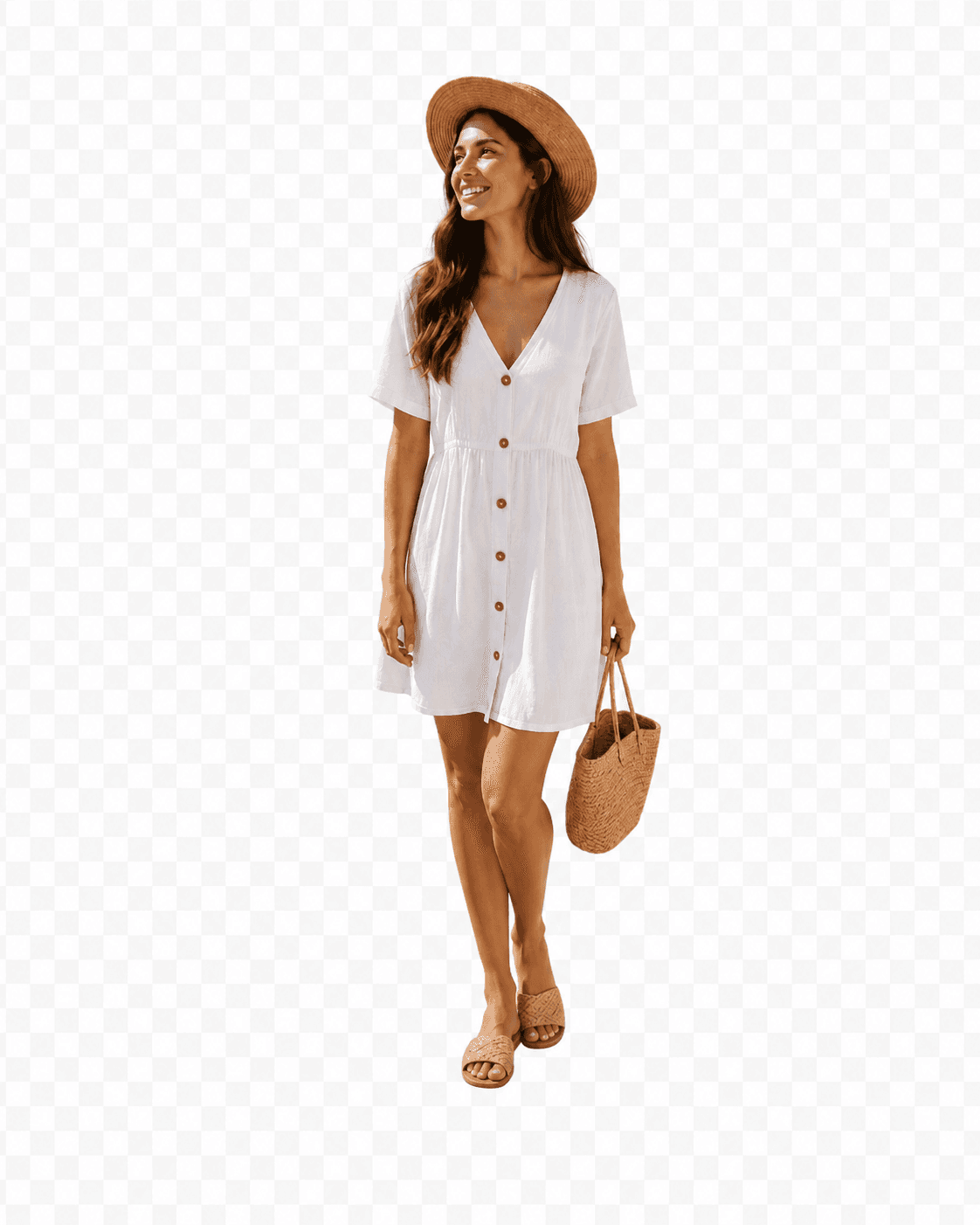

The covered background area is reconstructed with AI using the visible scene as context.
Processing time varies with image complexity. Large subjects and detailed backgrounds may require more reconstruction.
Keep the scene
Sometimes the Background Is the Best Part of the Photo
Maybe the room is exactly right. Maybe you like the studio lighting, the landscape, the desk setup, or the overall composition — but the foreground subject no longer works for what you want to make.
Background Extractor helps you keep the scene instead of starting again from an empty canvas.
Keep a setup you already like
Reuse a studio, room, tabletop, outdoor scene, or lifestyle background without rebuilding it from scratch.
Make room for something new
Start with the existing scene and add another product, person, headline, or visual element later.
Get more from one photo
Turn a finished image into a reusable background that can support new layouts and creative ideas.
See the background
See the Scene Without the Foreground Subject
Compare the original photo with the background created after the main subject is removed.
Keep the room without the person
Turn an interior photo into a clean scene you can reuse for another listing, concept, or layout.
Keep the studio setup without the product
Reuse a lighting setup, tabletop, or lifestyle scene for another product visual.
Keep the location for another composition
Remove the main foreground subject while preserving the overall setting and mood of the image.
Reuse what already works
What Can You Do With an Extracted Background?
Build a new product visual
Keep a studio or lifestyle setup and place another product into the scene later.
Create a clean room or interior image
Remove the foreground person before using the space in a listing, presentation, mood board, or design.
Make social content
Start with the clean scene before adding a headline, offer, graphic, or new subject.
Reuse a travel or outdoor scene
Keep the location when the foreground person or object is not part of the final image you want.
Create a clean plate
Save a background-only version before continuing into compositing, editing, animation, or another creative workflow.
Try new compositions
Use the extracted background as the base for a different subject without recreating the original scene.
Keep the other side
Background Extractor Does the Opposite of a Background Remover
Background Remover
Keep the subject
Remove the scene and create a transparent cutout.
Remove BackgroundBackground Extractor
You’re hereKeep the scene
Remove the foreground subject and create a reusable background.
If the scene is what you actually want, Background Extractor is the better starting point.
Which Result Do You Need?
| What you want | Use |
|---|---|
| I want the subject on transparency | Background Remover |
| I want the scene without the subject | Background Extractor |
| I want the subject and background separately | Foreground Background Separator |
| I want several objects separated | Image to Layers |
Extract a Background in Three Steps
Upload your photo
Choose an image containing the foreground person, product, animal, or object you want removed.
Create the background
The foreground subject is separated and hidden parts of the scene are completed where needed.
Download and reuse
Save the background and continue with another product, person, layout, or creative idea.
About hidden areas
What Happens to the Part of the Background You Couldn’t See?
If a person, product, or object covered part of the scene, that hidden content was never captured in the original photo. The tool creates a plausible continuation based on the surrounding background so you can work with a more complete scene.
The reconstructed area is an estimate, not a recovery of the exact content that was physically behind the subject.
Review detailed patterns, text, architecture, mirrors, reflections, and other accuracy-sensitive areas before final use.
For better results
Give the Background Enough Context
More visible background helps
If enough of the scene is visible around the subject, the tool has more context for completing hidden areas.
Smaller hidden areas are easier
A person or product covering half the image requires more reconstruction than a subject covering only a small part of the scene.
Watch repeating patterns
Tiles, shelves, railings, text, signs, windows, and other repeating details can be harder to continue naturally.
Review reflections and mirrors
Reflections can contain information about the removed subject and may require extra editing.
One result or many?
Keep the Background — or Separate the Whole Composition
Background Extractor
Choose this when the background is the main result you care about.
Primary: Background · Also available: Subject + Mask
Image to Layers
Choose this when you want several independent parts, such as products, people, text, furniture, decorations, foreground objects, and the background.
Layer 1 · Layer 2 · Layer 3 · Layer 4…
Frequently Asked Questions About Background Extraction
What does a background extractor do?
It helps you keep the background of a photo while separating the main foreground subject from the scene.
Is a background extractor the same as a background remover?
No. A background remover usually keeps the subject and removes the background. A background extractor prioritizes the background instead.
Can I remove a person and keep the background?
Yes. If the person is the main foreground subject, the workflow can separate them and create a background-only result.
Can I remove a product and keep the studio background?
Yes. This can be useful when you want to reuse a studio, tabletop, lifestyle, or product-photography setup.
What happens to areas hidden behind the subject?
The tool creates a plausible continuation based on visible surrounding content. It cannot recover exact pixels that were never captured in the original image.
Will the background be exactly what was really behind the subject?
Not necessarily. Visible areas come from your source photo, while hidden areas may need to be reconstructed, so those details can differ from the real-world scene.
Can I also download the removed subject?
Yes. The shared Background Splitter workflow also creates a transparent foreground result, even though this page prioritizes the background.
What types of backgrounds work best?
Scenes with enough visible context, clear structure, and consistent lighting usually provide more information for completing hidden areas.
What kinds of images are harder?
Large hidden regions, text, architecture, repeating patterns, reflections, mirrors, or complicated overlaps can require more review.
Can I use the extracted background for another product or person?
Yes. Reusing the scene as the starting point for a new composition is one of the main reasons to extract the background.
Should I use Background Extractor or Remove Person From Photo?
Use Background Extractor when the scene itself is your main goal, regardless of whether the foreground subject is a person, product, animal, or object. Use Remove Person From Photo when your specific task is removing a person.
Should I use Background Extractor or Image to Layers?
Use Background Extractor when you mainly want the scene. Use Image to Layers when you want several visual elements separated independently.
What Do You Want to Keep?
Keep only the subject
Background Remover
Create a transparent cutout when you don’t need the original scene.
Remove BackgroundKeep both
Foreground Background Separator
Keep the subject and background as separate image assets.
Separate BothRemove a person
Remove Person From Photo
Use a person-focused workflow when the unwanted foreground subject is specifically a person.
Remove a PersonSeparate several visual elements
Image to Layers
Break the image into multiple reusable and editable parts.
Separate Into LayersKeep the Background You Already Like
Remove the foreground subject and turn the remaining scene into a reusable starting point for your next project.
Extract My Background