
Separate Portrait Photos into Editable Layers
Isolate people, hair, clothing, and backgrounds, reconstruct hidden areas, and export reusable layers for retouching and creative composition.
Click or drag image to upload
Click or drag image to upload
JPG, PNG, or WebP · Maximum 10 MB
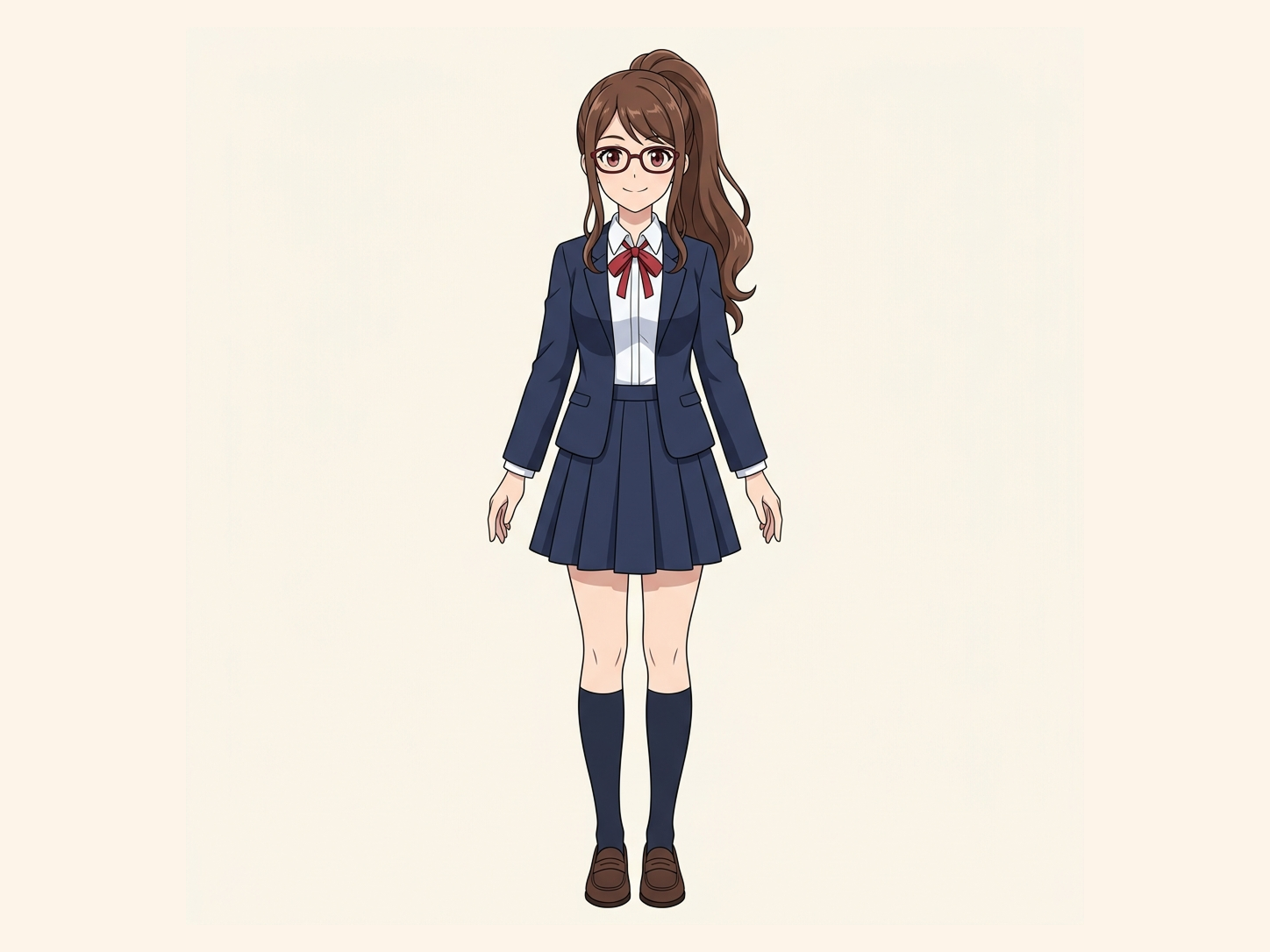
Need hair, face, eyes, mouth, clothing, or body-part layers?
Settings
Leave this blank to let Detailed Layers identify the main editable elements automatically. Or name the parts you want separated.
Want more control over your layers?
Learn how to guide Detailed Layers with simple prompts, choose useful elements, and get cleaner layer structures from different types of images.
Upload an Image to Continue
Private File Handling
Uploaded files are associated with your account and delivered through signed URLs. You can delete completed jobs manually.
Transparent PNG Output
Detailed Layers returns each detected element as its own layer on a transparent background.
See How Image Separation Works
Separate visual elements into individual layers while reconstructing the background hidden behind them.
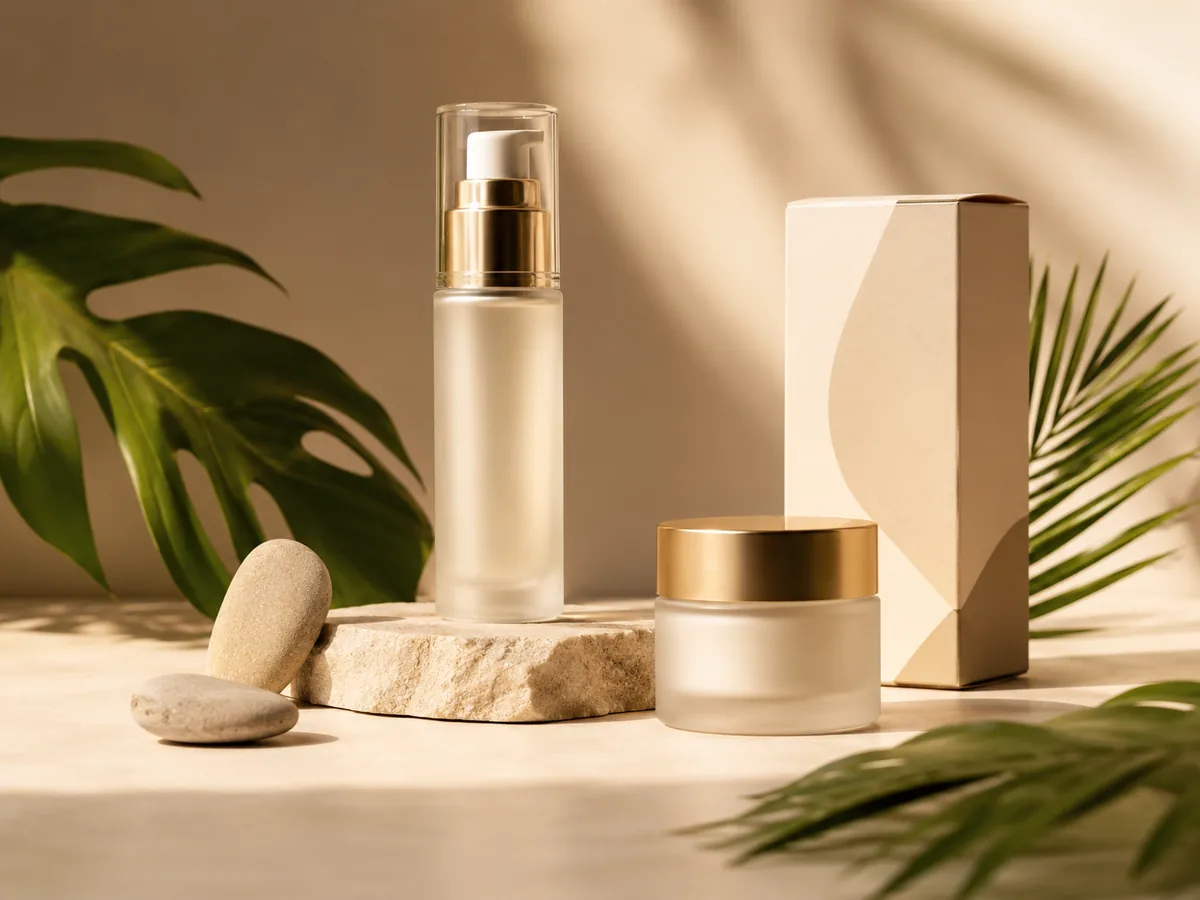
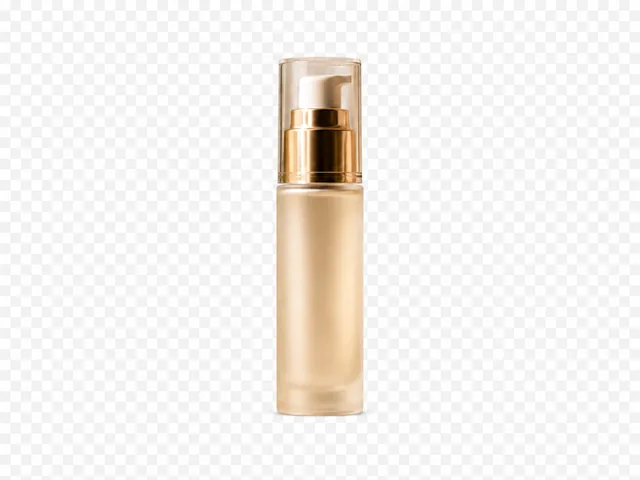 01ITL
01ITLPump bottle
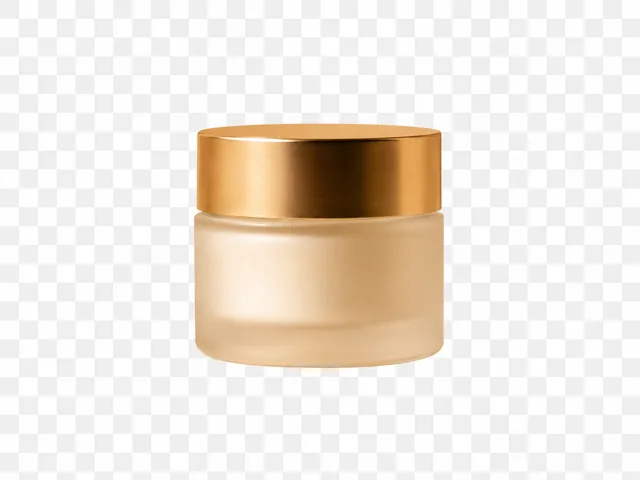 02ITL
02ITLCream jar
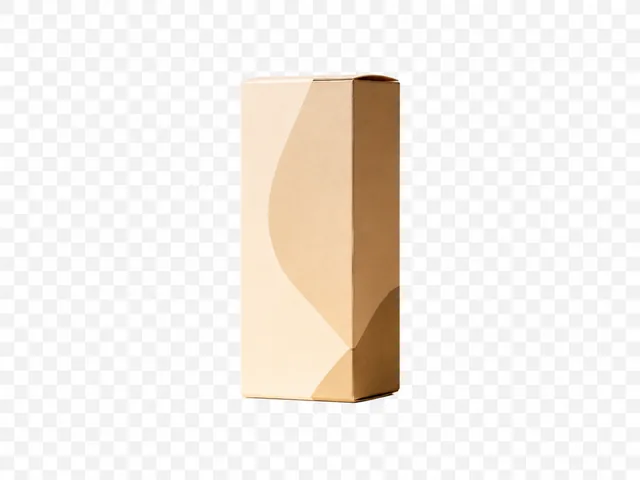 03ITL
03ITLProduct box
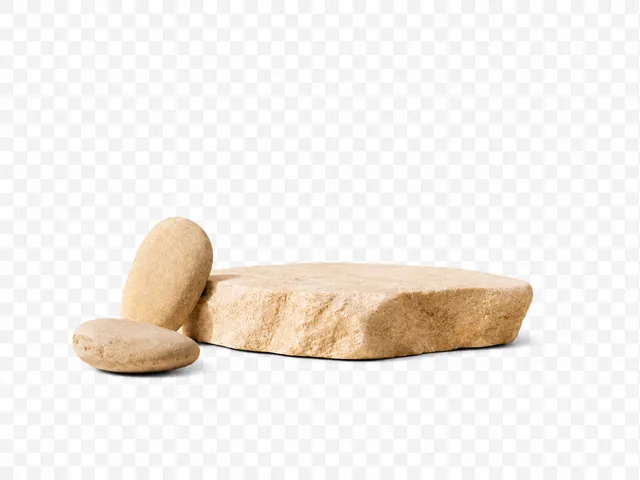 04ITL
04ITLStone props
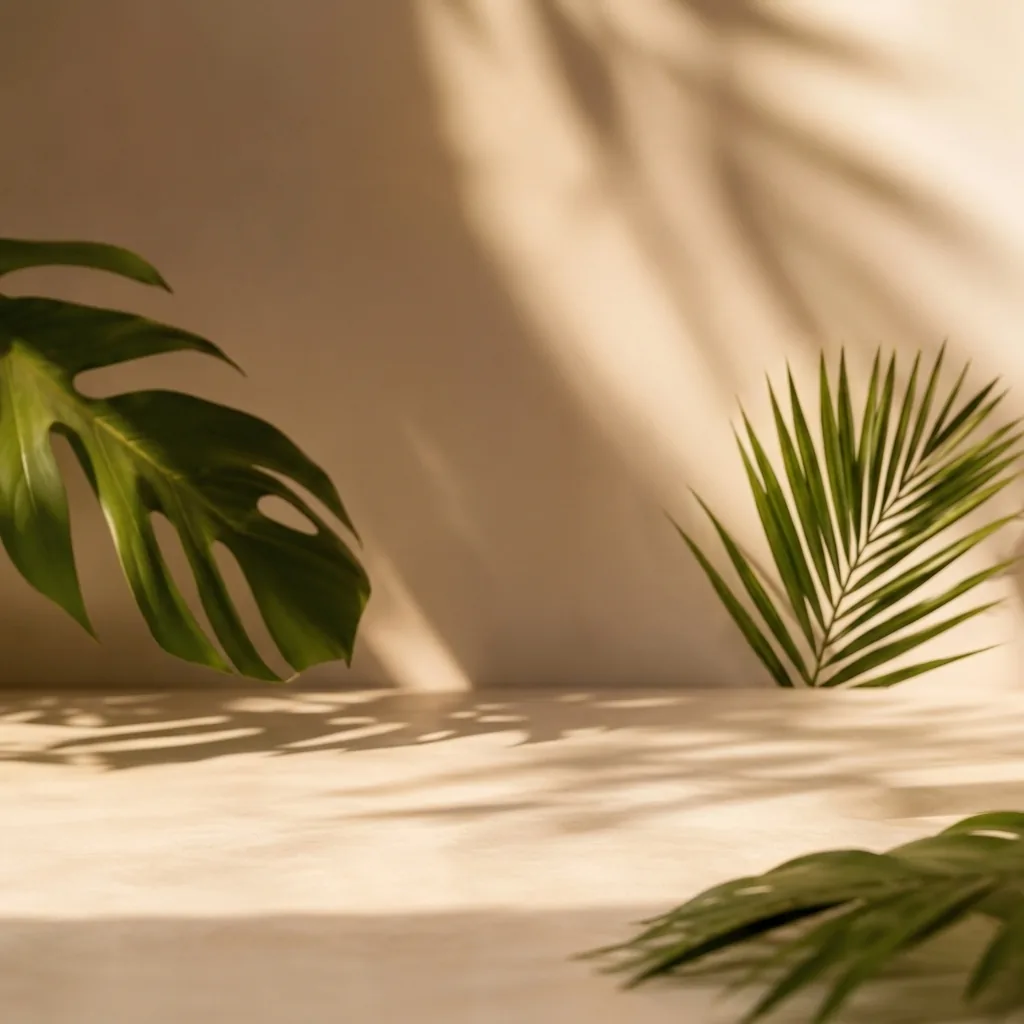 05ITL
05ITLBackground
01ITLPump bottle
02ITLCream jar
03ITLProduct box
04ITLStone props
05ITLBackground
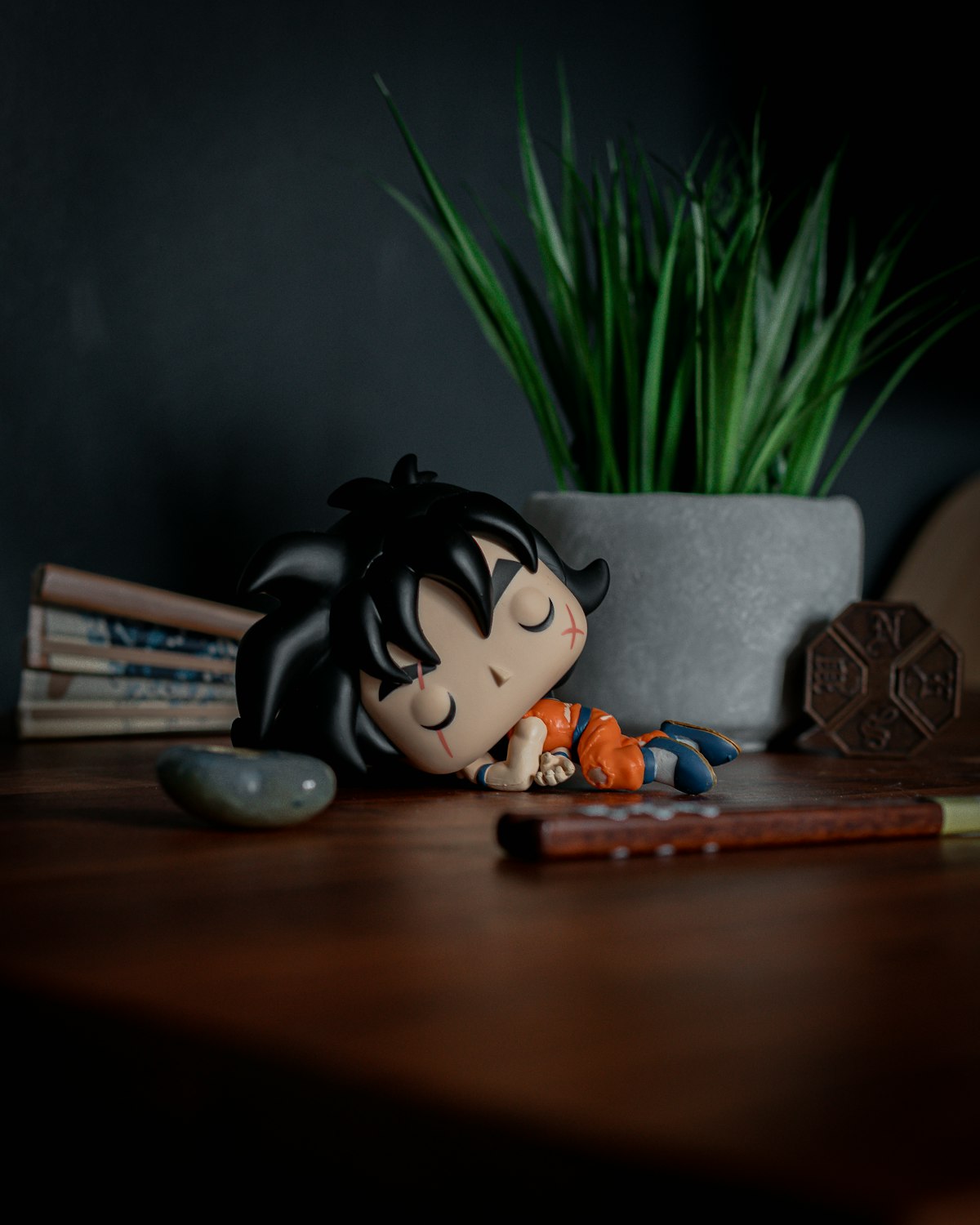
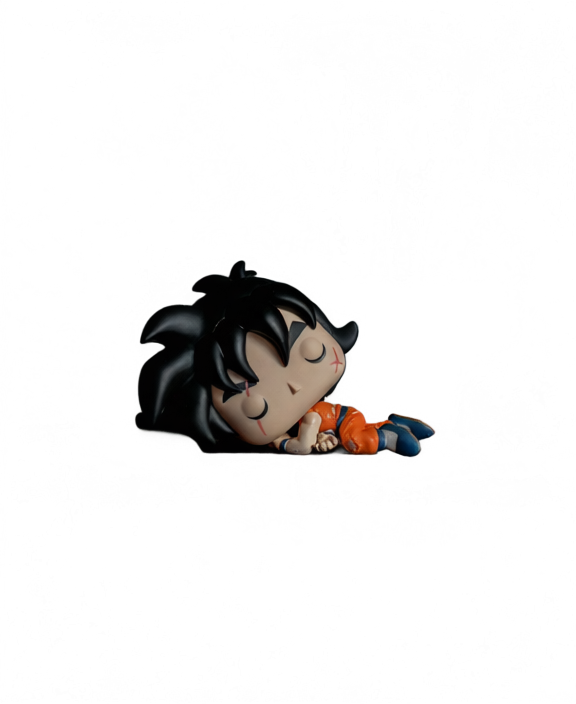 01ITL
01ITLLayer_01: Subject
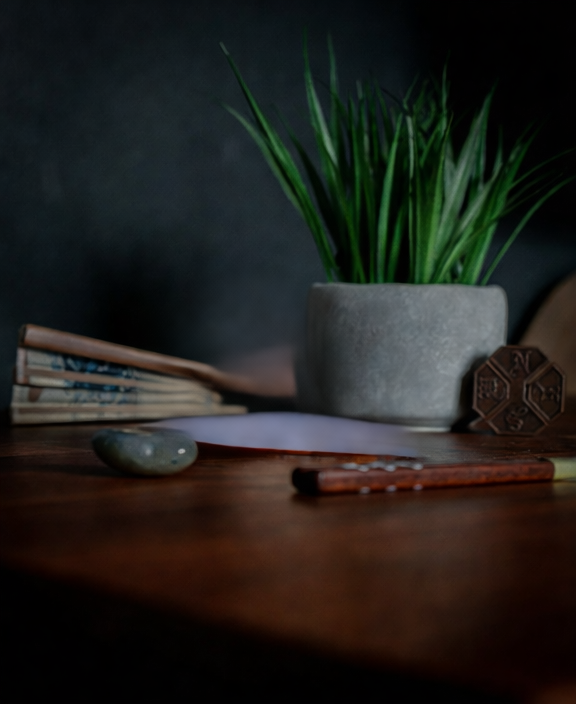 02ITL
02ITLLayer_02: Background
01ITLLayer_01: Subject
02ITLLayer_02: Background
Final Layers
More Than Background Removal
Background removers create a transparent cutout. ImageToLayers also reconstructs the area hidden behind the subject, giving you complete assets for editing and composition.
Most images are processed in 60–120 seconds.
Why Separate Portraits into Layers?
Save Time on Manual Masking
Reduce the time spent tracing people, hair, clothing, and accessories by hand.
Preserve Detailed Edges
Maintain fine portrait details such as hair, glasses, and clothing boundaries where possible.
Reconstruct Hidden Backgrounds
Rebuild areas previously covered by the subject for easier background replacement.
Export for Further Editing
Download transparent PNG layers or an editable PSD file for retouching and compositing.
How to Separate a Portrait from its Background
Upload a Portrait
Choose a clear JPG, PNG, or WebP portrait. Images with a well-defined subject and visible edges generally produce the best results.
Choose a Processing Mode
Select the quality based on the complexity of your image. Higher-quality modes are better suited to detailed hair, clothing, and accessories.
Review the Separated Layers
Preview the subject, foreground elements, and reconstructed background. Check detailed areas such as hair, glasses, clothing, and accessories.
Export as PNG or PSD
Download transparent PNG layers in a ZIP package, or export an editable PSD file for compatible design and retouching software.
Ways to Use Portrait Layers
Wedding Photography
Replace portrait backgrounds while preserving detailed edges around hair, veils, clothing, and accessories.
Fashion Catalogs
Isolate models and garments for consistent product pages, campaign layouts, and catalog compositions.
Corporate Headshots
Reuse one approved portrait across white, gray, branded, and environmental backgrounds.
Social Content
Turn portrait photos into reusable assets for thumbnails, social posts, banners, and promotional graphics.
Separate Your Portrait into Editable Layers
Upload a portrait to isolate the subject, reconstruct the hidden background, and export reusable layers.
Only need two layers?
Just the subject and the background? Try Background Splitter
When a photo only has one subject in front of a background, Background Splitter gives you a transparent foreground and a reconstructed background in one step, without setting up a full multi-object layer split.
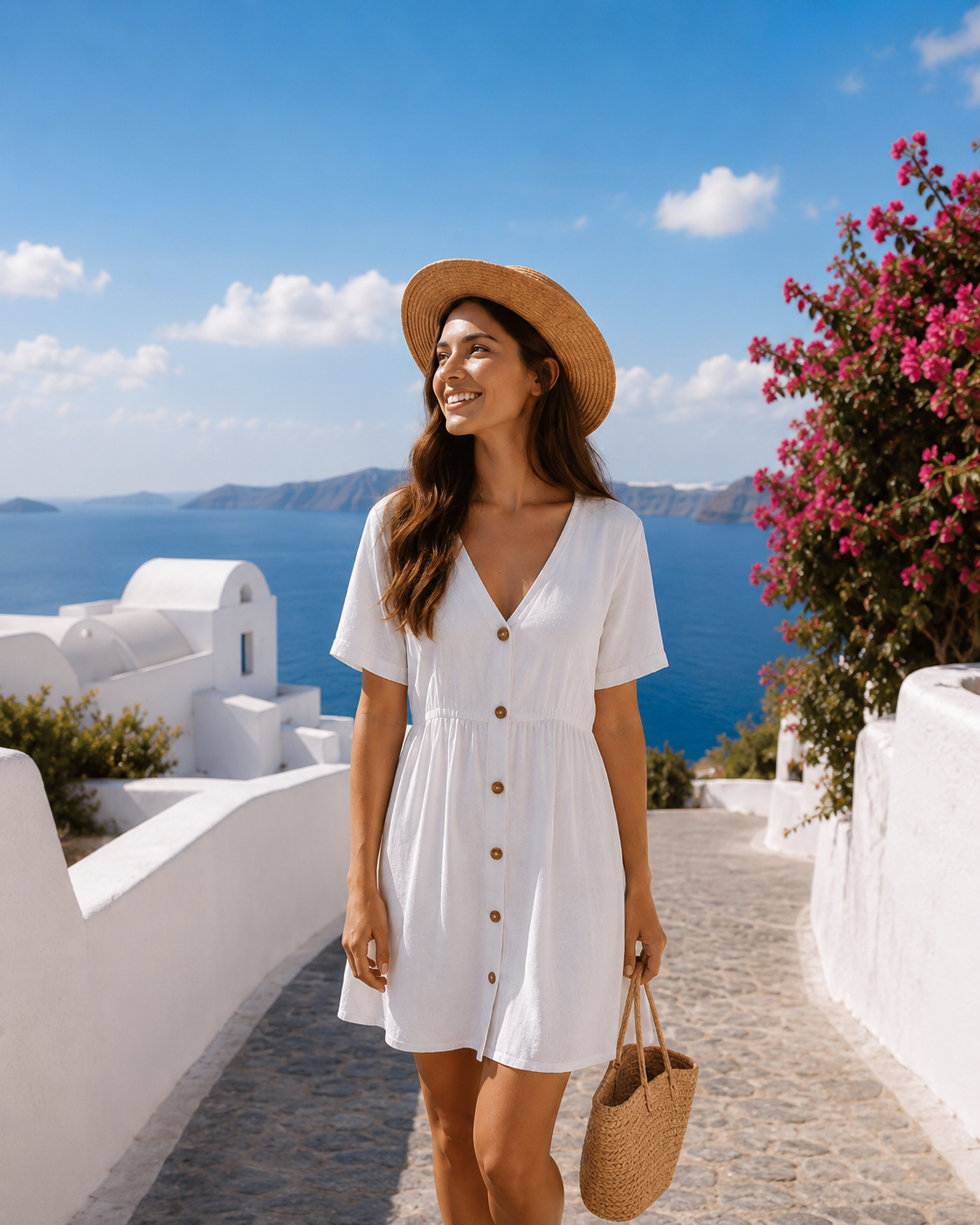
Original photo
The source image with a single subject and background.
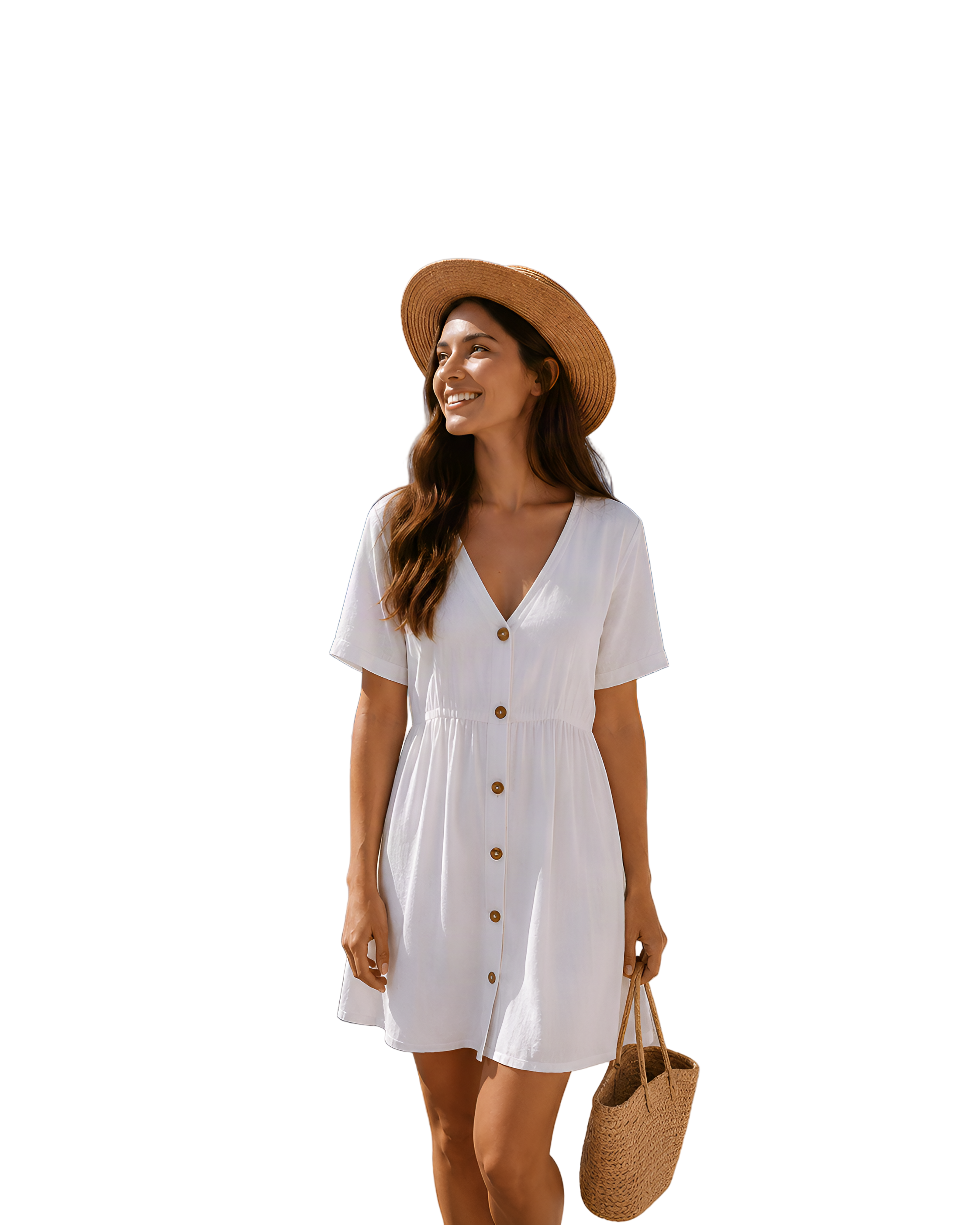
Transparent foreground
The subject isolated as a clean transparent PNG.

Reconstructed background
The scene behind the subject, rebuilt and reusable on its own.
Need more than two layers, multiple objects, props, or text? Use the workspace above instead.
FAQ
What types of portraits work best?
Portraits with clear subject boundaries, good lighting, and sufficient contrast between the person and background generally produce the best results.
Can it preserve detailed hair edges?
The AI is designed to retain fine details such as hair and soft edges. Low-resolution images, motion blur, and low-contrast backgrounds may require additional editing.
How is this different from a portrait background remover?
A background remover usually creates one transparent cutout. ImageToLayers also reconstructs areas hidden behind the subject and provides editable layered output.
How many layers will I receive?
The number of layers depends on the image and selected processing mode. Most portraits include a separated subject and reconstructed background, while complex images may produce additional elements.
Can I export the result as a PSD file?
PSD export is available on supported plans. You can also download transparent PNG layers in a structured ZIP package.
Can I use the result for commercial projects?
Commercial usage is included with eligible paid plans. Review the pricing and license terms for details.
What happens if the result fails?
Credits are automatically refunded for failed processing tasks. You can retry with another image or processing mode.
Continue Editing
Create a transparent portrait cutout when you do not need layered output.
Repair or regenerate selected areas of the portrait background.
Retouch clothing, lighting, backgrounds, and other portrait details.
Explore the general-purpose image layer separation workflow.