
Separate Game UI into Editable Layers
Turn game screenshots into separate UI panels, HUD elements, icons, and interface assets. Refine individual components with AI-powered layer separation.
Upload a game UI screenshot
Use a clean screenshot or a UI mockup. The first pass separates the main interface components from the scene.
1
Click or drag image to upload
Upload your image
JPG, PNG, WebP up to 10MB · Drag & drop anywhere
Change Image
Layer Hotspots17 Layers
Hover or click box to inspect layer
Separated Layer Cutouts17 Layers
Protected Assets
2
Settings
Built for game interfaces
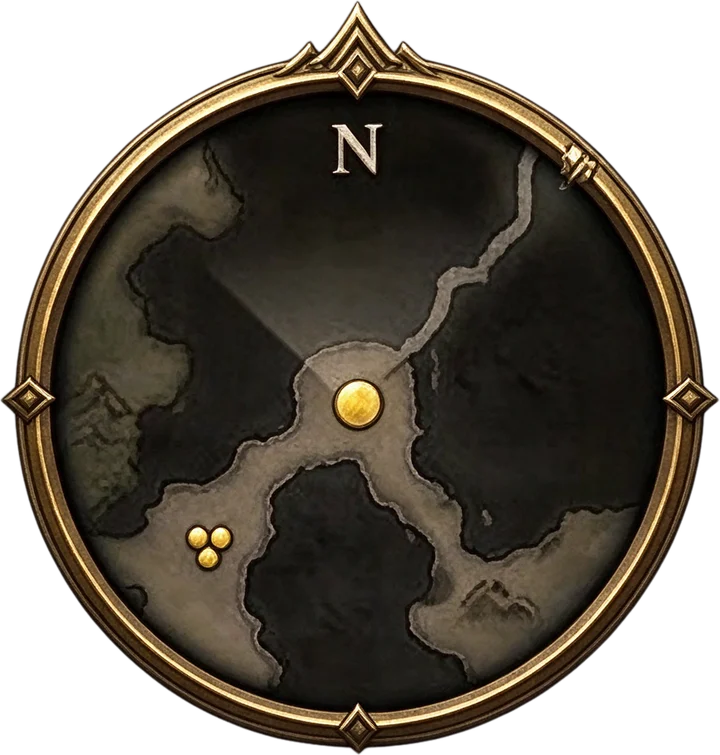
The first pass separates by functional component: bars, panels, menu buttons, minimap, character and scene. A dense strip such as a skill bar can then be separated further, only when you choose to.
HUD & status barsMinimap & menusSkill bars & hotbarsChat & dialog panels
Cost per run60 credits
Upload an Image to Continue
Private File Handling
Uploaded files are associated with your account and delivered through signed URLs. You can delete completed jobs manually.
Transparent PNG Output
Detailed Layers returns each detected element as its own layer on a transparent background.
For better results, use:
- A full, uncropped screenshot
- High resolution, no heavy compression
- Little overlap between UI and effects
- A static frame, not a motion blur
- HUD, bars and panels as separate layers
- Character and scene kept apart
- Split a chosen panel into its buttons
- Move, hide and export in the layer editor
Real results
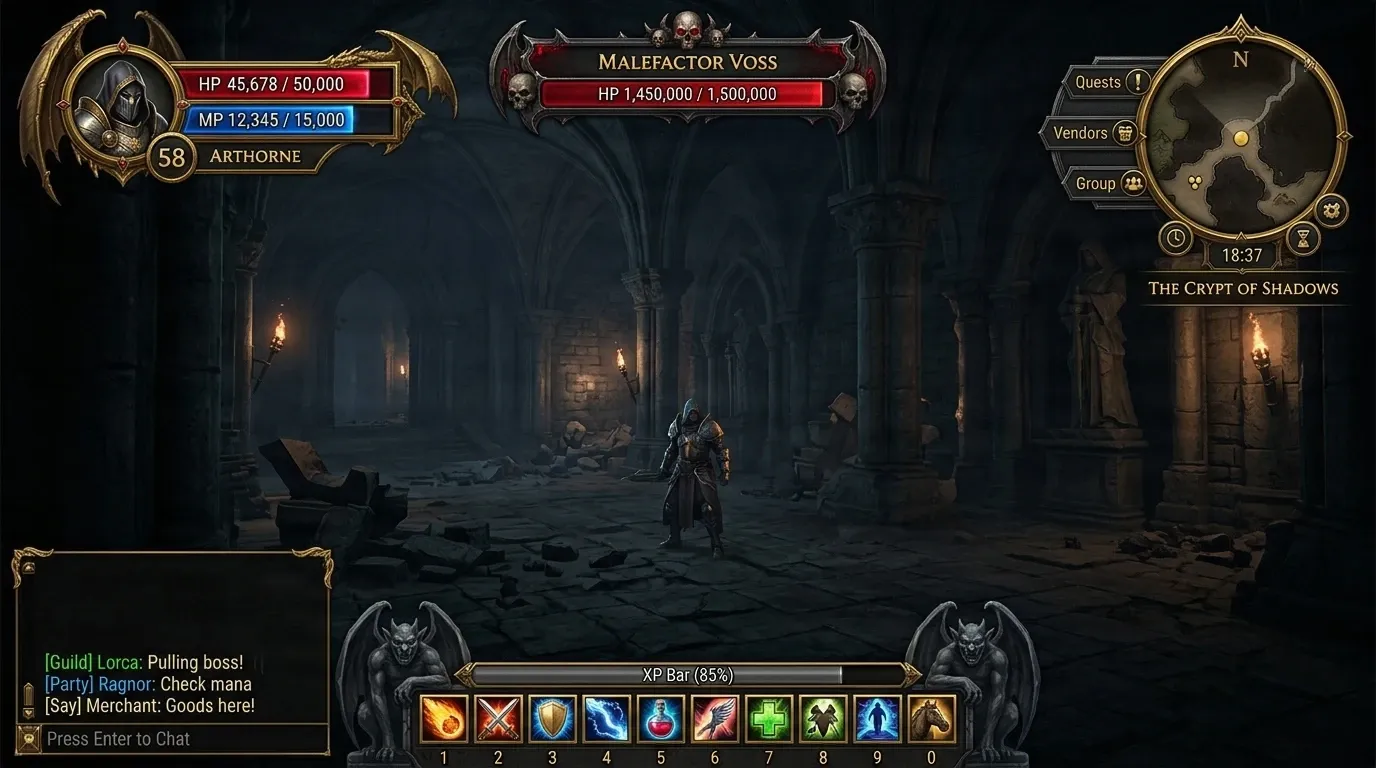
From one screenshot to separate UI components
Two real runs on the same game screenshot. The first separates the interface from the scene. The second takes one of those layers, the skill bar, and separates it further.
Step 1: separate the screenshot
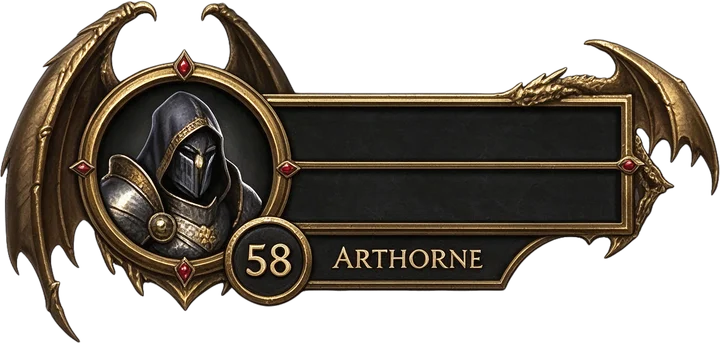
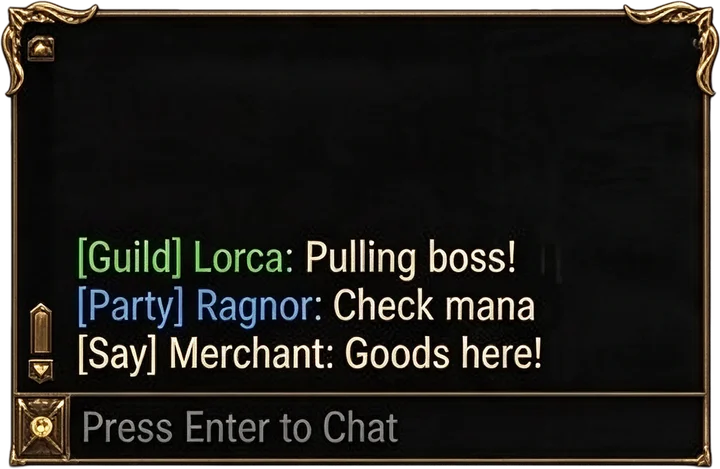
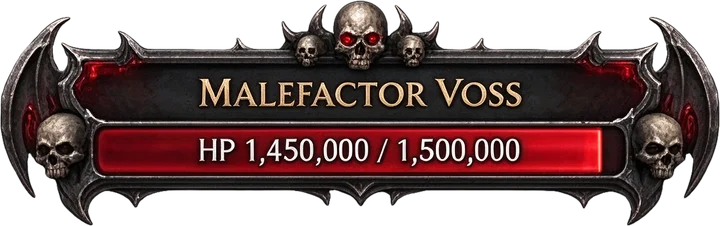
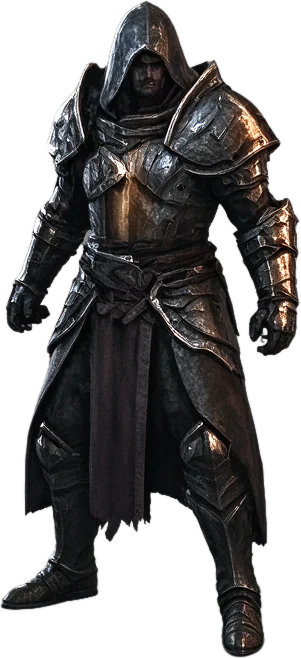
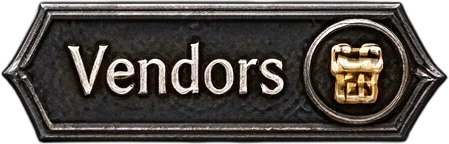
The character and the scene background come out apart from the interface, and each bar, panel, menu button and icon is its own layer.
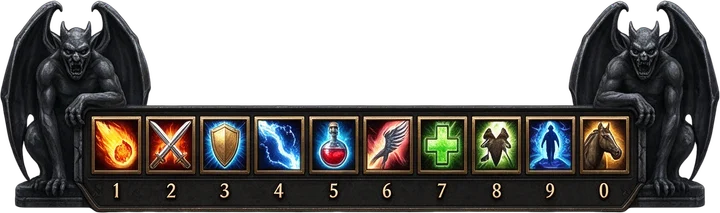




Step 2 (optional): separate one layer further
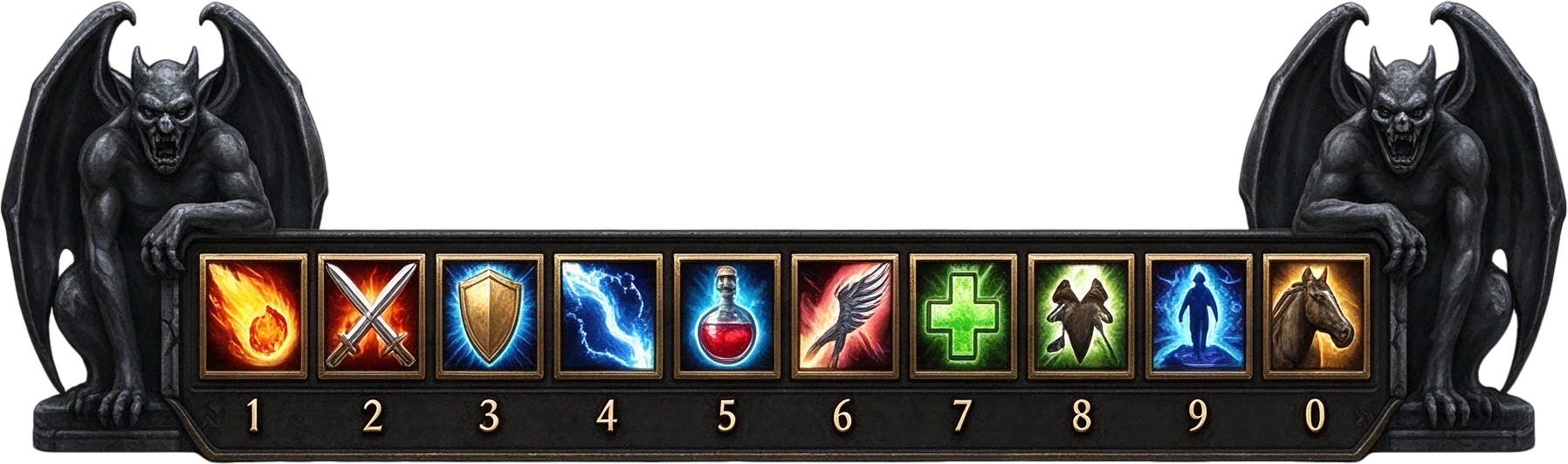
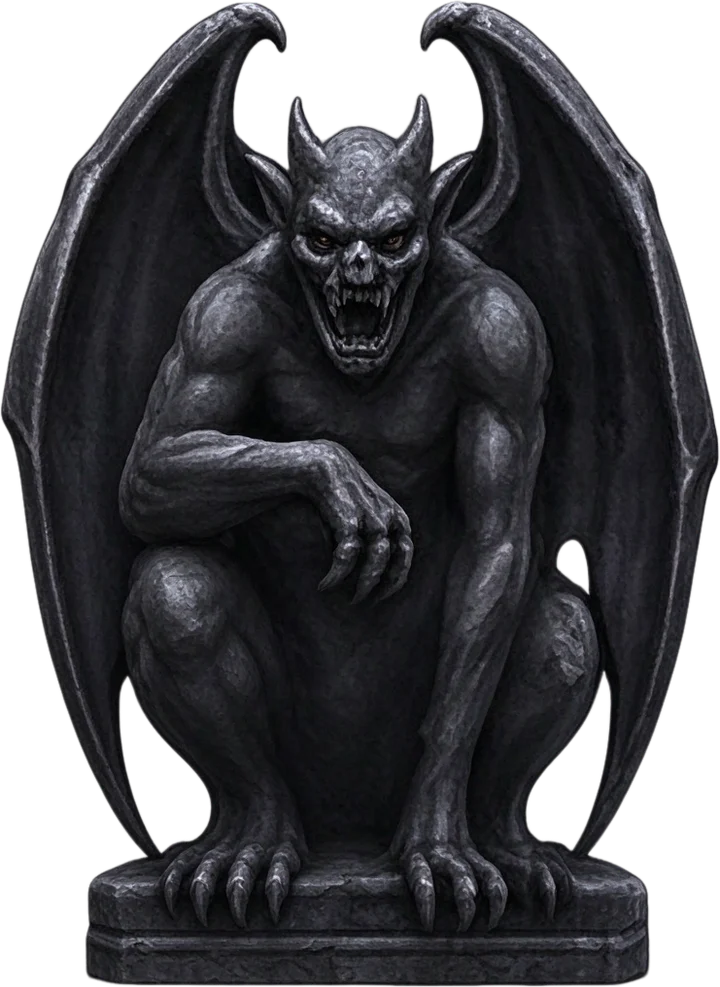
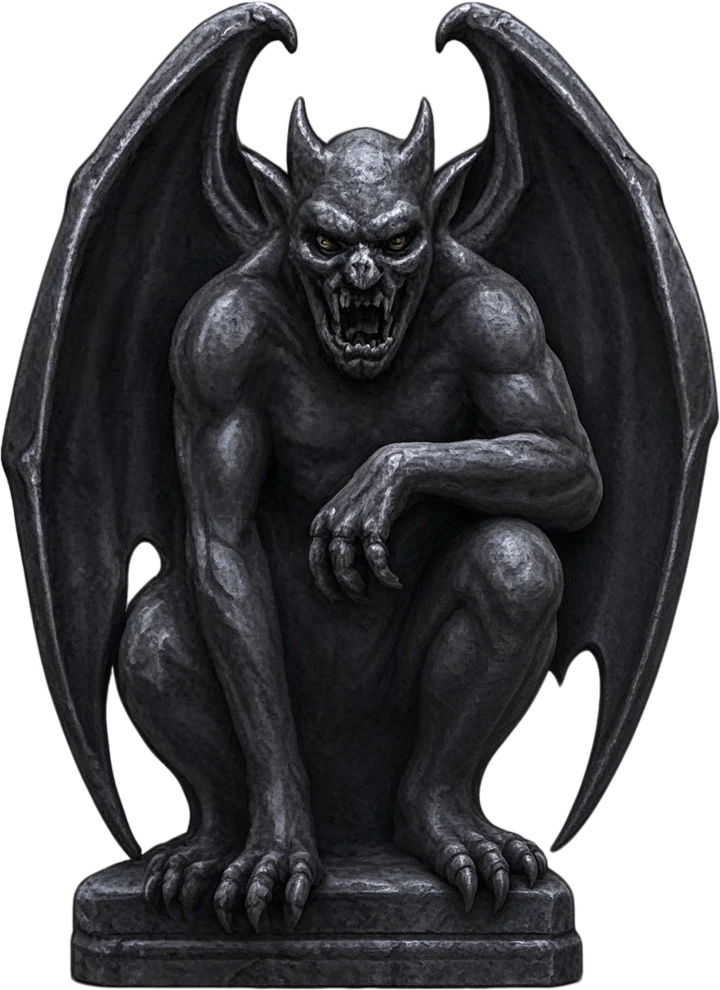
The skill bar was one layer after step 1. Run on its own, it came apart into ten buttons, two statues and the bar base.

What to expect
Every layer is redrawn by the model, so stacking the pieces back together gives something close to your screenshot, not an exact copy. Sizes and positions can differ slightly, most visibly on dense strips like the skill bar, and a layer can be a little larger than the original piece. Check small text, numbers and thin icons before you use a layer.
How it works
Two steps, you decide the second
1
Upload the screenshot
The first pass separates the main interface components and the character from the scene.
2
Review the layers
Select layers in the editor, move or hide them, and compare them with your screenshot.
3
Pick one layer to go deeper
Choose a layer such as a skill bar. The credit cost is shown before anything starts.
4
Use the pieces
The pieces replace that layer in the editor. Restore the original layer or undo at any time, then export.
For game developers
Get interface parts out of a flat screenshot
A screenshot or concept frame holds the whole interface in one image. Separating it gives you the bars, panels and icons as transparent layers you can reposition, restyle or rebuild in your own UI pipeline.
The tool separates artwork. It does not rebuild the interface as engine objects.
- Prototype layouts from a reference frame
- Pull HUD parts for a redesign
- Rebuild a UI mockup from an existing screenshot
- Collect icons and frames for a style study
For UI designers
Work on components instead of one image
Once the bars, panels and buttons are separate layers, you can reorder them, hide the ones you do not need and export the result.
Layers keep their position on the canvas, so you can move one piece without touching the rest.
- Health and mana bars
- Minimap and its frame
- Menu and quest buttons
- Chat and dialog panels
- Counters, clocks and standalone icons
For asset creators
Collect reusable pieces
Icons, buttons and ornaments become separate transparent PNG layers. Only use art you have the rights to use.
- Skill and ability icons
- Ornamental frames and statues
- Currency and status icons
- Decorative corner pieces
Why two steps
One pass has a layer limit
Each run returns a background and up to 16 separated layers. A full game screen has more parts than that, so the first pass groups dense strips together instead of splitting every button.
The second step runs one chosen layer on its own, so the model spends all its layers on that component.
First pass
Components, not fragments
The first pass asks for functional components rather than large visual regions: a bar with its label stays together, and a menu button stays with its icon.
The scene background is kept as one layer, and a character standing in the scene is separated from it.
- Status bars and the XP bar
- Boss and target bars
- Minimap and menu buttons
- Chat and dialog windows
- The character and the scene
Stays together
Some strips come out as one layer
Rows of similar buttons, such as an ability bar, are often returned as one layer in the first pass. That is what the second step is for.
Even then, a very dense strip is not guaranteed to separate into every single part.
Limits
What this tool does not do
It does not return pixel-identical crops of your screenshot, and it does not guarantee that every interface element becomes its own layer.
It does not create engine files such as Unity prefabs, Unreal widgets or Godot scenes, and it does not recognise button functions or text for you.
- Small text and numbers should be checked by eye
- Thin lines and glows can come out slightly different
- Overlapping elements may stay in one layer
Preparing
Get cleaner separation
Use the full frame at the highest resolution you have. Avoid capturing during motion blur, screen shake or heavy particle effects.
If you only need one panel, crop it first, or run the first pass and then separate that layer further.
- Full, uncropped frame
- High resolution
- A still moment
- Interface not covered by effects
Using layers
Edit, reorder and export
In the layer editor you can move, resize, hide, lock and reorder layers, apply masks and adjustments, and export the composition as an image.
ZIP and PSD downloads contain the separated layers. A layer you separated further is exported as its pieces. PSD export needs a paid plan.
Credits
See the cost before you start
Each run uses credits and shows its cost first. Separating a layer further is a separate, optional run: nothing is charged until you confirm it.
If a run fails, the credits for it are refunded automatically.
Game UI to Layers FAQ
What does Game UI to Layers do?
It separates a game screenshot into transparent layers: status bars, panels, menu buttons, the minimap, icons, the character and the scene background. You can then move, hide and export them in the layer editor.
Will every button become its own layer?
Not in the first pass. Each run returns a background and up to 16 separated layers, so rows of similar buttons usually stay together. You can separate that layer further in a second step, but even then a very dense strip is not guaranteed to split completely.
How do I get individual skill buttons?
Run the first pass, select the skill bar layer in the editor, and choose Separate this layer further. In our real test the skill bar came apart into ten buttons, two statues and the bar base.
Do I pay twice?
Only if you choose to. The first pass is one run. Separating a layer further is a separate, optional run that shows its credit cost before it starts. Failed runs are refunded automatically.
Are the layers exact crops of my screenshot?
No. Each layer is redrawn by the model. Put back together, the pieces are close to your screenshot but not identical, and sizes or positions can differ slightly.
Is the text in my interface preserved?
Text and numbers are usually kept, but small or thin text can change. Check every layer that carries text or numbers before using it.
Can I use the result in Unity, Unreal or Godot?
You get transparent PNG layers and an exportable composition. The tool does not create Unity prefabs, Unreal widgets or any other engine project files, so you import the images into your own UI setup.
How many layers can one run return?
A background plus up to 16 separated layers per run.
What happens to the scene and the character?
The scene background is kept as its own layer. A character standing in the scene is separated from it, and the background is rebuilt behind it.
Can I restore the original layer after separating it further?
Yes. The original layer is kept, hidden, while its pieces are shown. Restore original layer brings it back, and undo works as well.
Which screenshots work best?
A full, still frame at high resolution, without motion blur or heavy effects over the interface. Clear gaps between elements help.
Which export formats are available?
You can download the layers as a ZIP, export the composition as a PNG, or download a PSD on a paid plan. A layer separated further is exported as its pieces.
Can I use screenshots from any game?
Only use artwork you have the rights to use. Screenshots of games you do not own, or art covered by someone else's license, may not be yours to edit or share.
Can I edit the separated pieces with AI?
Pieces can be moved, masked, adjusted and downloaded in the editor. AI edits, upscaling and background removal run on the original layers.
Turn your game screenshot into separate UI layers
Upload a screenshot, review the separated components, and go deeper only on the layers that need it.
Separate Game UIYou see the credit cost before every run.