
Manga panel splitter
Split manga pages into individual panels
Have a full manga page but only need the individual panels? Upload your page, let the tool find the panel boundaries, and separate each scene without cropping everything by hand. Review the panels, adjust the reading order, and download individual PNG files or a layered PSD.
- Extract several panels from one page
- Review and adjust the panel boxes and reading order
- Export PNG files, a ZIP and a layered PSD
Upload your manga page
Start with a full manga page, comic page or illustrated story page that has several panels.
Upload your manga page
Choose a PNG, JPG or WebP image of a page with several panels.
JPG, PNG or WebP, up to 10 MB. Clear panel borders and visible spacing between panels make a page easier to split.
Exporting usually takes a few seconds.
See your manga page split into panels
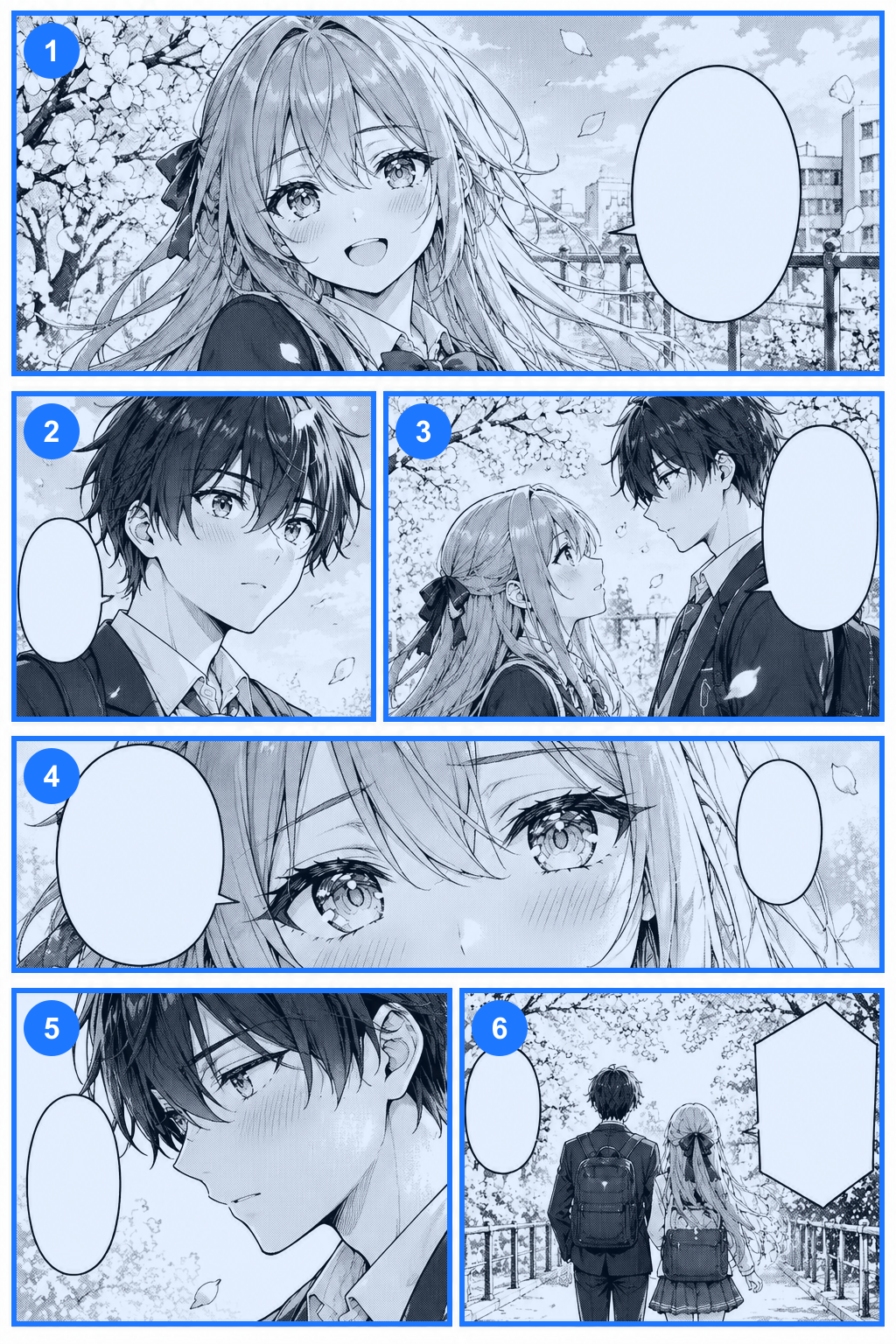
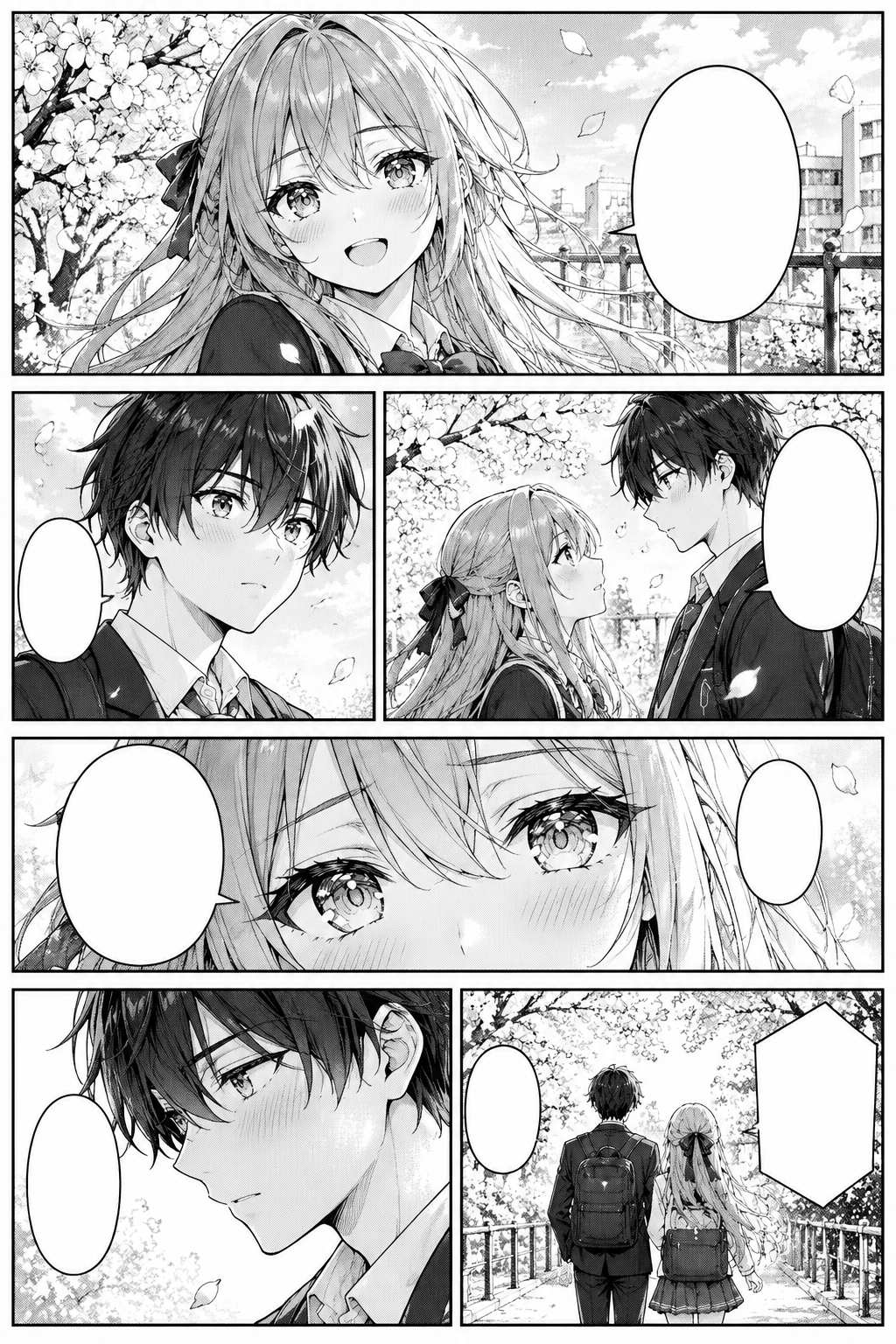
One page, six panels
The numbered boxes are what the detector found on this page, with no manual changes. Each box becomes a PNG and a layer in the PSD.
Drag the slider to compare the page with the detected panel boxes. Boxes and reading order may need adjusting, especially when artwork extends past a frame.
Your original artwork is cut, never redrawn. Irregular layouts may need manual adjustments.
Less cropping, more creating
Stop cropping every manga panel by hand
A manga page holds several moments. When you need just one of them, cutting each panel out by hand gets repetitive. Manga panel splitter gives you a simpler start.
Extract several panels from one page
Turn a multi-panel page into individual images instead of opening an editor and cropping every scene.
Keep your artwork intact
Panels are cut from your page, not regenerated. Characters, speech bubbles, linework and screentones stay as uploaded.
Review and adjust the boxes
Not every layout is a clean grid. Move, resize, add or remove a box when a frame is missed or too tight.
Keep panels in reading order
Choose right to left or left to right, then check the numbers and move a panel up or down the order.
Continue editing in Photoshop
Download a layered PSD with each panel at its place on the page and the original page switched off for reference.
Prepare artwork for other projects
Use panels as starting assets for motion comics, translations, presentation layouts or social posts.
How it works
From one manga page to individual panels
1
Upload your manga page
Choose a page with several panels. Black-and-white manga, colored comics and other layouts with visible panel divisions all work as starting points.
2
Detect and review the panels
The panels are found in your browser for free. Check the boxes, adjust them if needed and confirm the reading order.
3
Export your panels
Prepare your panels to download single PNG files, everything as a ZIP, or the layered PSD to keep working with the page.
Your panels, your workflow
Turn a finished page into flexible assets
Manga translation and localization
Work with single panels when you prepare dialogue edits, review layouts or coordinate localized artwork.
Motion comics
Use panels as starting images for pans, zooms and transitions. Animating characters or rebuilding artwork outside a panel needs more work.
Webtoon and comic editing
Extract chosen scenes from larger pages when you adapt a layout or prepare art for another format.
Social media previews
Share one comic moment without a screenshot of the whole page.
Portfolio preparation
Organize finished pages into single scenes for portfolio layouts and presentations.
Game and visual novel references
Use extracted scenes as references or starting assets for dialogue scenes, storyboards or illustrated narrative content.
Flexible downloads
Download the panels in the format you need
Individual panel PNGs
A separate image for each panel, to edit, preview, share or organize on their own.
Layered PSD
Each panel is its own layer at its place on the page, transparent everywhere else. The original page is in the file, switched off.
ZIP with everything
The panel PNGs, the PSD, the numbered overview, the original page and a list of the panel positions.
Original page
Your uploaded page is kept next to the extracted panels so you can check the composition.
Panel splitting separates the visible artwork into panel-based pixel layers. It does not separate characters, dialogue, screentones or backgrounds inside each panel.
Keep your story in order
Arrange panels the way your story is read
A traditional Japanese manga page reads from right to left, while many Western comics read from left to right. Choose the direction that matches your project, then check the numbered boxes.
Right-to-left manga
Panels are numbered row by row from the top, working through each row from right to left.
Left-to-right comics
Panels are numbered row by row from the top, working through each row from left to right.
Manual order
For unusual layouts, move panels up or down the list so the exported files match the order you intend.
The direction gives a starting order. Complex layouts may still need you to confirm the sequence.
Work with your own artwork
From simple comic grids to more creative layouts
Traditional manga pages
Black-and-white pages with clear panel borders and spacing.
Western comic pages
Rectangular panels in layouts that read left to right.
Colored manga and comics
Colored illustrations are cut as they are, not turned black and white.
Webtoon story sections
Single scenes from a vertical story when the boundaries between sections are clear.
AI-generated manga pages
Upload a generated page and review its panel boundaries before you extract the images.
Storyboards and illustrated narratives
Framed scenes from storyboard sheets or other illustrated page layouts.
Pages with clear borders or visible gaps are easiest. Overlapping, borderless or very irregular panels may need boxes you adjust yourself.
Before you split
Keep the artwork you have, not a redrawn version
Panel splitting only cuts out existing pixels. It does not redraw anything, and it can only extract what is in your uploaded image.
The detector looks for white gaps between panels. It works best on grids of rectangles, and it cannot cut diagonal or overlapping panels by itself.
Good inputs to try
- Manga pages with visible black borders
- Comics with clear white gutters between panels
- Pages with several rectangular panels
- High-quality digital comic images
- Pages where the order is visually clear
More challenging layouts
- Borderless panels
- Characters or objects that extend past a frame
- Speech bubbles that cross several panels
- Diagonal or irregular panel boundaries
- Very narrow gaps between panels
- Backgrounds that connect several frames
It does not rebuild hidden artwork, translate speech bubbles, generate scenes or turn characters into separate layers. Always inspect the panels and the reading order before you use the files.
Get the best from your page
Prepare your manga for cleaner panel splitting
Use a clear source image
Upload the original digital page or a high-quality scan rather than a heavily compressed screenshot.
Keep the whole page visible
Don't crop off the outer panel borders before you upload.
Check speech bubbles near the edges
Some bubbles extend past a frame or sit close to another panel. Look at the crop before you export.
Check panels with shared borders
When two panels meet along a thin line, make sure they were not merged into one box.
Confirm the reading order
The automatic order is a start. Check it when your layout is unusual.
Review every crop
Look at the edges of each panel before you use the files for translation, publishing or animation.
FAQ
Manga panel splitter: questions
What is a manga panel splitter?
It is a tool that extracts the individual panels from a whole manga or comic page. It finds the panel boundaries, creates a separate image for each, and keeps them in order so you don't crop every panel by hand.
Can I split a full manga page automatically?
The tool finds likely panel boundaries automatically, in your browser. Check the result before you export: irregular layouts, overlapping artwork and borderless scenes may need manual adjustments.
Can I extract several panels from one image?
Yes. A page with several recognizable panels is split into one image per panel. The number depends on your page and on the boxes you confirm.
Does it work with black-and-white manga?
Yes. Pages with visible panel borders and clear gutters are good inputs, and the visible artwork is kept as it is.
Can I use it for colored comics?
Yes. Colored pages are cut in color; nothing is converted to grayscale.
Does it support right-to-left reading order?
Yes. Choose right to left, check the numbered boxes and change the order if the layout needs it.
Can I change the detected panel boundaries?
Yes. You can move and resize each box, add a box that was missed, remove a wrong one, and reset the detection.
Can it split irregular or diagonal panels?
Not by itself. Boxes are rectangles, so diagonal and irregular panels are cut as the rectangle around them. Draw or adjust the boxes by hand and check the edges.
What happens when a character extends outside a panel border?
Artwork that crosses a frame is hard to assign to one panel. Resize the box to include it. The tool does not rebuild missing parts.
Can I download each panel as a separate PNG?
Yes. Each panel has its own PNG, and the ZIP holds them all.
Can I download all the panels together?
Yes. The ZIP has the panel PNGs, the PSD, a numbered overview, your original page and a list of the panel positions.
Can I export the panels to PSD?
Yes. Each panel is its own layer at its position on the page, and the original page is in the file, switched off.
Can I edit speech bubbles and characters separately in the PSD?
No. The PSD separates the page into panels, not the contents of each panel. Use a layer tool when you need finer separation.
Can I use the panels for motion comics?
Yes, as starting images for camera moves and transitions. Animating characters or rebuilding art outside a panel takes extra work.
Can I split webtoons and manhwa?
If the scenes have clear boundaries, yes. Very long vertical images are scaled to fit the size limits (3000 px on the long side, about 10 megapixels), so very long strips are better split into sections first.
Will splitting reduce the image quality?
The panels are cut from the pixels of your page. Pages above the size limits are scaled down first. It can't add detail that a low-resolution source doesn't have.
How much does it cost?
Finding and adjusting the panels is free. Exporting uses credits, shown next to the button before you start, and covers the PNGs, the ZIP and the PSD.
Can I use the extracted panels commercially?
You need to own the artwork or have permission to edit and distribute it. Splitting a page gives you no rights over third-party manga or comics, so check the licenses and terms first.
Continue your comic workflow
More ways to edit manga and comic art
Turn one manga page into panels you can work with
Your page already tells a story. Make every scene easier to use: upload it, review the detected panels and download single images or a layered PSD.
Split my manga pageYour artwork is cut, not redrawn. Review the panel boxes and reading order before you export.