
AI layer separation for Photoshop
Turn Flat Images into Editable Layers Without Leaving Photoshop
Only have a JPG, PNG, or flattened design? Use Image to Layers to create a new layered interpretation of recognizable subjects, objects, and backgrounds, then continue refining it in Photoshop.
The plugin does not recover the original PSD structure. It gives you a practical AI-assisted starting point when the source file is unavailable.
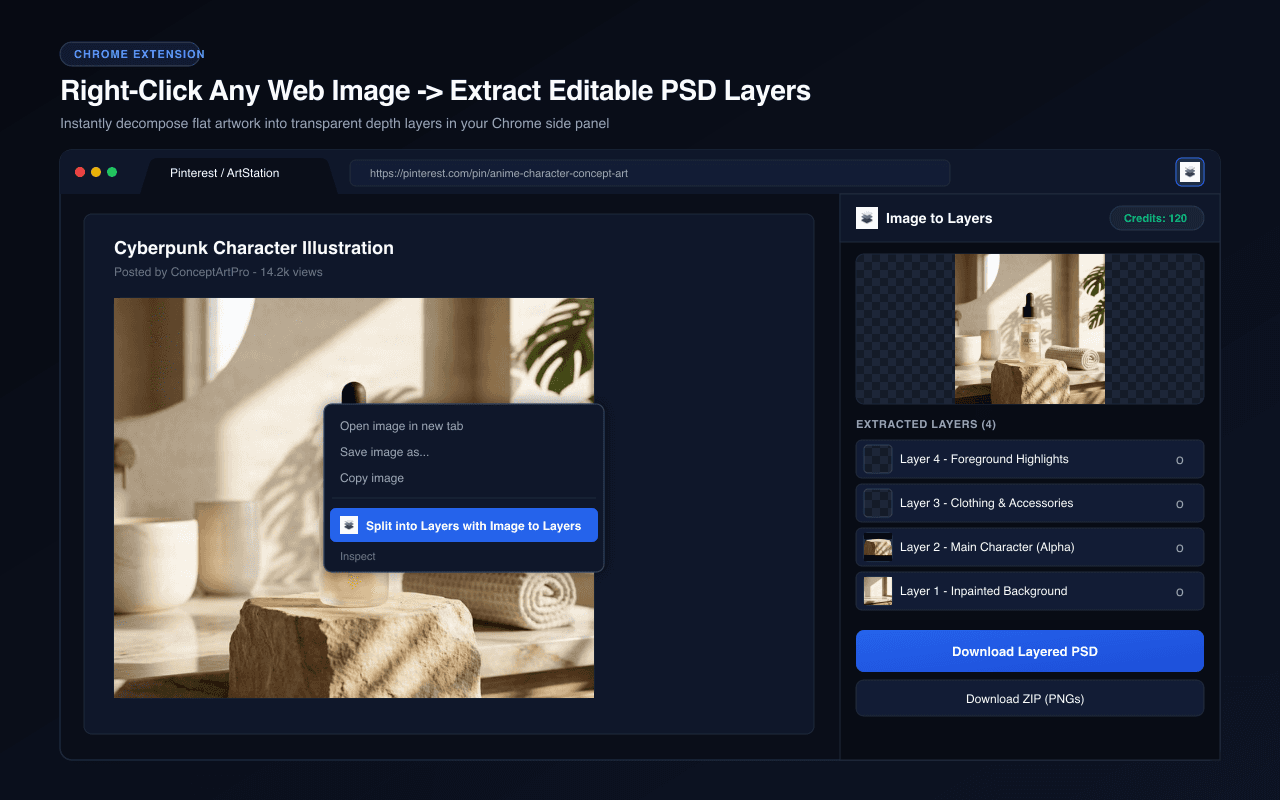
Getting started
From a Flat Image to a Photoshop Editing Starting Point
- 01
Install the plugin from Adobe Exchange
- 02
Connect your Image to Layers account
- 03
Choose an image and start layer separation
- 04
Review the result and continue editing in Photoshop
A common Photoshop problem
You Have the Image. You Do Not Have the Layers.
When the original PSD is gone, changing one object can mean rebuilding the image from scratch. Image to Layers creates a new layer structure from the visible artwork so you can keep editing.
- Start with a flattened JPG or PNG
- Separate recognizable objects and subjects
- Explore foreground and background layers
- Continue with Photoshop masks and compositing
- Refine the areas that need more precision
AI layer separation
Make Your Images Easier to Edit.
Separate multiple visual elements where the source image provides enough detail. The output is newly generated raster artwork designed to reduce repetitive preparation work.
- Separate characters, products, and props
- Prepare foreground and background assets
- Inspect and refine individual layers
- Reuse elements in another composition
- Keep your familiar Photoshop workflow
Built for Photoshop users
Spend Less Time Rebuilding. More Time Creating.
Connect the plugin to your Image to Layers account and use the generated layers as a practical starting point for revisions, illustration work, game assets, and marketing designs.
- Graphic designers revising finished artwork
- Digital artists working with illustrations
- Indie game creators preparing visual assets
- Freelancers who receive flattened client files
- Creators adapting products and campaign images
Photoshop Plugin FAQ
What is the Image to Layers Photoshop plugin?
It connects Photoshop with Image to Layers so you can create new raster layers from suitable flattened images and continue editing them in Photoshop.
Can I turn a JPG or PNG into Photoshop layers?
Yes. The service can attempt to separate recognizable elements into new raster layers. They are not the exact original layers from the source document.
Does it recover the original PSD?
No. A flattened image normally does not contain its original masks, Smart Objects, layer styles, or editing history. The plugin creates a new layered interpretation.
How do I install it?
Open the Image to Layers listing on Adobe Exchange, follow the installation instructions, then open the plugin from Photoshop's Plugins menu.
Do I need an Image to Layers account?
Yes. Sign in or create an account to connect the plugin and access the supported AI processing service.
Can it separate more than the background?
It can attempt to separate multiple recognizable people, products, props, characters, foreground elements, and background regions, depending on the image.
Can I use it for anime characters and illustrations?
Suitable illustrations can be processed. Hair, overlapping clothing, fine patterns, and partly hidden elements may need manual cleanup.
Can I use it with product photographs?
Yes. The service can attempt to identify products, props, and background areas in suitable photographs. Results depend on lighting, overlap, and detail.
Will layers have transparent backgrounds?
Separated foreground elements can have transparency. Background and reconstructed scene layers may remain opaque.
Can it make text editable in Photoshop?
No. Text in a flattened image is generally raster artwork. The plugin does not recover original fonts or native editable type layers.
Can it reconstruct hidden backgrounds?
It can estimate some areas hidden behind removed objects. These are AI-generated estimates, not recovered original pixels.
Does it work offline?
AI processing requires an internet connection. Photoshop's ordinary local editing tools continue to work according to Photoshop's capabilities.
Can I use the website instead?
Yes. The Image to Layers website offers browser-based upload, review, editing, and export workflows in addition to the plugin.
How much does processing cost?
AI processing is credit-based. The applicable cost is shown before you start a paid task; review your account and current pricing for details.
Can I use the results commercially?
Use depends on your rights to the source artwork and the applicable Image to Layers terms. Review the generated work before publishing or delivering it.
What if the separation is not perfect?
Review the generated layers and refine edges, masks, and overlaps in Photoshop. AI-assisted output is a starting point, not a guarantee of perfect reconstruction.
Your Image Is Flat. Your Options Do Not Have to Be.
Install Image to Layers for Photoshop and turn suitable flattened artwork into a more editable starting point.
AI-assisted separation creates new raster layers. You stay in control of the final artwork.
Install from Adobe Exchange