
POSTER TO LAYERS
Turn a Flat Poster Into Layers You Can Actually Edit
Only have the JPG? Upload it and get the headline, people, badges, graphics and background separated into image layers.
Click or drag image to upload
Upload your poster
JPG, PNG, WebP up to 10MB · Drag & drop anywhere
Settings
Leave this blank to let Detailed Layers identify the main editable elements automatically. Or name the parts you want separated.
Separate the Elements You Want to Change
Focus on the headline, people, products, illustrations, badges, supporting text and background. AI will attempt to preserve visible details while preparing separate image elements.
Upload an Image to Continue
Private File Handling
Uploaded files are associated with your account and delivered through signed URLs. You can delete completed jobs manually.
Transparent PNG Output
Detailed Layers returns each detected element as its own layer on a transparent background.
Continue Editing in Agent Workspace
Multi-Agent SuiteOpen the layered result in Agent Workspace to clean up elements, create visual variations, or continue working from the same project.
JPG, PNG or WebP. Upload a poster you own or have permission to edit.
60 credits per poster · Credits refunded if generation fails · No manual tracing needed to get started
START WITH THE POSTER YOU ALREADY HAVE
Upload Your Poster
You don't need the original Photoshop project to get started.
Upload the finished poster you want to work on. AI will attempt to identify and separate the visible design elements so you can continue editing them independently.
Leave the description blank to let AI pick out the main elements automatically. Or tell it what matters most to your design.
Move them, hide them, rearrange your design, or replace individual elements in your editing workflow. Export a layered PSD to keep working without starting from a blank canvas.
60 credits per Detailed Layers generation. Results depend on the original image and may need further cleanup.
SEE THE LAYERS BEFORE YOU START
This Poster Started as One Flat Image. Now It Has 8 Layers.
It looks like a normal finished event poster.
A headline across the top. A singer in front of the stage. Dates, venue details, an early-bird badge and a detailed concert background.
In the original image, all of those elements were flattened together. We used AI to separate this example into eight image layers.
Explore what was separated. Select the headline, inspect the singer or view the background independently.

Explore the Eight Layers
Select a highlighted element or layer thumbnail to inspect the separated image.
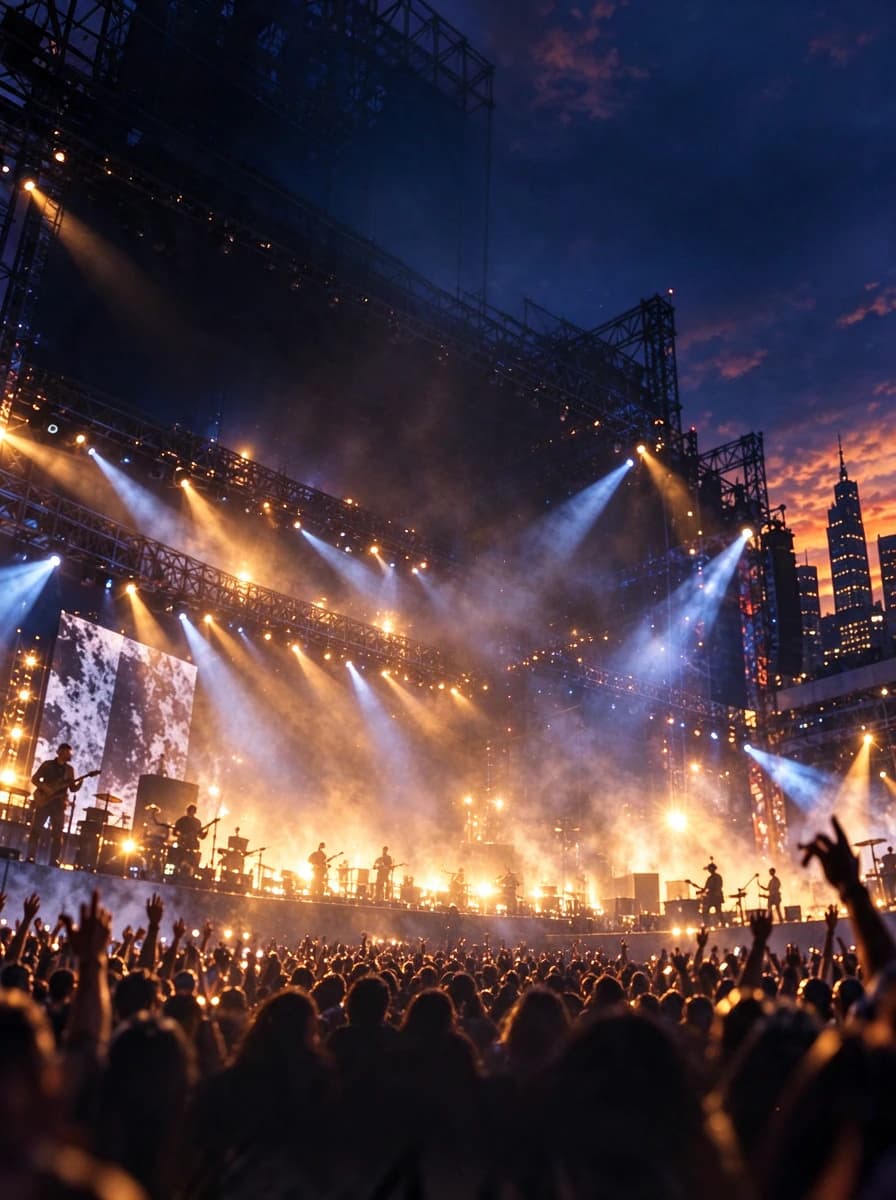
Layer 01 — Background Plate
The base image used for the poster composition.
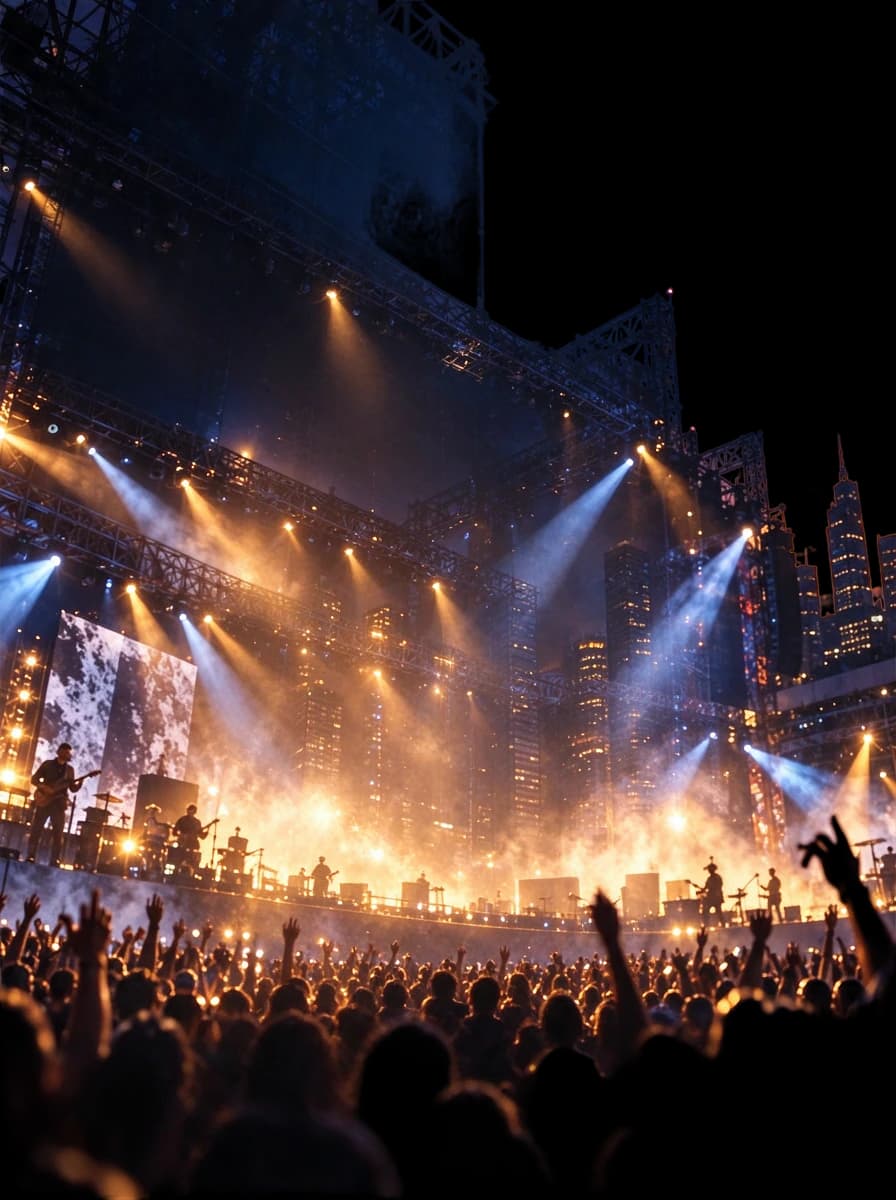
Layer 02 — Concert Background
The stage, lighting, city scenery and surrounding atmosphere as a separate image element.
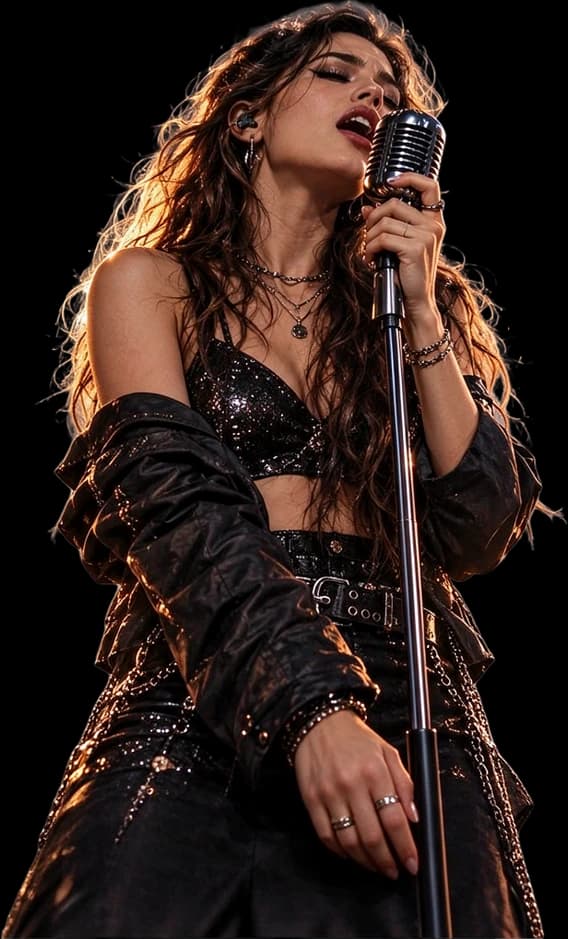
Layer 03 — Singer & Microphone
The foreground performer, including the visible microphone and stand.

Layer 04 — Festival Subtitle
The “LIVE MUSIC FESTIVAL” lettering as isolated text artwork.
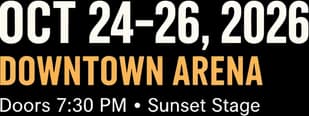
Layer 05 — Event Information
The visible event date and venue details grouped into a separate image layer.

Layer 06 — Lineup & Ticket Information
The artist lineup and ticket footer as separate text artwork.
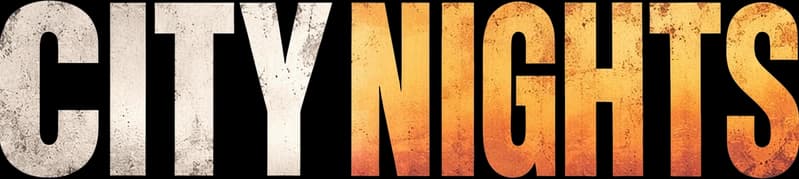
Layer 07 — Main Headline
The large “CITY NIGHTS” title, separated from the rest of the design.

Layer 08 — Early Bird Badge
The circular promotional badge, available as its own visual layer.
This is an AI-generated sample poster, processed with AI image layer separation. These are real outputs from the separation process, not manually recreated layers from an original design file. Results vary between posters.
THE ORIGINAL DESIGN FILE IS GONE. THE WORK ISN'T.
A Small Poster Change Shouldn't Mean Rebuilding Everything
You have a finished poster.
Maybe the event date changed. Maybe your client wants another artist featured. Maybe the headline needs to move, the promotion badge needs to disappear, or the background would look better in another format.
But the only file left is a JPG. There are no Photoshop layers to select. No separate subject image. No isolated title. No editable background underneath.
Rebuilding the poster manually can take longer than the actual design change.
Poster to Editable PSD gives you a different starting point.
Instead of trying to reproduce the entire composition from scratch, you can start by separating the existing visual elements. Keep the parts that still work. Revisit the parts that need changing.
MORE CONTROL OVER THE DESIGN YOU ALREADY HAVE
Keep What Works. Change What Doesn't.
Move the Headline Without Moving the Background
A headline might look right on the original poster but sit too close to the edge in a new layout. When the title is successfully separated into image artwork, you can reposition it independently.
Hide a Promotional Badge
A discount or event badge may no longer be needed. Work with the separated badge instead of manually painting over it on the original flattened image.
Isolate a Person or Product
You may want to reuse the performer, featured product or visual subject in another design. A separated image layer gives you a starting point without tracing the entire silhouette yourself.
Work with the Background Separately
Remove or hide foreground elements in your layered composition and inspect the AI-reconstructed scenery underneath.
Rearrange the Visual Hierarchy
Adjust how text artwork, subjects, badges and decorative elements sit in relation to one another.
Export to Continue in Photoshop
Download a layered PSD to continue refining the composition using compatible desktop editing software.
AI separation doesn't recover the original design project. Some elements may remain grouped together, and reconstructed areas may require manual refinement.
NOT JUST CUTOUTS
What Happens to the Background Behind the Text?
This is the part that matters when you're editing an existing poster.
The headline may cover stage lights. A person may stand in front of buildings. A promotional badge may hide part of the design. Simply cutting those elements out can leave empty areas.
Our AI layer separation workflow can attempt to reconstruct the visual background behind separated foreground elements. That gives you more flexibility when hiding or moving them.
Hide the Headline
Inspect the scenery where the original title appeared.
Isolate the Subject
Work with the performer or product as an independent image element.
Reveal the Background
Explore the reconstructed background plate without the original foreground composition.
See What's Behind the CITY NIGHTS Headline
Switch layers on and off in our real example. This is an AI-generated estimate of hidden scenery, not a recovered original photograph.
Layers
Background reconstruction is not always seamless. Complex textures, lighting, typography overlaps and hidden objects may produce artifacts or invented details.
UNDERSTAND WHAT YOU GET
A Flattened Poster and a Layered PSD Are Different
Your Original Flat Poster
Everything is combined into one image. The headline, person, graphics and scenery share the same pixels. Moving one element without affecting nearby content usually requires additional manual editing.
Typical File: JPG, PNG or WebP
Your AI-Separated PSD
Visible poster elements are organized into individual raster image layers where the model can separate them. You can work with those layers independently in compatible editing software.
Typical Output: Layered PSD with separate image elements
What's Different?
- Hide individual image layers
- Reposition successfully separated elements
- Change their stacking order
- Replace elements with your own artwork
- Inspect reconstructed background areas
- Continue manual design work
Important Distinction: A layered PSD is editable as a layer-based image document. It does not necessarily contain the original font files, native Photoshop text objects, vector paths, smart objects or adjustment settings.
KNOW WHAT'S INCLUDED BEFORE YOU GENERATE
Your Poster Elements Become Image Layers — Not the Original Source File
What You Can Work With
- Separated Headline ArtworkVisible title lettering may be extracted into its own raster image layer so you can hide or reposition it.
- People and Featured SubjectsThe model may isolate prominent people, products or other visual elements from the surrounding composition.
- Badges and Decorative GraphicsPromotional stickers, graphic elements and decorations may be separated where their boundaries can be identified.
- Background ElementsAI can attempt to create a background plate that can be viewed or edited independently.
- Layered PSD ExportContinue working with the generated image layers in compatible software.
What This Does Not Recover
- Original FontsThe model does not identify and install the exact fonts used in the original poster.
- Native Editable Text ObjectsSeparated lettering is typically raster artwork. It is not automatically restored as Photoshop text that you can retype character by character.
- Original Vectors and Smart ObjectsFlattened paths, editable shapes and smart object source content are not recovered from the image.
- Original Masks and Adjustment HistoryThe original author's editing operations, layer effects and complete design history are not reconstructed.
- Perfectly Hidden Image DetailsAI estimates obscured content. It cannot guarantee recovery of what was originally behind a person, title or graphic.
Need to change the actual words? Explore Edit Text in Poster.
FROM A FLAT IMAGE TO A NEW EDITING STARTING POINT
Split Your Poster in Four Steps
- Step 1
Upload Your Poster
Choose the JPG, PNG or WebP file you want to edit. You can start with a promotional design, event poster, advertisement or other flattened composition.
- Step 2
Let AI Identify the Elements
Leave the optional description blank for automatic separation, or describe the elements that matter most. AI attempts to distinguish the headline, subjects, graphics and background.
- Step 3
Review the Result
Inspect the separated layers and check text artwork, subject edges, overlapping objects and reconstructed background areas. Not every element will be isolated perfectly.
- Step 4
Export and Continue Editing
Download the available image-layer exports or a layered PSD, then continue your design in compatible software.
AI-generated image layers may need cleanup before they are suitable for your final project.
WHEN YOU HAVE THE POSTER, BUT NOT THE PROJECT
A Practical Starting Point for the Designs You Need to Update
Event Posters
You have an event poster, but the original design file is missing. Separate visible artwork before adjusting the layout or preparing updated materials.
Concert & Music Festival Posters
Work with performer images, large titles, event details and stage backgrounds in your existing promotion artwork.
Sale & Promotional Posters
Explore moving a discount badge, product image or advertising headline without recreating the entire composition.
Movie & Entertainment Posters
Separate prominent characters, title artwork and background elements as a starting point for authorized redesigns.
Restaurant & Venue Posters
Prepare existing food imagery, headline artwork and decorative elements for further updates.
Conference & Exhibition Posters
Rework speaker images, event visuals and large display titles into new design arrangements.
You must have the appropriate rights to edit, reuse or distribute the poster artwork.
YOUR NEXT EDIT SHOULDN'T START FROM ZERO
For Anyone Left with a Flattened Design
Freelance Graphic Designers
A client sends you the finished image instead of the original source file. Start by separating useful visual elements, then refine the project in your editor.
Marketing Teams
Reuse approved visual artwork when adapting a campaign, promotion or event layout.
Event Organizers
Work with existing performer images, titles and venue graphics when preparing updated designs.
Small Business Owners
Prepare a flattened promotional poster for further changes without having to redraw every graphic.
Creative Agencies
Use layer separation as an early step when taking over legacy artwork or preparing new versions of a previously delivered design.
Content Creators
Explore reusing individual visual elements from authorized poster artwork in different formats and compositions.
CHOOSE A POSTER AI CAN READ CLEARLY
Give the AI a Better Starting Image
Use the Best-Quality Copy You Have
A clear original image is generally more useful than a blurry screenshot or a heavily compressed thumbnail.
Keep the Full Poster Visible
Avoid unnecessary cropping if you need the title, subject, badges and supporting information.
Choose Clear Visual Boundaries
Large subjects and distinctive graphics may be easier to separate than heavily overlapping or low-contrast objects.
Be Specific When Necessary
If the poster is busy, you can describe what you care about most: “headline, person, discount badge and background.”
Inspect Fine Text Closely
Small dates, pricing details, artist names and decorative type can lose clarity or remain grouped with nearby elements.
Check Hidden Background Areas
If you plan to move a person or headline, inspect any AI-reconstructed scenery underneath before using it in a finished design.
Review Before Delivering to a Client
Use the original image as a reference, especially when accurate branding, typography or printed details are important.
TWO DIFFERENT WAYS TO CHANGE A POSTER
Need to Move the Design — or Change the Words?
Choose Poster to Editable PSD When…
You need to separate the headline artwork, subject, graphics and background so you can rearrange or refine the composition.
Split Poster into LayersChoose Edit Text in Poster When…
You mainly need to change the visible wording, such as a date, venue, promotion, price or event title. Our separate AI text-editing workflow is designed for changing wording inside a finished image.
Edit Poster TextText editing creates an updated image; poster layer separation creates separate image elements. Neither automatically recovers the complete original Photoshop source project.
PAY FOR THE WORK YOU NEED
Start with One Poster
A Detailed Layers generation costs 60 credits. That covers the AI attempt to separate the visible image elements in your uploaded poster.
Included in the Workflow:
- AI image layer separation
- Access to the completed layer result
- Available individual image-layer exports
- Available layered PSD export
Generation Policy: If the generation fails, the applicable credits are refunded under the service's failed-job handling.
Important: A generation can complete successfully even when some visual details require manual cleanup. Results are not guaranteed to match the original design's editable structure.
Split My PosterFAQ
Frequently Asked Questions
Can I convert a poster JPG into an editable PSD?
Yes. You can upload a flattened poster JPG and generate separate raster image layers, then export them as a layered PSD. The resulting document can be edited at the image-layer level, but it does not recover the complete original source file.
What if I don't have the original Photoshop file?
That's the main reason to use this workflow. Start with the finished poster image you have. AI will attempt to separate its visible elements so you can continue working with them.
Can I convert a PNG poster to a layered PSD?
Yes. The workflow accepts supported PNG images, along with JPG and WebP files.
Will the text become editable in Photoshop?
Separated text is typically raster image artwork, not a native Photoshop text object. You may be able to move, hide or replace the text artwork, but you should not expect to retype it while preserving the original font properties.
Can the AI separate the headline from the background?
It can attempt to separate a visible headline into its own image layer. Results depend on the lettering, contrast, effects and how heavily the text overlaps the rest of the poster.
Can I separate a person or product from my poster?
Yes. Detailed Layers can attempt to isolate visible subjects such as people, products or objects. Check the result for issues around hair, transparent surfaces, reflections and overlapping edges.
Does it rebuild the background behind the removed elements?
The model can attempt to reconstruct obscured background areas as part of the separation process. However, the generated scenery is an estimate and may contain artifacts or details that weren't in the original hidden image.
Can I hide or move individual elements after exporting?
Yes, when the elements have been successfully separated. You can work with their individual image layers in a compatible PSD editor.
Can I rearrange a poster for a different layout?
You can use the separated layers as a starting point for rearranging the composition. Additional resizing, cropping, repainting or manual design work may be necessary.
Does this work with concert posters, advertisements and promotional posters?
Yes. You can upload many types of flattened poster images, including event posters, product promotions and entertainment artwork. The quality of separation depends on the specific design.
How many layers will I receive?
The number depends on the image and the elements the model identifies. Our CITY NIGHTS example produced eight layers, including its background elements. Other posters may produce more or fewer.
Is the CITY NIGHTS example a real AI separation?
Yes. The original CITY NIGHTS poster artwork was AI-generated, and the eight displayed layers are actual AI separation outputs. They were not recovered from a manually built source PSD.
Can I tell the AI which elements to separate?
Yes. You can enter an optional description to guide which elements the model prioritizes, such as “headline, performer, badge and background.” The request guides the process but does not guarantee a particular layer breakdown.
Do I have to write a prompt?
No. You can leave the optional description blank and let the model attempt to identify the main elements automatically.
Will every letter, icon and decoration get its own layer?
Not necessarily. The model may group nearby or related elements together. Dense typography, tiny icons and overlapping graphics can be harder to separate individually.
Does the PSD contain original vector artwork or smart objects?
No. Converting a flattened poster does not recover the original Illustrator paths, Photoshop smart objects, adjustment settings or complete editing history.
Can I use the exported file in Adobe Photoshop?
The output is intended as a layered PSD for compatible editing software, including Adobe Photoshop. Review the document and layers after opening, as compatibility and results may depend on the file and editing environment.
Can I download transparent PNG layers?
The existing layer workflow provides image-layer exports, including transparent PNGs for supported separated elements. Background layers may be fully opaque.
Can I use this to change the date or event information?
You can isolate and replace existing text artwork during further editing. If your goal is primarily to change the wording inside the poster, the separate Edit Text in Poster tool may be more suitable.
Will the reconstructed poster be pixel-perfect?
Not guaranteed. AI may alter fine text, textures, edges, lighting and background details. Always inspect the reconstructed composition against the original.
What file formats can I upload?
The workspace supports JPG, PNG and WebP images, subject to the current upload limits shown in the tool.
How much does one poster separation cost?
A Detailed Layers generation currently costs 60 credits. The exact amount is displayed in the workspace before you start.
Will my credits be refunded if generation fails?
Failed generation jobs are handled by the service's credit refund workflow. If a job fails, the applicable credits are refunded according to that handling. A completed result that needs some manual refinement is not the same as a failed generation.
Can I sell or reuse designs made from the separated layers?
You may use the workflow with artwork you own or are authorized to edit, subject to the service terms. You are responsible for having the necessary rights to use and distribute the resulting designs.
YOU HAVE THE POSTER. START THERE.
You Don't Need to Rebuild the Whole Poster from Scratch
That finished JPG doesn't have to be the end of your editing options.
Upload your poster, separate the visible design elements and get a layered starting point for your next changes. Keep the artwork you still like. Rework what needs attention.
Split My PosterJPG, PNG or WebP · 60 credits per generation · Layered PSD and image-layer exports
AI separation creates editable image layers, not a perfect copy of the original design project.
Related Tools
Image to PSD
Turn other types of flattened images into layered PSD files for further editing.
Edit Text in Poster
Change titles, dates, prices, venue information and other visible wording in a finished poster image.
Ad Delayer
Separate visible text artwork, images, logos, graphics and backgrounds in existing advertising designs.
Edit Text in Flyer
Update wording inside finished promotional flyers and printed-style advertising artwork.
Image to Layers
Explore general image layer separation for illustrations, photographs, objects and visual compositions.