
Remove Emojis from Photos with AI
Keep the photo you love, without the emoji you do not. Upload your picture, choose what to remove, and review your edited photo.
Select the emoji directly on your photo and refine the area you want edited.
Use a direct selection for small stickers or graphics close to important details.
Image
RequiredAdd Image
Click or drag one source image here to start editing.
PNG, JPG, JPEG, or WEBP. The upload card is the primary starting point.

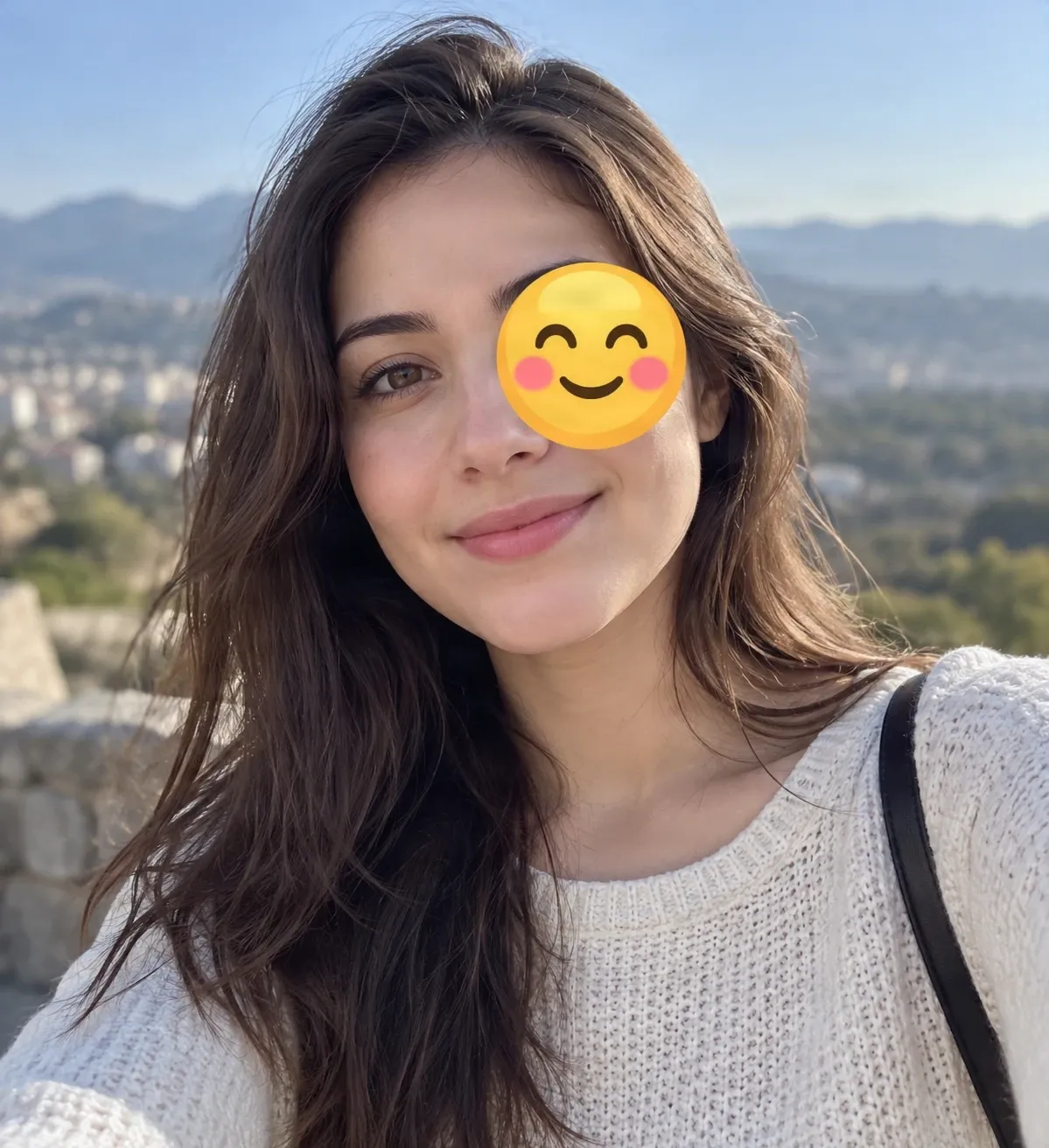
A dedicated emoji-removal comparison will appear here when both the original and its reviewed AI edit are available.
Recent Sessions
Have a favorite photo with an emoji or sticker you wish wasn't there? Upload your picture and let AI remove unwanted emoji overlays while recreating a natural-looking background. Whether it's a selfie, vacation picture, or photo saved from social media, you can give it a cleaner look without complicated editing.
KEEP THE PHOTO YOU LOVE
Sometimes, You Just Want the Original Look Back
You took a great picture. The smile is right, the lighting looks good, and the moment is worth keeping. But somewhere along the way, an emoji or decorative sticker was added.
Maybe it looked cute in a story, you saved an edited version instead of the original, or you simply prefer how the photo looked before the extra decoration. An AI emoji remover gives you another option: edit the visible sticker and create a cleaner-looking version.
Keep using the selfie, travel photo, family moment, or profile picture you already love without starting again from a new photo.
Keep your favorite moment. Leave the extra decoration behind.
AI Cannot Reliably Recover What an Emoji Covered
An emoji added to a flattened picture can replace the original pixels underneath it. AI cannot reliably retrieve those exact hidden pixels from the edited image alone.
Instead, it estimates a plausible replacement from visible surroundings. A simple wall may be easier to reconstruct than a covered face, patterned clothing, text, or a detailed object. The result may look realistic without accurately restoring the original scene.
A Simple Way to Remove Emoji Stickers from Photos
Remove unwanted decorations
Choose your level of control
Keep the photo in focus
Skip complicated editing software
Make old photos useful again
How to Remove Emojis from Photos
Upload your picture
Choose the emoji
Let AI edit the area
Review and download
Quick Remove or Magic Eraser?
| Quick Remove | Magic Eraser |
|---|---|
| Describe the emoji or sticker to remove | Select the emoji area directly on the image |
| A fast starting point for clear, isolated graphics | More control for small stickers and nearby details |
| AI identifies the target from your instructions | You draw and refine the edit area yourself |
Both modes edit the visible overlay. Neither can guarantee recovery of the original pixels hidden underneath.
What Affects Emoji Removal Results?
Simpler areas
Detailed areas
Covered people or objects
Remove Emojis from the Photos You Actually Use
Selfies with emoji stickers
Photos saved from social media
Vacation and travel pictures
Family and group pictures
Outfit and lifestyle photos
Personal profile pictures
EDIT THE PHOTO YOU HAVE
A Quick Alternative to Manual Sticker Retouching
Quick Remove
Describe the visible emoji or sticker and let AI determine the edit area.
- Clear emojis
- Isolated stickers
- Simple backgrounds
Magic Eraser
Select and refine the specific graphic you want changed.
- Small overlays
- Multiple stickers
- Graphics near details
Manual editing software
Retouch individual areas yourself when you need hands-on control over every pixel.
- Clone tools
- Layer masks
- Brush retouching
AI-generated replacements are estimates. Use the unedited original when authenticity matters.
How to Get a More Natural-Looking Photo
- Start with a clear photo: Higher-quality images generally give AI more visible detail to work with.
- Select only the necessary area: With Magic Eraser, include the sticker and needed edges without covering nearby objects unnecessarily.
- Consider what is underneath: Simple backgrounds are usually easier to estimate than faces, hands, detailed clothing, or intricate objects.
- Inspect repeated patterns: Check tiles, brickwork, fabric patterns, and text to see whether the reconstructed area fits the surroundings.
- Compare before and after: Look for changes outside the selected area, especially around people, important objects, and fine details.
Common Mistakes
Expecting exact hidden details
A flattened image does not contain the pixels behind the sticker. AI-generated fill should not be treated as an authentic recovery.
Selecting too much of the image
A broad selection can affect details that were not part of the emoji. Keep the edit area close to the overlay.
Skipping a close review
Inspect edges, textures, faces, text, and nearby objects before using or sharing the edited version.
Frequently Asked Questions
How do I remove an emoji from a photo?
Upload your image, then describe the emoji with Quick Remove or select it manually with Magic Eraser. AI attempts to edit the visible graphic and fill the area with plausible details. Review the result before downloading.
Can AI remove emoji stickers from pictures?
AI image editing can attempt to remove emoji stickers and estimate replacement details. Results depend on the sticker’s size and location and the visible information around it.
Can I remove an emoji from a selfie?
Yes. Upload a selfie and select the emoji you want removed. If it overlaps hair, skin, or facial features, review the generated area carefully.
Can I remove an emoji that covers someone’s face?
You can attempt to remove the visible emoji, but AI cannot know exactly what the hidden face looked like. It may generate a plausible face that should not be treated as the person’s actual appearance.
Can AI reveal what was originally behind an emoji?
Not reliably. If the emoji was flattened into the image, the covered pixel information may no longer exist in that file. AI can estimate a plausible replacement, but cannot guarantee recovery of the real hidden content.
Can I remove emojis from screenshots?
You can try editing a screenshot. Results depend on whether the emoji covers a photo, text, interface element, or another type of content. Small text and detailed interface areas can be difficult to reconstruct accurately.
Does it work with photos saved from Instagram or Snapchat?
You can try editing social media photos that you have permission to modify. When stickers are embedded in the saved image, AI can attempt to replace their visible areas rather than recover the original pixels beneath them.
Can I remove several emojis from the same picture?
You can describe multiple emojis or select more than one area when using the available editor. Several or overlapping stickers can make the edit more challenging, so review each area.
Will removing an emoji change the rest of my picture?
The goal is to keep unrelated parts close to the original, but AI editing can affect nearby details or other areas. Compare the output with your source photo.
Which is better for removing emojis: Quick Remove or Magic Eraser?
Quick Remove is convenient when the emoji is easy to describe. Magic Eraser gives you more control over the edit area and may help with small stickers or graphics near important details. Neither guarantees a perfect result.
Can I remove a heart emoji or smiley face sticker?
You can try removing common emoji shapes such as hearts, smiley faces, stars, and other decorations. The surrounding image and what the emoji covers usually matter more than its shape.
Can I remove an emoji without Photoshop?
Yes. Use the online AI-assisted editor without Photoshop or manual pixel-by-pixel retouching.
What happens if an emoji covers clothing or a patterned background?
AI attempts to generate a plausible replacement from visible details. Simple colors and textures may be easier, while logos, lettering, intricate patterns, and distinctive designs may not be reproduced accurately.
Why does the area look blurry after removing an emoji?
This can happen when the emoji hides a lot of visual information or covers fine details. AI estimates the missing area, which can sometimes look smooth, blurry, or inconsistent.
What kind of photo works best for emoji removal?
Clear, well-lit photos with relatively small stickers and visible surrounding details are generally easier to edit. Large emojis covering faces or detailed objects are more challenging.
Can I use the edited image as proof of what the original photo showed?
No. An AI-edited image is not reliable evidence of details hidden by an emoji. For legal, journalistic, identity verification, or other situations requiring an authentic record, use the original unedited image and disclose modifications.
Related Tools
Remove Glasses from a Photo with AI
Remove glasses from a photo with AI. Upload your portrait, remove eyeglass frames and lens reflections, and create a natural-looking photo without glasses.
OpenRemove a Person From a Photo with AI
Remove unwanted people, photobombers, tourists, or strangers from photos with AI. Describe the person or select them precisely, then let AI rebuild the background naturally.
OpenRemove Unwanted Objects from Product Photos
Remove unwanted objects, distracting props, and background clutter from product photos with AI. Keep your products in focus and create cleaner images online.
OpenCLEAN UP A FAVORITE PHOTO
Ready to Remove That Unwanted Emoji?
Do not let one sticker keep you from using a photo you love. Upload your picture, choose the emoji you want gone, and review a cleaner-looking version.
Remove Emoji from PhotoKeep your favorite moment. Leave the extra decoration behind.
Creative Toolkit Index
Explore More AI Features
Quick access to precision layer extraction, AI photo editing & asset tools.