
Remove a Person From a Photo with AI
Remove unwanted people, photobombers, tourists, or strangers from a photo without rebuilding the entire image. Describe who should disappear or select the person precisely, then let AI reconstruct the area behind them.
Start with Quick Remove for simple people removal. Switch to Magic Eraser when the person overlaps your subject or a detailed background.
Quick Remove · Recommended
Describe the person you want removed. No mask needed.
Best for a clearly visible person or background figure that can be described in a few words.
Image
RequiredAdd Image
Click or drag one source image here to start editing.
PNG, JPG, JPEG, or WEBP. The upload card is the primary starting point.
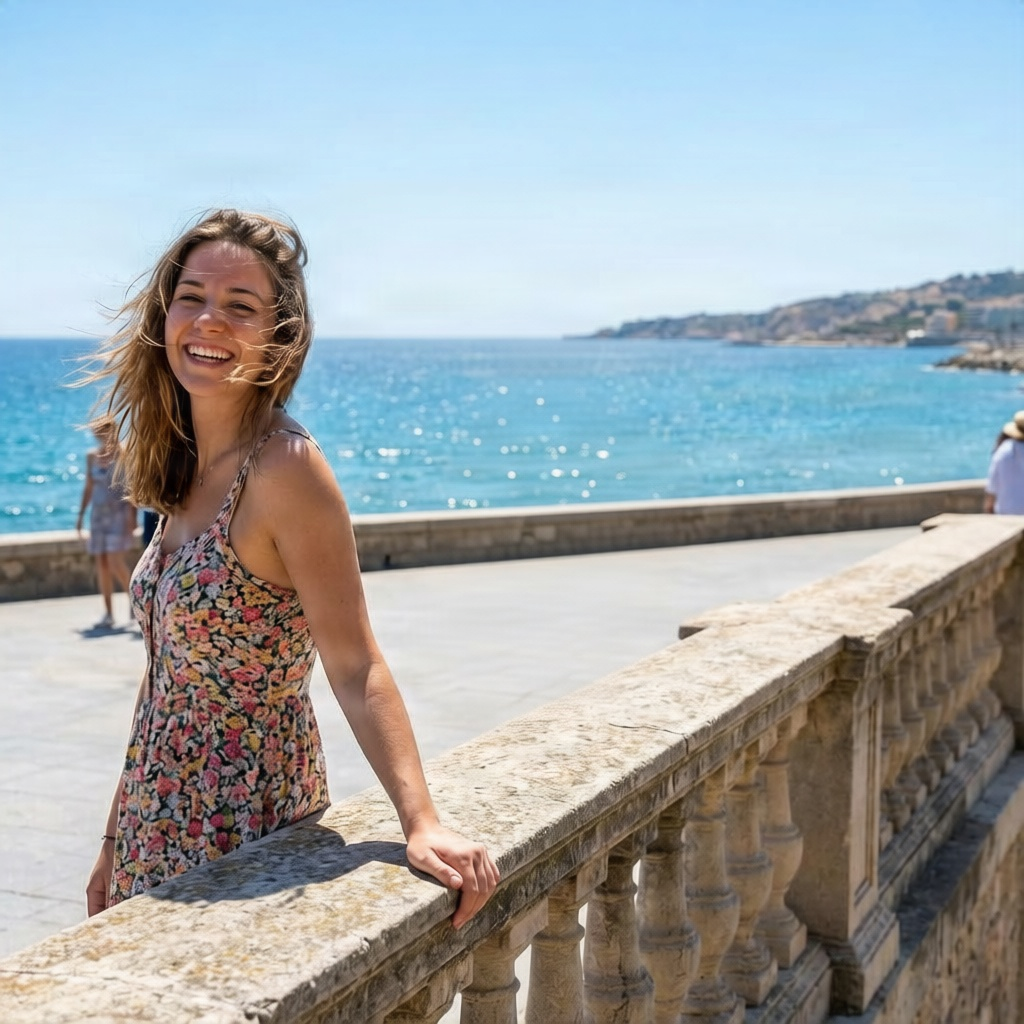
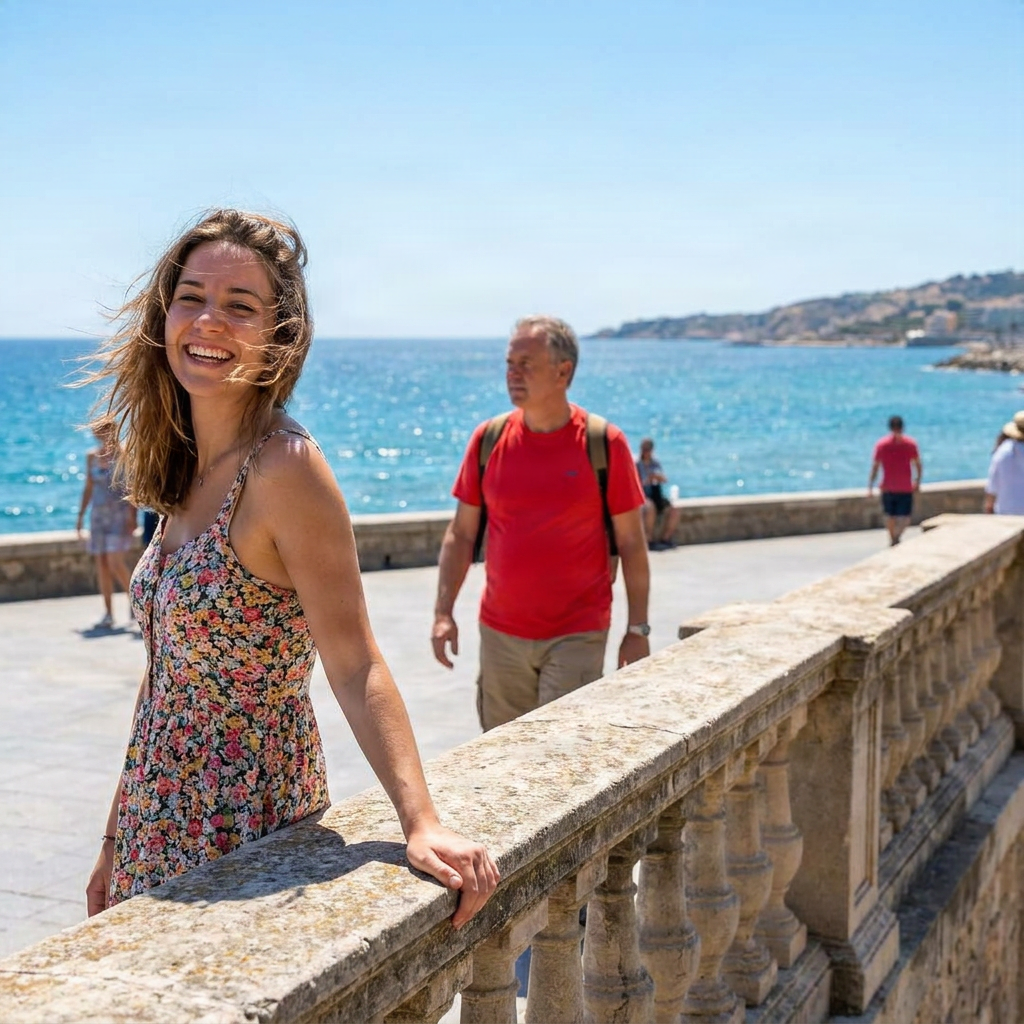
Remove unwanted people, photobombers, tourists, or strangers from a photo without rebuilding the entire image. Describe who should disappear or select the person precisely, then let AI reconstruct the area behind them.
Recent Sessions
REMOVE PEOPLE, KEEP THE PHOTO
Remove the Person Without Recreating the Whole Image
A distracting person can ruin an otherwise good photo. Instead of cropping the image or regenerating the entire scene, remove only the unwanted person and keep the composition, lighting, main subject, and surrounding image you already like.
ImageToLayers removes the selected person and generates new visual content for the area they covered, using the surrounding scene as context.
Keep the photo. Remove the distraction.
AI Rebuilds What the Person Was Covering
When someone is removed from a photo, part of the background may have been hidden behind their body, clothing, or belongings.
AI uses nearby colors, textures, shapes, lighting, perspective, and visible scene structure to generate a plausible reconstruction inside the removed area.
The result is newly generated content. It is not a recovery of the exact original pixels that were hidden behind the person.
What Kind of People Can You Remove From a Photo?
Photobombers
Tourists & Crowds
Background Strangers
Passersby
Event Distractions
People Around Products
How to Remove a Person From a Photo
Upload a Photo With the Person You Want Removed
Describe the Person
Refine the Selection for Difficult Photos
Make Sure Only the Unwanted Person Is Selected
Let AI Remove and Rebuild
Inspect the Reconstructed Area
Refine if the Scene Is Complex
Quick Remove or Magic Eraser?
| Quick Remove | Magic Eraser |
|---|---|
| Describe the person | Select the exact person |
| No mask needed | Preview and refine selection |
| Best for obvious background people | Best for overlaps and difficult edges |
| Fastest workflow | More control |
| Recommended starting point | Use when precision matters |
Start simple. Switch to precision only when the photo needs it.
When Person Removal Is More Challenging
Large Foreground Person
Heavy Overlap
Faces & Hands Touching
Complex Architecture
Common Reasons to Remove People From Photos
Travel Photos
Portraits
Real Estate & Interiors
Product Photography
Architecture
Social & Personal Photos
CHOOSE THE RIGHT TOOL
Remove a Person or Remove the Entire Background?
Remove Person
Use this tool when you want to keep the existing scene but remove one or more unwanted people from it.
Background Remover
Use Background Remover when you want to isolate the main subject and remove the entire surrounding background.
Keep the scene, remove a person → Person Remover. Keep the subject, remove the scene → Background Remover.
CHOOSE THE RIGHT TOOL
Remove the Person Without Cropping Away the Scene
Remove Person
AI person removal lets you keep the original frame and reconstruct the local area instead.
Cropping
Cropping can remove an unwanted person, but it also changes your composition and may cut away scenery, architecture, products, or other useful details.
Tips for Cleaner People Removal
- Describe the person clearly when multiple people are visible.
- Use Magic Eraser for overlapping people or detailed backgrounds.
- Include the whole unwanted person in the selection.
- Review hair, fingers, clothing edges, and carried objects.
- Keep the main subject outside the selection.
- Include connected shadows only when they should disappear too.
- Expect more reconstruction when the removed person covers a large part of the scene.
- Review repeated patterns, text, architecture, and fine geometry carefully.
Common Mistakes
Being Too Vague
“Remove someone.” is too vague. Try “Remove the person wearing a red coat behind the main subject.” instead.
Selecting Part of the Person
Leaving shoes, hair, bags, or hands outside the mask can leave visible remnants.
Selecting the Main Subject Too
Refine overlaps carefully so the person you want to keep is excluded.
Expecting the Exact Hidden Background
AI generates a plausible reconstruction from visible context; it cannot retrieve exact unseen pixels.
Frequently Asked Questions
Can I remove a person from a photo with AI?
Yes. You can describe the unwanted person with Quick Remove or select them precisely with Magic Eraser, then let AI reconstruct the area they covered.
Can I remove people from the background?
Yes. Background strangers, tourists, passersby, and photobombers are common use cases.
Can I remove more than one person?
Yes. You can describe multiple people or select the people you want removed. Complex groups may be easier to handle in smaller, more focused edits.
Can I remove a photobomber?
Yes. Quick Remove is a good starting point when the photobomber is easy to identify.
Can I remove tourists from a travel photo?
Yes. AI can remove selected tourists or passersby and generate a plausible continuation of the visible scenery.
Does AI restore the exact background behind the person?
No. The area hidden by the person is reconstructed with newly generated content based on the surrounding scene. It is not a recovery of the original hidden pixels.
Do I need to select the person manually?
Not always. Start with Quick Remove by describing who should disappear. Use Magic Eraser when you need precise control.
When should I use Magic Eraser?
Use Magic Eraser when the unwanted person overlaps your subject, stands against a detailed background, or needs a carefully refined removal boundary.
Can I remove someone who is touching another person?
Yes, but close overlaps are more challenging. Use Magic Eraser and refine the selection carefully around the person you want to keep.
Can I remove a person without removing the background?
Yes. This workflow is designed to keep the existing scene and reconstruct only the area affected by the person removal.
Can I remove a shadow with the person?
Yes. Include the shadow in the selection when it clearly belongs to the removed person and should disappear with them.
Will the rest of my image change?
The removal is focused on the targeted area. The surrounding image provides context for reconstruction.
What image formats are supported?
JPG, PNG, and WebP are supported.
Can I remove people from product photos?
Yes. You can remove background people, temporary assistants, hands, or other unwanted human elements when they are not part of the final product visual.
What if I need more editing after the removal?
You can continue with ImageToLayers' AI Photo Editor or other editing tools for additional cleanup and adjustments.
Related Tools
Remove Unwanted
Remove objects, wires, clutter, people, and other distractions from photos.
OpenRemove Power Lines From a Photo
Clean up utility wires, cables, and overhead lines from outdoor photos.
OpenGenerative Fill
Add, replace, or repair content inside a selected image area.
OpenBackground Remover
Remove the entire background and isolate your main subject.
OpenAI Photo Editor
Continue with prompts, masks, variants, and more advanced follow-up edits.
OpenCLEAN UP THE PHOTO
Remove the Person. Keep the Moment.
Upload your photo, describe or select the unwanted person, and let AI rebuild the area they were covering.
Remove a PersonStart with Quick Remove. Switch to Magic Eraser when you need more control.
Creative Toolkit Index
Explore More AI Features
Quick access to precision layer extraction, AI photo editing & asset tools.