
Remove Leash from Photos with AI
Upload your pet photo, describe the leash or select it directly, and let AI help remove it while preserving more of the moment.
Select the leash directly on your photo and refine the area you want removed.
Recommended when the leash crosses your pet's fur, collar, harness, or a detailed background.
Image
RequiredAdd Image
Click or drag one source image here to start editing.
PNG, JPG, JPEG, or WEBP. The upload card is the primary starting point.
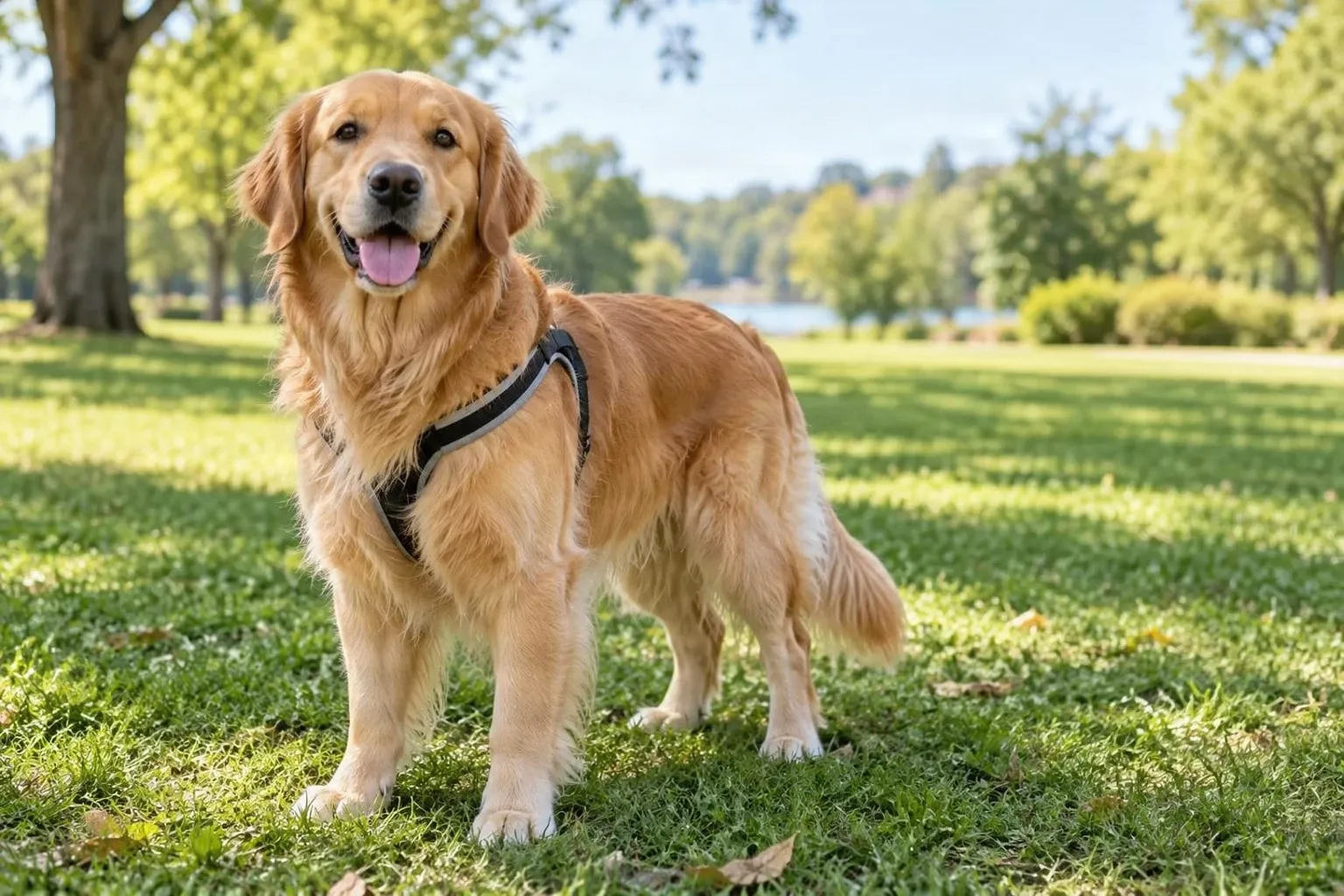
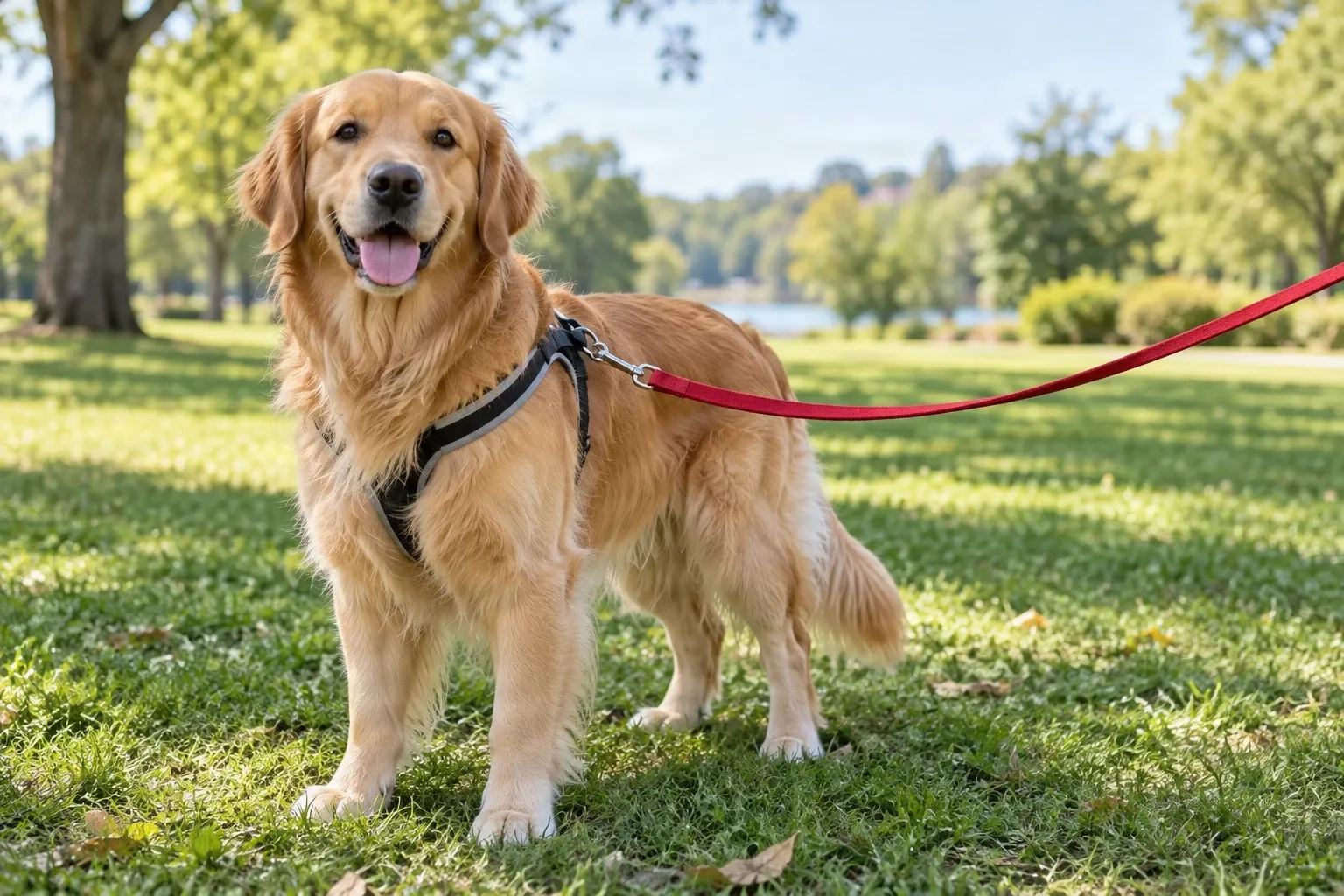
A golden retriever enjoying a sunny day outdoors. The leash is removed while the dog, harness, and park remain in focus. AI generates the edited area, so check fur edges and background continuity; fine details may differ from the original.
Recent Sessions
You captured the perfect photo of your dog—the happy expression, the beautiful scenery, or that one moment you want to remember. But there's a leash running across the picture. You don't have to crop out your pet or lose the background you love.
KEEP THE MOMENT
Your Favorite Pet Photos Deserve a Second Look
Sometimes the best pet photos happen during everyday walks. Your dog finally looks at the camera, your puppy makes that adorable expression, or your cat sits perfectly in the sunlight—only for a leash to cut through the composition.
An AI leash remover helps you clean up those moments without starting over. Choose the leash you want gone, and the editor generates replacement content where it appeared. You can keep more of your original framing instead of cropping away part of your pet or the scenery.
Whether you are making a framed pet portrait, choosing a profile picture, or sharing photos with family, a cleaner image can help your pet stand out.
Keep the happy face and the memory. Remove the distraction.
AI Reconstructs What the Leash Was Covering
The original fur or background underneath a leash is not visible in the uploaded photo. AI generates a plausible replacement from surrounding image details; it cannot recover exact hidden pixels or fur strands.
Leashes that cross long fur, paws, harness hardware, or detailed scenery can be more difficult. Review the edited area carefully before using the image.
Remove Distracting Leashes from Different Pet Photos
Dog Walking Leashes
Retractable Leashes
Long Training Leads
Leashes Attached to Harnesses
Leashes Across Grass or Pavement
Leashes Extending Outside the Frame
Cat Leads and Walking Leashes
Leashes Crossing Your Pet
How to Remove Leash from Photos
Upload Your Pet Photo
Identify the Leash
Generate Your Edited Photo
Compare and Download
Choose the Best Way to Remove Your Pet's Leash
| Quick Remove | Magic Eraser |
|---|---|
| Describe the leash in words | Select the leash directly |
| No manual selection needed | Refine the selected area |
| Good for clearly visible leashes | More control around fur and harnesses |
| Convenient for simple scenes | Useful for complex backgrounds |
Start with Quick Remove when the leash is easy to identify. Switch to Magic Eraser when it crosses fur, paws, or detailed scenery.
Some Pet Photos Need a Little More Care
Leashes Crossing Long Fur
Leashes Wrapping Around Legs
Leashes Connected to Harness Hardware
Leashes Against Detailed Backgrounds
Leashes Held by a Person
Thin or Low-Contrast Leashes
Make More of Your Favorite Pet Photos
Dog Portrait Photography
Puppy Pictures
Outdoor Pet Photography
Pet Social Media Photos
Pet Profile Pictures
Framed Pet Portraits
Pet Adoption and Rescue Photos
Professional Pet Photography
KEEP MORE OF THE PHOTO YOU LOVE
Why Remove the Leash Instead of Cropping?
Cropping
Can hide the leash, but might also cut off your pet's tail, paws, or the scenery that makes the picture special.
Blurring
Leaves an obvious edited area and may still distract from your pet.
Retaking the Photo
Getting the same expression, pose, and lighting again can be difficult, especially with an energetic puppy.
AI Leash Removal
Select the leash and generate replacement details in its place, keeping more of the original composition.
Some moments are too good to crop away.
Tips for a More Natural-Looking Result
- Start with a clear, reasonably sharp photo so the leash boundaries are easy to see.
- Keep the Magic Eraser selection close to the leash; avoid selecting large areas of your pet or the scene unnecessarily.
- Inspect places where the leash passes through long or fluffy fur.
- Protect the collar or harness and check small clips, rings, and buckles.
- Review grass, paving, fences, branches, and other background patterns.
- Keep the original photo so you can compare it with the edited version.
Common Mistakes
Removing the Harness by Accident
The leash and harness may connect in a small area. Select only the parts you want gone.
Selecting Too Much Fur
Large selections across the animal can lead to unnecessary reconstruction. Keep the selection close to the leash.
Ignoring Small Leash Fragments
Thin cords and attachment points are easy to miss. Zoom in and check the full leash path.
Expecting Perfectly Restored Fur
AI estimates details hidden by the leash; it cannot retrieve the exact original strands.
Overlooking the Background
Look for unnatural lines, repeated grass patterns, or smudged areas where the leash used to be.
Misrepresenting the Original Scene
An edited photo does not change how the pet was managed during the original shoot. Use accurate descriptions when that distinction matters.
Frequently Asked Questions
How can I remove a dog leash from a photo?
Upload your dog photo, choose Quick Remove or Magic Eraser, and identify the leash. AI generates replacement content for the edited area. Review the result before downloading.
Can AI remove a leash without changing my dog?
The goal is to remove the leash while keeping your dog's appearance as close to the original as possible. Results vary, especially when the leash covers fur, paws, or parts of the body.
Can I remove a leash but keep the collar?
Yes. Target the leash while leaving the collar outside the selection. Magic Eraser is useful when the leash connects closely to it.
Can I keep my dog’s harness in the picture?
Yes. You can select the leash while keeping the harness. Check attachment clips and straps carefully because nearby details can be affected.
Does this work on cat photos?
Yes. The tool can be used on cat photos and other pet images. Results depend on leash visibility, the background, and how much of the animal is covered.
Can AI remove a retractable dog leash?
You can try removing the visible cord or strap. If it is very thin or blends into the background, Magic Eraser may offer more control.
Can I remove a leash crossing my dog’s fur?
You can select it, but this is more challenging. AI generates an approximation of the fur that was hidden, so every strand may not look exactly as it did.
What if the leash is wrapped around my dog’s legs?
Use Magic Eraser to select the leash while excluding as much of the legs and paws as possible. Review the result to make sure your pet’s anatomy still looks natural.
Can I remove a leash from a puppy photo?
Yes. Remove visible leashes from puppy photos and pay particular attention to small paws, collars, and fine fur near the selection.
Can I remove a leash from a photo taken in a park?
Yes. AI can generate replacement content where a leash crossed grass, paths, or other park scenery. Detailed backgrounds may need extra review.
Can I remove multiple leashes from one photo?
You can describe or select multiple visible leashes. Overlapping leads or several animals can make the edit more challenging.
Does the tool automatically know which leash to remove?
Quick Remove interprets your written description, while Magic Eraser edits the area you select. Be specific if the photo contains multiple leashes or similar-looking straps.
What is the difference between Quick Remove and Magic Eraser?
Quick Remove uses a written description and needs no manual selection. Magic Eraser lets you mark and refine the area, which can help when the leash crosses fur, a collar, or detailed scenery.
Will the background behind the leash look natural?
AI attempts to match surrounding colors, textures, and lighting. Results vary with the image and the complexity of the hidden area.
Can I use the edited photo for a framed pet portrait?
Yes. You can prepare a personal portrait or keepsake. Inspect the image carefully before printing, particularly for a large print.
Can I use this for professional pet photography?
Yes. It can be part of a photo-cleanup workflow. Review the output for quality and retain the original image.
Do I need Photoshop to remove a pet leash?
No. The workflow runs in your browser. Describe the leash or select it directly without using desktop photo-editing software.
Is AI leash removal free?
Generating an edited image requires credits. The workspace shows the applicable credit cost before you start.
Will the edited photo be exactly the same except for the leash?
Not necessarily. AI generates content where the leash was, and fine details nearby may differ. Compare the result closely before sharing.
Can I use this tool for other unwanted objects in pet photos?
Yes. The editor can also remove other unwanted objects. For general photo cleanup, use the Remove Unwanted Objects tool.
Related Tools
Remove Unwanted Objects from Product Photos
Remove unwanted objects, distracting props, and background clutter from product photos with AI. Keep your products in focus and create cleaner images online.
OpenRemove a Person From a Photo with AI
Remove unwanted people, photobombers, tourists, or strangers from photos with AI. Describe the person or select them precisely, then let AI rebuild the background naturally.
OpenVirtually Declutter Real Estate Photos
Select boxes, clothing, toys, and everyday clutter in listing photos. Remove only the areas you choose and review the reconstructed room before sharing.
OpenMAKE THE PHOTO ABOUT YOUR PET
Keep the Happy Moment. Remove the Leash.
Upload your photo, choose the leash you want gone, and create a cleaner picture worth keeping.
Remove Leash from My PhotoChoose Quick Remove or Magic Eraser. Review the credit cost and the edited result before downloading.
Creative Toolkit Index
Explore More AI Features
Quick access to precision layer extraction, AI photo editing & asset tools.