
Add an Object to a Photo with AI
Insert objects into your images using ImageToLayers Generative Fill. Just brush over an area and type what you want to add. Ideal for everyday photos, creative concepts, and social media content.
1. Upload an Image to Edit
Drag and drop an image here, or click to choose a file.
3. STEP 2 · SELECT AN AREA
Upload an image to start marking the area to change.
4. Describe the Object
Recent Sessions
Social content details
Portrait accessories
Everyday photo additions
General creative concepts
Seamless lighting and shadows
More Generative Fill Workflows
Add Furniture to Room
Preview interior staging concepts.
Try Room EditAdd Props to Product Photos
Create seasonal marketing variations.
Try Product EditGenerative Fill
Add, replace or repair freely.
Open Generative FillInpainting in 4 Steps
Upload your image
Start with a high-quality, clear photo.
Mask the target area
Select the empty space where the new object should appear.
Write your prompt
Describe the object and its relationship to the scene.
Generate variations
Review multiple options and choose the one with the best blending.
Enhance Photos with New Elements
Easily test ideas and create engaging visuals without complex editing software.
Use Cases
Social Media Posts
Add engaging elements to everyday photos to capture attention.
Creative Storytelling
Visualize ideas by seamlessly blending new objects into scenes.
Quick Photo Touch-ups
Enhance standard compositions with missing details.
Content Creation
Generate unique visual variations for blogs or articles.
Prompt Examples
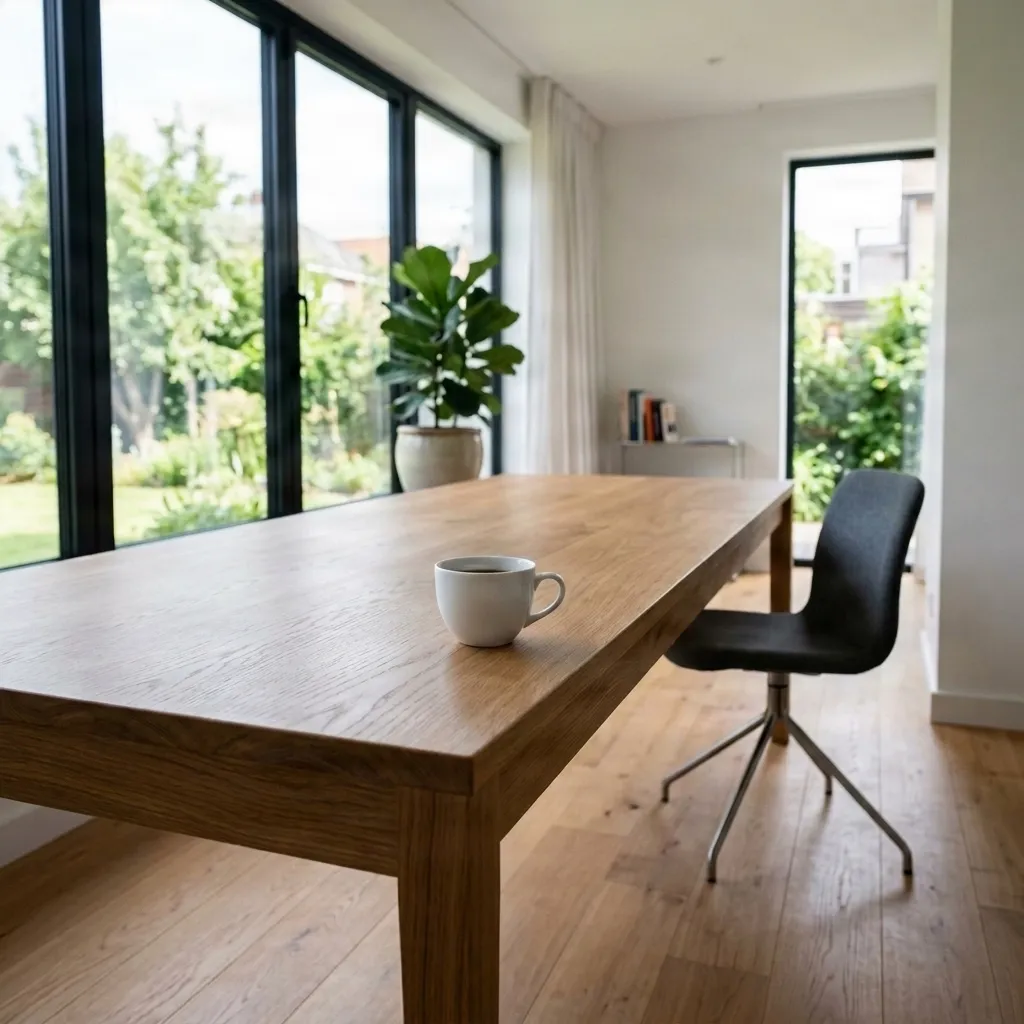
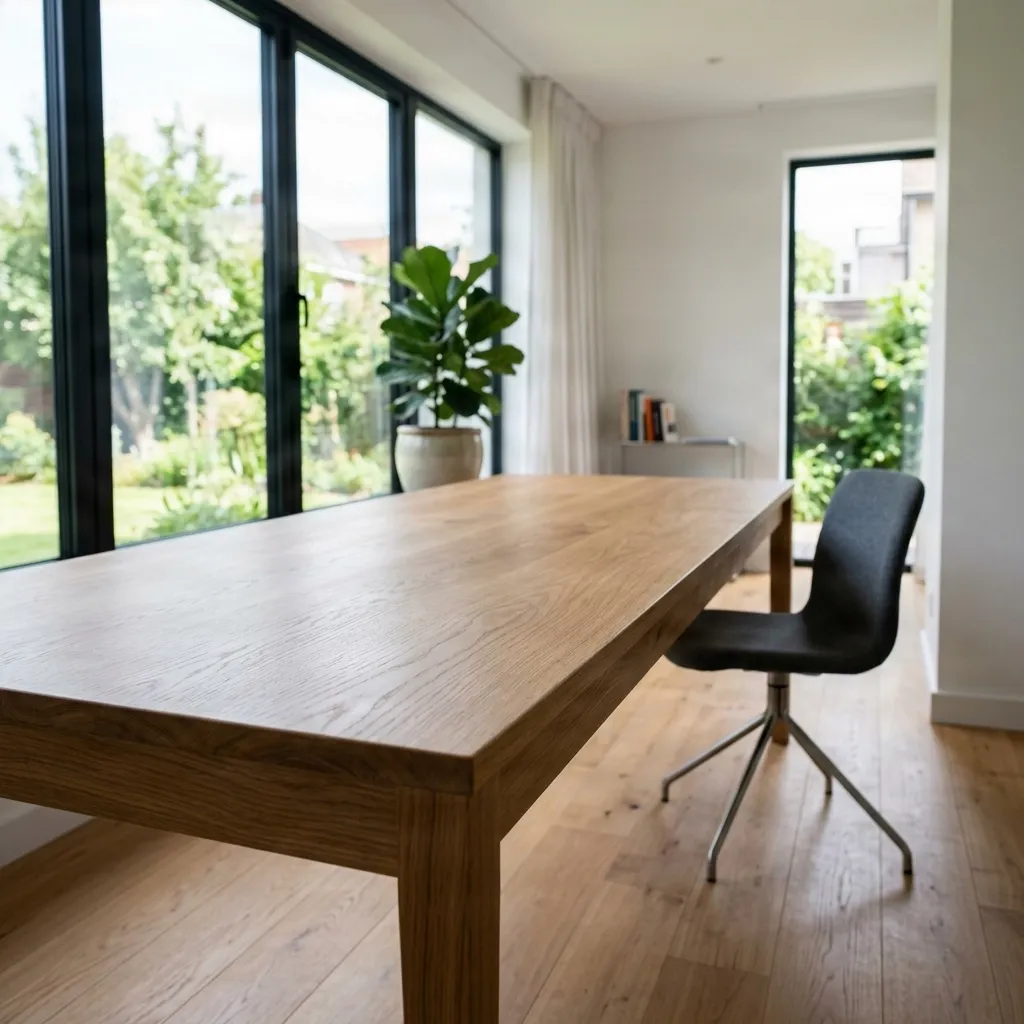
““Add a ceramic coffee cup on the wooden desk.””
““Add a pair of sunglasses on the beach towel.””
““Add a green plant in the corner of the image.””
““Add a smartphone lying flat on the table.””
Frequently Asked Questions
How do I add an object to my photo?
Upload your image, brush over the area where you want the object, type a descriptive prompt, and generate the result.
Can I add multiple objects?
Yes, but for the best results, we recommend generating one object at a time. This allows the AI to focus on accurate blending.
Does it look realistic?
The AI attempts to match the lighting, perspective, and shadows of your original image to generate a blended visual variation.