
Outpaint a scene beyond the original frame
Extend landscapes, interiors, illustrations, game environments, and other scenes beyond their original borders. Keep the existing image and generate more environment around it instead of stretching or cropping the composition.
Expansion mode
Upload an Image
Drag and drop or browse files
Outpainting examples
See how a scene continues beyond the frame
Drag the handle to compare. The original composition stays in place while AI generates more environment around it.
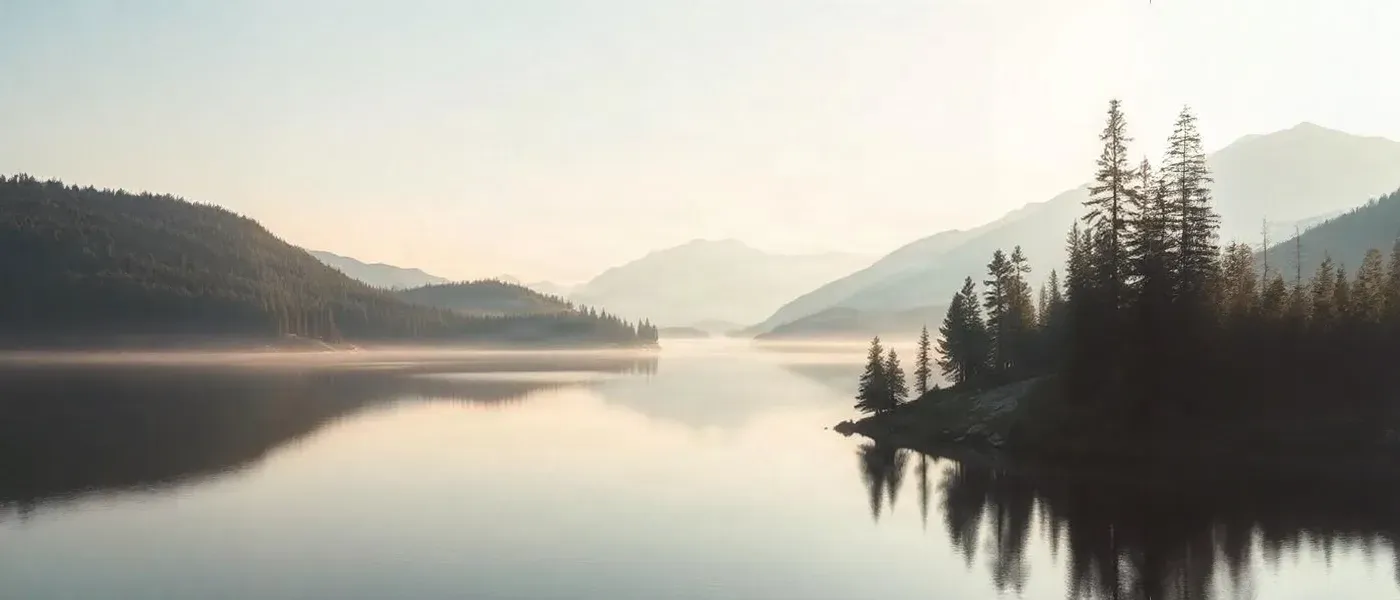
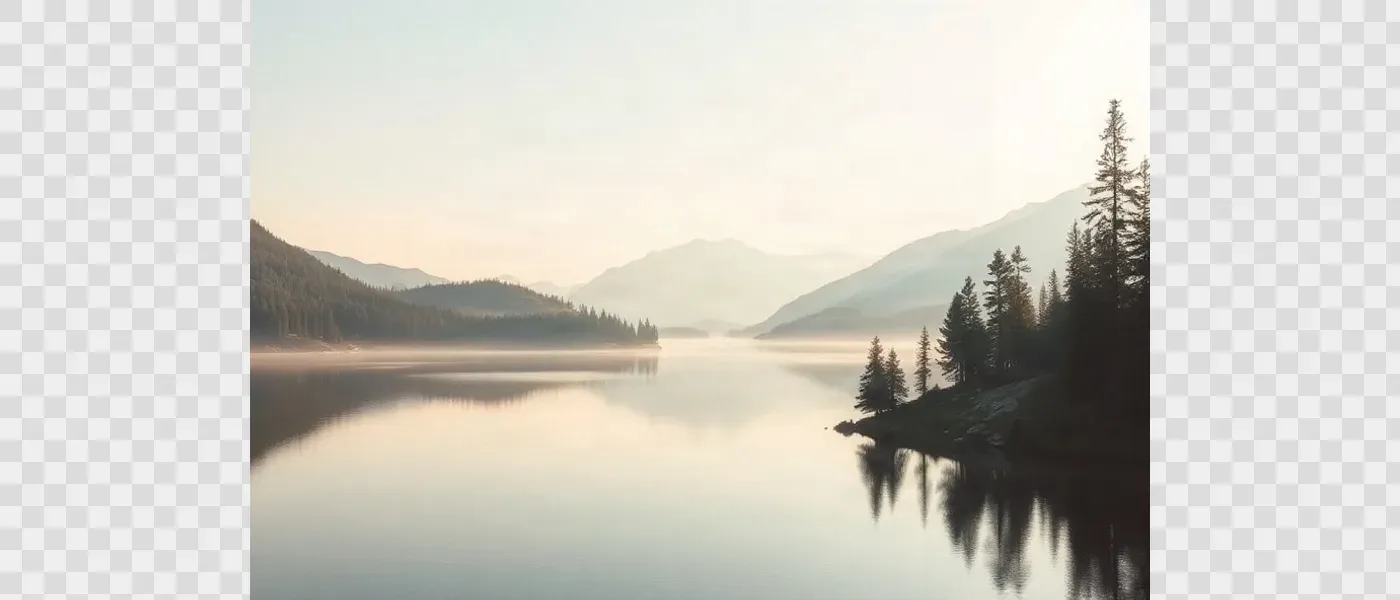
Widen a landscape
Extend mountains, water, sky, and terrain beyond the original crop while keeping the existing scene unchanged.
Outpainting example produced with the same production workflow used by Image Extender. Frames shown unretouched.
Widen a scene, add more space above or below, or adapt an existing image to a new aspect ratio.
Keep the original
The existing scene stays in place
Grow any side
Place the original anywhere in the new frame
New aspect ratios
Create wider or taller compositions
From 30 credits
Per generation
Go beyond the frame
Keep the scene. Generate more around it.
Outpainting does not stretch the pixels you already have. It preserves the original image and creates new visual content outside its borders so the composition can become wider, taller, or more complete.
Widen a landscape
Add more environment
Change the composition
Continue an illustration
How the workspace expands
Choose the new frame, then let the scene guide the fill
The workspace keeps your original image at full size and adds canvas around it. You control the shape of the new frame and where the original sits inside it.
Pick a new aspect ratio
Expand the canvas to a wider or taller shape without cropping the important parts of the original scene.
Place the original in the frame
Position the existing image anywhere in the expanded canvas. Move it to one side to generate more scene on the opposite side, or center it to grow the environment on every side.
Describe what should continue
Optionally describe the environment, lighting, surfaces, or weather you want in the new area, or leave it blank and let the visible scene guide the extension.
Choose the right tool
Outpainting, upscaling, or background changing?
These tools all make an image bigger or different, but they change it in very different ways.
Outpainting
You're hereAdd new content outside the frame
Keep the existing scene and generate more image beyond its current borders.
Best for
- Wider landscapes
- New aspect ratios
- More environment
- Additional negative space
Upscaling
Increase resolution without changing the composition
Make the same image larger and sharper while keeping the existing frame.
Best for
- Larger exports
- Printing
- Detail enhancement
- Higher-resolution assets
Background Changer
Replace the environment
Keep the subject but create a different background or scene behind it.
Best for
- Product backgrounds
- Portrait scenes
- Lifestyle settings
- New visual concepts
Don't crop the important parts
Need a new aspect ratio? Add space instead of cutting it away.
Cropping
Removes part of the existing image to fit a new frame.
Outpainting
Keeps the original image and generates new visual content to fill the larger frame.
Useful when a square or standard landscape image needs to become widescreen, vertical, or banner-sized without losing the original subject or scene.
Built for environments
Outpainting works especially well when the scene can keep going
Landscapes
Extend beaches, forests, mountains, fields, deserts, lakes, or other natural environments.
Interiors
Add more wall, floor, furniture context, windows, or surrounding room space.
Game environments
Expand environment concepts into wider layouts for prototyping, loading screens, scene planning, and parallax backgrounds.
Illustration and concept art
Continue stylized worlds, fantasy environments, sci-fi scenes, and other artwork outside the original canvas.
Architecture
Add more building context, streetscape, surrounding structures, sky, or foreground space.
Cinematic scenes
Turn a standard image into a wider composition with more atmosphere and visual breathing room.
Outpaint a scene in four steps
Upload the scene
Choose the new frame
Generate the extended area
Review and download
What to expect
The new area is generated — not recovered
Outpainting cannot reveal pixels that existed outside the original image file. It creates new visual content that is intended to continue the visible scene naturally.
Scene continuity
AI uses nearby colors, textures, structures, perspective, and lighting as context.
New objects may appear
Newly generated areas can contain plausible scenery or details that were never part of the original image.
Complex edges need review
Architecture, repeated patterns, detailed objects, and people close to the image boundary can be harder to continue perfectly.
Wider extensions are harder
The farther you extend beyond the original frame, the more new content the model has to invent.
For better outpainting
Give the model enough scene context
Keep useful edges visible
The model needs information near the existing borders to understand how the environment should continue.
Extend gradually for difficult scenes
Very large extensions require more generated content. A moderate expansion can produce a more predictable continuation.
Describe important elements
Mention the environment, lighting, surfaces, architecture, weather, or objects you want continued in the new area.
Review perspective
Interior rooms, streets, buildings, and structured environments should be checked for perspective consistency after generation.
For game and creative work
Expand environment art without rebuilding the whole scene
Use an existing scene as the visual anchor and create more space around it for wider layouts, world-building references, prototypes, and motion backgrounds.
Parallax backgrounds
Create wider environment layouts that can be prepared for horizontal movement or scene composition.
Loading screens
Adapt environment artwork to wider screens without cropping away important scene elements.
World-building
Explore what could continue beyond the original concept frame.
Cinematic layouts
Add more negative space or environmental context for titles, dialogue, overlays, and wide compositions.
One scene, more formats
Make one scene fit more formats
Widescreen
Expand a square or standard image for banners, video thumbnails, presentations, or cinematic layouts.
Vertical
Add more space above or below when adapting a scene to mobile-first or vertical formats.
Copy space
Extend one side of a composition to create more room for titles, buttons, campaign copy, or other design elements.
Frequently asked questions about AI scene outpainting
What is scene outpainting?
Scene outpainting uses AI to generate new visual content outside the existing borders of an image. The original scene remains in place while the canvas is expanded around it.
Can I extend a landscape beyond the original frame?
Yes. Landscapes are a common outpainting use case because terrain, sky, vegetation, water, and distant scenery can often be continued into a wider composition.
Can I make a scene wider without stretching it?
Yes. Outpainting adds newly generated content around the existing image instead of stretching the original pixels.
Can I change the aspect ratio with outpainting?
Yes. You can expand the canvas to create a wider, taller, or differently proportioned composition without cropping away the original image.
Can I outpaint a game environment?
Yes. Environment concepts, game backgrounds, fantasy scenes, and other world-building artwork can be extended into wider or taller compositions.
Can I extend an interior or room?
Yes. AI can generate additional wall, floor, ceiling, furniture context, or other room elements beyond the original crop. Structured interiors should be reviewed for perspective and geometry.
Can I extend illustrations and concept art?
Yes. Outpainting can continue stylized scenes and illustrated environments, although the newly generated content may not perfectly match every fine stylistic detail.
Does outpainting recover the original missing scene?
No. Content outside the original image was never stored in the file. AI generates a plausible continuation based on the visible scene.
What is the difference between outpainting and upscaling?
Outpainting adds new content beyond the existing frame. Upscaling keeps the same composition and increases image resolution.
What is the difference between outpainting and background replacement?
Outpainting keeps the existing environment and extends it. Background replacement changes the environment behind the main subject.
Can I use outpainting to create more empty space for text?
Yes. Extending one side of a scene can create additional negative space for headlines, buttons, promotional copy, or layout elements.
What kinds of scenes work best?
Images with clear perspective, consistent lighting, visible environment context, and enough detail near the image edges generally give the model more information to continue the scene.
Will the generated area match the original perfectly?
Not always. The new area is generated from visual context, so textures, objects, perspective, or fine details can differ from the original scene.
What happens if generation fails?
If generation fails before a usable result is created, the charged credits are automatically returned.
Take the scene beyond the edge
Upload a landscape, interior, illustration, game environment, or other scene and generate more visual space beyond the original frame.
Keep the original composition and let AI continue the environment around it.
Related tools
Make the same image larger
Image Upscaler
Increase resolution while preserving the existing composition.
A completely different background
Background Changer
Replace the current environment instead of extending it.
Composition space around a subject
Image Extender
Use the general Image Extender when your goal is composition space rather than scene-focused outpainting.
Separate the extended scene
Image to Layers
Split a finished scene into separate visual elements for additional editing and compositing.