
Split an image into editable layers
Upload a flat image and separate its visible subjects, objects, foreground elements, and background into individual layers you can review, download, edit, or split again.
No manual tracing or layer-by-layer masking required for the first separation pass.
Click or drag image to upload
Upload your image
JPG, PNG, WebP up to 10MB · Drag & drop anywhere
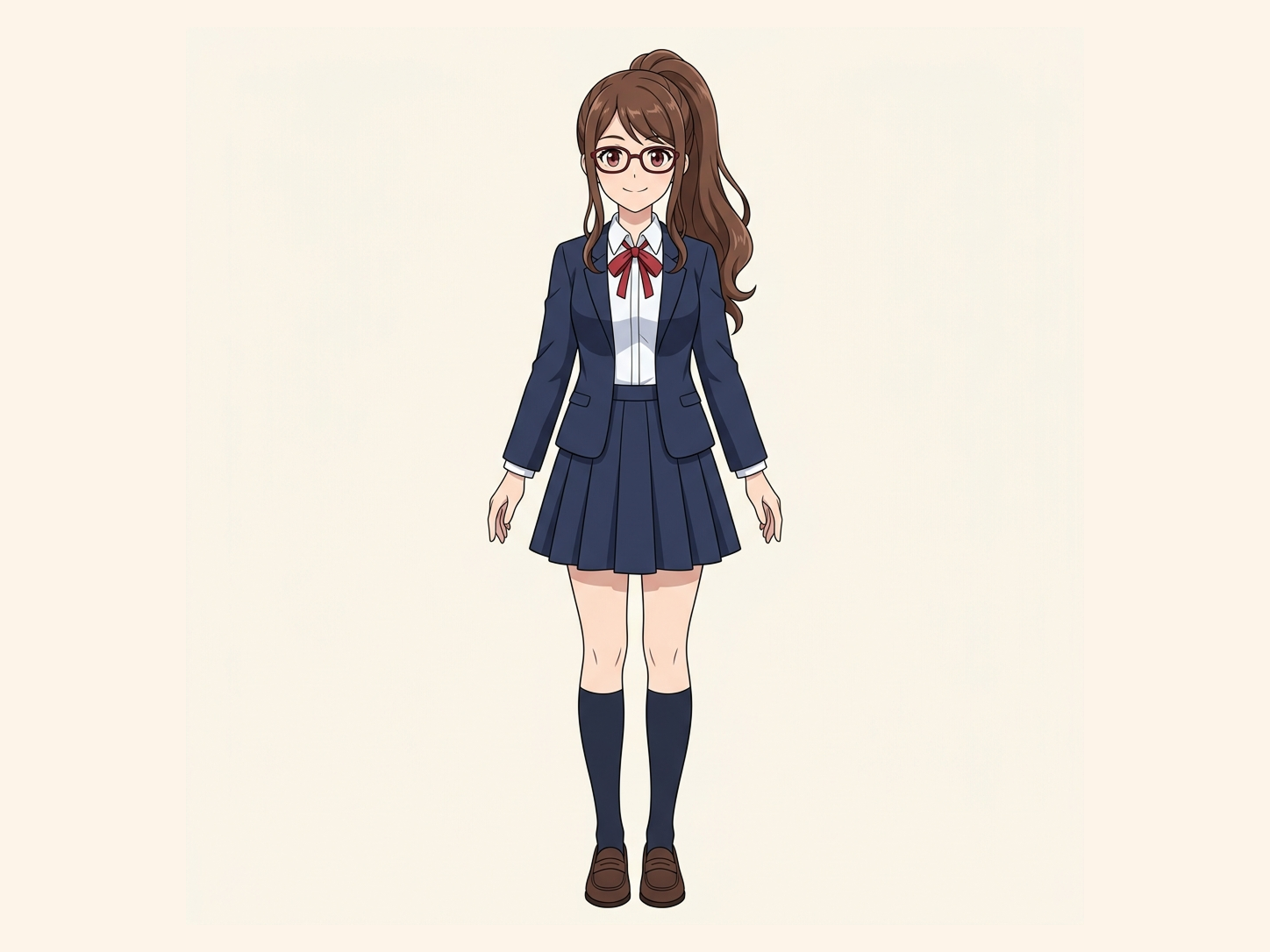
Need hair, face, eyes, mouth, clothing, or body-part layers?
Settings
Leave this blank to let Detailed Layers identify the main editable elements automatically. Or name the parts you want separated.
Want more control over your layers?
Learn how to guide Detailed Layers with simple prompts, choose useful elements, and get cleaner layer structures from different types of images.
Upload an Image to Continue
Private File Handling
Uploaded files are associated with your account and delivered through signed URLs. You can delete completed jobs manually.
Transparent PNG Output
Detailed Layers returns each detected element as its own layer on a transparent background.
Continue Editing in Agent Workspace
Multi-Agent SuiteOpen the layered result in Agent Workspace to clean up elements, create visual variations, or continue working from the same project.
JPG · PNG · WebP
Input images
Separate PNGs
Layer output
PSD & ZIP
Export options
From 30 credits
Per generation
See How Image Separation Works
Separate visual elements into individual layers while reconstructing the background hidden behind them.
Layer Hierarchy
9/9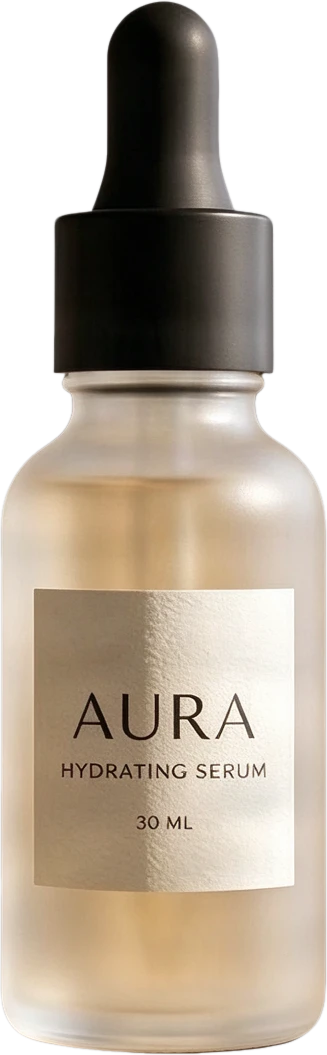 08
08AURA serum bottle
Frosted clear serum bottle with black dropper cap and AURA typography, presented as a standalone product.
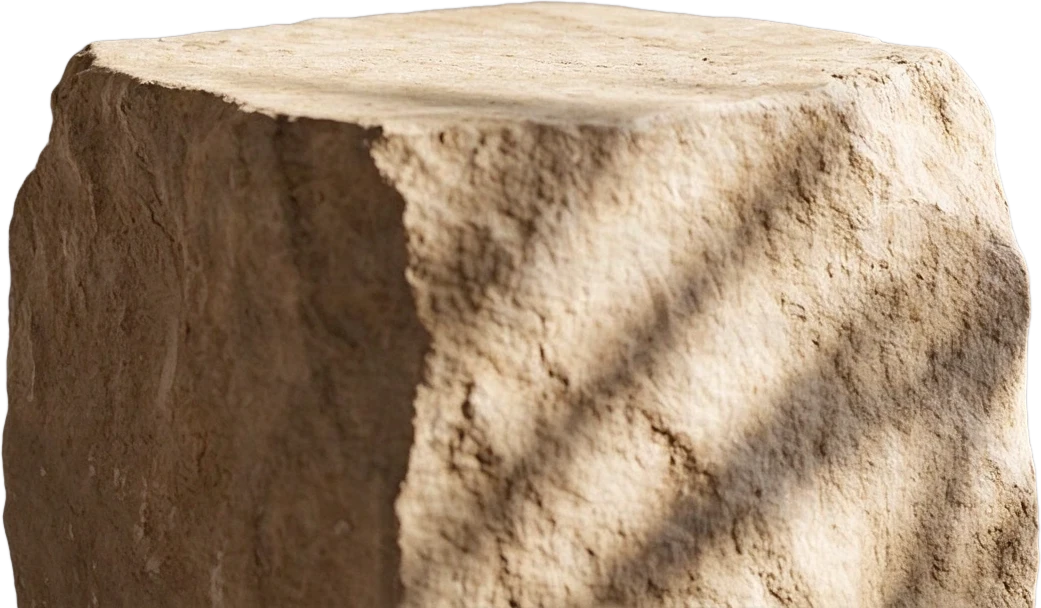 07
07Stone display stand
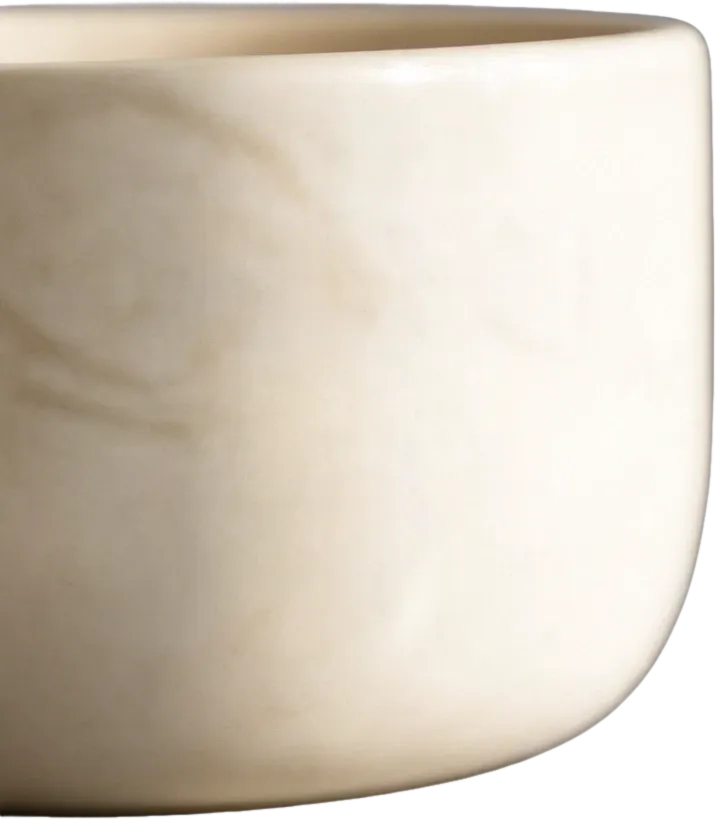 06
06White ceramic bowl
 05
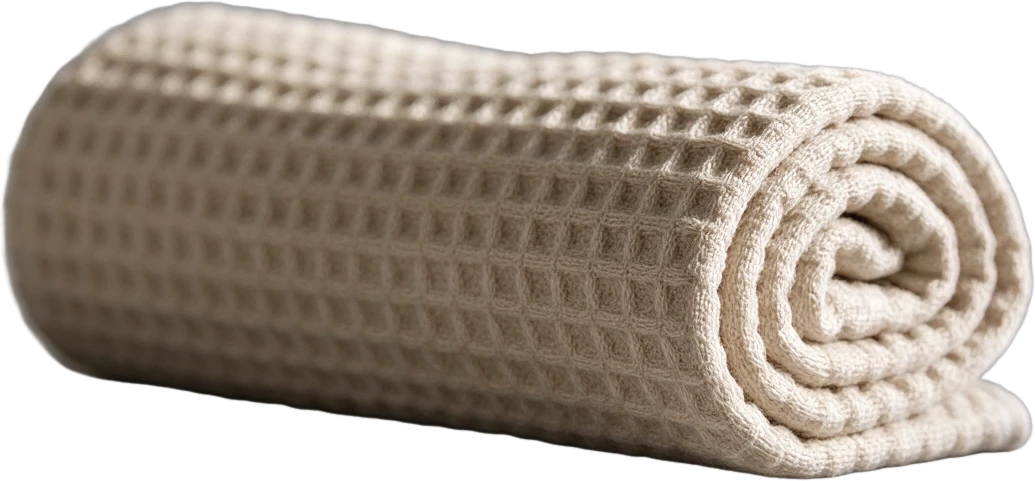
05Rolled waffle towel
 04
04Metal faucet
 03
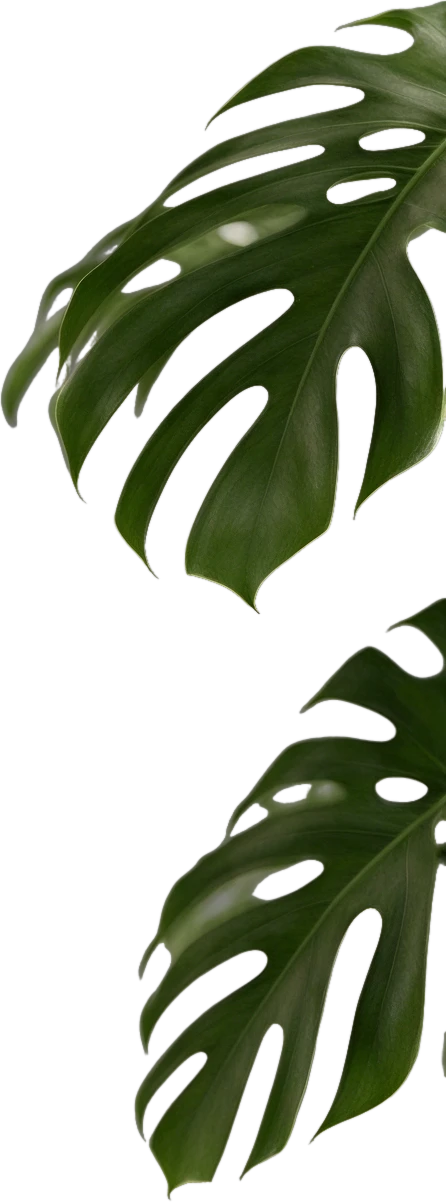
03Monstera leaf
 02
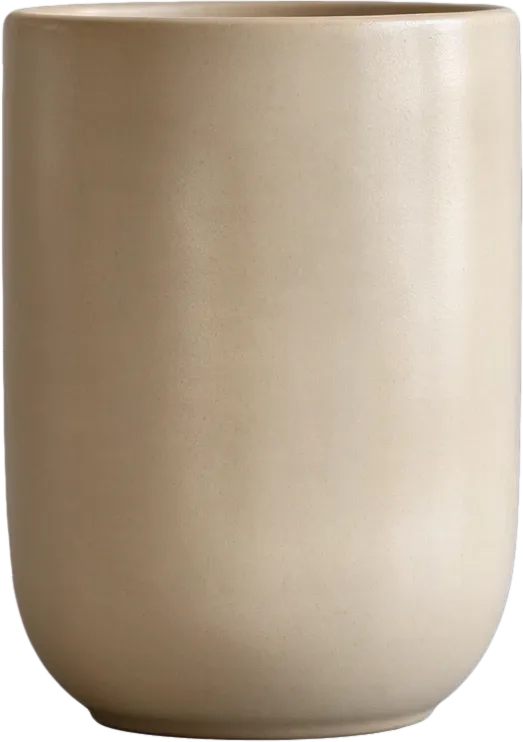
02Beige ceramic cup
 01
01Circular window decor
 00
00Inpainted background
Final Layers
More Than Background Removal
Background removers create a transparent cutout. ImageToLayers also reconstructs the area hidden behind the subject, giving you complete assets for editing and composition.
Most images are processed in 60–120 seconds.
From flat to editable
Turn one flat image into separate visual parts
A normal JPG or PNG stores the whole composition as one flattened image. AI can analyze the visible scene and create a new set of raster layers for the parts that are most useful to edit independently.
Main subject
Supporting objects
Background
Editable exports
Choose the right tool
Split image into layers vs remove background
Many people treat background removal and layer separation as the same job. They produce very different outputs.
Background remover
Best when you only need one subject
Remove the background and create a transparent cutout of the main subject.
Output
Subject + transparency
Split image into layers
You're hereBest when you need several editable parts
Separate the image into multiple visual elements instead of creating only one foreground cutout.
Output
Main subject, supporting object, foreground element, background, and more
Need one clean subject cutout? Use the background remover. Need several editable parts? Split the image into layers.
Foreground and background only?
When Background Splitter is the better fit
Background Splitter is better when your goal is simply to create a foreground layer and a background layer. Use Split image into layers when you need several independently editable parts.
Split foreground and backgroundSplit an image into layers in four steps
Upload the flat image
Choose the first-pass detail
Review the generated layers
Download or keep splitting
First pass, then refine
You don't have to get every layer in one generation
Start with the main visual groups. If one generated layer still contains several objects, split that layer again instead of rerunning the whole image with an excessive layer count.
Start broad
Separate the major subjects, props, and background first.
Inspect the result
Look for layers that still contain more than one element you want to edit independently.
Split only what needs more detail
Refine that layer without rebuilding the entire project.
What can you split?
Split images for editing, design, and creative work
Product images
Separate the product, packaging, props, foreground details, and background so the same composition is easier to reuse.
Posters and marketing graphics
Turn a flattened campaign image into larger editable visual groups when the original design file is no longer available.
Illustrations
Separate characters, effects, props, foreground elements, and scene backgrounds for further editing or motion work.
Social media graphics
Pull reusable visual elements out of a flattened post, ad, thumbnail, or campaign image.
Game and animation assets
Prepare characters, props, environment planes, and background elements for parallax, prototyping, or animation workflows.
AI-generated images
Generate a flat visual first, then separate its visible elements into layers for more controlled editing.
Keep editing elsewhere
Export your generated layers for further editing
Once the image has been separated, you can work with the generated raster layers individually or package them into supported export formats.
PNG layers
Download transparent raster layers individually when you only need specific elements.
ZIP
Keep the generated assets together in one downloadable package.
Layered PSD
Open the generated raster layers as a layered PSD for continued editing in compatible design software.
The PSD contains newly generated raster layers — not the original source-file structure.
What to expect
AI creates new layers — it does not recover the original design file
A flattened JPG or PNG does not contain the hidden structure of the file it came from. The tool analyzes the visible image and creates a new layer arrangement based on what it can see.
No original layer recovery
It cannot restore the original Photoshop layer names, folders, masks, adjustment layers, smart objects, or editing history.
Raster output
Generated image layers are raster assets rather than recovered vectors or editable typography.
Hidden areas are generated
When an object covered part of the scene, missing visual information may be generated from surrounding context rather than recovered from unseen original pixels.
Some elements may stay grouped
Overlapping, visually similar, or tightly connected objects can occasionally remain together in one layer. If that happens, split that layer again to refine the result.
For a cleaner split
Start with an image that has clear visual structure
Distinct objects
Subjects with recognizable boundaries are easier to separate into useful layers.
Enough resolution
Higher-quality source images give the model more edge and texture information to work with.
Avoid excessive first-pass layers
Asking for too many layers can create fragments that are less useful than a smaller set of meaningful visual groups.
Review overlap
Objects that heavily overlap each other may require another split or additional editing after generation.
Only need two layers?
Just the subject and the background? Try Background Splitter
When a photo only has one subject in front of a background, Background Splitter gives you a transparent foreground and a reconstructed background in one step, without setting up a full multi-object layer split.

Original photo
The source image with a single subject and background.

Transparent foreground
The subject isolated as a clean transparent PNG.

Reconstructed background
The scene behind the subject, rebuilt and reusable on its own.
Need more than two layers, multiple objects, props, or text? Use the workspace above instead.
Frequently asked questions about splitting images into layers
What does "split an image into layers" mean?
It means turning one flattened image into a new set of separate raster elements that can be viewed, downloaded, edited, or reused independently.
Can I split a JPG into layers?
Yes. A JPG can be analyzed and separated into newly generated image layers even though the JPG itself does not contain original editable layer information.
Can I split a PNG into layers?
Yes. Upload a PNG and the tool can create new layers for visible subjects, objects, foreground elements, and background regions.
Does this recover the original Photoshop layers?
No. The original PSD structure is not stored inside a flattened JPG or PNG. The tool creates a new AI-generated layer arrangement from the visible image.
How many layers should I choose?
Choose the number of visual groups you would actually want to edit separately. Simple images may need only 2–3 layers, while more detailed compositions often work better with 4–6.
Can I split one layer again?
Yes. If a generated layer still contains multiple objects, you can split that individual layer again instead of rerunning the entire image.
Can AI reconstruct what was behind an object?
It can generate plausible visual content for areas that were hidden by foreground objects. This content is reconstructed from surrounding context rather than recovered from an unseen original image.
Can I download each layer separately?
Yes. Generated layers can be downloaded individually as image assets.
Can I export the result as PSD?
Yes, when PSD export is available for your workflow or plan. The PSD contains the newly generated raster layers rather than the original design-file structure.
Is this the same as removing a background?
No. Background removal usually creates one transparent subject cutout. Image layer splitting attempts to create several independently useful visual elements.
Is this the same as Background Splitter?
No. Background Splitter is intended for a simpler foreground/background separation. Split image into layers is designed for images that need several separate visual parts.
What happens if generation fails?
If a generation fails before a usable result is created, the charged credits are automatically returned.
Split your image into editable parts
Upload a flat image, choose the level of separation you need, and create a new set of layers you can download, refine, or continue editing.
Start with useful visual groups. You can always split an individual layer again later.
Related workflows
One specific object
Targeted Layer
Extract a specific visual element instead of splitting the entire image into several parts.
Foreground and background
Background Splitter
Create a simpler two-part foreground and background separation.
Transparent subject
Background Remover
Remove the scene behind a subject and download a transparent cutout.
Photoshop file
Image to PSD
Turn the generated layer structure into a layered PSD for continued raster editing.