
AI character expression generator
Give your character new expressions without redrawing them
Your character is already designed. Upload the artwork, choose a facial expression, and let AI create a variation while the rest of your character stays as it was. Download a PNG or an editable PSD with the expression on its own layer, ready for your next illustration, visual novel or game.
- Create Happy, Sad, Angry and Surprised expressions
- Everything outside the face area stays your original
- Download an aligned PSD expression layer
Create a new character expression
Start with an existing character illustration and choose how you want their face to change.
Upload character image
Choose an anime character, game sprite or illustrated portrait.
PNG, JPG or WebP, up to 10 MB. Clear facial features and a simple background make the face area easier to select.
Generation time varies with the image and the processing queue.
Same character. Different expression.
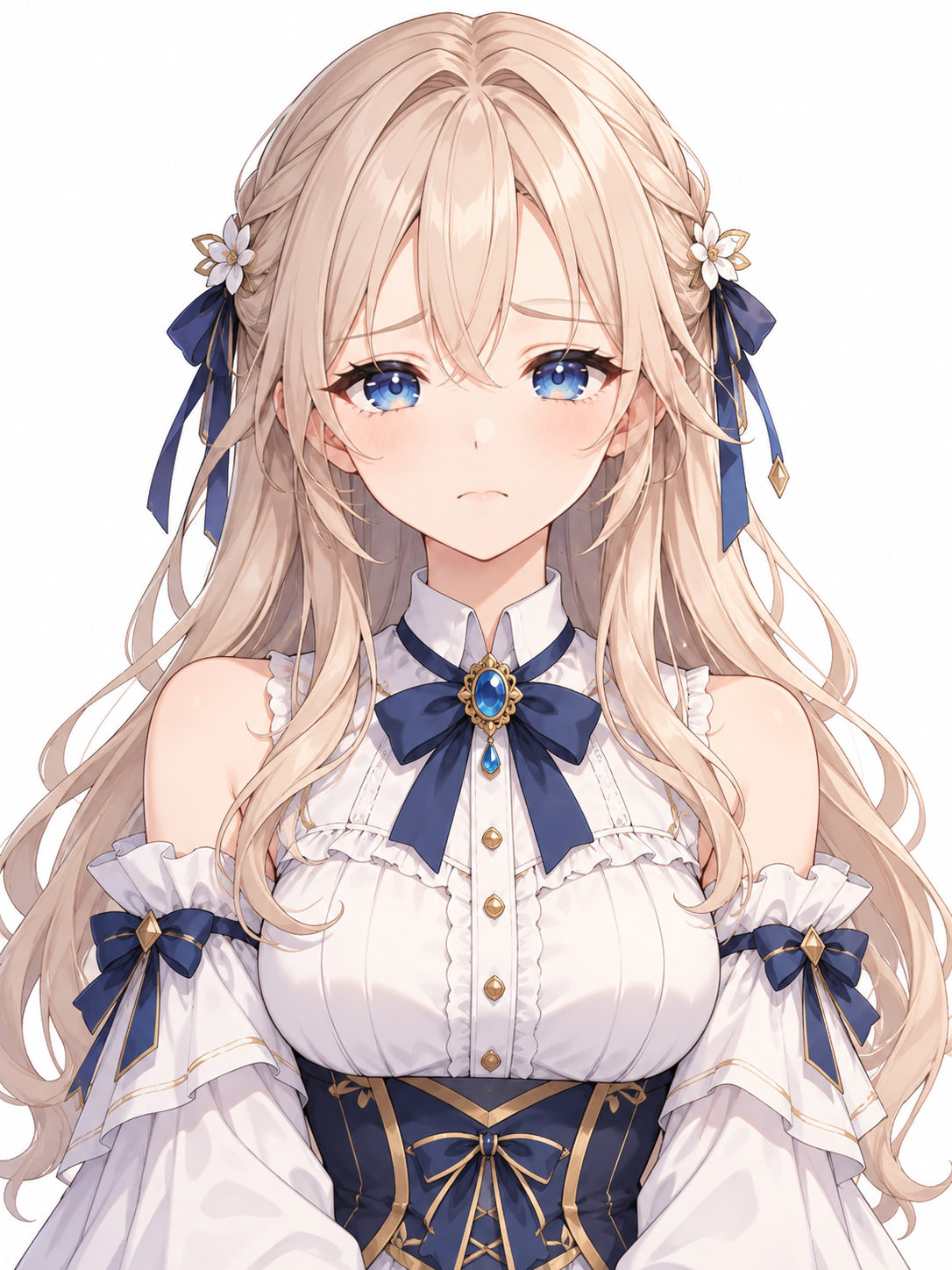
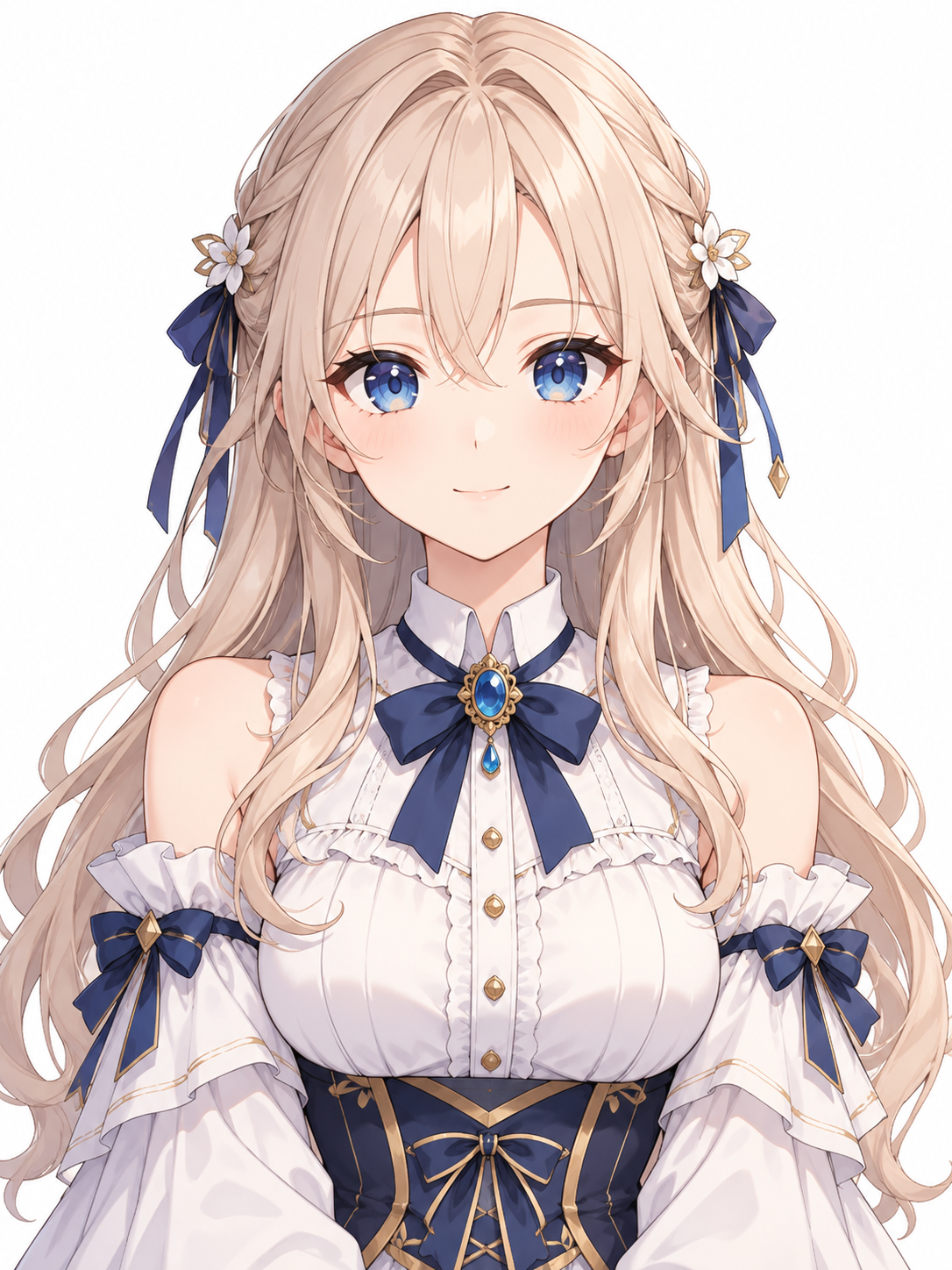
One character, a sad expression
Drag the slider to compare. Only the face area changed; hair, clothing and the canvas are the original pixels.
Created from the same character image with AI facial editing and local image compositing. The expression is AI-generated: check the result against your original.
Generate one expression at a time. Review the facial details before using the result in your project.
More expressions, less redrawing
Let your characters show more emotion
A small smile, a worried look or a surprised reaction can change a scene. Exploring them by hand takes time, especially when the character has to stay recognizable.
Keep the character you designed
Work from your original artwork instead of creating a new character image for every emotion.
Change the face, not the scene
The edit stays inside the face area you choose. The rest of the picture is your original.
Create expressions for different scenes
Give your characters more ways to react in conversations, story moments and interactions.
Keep your artwork editable
Download a layered PSD with your original character and the expression on its own layer.
Use one character across a project
Build a set of expressions around one original illustration, one generation at a time.
Spend more time on your story
Use a generated expression as a starting point and keep your time for the story and the final art.
How it works
Create a character expression in three steps
1
Upload your character
Choose the illustration to edit. A front-facing or slightly turned character with clearly visible eyes, eyebrows and mouth is a good start.
2
Choose an expression and the face area
Select Happy, Sad, Angry or Surprised, then drag the box over the face so the change lands in the right place.
3
Compare and download
Review the original next to the new expression. Download the PNG, or the layered PSD to keep editing.
Expressions for every scene
One character, different feelings
Happy
A cheerful smile and brighter eyes. For greetings, positive dialogue and friendly moments.
Sad
Downcast eyes, raised inner eyebrows and a downturned mouth. For dramatic and emotional scenes.
Angry
Lowered eyebrows, focused eyes and a tense mouth. For arguments, battles and confrontations.
Surprised
Wider eyes and an open mouth. For unexpected events, discoveries and comic moments.
Each expression is a separate edit of your source character. The results are AI interpretations, not frame-by-frame animation or facial rigging.
Who it's for
Character expressions for games, stories and illustration
Visual novel creators
Create new expressions for recurring characters as a starting point for sprites.
Indie game developers
Add emotional reactions to portraits used in dialogue, menus and quests.
Anime and character artists
Try another expression without redrawing the illustration, and keep refining in your software.
VTuber and Live2D artists
Prepare expression references or artwork variations. Part separation, rigging and parameters are still needed for a working Live2D model.
Comic creators
See how a character might react in a scene before you draw the final expression.
Original character designers
Give a character more personality with different emotional takes on the same design.
Keep your expressions editable
Switch expressions without losing your original
A PNG is enough when you need one expression. A layered PSD keeps the original available while you compare or adjust.
Original Character
Your original illustration as the base layer.
Expression layer
The new expression on its own aligned layer, transparent outside the face area. Hide it to get your original face back.
Continue editing
Refine the expression, adjust the artwork or prepare it for your workflow in a PSD-compatible editor.
The PSD holds one expression layer. It is not separate eyebrows, eye whites, irises or mouth shapes, and it contains no Live2D rigging data.
Understanding the results
Your original character stays the starting point
An expression is more than a few lines: eyebrows, eyes, eyelids, cheeks and mouth can all change. The tool sends your picture to the AI, then takes only the face area you chose from the answer and puts it on your original.
The example shown is a Sad expression. The other presets work the same way, and results vary with the character.
Good images to try
- Front-facing anime portraits
- Visual novel character sprites
- Characters with visible eyes and eyebrows
- Neutral or gently smiling starting expressions
- Clear, unobstructed faces on simple backgrounds
More challenging images
- Faces mostly hidden by hair
- Hands covering the mouth or cheeks
- Strong side profiles or extreme head angles
- Characters with very small faces
- Heavy facial accessories or complex shadows
It does not build a Live2D rig, generate animation or split every facial feature into its own part. Check the eyes, eyebrows, mouth and any place where hair overlaps the face.
Before you generate
Get more consistent expressions
Start with a neutral face
A relaxed face with a closed mouth makes it easier to see how each expression changes your character.
Keep the face clearly visible
Hair or hands over the eyes, eyebrows or mouth make a new expression harder to create.
Choose the face area carefully
Cover the features that must change, but avoid large parts of hair or clothing.
Use a clear source image
A sharp, reasonably high-resolution illustration gives the AI more to work with.
Generate from the same original
For a consistent set, start every expression from your original image, not from a previous AI result.
Review before final use
Check the new face against your character's design, especially for game or visual novel assets.
FAQ
AI character expression generator: questions
What is an AI character expression generator?
It creates different facial expressions from an existing character image. Instead of redrawing the character, you upload your artwork, choose an expression and generate an edited face.
Can I generate different expressions for the same character?
Yes. Each expression is a separate generation from your original image, so you can build a set of variations over time.
What expressions can I create?
The presets are Happy, Sad, Angry and Surprised. You choose one for each generation.
Will the hairstyle and clothing stay the same?
Pixels outside the face area you choose are copied from your original image, so the rest of the artwork stays as it was. Details inside the face area can still change.
Can I change only the eyes and mouth?
You choose a box around the face features. The AI creates a new version of that area, and the result is not split into separate eye, eyebrow or mouth layers.
Can I download the expressions as PSD files?
Yes. The PSD has your original character as the base layer and the new expression on its own layer above it, transparent outside the face area.
Can I switch between expressions in Photoshop?
You can show or hide the expression layer to compare it with the original face. Separate generations can be combined in an editor to build a larger set.
Can I use this for visual novel characters?
Yes, as a starting point for expression sprites. You may still need to adjust placement, transparency or asset format for your game engine.
Does it create Live2D-ready facial parts?
No. It creates expression artwork. It does not separate each eye or mouth into Live2D parts or create animation parameters.
Can I generate several expressions at once?
Not yet. Each job makes one expression. To make another, pick a different preset and start a new generation from the same original.
Does it work with black-and-white drawings?
You can try it if the facial features are clear. Color illustrations make it easier to check that eye color and skin tone stay consistent.
What if hair covers my character's eyes?
The AI may struggle to change features hidden by hair. A character with clearly visible facial details is easier to edit and review.
Will the expression match my character exactly?
Not necessarily. Details inside the face area can change. Only that area is taken from the AI, but you should still review the result.
What file formats can I upload?
JPG, PNG and WebP up to 10 MB, at least 256 px on the short side. Large images are scaled to 2048 px on the long side. Transparent areas are flattened on white.
How much does an expression cost?
Each expression uses credits. The amount is shown next to the button before you start. Another expression is a separate paid job.
How long does it take?
It depends on the image and the processing queue. The page shows the job's progress while your expression is prepared.
What happens if the generation fails?
The page shows the failure and your credits are returned in full. If a job succeeds but you want a different expression, a new generation costs credits again.
Can I use the expressions commercially?
You need the rights to upload and use your source artwork. Commercial use of the generated result depends on the service terms and the rights in the original image, so review them first.
Keep creating
More ways to work with your character art
Your character has more than one emotion
Turn one character illustration into new facial expressions without starting over, then keep editing your artwork your way.
Create my character expressionOne expression per generation. Download an aligned PNG or layered PSD and continue your workflow.