
AI line art colorizer
Color your line art with AI
Turn your black-and-white drawings into colorful illustrations without coloring everything by hand. Upload your line art, let AI create a color version, and download a PNG or layered PSD so you can keep editing in your drawing software.
- Turn black-and-white line art into color
- Your original lines in a separate PSD layer
- Keep editing after coloring
Upload your line art
Start with a black-and-white drawing, character illustration or manga-style line art. Clear outlines are easier to review after coloring.
Upload your line art
A black-and-white drawing as a PNG, JPG or WebP image.
JPG, PNG or WebP, up to 10 MB. One drawing with clear outlines works best.
Up to 300 characters. Describe colors only.
Coloring time varies with the image and the processing queue.
See your line art in color
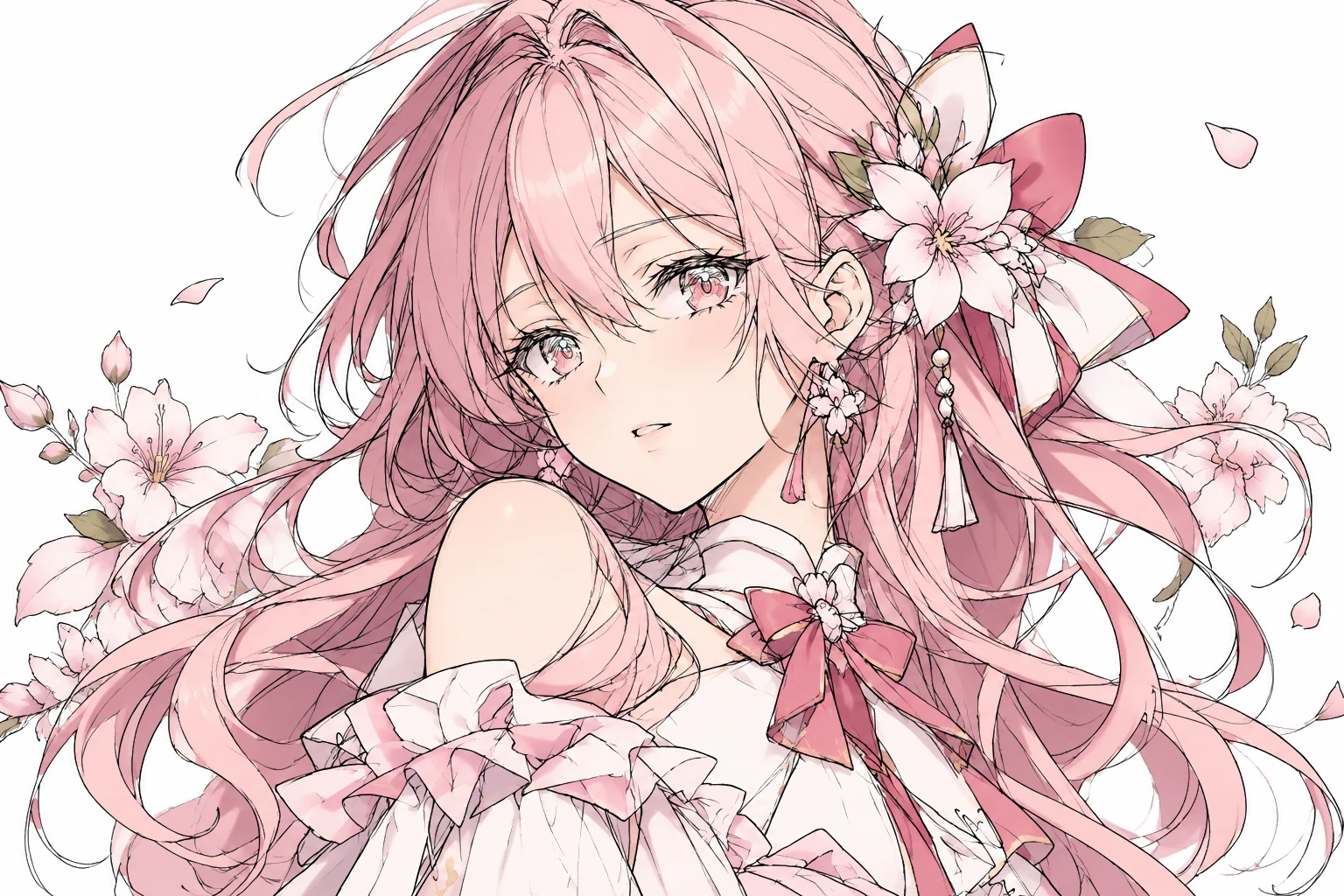
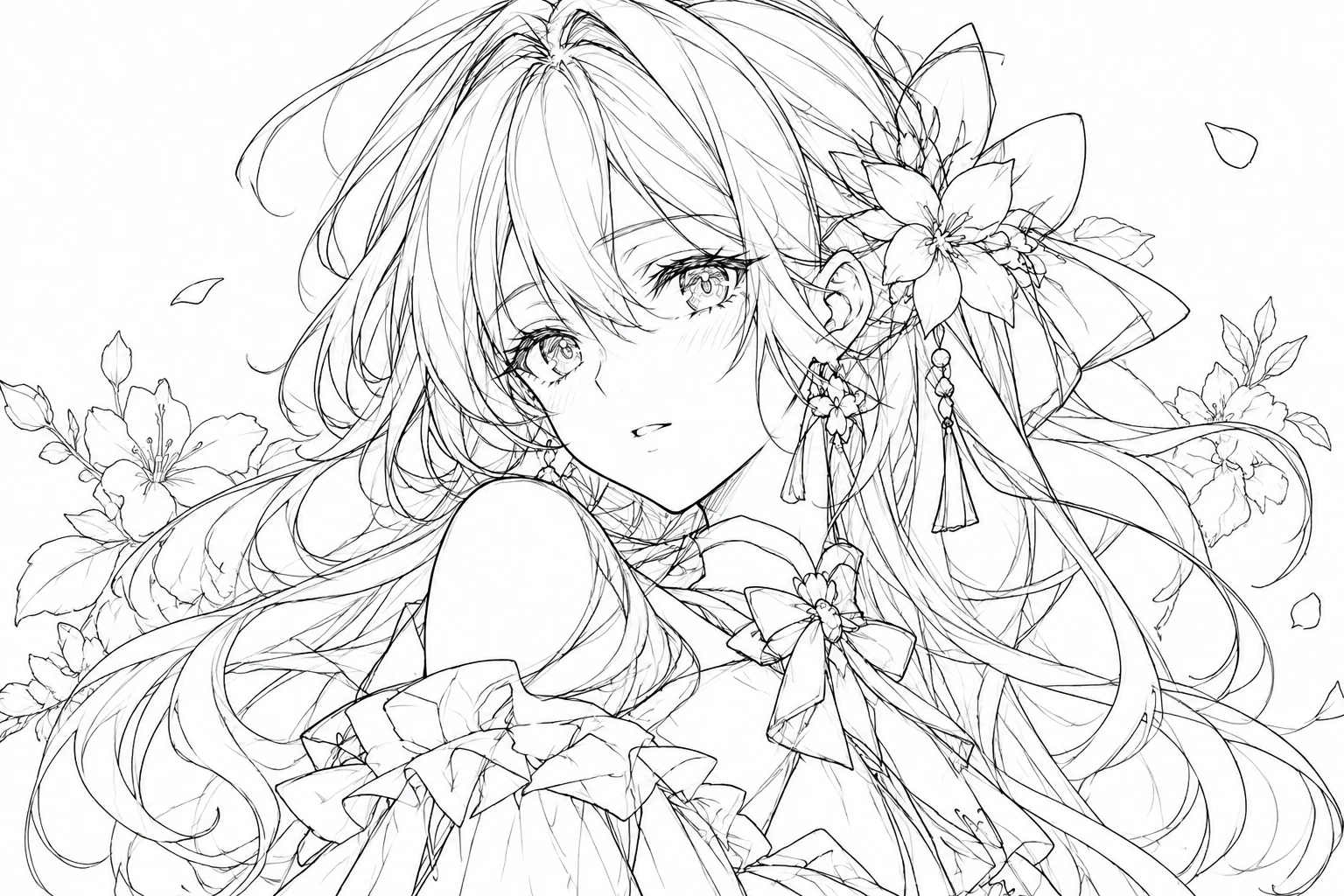
Anime portrait line art, colored
Pink hair, flowers and a red bow were colored, with the original lines kept on top.
One real coloring without color notes. Colors and small details are AI-generated, and results vary with the drawing.
Upload your own artwork, review the AI-generated colors, and choose the file format that fits your workflow.
More than automatic coloring
Add color without starting from scratch
You've already drawn the lines. Explore a color version without painting every area by hand.
Color your drawings faster
Generate a color version to use as a starting point, a visual reference or a base for more editing.
Keep working with your lines
Your original lines stay on their own layer in the PSD, apart from the AI colors, so you can refine them.
Explore new color ideas
Not sure what colors to use for hair, clothing or accessories? A generated version gives you a starting palette.
Continue in your drawing software
Download the layered PSD and keep painting, adjusting or retouching in a compatible editor.
Spend time on creative choices
Focus on color relationships, lighting, atmosphere and final details instead of the first color pass.
Files for different workflows
Use the colored PNG for a quick preview or sharing, and the layered PSD when you want to keep developing the image.
How it works
From line art to color in three steps
1
Upload your drawing
Choose the line art you want to color. Single anime or comic-style illustrations and clean black-and-white drawings are good starting points.
2
Let AI add color
The AI reads your illustration and generates a colored interpretation. You don't fill every enclosed area by hand.
3
Review, download and refine
Compare the colored result with your original. Download a PNG or layered PSD, then make final changes in your drawing software.
Made for your workflow
Give your drawings a new look
Anime character coloring
Turn a black-and-white character illustration into a colorful concept with colored hair, clothing, skin and accessories.
Manga-style illustrations
Add color to single manga-style drawings and use the result as a reference or keep refining it.
Original character designs
Bring a character concept closer to a finished illustration and see how design elements work together.
Digital art and illustration
Use AI coloring as one step in your workflow, then keep painting and polishing.
Coloring existing line drawings
Have a clean line drawing you haven't colored yet? Make a color version without redrawing it.
Exploring color concepts
Use generated color as a starting point when you're choosing between visual directions.
Keep editing after coloring
Your artwork doesn't have to end as a flat image
A colored preview is useful, but sometimes you want to keep working. The layered PSD keeps your lines and the AI colors apart.
Original Line Art
Your own lines, taken from your upload, on a transparent layer on top. They are never redrawn by AI, so you can edit, recolor or hide them.
AI Color Base
The AI colors with its own outlines taken out where your lines are. Under a black line the true color can't be known, so the fill is an estimate and may need touch-ups at color borders.
There is no separate background layer, because the color base is a full picture. Hair, skin, clothing, highlights and shadows are not separated into their own layers.
Before you generate
AI coloring is a starting point, not a perfect match
The AI interprets your drawing when it adds color. The result may change small details, shift lines slightly or pick colors you didn't imagine.
For the best result, start with clear line art with one main illustration.
Good inputs to try
- Clean anime or manga-style line art
- Black-and-white character drawings
- Single digital illustrations
- Drawings with clearly visible outlines
- Artwork with a plain background
Inputs that may need more preparation
- Rough sketches with overlapping construction lines
- Pages with many separate comic panels
- Images with heavy shadows or existing colors
- Very faint or broken outlines
- Low-resolution or heavily compressed images
AI coloring may need manual corrections. Compare the result with your original before printing, publishing or using it in a larger project.
Get ready to color
Prepare your line art for AI coloring
Start with clear outlines
A drawing with visible lines helps the AI read the shapes and details.
Keep the background simple
A plain background keeps the focus on the subject you want colored.
Use a good-quality image
Avoid heavy compression and tiny screenshots when you have the original.
Clean up construction lines first
Rough guides and overlapping strokes can change how the drawing is read.
Review character details
Check eyes, hands, accessories and clothing patterns in the result.
Keep your original
Save your line drawing so you can compare it with the generated version.
FAQ
AI line art colorizer: questions
What is an AI line art colorizer?
It is a tool that turns black-and-white drawings into colored artwork using AI. You upload line art and the AI generates a color interpretation from the shapes and details in your image.
Can I color anime and manga line art?
Yes. You can upload anime-style characters, manga-style illustrations and other black-and-white drawings. Results depend on how clear and complex the artwork is. Single illustrations are a better start than dense comic pages.
Do I need drawing or coloring experience?
No special skills are needed to generate a color version. If you want to refine the result, drawing or image-editing software helps.
Will the AI keep my original lines exactly the same?
Yes, in the PSD. Your original lines are taken from your upload and placed on a top layer, so they are never redrawn. The AI colors underneath can differ slightly from your drawing, and the colored image is checked for lines that moved.
Can I download the colored image as a PSD?
Yes. The layered PSD has your Original Line Art on top and an AI Color Base underneath, so you can keep working instead of having only a flat PNG.
Can I edit each color separately in the PSD?
No. The PSD separates your lines from the colors. Hair, skin, clothing and shadows are not on their own layers, so some changes need manual selection or painting.
Can I use the PSD in Photoshop or Clip Studio Paint?
The PSD is meant for PSD-compatible editors such as Photoshop and Clip Studio Paint. Check the exported file in your own software version.
Can I color a rough pencil sketch?
You can try, but rough sketches with construction lines and unclear shapes affect the result. For cleaner coloring, use Sketch to clean line art first.
Does the AI choose the colors automatically?
Yes. You can also add short color notes, such as pink hair and a white dress. Without notes the AI picks colors itself, which may differ from what you had in mind.
Can I change the color of hair or clothing?
You can keep editing the downloaded result in image-editing software. Because colors are not split into layers, some changes need manual selection or painting.
What image formats can I upload?
JPG, PNG and WebP up to 10 MB, at least 256 px on the short side. Large images are scaled to 2048 px on the long side.
What can I download after coloring?
A colored PNG and a layered PSD, a ZIP with every file and your original upload, the color base as a PNG, and your original lines as a transparent PNG.
How much does it cost?
Coloring uses credits. The amount is shown next to the button before you start. Another color version is a separate job and uses more credits.
How long does coloring take?
It depends on the image and the processing queue. The page shows your job's progress while the artwork is prepared.
Can I use the colored artwork commercially?
You need the rights to upload and use your source artwork. Commercial use of the generated result depends on the service terms and the rights in the original image, so review them first.
What happens if the coloring fails?
The page shows the status and your next steps. Credits for a failed job are returned in full. You can try again with clearer line art.
Why is there no background layer in the PSD?
The color base is a full picture, so a white layer under it would not let you swap the background. We only list layers that really are independent.
What do the color notes do?
Your note is added to the coloring instructions, up to 300 characters. Use it to name colors for parts of the drawing. The AI may not follow it exactly.
Continue creating
More ways to work with your artwork
Ready to see your line art in color?
You've already created the drawing. Give it a new look with AI-generated colors, then keep refining it your way.
Color my line artDownload colored artwork as a PNG or layered PSD and continue your creative process.