NEWGPT Image 2.5 is here — make focused edits with less rework.

Try GPT Image 2.5

Separate Multiple Products from One Photo

Have several products in one picture but need each one separately? Upload your image and let AI identify individual products and separate them into transparent layers you can reuse.

Upload a photo with multiple products

Choose an image containing two or more products. AI will attempt to identify the separate items and turn them into independent visual layers.

1

Click or drag image to upload

Layer Hotspots17 Layers
Hover or click box to inspect layer
Separated Layer Cutouts17 Layers
Protected Assets
2

Settings

One product, one layer

The AI is guided to keep each product intact while separating it from neighboring products, props and the background. Product caps, labels, handles and attached components are intended to stay with their original item.

Multiple productsIndividual object extractionTransparent PNG layersComplete product cutoutsOriginal packaging details
Cost per run60 credits

Upload an Image to Continue

Private File Handling

Uploaded files are associated with your account and delivered through signed URLs. You can delete completed jobs manually.

Transparent PNG Output

Detailed Layers returns each detected element as its own layer on a transparent background.

See the credit cost in the upload workspace before starting.

What images work best?

  • Photos with two or more visible products
  • Clear product outlines and reasonably sharp details
  • Products that can be visually distinguished from each other
  • Photos without excessive blur or extreme overlap
  • Images where important logos and labels are visible
  • Extract individual products from one image
  • Keep each product as a complete object
  • Separate products from surrounding props
  • Get reusable transparent image layers
  • Save time on repetitive manual cutouts

Real result

One photo in. Individual products out.

You do not need a separate photo of every item to start working with them independently. See how an image containing multiple electronics products can be separated into reusable product and scene layers.

Original electronics collection photograph with multiple products and decorative objects arranged together

Before: all products in one photo

Headphones, a phone, a laptop, a smartwatch, earbuds, a camera and other products, with their boxes and decorative props, are arranged together in one studio photograph. The products look great as a collection, but you cannot easily move one item without affecting the rest of the image.

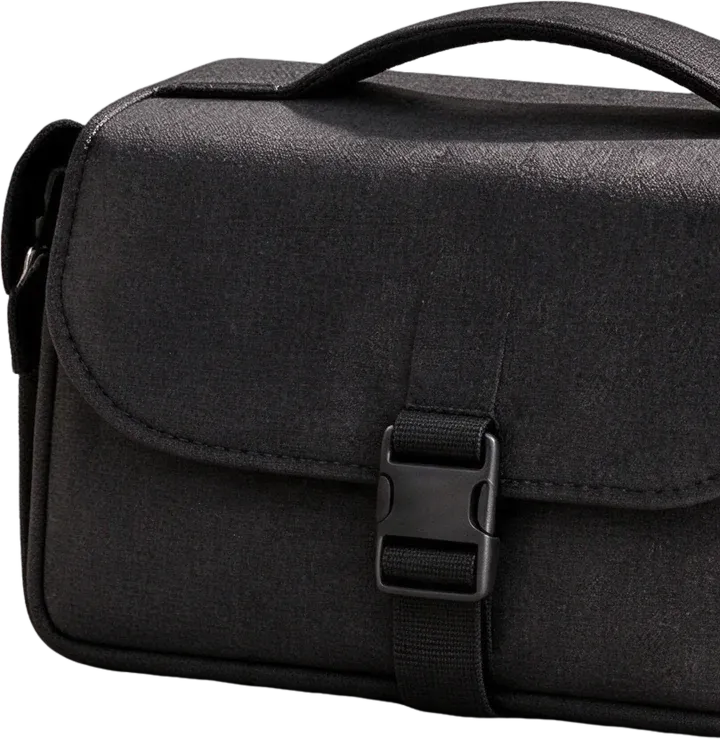
  • Camera Carrying Bag as a separate transparent layer
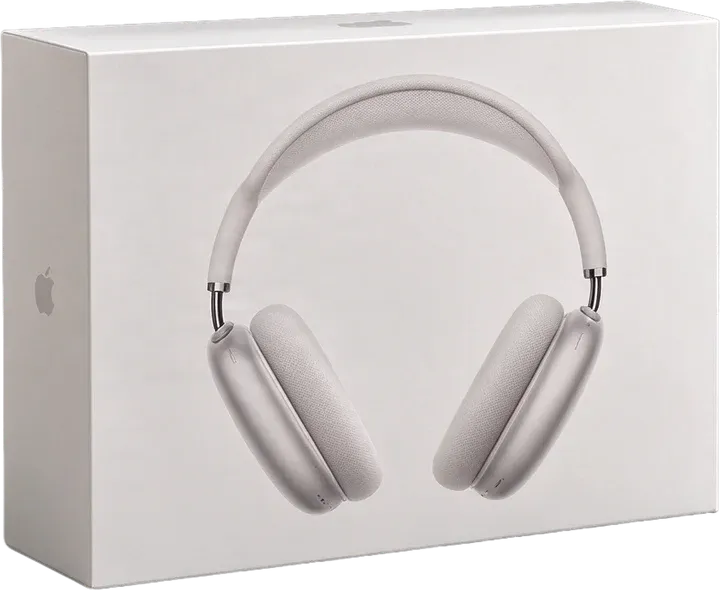
  • Headphones Product Box as a separate transparent layer
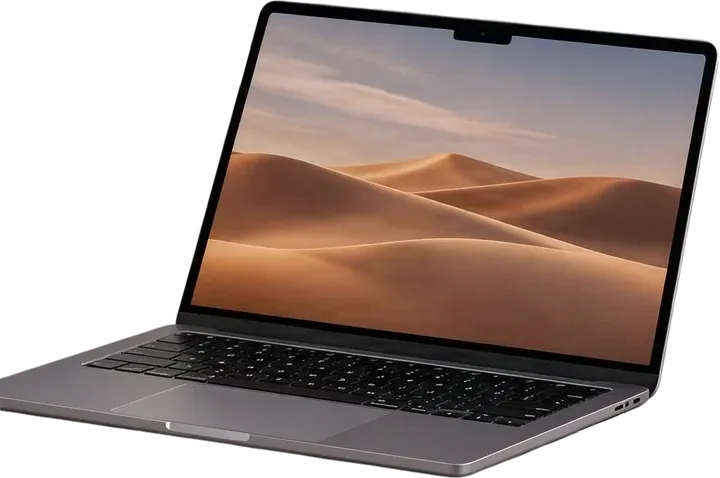
  • Laptop as a separate transparent layer
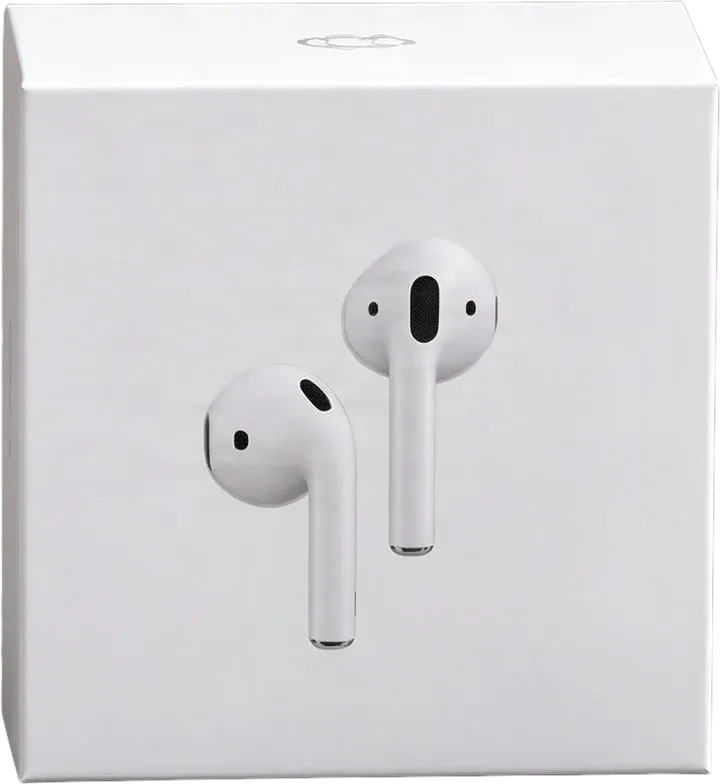
  • Earbuds Product Box as a separate transparent layer
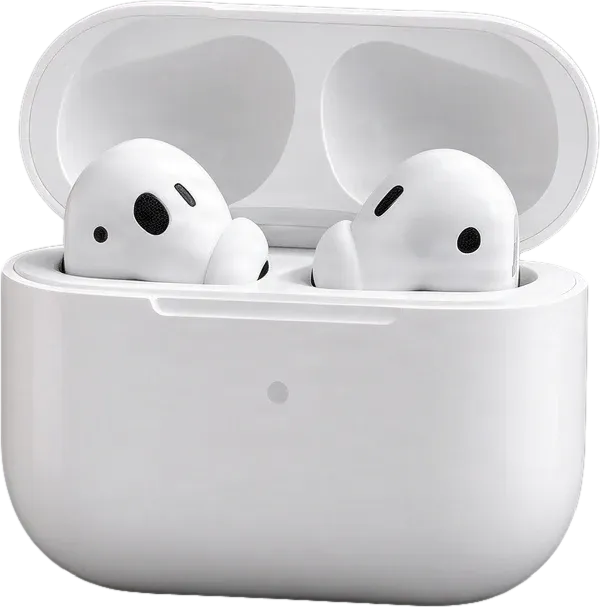
  • Open Earbuds Case with Earbuds as a separate transparent layer
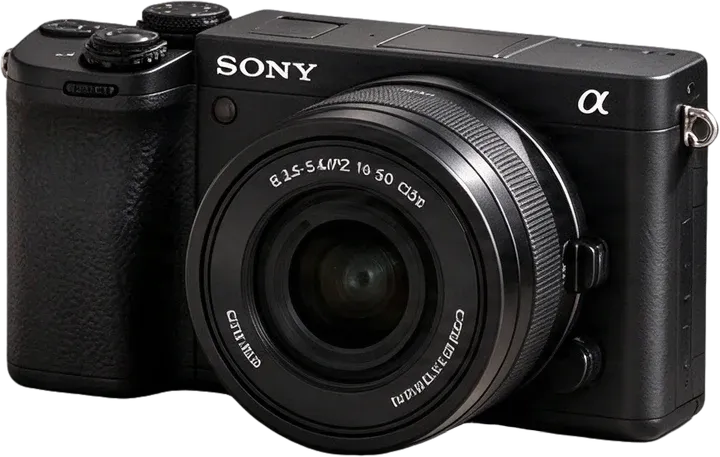
  • Sony Camera as a separate transparent layer
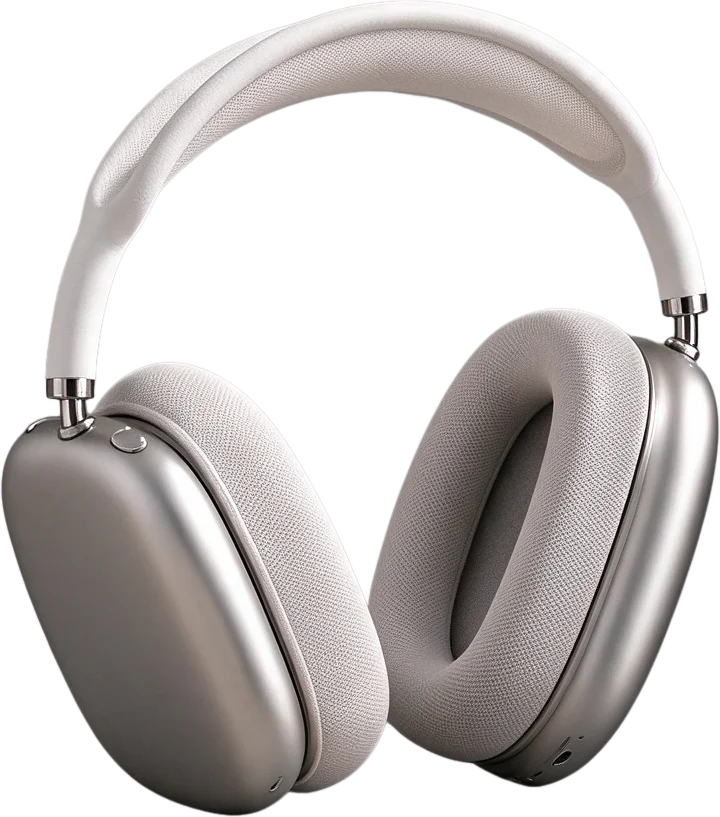
  • Over-ear Headphones as a separate transparent layer
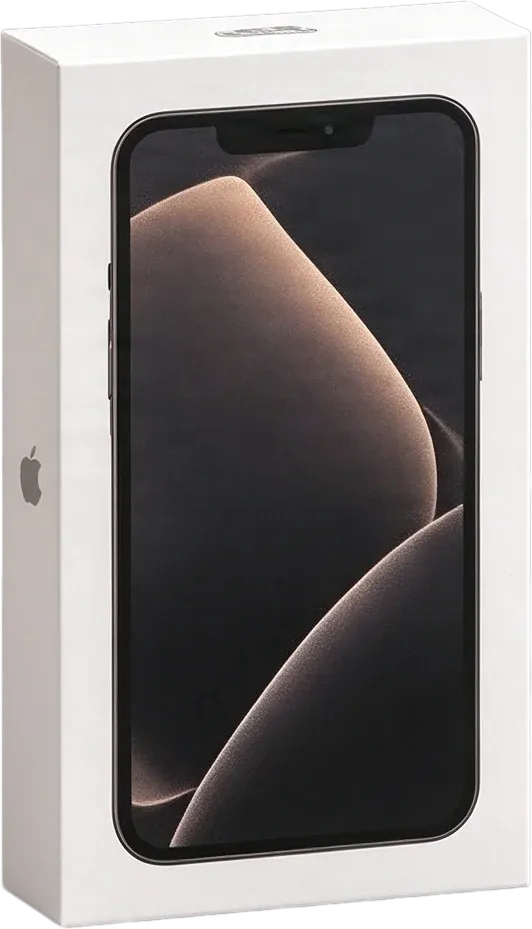
  • Smartphone Product Box as a separate transparent layer
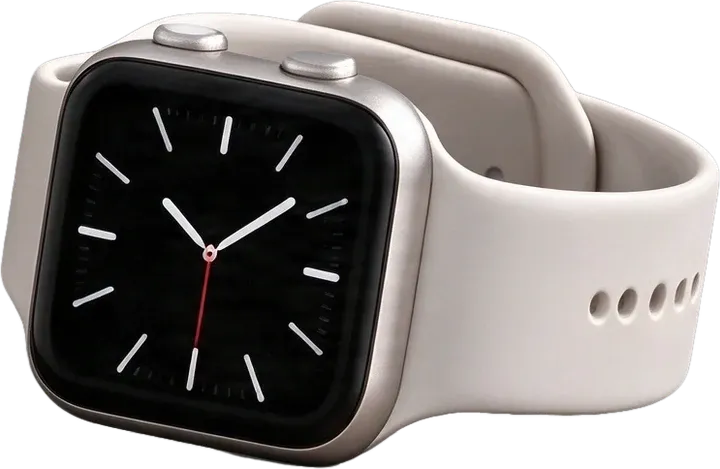
  • Smart Watch as a separate transparent layer
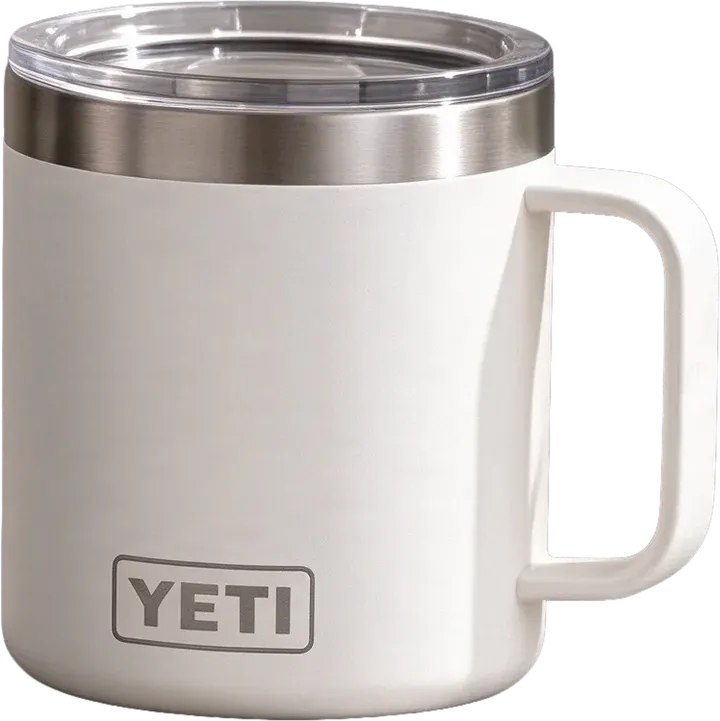
  • YETI Insulated Mug as a separate transparent layer
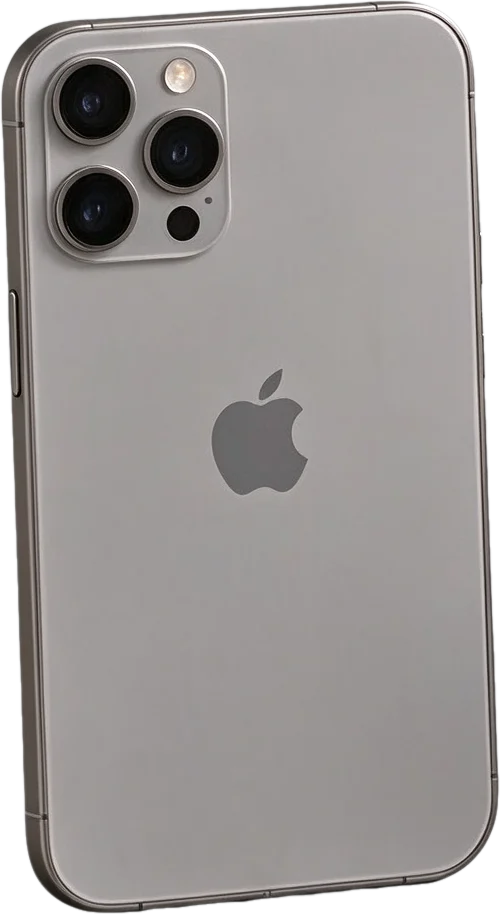
  • Smartphone as a separate transparent layer
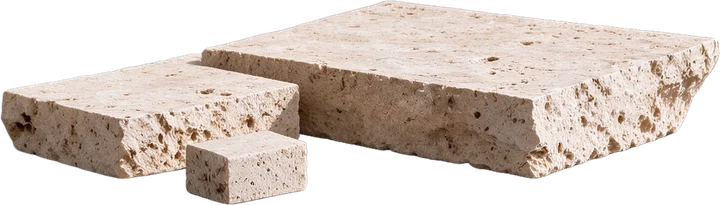
  • Stone Display Blocks as a separate transparent layer
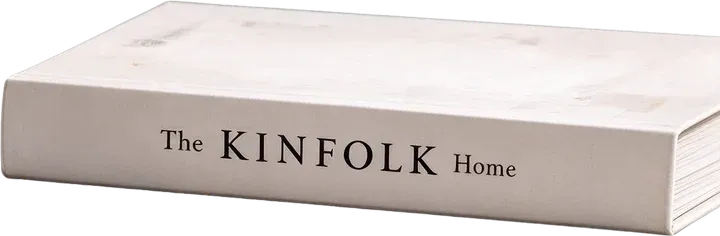
  • KINFOLK Book Stack as a separate transparent layer
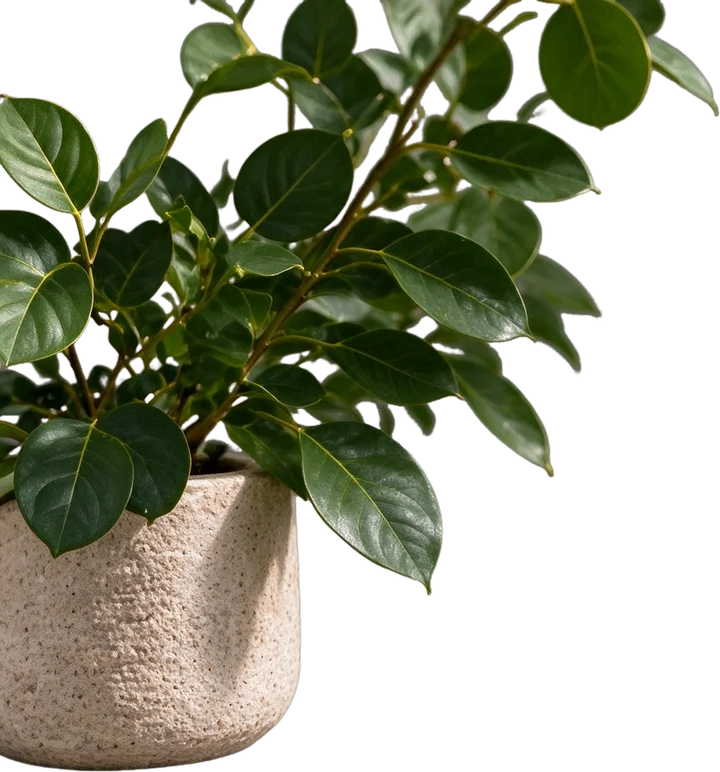
  • Large Leafy Plant Pot as a separate transparent layer
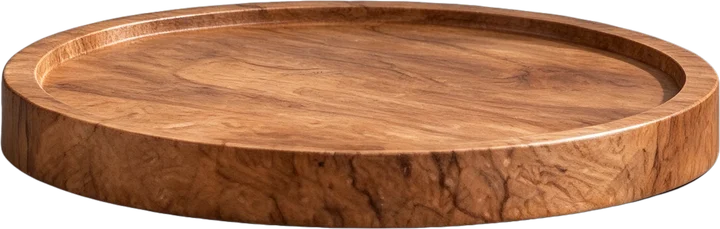
  • Wooden Display Tray as a separate transparent layer
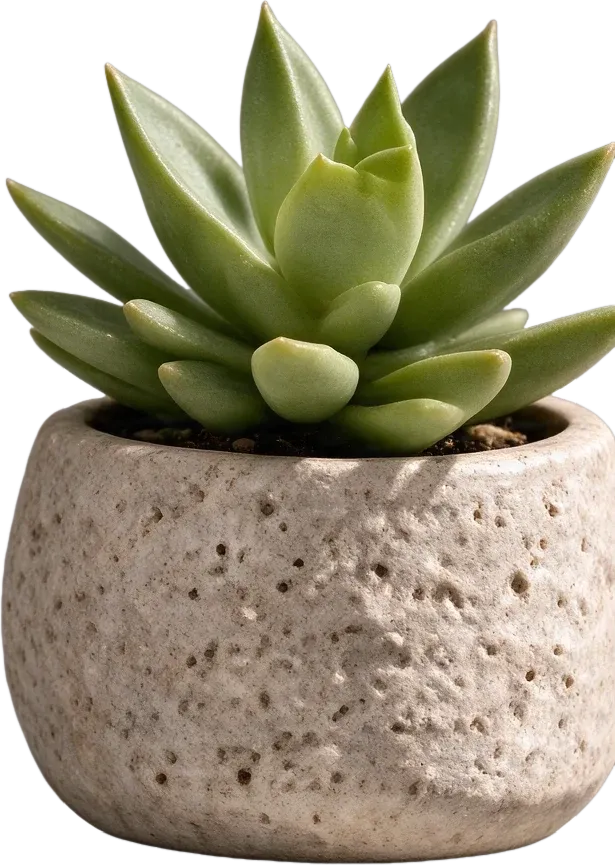
  • Small Succulent Pot as a separate transparent layer

After: products extracted separately

AI separates the visible products into individual layers, along with major styling elements and the background. Select the extracted elements to see how the original image is divided into reusable parts.

In this example test, the AI returned 17 layers, including a background layer. Product and prop extraction results vary by image. This is a real AI-generated separation example, so minor visual differences, reconstructed details or alignment adjustments may occur.

Start here

No need to trace every bottle, box, device or accessory

Upload your image and let AI identify individual products, separate them into transparent layers, and make them easier to reuse. No need to manually trace every bottle, box, device or accessory.

Whether you are preparing product listings, building advertisements or organizing images for a design project, start with the photo you already have.

Common problem

You have the photo, but you need the products separately

Imagine you have a picture showing six products. Now you need a separate image of the second product. Or you want to remove one item and keep the rest. Or your designer asks for individual product PNGs, but all you have is the finished photo.

The products are visible, but they are locked together in one flat image. Separating them manually means selecting edges, handling overlaps, cleaning backgrounds and repeating the process for every item.

With Image to Layers, you can start by separating the image into individual visual elements instead.

Typical problems this helps with:

  • Extracting one item from a group photo
  • Preparing separate product cutouts
  • Removing unwanted products from a composition
  • Reusing items without the original background
  • Organizing products for a new design
  • Working with flattened product photography

Turn a single image containing several products into a more flexible set of editing assets.

How it works

Extract individual products in three steps

  1. 1

    Upload your image

    Choose the photo containing the products you want to separate. You can start with a collection photo, product bundle image, studio arrangement, or another picture where multiple items appear together. No original layered design file is required.

  2. 2

    Let AI separate the objects

    The AI examines the visible products and attempts to give each distinct item its own layer. It also identifies supporting props and background elements where possible. You do not need to type the names of all the products.

  3. 3

    Review your individual layers

    Inspect the separated results, select the products you need, and use the available editing or download options to continue your work. Check the edges, printed labels and object positions before using the extracted products in a final design.

Independent extraction

Select the product you need, not the entire group

A regular image treats every visible item as part of one canvas. That is inconvenient when you only need a single product.

For example, you may have a photo containing headphones, a phone, a camera and a laptop, and you want to reuse just the camera in a promotional graphic. Instead of cutting around it manually, the separation attempts to create an independent layer for the camera. The same idea applies to bottles, boxes, jars, accessories and other merchandise.

What you can do with independent layers:

  • Select a single product
  • Move it within a composition
  • Use it against another background
  • Combine it with different products
  • Remove surrounding items
  • Prepare an individual product asset

Make a group photograph more useful when you need to work with the products one at a time.

Complete products

Extract the whole product, not its individual parts

When separating a photo, more layers are not always better. You probably do not want a bottle cap, bottle body and printed label to become three unrelated pieces. You want one complete bottle that you can move or reuse.

Image to Layers uses product-oriented instructions intended to preserve each individual item as a complete object.

Examples:

  • Bottle and attached cap together
  • Jar and its lid together
  • Product tube as one object
  • Camera body with attached lens
  • Headphones as one complete item
  • Packaged item with its attached components

Distinct objects, such as a product and a separate retail box, may be extracted independently when the image allows. The goal is practical product cutouts that are easier to use, not unnecessary fragmentation.

Complex arrangements

Products do not always sit far apart

In professional product photography, objects often overlap. A jar may sit in front of a bottle. A package may partially cover another item. Several products might share shadows or reflections. These compositions look natural, but they make manual extraction more difficult.

AI can attempt to separate overlapping products and estimate parts that were previously hidden. However, the original photograph does not contain the actual appearance of fully obscured areas. Reconstructed regions are AI-generated approximations, not recovered original pixels.

What to expect:

  • Visible product boundaries can often be separated.
  • Partially covered products may require reconstruction.
  • Some edges may need cleanup.
  • Very close or heavily overlapping items may be merged.
  • The extracted product may differ slightly from the original image.

You can start from a more editable image without assuming that every hidden detail can be recovered perfectly.

Multi-object extraction

Need individual products? Background removal alone may not be enough

Most basic background removers are designed to separate the foreground from the background. If your photo contains five products touching or overlapping, they may still appear together as one cutout. That works when you want the entire group. It does not solve the problem when you need each product independently.

Background removalSeparate multiple products
Best for extracting one subject or one combined groupDesigned to identify distinct products
Usually provides a foreground cutoutAttempts to create one layer for each product
Does not necessarily separate neighboring objectsCan also separate major props and background elements, which helps when you need to work with individual items

Choose object-level separation when you need the pieces inside the picture, not just the picture without its background.

Any product type

From cosmetics to electronics and everyday merchandise

Your products do not have to be skincare bottles. The workflow is intended for photos containing different types of physical products and merchandise.

Beauty and personal care

Separate bottles, jars, tubes and packaged skincare products from collection photos.

Electronics

Extract devices, headphones, cameras, phones and accessories from group arrangements.

Gift sets

Work with individual items from a gift hamper, subscription box or bundled product photo.

Home and lifestyle

Separate candles, containers, kitchen accessories, decor and other household merchandise.

Fashion accessories

Try extracting bags, watches, eyewear, footwear and other individual accessories.

Food and beverage products

Separate packaged items or distinct products from a group arrangement where their boundaries are visible.

Important: skincare and electronics have been tested with this workflow. Results for other categories can vary.

Next design

Stop re-creating product cutouts every time you need a new graphic

Once your products are separated, they can become more flexible assets for a range of creative tasks.

Online store graphics

Prepare product elements for Shopify store banners, promotional images and product collection layouts.

Marketplace content

Use extracted products as a starting point for secondary listing graphics, product comparisons and promotional visuals. Follow each marketplace's content requirements.

Social media

Feature selected products from a collection in social posts, advertisements and announcements.

Client design projects

Work with a flattened client photograph even when the original layered source file is unavailable.

Catalog and collection design

Organize separate products into a new arrangement or combine selected items for a different collection image.

Product launches

Create product-focused graphics using existing photographs instead of rebuilding every asset from scratch.

One photo can become a useful source of independent product images for your next project.

Props too

Do not lose the props you might need later

Sometimes you only need the products. Other times, the objects around them are useful too. Your original photograph might include display stands, flowers, fabric, stones, packaging or other styling elements.

The AI can attempt to identify major props separately so you can keep, move or remove them during editing.

Potential scene elements:

  • Product display stands
  • Decorative flowers and leaves
  • Fabric and towels
  • Packaging boxes
  • Table accessories
  • Supporting objects
  • Studio background

Small decorative details may be grouped with other elements, particularly in very dense scenes. Keep more of the original photograph available for creative editing.

Logos and packaging

Make sure the extracted product still looks like your product

A product cutout is only useful when it accurately represents the item you are selling. AI-assisted layer separation can subtly change fine details, even when the overall result looks good. Before using the extracted image in advertising or listings, compare it with the original photograph.

Check these details:

  • Brand logos
  • Product names
  • Packaging text
  • Small printed numbers
  • Labels and symbols
  • Bottle and box proportions
  • Material textures
  • Metallic and transparent edges

You may notice slight changes to lettering, reflections, shapes or partially hidden parts. For product-critical details, verify the result before publishing. AI separation is an editing aid, not a guarantee of pixel-perfect reproduction.

Know the limits

More products mean a more complex separation

A photo containing three clearly separated products is different from a tightly packed collection of twenty products and accessories. The AI has a practical output-layer limit, and the result can vary based on scene complexity.

In the tested examples, the model returned 16 foreground layers plus a background layer. Some of those foreground layers represented props rather than products. If an image has many more distinct objects, the model may combine some elements or leave smaller objects attached to the background.

For better results:

  • Use photos with distinct product shapes.
  • Avoid extremely crowded compositions when individual extraction is essential.
  • Keep important products clearly visible.
  • Check that all required products were extracted.
  • Review the actual output instead of assuming a fixed layer count.

The number of products successfully separated depends on the image, not just the number visible in the photograph.

Better results

Prepare your photo for easier object separation

Choose a sharp original

High-quality images make it easier to distinguish product shapes, packaging edges and small details.

Keep product boundaries visible

If two products blend into each other, they may be harder to separate reliably.

Avoid heavy blur

Motion blur and strong depth-of-field blur can make object boundaries less predictable.

Watch for transparent materials

Clear glass, plastic and reflective surfaces may need extra review after separation.

Check the original labels

AI cannot reliably restore wording that is too small, obscured or illegible in the original photograph.

Inspect each product independently

A reconstructed image can look convincing while individual layers still contain slight shifts, altered textures or background fragments.

A good source image and a careful review can make the resulting layers much more useful.

Before reusing

AI separation gives you editable layers, not an exact original project

The tool works from a flattened photograph. It does not recover the original Photoshop document, original camera layers or hidden source assets. Instead, AI generates a new set of visual layers based on the image.

This makes many editing tasks easier, but results may contain reconstructed details or small visual changes.

Common differences to review:

  • Slight shifts in positioning
  • Changes in tiny packaging text
  • Altered fine textures
  • Imperfect transparent edges
  • Differences in reflections and shadows
  • Duplicate props in the background
  • Layer stacking order: a prop can end up in front of a product, and you can reorder layers in the editor

Use the available tools to inspect the output, then make any necessary adjustments before commercial delivery. The value is a faster starting point for individual product editing, with room for final human review.

Frequently asked questions

How can I separate multiple products from one photo?

Upload an image containing several products, then start the AI separation process. Image to Layers attempts to identify each distinct product and create independent visual layers so you can inspect and reuse the items separately.

Can I extract each product as a separate PNG?

The workflow creates separate image layers that can be used with transparency. Use the result workspace to review and download the supported outputs. Check that each required product appears independently before relying on the files.

Do I need to select every product manually?

No. The AI is guided to identify distinct products in the image automatically. You do not have to draw a selection around every object or type out all the product names.

Does it work when products are touching or overlapping?

It can attempt to separate touching and partially overlapping products. Heavily overlapping objects are more challenging, and areas hidden behind other products may need AI reconstruction.

Can I separate two products that look almost identical?

You can try, but identical or very similar neighboring products may be harder to distinguish. Clear boundaries and visible spacing can improve the chances of separating them correctly.

Will the tool remove the background from every product?

The workflow aims to provide independent layers with transparency outside the extracted objects. Complex shadows, glass and partially transparent packaging may require additional review or cleanup.

How many products can I extract from one image?

There is no guaranteed product count. The model has a practical limit on the number of layers it can generate. Our example tests reached 16 foreground layers plus a background, including props as well as products. Crowded images may produce grouped or missing objects.

Can I extract only one product from a group picture?

Yes. The workflow can help by separating multiple products into independent layers, allowing you to select the particular product you need from the generated result.

Is this different from removing the background?

Yes. Standard background removal often gives you one foreground cutout containing all the products together. This workflow attempts to separate individual products from one another, not just from the background.

Will product packaging and caps stay together?

The separation instructions prioritize keeping each product intact, including attached caps, lids, handles, labels and other integral components. However, inspect the results to confirm the grouping is correct.

Can I separate electronics from one photo?

Yes. The workflow has been tested on a photograph containing multiple electronic devices and accessories. Details such as controls, screens, branding and reflective surfaces should still be reviewed after processing.

Can I use it for cosmetics, skincare or beauty collections?

Yes. The workflow has also been tested on a skincare collection containing bottles, tubes, jars, a facial roller and styling props. Individual products were separated, although the output still required visual review.

Can I extract items from a gift box or product bundle?

You can try separating visible items inside a bundle or gift arrangement. Items that are completely hidden, tightly packed or visually indistinguishable may not be recoverable as independent products.

Does the AI keep product logos and printed text unchanged?

It aims to preserve visible text and logos, but it cannot guarantee exact reproduction. Small packaging text and fine artwork may be modified during AI processing. Always check critical branding against the original.

Will transparent bottles and reflective products work?

They may work, but glass, reflective metal and translucent plastic can be difficult because their appearance depends on the surrounding scene. Inspect edges, reflections and transparency before using the results.

Can I use the extracted products in Photoshop?

Yes. Downloaded transparent product images can be imported into Photoshop as separate layers. You can download the layers as a ZIP, and a PSD download is available on paid plans.

Can I use the results for Shopify, Amazon or Etsy listings?

You can use extracted assets when preparing ecommerce graphics, provided you have the necessary rights and follow each platform's current image requirements. Review image accuracy before publishing commercial listings.

Can I extract products from a photo that has text or decorations over them?

The AI can attempt to separate products from other visual elements, but text overlays and decorations may obscure parts of the product. Hidden details may be reconstructed inaccurately, so careful review is important.

Why do some extracted products look slightly different from the original?

AI-generated layers may involve reconstruction or redrawing, particularly around edges, reflections, overlapping objects and text. Small changes in position, texture or packaging details can occur.

Is the product separation tool free?

This is a credit-based AI processing tool. The workspace shows the required credit cost before you start a generation. You can review the current pricing and available credits before proceeding.


Different image problems need different tools

Need individual products from one image?

Do not spend your next design session cutting around every item by hand. Upload the photo you already have and turn multiple visible products into separate, reusable image layers. Whether you are preparing a product listing, an advertisement or a new visual layout, start with the individual items you need.

Extract individual products

Upload your image, review the credit cost, and start separating your products.

    Separate Multiple Products from One Photo | Image to Layers