
Rose tattoo line art
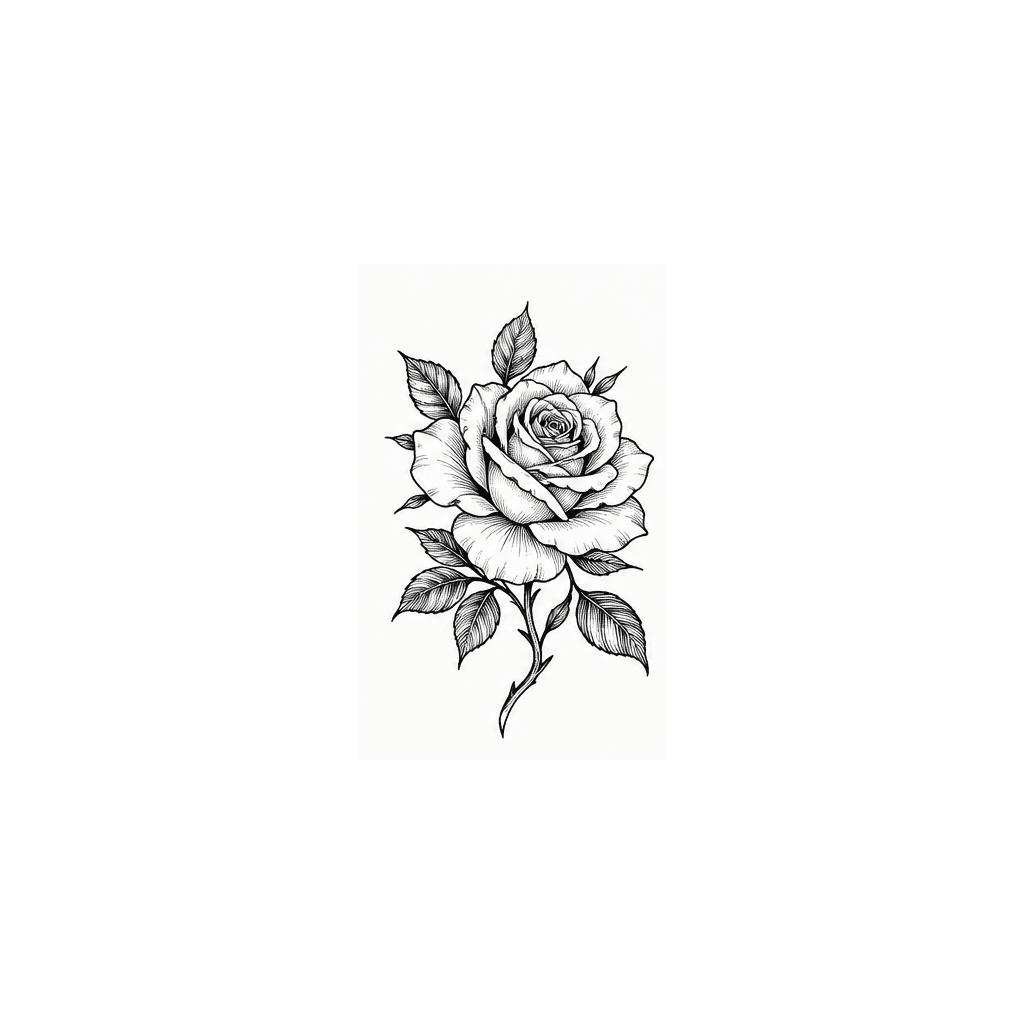
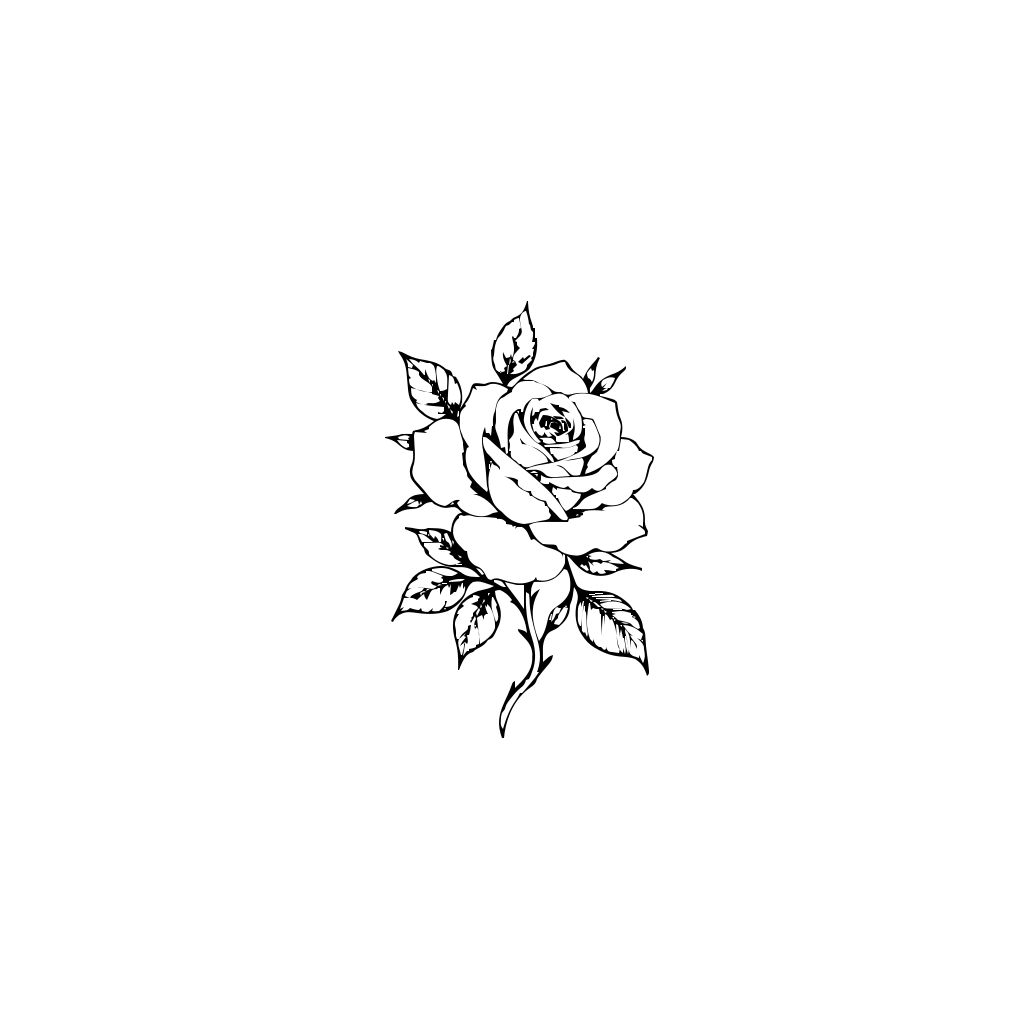
7 SVG paths
Black & White · Smooth Curves · Balanced detail
Tattoo artwork to editable SVG
Have a tattoo sketch, design reference, or black-and-white illustration that needs cleaner, scalable outlines? Upload your artwork and convert its visible shapes into editable SVG vector paths. Adjust the tracing settings, review the result, and continue preparing your design in a compatible vector editor.
Upload your existing tattoo sketch, line drawing, or design image. Choose how the visible artwork should be traced, then generate an SVG you can review and edit.
Choose a PNG, JPG, or WebP file, drag it here, or paste it from your clipboard.
PNG, JPG, or WebP · Maximum 10 MB
Works with Figma, Illustrator, Inkscape, and web browsers.
30 credits per conversion · Usually completes in under one minute.
For cleaner tracing, start with artwork that has strong contrast, distinct outlines, and minimal background clutter.
Detailed photographs and soft shading may need additional manual preparation.
30 Credits per conversion. Review your vector artwork before printing or transferring.
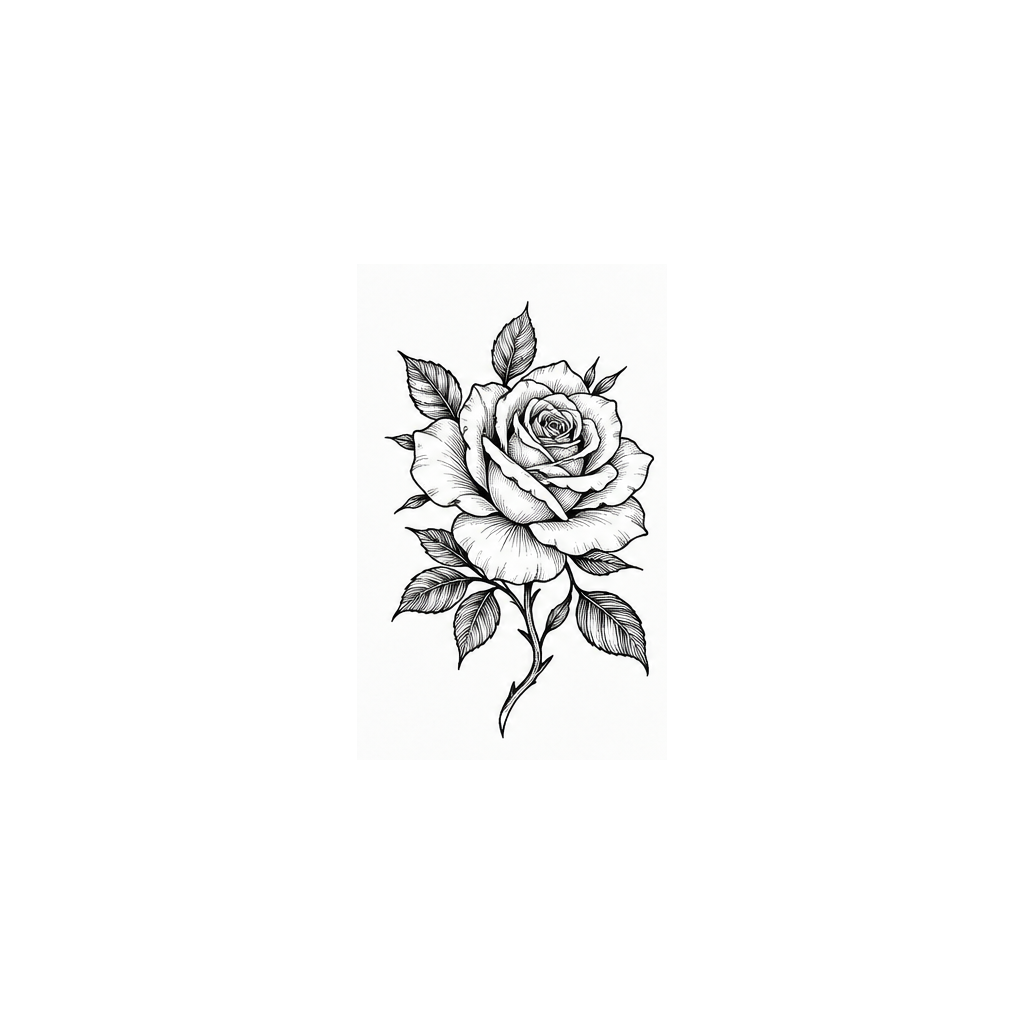
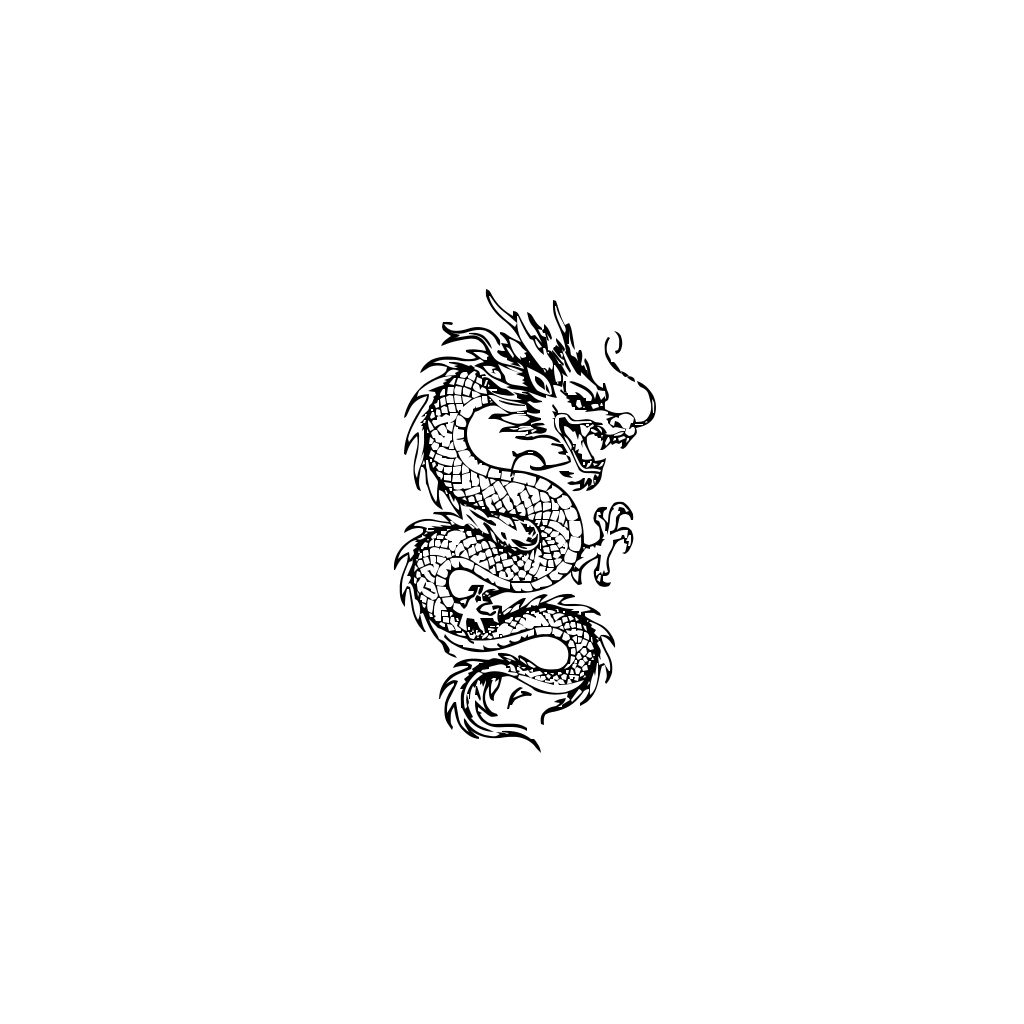
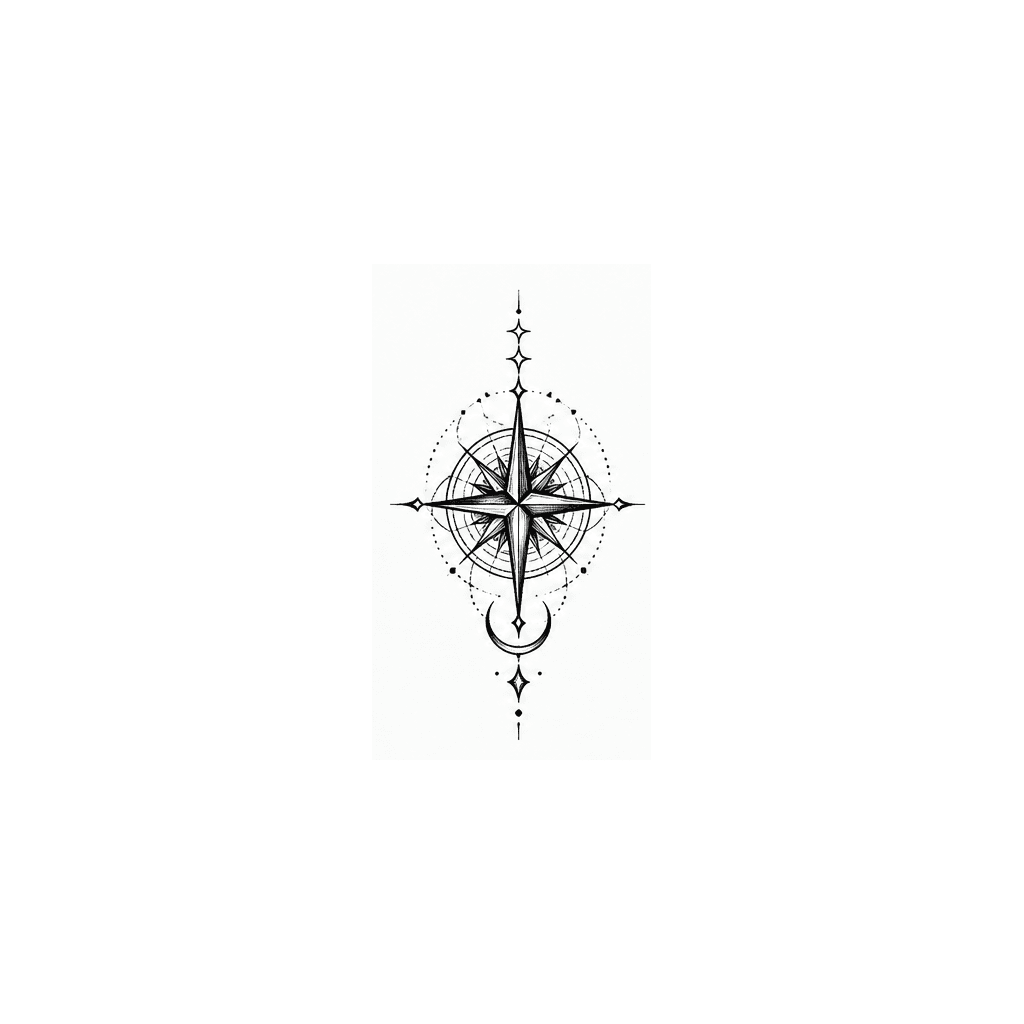
Actual tattoo artwork conversions
These examples were converted from the original images in this page using Black & White, Smooth Curves, and Balanced detail.
7 SVG paths
Black & White · Smooth Curves · Balanced detail
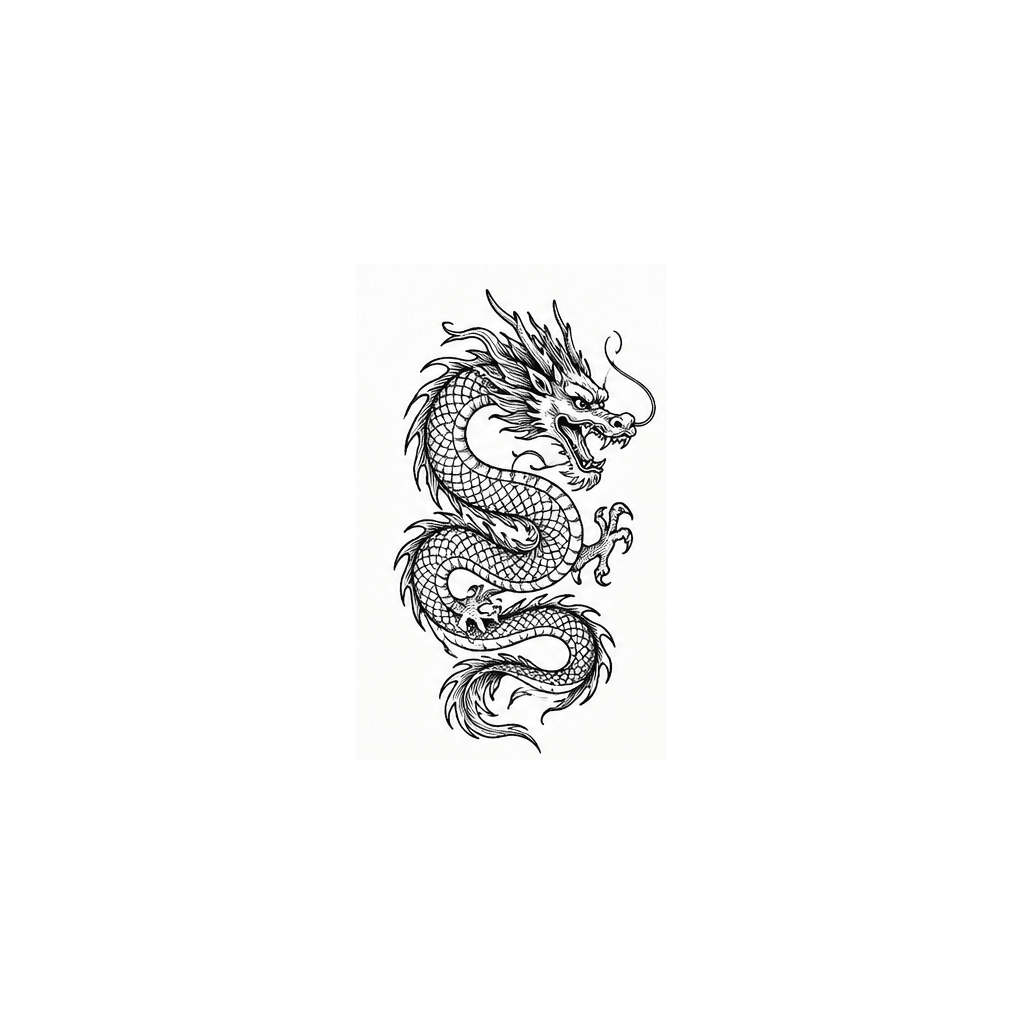
26 SVG paths
Black & White · Smooth Curves · Balanced detail
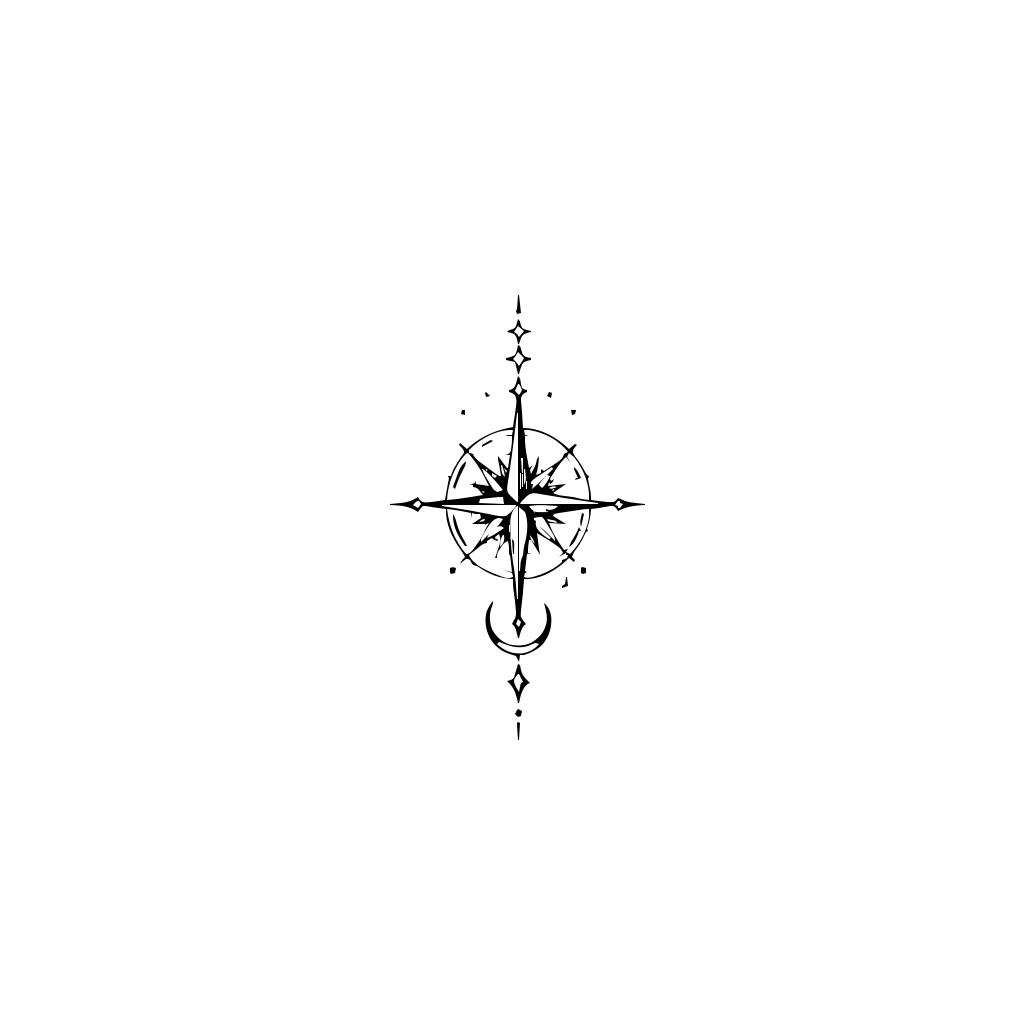
22 SVG paths
Black & White · Smooth Curves · Balanced detail
A general line-art vector example
This cached example shows general line-art vectorization with the existing Image to SVG converter.
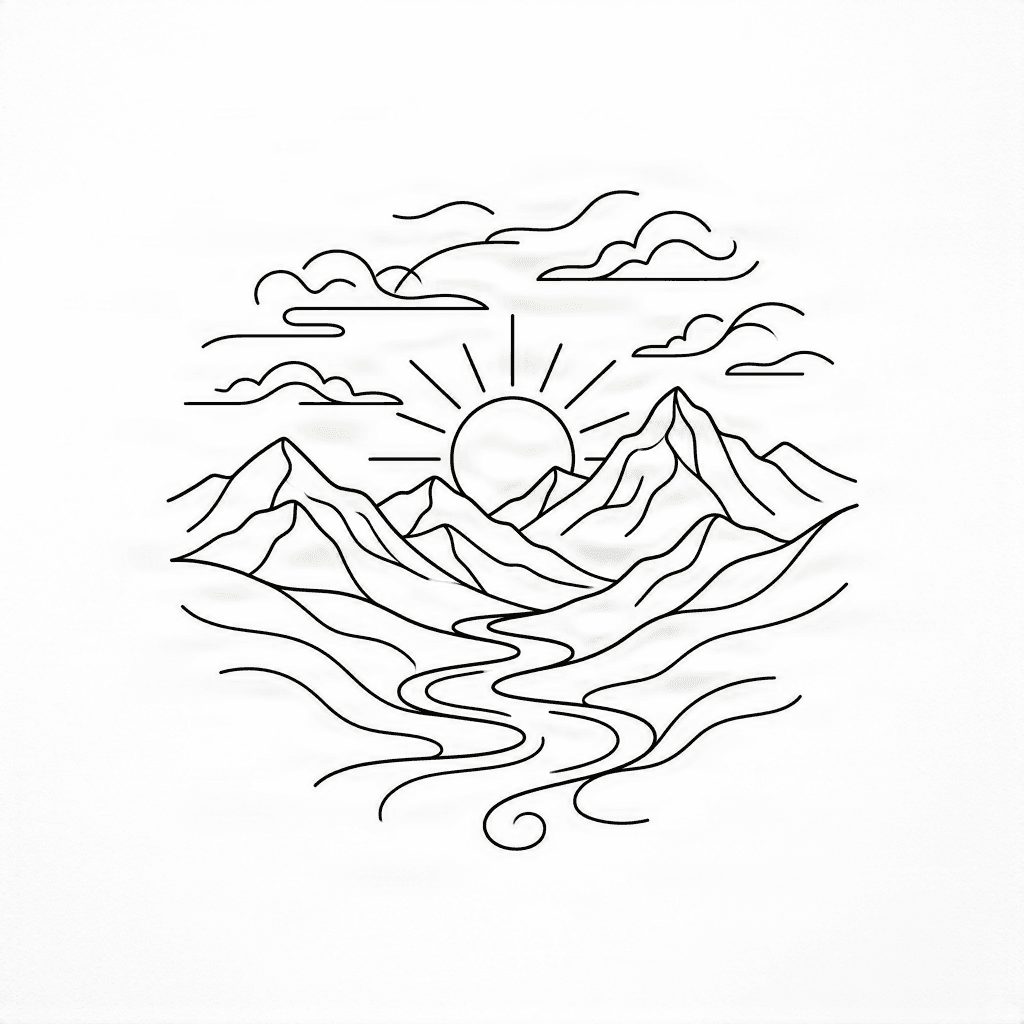
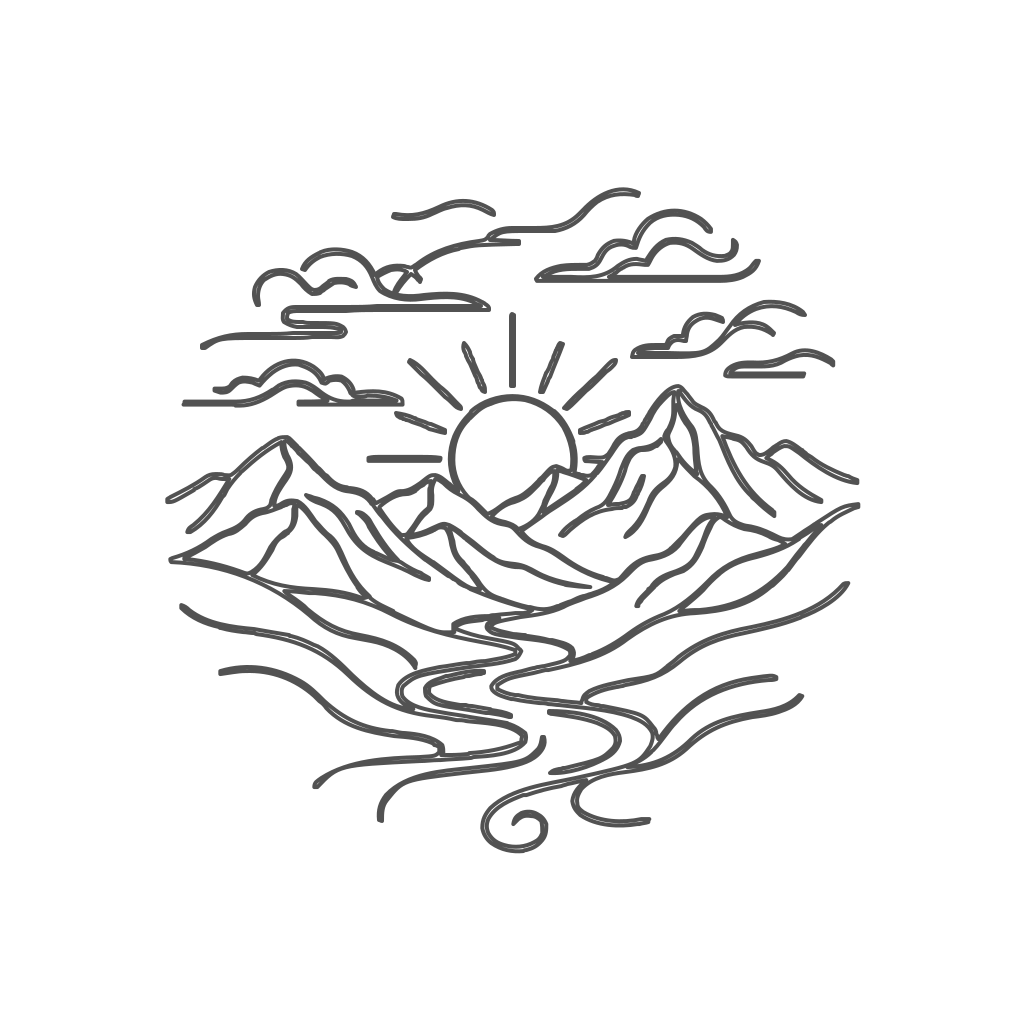
This is a general line-art vectorization example, not a demonstrated tattoo stencil conversion.
From drawing to vector
A screenshot or raster drawing can be difficult to resize and refine, especially when artwork contains thin lines, curves, or small decorative elements.
Convert the image into SVG vector paths so you can continue adjusting the design in your preferred vector editing software.
Start with a sketch, blackwork drawing, ornamental illustration, or existing tattoo design.
Trace visible regions and boundaries using the converter's color, path style, and detail settings.
Open the SVG in a compatible vector editor to inspect lines, adjust proportions, and prepare the final artwork for your preferred printing or transfer workflow.
SVG conversion is one step in stencil preparation. The generated vector file is not automatically a production-ready thermal transfer stencil.
More control over your artwork
Convert a PNG or JPG into vector paths so you can make further adjustments without redrawing every shape manually.
SVG paths can be scaled without the same pixelation as enlarging a raster image. Review line thickness and detail at the intended print size.
Black-and-white tracing and a lower detail setting can help you explore a less complex version of an existing illustration.
Choose smooth curves for floral patterns, ornamental shapes, lettering outlines, and other designs with flowing edges.
Download the SVG and inspect its shapes in software such as Adobe Illustrator or Inkscape.
Compare the source image with the vector output to check whether important lines, contours, or decorative elements changed.
Start with the artwork you already have
Explore vector versions of delicate line drawings, small symbols, and minimalist artwork. Very thin lines may need manual inspection to remain visible at the intended size.
Convert high-contrast black shapes, bold silhouettes, and graphic elements into SVG paths.
Prepare outlines of flowers, leaves, stems, and ornamental botanical designs for further editing.
Trace geometric patterns, symbols, and decorative arrangements using straight-edge or smooth-curve settings.
Convert visible lettering shapes into vector artwork. Inspect small counters, spacing, and letter details carefully.
Work with bold, clearly defined shapes and outlines. Complex textures, gradients, and colored shading may need additional cleanup.
This tool converts existing image content. It does not independently generate a new tattoo composition or guarantee line weight or transfer quality for every style.
How it works
1
Choose a PNG, JPG, or WebP file with your tattoo sketch, line art, or reference design. Use an image where the details you want to preserve are clearly visible.
2
Select Black & White for a simpler monochrome result, or Full Color to retain different color regions. Choose Smooth Curves or Straight Edges and select the detail level.
3
Start the conversion, inspect the vector artwork, and compare it with your original for broken shapes, unwanted details, or missing fine lines.
4
Download the SVG in a compatible vector editor. Adjust dimensions, remove unwanted shapes, and prepare the artwork for your studio's printing or transfer workflow.
Better inputs, better vector starting points
If simplified tracing loses fine details, try a higher detail setting. If the result contains too many small vector shapes, use a simpler source image or lower the detail level.
Know what you're downloading
ImageToLayers converts raster tattoo artwork into editable SVG graphics. It does not automatically verify skin placement, transfer quality, or compatibility with every thermal stencil printer.
For tattoo artists and designers
Convert existing sketches and approved reference artwork into vector paths for further editing and stencil preparation.
Explore how line drawings become scalable vector artwork and inspect the difference between raster images and editable paths.
Prepare vector source files from suitable client-approved images for internal design workflows.
Create editable vector versions of existing drawings for refinement and authorized client handoff.
Turn ornamental line art, symbols, and other illustrations into SVG graphics for projects that require vector files.
Organize and convert a clear design reference for discussion with your artist. Your tattoo professional should make final decisions about suitability and transfer preparation.
Converting an image to SVG does not automatically improve its artistic quality. A clear source image helps produce a more useful result, while complex artwork may create many small paths that need adjustment.
Professional review matters
Zoom in and check whether important outlines are connected, thin strokes remain visible, and unwanted shapes were introduced.
The vector file can be scaled, but check the intended dimensions and whether fine details are appropriate at that size.
Different tattoo stencil printers and software can require different formats or preparation steps. Prepare the SVG as needed for your setup.
Confirm the artwork is oriented correctly for your printing and transfer workflow, including mirroring when appropriate.
The artist responsible for the work should review the final stencil. SVG conversion does not replace professional judgment about placement, detail, or transfer preparation.
Questions
A tattoo stencil generator helps prepare artwork for a stencil workflow. ImageToLayers converts an uploaded drawing or image into editable SVG vector paths that can be refined before printing or transfer.
You can upload a picture and trace its visible shapes into SVG. Clear, high-contrast drawings generally produce more useful results than detailed photographs. The result may need editing before use as a stencil.
Yes. The converter accepts JPG, JPEG, PNG, and WebP images up to 10 MB and generates SVG vector output.
No. It produces vector artwork from your image. You may still need to clean up lines, set print dimensions, adjust orientation, and prepare a printer-compatible file.
Yes. Upload your line drawing and use the vector tracing settings to convert visible shapes into SVG paths.
For clean line drawings, consider starting with Black & White, Smooth Curves, and Simple or Balanced detail. Different artwork may need different settings, so review the result.
The converter can trace shapes and regions from a photograph, but it is not a dedicated photo-to-tattoo drawing generator. Detailed photos can produce complicated paths rather than simplified lines.
Not perfectly in every case. Thin or faint lines may change during tracing. Use a clear source and check important details in the SVG.
Yes. High-contrast blackwork illustrations are suitable candidates for vector tracing. Inspect large filled shapes and fine internal details after conversion.
It can convert a fine-line drawing into SVG paths, but does not guarantee that every delicate line will remain suitable at the intended tattoo size. Manual review may be needed.
Yes. Clearly defined floral shapes, ornamental illustrations, and geometric artwork can be processed with the available vector settings.
You can upload lettering artwork and convert its visible outlines to SVG paths. The tool does not recreate the original font as editable text.
The output contains SVG vector paths. You can edit these shapes in compatible software such as Adobe Illustrator or Inkscape. The browser does not provide a complete tattoo design editor.
SVG paths can be scaled, but check line thickness, small details, and intended physical size before preparing the final print or transfer.
That depends on your printer, software, and transfer process. This tool does not guarantee direct compatibility with thermal stencil printers or transfer-paper systems.
No. Black-and-white tracing can simplify visible color regions, but it does not reliably separate all shading from outlines or automatically produce professionally cleaned stencil lines.
Not in this workflow. You need to upload an existing image. The tool converts artwork rather than generating a new composition from a written description.
The converter can represent image regions as vector shapes, but it is not a dedicated tattoo background cleanup tool. A clean, simple background generally gives more predictable results.
Only if you have the necessary permission or rights to use and modify that artwork. Uploading or converting an image does not grant rights to someone else's design.
The SVG can be part of a commercial design workflow, subject to your rights in the source artwork and applicable terms. Review the design and obtain any required permissions before using or distributing it commercially.
The current Image to SVG conversion costs 30 Credits per generation. The tool uses the existing ImageToLayers Credits system, and signing in is required to start a conversion.
Try a simpler detail setting or prepare a cleaner source image. Complex backgrounds, textures, and small details can create extra vector geometry.
Related tools
Convert logos, illustrations, icons, and other raster artwork into editable SVG paths.
Explore Image to SVGSeparate suitable visual elements from an image when you need more control over individual parts of an illustration.
Explore Image to LayersConvert logo and symbol artwork into scalable SVG paths for further design work.
Convert a Logo to SVGAlready have a sketch or line-art image? Upload your design, choose the tracing settings, and create an SVG you can continue refining in your preferred vector editor.
Convert Tattoo Artwork to SVGPNG, JPG, and WebP input · Editable SVG output · 30 Credits per conversion
Creative Toolkit Index
Quick access to precision layer extraction, AI photo editing & asset tools.