
AI INFOGRAPHIC LAYER EDITOR
Make Your Infographic Image Editable Without Starting Over
Need to change the wording, update a number, or adjust an illustration in an infographic—but only have a PNG or JPG? Upload your existing image, edit the text AI can detect, and explore separate graphic and artwork layers. Keep the design you've already created instead of rebuilding everything from scratch.
One infographic conversion uses 150 Credits. Review the included example before processing your own image. No original design file required. AI reconstructs available layers, so some typography and graphic details may need refinement.
Your Infographic, Ready for Changes
Start with our Remote Work Routine example or upload an infographic of your own. Review detected text, inspect separated graphics, explore reconstructed artwork, and prepare a layered PSD for further editing.










%20scale(0.7690%201)%20translate(-142.00%200)%22%3E%3Ctext%20x%3D%22142.00%22%20y%3D%22159.86%22%20xml%3Aspace%3D%22preserve%22%3ERemote%3C%2Ftext%3E%3Ctext%20x%3D%22142.00%22%20y%3D%22293.19%22%20xml%3Aspace%3D%22preserve%22%3EWork%20Routine%3C%2Ftext%3E%3C%2Fg%3E%3C%2Fg%3E%3C%2Fsvg%3E)




















%20scale(0.9380%201)%20translate(-39.00%200)%22%3E%3Ctext%20x%3D%2239.00%22%20y%3D%2235.91%22%20xml%3Aspace%3D%22preserve%22%3EConsistency%3C%2Ftext%3E%3Ctext%20x%3D%2239.00%22%20y%3D%2269.25%22%20xml%3Aspace%3D%22preserve%22%3ECreates%20Progress%3C%2Ftext%3E%3C%2Fg%3E%3C%2Fg%3E%3C%2Fsvg%3E)


Light blue panel background
240 × 451 px
Pale gradient page background
787 × 538 px
Blue sparkle decoration
66 × 69 px
Black sparkle decoration
36 × 39 px
Orange sparkle decoration
40 × 41 px
Thin black line decoration
11 × 24 px
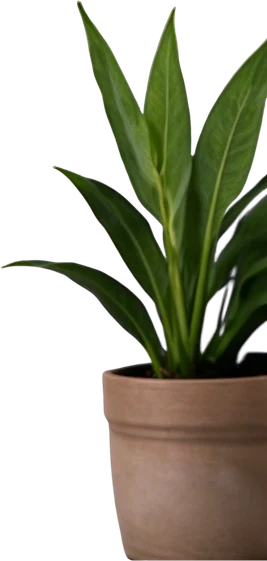
Green potted plant
133 × 280 px
Chair armrest
150 × 30 px
Silver laptop
318 × 156 px
Woman in purple sweater
401 × 460 px
White mug
117 × 98 px
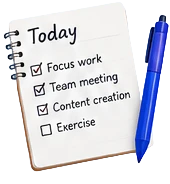
notebook
170 × 184 px
desk
175 × 172 px
clock
151 × 161 px
EXPLORE A REALISTIC INFOGRAPHIC EDITING WORKFLOW
From One Flat Infographic to More Flexible Design Elements
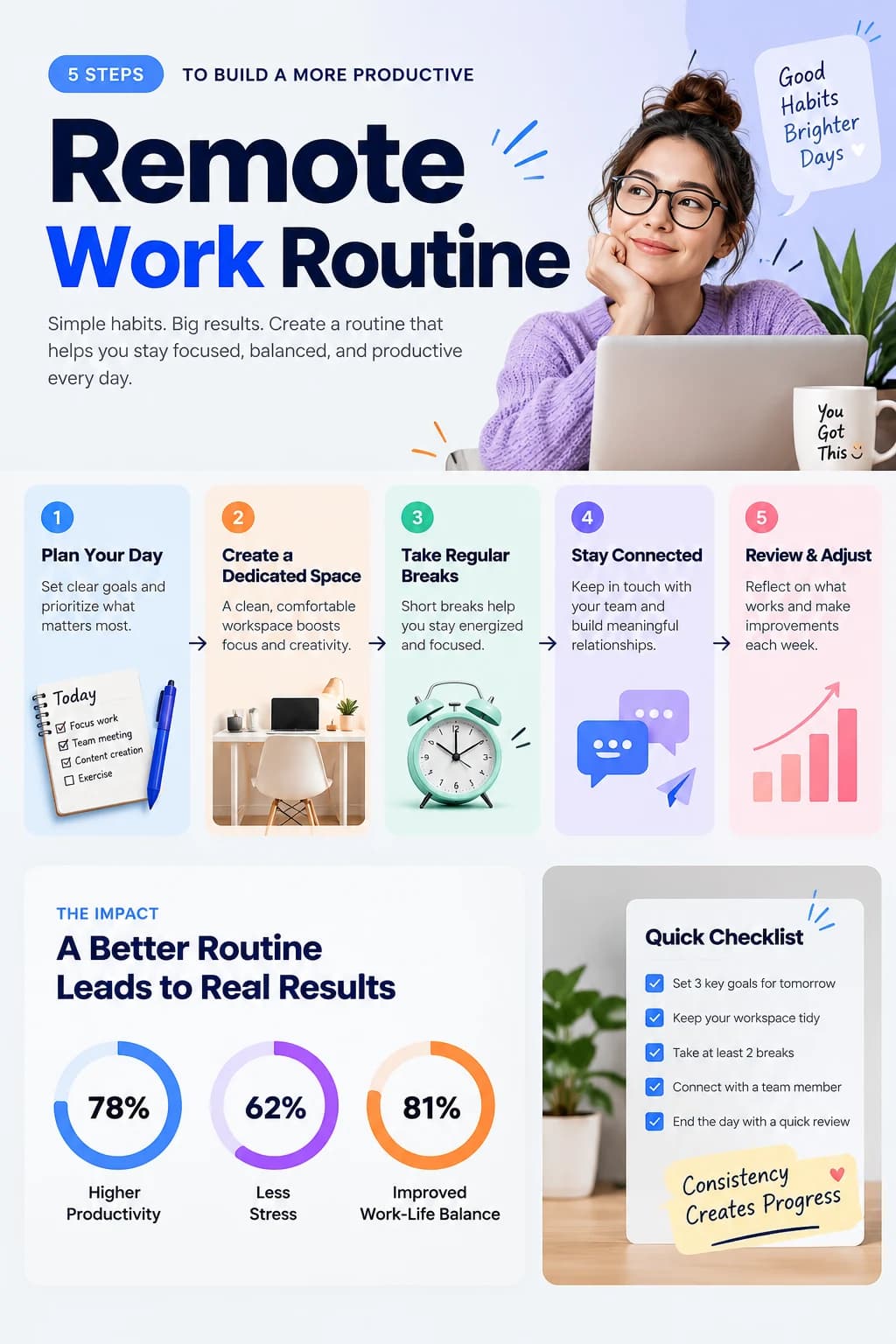
Imagine you've finished a detailed infographic for a presentation, blog post, or training guide. The layout looks great. The colors feel right. The illustrations fit the message. But now you need to update the heading, correct a sentence, or replace part of the artwork. Our Remote Work Routine example shows the kind of finished infographic you can bring into the workspace when the original editable project isn't available.
Edit Titles and Supporting Copy
An infographic can contain many separate text areas: a main title, section headings, step descriptions, chart labels, and small notes. The text-reconstruction stage identifies readable wording and prepares supported elements for editing.
36 detected text elements · 19 additional graphic elements
Explore Icons and Illustrations as Separate Layers
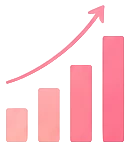
The design combines illustrations of a notebook, desk, clock, conversation bubbles, and rising chart, alongside a larger workspace portrait. The artwork-separation stage attempts to reconstruct recognizable visual elements so they can be inspected and used more independently.
14 reconstructed artwork layers
Update the Steps Without Rebuilding the Layout
The example includes five steps: Plan Your Day, Create a Dedicated Space, Take Regular Breaks, Stay Connected, and Review & Adjust. When the wording needs to change, work with the detected text rather than recreating the entire set of cards.
5 STEPS
Detected text · Approx. 20px in this example
TO BUILD A MORE PRODUCTIVE
Detected text · Approx. 20px in this example
Remote Work Routine
Detected text · Approx. 133px in this example
Simple habits. Big results. Create a routine that helps you stay focused, balanced, and productive every day.
Detected text · Approx. 21px in this example
Good Habits Brighter Days ♥
Detected text · Approx. 27px in this example
1
Detected text · Approx. 21px in this example
2
Detected text · Approx. 21px in this example
3
Detected text · Approx. 21px in this example
4
Detected text · Approx. 21px in this example
5
Detected text · Approx. 21px in this example
Plan Your Day
Detected text · Approx. 19px in this example
Create a Dedicated Space
Detected text · Approx. 19px in this example
Take Regular Breaks
Detected text · Approx. 19px in this example
Stay Connected
Detected text · Approx. 19px in this example
Review & Adjust
Detected text · Approx. 19px in this example
Set clear goals and prioritize what matters most.
Detected text · Approx. 16px in this example
A clean, comfortable workspace boosts focus and creativity.
Detected text · Approx. 16px in this example
Short breaks help you stay energized and focused.
Detected text · Approx. 16px in this example
Keep in touch with your team and build meaningful relationships.
Detected text · Approx. 16px in this example
Reflect on what works and make improvements each week.
Detected text · Approx. 16px in this example
THE IMPACT
Detected text · Approx. 17px in this example
A Better Routine Leads to Real Results
Detected text · Approx. 37px in this example
78%
Detected text · Approx. 35px in this example
62%
Detected text · Approx. 35px in this example
81%
Detected text · Approx. 35px in this example
Higher Productivity
Detected text · Approx. 19px in this example
Less Stress
Detected text · Approx. 19px in this example
Improved Work-Life Balance
Detected text · Approx. 19px in this example
Quick Checklist
Detected text · Approx. 25px in this example
Set 3 key goals for tomorrow
Detected text · Approx. 14px in this example
Keep your workspace tidy
Detected text · Approx. 14px in this example
Take at least 2 breaks
Detected text · Approx. 14px in this example
Connect with a team member
Detected text · Approx. 14px in this example
End the day with a quick review
Detected text · Approx. 14px in this example
Consistency Creates Progress
Detected text · Approx. 27px in this example
♥
Detected text · Approx. 27px in this example
Longer replacement text may require additional spacing or font adjustments.
Inspect the Visual Structure Behind the Content
Rounded cards, accent shapes, arrows, and decorative details contribute to the infographic's visual hierarchy. Explore the available graphic elements and see which parts of the composition can be adjusted without rebuilding the complete image.
bubble
hero-rays
arrows
chat
chart
ring1
ring2
ring3
checks
sticky
check-rays
Some icons or illustrations may remain grouped.
Work with the Visual Elements
Illustrations, photographs, and decorative pieces separated from the example infographic.
Light blue panel background

Pale gradient page background

Blue sparkle decoration

Black sparkle decoration

Orange sparkle decoration

Thin black line decoration

Green potted plant

Chair armrest

Silver laptop

Woman in purple sweater

White mug
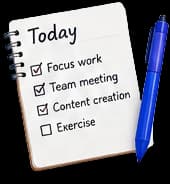
notebook

desk

clock
Artwork layers reconstructed from the Remote Work Routine infographic. The percentages shown in this fictional example are illustrative and should not be interpreted as verified productivity research.
Bring the Reconstructed Layers Back Together
Inspect the available text and visual elements within the reconstructed design. Hide layers, explore different parts of the composition, and continue editing in the workspace.
A New Editing Starting Point, Not the Original Source File
The tool reconstructs image elements from a flattened infographic. It cannot recover the original presentation, structured chart data, Canva elements, Illustrator paths, or exact design history. The example includes three circular percentage graphics: you may be able to edit their detected numeric labels, but the underlying chart shapes are reconstructed visual artwork, and changing a number does not automatically recalculate the chart. The result gives you more flexibility for visual edits—not a perfect recreation of the original project.
WHEN THE DESIGN IS FINISHED BUT THE CONTENT CHANGES
Have the Infographic Image, but Not the Editable File?
You spent time getting the infographic just right. The layout is polished. The illustrations are in place. The text is neatly organized. Then someone asks for an update. Maybe a headline needs changing. A percentage needs correcting. A step in the process is no longer accurate. But all you have is the exported PNG. The Canva link is gone. The PowerPoint file is missing. The designer only supplied an image. Now a small content update threatens to become a complete redesign.
You Need to Correct the Text
The original wording is embedded in the image, so you can't simply click and replace it.
You Want to Update a Number
A statistic has changed, but the label and chart are baked into a single flat file.
You Need a Different Illustration
One icon or picture no longer fits the message, but you don't have access to the original graphic element.
Someone Needs an Editable Design
A teammate or designer wants separate elements to work with, and the only source you can provide is a JPG or PNG.
You already have a design worth keeping. Start with that image and recover more control over the elements AI can identify.
KEEP THE DESIGN. UPDATE THE CONTENT.
Make More Changes Without Rebuilding Your Infographic
Change Titles and Headings
Update a main title, section heading, or short label while keeping the existing visual direction.
Edit Detected Descriptions
Correct a sentence, revise instructions, or replace outdated copy in the supported text elements.
Work with Numbers and Labels
Change detected numeric text, percentages, or captions. Review any related visual chart manually for consistency.
Explore Separated Icons
Inspect available visual elements such as symbols, pictograms, and decorative graphics that the workflow can reconstruct.
Reposition Available Illustrations
Use reconstructed artwork layers as starting points for adjusting the layout or preparing variations.
Export a Layered PSD
Download the available raster layers for further editing in Photoshop or compatible design software.
Layer separation quality depends on the original image. The workflow does not reconstruct editable source data or guarantee every icon, shape, and chart becomes an independent layer.
MADE FOR THE UPDATES PEOPLE ACTUALLY NEED
What Do You Need to Change in Your Infographic?
Update an Old Marketing Infographic
A headline, campaign number, or supporting description has changed, but the existing design still works.
Correct an AI-Generated Infographic
The generated illustration looks good, but the text contains an error or awkward wording. Start with the finished image and revise the elements that can be detected.
Refresh a Training Guide
Your company's process has changed. Update visible steps and instructions without recreating the entire infographic design.
Prepare a Client Revision
A client sends a flattened infographic and asks for text or artwork adjustments. Reconstructed layers provide a starting point for the changes.
Adapt Existing Content for a New Audience
Keep the overall layout while updating available wording for another team, course, campaign, or market.
Reuse Illustrations in New Materials
Inspect extracted icons and visual elements as potential assets for authorized presentations, posts, or related marketing materials.
Whether you're updating one phrase or preparing a revised visual, the goal is to reuse the design work you've already invested in.
FROM FLAT IMAGE TO RECONSTRUCTED LAYERS
Make Your Infographic More Editable in Four Steps
- 1
Upload Your Infographic
Choose the existing PNG, JPG, or WebP infographic you want to revise. Flat, clear artwork gives the workflow a better starting point than a screenshot with heavy compression.
- 2
Let AI Analyze the Design
The processing workflow identifies text and attempts to reconstruct available illustrations and visual elements as separate image layers.
- 3
Review and Edit
Open the workspace, inspect detected wording, explore artwork layers, and make the supported changes you need.
- 4
Export and Continue
Download an edited image, layered PSD, or available layer assets for further work.
Review text accuracy, graphic details, chart consistency, and export dimensions before sharing the final design.
PREPARE YOUR IMAGE FOR BETTER RESULTS
Which Infographics Work Best?
Flat, High-Quality Artwork
Start with the exported infographic itself rather than a photograph, screenshot of a slide, or image embedded in another layout.
Readable Text
Large titles, clear labels, and distinct supporting text are generally easier to detect than extremely small lettering.
Distinct Icons and Illustrations
Visual elements with clear shapes and boundaries may separate more successfully than tightly overlapping graphics.
Simple Backgrounds
Clean card-based layouts and uncluttered backgrounds can make image reconstruction easier.
Manageable Chart Complexity
Static bar charts, percentage graphics, and simple visualizations can be treated as artwork, but they are not restored as data-driven chart components.
Tiny text, thin arrows, overlapping objects, transparent gradients, and dense charts may require extra cleanup.
FOR PEOPLE WHO NEED TO UPDATE EXISTING DESIGNS
Edit the Infographic You Already Have
Marketers
Refresh campaign information, visual guides, and marketing statistics without rebuilding every graphic.
Content Creators
Correct text in an existing infographic created manually or generated with AI.
Designers
Work with client-supplied PNGs or JPGs when the original editable design project isn't available.
Business Teams
Update presentations, training visuals, and process graphics using the artwork already approved.
Educators and Trainers
Revise teaching diagrams, instructional visuals, and infographics when the original project file is missing.
Agencies
Prepare design variations and client revisions from existing flattened assets.
MORE FLEXIBILITY THAN A SINGLE FLAT IMAGE
Take Your Infographic into the Next Editing Step
Edited Image
Save an updated composite image after making supported changes in the workspace.
Layered PSD
Export reconstructed layers into a Photoshop-compatible document for further refinement. Text the AI can read is stored as native Photoshop text layers.
ZIP Layer Assets
Download available separate image elements and supporting layer data.
PSD export does not include native chart objects, editable PowerPoint shapes, original vector paths, or the exact source fonts. Stylised lettering stays an image layer and fonts are mapped to common ones.
THE RIGHT TOOL FOR THE RIGHT CHANGE
Reconstructed Image Layers vs. Original Design Objects
Reconstructed Text
Work with text elements detected from the finished image. Exact original typography is not guaranteed.
Reconstructed Graphics
Inspect available icons, shapes, and illustrations as image layers. Some elements may remain grouped.
Static Charts
Edit detected chart labels when possible, but update the visual chart artwork separately if the data changes.
Original Source Files
The original Canva, Figma, PowerPoint, Illustrator, or Photoshop editing history cannot be recovered from a flattened image.
ImageToLayers helps turn a difficult-to-edit image into more flexible visual assets. It is not a substitute for the original structured design project.
FAQ
Frequently Asked Questions About Making an Infographic Editable
Can I make a PNG infographic editable?
Yes. Upload a PNG infographic and use AI to reconstruct available text and visual elements into layers. You can inspect the result, make supported edits, and export image layers for further work.
Can I convert an infographic JPG into an editable PSD?
Yes. The workflow supports JPG images and can export reconstructed raster layers in a Photoshop-compatible PSD. This is not the original layered source file.
Can I edit text inside an infographic image?
Yes, when the text is successfully detected. You can select supported text elements and enter replacement wording. The reconstructed font, spacing, and layout may require adjustment.
Can I change a percentage in my infographic?
You can update a percentage when it is detected as editable text. However, the tool does not automatically recalculate or resize related chart graphics. Check that the updated value and visual representation agree.
Can I edit an infographic without the original Canva file?
Yes. You can start from the finished image even when the Canva project is unavailable. The tool reconstructs available image elements rather than reopening the original Canva design.
Can I turn a NotebookLM-generated infographic into editable layers?
You can upload a supported image exported from NotebookLM or another AI tool, subject to your rights to use it. The workflow can attempt to detect text and reconstruct visual layers, but it does not recover the original presentation or source data.
Can I edit an AI-generated infographic that contains spelling mistakes?
Yes, when the misspelled text is detected correctly. You can try replacing the wording in the workspace. Always inspect the final appearance, particularly when the original image contains unusual or distorted lettering.
Can the tool separate icons and illustrations?
The artwork-separation stage can attempt to reconstruct recognizable visual elements as image layers. Not every icon, arrow, illustration, or decorative shape is guaranteed to become a separate layer.
Can I move an icon to another position?
If an icon is recovered as an independent layer, you can work with it in the available editing tools. The reconstructed background and edges may require additional cleanup.
Can I change the colors of an infographic?
You may be able to make supported visual adjustments to separated artwork, but the workflow does not restore the original theme palette or every editable fill property. Precise color changes may require further editing in Photoshop.
Can I edit the data behind an infographic chart?
No. The workflow reconstructs visual image elements. It does not recover the spreadsheet, formulas, or structured dataset originally used to create a chart.
Will changing a number automatically update a bar chart or pie chart?
No. Editing detected numeric text does not automatically update the visual chart. You must review and adjust the chart graphics separately to keep the design accurate.
Can I convert an infographic into an editable PowerPoint presentation?
This page does not produce native editable PowerPoint slides. Its export workflow focuses on reconstructed image layers, including PSD and available layer assets.
Can I restore the original editable Canva design?
No. A PNG or JPG does not contain the full original Canva project. The tool reconstructs some visible elements from the image rather than recovering the original objects and editing history.
Will the PSD contain fully editable text layers?
Partly. Text the AI can read as live text is stored in the PSD as native Photoshop text layers, with the font mapped to a common one, so you can retype it with the Type tool. Stylised lettering is kept as an image layer. For precise font editing, check each text layer and apply your own font.
Can I upload a PDF infographic?
The current workspace is designed for PNG, JPG, and WebP images. If you have a PDF infographic, export the relevant page to a supported image format before uploading it.
Does it support very long infographics?
You can upload supported images within the workspace's limits, but tall infographics may be resized during processing. Very small text and detailed graphics can become harder to detect. Review the resulting dimensions and layer quality.
Can I use the tool for educational or business infographics?
Yes. The workflow can be used with authorized educational, business, instructional, and marketing infographic images. Results depend on the visual complexity of the source.
Can I use the recovered layers in my presentations?
You can use available reconstructed image assets in new presentations where you have the necessary rights. They remain image elements unless you rebuild them as native presentation objects.
How much does it cost to make an infographic editable?
Conversion uses 150 Credits per image, shown in the workspace before processing. If the artwork stage cannot be completed, the Credits for that stage are returned and you still receive the text result.
Is the generated infographic guaranteed to match the original perfectly?
No. AI reconstruction can affect typography, fine edges, small symbols, hidden background regions, and other details. Compare the result with the original before publishing or delivering it.
Can I use the edited infographic commercially?
Commercial use depends on your rights to the source artwork, illustrations, fonts, branding, and other protected material. If the infographic contains statistics or research claims, verify them independently before publication.
Need to Edit Another Flattened Design?
Image to Layers
Separate recognizable visual elements from an image for further editing.
Packaging to Editable PSD
Turn flattened packaging artwork into reconstructed text and visual layers.
Poster to Editable PSD
Work with text and visual elements from an existing flattened poster.
Ad Text Editor
Update supported text inside finished advertising images.
YOU ALREADY HAVE THE DESIGN
Don't Rebuild Your Infographic Just to Make a Few Changes
The layout is done. The illustrations are there. The design already communicates what you want. If the wording or artwork needs updating, start with the image you have. Upload your infographic, explore its reconstructed elements, and prepare editable layers for your next revision.
Make My Infographic EditableUpload PNG, JPG, or WebP. Review the example and Credit cost before processing. AI-assisted layer reconstruction gives you a new editing starting point, not the original source project.