
Remove Acne from Photos with AI
Edit the photo, not your real skin. Results depend on the image and selected area.
Your photo, your choice of what to retouch
Start with your favorite selfie or portrait. Choose a precise edit for individual blemishes, or describe the spots you want removed using Quick Remove.
Select the pimples and acne spots you want to edit without deliberately changing the rest of your face.
A good starting choice for targeted facial retouching, especially when you want to avoid unnecessary edits to unaffected skin.
Image
RequiredAdd Image
Click or drag one source image here to start editing.
PNG, JPG, JPEG, or WEBP. The upload card is the primary starting point.
A favorite selfie, without the distracting breakout
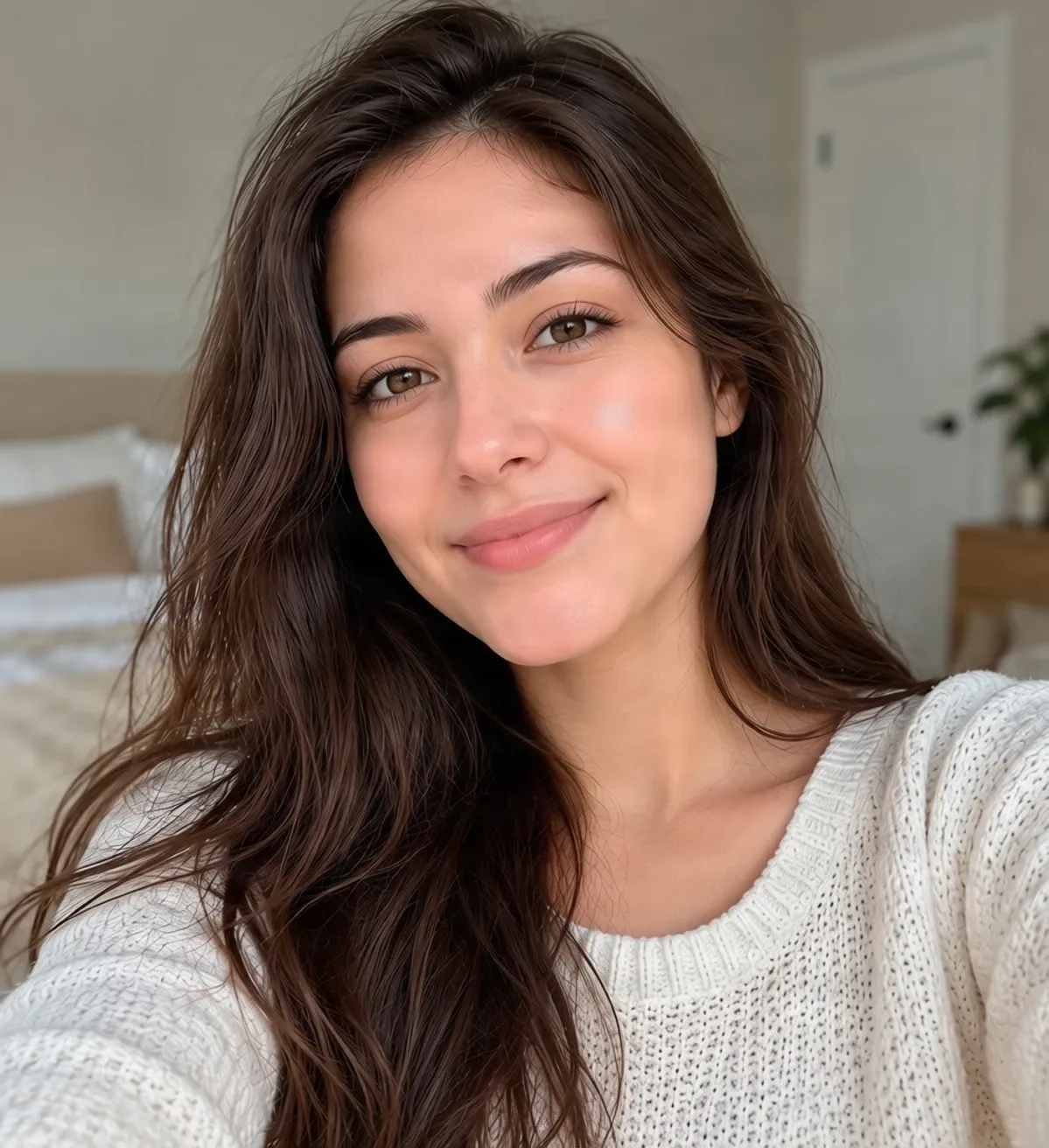
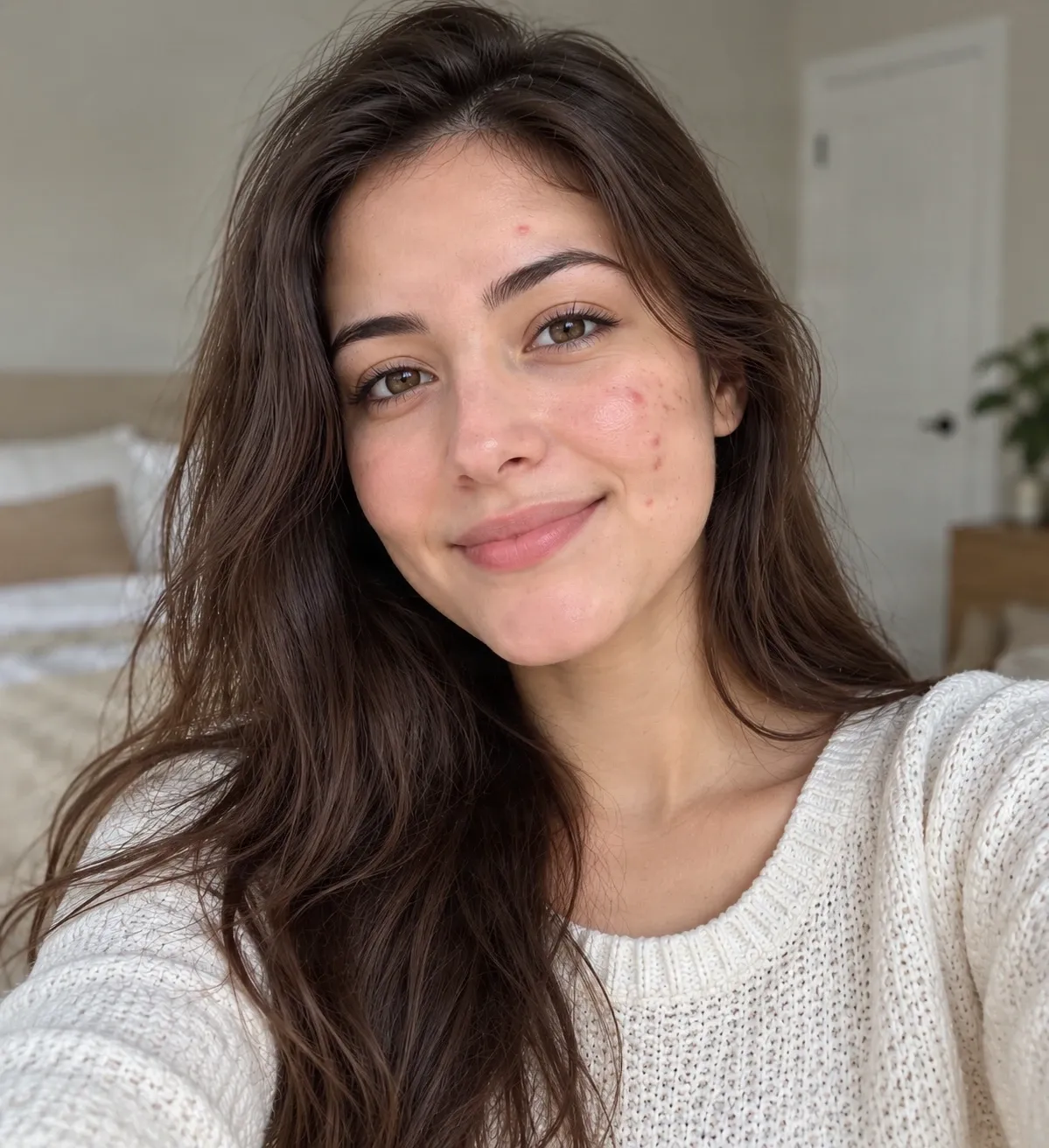
An AI-edited example of digital acne retouching. Generated edits may also change surrounding skin details. Compare the two images to judge the result. The goal is to make selected blemishes less noticeable, not to turn a real face into a completely different one.
Recent Sessions
You finally get a selfie you like—the smile, the lighting, everything. Except for a few pimples that happened to show up that day. Upload your picture and use AI to edit visible acne spots and blemishes. Select the areas you want to retouch, review the result, and decide whether to keep the edited photo.
Keep the moment
You don't need a new photo just because of a few pimples
You take a picture on a good day, check the camera, and realize a breakout is more noticeable than you expected. Maybe it is one pimple on your forehead, a few red spots on your cheek, or a temporary distraction you would like to soften in the same photo.
There is no need to retake every picture or learn complicated retouching techniques. Work with the photo you already have, choose the visible blemishes you want to edit, and decide whether the result is the look you want to keep.
Keep the smile. Keep the memory. Retouch only what you choose.
Retouch blemishes without changing your whole look
Focus on individual pimples
Keep natural skin in focus
Edit a selfie you already love
Choose your level of control
No retouching experience required
Check before you keep it
How to Remove Acne from Photos
Upload your selfie or portrait
Select the blemishes
Let AI create the edit
Inspect and download
Choose how you want to retouch your photo
| Quick Remove | Magic Eraser |
|---|---|
| Describe the blemishes to edit | Select individual spots with Brush |
| No manual selection required | Review and refine the selected area |
| May affect a broader part of the image | Define a focused area for the edit |
For a few small pimples, start with Magic Eraser and inspect the result carefully.
Natural results matter
It's photo editing, not a skin treatment
An AI acne remover changes the appearance of a digital picture. It does not treat acne, improve skin health, or change how your skin looks in real life. The editor analyzes visible pixels and generates replacement details for the area being edited.
A small spot surrounded by fairly consistent skin texture may produce a convincing cosmetic retouch. Larger areas, overlapping blemishes, strong shadows, or fine facial details can look less natural. AI may also alter skin tone, remove normal texture, or change nearby details unintentionally.
Compare the edited version with the original, especially if preserving your actual appearance matters. A natural-looking retouch should still look like you.
Why some photos are easier to retouch than others
Small, isolated spots
Several nearby pimples
Near facial features
Deep scars and uneven texture
When would you remove acne from a picture?
Selfies you want to share
Profile pictures
Vacation photos
Photos with friends
Special occasions
Personal photo albums
What can you retouch?
Common skin blemishes people want to edit
Individual pimples
A visible spot on the forehead, cheek, or chin can be selected as a small retouching target.
Small acne clusters
You can select several nearby blemishes, although larger or overlapping areas may require more reconstruction.
Temporary red spots
Try editing visible redness associated with a blemish. Color transitions may be difficult to match perfectly.
Blemishes in portraits
Experiment with localized editing on visible areas of skin while keeping the person's recognizable appearance in focus.
Spots near the hairline
These can be more difficult because the edit must account for both skin texture and individual strands.
Marks left by breakouts
AI may soften the appearance of some marks in a photo. Deep texture changes and distinctive skin features are harder to reconstruct accurately.
How to keep acne retouching looking natural
- Use a clear original photo so AI has more visible surrounding skin details for context.
- Brush only the spots you want to change. A smaller selection can reduce unnecessary reconstruction, though the editor may expand the mask during processing.
- Leave healthy skin outside the selection. Avoid brushing large areas when you only want to edit a few pimples.
- To preserve freckles, moles, birthmarks, or other natural features, leave them out of the selection where possible.
- Check the eyes, eyebrows, and lips to make sure these important details remain recognizable.
- Inspect skin texture up close for excessive smoothing, unusual color transitions, or blurry patches.
- Keep the original photo so you can compare it with the retouched copy whenever you want.
Common mistakes to avoid
Selecting the entire face
A large selection gives AI more skin to reconstruct and may cause unwanted smoothing or changes to facial appearance.
Removing every natural skin detail
Pores, freckles, and normal variation in skin tone contribute to a realistic portrait. A completely uniform face can look artificial.
Editing too close to important features
An unnecessarily large selection near the eyes, lips, or hairline can affect nearby details.
Assuming every result will be perfect
AI retouching is not guaranteed to preserve every original pixel. Review both the edited area and the rest of the photo.
Frequently asked questions
How do I remove acne from a photo?
Upload your picture, choose Magic Eraser, and mark the visible pimples or blemishes you want to edit. AI attempts to recreate the selected areas with details that fit the surrounding photo. Review the result before downloading.
Can AI remove pimples from selfies?
AI photo editing can attempt to remove visible pimples from selfies. Results are generally more predictable with smaller blemishes and clear surrounding skin than with large or complex areas.
Can I remove acne from a photo without Photoshop?
Yes. You can use this online AI acne photo editor in a browser without installing Photoshop or learning professional retouching techniques.
Will the AI acne remover change my face?
It is designed for photo editing, but AI can sometimes change nearby features, skin texture, or other parts of the image. A smaller selection may help limit unnecessary changes, but it cannot guarantee pixel-perfect preservation.
Can I remove acne while keeping natural skin texture?
That is the goal of targeted retouching. Magic Eraser lets you focus on particular blemishes rather than deliberately applying a whole-face beauty filter. Generated skin may still look smoother or different from the original.
What is the best way to remove just one pimple?
Start with Magic Eraser. Use a small Brush selection around the spot and review the result carefully. Avoid selecting more surrounding skin than necessary.
Can I remove several pimples from the same photo?
You can mark multiple visible blemishes. If they cover a larger portion of the face, AI may need to reconstruct more skin, which can increase the risk of an unnatural result.
Does AI acne removal work on acne scars?
AI may soften the visible appearance of some acne marks or scars in a photo, but pronounced scars and uneven texture can be challenging. The generated result may not reproduce the original skin surface accurately.
Can I remove red acne spots from my cheeks?
You can try selecting visible red spots. AI estimates a replacement from the surrounding skin, so differences in color, lighting, or texture may remain.
Can I use it on forehead and chin acne?
Yes. Visible pimples on the forehead or chin can be selected for editing. Take extra care near eyebrows, the hairline, lips, and other detailed facial features.
Is Magic Eraser better than Quick Remove for acne?
Magic Eraser gives you direct control over the selected area, making it a practical first choice for small facial blemishes. Quick Remove is convenient if you prefer describing the edit, but it may affect a broader part of the image.
Will it remove my freckles or moles?
AI may alter freckles or moles if they are included in or near the edited area. To preserve them, avoid selecting those features and inspect the result carefully.
Can I remove acne from a group photo?
You can attempt to edit visible blemishes in a group photo, but smaller faces and lower-resolution details can make natural retouching more challenging. Avoid selecting other people's facial features.
Can I use the AI acne remover on my phone?
The tool works through a web browser. On a mobile device, zoom in as needed and carefully review the selected area before submitting. Interactions may vary by device and browser.
Does removing acne from a photo actually treat acne?
No. This is a digital photo-editing tool. It changes how blemishes appear in an image and does not treat or prevent acne or affect your real skin.
How can I tell whether the edit looks natural?
Compare the edited picture with the original. Check that your eyes, eyebrows, nose, mouth, face shape, skin tone, and normal texture remain recognizable. Look for blurry patches, excessive smoothing, or unexpected changes outside the selected area.
Related tools
Remove Glasses from a Photo with AI
Remove glasses from a photo with AI. Upload your portrait, remove eyeglass frames and lens reflections, and create a natural-looking photo without glasses.
OpenRemove Emojis from Photos with AI
Remove unwanted emojis and stickers from photos with AI. Upload your picture, erase emoji overlays, and create a cleaner image online.
OpenRemove a Person From a Photo with AI
Remove unwanted people, photobombers, tourists, or strangers from photos with AI. Describe the person or select them precisely, then let AI rebuild the background naturally.
OpenYour photo, your choice
Keep the photo you love. Retouch the spots you don't.
You don't have to start over because of a temporary breakout. Upload your selfie, select the visible blemishes you want to edit, and explore a cleaner-looking version of your favorite picture.
Remove acne from my photoChoose a targeted edit, review the result, and download the version you prefer.
Creative Toolkit Index
Explore More AI Features
Quick access to precision layer extraction, AI photo editing & asset tools.