
Remove Tourists from Photos with AI
Clean up a crowded landmark, beach, or vacation photo without spending hours editing. Review the generated background before downloading.
Describe the tourists or background people you want removed. No mask needed.
A good starting point for clearly visible tourists separated from your main subject.
Image
RequiredAdd Image
Click or drag one source image here to start editing.
PNG, JPG, JPEG, or WEBP. The upload card is the primary starting point.
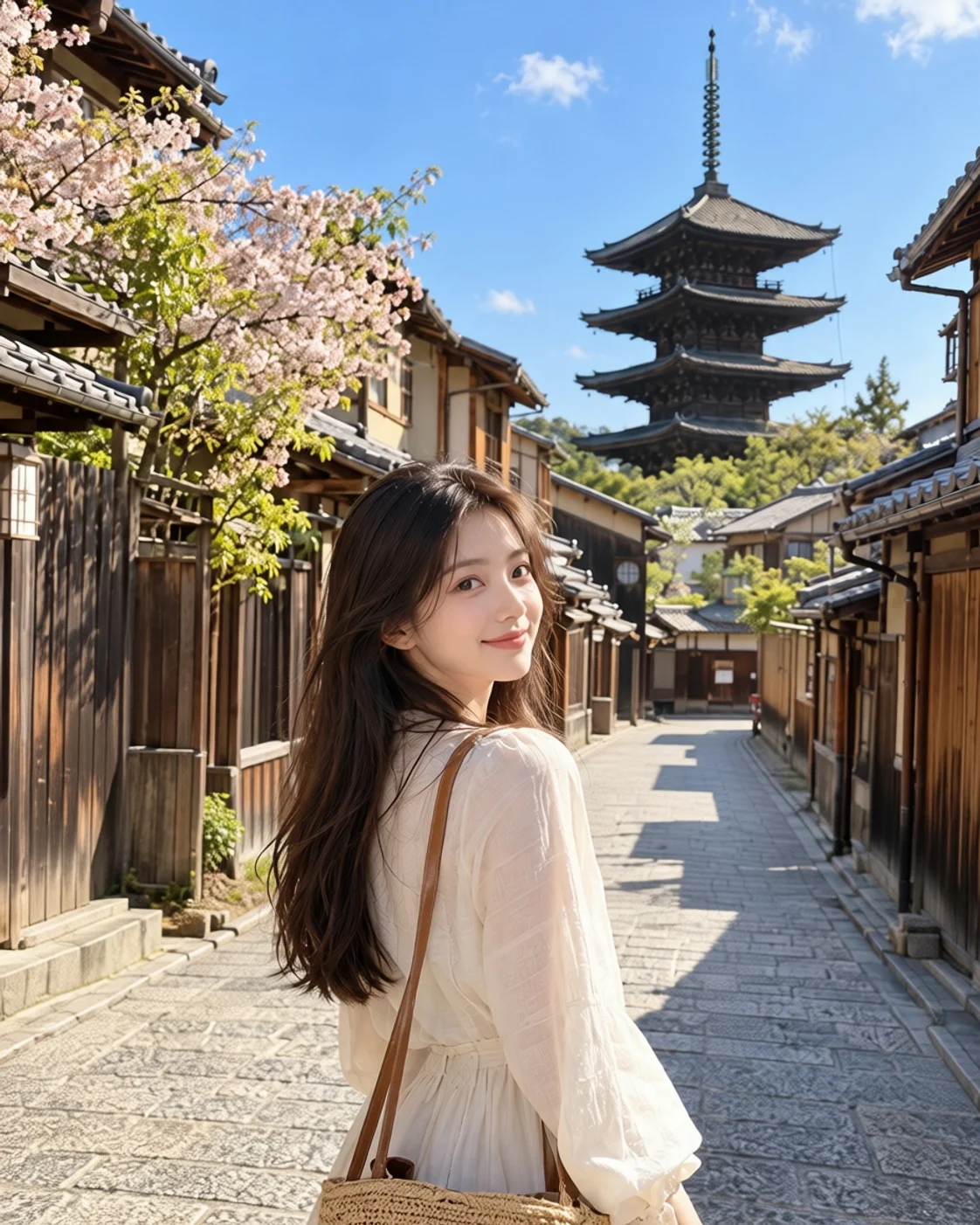
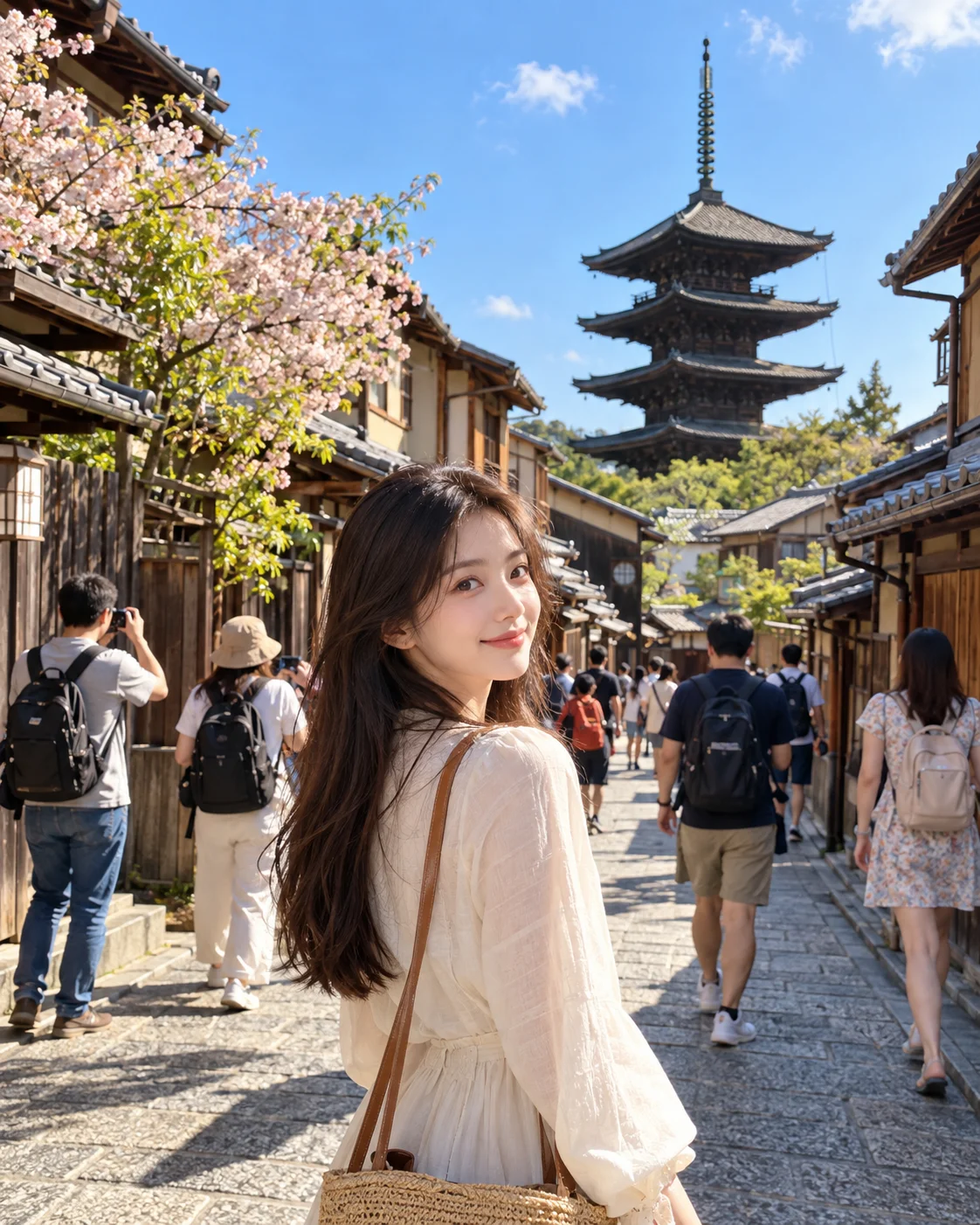
Finally got the perfect shot on your trip, only to find strangers in the background? Remove unwanted tourists from your photos with AI and bring the focus back to the people, places, and memories that matter.
Recent Sessions
Finally got the perfect shot on your trip, only to find strangers in the background? Remove unwanted tourists from your photos with AI and bring the focus back to the people, places, and memories that matter.
Before & After Examples
The example next to the tool shows background tourists removed; the gallery below comes from the general Remove Unwanted tool. In every case the AI regenerates the areas behind removed people, so scenery and fine details can differ slightly from the original.


Drag the slider to inspect the original and cleaned image.
KEEP THE VIEW. LOSE THE CROWD.
Love the Photo. Not the Photobombers.
You finally made it to that famous landmark. The lighting is perfect, but people walking behind you and a crowd around the monument pull attention away from the moment. You do not have to crop away the scenery or retake your vacation photo.
Describe the unwanted tourists with Quick Remove, or select them with Magic Eraser for more control. The editor removes the selected area and generates new visual content to fill it, using the surrounding scene as context.
Make more room for the travel memories you want to keep.
AI Generates What Was Hidden Behind the Crowd
When tourists cover a building, path, beach, or other scenery, those original pixels are not visible in the photo.
After removal, AI generates replacement image content from the visible surroundings. Large crowds, overlapping people, and complex architecture require more reconstruction and may need careful review.
Clean Up Vacation Photos Without Starting Over
Remove Strangers from the Background
Enjoy Cleaner Landmark Photos
Keep Friends and Family in the Picture
Clear Busy Streets and Viewpoints
Reconstruct Distracting Background Areas
Prepare Photos to Share or Print
How to Remove Tourists from Photos
Upload Your Travel Photo
Describe or Select Who to Remove
Run the Removal and Review
Download When You Are Happy
Quick Remove or Magic Eraser for Tourists?
| Quick Remove | Magic Eraser |
|---|---|
| Describe tourists by position or appearance | Select the people directly in the image |
| No mask needed | Preview and refine the selection |
| Best for obvious background visitors | Best for overlaps and detailed edges |
| Fastest way to start | More control over what is removed |
Start with a description for simple removals; use selection when the scene needs more control.
When Tourist Removal Is More Challenging
Large Crowds
People Overlap Your Group
Detailed Landmarks
Tourists Cover the Main View
Where Can You Use an AI Tourist Remover?
Famous Landmarks
Beaches and Coastal Views
City Streets and Old Towns
Parks and Gardens
Mountain and Nature Trips
Vacation Portraits and Group Photos
KEEP THE SCENERY
Why Remove Tourists Instead of Cropping Them Out?
Cropping
Can hide unwanted visitors, but may also cut away the landmark or scenery you traveled to see.
Blurring
Softens detail but often leaves visible shapes that still distract from the photo.
Manual Retouching
Offers detailed control, but can take time and editing experience.
AI Tourist Removal
Removes selected people and generates content to fill the area while keeping the existing frame.
Generated background details may differ from the original, especially where a crowd hid a large or complex area.
Tips for Better Tourist Removal Results
- Start with a clear, sharp photo so the scene and its edges are easier to review.
- Say which people should stay when your photo includes both companions and strangers.
- Begin with separated background tourists before trying a dense, overlapping crowd.
- Check faces, hands, railings, signs, repeated patterns, and architectural lines after removal.
- Review the final image before sharing or printing; hidden pixels are generated, not recovered.
Common Mistakes
Using a Vague Description
Describe position, clothing, or another visible detail when several people appear in the photo.
Selecting Only Part of a Person
Include the whole unwanted person and any belongings that should disappear with them.
Including People You Want to Keep
Refine the selection around family and friends so they remain outside the removal area.
Expecting Exact Hidden Scenery
AI generates a plausible fill from visible context; it cannot restore pixels that were never captured.
Frequently Asked Questions
Can AI remove tourists from my photos?
Yes. Describe unwanted tourists with Quick Remove or select them with Magic Eraser. AI removes the targeted area and generates replacement scenery; results depend on the photo and how much background is hidden.
Can I remove tourists in the background but keep myself?
Yes. Indicate which background people should go and keep your own subject outside the selection. Clear separation between you and the tourists generally makes editing easier.
Can I remove multiple people from one photo?
You can target multiple people. A few separated visitors are usually easier to remove cleanly than a dense, overlapping crowd.
Does it work on crowded tourist attractions?
It can help with photos from landmarks, plazas, and monuments. If a crowd covers much of the scene, more background must be generated, so inspect the result carefully.
Will the AI keep my face and appearance the same?
The goal is to edit the selected people while leaving the rest of the photo intact. Keep yourself outside the target area and review the finished image for unintended changes.
Can I remove strangers from a family vacation photo?
Yes. Describe or select the strangers you want removed, and take care to exclude family members and friends you want to keep.
Can I remove all the people from a landscape photo?
You can try targeting all visible people. When they cover a large portion of the landscape, the generated background may need closer review.
Can I choose exactly which tourists to remove?
Use Magic Eraser to select and refine the people you want to target. Quick Remove is also available when a short description clearly identifies them.
What if a tourist overlaps my subject?
Switch to Magic Eraser and refine the selection around the overlap. Close contact can be difficult, so check the subject boundary after generation.
Will the AI restore the exact background behind a tourist?
No. The hidden area is newly generated from the surrounding visual context; the exact original pixels are not available.
Can I remove tourists from beach photos?
Yes. You can target selected people on beaches or waterfronts. Check the reconstructed sand, water, and shadows for visual consistency.
Can I remove tourists from landmark photos?
Yes. It can clean up selected visitors around buildings and attractions. Detailed structures such as railings, signs, and windows may need extra inspection.
What image formats can I upload?
The editor supports JPG, PNG, and WebP images.
Will removing a crowd change the rest of my photo?
The edit focuses on the targeted area and uses the surrounding scene as context. Review the full image to catch any changes outside the intended region.
What should I do if the result still looks busy?
Adjust the description or selection and run another pass. You can also remove a complex crowd in smaller, focused areas and review each result.
YOUR TRAVEL PHOTO, CLEANED UP
Keep the View. Lose the Crowd.
Upload your favorite trip photo, target the tourists you do not want, and review the reconstructed scene.
Clean Up My Travel PhotoThe editor shows the credit cost before you generate.
Creative Toolkit Index
Explore More AI Features
Quick access to precision layer extraction, AI photo editing & asset tools.