
Replace an Object in a Photo with AI
Paint over the object you want to replace, describe what should appear in the same area, and generate a localized edit using the surrounding scene as visual context.
1. Upload an Image to Edit
Drag and drop an image here, or click to choose a file.
3. STEP 2 · SELECT AN AREA
Upload an image to start marking the area to change.
4. Describe the Replacement
Recent Sessions
More Generative Fill Workflows
Add Object to Photo
Insert elements naturally into empty areas.
Try Object AddAdd Furniture to Room
Preview interior staging concepts.
Try Room EditAdd Props to Product Photos
Create seasonal marketing variations.
Try Product EditAI-generated replacements may not preserve exact dimensions, text, logos, or product details. Review the result before publishing.
Inpainting in 4 Steps
Upload a Photo
Select a high-quality image from your device.
Paint Over the Existing Object
Use the brush to mask the complete object and any connected shadows or reflections.
Describe the Replacement
Write a prompt detailing the new object you want to generate in that exact spot.
Generate and Review
Generate the replacement and review how it blends with the original scene.
Choose the Right Editing Tool
Replace Object
Use Generative Fill when you want a different object to appear in the same selected area.
Remove Object
Use Remove Unwanted when you want the object erased and the background reconstructed without adding a replacement.
Replace Background
Use Generate Background when you want to change most or all of the background around the subject.
Prompt Examples
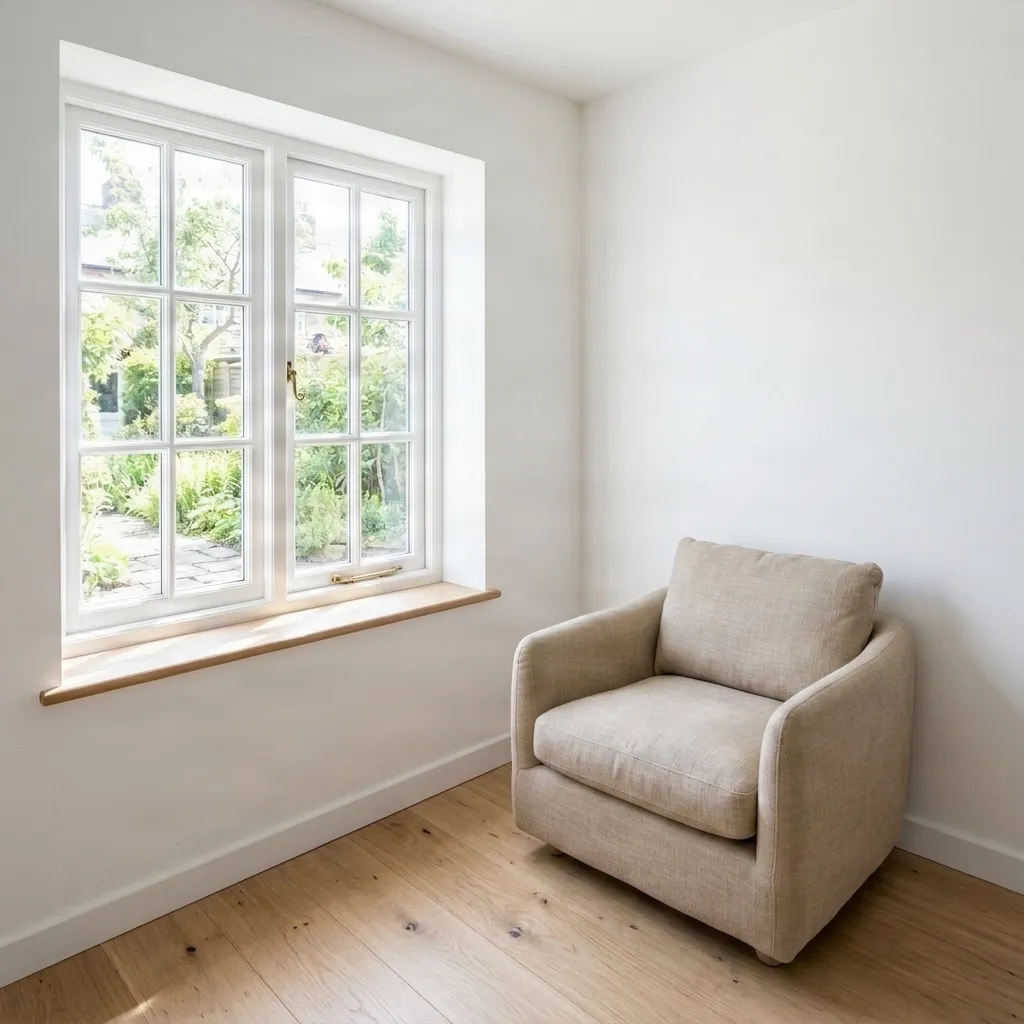
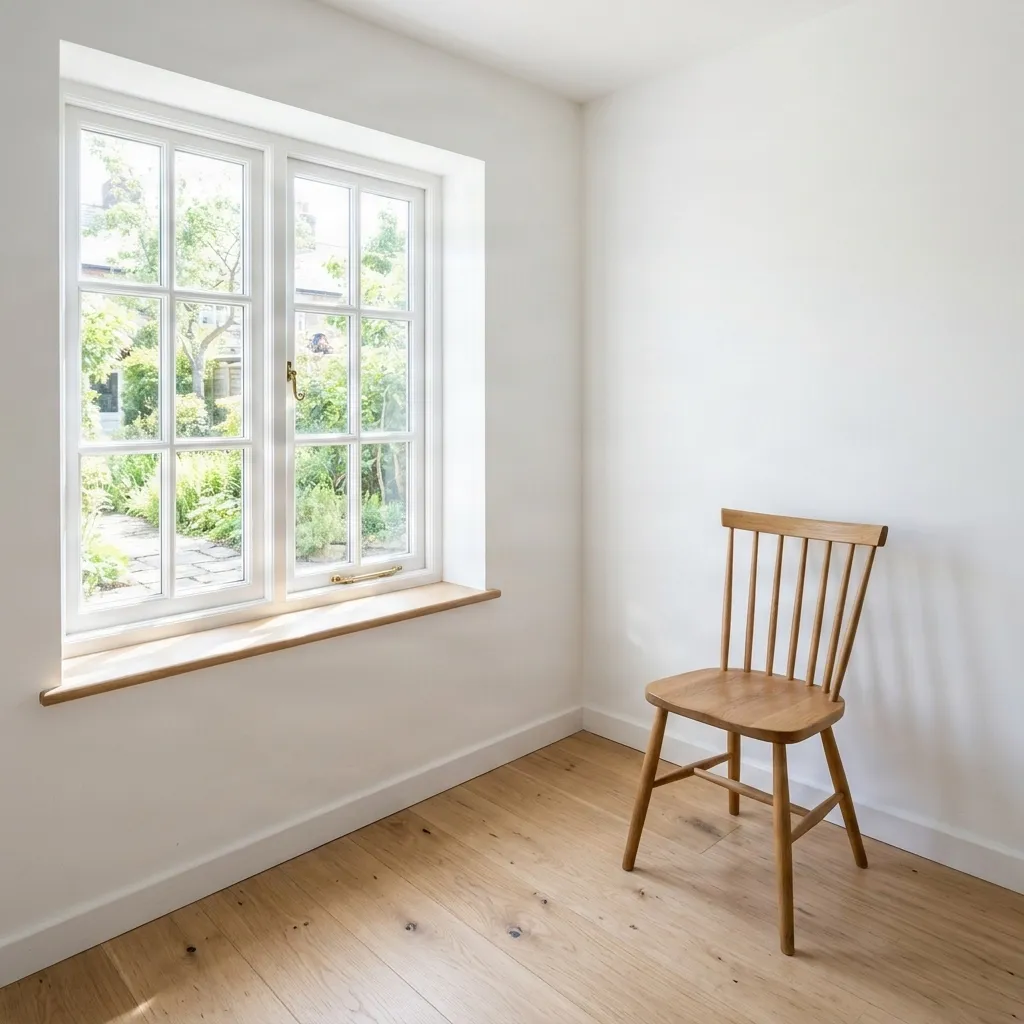
“Replace the wooden chair with a low beige fabric armchair. Match the existing floor perspective, window lighting, and soft contact shadow.”
Frequently Asked Questions
Can I replace any object?
Yes. Cover the complete object and any connected shadow or reflection, then describe the replacement you want.
Will areas outside the mask remain unchanged?
The model focuses the edit on the masked area. The walls, window, and floor will remain identical if they are not masked.
Is the resolution reduced?
The AI seamlessly blends the newly generated object back into your original high-resolution image.