
BOOK COVER TO EDITABLE PSD
Turn a Flat Book Cover into Editable PSD Layers
Need to update a book cover but only have the finished JPG or PNG? Upload your existing cover and let AI separate detected text, illustrations, and background artwork into layers you can inspect, adjust, and export for further editing—without rebuilding the entire design from scratch.
Convert your cover for 150 Credits. Review the included example before processing your own image. Best for clear, flat cover artwork. AI reconstructs image layers rather than recovering the original design project.
Make Your Existing Book Cover Easier to Edit
Start with the included fantasy book cover example or upload your own finished design. Inspect available text, artwork, and background layers, make supported edits, and prepare a PSD for your next revision.
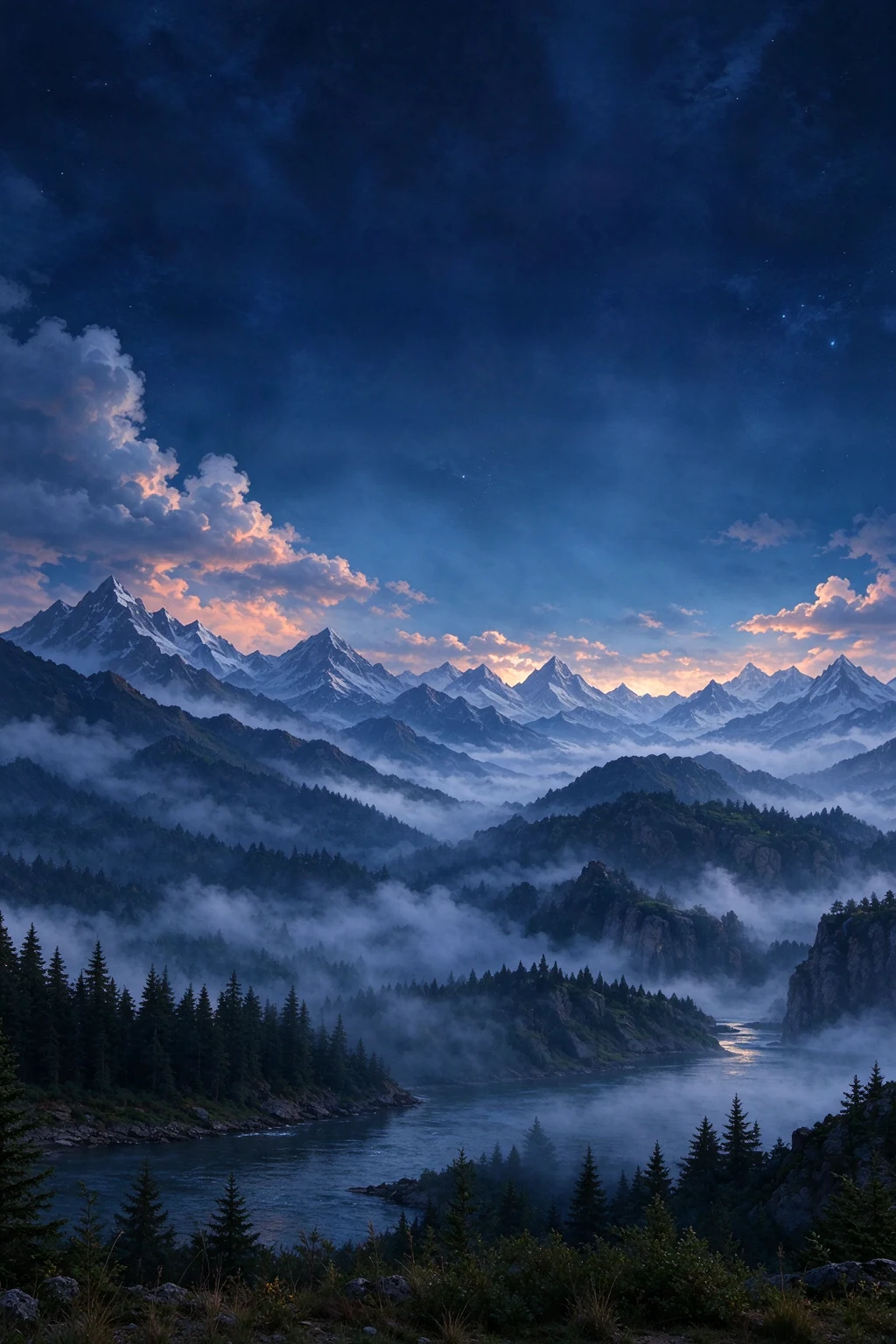
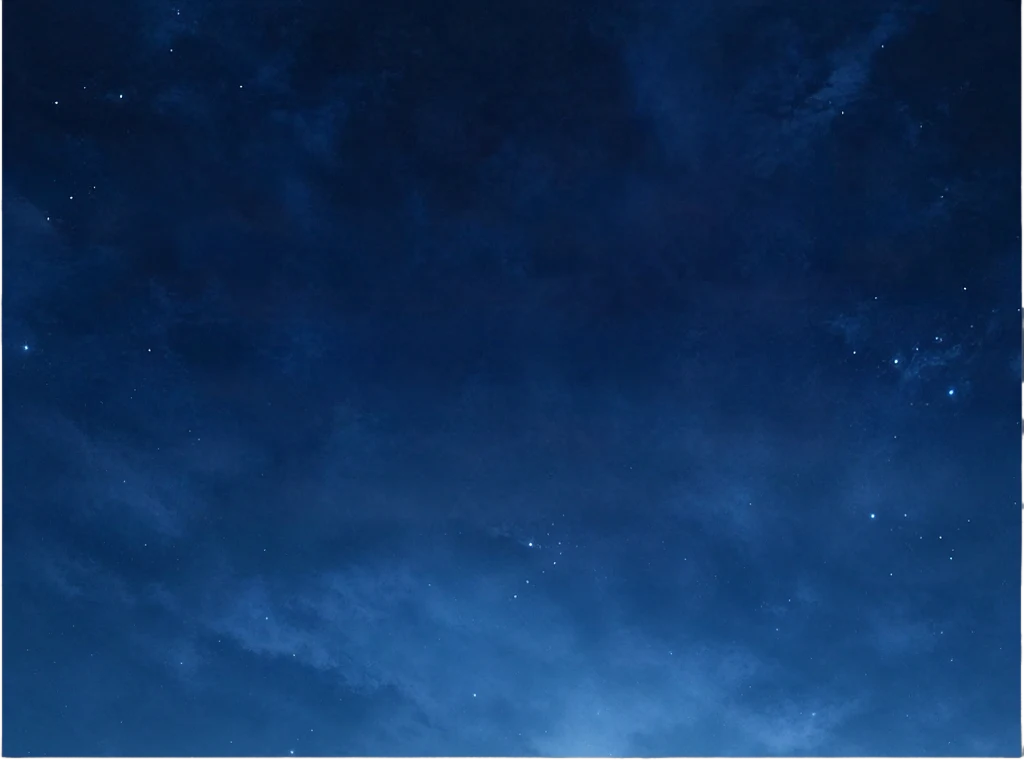









Night sky with stars
1024 × 760 px
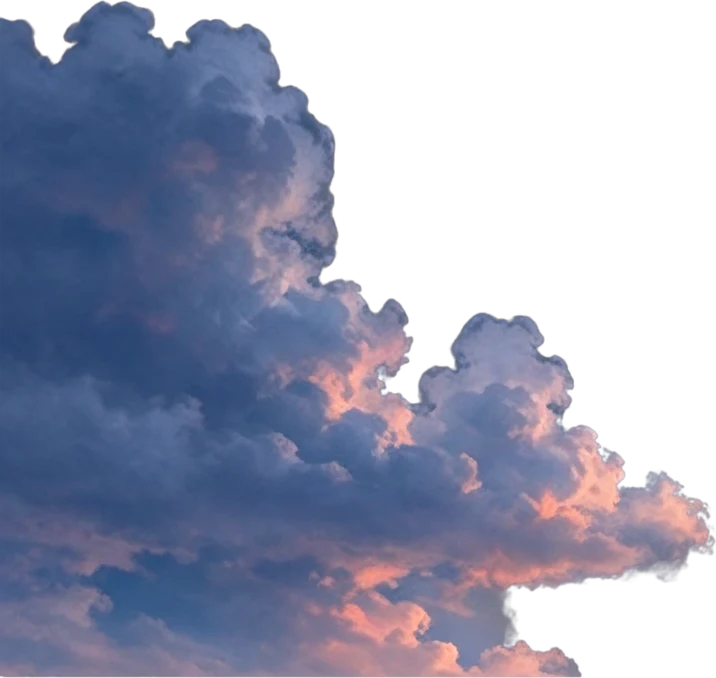
Left cloud bank
358 × 339 px
Right cloud bank
197 × 115 px
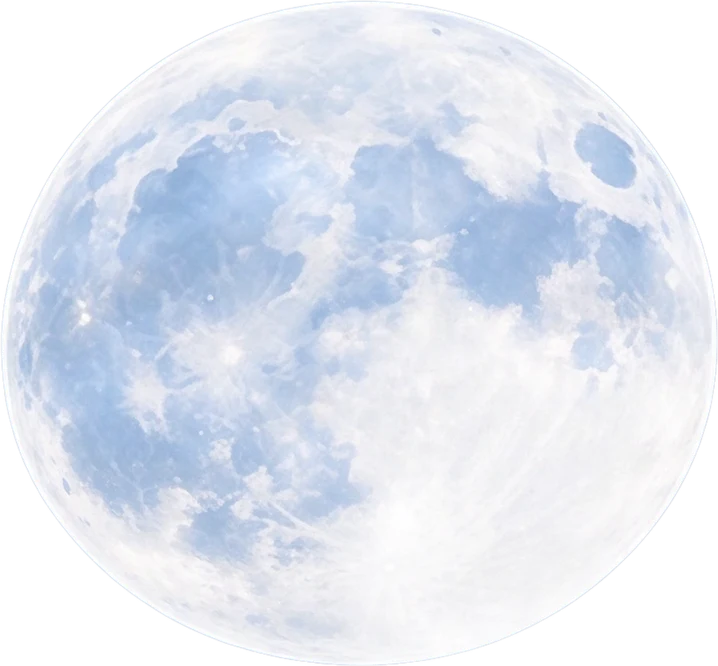
Large full moon
359 × 333 px
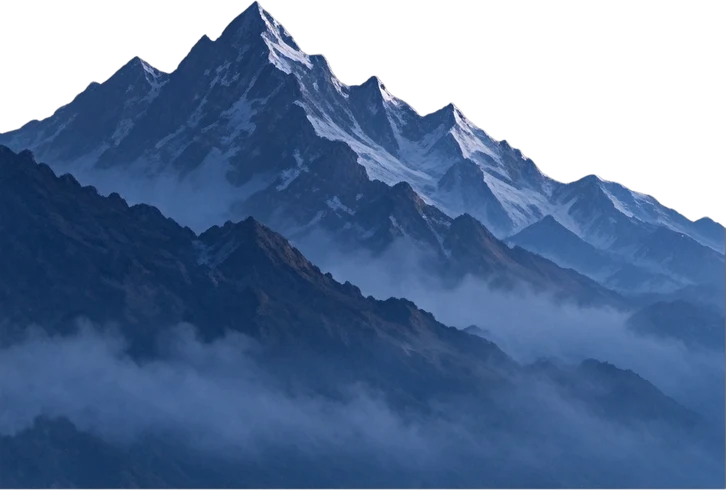
Left snow mountain range
363 × 245 px
Middle snow mountain range
216 × 134 px
Right snow mountain range
137 × 147 px
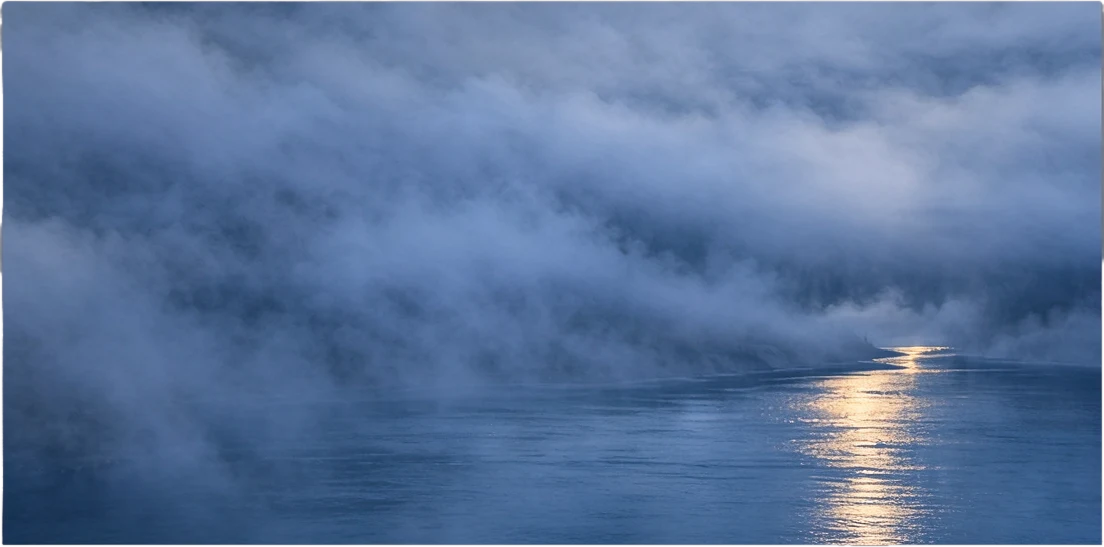
River and mist
1024 × 508 px
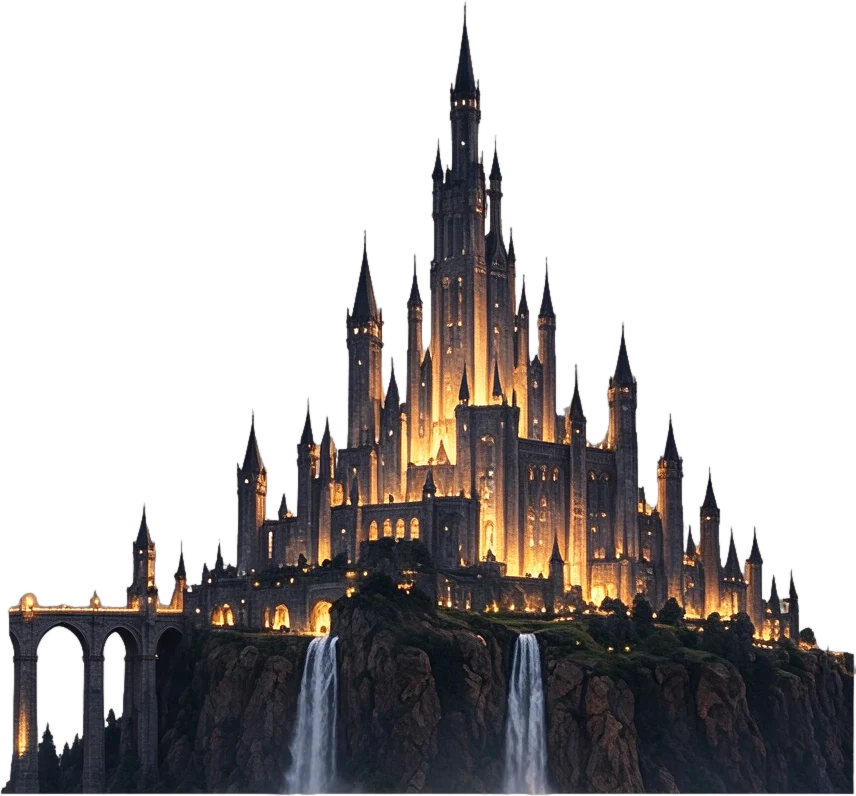
Castle on cliff with bridges and waterfalls
500 × 463 px
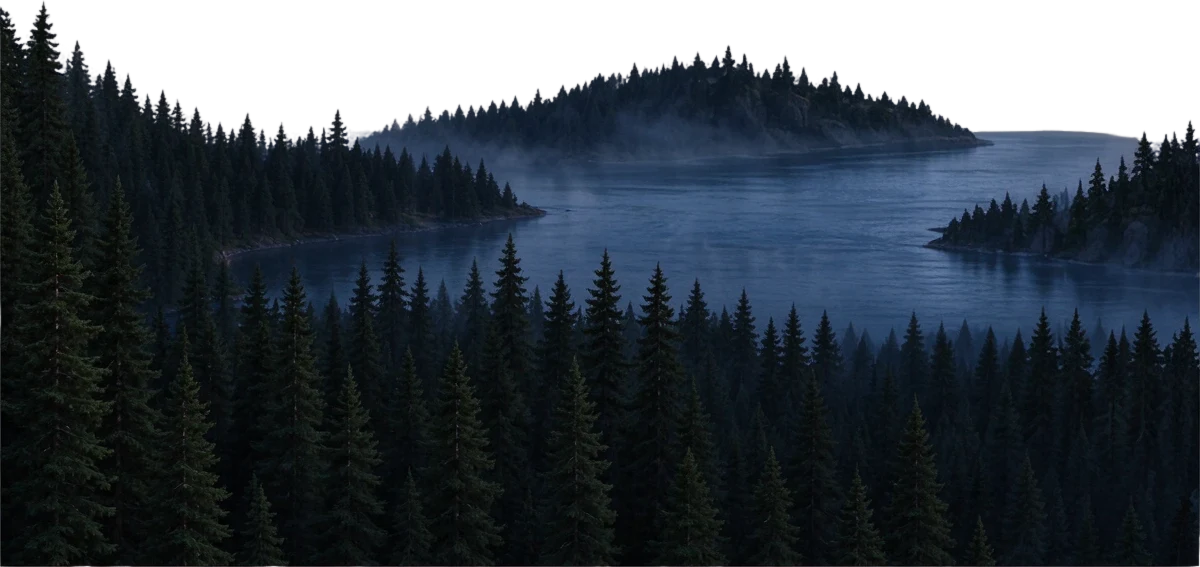
Pine forests
1024 × 485 px
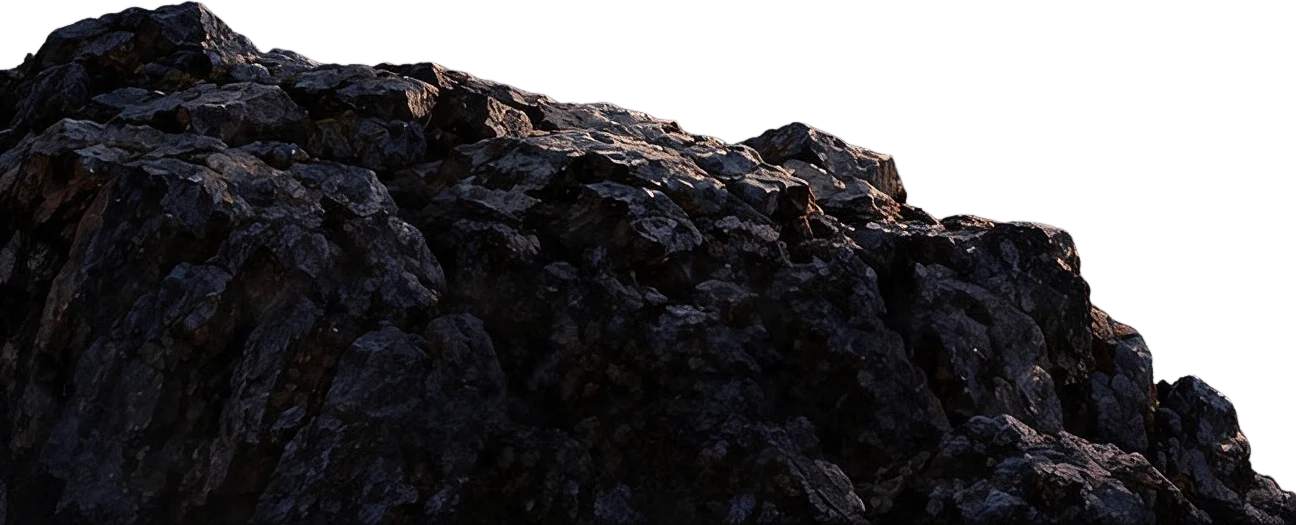
Foreground rocks
1024 × 414 px
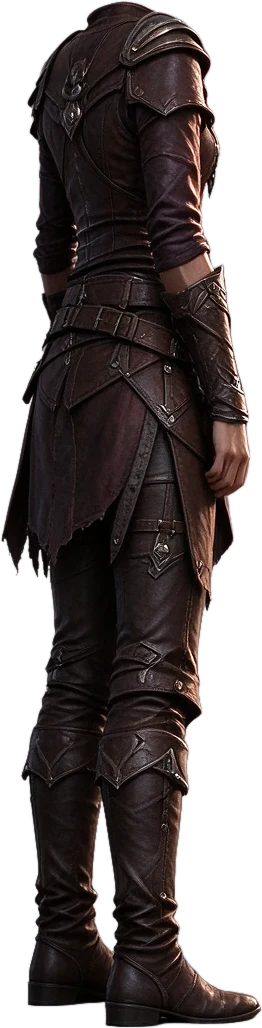
Heroine figure
151 × 593 px
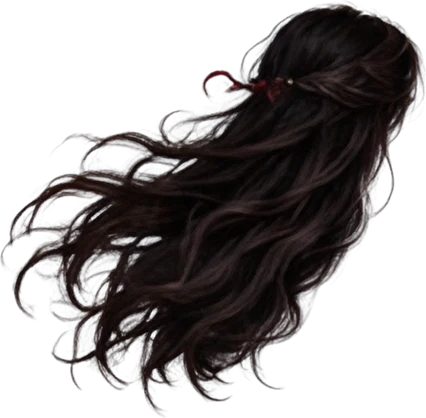
Long flowing hair
213 × 209 px
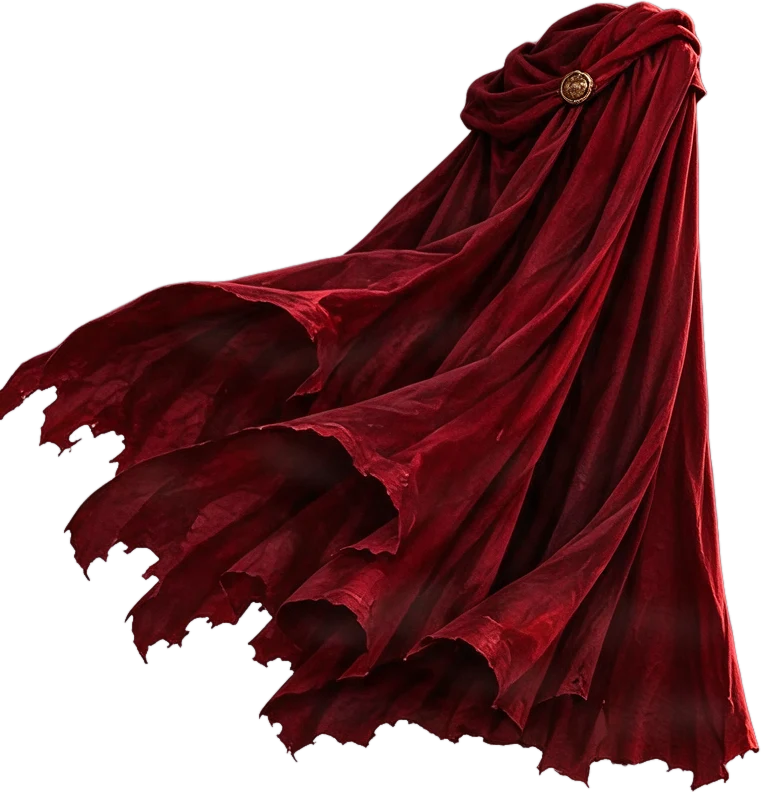
Red cloak
534 × 556 px
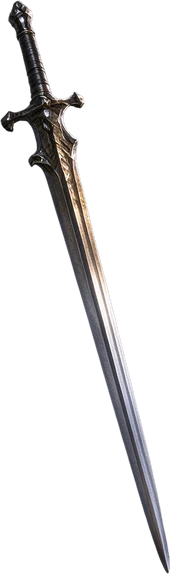
Sword
85 × 287 px
EXPLORE A BOOK COVER EXAMPLE
What If You Could Edit the Artwork Behind Your Book Cover?
A finished cover may look exactly right—until you need to change the title, move the main character, or prepare the artwork for another design. Our fictional fantasy cover, THE MOONFALL CROWN, brings typography, a cloaked character, a castle, and a moonlit landscape into one flat image. Explore how AI layer separation can make this type of artwork easier to work with.
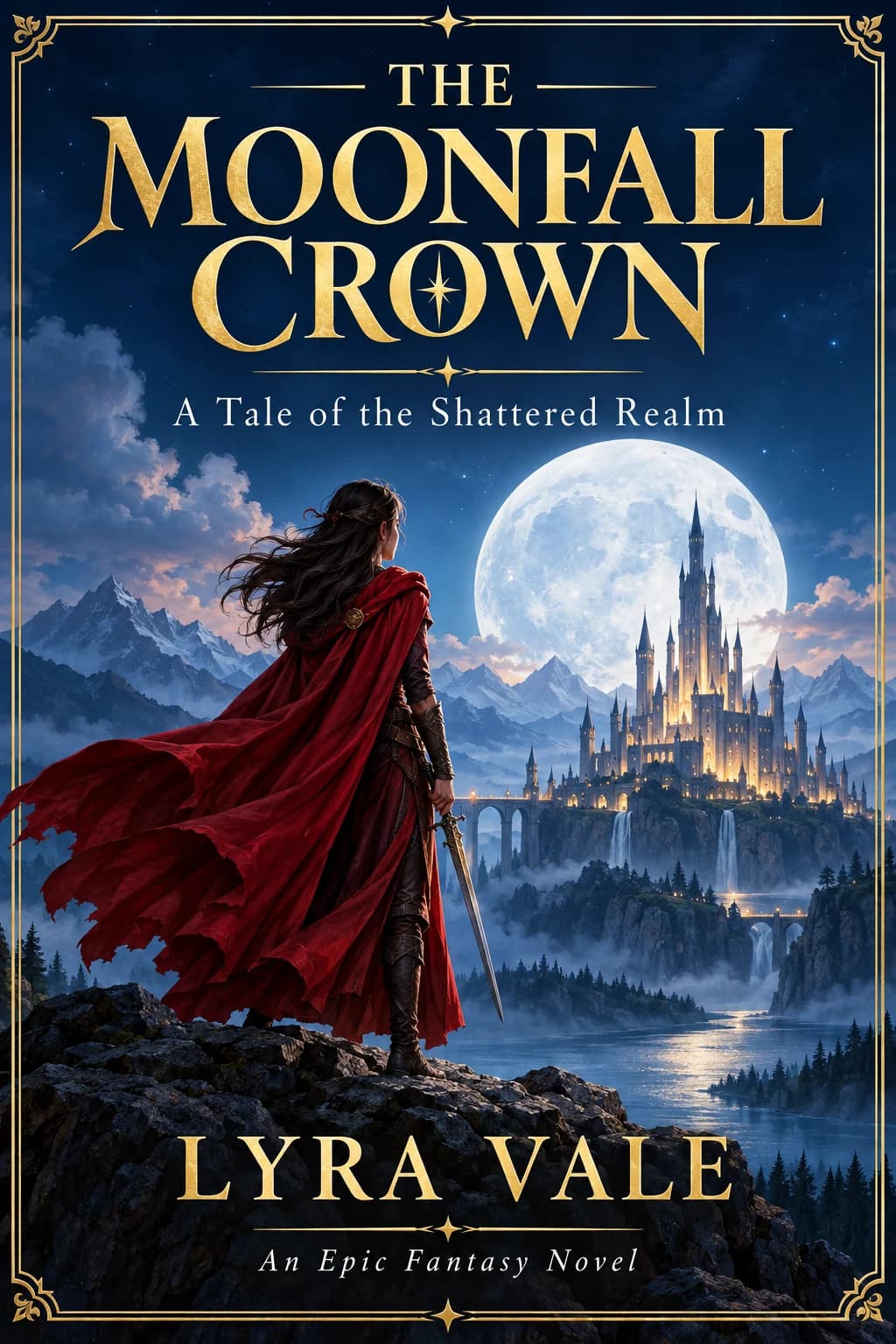
Get More Control Over Cover Typography
Your title and author name shouldn't require a complete cover redesign every time something changes. The text-separation stage identifies supported text and decorative elements so you can review them independently from the rest of the artwork.
4 detected text elements · 5 graphic elements
Explore the Illustration as Separate Artwork
A character, castle, foreground, and distant landscape can serve different purposes in a cover layout. The artwork-separation stage reconstructs available visual elements so they can be inspected and used more independently.
15 reconstructed artwork layers
Revise the Wording Without Redrawing the Whole Cover
Imagine the book title changes from THE MOONFALL CROWN to something new, or you need to revise the author's credit. Instead of treating every word as part of a permanent picture, review the text elements detected from the original cover.
THE
Detected lettering · Approx. 72px in this example
A Tale of the Shattered Realm
Detected lettering · Approx. 46px in this example
LYRA VALE
Detected lettering · Approx. 104px in this example
An Epic Fantasy Novel
Detected lettering · Approx. 36px in this example
Detected text can be imperfect. Ornate title lettering, gold textures, and custom fonts may require manual refinement.
Keep Borders and Cover Details Within Reach
Fine borders, ornaments, and decorative artwork help give a cover its identity. Explore any visual details successfully separated by the workflow without assuming every tiny element will become an independent layer.
frame
top-rules
title
title-divider
author-divider
Thin lines, glowing effects, and highly detailed ornaments may merge with the background or require cleanup.
Work with the Character and the World Around Them
The red-cloaked character, castle, moon, and landscape create the atmosphere of THE MOONFALL CROWN. Separating recognizable artwork can give you more flexibility when changing a composition, preparing a new variation, or reusing part of the illustration.
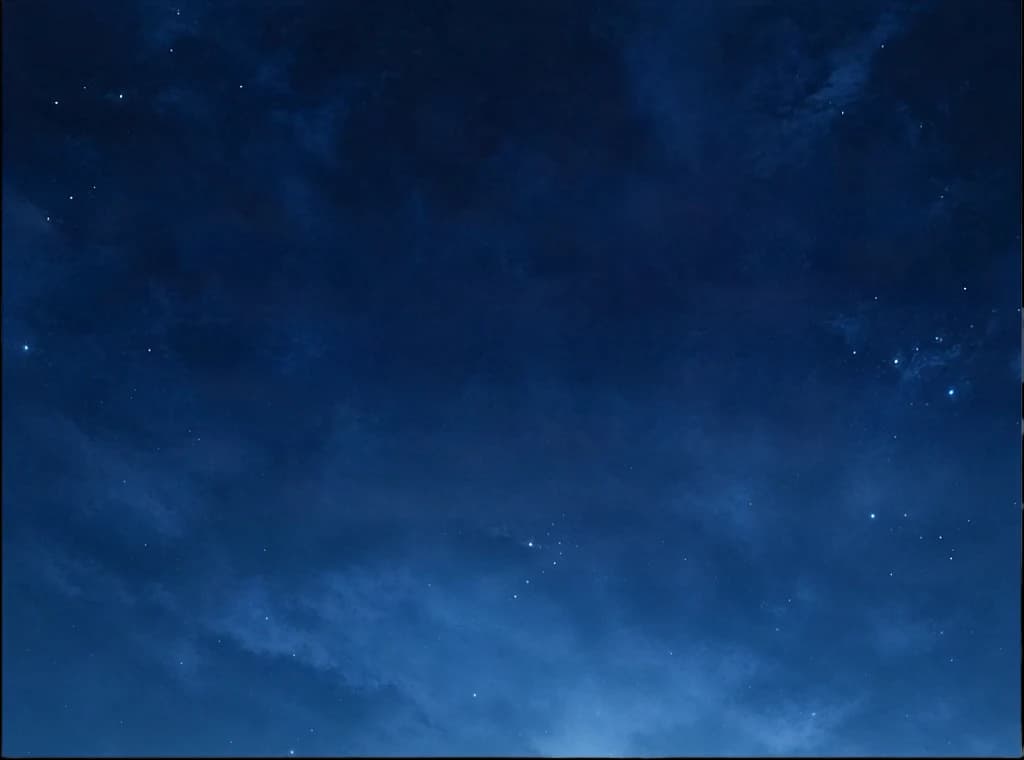
Night sky with stars
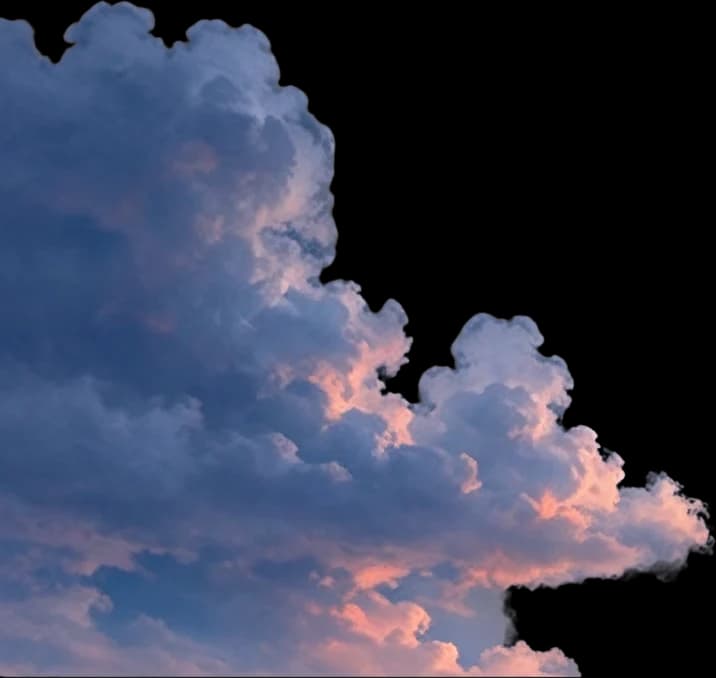
Left cloud bank
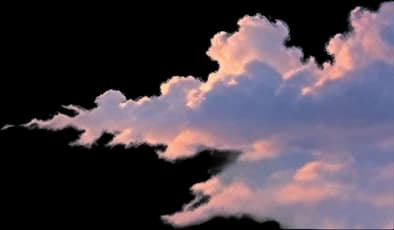
Right cloud bank
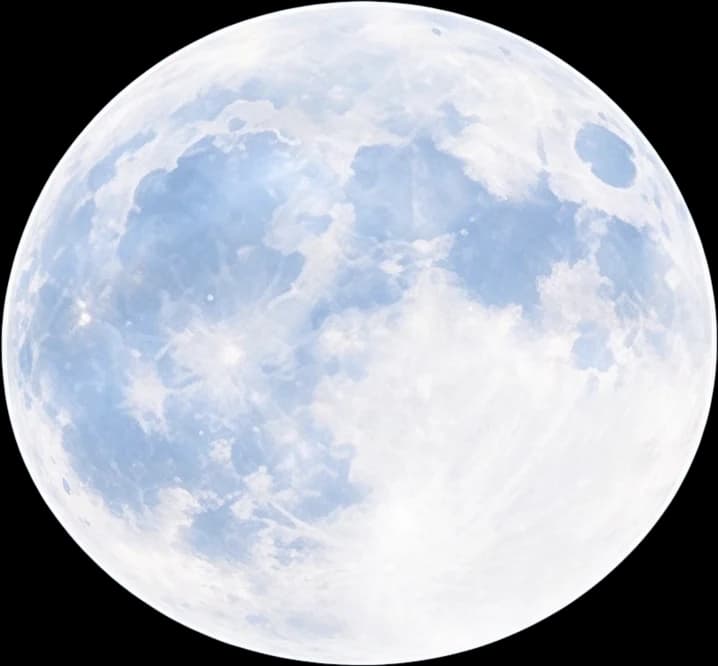
Large full moon
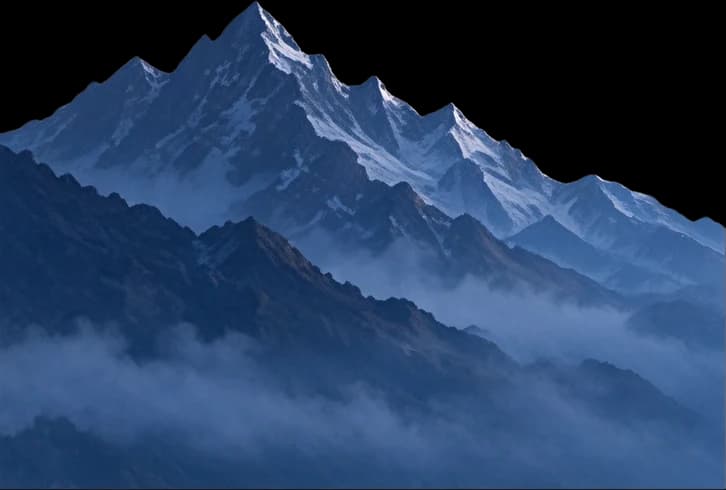
Left snow mountain range
Middle snow mountain range
Right snow mountain range
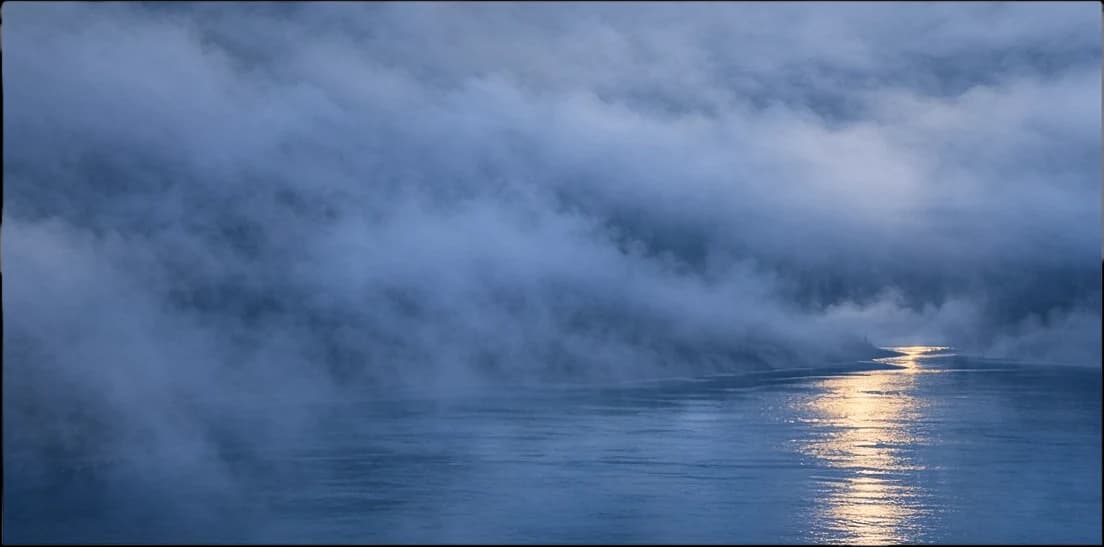
River and mist
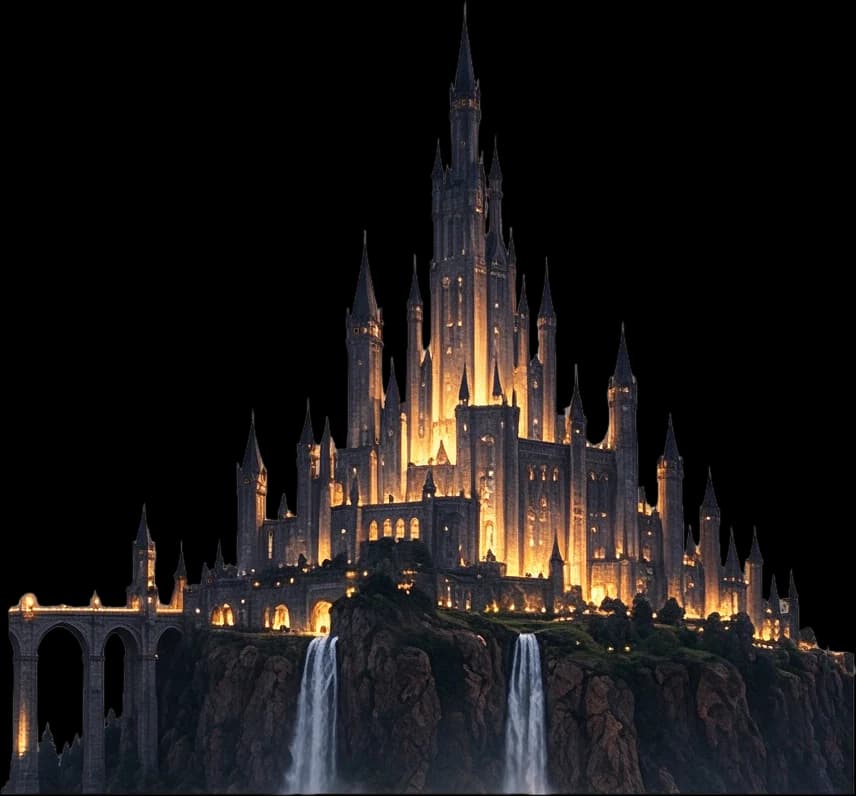
Castle on cliff with bridges and waterfalls
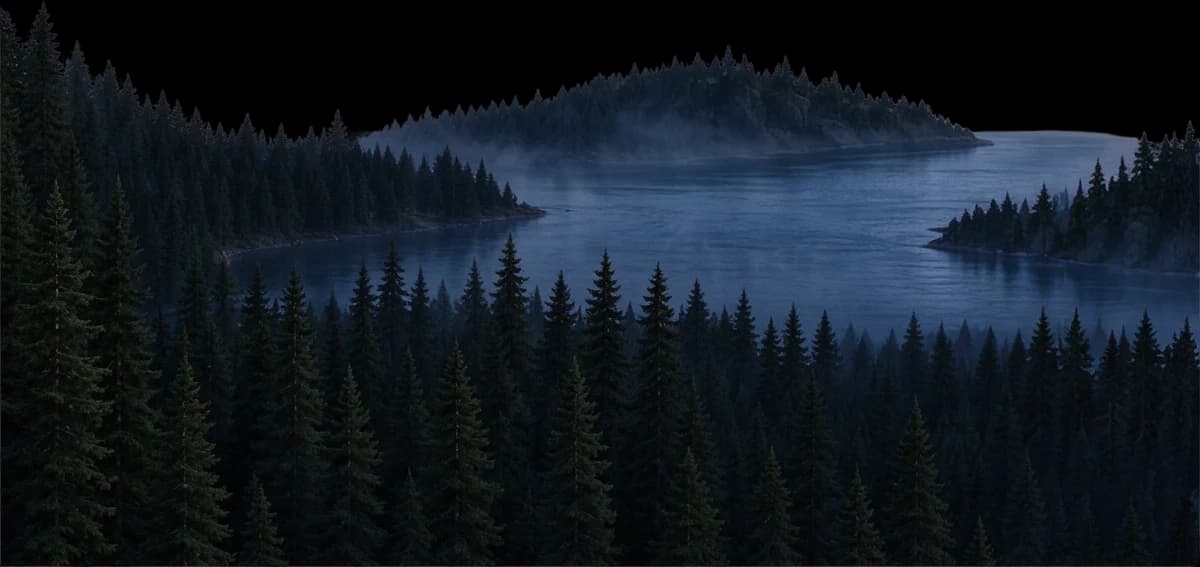
Pine forests
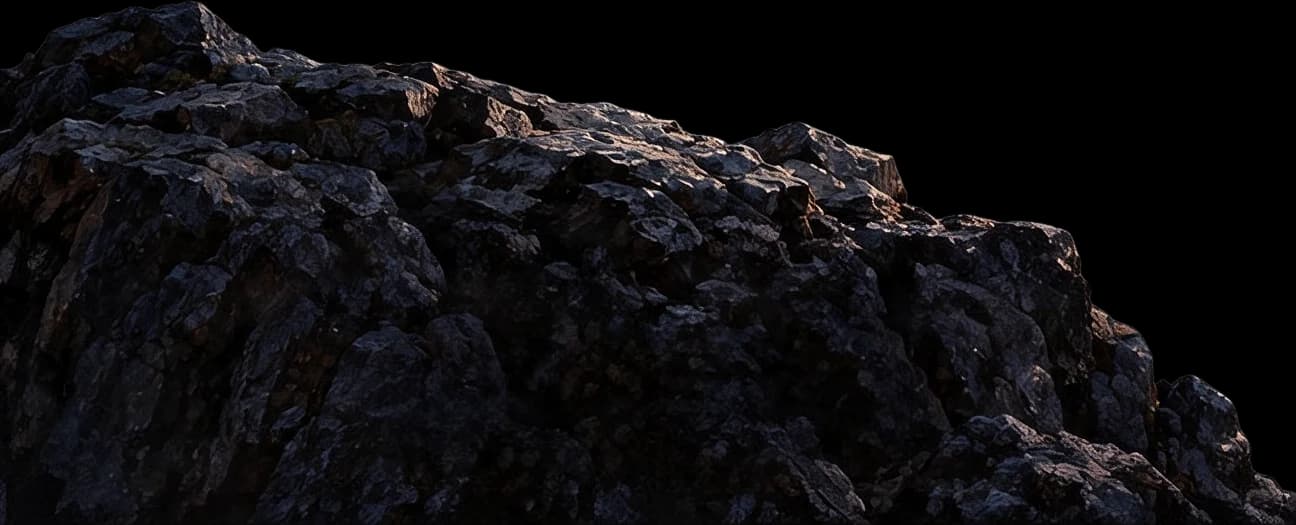
Foreground rocks
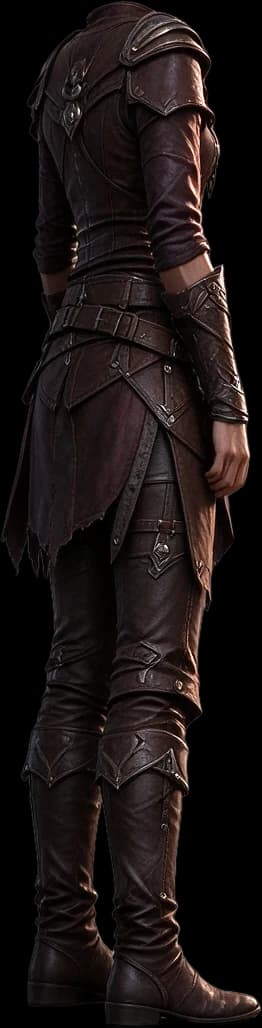
Heroine figure
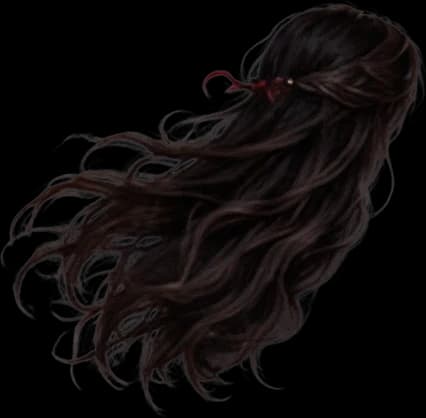
Long flowing hair
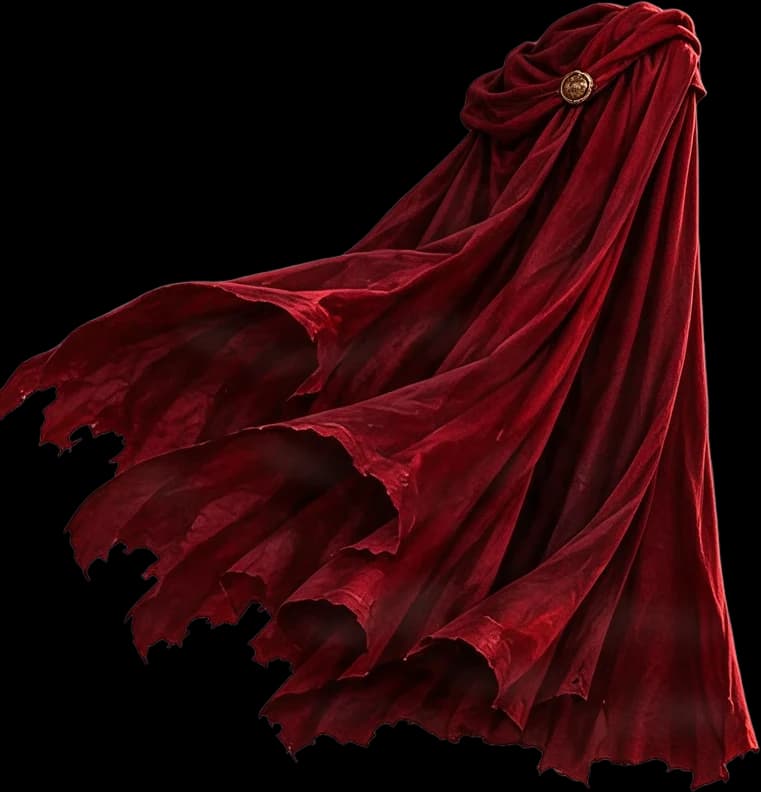
Red cloak
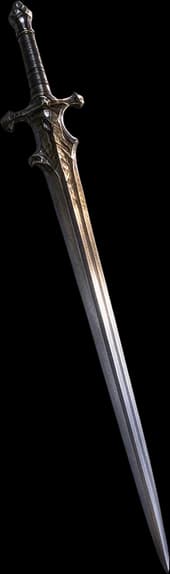
Sword
Reconstructed artwork layers from the processed book cover example. Layer reconstruction may alter small details or estimate parts of the scene that were hidden behind other elements.
Bring the Recovered Elements Back Together
The workspace aligns the available typography and artwork with the reconstructed composition. You can inspect the assembled cover and individual layers before deciding what needs further editing.
A New Editing Starting Point, Not the Lost Original PSD
ImageToLayers reconstructs available image elements from a flattened cover. It cannot recover the original Photoshop layer history, exact fonts, Smart Objects, vector paths, or hidden source artwork. The result is intended to make your next edit easier—not to recreate the lost design project perfectly.
THE COVER IS FINISHED. THE WORK ISN'T.
Only Have the Final Book Cover Image?
You paid for the artwork. You approved the design. You saved the final image. Now the title needs changing—or a designer needs the original layers. But there's a problem: the only file you have is a JPG or PNG.
The Original PSD Is Missing
Your previous designer is unavailable, the project files are gone, or you were only given the final exported cover.
A Small Text Change Becomes a Big Job
Changing a title, subtitle, or author's name can mean manually removing the old lettering and rebuilding the artwork beneath it.
You Need to Move Part of the Illustration
The main character looks great, but a new title needs more room. Moving one element becomes difficult when everything is merged into the same image.
Someone Needs a Layered File
A client, publisher, or freelance designer asks for separate artwork elements, but you only have a flattened version.
You shouldn't have to recreate every visible detail just to make your next revision. Start with the cover you already own and recover more flexibility from it.
KEEP THE DESIGN. REGAIN FLEXIBILITY.
Make More Changes Without Starting From a Blank Canvas
Update Titles and Subtitles
Review detected cover text and make supported wording changes when a title, subtitle, or edition name needs updating.
Change Author Credits
Correct a name, update a pen name, or prepare a variation with revised author information.
Reposition Illustrated Characters
Work with successfully separated character artwork to explore changes in layout, scale, and positioning.
Explore Background Artwork
Inspect the available background and reconstructed regions instead of manually painting over every removed element.
Adjust Decorative Details
Show, hide, or inspect ornaments and other graphic elements that the workflow successfully identifies.
Continue in Photoshop
Export reconstructed image layers as a PSD and finish your design with the professional tools you already use.
The number, accuracy, and editability of recovered elements depend on the uploaded cover and the processing result. Detailed print and typography work may still need professional adjustments.
BUILT FOR THE NEXT COVER REVISION
What Do You Need to Change on Your Book Cover?
The Book Title Has Changed
You've renamed the book, but you want to preserve the original illustration. Work with detected title text and prepare an updated composition.
You Need a New Author Name
A spelling correction or pen-name change shouldn't automatically mean recreating the whole design. Use the available text-editing workflow as your starting point.
You're Preparing a Revised Edition
Keep the familiar cover style while exploring changes to visible text, illustration placement, or decorative details.
Your Client Wants a Layered PSD
You have the approved cover image but not the source file. Produce reconstructed image layers that a designer can inspect and refine for delivery.
You Want to Reuse the Illustration
Extract available cover elements as starting assets for launch announcements, promotional designs, or other authorized marketing work.
An Older Cover Needs a Refresh
Revisit an existing book cover when the original designer's files are lost, incomplete, or unavailable.
From a one-word correction to a larger design handoff, reconstructed layers can help you keep using artwork that already represents your book.
YOUR EXISTING COVER, IN FOUR STEPS
Convert a Flat Book Cover into Layers
- 1
Upload Your Book Cover
Choose a clear JPG, PNG, or WebP image. Flat, front-facing cover artwork works better than photographs of a physical book or angled mockups.
- 2
Let AI Separate the Elements
The workflow analyzes text and visual content, then reconstructs the elements it can identify as separate image layers.
- 3
Inspect and Make Changes
Explore the typography, illustration, decorative details, and background. Use supported editing controls to review or adjust your result.
- 4
Export and Continue Editing
Download the available PSD or layer assets and complete any final adjustments in Photoshop or another compatible application.
Processing results vary by image. Review fine details, lettering, and image resolution before final use.
GET A BETTER STARTING POINT
What Kind of Book Cover Works Best?
A Flat, Front-Facing Cover
Use the original cover image whenever possible. Avoid angled mockups, visible book spines, and photographs taken under uneven lighting.
Clear, Readable Typography
Titles and author names that are sharp and distinguishable from the background are easier to detect than tiny or highly distorted lettering.
Distinct Visual Subjects
A clearly visible character, illustration, or major foreground element can be easier to separate than a composition filled with overlapping small objects.
A Good-Quality Source File
Choose a clean image with minimal compression, blur, or artifacts. Higher input quality can help analysis, although the reconstructed output may use different dimensions.
The workflow does not guarantee original-resolution layer reconstruction or print-ready output. Always inspect the generated PSD at its actual dimensions.
FOR PEOPLE WHO ALREADY HAVE A COVER
Make the Most of Artwork You've Already Created
Self-Published Authors
Make changes to existing covers without needing to commission a full redesign for every update.
Freelance Cover Designers
Handle revisions when a client provides a finished JPG or PNG instead of an editable design project.
Small Publishing Teams
Prepare legacy artwork for corrections, revised editions, or design handoffs.
Book Cover Illustrators
Separate recoverable visual elements from completed artwork when further composition work is needed.
Publishing Assistants
Coordinate simple artwork revisions when original project files are not immediately available.
Book Marketing Designers
Use available extracted cover artwork to prepare promotional assets, where the original artwork's rights permit.
MORE THAN ONE FLAT IMAGE
Take the Reconstructed Cover into Your Next Design Step
Layered PSD
Open reconstructed layers in Photoshop for further editing, repositioning, and professional cleanup. Text the AI can read is stored as native Photoshop text layers.
Separate Layer Assets
Download available image assets in a ZIP package to inspect or reuse individual visual elements.
Updated Cover Preview
Review the resulting composition in the workspace, including supported text changes and layer visibility adjustments.
The generated PSD is not the original source document. Stylised or ornate lettering stays an image layer, fonts are mapped to common ones, and original font files, Smart Objects, vector shapes, and exact print production settings are not recovered.
FREQUENTLY ASKED QUESTIONS
Questions About Turning Book Covers into Editable Layers
Can I convert a JPG book cover into a layered PSD?
Yes. Upload a supported JPG cover, and the AI workflow can reconstruct available text and visual elements into separate image layers. You can then export a layered PSD for further editing. The result is not an exact restoration of the original Photoshop project.
Can I turn a PNG book cover into Photoshop layers?
Yes. PNG is supported, along with JPG and WebP. The tool analyzes the finished image and creates available reconstructed layers that can be inspected and used for further design work.
Can I edit a book cover if I don't have the original PSD file?
That's the main purpose of this tool. Start with the final cover image and use AI to separate the elements it can identify. You can then work with the available layers instead of recreating the entire design manually.
Can I change the title on my existing book cover?
You can edit supported text detected in the cover. However, ornate lettering, text blended into artwork, and special effects may need additional refinement. Always inspect the resulting composition and exported file.
Can I change the author's name?
Yes, when the author's name is successfully detected as editable text in the workspace. The appearance of the replacement may differ from the original lettering, especially when a custom or decorative font was used.
Will the tool recover the exact font used on my cover?
Not necessarily. A flattened image does not preserve the original font file. Text appearance is reconstructed or approximated, and you may need to apply the correct font manually in Photoshop.
Will my PSD have real editable Photoshop text layers?
Partly. Text the AI can read as live text is stored in the PSD as native Photoshop text layers, with the font mapped to a common one, so you can retype it with the Type tool. Stylised or ornate lettering, such as a decorative title, is kept as an image layer. Check each text layer and apply your own font where needed.
Can it separate a character from the background?
The AI can attempt to separate a clearly recognizable illustrated character from the surrounding scene. The result depends on overlap, lighting, image detail, and the quality of the original artwork.
Can I move the main character to another position on the cover?
If the character is recovered as a separate image layer, you can use that layer for layout adjustments. Areas that were hidden behind the character may have been reconstructed and should be checked before the final edit.
Can I extract the castle, moon, or other background objects?
The workflow may separate prominent visual elements, but it does not guarantee that every individual object will have its own layer. Small or blended background details can remain together.
Does it automatically rebuild the background behind the text?
The processing workflow can produce background artwork with detected elements removed or reconstructed. Hidden areas are estimated by AI, not recovered from the original source file. Results may require cleanup.
Can I use it with AI-generated book covers?
Yes, if you have the necessary rights or permission to use the image. This is useful when you like an AI-generated cover but want more control over individual parts of the design.
Will it preserve the original cover's resolution?
Not necessarily. Image-processing stages may resize input or generate reconstructed layers at different dimensions. Check the exported image and PSD dimensions before using them for print.
Can I upload a high-resolution TIFF cover?
TIFF is not a directly supported upload format on this page at present. Convert it to a supported PNG, JPG, or WebP file before uploading. For professional-quality work, check the converted image for color and detail changes.
Can I upload a PDF book cover?
This workspace is designed for supported raster images rather than native PDF documents. Export the relevant cover artwork to PNG or JPG before uploading it.
Can I edit a photographed paperback cover or 3D book mockup?
You can start with supported image formats, but flat front-cover artwork is recommended. Photographs and perspective mockups contain lighting, distortion, and physical book details that can make separation less reliable. The tool does not automatically unwrap a book mockup into original print artwork.
Can I use the result to prepare an Amazon KDP book cover?
You can use reconstructed artwork as a starting point for further publishing work. However, the tool does not automatically prepare a KDP-compliant print cover, spine, bleed, trim settings, or print-ready color configuration.
Can it create a full paperback wrap with a back cover and spine?
No. This workflow focuses on recovering editable visual elements from existing cover artwork. It does not automatically construct a complete paperback wrap or calculate spine dimensions.
Can I make a new edition of my book using the same artwork?
Potentially. You can use available reconstructed elements when preparing a new edition, subject to the rights you have to the original artwork. The final cover should still be reviewed for design and publishing requirements.
Can I use the extracted character or background in book marketing?
Yes, where your artwork license or ownership permits it. Reconstructed layers can serve as starting assets for promotional graphics, announcements, or related visual materials.
How many layers will my cover have?
There is no fixed number. It depends on the image and what the AI can successfully identify and reconstruct. Some elements may be grouped, missing, or require additional refinement.
How long does book cover layer separation take?
Processing time depends on the input image, model workload, and the stages being used. The workspace displays job progress, and the result can be revisited through its saved project link.
How much does it cost to convert a book cover?
Book cover conversion uses 150 Credits per image, shown in the workspace before you submit. If the artwork stage cannot be completed, the Credits for that stage are returned and you still receive the text result.
Is the cover conversion guaranteed to be perfect?
No. AI separation can produce imperfect text recognition, blended edges, missing details, or reconstructed areas that differ from the original artwork. Review the actual output before using it in a paid client project or print production.
Is this a book cover maker or a book cover editor?
It's a tool for working with an existing flattened cover. Unlike a template-based book cover maker, it focuses on reconstructing separate image elements from artwork you already have. It does not create an entirely new book design from scratch.
Can I download the layers as a ZIP instead of a PSD?
The workspace supports ZIP export for available layer assets and PSD export for a layered Photoshop-compatible file. Review the export options in the workspace and verify the downloaded contents before final delivery.
Need to Recover Layers from Another Design?
Image to Layers
Separate visual elements from photographs, illustrations, and other flattened artwork.
Flattened Image to PSD
Convert an existing flat image into reconstructed image layers for further Photoshop editing.
AI-Generated Image to Layers
Give an AI-generated image a more flexible structure by separating recognizable visual elements.
Poster to Editable PSD
Work with recovered text and graphics from an existing flattened poster design.
DON'T REBUILD THE COVER YOU ALREADY HAVE
Have the Book Cover, but Not the Editable File?
Your artwork is already there. The title, illustration, and visual style are already chosen. Don't start over just because the original layered project is missing. Upload your cover and turn the recoverable artwork into separate image layers for your next edit.
Convert My Book Cover to LayersPreview the included example, check the 150-Credit cost, and review your reconstructed layers before final delivery.