
Original image
A person standing in front of a wall.
Upload the JPG, PNG, or other flattened image you want to rebuild into editable layers.
Upload your image
JPG, PNG, WebP up to 10MB · Drag & drop anywhere
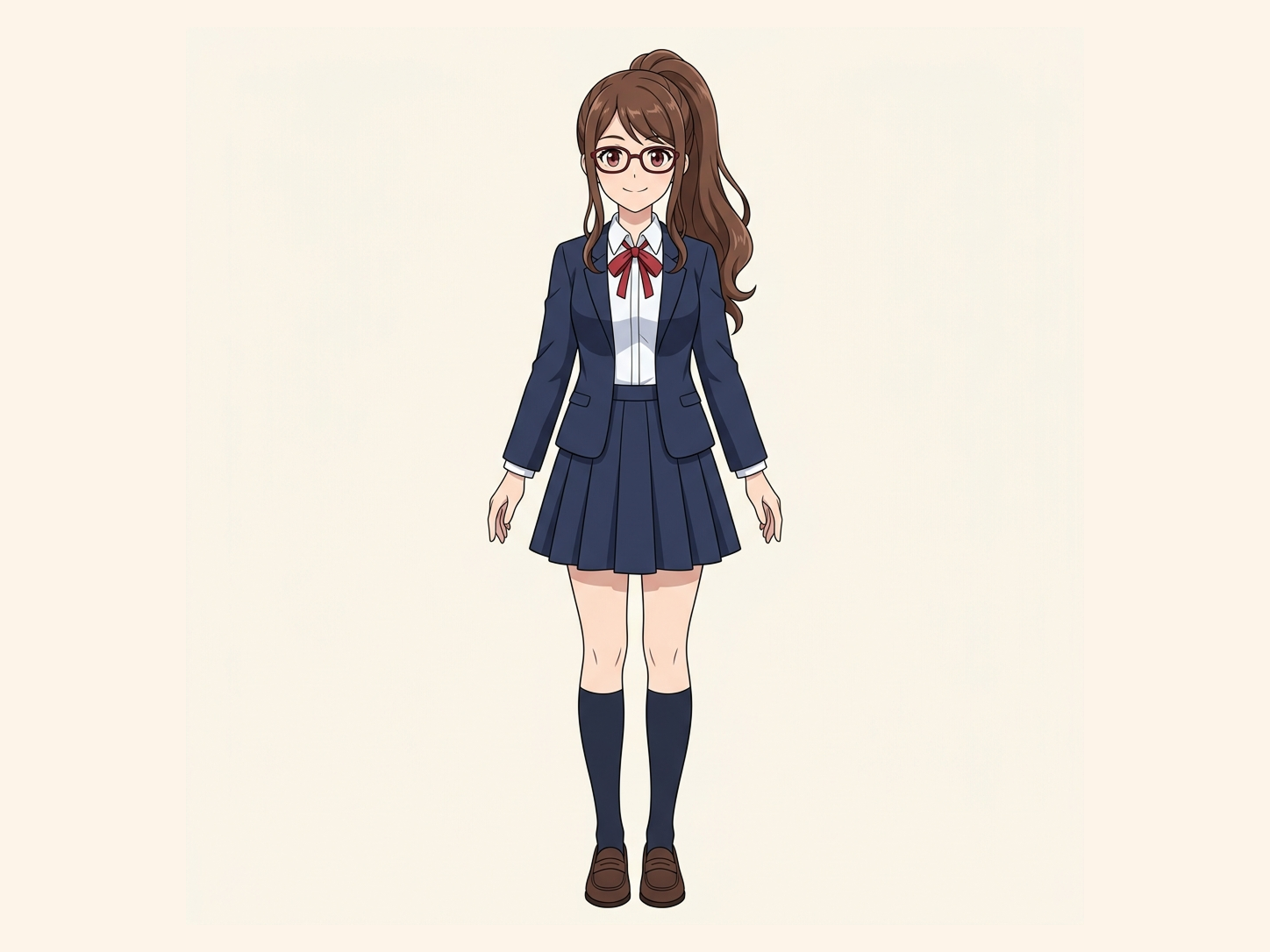
Need hair, face, eyes, mouth, clothing, or body-part layers?
Leave this blank to let Detailed Layers identify the main editable elements automatically. Or name the parts you want separated.
Want more control over your layers?
Learn how to guide Detailed Layers with simple prompts, choose useful elements, and get cleaner layer structures from different types of images.
Upload an Image to Continue
Private File Handling
Uploaded files are associated with your account and delivered through signed URLs. You can delete completed jobs manually.
Transparent PNG Output
Detailed Layers returns each detected element as its own layer on a transparent background.
For better results, use:
Turn a flattened image into a new editable layer structure. Rebuild editability from visible content without claiming to recover the original PSD.
When the Original PSD Is Gone
This happens more often than it should. You may have flattened the Photoshop file by mistake, overwritten the layered version, received only a JPG from a client, lost access to the original source file, downloaded an export without the working file, or inherited an old project with only final renders.
Then someone asks: “Can you move that object?” “Can you change the background?” “Can you remove the product?” “Can you edit the text area?” And suddenly the flattened image becomes the problem.
Flattened Image to PSD helps recreate a new editable structure from the visible image.
What “Unflatten” Really Means
Once an image has been flattened, the original Photoshop layer data is no longer present in the JPG or PNG. No tool can reliably recover the exact original layer names, folder structure, masks, Smart Objects, adjustment layers, blend modes, hidden layers, original vectors, or editing history.
ImageToLayers takes a different approach: it analyzes the visible image and creates a new layer decomposition based on what can be identified in the final image.
A newly reconstructed layer structure is not the original PSD restored.
Flat Image to Editable Structure
Depending on the image, the workflow can identify and separate visible regions for use as independent editing assets.
The exact number and type of layers depends on the image.
Background Reconstruction
Simple object extraction creates a problem: if you remove a foreground object, the area behind it may be empty because those pixels were never visible in the original image. ImageToLayers can use AI-assisted reconstruction to estimate hidden background areas.
A person standing in front of a wall.
A person layer plus a background with a person-shaped hole.
A person layer plus a more complete background layer.
Move Objects More Freely
Once foreground objects and background regions are separated, you can experiment with repositioning objects, removing elements, changing composition, replacing backgrounds, creating alternate layouts, building new crops, and preparing motion graphics.
Background reconstruction can reduce the amount of manual repainting required after moving an object.
Useful When a Client Only Sends a JPG
A common design request sounds like this: “We only have this JPG, but can you make a few changes?” That may involve moving the product, removing a person, replacing the background, reusing an object, changing the layout, or preparing a new aspect ratio.
Rebuilding visual elements into separate layers gives you a better starting point than working from one locked canvas.
Recover Old Design Assets
Old projects often survive only as website exports, campaign JPGs, PNG banners, social graphics, presentation images, product renders, or archived screenshots. Use the visible final image to reconstruct a new working asset for future edits.
Photoshop Mistakes
Photoshop's Flatten Image command combines visible layers into one image when saved over the original file. If the original layered document is no longer available, ImageToLayers cannot restore the exact old PSD, but it can help reconstruct foreground objects, major visual elements, background areas, and separate transparent assets.
That can save time compared with rebuilding the entire design manually.
JPG to Layers
JPG files contain no Photoshop layer structure; they are flattened pixel images. ImageToLayers analyzes the visible content and creates a new decomposition based on the image itself. This is useful when the only file you have is a JPG, JPEG, compressed web image, or exported marketing graphic.
PNG to Layers
A PNG may support transparency, but that does not mean it contains editable object layers. A flat PNG still combines visible objects into a single raster image. Use ImageToLayers to separate supported elements into new independent assets.
Not Just Background Removal
Background removal typically gives you a foreground subject plus transparency. That is useful, but it does not rebuild the image. Image-to-layers goes further by attempting to create multiple visual regions and reconstruct what sits behind them.
Person · Product · Decoration · Background
Multiple independent editing assets instead of one transparent foreground cutout.
Design Revision Workflow
1
Use the highest-quality version you still have.
2
ImageToLayers identifies supported objects and visual regions.
3
Check foreground, background, and reconstructed regions.
4
Use the generated layer assets in your preferred editing software.
5
Move, recolor, remove, replace, or refine individual elements.
For Designers
Without the source file, designers may need to trace objects manually, repaint backgrounds, create masks, clone hidden regions, rebuild compositions, and cut elements out one by one. AI-assisted layer reconstruction can automate part of that preparation so you can focus on the cleanup that requires design judgment.
For Agencies
Agencies often receive old campaign assets from previous vendors, clients, freelancers, archived projects, or external partners. A rebuilt layer structure can help when a client suddenly needs a new banner size, revised layout, moved product, changed background, or removed element.
For Marketing Teams
Marketing teams repurpose old visuals for new channels, aspect ratios, updated branding, seasonal campaigns, social media, paid ads, and landing pages. If the original design source is missing, flatten-to-layers reconstruction gives you another option besides recreating the entire graphic.
For Freelancers
Freelancers often receive incomplete source packages. You may be able to rebuild enough of the visible structure to continue working. This is especially useful for simple advertising graphics, product compositions, social media visuals, posters, hero images, and promotional graphics.
Object Separation
Clear, visually distinct objects are usually the easiest to separate.
Complex overlaps or ambiguous boundaries may require manual cleanup.
Transparent Layers
Separated objects can be represented with transparent backgrounds, making them easier to move, reposition, reuse, composite, resize, and place over new backgrounds.
Reconstructed Backgrounds
When an object is removed from a flat image, the hidden background has to be estimated. AI reconstruction can attempt to fill those areas based on surrounding visual information.
Large or highly complex hidden regions may require additional editing.
What It Cannot Recover
Flattening destroys editing metadata that is not visible in the final image. Only information that can be inferred from the visible image can be reconstructed.
Text in Flattened Designs
Text in a JPG or PNG is rendered as pixels. A reconstructed text region is not the same as recovering the original Photoshop Type Layer. Exact font family, font weight, kerning, tracking, text effects, and editable text metadata cannot be guaranteed from the flattened image alone.
For text-heavy graphics, additional text editing tools may be useful.
Logos and Fine Graphics
Fine visual elements can be harder to reconstruct perfectly. Inspect logos, small text, thin lines, fine patterns, hair strands, transparent effects, glows, shadows, and complex edges before final use.
PSD Output
The purpose of this workflow is to create a new editable layer structure from the flat image. It is not a restoration of the original Photoshop document.
Think new reconstruction, not original PSD restored.
Flattened Image vs Original PSD
May contain editable text, masks, groups, Smart Objects, adjustment layers, hidden elements, blend modes, and original vectors.
Contains the visible pixels only.
Contains newly separated visible objects, newly reconstructed visual regions, and newly generated background information where possible.
This is a reconstruction, not a historical recovery.
Best Input Images
What Works Well
Useful image types may include product compositions, advertising visuals, social graphics, marketing images, photos with foreground subjects, posters, promotional banners, ecommerce imagery, simple graphic compositions, and archived design exports.
What May Be More Difficult
These images may still benefit from reconstruction but require more manual refinement.
Alternative to Rebuilding From Scratch
The goal is not to pretend a flattened image can become the exact original source file again. The goal is to reduce the work required to make it editable.
This gives you a structured start instead of rebuilding everything manually.
Why Use ImageToLayers
A missing PSD should not always mean rebuilding an entire design from zero. ImageToLayers can help separate visible elements and reconstruct enough of the composition to create a new editable starting point. Use the result to continue the work instead of starting over.
FAQ
You cannot truly reverse Photoshop flattening and restore the exact original layer history from a JPG or flattened PNG. AI can analyze the visible image and create a new editable layer structure.
Use the visible JPG to reconstruct new layers based on identifiable objects and regions. The result is a newly generated layer structure, not the original PSD.
Yes. A flat PNG can be analyzed and separated into new visual layers.
No. It creates a new reconstruction from the visible image.
No. Layer names are not stored in a flattened image.
No. Original grouping information is lost after flattening.
No. Anything that was not visible in the final flattened image cannot be reconstructed reliably.
No. Smart Object data is not present in the flat image.
No. The final pixels may reflect an adjustment, but the original adjustment-layer settings are not recoverable.
No. Original Photoshop blend-mode settings are not stored in the flattened image.
Not the original masks. The system can create new object masks during separation, but these are newly generated.
Not exactly. Text in a flat image exists as pixels. The visible text region can be identified, but the original Photoshop Type Layer and typography metadata are not automatically recoverable.
Not reliably. A flattened image does not contain the original font metadata.
Yes. People and other visually distinct foreground subjects are common layer-separation targets.
Yes. Product objects can be separated when they are visually distinguishable.
Yes. The number of useful layers depends on the image composition and which regions can be identified.
The workflow can use AI-assisted reconstruction to estimate areas hidden behind foreground objects. The result is generated and may require cleanup.
Not always. Large hidden regions, complex patterns, and detailed scenes may produce less reliable reconstruction.
Yes. Independent transparent layers are easier to reposition in compatible editing software.
Layer separation plus background reconstruction can provide a useful starting point for object removal.
Yes. Once foreground elements are separated, you can place them over another background in your editing workflow.
Yes. That is one of the strongest use cases for rebuilding a new editable structure.
Yes. Flattened marketing and advertising graphics can be analyzed for layer reconstruction.
Yes. Product compositions with distinct foreground objects can be useful inputs.
Yes, although text-heavy posters and complex graphic effects may require additional manual cleanup.
Yes. Flattened social graphics can be rebuilt into a more editable starting structure.
It can process JPEG images, but heavy compression may reduce edge and detail quality.
Use the highest-resolution, least-compressed version available.
No. If visual information is not present in the final image, it cannot be historically recovered. AI may generate a plausible estimate, but that is not the original content.
No. File recovery attempts to recover original data from storage. AI reconstruction creates new content based on the visible image.
If the original layered PSD has been overwritten and no backup or Photoshop history version exists, the exact original layers are no longer recoverable from the flattened pixels alone. This tool can help rebuild a new editable layer structure.
Yes. If the original layered file may still exist in version history, cloud backup, autosave, or another storage location, recovering that file is preferable to reconstructing it.
No. It is a newly generated decomposition.
You can use the generated layer assets in compatible image-editing software and continue refining the composition.
Yes, as a working reconstruction, provided the result is reviewed and refined where necessary.
Not necessarily. The generated structure depends on which objects and regions the model can identify.
Yes. A transparent PNG can still contain multiple flattened visual elements that may be separated further.
Yes. Flat AI-generated images can also be separated into new visual layers.
Yes. For suitable images, the separated foreground and reconstructed background can provide a useful starting point for parallax preparation.
Commercial use depends on your rights to the source image and any protected content inside it. Only process and publish material you are authorized to use.
Upload a JPG or PNG and create a new layer structure for continued design work.
Rebuild Image LayersRecover editability from the visible image — without claiming to restore the original lost PSD.
Creative Toolkit Index
Quick access to precision layer extraction, AI photo editing & asset tools.