
Regeneration
Useful when you want: A completely new image New pose New composition Different style Different scene
Upload the AI image you want to separate into editable visual layers.
Upload your image
JPG, PNG, WebP up to 10MB · Drag & drop anywhere
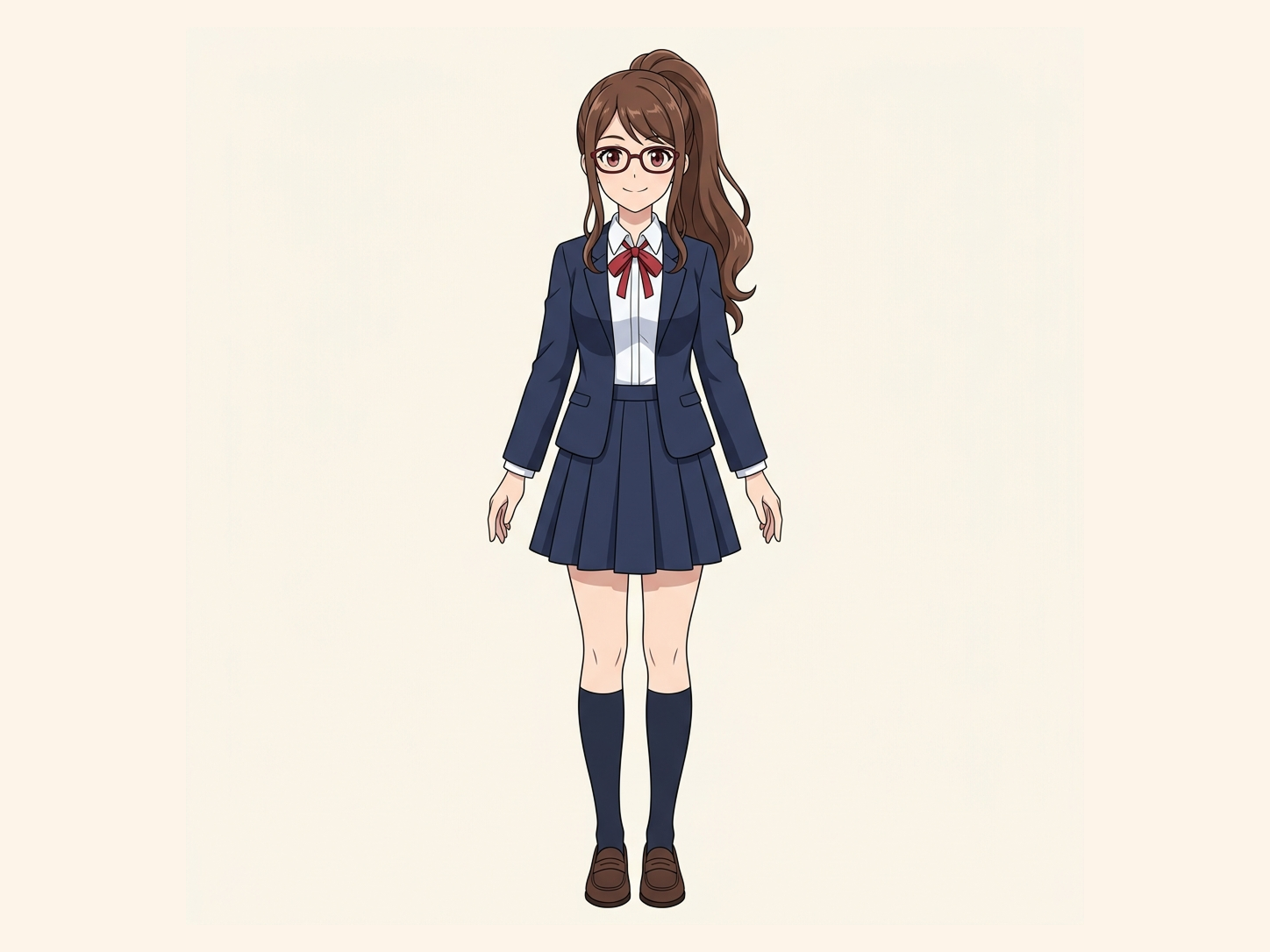
Need hair, face, eyes, mouth, clothing, or body-part layers?
Leave this blank to let Detailed Layers identify the main editable elements automatically. Or name the parts you want separated.
Want more control over your layers?
Learn how to guide Detailed Layers with simple prompts, choose useful elements, and get cleaner layer structures from different types of images.
Upload an Image to Continue
Private File Handling
Uploaded files are associated with your account and delivered through signed URLs. You can delete completed jobs manually.
Transparent PNG Output
Detailed Layers returns each detected element as its own layer on a transparent background.
For better results, use:
Turn Flat AI Images Into Editable LayersAI image generators are great at creating finished images. They are not always great at giving you the separate assets behind them. Upload an AI-generated image and separate supported subjects, objects, foreground elements, and backgrounds into independent visual layers. Use the result to continue editing, rearrange compositions, replace backgrounds, isolate characters, and build new creative variations without starting from scratch.
Keep the Generation You Like
Make a finished AI image easier to edit and reuse without regenerating the whole scene.
01
Start with the flat image you already like.
02
Separate the character, person, product, or featured object.
03
Reuse supporting visual elements independently.
04
Estimate hidden areas revealed when elements move.
05
Rearrange the image and create another variation.
AI image generators are great at creating finished images. They are not always great at giving you the separate assets behind them. Upload an AI-generated image and separate supported subjects, objects, foreground elements, and backgrounds into independent visual layers. Use the result to continue editing, rearrange compositions, replace backgrounds, isolate characters, and build new creative variations without starting from scratch.
Upload one AI-generated image and turn the flat result into a more editable visual structure.
AI Images Are Usually Flattened
You generate an image you like.
Then you realize you want to change just one thing:
But the generated image is one flat JPG or PNG.
Everything is merged together.
AI Generated Image to Layers helps rebuild visible parts of that image into independent editing assets.
Continue Editing After Generation
A generated image can be treated as a starting point instead of a finished endpoint.
Once visual elements are separated, you can continue working with:
This gives you more control over the next editing step.
Works With AI-Generated Artwork
You can use flat images created with many common AI image workflows.
Examples may include images generated with:
The important part is the final image itself, not which generator created it.
Midjourney Image to Layers
Midjourney often creates polished compositions, but the final output is still a flat image.
If you want to keep editing the result, layer separation can help isolate:
This can be useful when a generation is visually strong but the layout is not quite finished.
Niji Image to Layers
Niji and similar anime-oriented generators can produce detailed character scenes and illustrations.
If the final image contains a clearly separated character, prop, or background, you can use layer separation to prepare those elements for further editing.
For more specialized anime-character decomposition, a dedicated character-to-layers workflow may provide a better fit.
FLUX Image to Layers
FLUX-generated images can also be used as source material.
You may want to:
Layer separation can reduce the need to recreate the entire image.
Stable Diffusion Image to Layers
Stable Diffusion workflows can produce highly customized images, but the final render is often still a single raster image.
AI Generated Image to Layers can help when you no longer have access to:
It creates a new decomposition from the visible result.
ChatGPT Image to Layers
If you create an image with ChatGPT Image and later need separate elements, you can upload the final image for layer reconstruction.
Possible use cases include:
The tool works from the visible image rather than the original generation process.
AI Art to Editable Layers
Regeneration is not always the best answer.
If you already like:
but need to change only one part, regenerating the entire scene can introduce unwanted drift.
Layer separation gives you another option:
Keep the parts you like and edit the parts you do not.
Main Subject Separation
The main subject can often be separated into its own transparent layer.
This makes it easier to:
Fine edges and complex transparency may require additional cleanup.
Separate Multiple Objects
AI-generated images often contain multiple important objects.
For example:
When those objects are visually distinct, the workflow can attempt to separate them into independent layers.
Background Separation
A reusable background can be valuable for:
If the subject covers part of the background, AI-assisted reconstruction may be used to estimate hidden regions.
Hidden Background Reconstruction
When an object is removed from a flat AI image, there may be no real background pixels behind it.
ImageToLayers can attempt to generate a plausible continuation using surrounding context.
For example:
Original AI Image
Character standing in front of a wall.
Simple Cutout
Character layer + wall with a character-shaped hole.
Layer Reconstruction
Character layer + reconstructed wall area.
The generated background is an estimate, not the original hidden content.
Avoid Regeneration Drift
Regenerating an entire AI image can change:
If only one part needs changing, separating the existing image first can help reduce unnecessary changes to the rest of the scene.
AI Character Images
AI character images often need additional editing after generation.
You may want to:
A general image-to-layers workflow can help separate the visible character from the surrounding scene.
For detailed anime character part separation, use a specialized character workflow instead.
AI Product Images
AI-generated ecommerce images may contain:
Separating these regions can help you:
This can turn one generated image into multiple creative assets.
AI Advertising Creatives
AI-generated advertising concepts can be useful for ideation.
But once everything is flattened, it becomes difficult to modify the composition.
Layer separation can help isolate:
For text-heavy ad editing, a dedicated ad editing workflow may be more appropriate.
AI Posters
Generated posters often combine:
You can separate supported visual elements to create a better starting point for redesign.
Rendered text is not automatically restored as an editable font layer.
AI Concept Art
Concept art can contain useful individual elements that you may want to reuse elsewhere.
Examples include:
Layer separation can help extract visible objects for further design exploration.
AI Illustration Layers
An illustration may contain several valuable visual assets inside one image.
Instead of cropping them manually, you can separate supported elements and continue editing them independently.
This can be useful for:
AI Backgrounds
Generated backgrounds can be useful beyond their original composition.
If a subject is removed and the background is reconstructed, you may be able to reuse that environment for:
Large hidden regions may require manual correction.
Prepare for Parallax Animation
AI-generated images are often used for:
Separating foreground, subject, and background can provide a useful starting point for 2.5D parallax animation.
The animation itself is a separate step.
Prepare for Video Generation
If you plan to use a still image as the starting frame for an image-to-video workflow, it may help to refine the composition first.
You can:
Then use the edited image in your preferred video generation workflow.
Create New Aspect Ratios
AI generators often give you one composition.
Later you may need:
Independent layers give you more freedom to move subjects and rebuild the frame for another format.
Build Social Media Variants
One strong AI image can become the base for:
Layer separation can make those adaptations easier.
Layer Separation vs Regeneration
Useful when you want: A completely new image New pose New composition Different style Different scene
Useful when you want: To preserve most of the current image Move existing elements Change the background Remove one object Reuse a specific visual asset Both workflows solve different problems. ---
Layer Separation vs Inpainting
Inpainting is useful when you want to edit one masked area.
Layer separation is useful when you want to keep several parts of the image independent.
For example:
Inpainting
Replace one object.
Layer Separation
Extract object + preserve background + reuse both independently.
Layer Separation vs Background Removal
A background remover usually creates:
One foreground subject + transparency
AI Generated Image to Layers can aim to create a broader structure containing:
This gives you more flexibility for later editing.
Not Original Generation Recovery
A flat generated image does not contain the original:
ImageToLayers creates a new visual decomposition from the final rendered image.
Not Perfect Object Recovery
Generated images may include unusual visual artifacts such as:
These can make separation more difficult.
The tool interprets the visible pixels rather than the original generation intent.
Hair and Fine Details
Fine details can include:
These can be challenging to separate perfectly.
Review important edges before final use.
Transparent and Reflective Objects
More difficult materials include:
These objects share visual information with the background, so separation may require additional refinement.
AI-Generated Text
If an AI image contains visible text, the text is part of the raster image.
Layer separation does not automatically recover:
For text-heavy images, use a dedicated text editing workflow afterward.
Style Preservation
The goal is to extract visual content from the existing image rather than create a new style.
However, reconstructed hidden areas are generated and may not perfectly match:
Review generated regions before final production.
Best AI Images for Layer Separation
Good candidates often have:
These make it easier to create useful layers.
Challenging AI Images
More difficult images may include:
The result can still be useful, but layer grouping may be less precise.
AI Image Editing Workflow
A practical workflow can look like this:
1
Create the initial artwork in your preferred AI image tool.
2
Use the highest-quality export available.
3
Separate supported visible elements.
4
Check object boundaries and reconstructed background areas.
5
Move, remove, replace, or reuse elements.
6
Continue in your preferred design, animation, or marketing workflow. ---
For AI Creators
Useful for creators who use AI for:
Layer separation gives you another editing step between generation and final delivery.
For Designers
Designers often receive AI images that are visually strong but difficult to revise.
Separating the image into reusable regions can make it easier to integrate AI-generated artwork into a traditional design workflow.
For Marketing Teams
Marketing teams may need one AI-generated concept in many formats.
You can use separated visual assets to create:
This can extend the value of one successful generation.
For Video Creators
If your workflow starts with AI-generated stills, layer separation can help prepare:
for later motion graphics, parallax, or compositing.
What the Tool Does Not Do
AI Generated Image to Layers does not automatically:
It creates a new layer structure from the visible image.
Rights and Commercial Use
Make sure your source image and generation workflow allow your intended use.
This is especially important when the image contains:
Layer separation does not change the rights associated with the source content.
Why Use ImageToLayers
A successful AI image can be hard to reproduce exactly.
Instead of regenerating the whole image every time you want a small change, separate the existing visual elements and continue editing from there.
That can mean:
AI Generated Image to Layers FAQ
It is a workflow that separates visible elements from a flat AI-generated image into new reusable visual layers.
Yes. Supported subjects, objects, foreground elements, and backgrounds can be separated into a new layer structure.
Yes. Midjourney images can be used as source images.
Yes. Niji-generated anime-style images can also be processed.
Yes. FLUX-generated images can be separated into visible visual regions.
Yes. Flat Stable Diffusion outputs can be used as source images.
Yes. Final exported images from ChatGPT Image can also be used.
Yes. The workflow is not limited to one AI image provider.
No. Prompt information is not contained in the final raster image.
No. Seed information cannot be recovered reliably from a flat image.
No. The image does not contain the original generation graph, sampler settings, ControlNet setup, or LoRA configuration.
Yes. Main subjects such as people, characters, products, and objects are common separation targets.
Yes. Multiple visually distinct objects can be separated when the image supports it.
Yes. Background regions can be treated independently from foreground subjects.
It can attempt AI-assisted reconstruction of supported hidden regions. The result is generated and may require cleanup.
No. It is a plausible estimate because the hidden pixels were not present in the visible image.
Yes. Independent visual layers are easier to reposition in compatible editing tools.
Yes. A separated subject can be placed over a different background.
Layer separation can provide a useful starting point for object removal and scene cleanup.
Yes, especially when you already like most of the current image and only want to change part of it.
The extracted visible layer comes from the original image. However, newly reconstructed hidden regions may not perfectly match every texture or stylistic detail.
Yes, at a general subject level. For detailed anime character part separation, a specialized character-to-layers workflow may be more appropriate.
Yes. Products and supporting props can be separated when visually clear.
Yes. Poster artwork can be processed, although text and complex graphic effects may need additional editing.
No. Text in the final generated image is rendered into pixels.
No. The original font metadata is not available in the flat image.
Yes. Generated visual assets can be used in compatible raster editing software.
Yes. You can import separated raster assets into Figma for layout work.
Yes. Suitable foreground, subject, and background layers can be used as a starting point for 2.5D parallax workflows.
Yes. You can edit the still image first and then use the resulting composition in your preferred image-to-video workflow.
No. This is a 2D layer separation workflow, not 3D reconstruction.
It may generate plausible missing regions where reconstruction is needed, but those areas are not the original hidden content.
Yes, though very fine hair may require additional cleanup.
It can attempt to, but transparent and semi-transparent elements are more difficult to separate accurately.
Reflective surfaces can be challenging because they visually depend on the surrounding scene.
It can process complex images, but highly dense scenes may produce less precise layer grouping.
Clear images with distinct subjects, readable depth, limited overlap, and sufficient resolution generally work best.
Not necessarily. Layer count and grouping depend on the visual structure and model interpretation.
No. It creates a new AI-assisted layer decomposition from the final image.
Yes. You can separate products, people, backgrounds, and other visual elements before continuing in an ad editing workflow.
Commercial use depends on your rights to the source image, the AI generation service's applicable terms, and any third-party content represented in the image.
If most of the current image already works, layer separation can help preserve the parts you like while making selected visual elements easier to change or reuse. 这页最建议放在首屏下面的演示是: AI Image → Main Subject → Object / Prop → Reconstructed Background → New Composition 这个页面真正要打的不是“AI 图片也能抠图”,而是: > **You already got the generation you like. Now make it editable instead of regenerating everything.** 这个痛点会比单纯的 `AI image background remover` 更有区别度。
Upload a Midjourney, FLUX, Stable Diffusion, ChatGPT Image, or other AI-generated image and rebuild the visible composition into reusable visual layers.
Generate AI Image LayersKeep what works. Separate what you need. Continue creating from the image you already have.
Creative Toolkit Index
Quick access to precision layer extraction, AI photo editing & asset tools.