
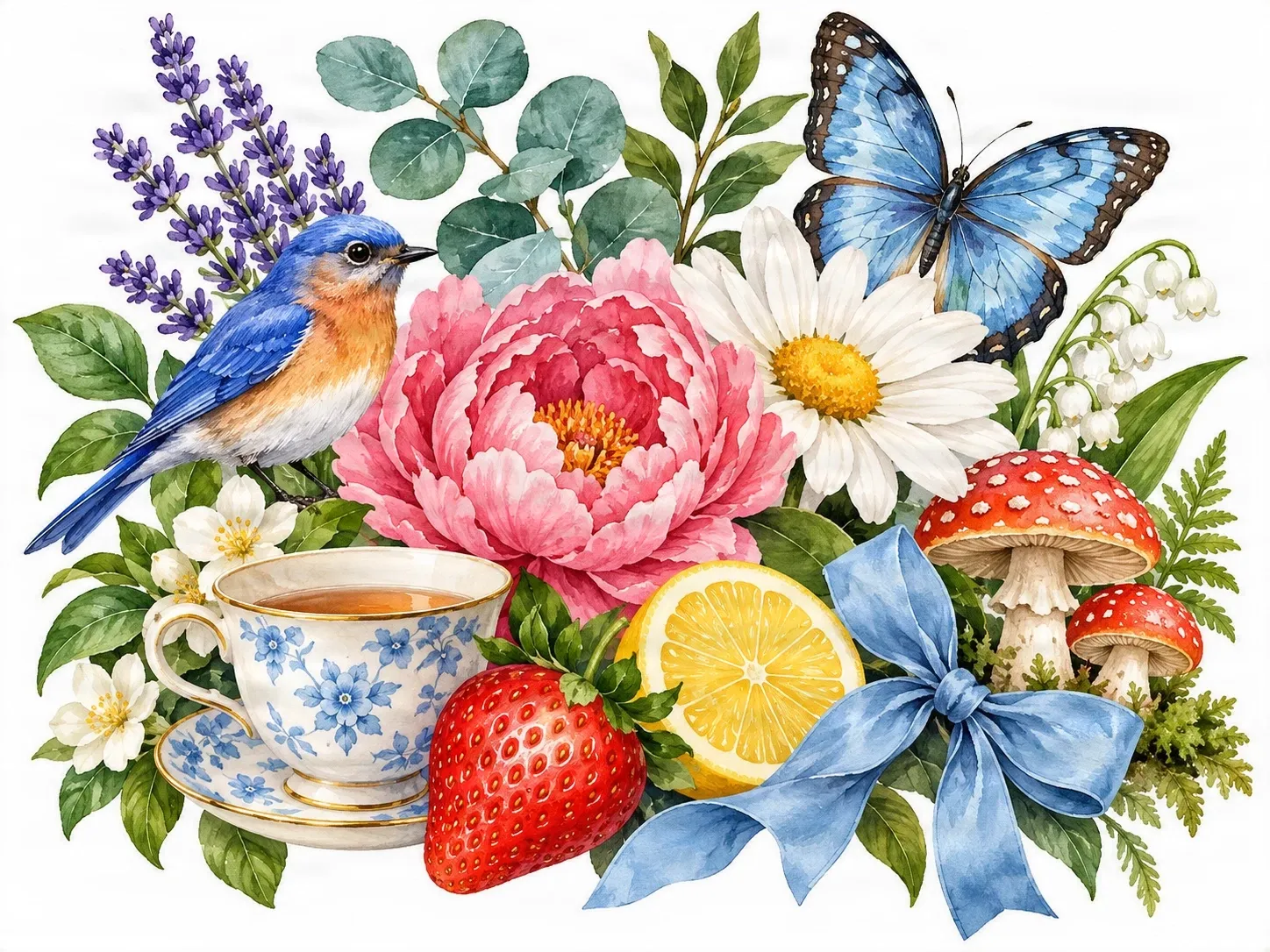
Original image: one finished watercolor composition
A single illustrated scene with overlapping flowers, wildlife, fruit and decorative objects.
Have a beautiful illustration with several elements, but need each one as a separate image? Upload your artwork and let AI identify individual clipart elements and turn them into reusable transparent layers.
Choose an image containing multiple illustrations, decorative objects or overlapping clipart elements. AI will attempt to separate the individual assets into transparent layers.
Upload your image
JPG, PNG, WebP up to 10MB · Drag & drop anywhere
Keep each illustration intact
This workflow is designed to extract complete clipart objects while preserving watercolor textures, natural outlines and soft painted edges where possible.
Upload an Image to Continue
Private File Handling
Uploaded files are associated with your account and delivered through signed URLs. You can delete completed jobs manually.
Transparent PNG Output
Detailed Layers returns each detected element as its own layer on a transparent background.
Upload your illustration and review the credit cost before generating.
For better results
Real example
A watercolor composition can look beautiful as a finished piece, but it becomes harder to reuse when every flower, animal and decoration is part of the same flattened image. Our example starts with a colorful composition featuring flowers, a bird, a butterfly, fruit, a teacup, mushrooms and a ribbon. Some objects overlap, while others have delicate outlines and soft brush textures.
A single illustrated scene with overlapping flowers, wildlife, fruit and decorative objects.
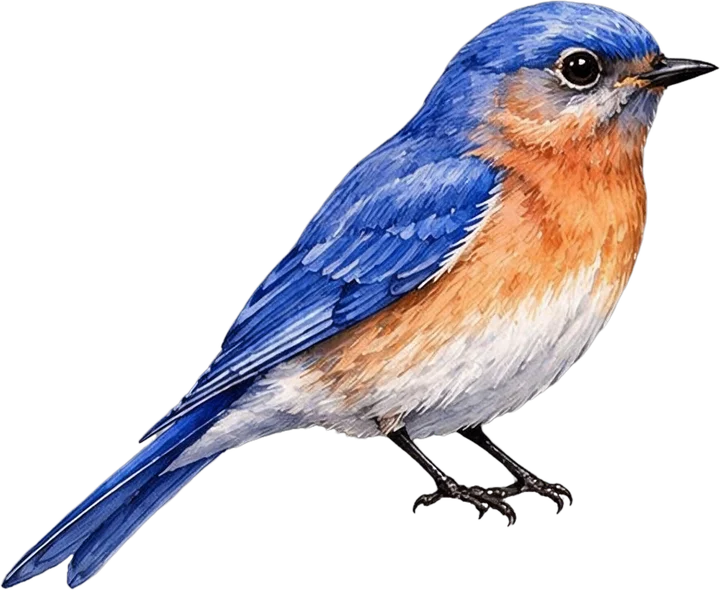
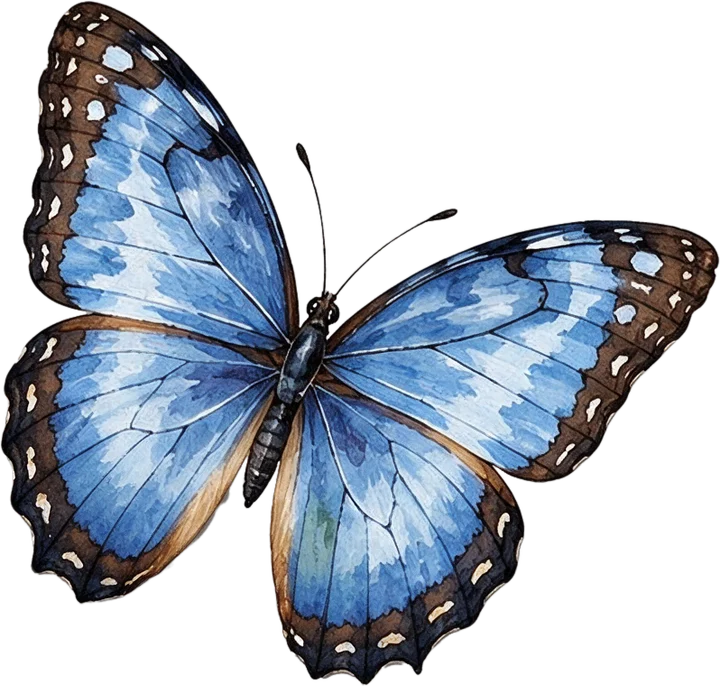
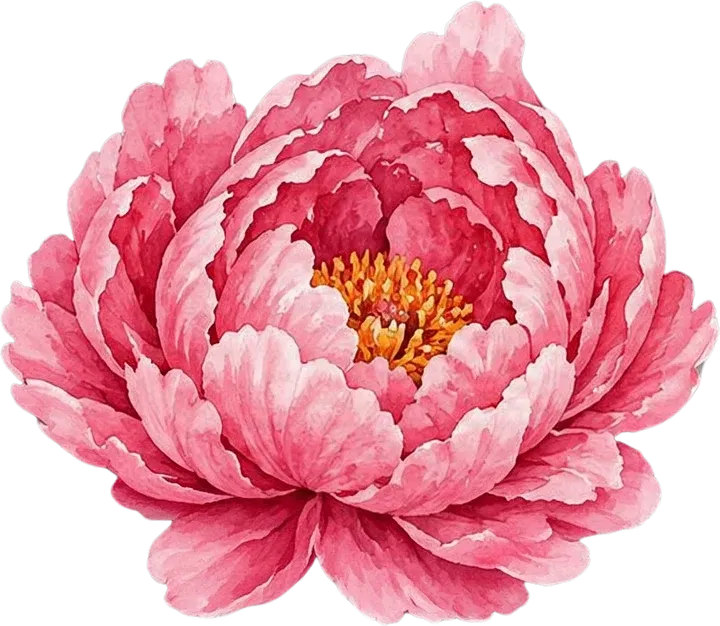
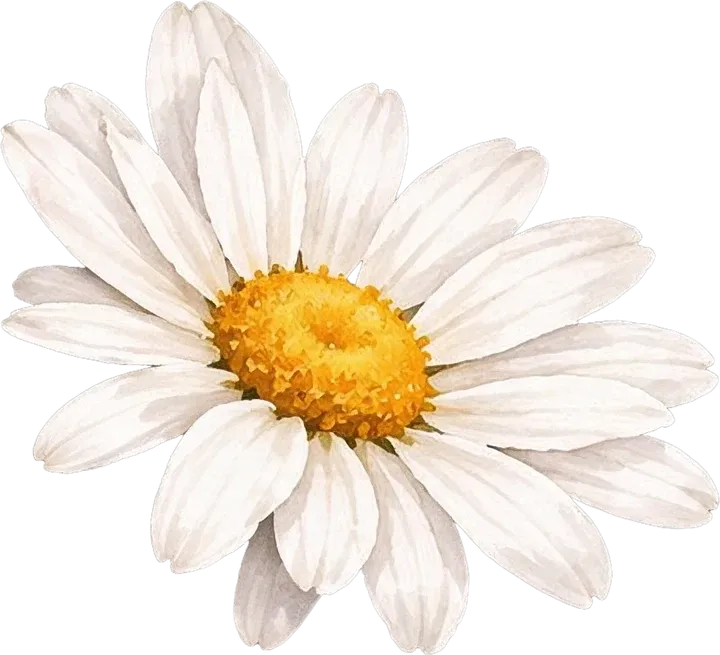
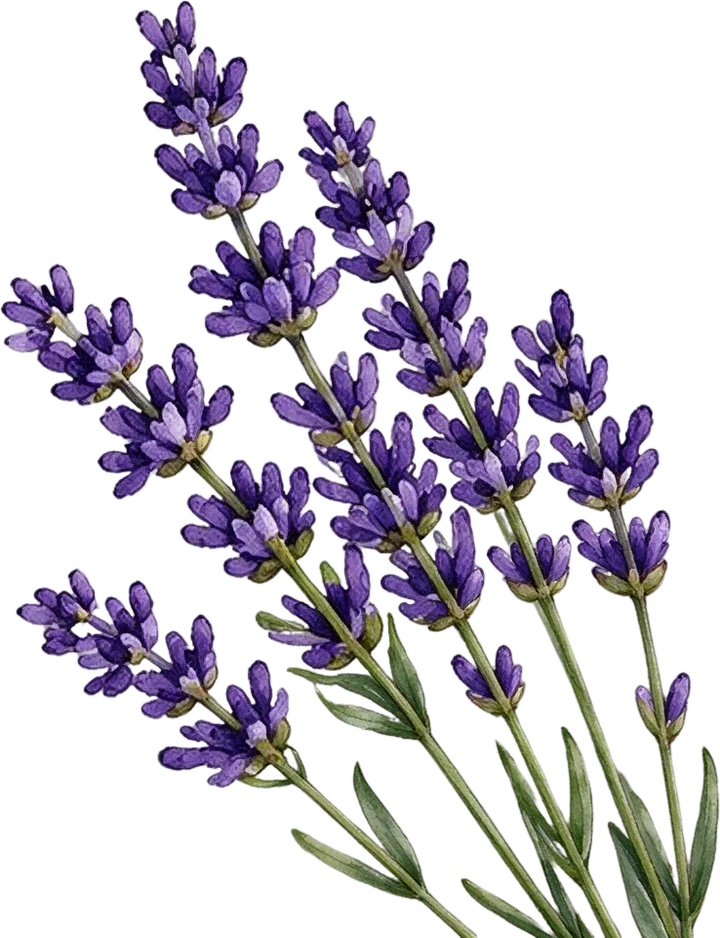
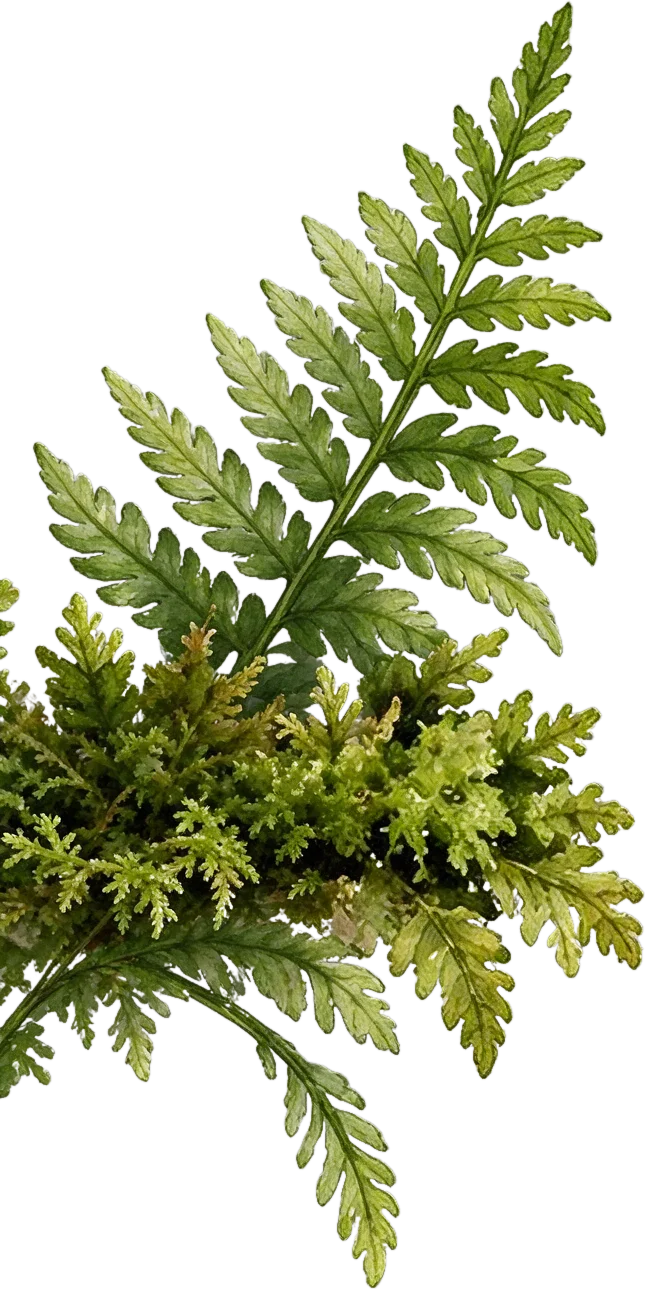
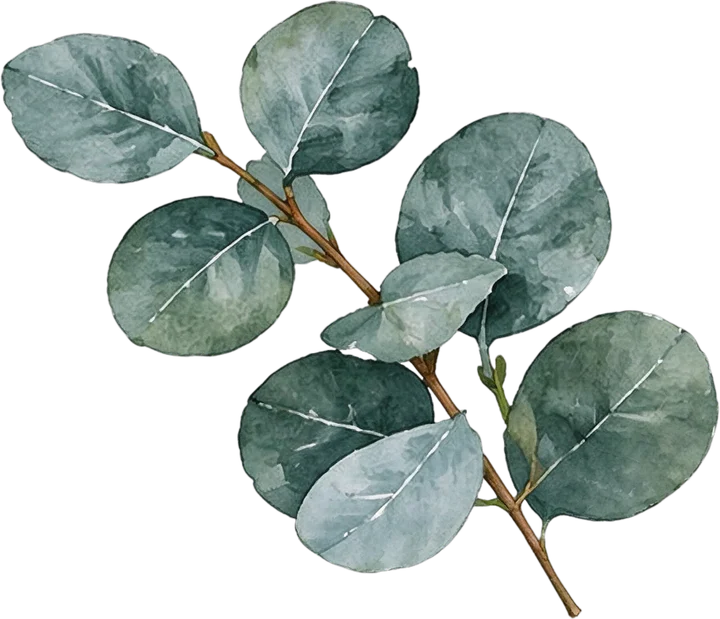
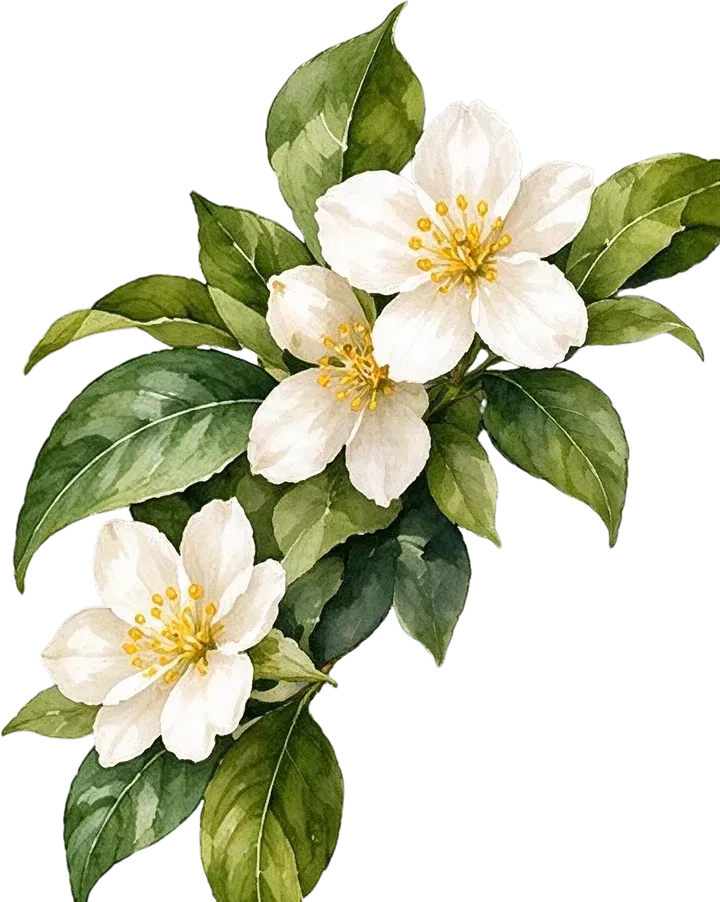
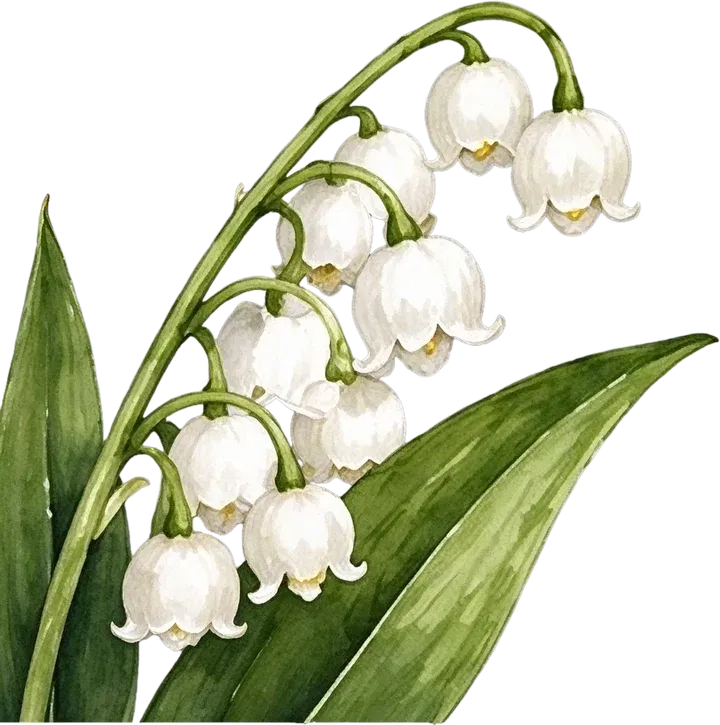
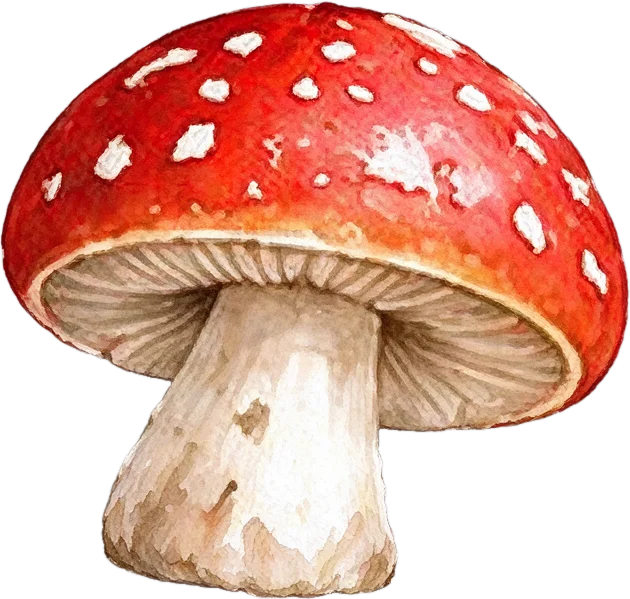
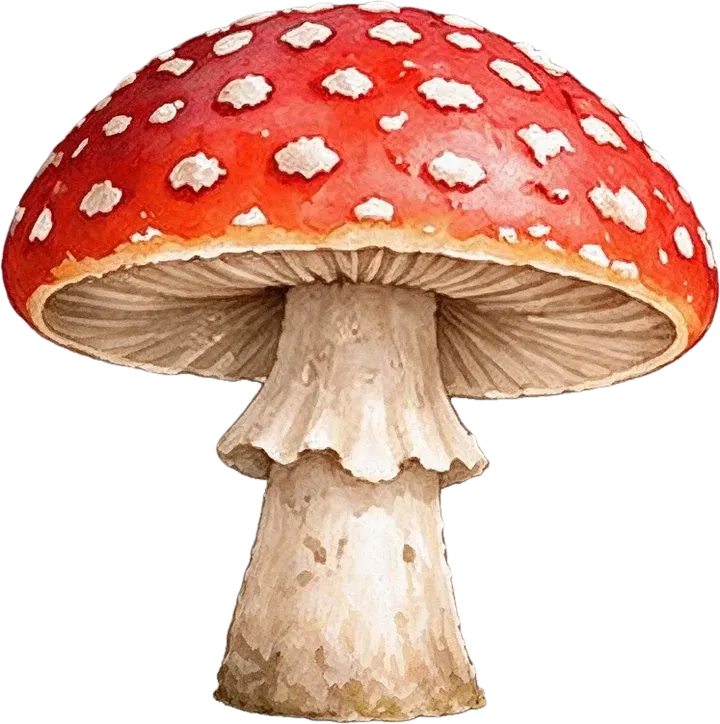
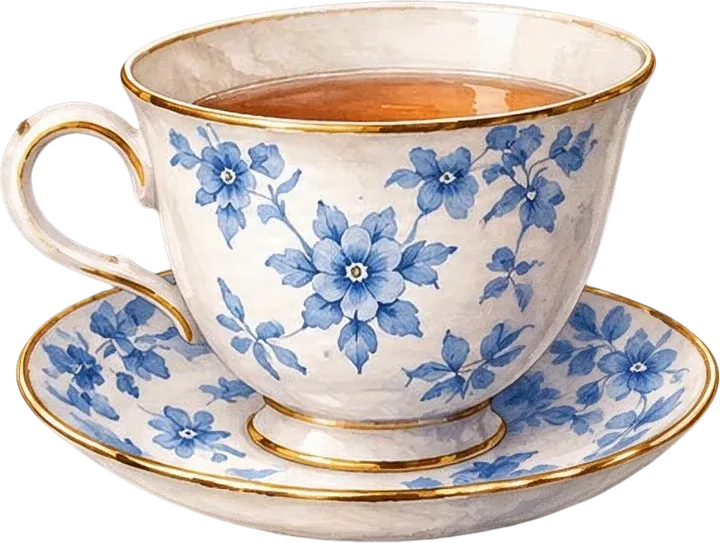
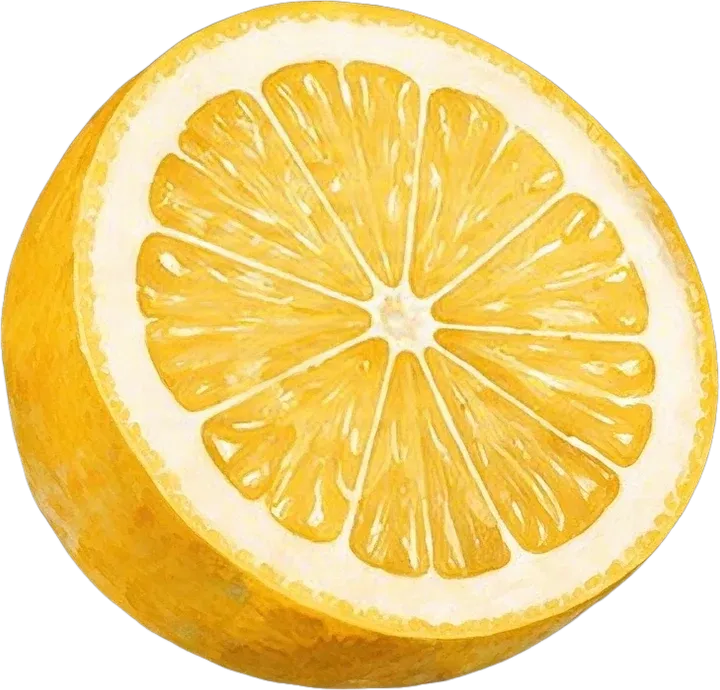
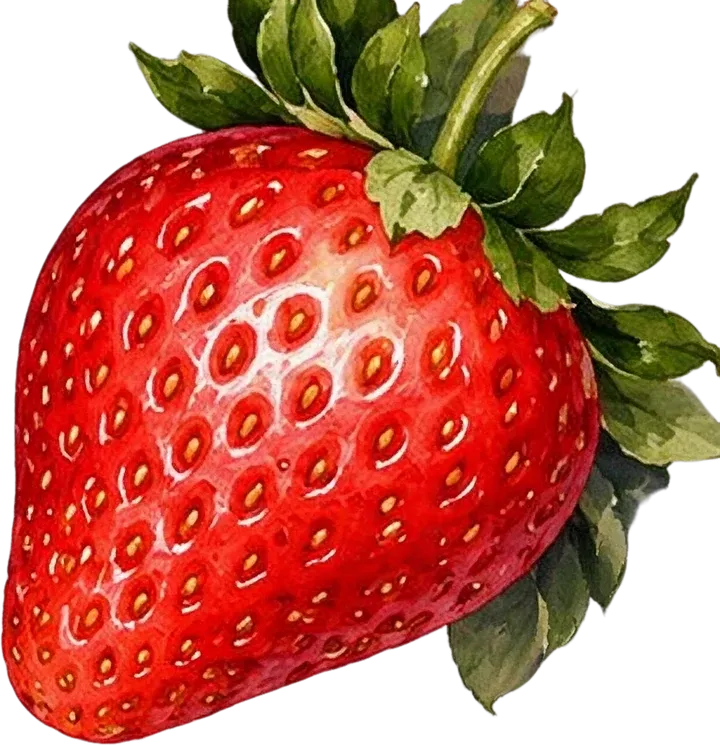

Explore the individual clipart elements identified in the image and see how their transparency, texture and edges are preserved. The grid shows 15 of the 17 generated layers: the blank background and a standalone saucer that repeats the saucer already inside the teacup layer are left out.
AI can separate recognizable clipart elements, including some overlapping illustrations. Very dense compositions may produce grouped objects, reconstructed details, or imperfect edges. Review individual layers before using them in commercial designs. In this run, the strawberry and the standalone saucer are cut off at their layer edges, one leafy twig was not extracted, and some flowers and leaves are grouped.
Start here
Upload your artwork and let AI identify individual clipart elements, separate overlapping objects and turn them into reusable transparent layers.
From watercolor flowers and animals to decorative motifs and digital illustration collections, spend less time cutting out objects and more time using your artwork in new designs.
Common problem
You found the right floral illustration for a wedding invitation, but you only need the pink flower. You generated a watercolor collection, but the butterfly overlaps the leaves. You designed a decorative composition, but now you want to use the teacup, ribbon and fruit in different layouts.
When everything is flattened into one image, even a small change can mean manually selecting edges, repairing hidden areas and cleaning unwanted pixels. Extract Clipart from Image helps separate recognizable illustrated objects into individual visual layers.
What this makes easier:
Keep the artwork you love while gaining more flexibility over how you use it.
How it works
1
Choose a JPG, PNG or other image format supported by the workspace. Your image can contain flowers, animals, illustrations, decorations or a combination of different elements. You do not need the original layered design file.
2
AI analyzes the artwork and attempts to separate distinct objects into independent layers. The workflow is guided to keep each illustration intact rather than unnecessarily breaking it into small pieces. For overlapping illustrations, it may estimate hidden portions to create more complete assets.
3
Explore the separated results, inspect transparent edges, and use the available editing and download options to continue working with your artwork. Check reconstructed details before using the assets in a final design.
Overlapping elements
Most clipart collections are not perfectly arranged in a grid. A butterfly may overlap a flower. Leaves may cross behind an animal. A ribbon may sit in front of several decorative elements. Simple image cropping cannot recover the parts hidden behind those objects.
AI-assisted separation can attempt to identify the objects individually and reconstruct areas that are no longer visible. Hidden artwork is estimated by AI, so it cannot guarantee that reconstructed parts match the artist's original unseen illustration.
Examples:
Start with a more editable version of a complex composition instead of rebuilding every object from scratch.
Watercolor edges
Watercolor clipart often includes details that make ordinary cutout tools struggle. Petals can have soft edges. Paint may fade gradually into the background. Brush textures may be semi-transparent, with subtle variations in color.
The separation workflow aims to retain the original visual character of each illustration while removing the surrounding background.
Details that matter:
Your extracted clipart should still feel like artwork, not a collection of harsh rectangular crops.
Complete objects
Sometimes an AI tool produces more layers than you actually need. A flower may be divided into individual petals. An animal might be separated into a head, body and legs. A decorative motif may become several unrelated fragments. That is not useful when you are trying to create individual clipart assets.
Extract Clipart from Image uses instructions that prioritize complete illustrated objects.
The intended result:
The goal is useful standalone clipart, not simply the highest possible number of layers.
Generated art
AI image generators can create entire illustration collections in seconds. The challenge comes afterward. You may receive one image containing flowers, fruit, animals, ornaments and botanical details, all flattened together. If you want to use these elements independently, you need to separate them.
Extract Clipart from Image provides an AI-assisted way to turn that finished illustration into a more editable set of assets.
Possible uses:
You do not always need to regenerate the entire image just because you want one part of it.
Digital products
If you create digital products, individual clipart assets can be more flexible than one finished composition. You may want the same flower on an invitation, a planner, a greeting card and a seasonal printable. Separating an illustration helps you work with the individual elements without repeatedly editing the original composition.
Common creative projects:
Create more layouts from your existing illustrations without manually extracting every object each time.
Etsy sellers
When selling digital illustration assets, customers may need individual elements rather than a single finished image. For example, a floral collection might include separate illustrations of roses, daisies, greenery, butterflies and decorative accents. If those elements only exist in one flattened composition, preparing the collection can involve extensive manual editing.
AI-assisted clipart extraction can help prepare individual assets for review, cleanup and packaging.
Useful for:
Verify the quality of each asset before selling. You must also have the necessary rights to distribute the artwork commercially.
Reuse elements
Imagine you have a spring watercolor composition featuring flowers, a bird, a butterfly, fruit and a decorative ribbon. You could use the complete design for a greeting card. But you might also want separate elements for other projects.
For example:
By separating the visual elements, you can start new layouts with more flexibility. Spend less time repeating cutout work and more time arranging your designs.
Art styles
Flowers, botanical elements, animals, food illustrations and decorative collections.
Doodles, decorative shapes, illustrated icons and sketch-style artwork.
Softly shaded illustrations, fantasy decorations and painterly design assets.
Leaves, branches, flowers, bouquets and nature-inspired compositions.
Ribbons, ornaments, seasonal objects and thematic illustration sets.
Compositions containing multiple unrelated objects that need to be reused separately.
The workflow is designed for varied illustrations, but results depend on object boundaries, overlaps, style and image complexity.
Test results
AI can separate recognizable clipart elements, including some overlapping illustrations. Very dense compositions may produce grouped objects, reconstructed details, or imperfect edges. Review individual layers before using them in commercial designs.
In our example run, the model returned 16 foreground layers, its practical limit, plus a blank background layer. Birds, butterflies and large flowers came out as complete objects, and no flower was split into petals.
What we noticed in that run:
Treat the result as a fast first pass, not a finished asset pack.
What to expect
AI can make layer separation easier, but the results will not always match the original artwork perfectly. Complex watercolor elements may have semi-transparent edges, small gaps or delicate brush marks. Overlapping objects create another challenge: parts hidden in the original image must be estimated.
Possible issues:
Always inspect individual layers before using them in professional or commercial design work.
Better results
Clear outlines and visible texture details provide a better starting point.
Objects that are almost completely hidden may be difficult to extract as complete illustrations.
Very crowded artwork may result in some objects being grouped together.
Very light paint on a white background can be difficult to distinguish from the background itself.
Do not rely only on a reconstructed preview. Inspect individual clipart layers for missing details or unwanted fragments.
Use artwork you own or have permission to modify and distribute, especially if you intend to sell extracted assets.
Better source images and careful review can help you get more useful clipart layers.
Manual cutting
Manually extracting clipart can involve selecting each object, refining edges, preserving transparency and repairing areas hidden by other illustrations. This is especially time-consuming when a composition includes many overlapping elements.
AI-assisted separation can give you a useful first pass by identifying multiple objects in one operation.
| Manual extraction | AI clipart extraction |
|---|---|
| Offers detailed pixel-level control | Attempts multiple-object separation automatically |
| Can require repeated selections and cleanup | Can help with overlapping illustrated elements |
| Is often necessary for precise final corrections | Produces layers for further editing |
| Takes longer on dense compositions | May still need manual cleanup for high-quality deliverables |
Use AI to accelerate the initial separation, then apply manual corrections where accuracy matters most.
Pick the tool
Best for sticker sheets containing distinct sticker designs, often with visible cut borders.
Extract individual stickers while keeping their outlines and borders where possible.
Open Sticker Sheet to LayersBest for illustrations, watercolor paintings, botanical artwork, decorative objects and overlapping designs.
Separate complete illustrated elements while preserving textures, natural edges and soft transparency.
You are here
Choose clipart extraction for illustrations and decorative artwork. Choose sticker sheet separation when you are preparing individual sticker designs.
Upload an image containing multiple illustrations and start the clipart extraction process. Image to Layers will attempt to identify distinct objects and separate them into individual image layers that you can review and reuse.
Yes, the workflow can attempt to separate partially overlapping illustrations. Areas hidden behind other objects may require AI reconstruction, so the result may differ from the original unseen artwork.
The workflow aims to create separate image layers with transparency outside the extracted objects. Very small or heavily overlapping illustrations may sometimes be grouped or omitted. Review the result workspace for available export options.
You can try extracting recognizable flowers and foliage from a bouquet or floral arrangement. Individual blossoms may be separated when their boundaries are identifiable, but heavily intertwined petals and stems can make extraction more difficult.
The extraction process aims to retain delicate painted boundaries and partial transparency. However, AI processing may modify subtle brush textures, pale edges and fine details, so important assets should be checked before use.
The clipart extraction instructions prioritize complete illustrated objects rather than separate body parts. However, results can vary, especially when parts of an object are obscured or overlap other illustrations.
Yes. Background removal generally isolates a combined foreground. Clipart extraction attempts to separate individual objects within the illustration, so you can work with each element more independently.
Yes. You can upload AI-generated artwork containing multiple illustrations and attempt to extract individual assets. Be sure you have the necessary rights to use and distribute the generated content.
You can use supported downloaded image assets in design applications such as Canva. Transparent images can be placed and arranged in new compositions, although the available file formats depend on your result exports.
Yes. Supported transparent image exports can be imported into Photoshop and arranged on separate layers. You can download the layers as a ZIP, and a PSD download is available on paid plans.
You may use extracted assets in digital products if you have the necessary commercial rights and the results meet your quality requirements. Review Etsy's current policies and your original artwork licenses before selling or redistributing the assets.
You can upload supported JPG images. However, very pale illustration edges may blend into the white background, making accurate transparency more difficult. Check the extracted boundaries carefully.
You can try. More complex backgrounds may make it harder for AI to distinguish the intended illustrations from surrounding decorations or texture. The results may require additional cleanup.
Yes. The workflow uses AI to identify recognizable illustrated objects automatically, rather than requiring you to select each object by hand.
AI attempts to recognize their individual shapes and separate them. If object boundaries are ambiguous or the illustrations are tightly merged, some elements may remain grouped or be reconstructed imperfectly.
The model has practical output-layer limits. A highly detailed composition containing many separate objects may produce grouped or omitted elements. The number of usable assets depends on image complexity and model output.
Not always. AI layer generation may slightly change textures, edges, shapes, colors or reconstructed areas. Compare important details against the source image before publishing or selling the results.
You can use the extraction workflow as a starting point for preparing individual clipart assets. For a polished collection, you should inspect, organize and clean up the individual results before packaging them for customers.
This page focuses on extracting artwork into separate image layers, not automatically converting it into vector paths. If you need SVG files, use a separate image-to-vector workflow and review the vectorized output.
This is a credit-based AI processing feature. The workspace displays the current credit cost before generation. Review your available credits and pricing before starting.
Your favorite clipart does not have to stay locked inside one finished image. Upload your illustration, extract recognizable objects into separate layers, and reuse the elements in your next design. From watercolor collections to decorative artwork, make more of the illustrations you already have.
Extract my clipartUpload your artwork and review the credit cost before generation.
Creative Toolkit Index
Quick access to precision layer extraction, AI photo editing & asset tools.